Hold CITROEN C5 2023 Workshop Manual
[x] Cancel search | Manufacturer: CITROEN, Model Year: 2023, Model line: C5, Model: CITROEN C5 2023Pages: 228, PDF Size: 6.78 MB
Page 191 of 228
189
MYCITROËN DRIVE PLUS - MYCITROËN PLAY PLUS
10Organising the Widgets on a home
page (HOME)
To move a Widget, press and hold it, then drag it
to the desired location.
Adding a page
To add a page, press "Page" on the left of the screen.
Press the back arrow to return to the
previous page.
Deleting a Widget
To move a Widget to the bin, press and hold it, then drag it to the bin.
Personalising the
instrument panel
Press the pencil in the "Customise
Driver Information" section.
The modification of the organisation of the
different Widget is displayed on the instrument
panel in real time.
A Widget is a reduced window of an
application or a service.
Adding a Widget
To add a Widget, press "Add Widget" on the left of the screen.
Or
Press one of these buttons on the screen.
Select the desired Widget.Press the back arrow to return to the
previous page.
Deleting a Widget
To move a Widget to the bin, press and hold it, then drag it to the bin.
Personalising My shortcuts
(depending on equipment)
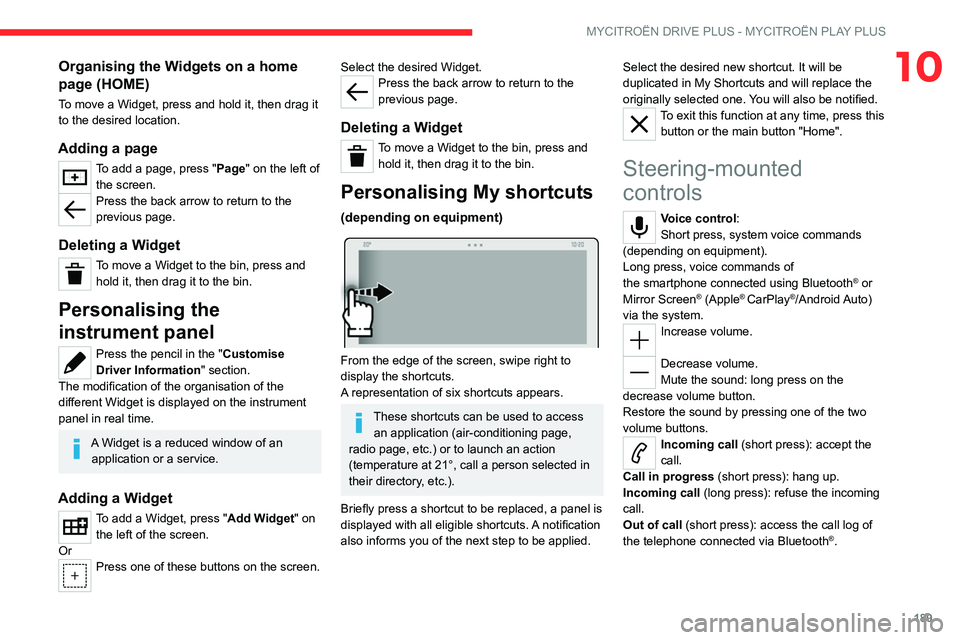
From the edge of the screen, swipe right to
display the shortcuts.
A representation of six shortcuts appears.
These shortcuts can be used to access an application (air-conditioning page,
radio page, etc.) or to launch an action
(temperature at 21°, call a person selected in
their directory, etc.).
Briefly press a shortcut to be replaced, a panel is
displayed with all eligible shortcuts. A notification
also informs you of the next step to be applied. Select the desired new shortcut. It will be
duplicated in My Shortcuts and will replace the
originally selected one. You will also be notified.
To exit this function at any time, press this
button or the main button "Home".
Steering-mounted
controls
Voice control:
Short press, system voice commands
(depending on equipment).
Long press, voice commands of
the
smartphone connected using Bluetooth
® or
Mirror Screen® (Apple® CarPlay®/Android Auto)
via the system.
Increase volume.
Decrease volume.
Mute the sound: long press on the
decrease volume button.
Restore the sound by pressing one of the two
volume buttons.
Incoming call (short press): accept the
call.
Call in progress (short press): hang up.
Incoming call (long press): refuse the incoming
call.
Out of call (short press): access the call log of
the telephone connected via
Bluetooth
®.
Page 195 of 228
193
MYCITROËN DRIVE PLUS - MYCITROËN PLAY PLUS
10Pairing procedure from a device
From the Bluetooth® menu on your
portable device, select the system’s name
from the list of detected devices.
In order to make your system’s
Bluetooth® visible, first open the "My
Devices " menu on the system.
Continue the first connection procedure
proposed by the system and on the device.
For example: validations of the pairing codes.
Pairing procedure from the system
Press the "Settings" application.
In the list, select the "Connectivity” tab.
Select "My Devices ".
Select the name of the portable device
you want to connect from:
–
The list of known devices (if the device has
already been connected to the system).
or
–
The list of detected devices (if the device
has never been connected to the system or
previously deleted from the system).
A portable device already connected to the system will be able to reconnect
automatically when the vehicle is started once
the user profile has been selected.
Automatic reconnection is put on hold as
soon as the "My Devices" menu is opened.
This is to allow the system to make its
Bluetooth® visible for the connection of a new
device.
The system is disconnected when the driver’s
door is opened and the ignition is switched
off.
Automatic reconnection
The system allows automatic reconnection of
devices already connected and detected when a
user profile is selected.
The priority
reconnected devices are those which
have been linked to the selected user profile or,
failing this, the last connected devices.
Wi-Fi connection
The system has an external Wi-Fi connection
mode for performing system updates.
Press the "Settings" application.
In the list, select the "Connectivity” tab.
Select "Wi-Fi".
Activate/Deactivate "Wi-Fi". The system starts a search for
nearby
Wi-Fi networks. This may take a few
seconds.
Select the Wi-Fi network to connect to and enter
its password.
To protect your system, only networks with a sufficient level of security are
allowed to connect. WPA2 encryption level,
equivalent to a domestic level, is required.
Any network already connected to the system will reconnect automatically as
soon as it is detected by the system and after
having previously activated the Wi-Fi function.
The Wi-Fi connection of the system to a device already connected using a Mirror
Screen
® wireless connection is not possible.
In this case, favour a Mirror
Screen
® connection using the USB socket.
Device management
For each device already connected to the
system using a wireless connection (Bluetooth®
or wireless Mirror Screen® connection), it is
possible to determine a preferred connection
mode (depending on the functions the device
can support). It is therefore possible to determine
whether the device should be connected using
a wireless Bluetooth
® connection or a wireless
Mirror Screen® connection each time the system
is started once the profile is chosen.
Press the "Settings" application.
In the list, select the "Connectivity".
Select "My Devices " to display the list of
paired devices.
Press this button to manage the
connection of a device.
Page 196 of 228
194
MYCITROËN DRIVE PLUS - MYCITROËN PLAY PLUS
Choose a connection type then confirm this
choice by pressing “APPLY".
Deleting a device
Press the "Settings" application.
In the list, select the "Connectivity" tab.
Select "My Devices " to display the list of
paired devices.
Press this button.
Press "DELETE".
Confirm by pressing “ YES”.
Some devices that have just been
deleted from the system request a
connection, refuse this request.
Mirror Screen®
Apple®CarPlay® smartphone
connection
Connecting only one Apple®CarPlay® smartphone
can be carried out either by USB cable or using
a wireless connection.
First activate the CarPlay® function on
your Apple® smartphone.
Refer to the Apple website in case of a
connection failure of the device to assess the
device’s compatibility with this function.
If the problem persists, delete all traces of
connections on the smartphone and on the
system before making a new connection.
Connect the smartphone to the system
using the USB socket compatible with
Mirror Screen.
Apple
®CarPlay® is automatically launched a few
seconds after the USB connection has been
established. In some cases, it may be necessary
to unlock your device.
The smartphone charges when connected by the
USB cable.
There is only one USB socket allowing the Mirror Screen® connection
(Apple®CarPlay®); refer to the "Ease of use
and comfort
- Fittings” section.
It is recommended that you use devices’
original USB cables, preferably with a minimal
cable length to ensure optimum performance.
The wireless connection of a Apple
®CarPlay®
device can be initiated from the “ My Devices”
menu.
First activate the smartphone’s Bluetooth
®
function.
Press the "Settings" application.
In the list, select the "Connectivity” tab.
Select “My Devices ” to display the device
to be connected to Apple®CarPlay®.
If the device has already been connected to the
system via
Bluetooth
®, select the device settings
from the list of known devices and choose
Apple®CarPlay® as the wireless connection
mode.
If the device has never been connected to the
system before, it will have to be paired; refer to
the “Bluetooth
® connection” section.
The system detects if the smartphone is
compatible with Apple
®CarPlay® and offers to
connect to it following the pairing process.
Subsequent automatic connection of the
smartphone requires activation of the Bluetooth
®
on your device.
As soon as the connection is established, press this button to display the
"Apple
®CarPlay®” interface.Press and hold the steering-mounted
control button, say "Siri" to initiate the
smartphone voice commands.
Android Auto smartphone connection
Connecting only one Android Auto smartphone
can be carried out either by USB cable or using
a wireless connection.
Install the “Android Auto” application on
the smartphone via "Play Store".
The “Android Auto” function requires a
compatible smartphone.
Refer to the Android Auto website in case of a
connection failure of the device to assess the
device’s compatibility with this function.
Page 197 of 228
195
MYCITROËN DRIVE PLUS - MYCITROËN PLAY PLUS
10If the problem persists, delete all traces of
connections on the smartphone and on the
system before making a new connection.
Connect the smartphone to the system
using the USB socket compatible with
Mirror Screen
®.
Android Auto is automatically launched a few
seconds after the USB connection has been
established. A validation procedure on the
smartphone has to be followed for the first
connection, with the vehicle stationary.
The smartphone charges when connected by the
USB cable.
There is only one USB socket allowing the Mirror Screen® connection (Android
Auto); refer to the "Ease of use and
comfort
- Fittings” section.
It is recommended that you use devices’
official USB cables, preferably with a minimal
cable length to ensure optimum performance.
The wireless connection of a Android Auto
device can be initiated from the “ My Devices”
menu.
First activate the smartphone’s Bluetooth
®
function.
Press the "Settings" application.
In the list, select the "Connectivity” tab.
Select “My Devices ” to display the device
to be connected to Android Auto. If the device has already been connected to the
system via
Bluetooth
®, select the device settings
from the list of known devices and choose
Android Auto as the wireless connection mode.
If the device has never been connected to the
system before, it will have to be paired; refer to
the “Bluetooth
® connection” section.
The system detects if the smartphone is
compatible with Android Auto and offers to
connect to it following the pairing process.
Subsequent automatic connection of the
smartphone requires activation of the Bluetooth
®
on your device.
As soon as the connection is established, press this button to display the " Android
Auto” interface.
Press and hold the steering-mounted
control button, say "OK Google" to initiate
the smartphone voice commands.
Media
Changing source
Press the "Media" application.
Press this button to change source (radio,
audio streaming via a USB socket,
Bluetooth
® or Mirror Screen®).
Selecting a radio station
Press the "Media" application.
In the list, select the "Player" tab.Press one of the buttons to
perform an automatic search for
radio stations.
Or
Move the slider to manually search for
frequencies up or down.
Or
Press this button.
Enter the frequency values using the
virtual keypad.
Press this button to confirm.
A list of stations is available by pressing the
“Stations” tab.
Press “Mute” to activate/deactivate the
sound.
Radio reception may be affected by the
use of electrical equipment not approved
by the Brand, such as a charger with USB
socket connected to the 12
V socket.
The exterior environment (hills, buildings,
tunnels, basement car parks, etc.) may block
reception, including in RDS mode. This
phenomenon is normal in the propagation
of radio waves and does not indicate any
malfunction of the system.
Page 199 of 228
197
MYCITROËN DRIVE PLUS - MYCITROËN PLAY PLUS
10Long press: fast-forward/rewind in a track.Repeat the current title or the list of
selected titles.
Random track playback.
Sound deactivation/reactivation.
Configuring audio and radio
settings
Audio settings can be accessed in 2 different
ways.
Using the Media application
Press the "Media" application.
In the list, select the Settings tab.
Or
Using the Settings application
Press the "Settings" application.
In the list, select the "Audio and Radio "
tab.
It is possible to configure:
–
Sound Settings.
–
Radio Settings.
–
V
olume Settings.
Information and advice
The system supports USB Mass Storage devices
or Apple® devices via the USB sockets. The
adapter cable is not supplied.
Devices are managed using the audio system
controls.
The system will only play audio files with ".wma,
.aac, .flac, .ogg, .mp3" file extensions, at bit rates
between 32 Kbps and 320 Kbps.
It also supports VBR (Variable Bit Rate) mode.
No other file types (".mp4", etc.) can be read.
".wma" files must be of the WMA 9 standard.
The supported sampling rates are 32, 44 and
48 KHz.
To avoid reading and display problems, we
recommend choosing file names less than 20
characters long that do not contain any special
characters (e.g. “ ? .
; ù).
Use only USB memory sticks in FAT32 format
(File Allocation Table).
We recommend using the original USB
cable for the portable device.
Phone
Receiving a call
An incoming call is announced by a ring and a
display overlaid on the screen.
Accepting the call:
briefly press the telephone button on the
steering-mounted controls to accept an
incoming call.
Or
Press this touch screen button.
Ending the call:
press and hold...
...the telephone button on the steering-
mounted controls to refuse the call.
Or
Press this touch screen button.
Press this button on the touch screen to
send an automatic message indicating
that you are driving.
Making a call
Using the telephone is strongly
discouraged while driving.
Park the vehicle.
Making a call using the numeric
keypad
Press the "Phone" application.
In the list, select the "Keypad" tab then dial the
number.
Press this button to make the call.
Making a call using the list of recent
calls
Press the "Phone" application.
In the list, select the "Calls" tab.
Or