service Citroen C5 RHD 2012 (RD/TD) / 2.G Owner's Guide
[x] Cancel search | Manufacturer: CITROEN, Model Year: 2012, Model line: C5 RHD, Model: Citroen C5 RHD 2012 (RD/TD) / 2.GPages: 340, PDF Size: 39.41 MB
Page 177 of 340
X
!
175
CHECKS
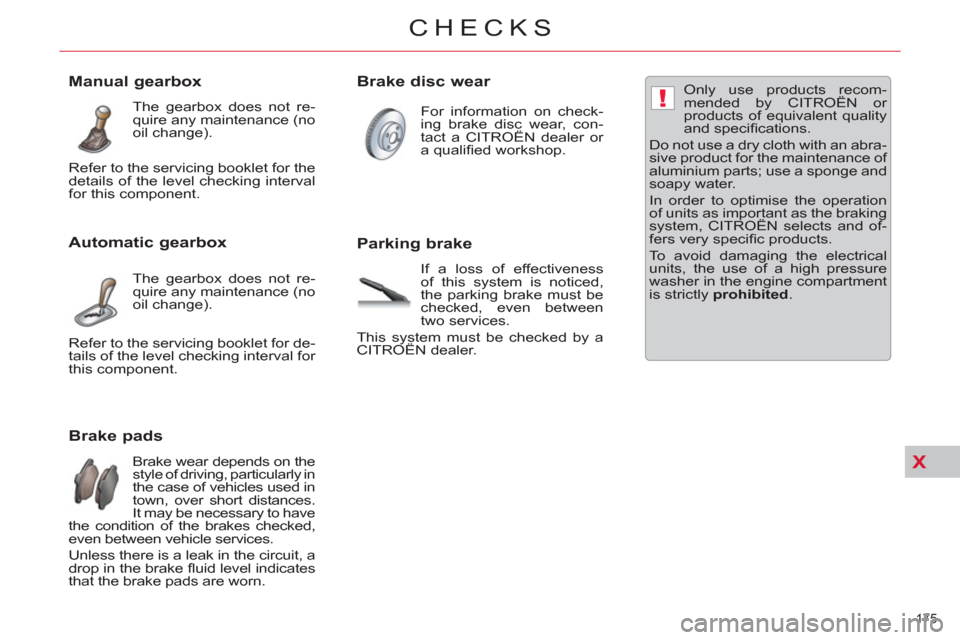
Brake pads
Brake wear depends on the
style of driving, particularly in
the case of vehicles used in
town, over short distances.
It may be necessary to have
the condition of the brakes checked,
even between vehicle services.
Unless there is a leak in the circuit, a
drop in the brake fl uid level indicates
that the brake pads are worn.
Manual gearbox
The gearbox does not re-
quire any maintenance (no
oil change).
Automatic gearbox
The gearbox does not re-
quire any maintenance (no
oil change).
Brake disc wear
For information on check-
ing brake disc wear, con-
tact a CITROËN dealer or
a qualifi ed workshop.
Parking brake
If a loss of effectiveness
of this system is noticed,
the parking brake must be
checked, even between
two services.
This system must be checked by a
CITROËN dealer.
Only use products recom-
mended by CITROËN or
products of equivalent quality
and specifi cations.
Do not use a dry cloth with an abra-
sive product for the maintenance of
aluminium parts; use a sponge and
soapy water.
In order to optimise the operation
of units as important as the braking
system, CITROËN selects and of-
fers very specifi c products.
To avoid damaging the electrical
units, the use of a high pressure
washer in the engine compartment
is strictly prohibited
. Refer to the servicing booklet for the
details of the level checking interval
for this component.
Refer to the servicing booklet for de-
tails of the level checking interval for
this component.
Page 228 of 340
226
EMERGENCY OR ASSISTANCE CALL
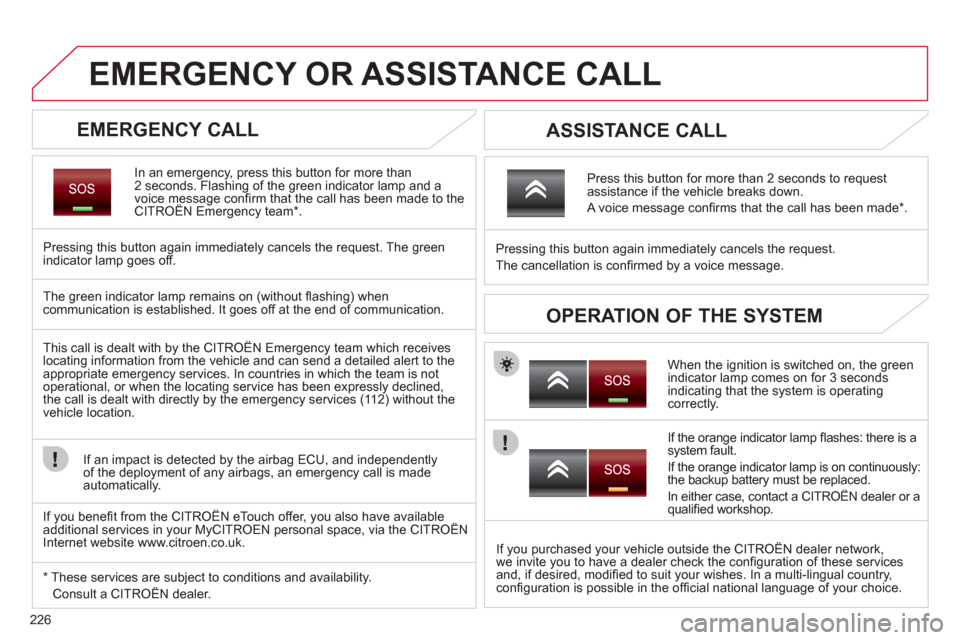
EMERGENCY CALL
In an emergency, press this button for more than
2 seconds. Flashing of the green indicator lamp and a
voice message confi rm that the call has been made to the
CITROËN Emergency team * .
Pressing this button again immediately cancels the request. The green
indicator lamp goes off.
ASSISTANCE CALL
When the ignition is switched on, the green
indicator lamp comes on for 3 seconds
indicating that the system is operating
correctly.
If the orange indicator lamp fl ashes: there is a
system fault.
If the orange indicator lamp is on continuously:
the backup battery must be replaced.
In either case, contact a CITROËN dealer or a
qualifi ed workshop.
Pressing this button again immediately cancels the request.
The cancellation is confi rmed by a voice message.
Press this button for more than 2 seconds to request
assistance if the vehicle breaks down.
A voice message confi rms that the call has been made * .
OPERATION OF THE SYSTEM
The green indicator lamp remains on (without fl ashing) when
communication is established. It goes off at the end of communication.
This call is dealt with by the CITROËN Emergency team which receives
locating information from the vehicle and can send a detailed alert to the
appropriate emergency services. In countries in which the team is not
operational, or when the locating service has been expressly declined,
the call is dealt with directly by the emergency services (112) without the
vehicle location.
If an impact is detected by the airbag ECU, and independently
of the deployment of any airbags, an emergency call is made
automatically.
* These services are subject to conditions and availability.
Consult a CITROËN dealer.
If you purchased your vehicle outside the CITROËN dealer network,
we invite you to have a dealer check the confi guration of these services
and, if desired, modifi ed to suit your wishes. In a multi-lingual country,
confi guration is possible in the offi cial national language of your choice.
If you benefi t from the CITROËN eTouch offer, you also have available
additional services in your MyCITROEN personal space, via the CITROËN
Internet website www.citroen.co.uk.
Page 229 of 340

227
2ABC3DEF5JKL4GHI6MNO8TUV7PQRS9WXYZ0*#
1RADIO MEDIANAV ESC TRAFFIC
SETUPADDR
BOOK
2ABC3DEF5JKL4GHI6MNO8TUV7PQRS9WXYZ0*#
1RADIO MEDIANAV ESC TRAFFIC
SETUPADDR
BOOK
EMERGENCY OR ASSISTANCE CALL USING
NAVIDRIVE 3D
EMERGENCY CALL
In an emergency, press the SOS button until an audible
signal is heard and a "Confi rmation/Cancellation"
screen is displayed (if valid SIM card inserted).
A call is made to the CITROËN Emergency team which
receives locating information from the vehicle and
can send a detailed alert to the relevant emergency
services.
In countries in which the team is not operational, or
when the locating service has been expressly declined,
the call is sent to the emergency services (112).
Warning - the emergency call and the services are only active
if the internal telephone is used with a valid SIM card. With a
Bluetooth telephone and without a SIM card, these services are not
operational.
Press this button for access to CITROËN services.
Customer call
If an impact is detected by the airbag control unit, and independently
of the deployment of any airbags, an emergency call is made
automatically.
The message "Deteriorated emergency call" associated with
fl ashing of the orange indicator lamp indicates a malfunction.
Consult a CITROËN dealer.
ASSISTANCE CALL
Select "Customer call" to request
any information about the CITROËN
marque.
Select "CITROËN Assistance" to make
a breakdown assistance call.
CITROËN Assistance
This service is subject to conditions and availability. Consult a
CITROËN dealer. If you have purchased your vehicle outside the
CITROËN dealer network, we invite you to have a dealer check the
confi guration of these services and, if desired, modifi ed to suit your
wishes.
Page 247 of 340
245
04
2ABC3DEF5JKL4GHI6MNO8TUV7PQRS9WXYZ0*#
1RADIO MEDIANAVESC TRAFFIC
SETUPADDR
BOOK
2ABC3DEF5JKL4GHI6MNO8TUV7PQRS9WXYZ0*#
1RADIO MEDIANAV ESC TRAFFIC
SETUPADDR
BOOK
NAV1
3
4
6
7
8
2ABC3DEF5JKL4GHI6MNO8TUV7PQRS9WXYZ0*#
1RADIO MEDIANAV ESC TRAFFIC
SETUPADDR
BOOK
2ABC3DEF5JKL4GHI6MNO8TUV7PQRS9WXYZ0*#
1RADIO MEDIANAV ESC TRAFFIC
SETUPADDR
BOOK
2ABC3DEF5JKL4GHI6MNO8TUV7PQRS9WXYZ0*#
1RADIO MEDIANAV ESC TRAFFIC
SETUPADDR
BOOK
2ABC3DEF5JKL4GHI6MNO8TUV7PQRS9WXYZ0*#
1RADIO MEDIANAV ESC TRAFFIC
SETUPADDR
BOOK
22ABC3DEF5JKL4GHI6MNO8TUV7PQRS9WXYZ0*#
1RADIO MEDIANAV ESC TRAFFIC
SETUPADDR
BOOK
5
2ABC3DEF5JKL4GHI6MNO8TUV7PQRS9WXYZ0*#
1RADIO MEDIANAV ESC TRAFFIC
SETUPADDR
BOOK
NAVIGATION - GUIDANCE
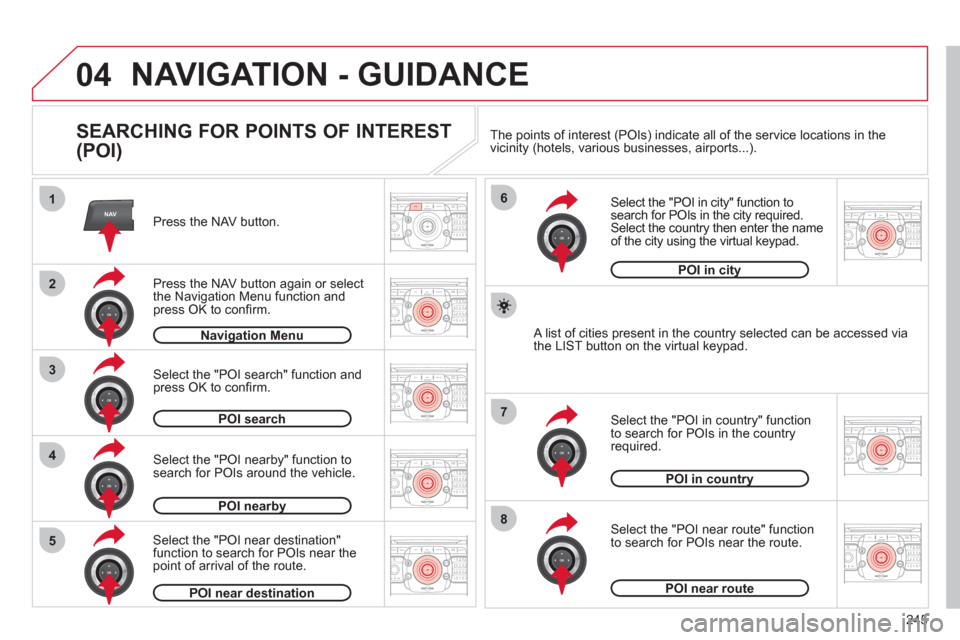
SEARCHING FOR POINTS OF INTEREST
(POI)
Press the NAV button.
Press the NAV button again or select
the Navigation Menu function and
press OK to confi rm.
Select the "POI nearby" function to
search for POIs around the vehicle.
Select the "POI search" function and
press OK to confi rm.
Navigation Menu
POI search
POI nearby
Select the "POI in city" function to
search for POIs in the city required.
Select the country then enter the name
of the city using the virtual keypad.
Select the "POI near route" function
to search for POIs near the route.
Select the "POI in country" function
to search for POIs in the country
required.
Select the "POI near destination"
function to search for POIs near the
point of arrival of the route.
POI near destination
POI in country
POI near route
A list of cities present in the country selected can be accessed via
the LIST button on the virtual keypad.
POI in city
The points of interest (POIs) indicate all of the service locations in the
vicinity (hotels, various businesses, airports...).
Page 248 of 340
246
04
1
2
3
1
2
3
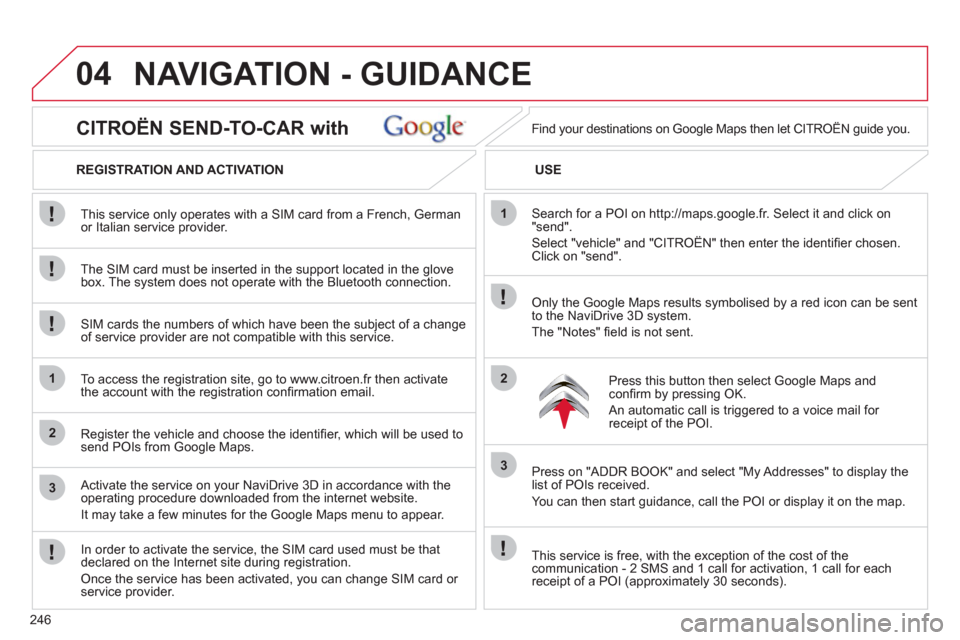
CITROËN SEND-TO-CAR with
REGISTRATION AND ACTIVATION
USE
The SIM card must be inserted in the support located in the glove
box. The system does not operate with the Bluetooth connection. This service only operates with a SIM card from a French, German
or Italian service provider.
SIM cards the numbers of which have been the subject of a change
of service provider are not compatible with this service.
To access the registration site, go to www.citroen.fr then activate
the account with the registration confi rmation email.
Register the vehicle and choose the identifi er, which will be used to
send POIs from Google Maps.
Activate the service on your NaviDrive 3D in accordance with the
operating procedure downloaded from the internet website.
It may take a few minutes for the Google Maps menu to appear.
In order to activate the service, the SIM card used must be that
declared on the Internet site during registration.
Once the service has been activated, you can change SIM card or
service provider.
Search for a POI on http://maps.google.fr. Select it and click on
"send".
Select "vehicle" and "CITROËN" then enter the identifi er chosen.
Click on "send". Find your destinations on Google Maps then let CITROËN guide you.
Only the Google Maps results symbolised by a red icon can be sent
to the NaviDrive 3D system.
The "Notes" fi eld is not sent.
Press this button then select Google Maps and
confi rm by pressing OK.
An automatic call is triggered to a voice mail for
receipt of the POI.
Press on "ADDR BOOK" and select "My Addresses" to display the
list of POIs received.
You can then start guidance, call the POI or display it on the map.
This service is free, with the exception of the cost of the
communication - 2 SMS and 1 call for activation, 1 call for each
receipt of a POI (approximately 30 seconds).
NAVIGATION - GUIDANCE
Page 249 of 340
247
04 NAVIGATION - GUIDANCE
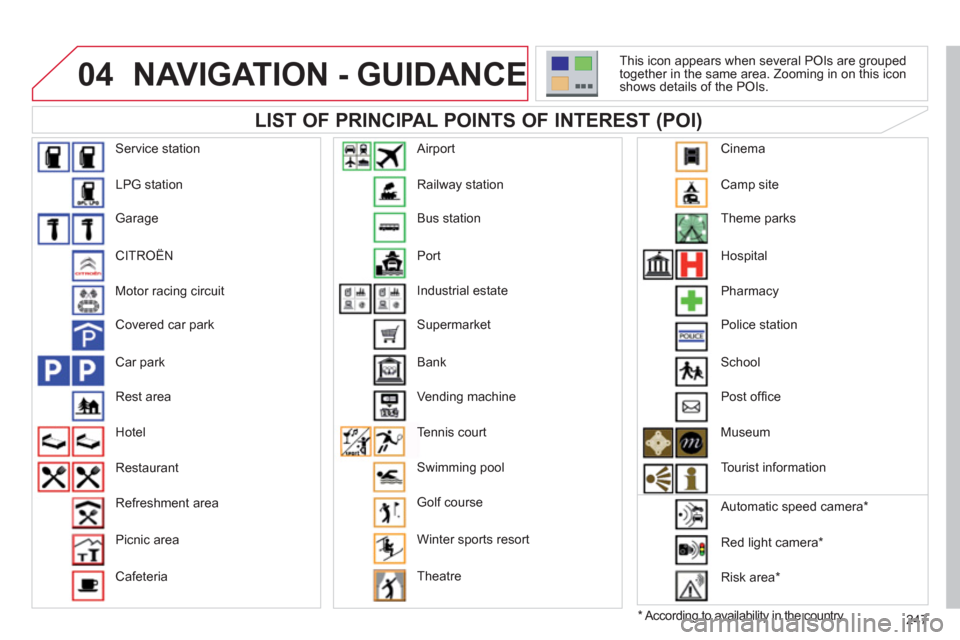
LIST OF PRINCIPAL POINTS OF INTEREST (POI)
*
According to availability in the country.
This icon appears when several POIs are grouped
together in the same area. Zooming in on this icon
shows details of the POIs.
Service station
LPG station
Garage
CITROËN
Motor racing circuit
Covered car park
Car park
Rest area
Hotel
Restaurant
Refreshment area
Picnic area
Cafeteria Railway station
Bus station
Port
Industrial estate
Supermarket
Bank
Vending machine
Tennis court
Swimming pool
Golf course
Winter sports resort
Theatre
Airport
Camp site
Theme parks
Hospital
Pharmacy
Police station
School
Post offi ce
Museum
Tourist information
Automatic speed camera *
Red light camera *
Risk area *
Cinema
Page 260 of 340

258
08
1
4
5
2ABC3DEF5JKL4GHI6MNO8TUV7PQRS9WXYZ0*#
1RADIO MEDIANAV ESC TRAFFIC
SETUPADDR
BOOK
2ABC3DEF5JKL4GHI6MNO8TUV7PQRS9WXYZ0*#
1RADIO MEDIANAV ESC TRAFFIC
SETUPADDR
BOOK
32ABC3DEF5JKL4GHI6MNO8TUV7PQRS9WXYZ0*#
1RADIO MEDIANAV ESC TRAFFIC
SETUPADDR
BOOK
22ABC3DEF5JKL4GHI6MNO8TUV7PQRS9WXYZ0*#
1RADIO MEDIANAV ESC TRAFFIC
SETUPADDR
BOOK
2ABC3DEF5JKL4GHI6MNO8TUV7PQRS9WXYZ0*#
1RADIO MEDIANAV ESC TRAFFIC
SETUPADDR
BOOK
2ABC3DEF5JKL4GHI6MNO8TUV7PQRS9WXYZ0*#
1RADIO MEDIANAV ESC TRAFFIC
SETUPADDR
BOOK
*
The services available via the telephone depend on the network, the
SIM card and the compatibility of the Bluetooth equipment used. Refer to
your telephone's manual and your operator to check which services you
have access to. A list of mobile telephones which offer the best range of
services is available from dealers.
USING THE TELEPHONE
CONNECTING A BLUETOOTH
TELEPHONE
For safety reasons and because they require prolonged attention
on the part of the driver, the operations for pairing the Bluetooth
mobile telephone to the hands-free system of the NaviDrive 3D
must be carried out with the vehicle stationary and the ignition on.
Activate the telephone's Bluetooth function.
The last telephone connected is reconnected
automatically.
If no telephone is connected, the
system prompts you to "Connect
phone". Select "Yes" and press OK to
confi rm.
Enter the authentication code on the
telephone. The code to be entered is
displayed on the screen.
To change the telephone connected,
press the TEL button, then select
Phone menu, then "Select phone"
then "Connect Bluetooth phone"
then select the telephone required or
"Search phone".
Press OK at each step to confi rm.
Once the telephone has been connected, the NaviDrive 3D can
synchronise the address book and the call list. This synchronisation
may take a few minutes * .
The list of telephones connected previously (4 maximum) appears
in the multifunction screen. Select the telephone required then
select "Connect phone" for a new connection. Select "Delete
pairing" to cancel the connection to the telephone.
Press the TEL button.
For a fi rst connection, select
"Search phone" and press OK to
confi rm. Then select the name of the
telephone.
Search phone
Page 261 of 340
259
08
14
5
2ABC3DEF5JKL4GHI6MNO8TUV7PQRS9WXYZ0*#
1NAV ESC TRAFFICADDR
BOOK2ABC3DEF5JKL4GHI6MNO8TUV7PQRS9WXYZ0*#
1SETUP2ABC3DEF5JKL4GHI6MNO8TUV7PQRS9WXYZ0*#
1
3
2ABC3DEF5JKL4GHI6MNO8TUV7PQRS9WXYZ0*#
1RADIO MEDIANAV ESC TRAFFIC
SETUPADDR
BOOK
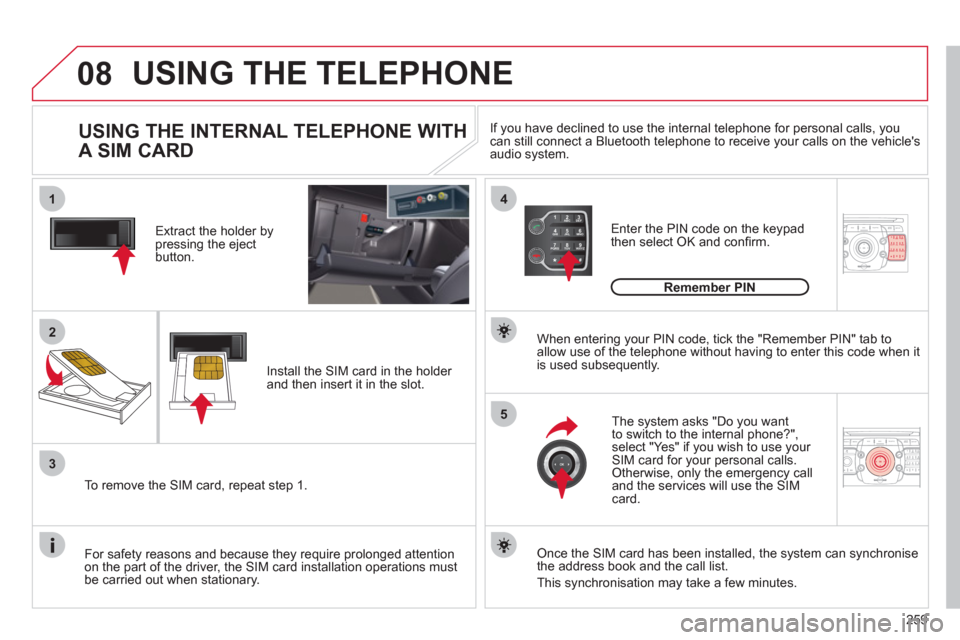
2
Extract the holder by
pressing the eject
button.
Install the SIM card in the holder
and then insert it in the slot.
To remove the SIM card, repeat step 1.
For safety reasons and because they require prolonged attention
on the part of the driver, the SIM card installation operations must
be carried out when stationary.
Enter the PIN code on the keypad
then select OK and confi rm.
The system asks "Do you want
to switch to the internal phone?",
select "Yes" if you wish to use your
SIM card for your personal calls.
Otherwise, only the emergency call
and the services will use the SIM
card.
Remember PIN
When entering your PIN code, tick the "Remember PIN" tab to
allow use of the telephone without having to enter this code when it
is used subsequently.
USING THE INTERNAL TELEPHONE WITH
A SIM CARD
USING THE TELEPHONE
Once the SIM card has been installed, the system can synchronise
the address book and the call list.
This synchronisation may take a few minutes.
If you have declined to use the internal telephone for personal calls, you
can still connect a Bluetooth telephone to receive your calls on the vehicle's
audio system.
Page 266 of 340
264
ADDR
BOOK
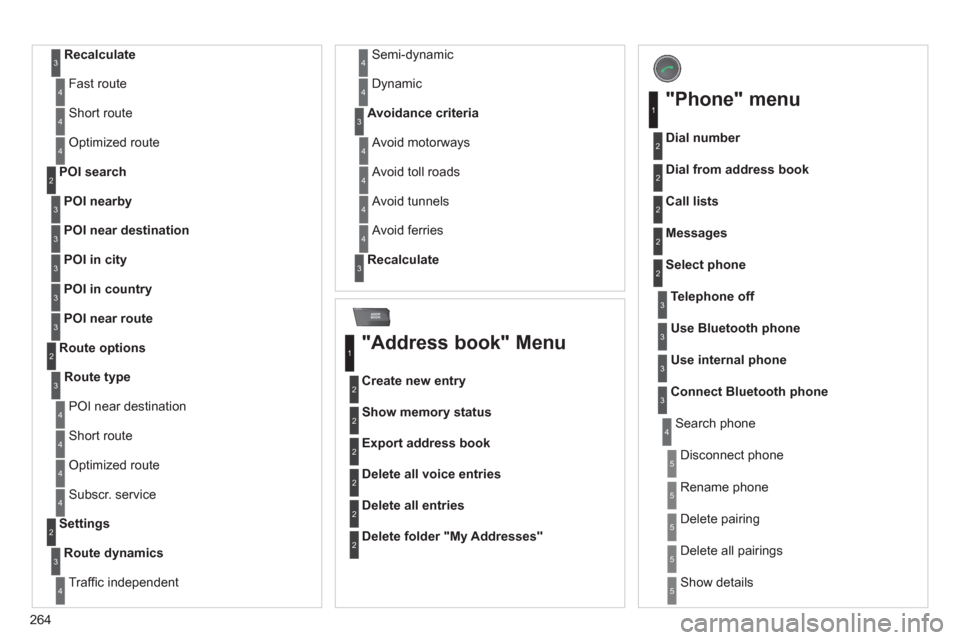
Recalculate
3
Fast route 4
Short route 4
Optimized route 4
POI nearby
POI search
2
3
POI near destination
3
POI in city
3
POI in country
3
POI near route
3
Route type
Route options
2
3
POI near destination 4
Short route 4
Optimized route 4
Subscr. service 4
Route dynamics
Settings
2
3
Traffi c independent 4
Semi-dynamic 4
Dynamic 4
Avoidance criteria
3
Avoid motorways 4
Avoid toll roads 4
Avoid tunnels 4
Avoid ferries 4
Recalculate
3
"Address book" Menu
Create new entry
1
2
Show memory status 2
Export address book 2
Delete all voice entries 2
Delete all entries 2
Delete folder "My Addresses"
2
"Phone" menu
Dial number
1
2
Dial from address book 2
Call lists 2
Messages 2
Select phone 2
Search phone 4
Telephone off
3
Use Bluetooth phone
3
Use internal phone
3
Connect Bluetooth phone
3
Disconnect phone 5
Rename phone 5
Delete pairing 5
Delete all pairings 5
Show details 5
Page 286 of 340
04
8
6
7
4
3
5
2
1
284
NAVIGATION - GUIDANCE
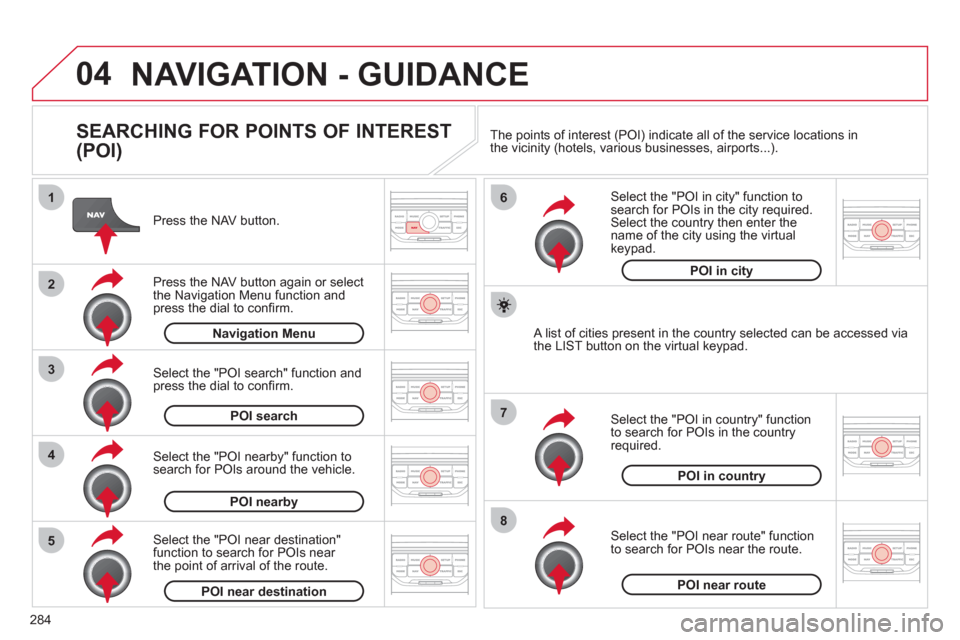
SEARCHING FOR POINTS OF INTEREST
(POI)
Press the NAV button.
Press the NAV button again or select
the Navigation Menu function and
press the dial to confi rm.
Select the "POI nearby" function to
search for POIs around the vehicle.
Select the "POI search" function and
press the dial to confi rm.
Navigation Menu
POI search
POI nearby
Select the "POI in city" function to
search for POIs in the city required.
Select the country then enter the
name of the city using the virtual
keypad.
Select the "POI near route" function
to search for POIs near the route.
Select the "POI in country" function
to search for POIs in the country
required.
Select the "POI near destination"
function to search for POIs near
the point of arrival of the route.
POI near destination
POI near route
POI in country
POI in city
A list of cities present in the country selected can be accessed via
the LIST button on the virtual keypad. The points of interest (POI) indicate all of the service locations in
the vicinity (hotels, various businesses, airports...).