phone CITROEN C5 X 2023 User Guide
[x] Cancel search | Manufacturer: CITROEN, Model Year: 2023, Model line: C5 X, Model: CITROEN C5 X 2023Pages: 228, PDF Size: 6.78 MB
Page 55 of 228

53
Ease of use and comfort
3Demisting/defrosting therefore switches
off automatically to prevent an excessive
consumption of electrical current.
Heated windscreen
In cold weather, this function heats the entire
windscreen and complements the Automatic
Visibility programme to speed up the clearing of
elements that interfere with visibility (e.g. dew,
mist, frost, snow), located on either side of the
windscreen.
It can be used both before setting off and while
driving.
Switching on/ off
► With the engine running, press this button to
activate/deactivate the function (confirmed by an
indicator lamp).
The period of operation depends on the outside
temperature.
The function switches off automatically to
prevent excessive power consumption.
Temperature pre-conditioning
(Rechargeable hybrid)
This function allows you to programme the
temperature in the passenger compartment to
reach a pre-defined, non-modifiable temperature
(approx. 21°C) before you enter the vehicle, on
the days and at the times of your choice.
This function is available when the vehicle is
connected or not connected.
Programming
In the Climate touch screen application,
select the Preconditioning tab.
►
Press
+ to add a programme.
►
Select the time of entry into the vehicle and
the desired days. Press
OK.
►
Press
ON to activate this programming.
The pre-conditioning sequence begins
approximately 45 minutes before the
programmed time when the vehicle is connected
(20 minutes when it is not connected) and is
maintained for 10 minutes after.
This indicator lamp comes on fixed when
a temperature pre-conditioning cycle is
programmed. It flashes when temperature pre-
conditioning is in progress.
You can set multiple programmes. Each one is saved in the system.
To optimise the driving range, we recommend
starting a programme while the vehicle is
connected.
The programming can also be carried out from a smartphone via the MyCitroën
App application.
For more information on the
Remotely-
operable
functions , refer to the corresponding
section.
The fan noise that occurs during temperature pre-conditioning is perfectly
normal.
Page 56 of 228
54
Ease of use and comfort
Operating conditions
– The function is only activated when the
ignition is switched off and the
vehicle
locked.
–
When the vehicle is not connected, the
function is only activated if the battery charge
level is greater than 20%.
–
When the vehicle is not connected and a
recurring programme is active (e.g. from Monday
to Friday), if two temperature pre-conditioning
sequences are run without the vehicle being
used, the programme will be deactivated.
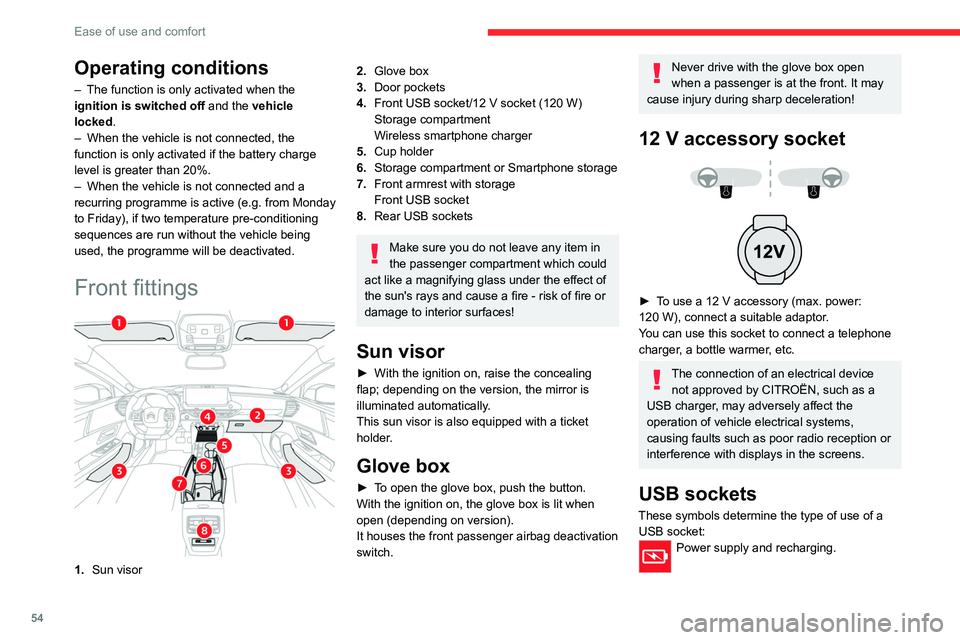
Front fittings
1. Sun visor
2.Glove box
3. Door pockets
4. Front USB socket/12 V socket (120 W)
Storage compartment
Wireless smartphone charger
5. Cup holder
6. Storage compartment or Smartphone storage
7. Front armrest with storage
Front USB socket
8. Rear USB sockets
Make sure you do not leave any item in
the passenger compartment which could
act like a magnifying glass under the effect of
the sun's rays and cause a fire - risk of fire or
damage to interior surfaces!
Sun visor
► With the ignition on, raise the concealing
flap; depending on the version, the mirror is
illuminated automatically.
This sun visor is also equipped with a ticket
holder.
Glove box
► To open the glove box, push the button.
With the ignition on, the glove box is lit when
open (depending on version).
It houses the front passenger airbag deactivation
switch.
Never drive with the glove box open
when a passenger is at the front. It may
cause injury during sharp deceleration!
12 V accessory socket
► To use a 12 V accessory (max. power:
120 W), connect a suitable adaptor.
You can use this socket to connect a telephone
charger, a bottle warmer, etc.
The connection of an electrical device not approved by CITROËN, such as a
USB charger, may adversely affect the
operation of vehicle electrical systems,
causing faults such as poor radio reception or
interference with displays in the screens.
USB sockets
These symbols determine the type of use of a USB socket:
Power supply and recharging.
Page 57 of 228
55
Ease of use and comfort
3Likewise, plus exchange of multimedia
data with the audio system and use of
smartphone applications with the touch screen.
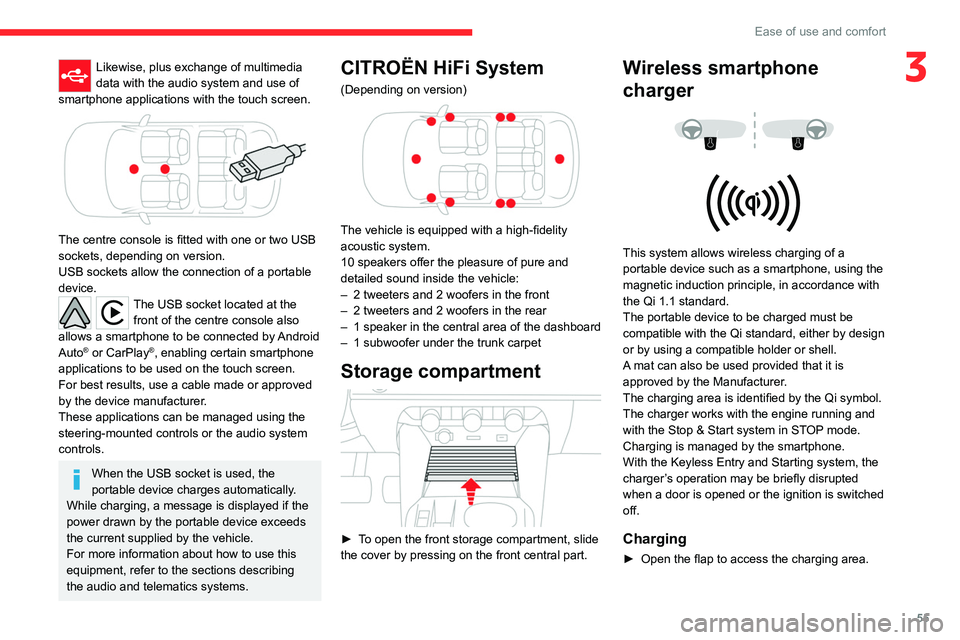
The centre console is fitted with one or two USB
sockets, depending on version.
USB sockets allow the connection of a portable
device.
The USB socket located at the front of the centre console also
allows a smartphone to be connected by Android
Auto
® or CarPlay®, enabling certain smartphone
applications to be used on the touch screen.
For best results, use a cable made or approved
by the device manufacturer.
These applications can be managed using the
steering-mounted controls or the audio system
controls.
When the USB socket is used, the
portable device charges automatically.
While charging, a message is displayed if the
power drawn by the portable device exceeds
the current supplied by the vehicle.
For more information about how to use this
equipment, refer to the sections describing
the audio and telematics systems.
CITROËN HiFi System
(Depending on version)
The vehicle is equipped with a high-fidelity
acoustic system.
10 speakers offer the pleasure of pure and
detailed sound inside the vehicle:
–
2 tweeters and 2 woofers in the front
–
2 tweeters and 2 woofers in the rear
–
1 speaker in the central area of the dashboard
–
1 subwoofer under the trunk carpet
Storage compartment
► To open the front storage compartment, slide
the cover by pressing on the front central part.
Wireless smartphone
charger
This system allows wireless charging of a
portable device such as a smartphone, using the
magnetic induction principle, in accordance with
the Qi 1.1 standard.
The portable device to be charged must be
compatible with the Qi standard, either by design
or by using a compatible holder or shell.
A mat can also be used provided that it is
approved by the Manufacturer.
The charging area is identified by the Qi symbol.
The charger works with the engine running and
with the Stop & Start system in STOP mode.
Charging is managed by the smartphone.
With the Keyless Entry and Starting system, the
charger’s operation may be briefly disrupted
when a door is opened or the ignition is switched
off.
Charging
► Open the flap to access the charging area.
Page 58 of 228

56
Ease of use and comfort
► With the charging area clear, place a device
in its centre.
When the portable device is detected, the
charger’s indicator lamp lights up green. It
remains lit for the whole time that the battery is
being charged.
The system is not designed to charge multiple devices simultaneously.
Do not leave metal objects (e.g. coins,
keys, vehicle remote control) in the
charging area while a device is being charged
- risk of overheating or interrupting the
charging!
When using applications for a long time
in combination with wireless charging,
some smartphones may switch to thermal
safety and cause some functions to stop.
Checking operation
The state of the indicator lamp allows the
operation of the charger to be monitored.
State of the
indicator lamp Meaning
Off Engine switched off.
No compatible devices
detected.
Charging complete.
Fixed green Compatible portable device detected.
Charging.
Flashing orange Foreign object detected in the charging zone.
Portable device not well
centred in the charging
zone.
Fixed orange Malfunction of the portable device's battery
meter.
Device battery
temperature too high.
Charger malfunction.
If the indicator lamp is fixed orange:
– remove the device, then place it back in the
centre of the charging zone.
or
–
remove the device and try again in a quarter
of an hour
.
If the problem persists, have the system checked
by a CITROËN dealer or a qualified workshop.
Front armrest
It includes a storage space.
Opening
► Press the lever beneath the cover.
The cover opens in two parts.
Closing
► Fold back the two parts of the cover .
Page 60 of 228

58
Ease of use and comfort
Rear fittings
USB sockets
Depending on version, the rear of the centre
console is fitted with one or two USB sockets.
Each USB socket is used to power or recharge a
portable device.
The left USB socket also allows multimedia
data to be exchanged with the audio system
(depending on country of sale).
Rear armrest
The armrest incorporates two cup holders.
The cup holders have a removable reducer to
be used depending on the diameter of the cans
and cups.
The pen holder can also hold a smartphone.
Ski flap
Device for storing and transporting long objects.
Opening
► With the rear armrest lowered, open the flap
by pulling its handle downwards.
► Load the objects from inside the boot.
Shark fin antenna
A ventilation grille is present at the rear of the
roof, inside the vehicle, for cooling the shark fin
antenna.
Any ventilation noise produced, with the ignition
on or the engine running, is completely normal.
Page 152 of 228
150
Practical information
► Follow the accelerated charging unit
(W allbox) user instructions.
►
Remove the protective cover from the
charging nozzle.
►
Insert the nozzle into the vehicle's charging
connector
.
The start of charging is confirmed by the flashing
of the green light guides in the flap.
If this is not the case, charging has not
started; restart the procedure ensuring that all
connections are properly established.
The red indicator lamp in the flap comes on to
indicate that the nozzle is locked.
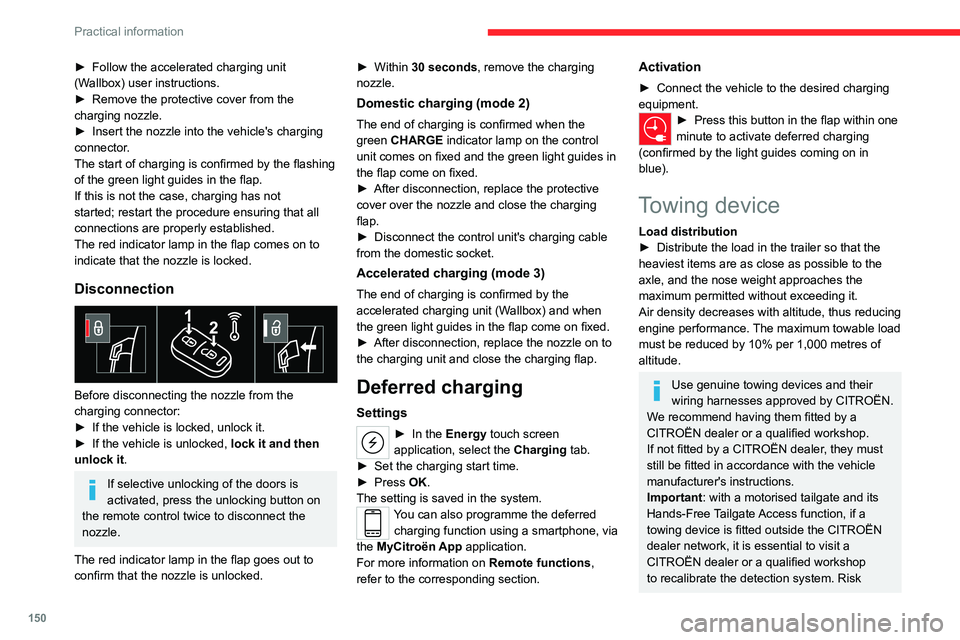
Disconnection
Before disconnecting the nozzle from the
charging connector:
►
If the vehicle is locked, unlock it.
►
If the vehicle is unlocked, lock it and then
unlock it .
If selective unlocking of the doors is
activated, press the unlocking button on
the remote control twice to disconnect the
nozzle.
The red indicator lamp in the flap goes out to
confirm that the nozzle is unlocked. ►
Within
30 seconds, remove the charging
nozzle.
Domestic charging (mode 2)
The end of charging is confirmed when the
green CHARGE indicator lamp on the control
unit comes on fixed and the green light guides in
the flap come on fixed.
►
After disconnection, replace the protective
cover over the nozzle and close the charging
flap.
►
Disconnect the control unit's charging cable
from the domestic socket.
Accelerated charging (mode 3)
The end of charging is confirmed by the
accelerated charging unit (Wallbox) and when
the green light guides in the flap come on fixed.
►
After disconnection, replace the nozzle on to
the charging unit and close the charging flap.
Deferred charging
Settings
► In the Energy touch screen
application, select the Charging tab.
►
Set the charging start time.
►
Press
OK.
The setting is saved in the system.
You can also programme the deferred charging function using a smartphone, via
the MyCitroën App application.
For more information on Remote functions,
refer to the corresponding section.
Activation
► Connect the vehicle to the desired charging
equipment.
► Press this button in the flap within one
minute to activate deferred charging
(confirmed by the light guides coming on in
blue).
Towing device
Load distribution
► Distribute the load in the trailer so that the
heaviest items are as close as possible to the
axle, and the nose weight approaches the
maximum permitted without exceeding it.
Air density decreases with altitude, thus reducing
engine performance.
The maximum towable load
must be reduced by 10% per 1,000
metres of
altitude.
Use genuine towing devices and their
wiring harnesses approved by CITROËN.
We recommend having them fitted by a
CITROËN dealer or a qualified workshop.
If not fitted by a CITROËN dealer, they must
still be fitted in accordance with the vehicle
manufacturer's instructions.
Important: with a motorised tailgate and its
Hands-Free Tailgate Access function, if a
towing device is fitted outside the CITROËN
dealer network, it is essential to visit a
CITROËN dealer or a qualified workshop
to recalibrate the detection system. Risk
Page 158 of 228

156
Practical information
Observe the legislation in force in your
country relating to the use of snow
chains and maximum authorised speeds.
Use only chains designed to be fitted to the type
of wheel fitted to the vehicle:
Original tyre size Maximum link size 215/65 R17 9 mm
205/55 R19 9 mm
For more information, contact a CITROËN dealer
or a qualified workshop.
Installation tips
► To fit the snow chains during a journey, stop
the vehicle on a flat surface at the side of the
road.
►
Apply the parking brake and position any
wheel chocks under the wheels to prevent
movement of the vehicle.
►
Fit the snow chains following the instructions
provided by the manufacturer
.
►
Move off gently and drive for a few moments,
without exceeding 31
mph (50 km/h).
►
Stop the vehicle and check that the snow
chains are correctly tightened.
It is strongly recommended that you
practise fitting the snow chains on a level
and dry surface before setting off.
Avoid driving with snow chains on roads that have been cleared of snow to avoid
damaging the vehicle's tyres and the road
surface. If the vehicle is fitted with alloy
wheels, check that no part of the chain or its
fixings is in contact with the wheel rim.
Energy economy mode
This system manages the duration of use of
certain functions, in order to conserve a sufficient
level of charge in the battery with the ignition off.
After switching off the engine, you can still
use functions such as the audio and telematic
system, the wipers and the dipped beam
headlamps or courtesy lamps, for a combined
duration of approximately 40 minutes.
Selecting the mode
A confirmation message is displayed when
energy economy mode is entered, and the active
functions are placed on standby.
If a telephone call is in progress at the
time, it will be maintained for around 10
minutes via the audio system’s hands-free
system.
Exiting the mode
These functions are automatically reactivated the
next time the vehicle is used.
To restore the use of these functions
immediately, start the engine and let it run:
– For less than 10 minutes, to use the
equipment for approximately 5 minutes.
–
For more than 10 minutes, to use the
equipment for approximately 30 minutes.
Let the engine run for the specified duration to
ensure that the battery charge is sufficient.
T
o recharge the battery, avoid repeatedly or
continuously restarting the engine.
A flat battery prevents the engine from starting.
For more information on the 12
V battery,
refer to the corresponding section.
Load reduction mode
This system manages the use of certain
functions according to the level of charge
remaining in the battery.
When the vehicle is being driven, the load
reduction function temporarily deactivates certain
functions, such as the air conditioning and the
heated rear screen.
The deactivated functions are reactivated
automatically as soon as conditions permit.
Bonnet
Stop & Start
Before doing anything under the bonnet,
you must switch off the ignition to avoid any
Page 187 of 228
185
MYCITROËN DRIVE PLUS - MYCITROËN PLAY PLUS
10MYCITROËN DRIVE
PLUS - MYCITROËN
PLAY PLUS
GPS navigation -
Applications - Multimedia
audio system - Bluetooth
®
telephone
The functions and settings described
vary according to the version and
configuration of the vehicle, and according to
the country of sale.
For safety reasons and because they
require sustained attention by the driver,
the following operations must be carried out
with the vehicle stationary and the ignition
on:
–
Pairing the smartphone with the system via
Bluetooth®.
–
Using the smartphone.
–
Connecting to Mirror Screen
(Apple®CarPlay® or Android Auto).
–
Changing the system settings and
configuration.
The message Energy economy mode is displayed when the system is about to go
into standby.
For more information on
Energy economy
mode
, refer to the “Practical information”
section.
The AM radio selection mode is not available on electric and rechargeable
hybrid vehicles.
Warning
Navigation is a driving aid. It cannot
replace the driver. All guidance instructions
should be carefully checked by the user.
By using the navigation, you accept the
following terms and conditions:
https://www.tomtom.com/en_gb/legal/
eula-automotive/?388448
First steps
The system starts when the ignition is switched on.
With the ignition off, a press turns the system on.
With the engine running, a press mutes the
sound.
A long press launches standby mode: the sound
cuts off, the screens go off and the clock is
displayed on the central screen.
Rotation: volume control.
Information
This system gives access to the following
elements:
–
Audio equipment and telephone controls with
display of associated information.
–
Connected services and display of associated
information.
–
Navigation system controls and display
of associated information (depending on
equipment).
–
V
oice recognition (depending on equipment).
–
T
ime and exterior temperature.
–
Heating/air conditioning system controls and
reminders of settings.
–
Settings for driving aid functions, comfort
and safety functions, extended head-up display
(depending on equipment and version), audio
equipment and digital instrument panel.
–
Settings for functions specific to rechargeable
hybrid vehicles.
–
Display of visual manoeuvring aid functions.
–
Interactive handbook.
–
V
ideo tutorials (e.g. screen management,
driving aids, voice recognition).
Upper bar
Certain information is displayed permanently in
the upper bar of the touch screen:
–
Exterior temperature from vehicle sensors
(associated with a blue symbol in case of risk
of ice).
–
T
emperature setting reminder for driver and
passenger side air conditionning.
Page 188 of 228

186
MYCITROËN DRIVE PLUS - MYCITROËN PLAY PLUS
– Charge level of the connected smartphone.
– System connection status (Bluetooth®, Wi-Fi,
cellular network).
–
Time.
–
Quick access to the Mirror Screen® functions
(associated with a connected smartphone).
Swipe down from the upper edge of the touch
screen, to access the notifications centre and
display a list of quick settings:Guest, Privacy
Settings, Brightness, My Devices, night mode,
etc.
Principles
► Use the HOME button to display the
last used home page, a second press
displays the first home page, then press the
virtual buttons on the touch screen.
Scroll through the home pages, by sliding
your finger on the screen to the right or to
the left.
Principle of movement in the system
Depending on the pages displayed on the
screen, scroll through the text or the menu (on
the left side of the screen) by sliding your finger,
as with a smartphone.
Touch buttons
Display/hide the context menu.
Return to the previous page.
►
T
o change the status of a function, press the
description for the corresponding line (change confirmed by the slider moving to the right/left:
function activated/deactivated).
Access additional information on the
function.
Access to a function’s settings.
Add/delete shortcuts.
Configuring profiles
Press the "Settings" application.
In the list, select the "Profile” tab.
The screen display presents a “Guest” profile
built into the system and allows for the creation
and personalisation of several new profiles
associated or not with mobile devices.
The “Guest” profile has a default display with the possibility of adding to it and/or
returning it to its initial configuration. This profile
is built into the system and cannot be deleted.
Each profile created can be associated
with a mobile device of your choice
connected via
Bluetooth
®; the Bluetooth® function
of the mobile device must first be activated. This
association allows the system to detect your
presence in the vehicle when it starts and to
propose the activation of your personalised
profile.
The connected mobile device serves as an
access key to the profile and restores the last
value of the associated Private Mode. If a profile is not connected to the mobile device,
the last profile used will be highlighted.
Select “Create Profile” to follow the
procedure.
Creating a new profile allows you to personalise:
–
the language, the units, the
Privacy Settings.
–
the screen configuration, the appearance,
the
My shortcuts (depending on equipment).
–
the audio settings, the favourite radio stations.
–
the lighting, the interior ambiance (refer to the
"Ease of use and comfort" section).
–
some driving aids, the list of favourites.
To delete a profile, select it from the list of profiles then press the bin.
Privacy Settings
"Privacy Settings" management is associated
with each profile. This function is used with:
a "Guest"
profile configured by default in "Private
Mode",
or
a profile to be created in the system, with or
without connection with a mobile device.
If there is no connection with a mobile device,
the mode value will be set to "Private Mode".
The connected mobile device serves as an
access key to personal information. First
activate the Bluetooth
® function of the portable
device. The last value of the saved mode will be
restored.
"Share Data and Location"
This mode allows the vehicle to transmit
outside the vehicle all the personal data
Page 190 of 228
188
MYCITROËN DRIVE PLUS - MYCITROËN PLAY PLUS
vehicle" to allow the establishment of the
radio network connection.
Irrespective of a valid connected service
subscription, remote product security or
product safety related device management
and software and firmware updates will
be performed when the processing is
necessary for the compliance with a legal
obligation to which the Manufacturer is
subject (e.g. applicable product liability law,
e-call regulation) or when the processing
is necessary in order to protect the vital
interests of the respective vehicle users and
passengers.
The establishment of a secure radio network
connection and the related remote updates
are not affected by privacy settings and will
be performed in principal after an initiation
by the vehicle user following a respective
notification.
The system is able to notify receipt of an update
as soon as it is connected to an exterior
Wi-Fi
network or a cellular network.
Large updates are downloaded only via the Wi-Fi
network.
The availability of an update is notified on the
screen at the end of the journey with an option
of immediate installation or postponement of
installation.
The installation time is variable and can take
several minutes with a maximum of about 30 minutes. A notification will give an estimate of the
duration and a description of the update.
Update information is available through the
“Settings” application.
Press the "Settings" application.
In the list, select the "Updates” tab.
This button allows you to change the authorisation for automatic downloading
of updates via an external Wi-Fi network.
For safety reasons and because it
requires sustained attention by the driver,
the installation must be carried out with the
ignition on without starting the engine.
The installation cannot be carried out in the
following cases:
–
engine running.
–
emergency call in progress.
–
insufficient battery level.
–
when charging for electric vehicles.
If an update has failed or has expired, contact a
dealer or a qualified workshop.
The use of this service is not charged by the Contractor.
On the other hand, the use of the WI-FI and/
or cellular networks of your smartphone can
generate additional fees if your data plan is
exceeded.
These possible costs are reflected in the bill
of your telephone operator.
Personalisation
Press and hold the screen from one of the
system's home pages.
Or
Press the “Settings” application.
In the list, select the "Customisation" tab.
Press the "Displays" field.
A page divided into 2 parts is displayed.
Press the "HOME" button at any time to leave
this page.
Personalising the screen
Press the pencil in the "Customise
Touchscreen" part.
A representation of the organisation of the
different home page ( HOME) Widgets is
displayed.
A Widget is a reduced window of an application or a service.
Adding a Widget
To add a Widget, press "Add Widget" on the left of the screen.
Or
Press one of these buttons on the screen.
Select the desired Widget.
Press the back arrow to return to the
previous page.