phone Citroen C6 RHD 2011 1.G User Guide
[x] Cancel search | Manufacturer: CITROEN, Model Year: 2011, Model line: C6 RHD, Model: Citroen C6 RHD 2011 1.GPages: 216, PDF Size: 10.19 MB
Page 178 of 216
7.28
11
22
33
CITROËN ASSISTANCE
379.2
CUSTOMER CALL
*
These services and options are subject to conditions and availability.
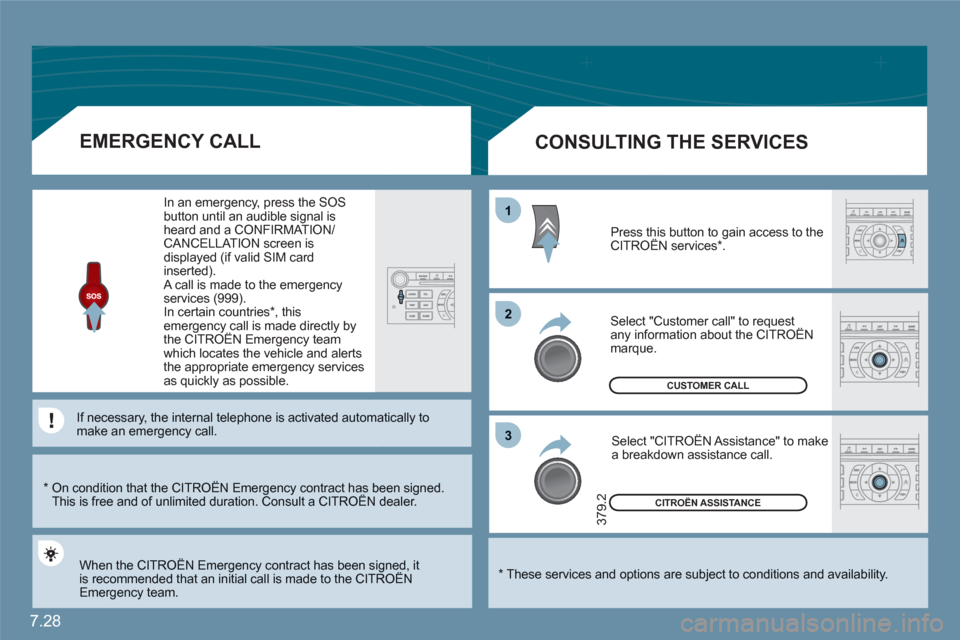
CONSULTING THE SERVICES
Press this button to gain access to theCITROËN services * . g
Select "Customer call" to request any information about the CITROËN marque.
Select "CITROËN Assistance" to make a breakdown assistance call.
*
On condition that the CITROËN Emergency contract has been signed. This is free and of unlimited duration. Consult a CITROËN dealer. gy g
EMERGENCY CALL
When the CITROËN Emergency contract has been signed, it is recommended that an initial call is made to the CITROËNgy g
Emergency team.
In an emergency, press the SOS button until an audible signal isheard and a CONFIRMATION/CANCELLATION screen is displayed (if valid SIM card inserted). A call is made to the emergencyservices (999).
In certain countries * , thisemergency call is made directly bythe CITROËN Emergency teamgy y
which locates the vehicle and alerts the appropriate emergency servicesas quickly as possible.
If necessary, the internal telephone is activated autommatically tomake an emergency call.
Page 181 of 216
7.31
08CONTROL SHORT-CUTS
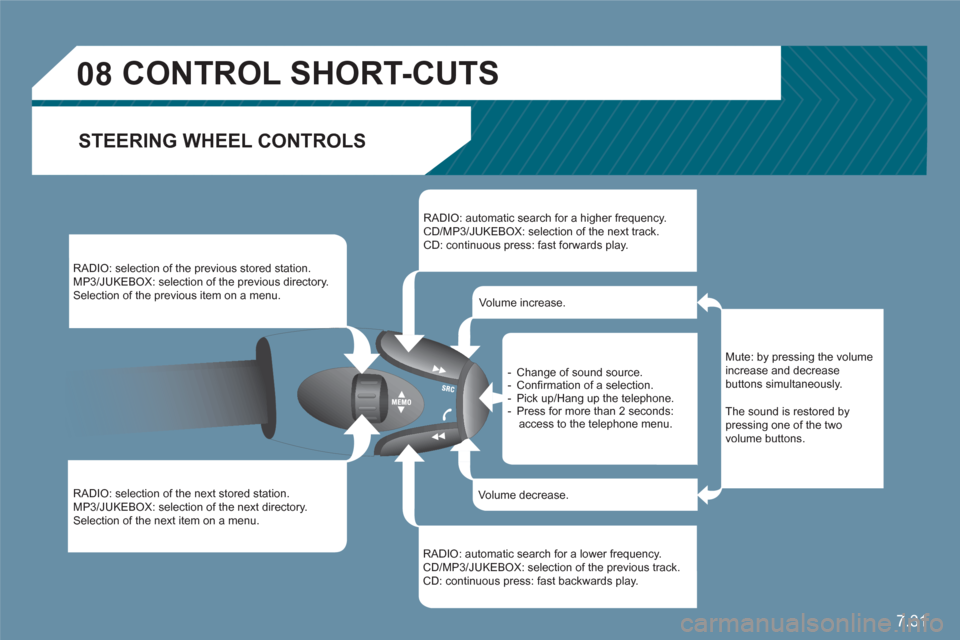
STEERING WHEEL CONTROLS
RADIO: selection of the previous stored station.
MP3/JUKEBOX: selection of the previous directory.
Selection of the previous item on a menu.
RADIO: selection of the next stored station.
MP3/JUKEBOX: selection of the next directory. Selection of the next item on a menu.
RADIO: automatic search for a higher frequency. CD/MP3/JUKEBOX: selection of the next track.
CD: continuous press: fast forwards play.
RADIO: automatic search for a lower frequency.CD/MP3/JUKEBOX: selection of the previous track. CD: continuous press: fast backwards play.
- Change of sound source. - Confi rmation of a selection. - Pick up/Hang up the telephone.- Press for more than 2 seconds:access to the telephone menu.
Volume increase.
Volume decrease.
Mute: by pressing the volumeincrease and decreasebuttons simultaneously.
The sound is restored by pressing one of the two volume buttons.
Page 182 of 216
7.32
2 1
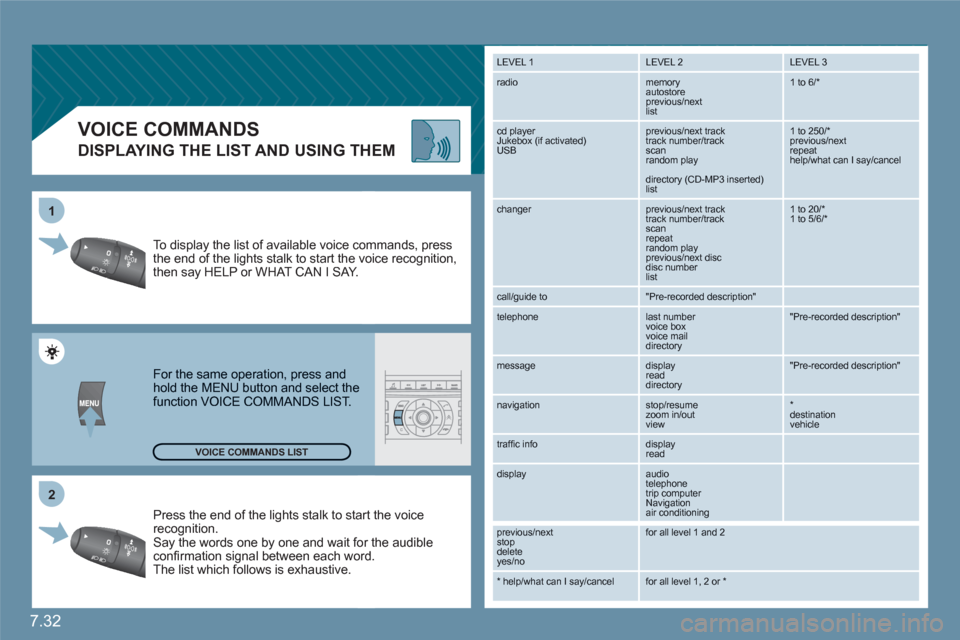
VOICE COMMANDS
DISPLAYING THE LIST AND USING THEM
Press the end of the lights stalk to staart the voicerecognition. Say the words one by one and wait foor the audibleconfi rmation signal between each woord.
The list which follows is exhaustive.
To display the list of available voice coommands, press the end of the lights stalk to start the vvoice recognition,then say HELP or WHAT CAN I SAY.
For the same operation, press and hold the MENU button and select the function VOICE COMMANDS LIST.
LEVEL 1
LEVEL 2 LEVEL 3
radio memory autostore
previous/next list
1 to 6/*
cd player
Jukebox (if activated) USB
previous/next track
track number/track scan
random play
directory (CD-MP3 inserted) list
1 to 250/* previous/next repeat help/what can I say/cancel
changer
previous/next track
track number/track scan
repeat
random play previous/next disc disc number list
1 to 20/* 1 to 5/6/*
call/guide to
"Pre-recorded description"
telephone
last number
voice box
voice mail
directory
"Pre-recorded description"
message
display
read directory
"Pre-recorded description"
navigation
stop/resume
zoom in/out
view
*destination vehicle
traffi c info display
read
display audio
telephone
trip computer
Navigation
air conditioning
previous/next
stop delete
yes/no
for all level 1 and 2
* help/what can I say/cancel for all level 1, 2 or * VOICE COMMANDS LIST
Page 186 of 216
7.36
1
4
2
3
3
3
4
4
4
4
3
3
3
3
4
4
3
3
3
3
2
3
3
2
4
3
4
3
3
2
3
4
5
5
5
4
5
5
4
2
3
4
4
4
4
4
3
5
4
4
4
3
5
4
4
4
5
5
4
6
5
5
3
3
3
3
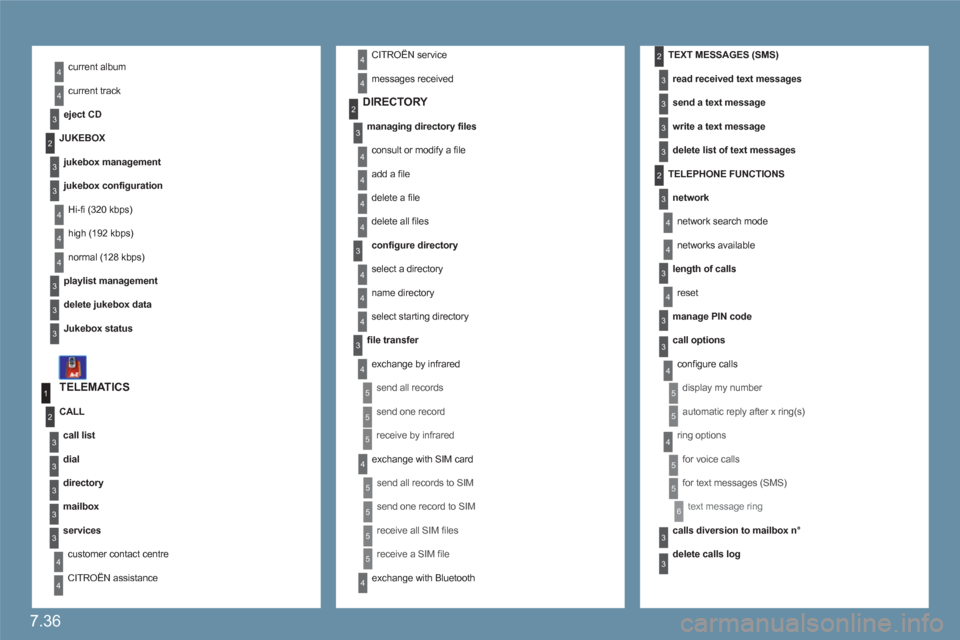
current album
current track
eject CD
TELEMATICS
call list
dial
directory
mailbox
services
customer contact centre
CITROËN assistance
CALL
DIRECTORY
managing directory fi les
consult or modify a fi le
add a fi le
delete a fi le
delete all fi les
confi gure directory
select a directory
name directory
select starting directory
fi le transfer
exchange by infrared
send all records
send one record
receive by infrared
exchange with SIM card
send all records to SIM
send one record to SIM
receive all SIM fi les
receive a SIM fi le
exchange with Bluetooth
TEXT MESSAGES (SMS)
read received text messages
send a text message
write a text message
delete list of text messages
TELEPHONE FUNCTIONS
network
network search mode
networks available
length of calls
reset
manage PIN code
call options
confi gure calls
display my number
automatic reply after x ring(s)
ring options
for voice calls
for text messages (SMS)
text message ring
calls diversion to mailbox n°
delete calls log
JUKEBOX
jukebox management
jukebox confi guration
Hi-fi (320 kbps)
high (192 kbps)
normal (128 kbps)
playlist management
delete jukebox data
Jukebox status
CITROËN service
messages received
Page 187 of 216
7.37
1
2
2
1
2
1
2
2
2
3
3
4
4
4
3
2
2
2
3
4
4
4
3
3
3
3
4
4
4
4
1
2
2
1
2
2
2
1
1
1
3
3
3
3
3
3
3
3
2
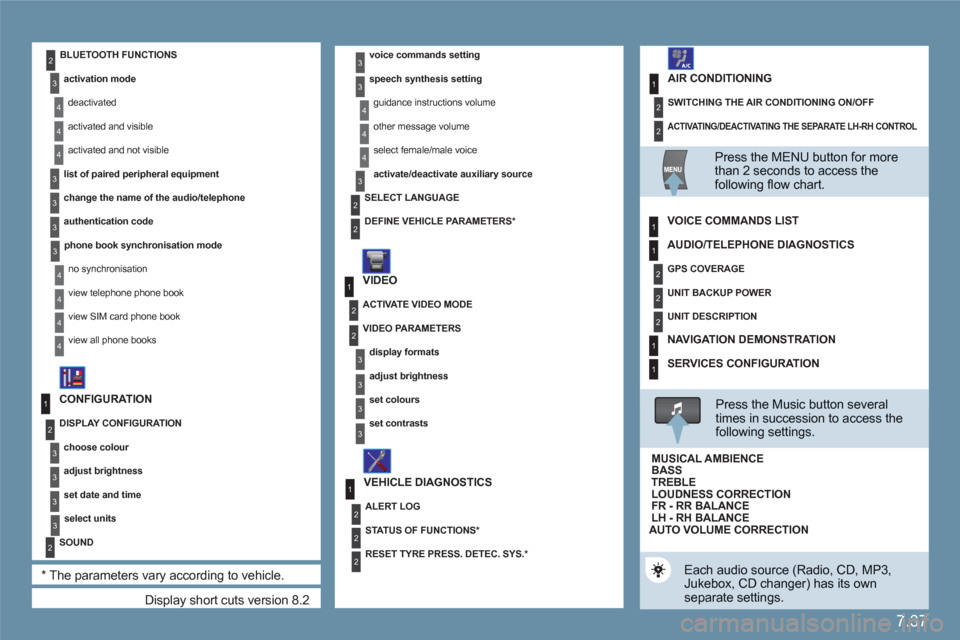
Display short cuts version 8.2
CONFIGURATION
DISPLAY CONFIGURATION
choose colour
adjust brightness
set date and time
select units
SOUND
*
The parameters vary according to vehicle.
voice commands setting
speech synthesis setting
guidance instructions volume
other message volume
select female/male voice
activate/deactivate auxiliary source
VIDEO
VEHICLE DIAGNOSTICS
SELECT LANGUAGE
DEFINE VEHICLE PARAMETERS
*
ACTIVATE VIDEO MODE
VIDEO PARAMETERS
display formats
adjust brightness
set colours
set contrasts
ALERT LOG
STATUS OF FUNCTIONS *
RESET TYRE PRESS. DETEC. SYS. *
BLUETOOTH FUNCTIONS
activation mode
deactivated
activated and visible
activated and not visible
list of paired peripheral equipment
change the name of the audio/telephone
authentication code
phone book synchronisation mode
no synchronisation
view telephone phone book
view SIM card phone book
view all phone books
ACTIVATING/DEACTIVATING THE SEPARATE LH-RH CONTROL
SWITCHING THE AIR CONDITIONING ON/OFF
AIR CONDITIONING
Press the MENU button for more than 2 seconds to access thefollowing fl ow chart.
VOICE COMMANDS LIST
Press the Music button severaltimes in succession to access the following settings.
AUTO VOLUME CORRECTION
Each audio source (Radio, CD, MP3,Jukebox, CD changer) has its own separate settings.
AUDIO/TELEPHONE DIAGNOSTICS
GPS COVERAGE
UNIT BACKUP POWER
UNIT DESCRIPTION
NAVIGATION DEMONSTRATION
SERVICES CONFIGURATION
LOUDNESS CORRECTION TREBLEBASS MUSICAL AMBIENCE
FR - RR BALANCE LH - RH BALANCE
Page 190 of 216
7.40
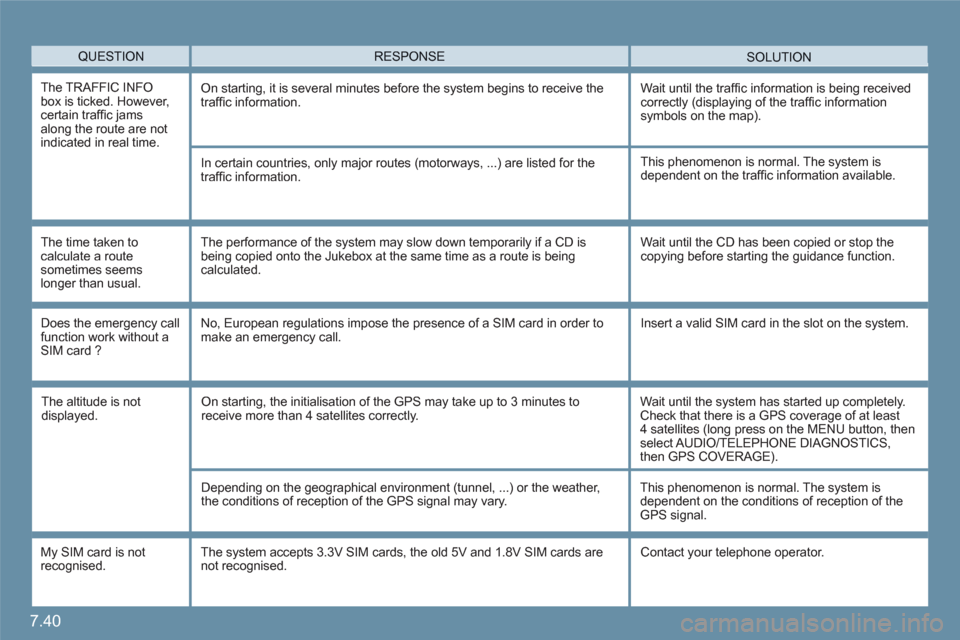
QUESTION SOLUTIONRESPONSE
The TRAFFIC INFO box is ticked. However, certain traffi c jams along the route are notindicated in real time.
On starting, it is several minutes before the system begins to receive the traffi c information.Wait until the traffi c information is being receivedcorrectly (displaying of the traffi c information symbols on the map).
In certain countries, only major routes (motorways, ...) are listed for the traffi c information.
The time taken tocalculate a routesometimes seems longer than usual.
This phenomenon is normal. The system isdependent on the traffi c information available.
The performance of the system may slow down temporarily if a CD is being copied onto the Jukebox at the same time as a route is beingcalculated.
Wait until the CD has been copied or stop thecopying before starting the guidance function.
Does the emergency call function work without aSIM card ?
No, European regulations impose the presence of a SIM card in order tomake an emergency call. Insert a valid SIM card in the slot on the system.
My SIM card is not recognised.
The system accepts 3.3V SIM cards, the old 5V and 1.8V SIM cards are not recognised. Contact your telephone operator.
The altitude is notdisplayed. On starting, the initialisation of the GPS may take up to 3 minutes toreceive more than 4 satellites correctly.
Wait until the system has started up completely. Check that there is a GPS coverage of at least 4 satellites (long press on the MENU button, thenselect AUDIO/TELEPHONE DIAGNOSTICS,then GPS COVERAGE).
Depending on the geographical environment (tunnel, ...) or the weather, the conditions of reception of the GPS signal may vary.
This phenomenon is normal. The system isdependent on the conditions of reception of theGPS signal.
Page 191 of 216
7.41
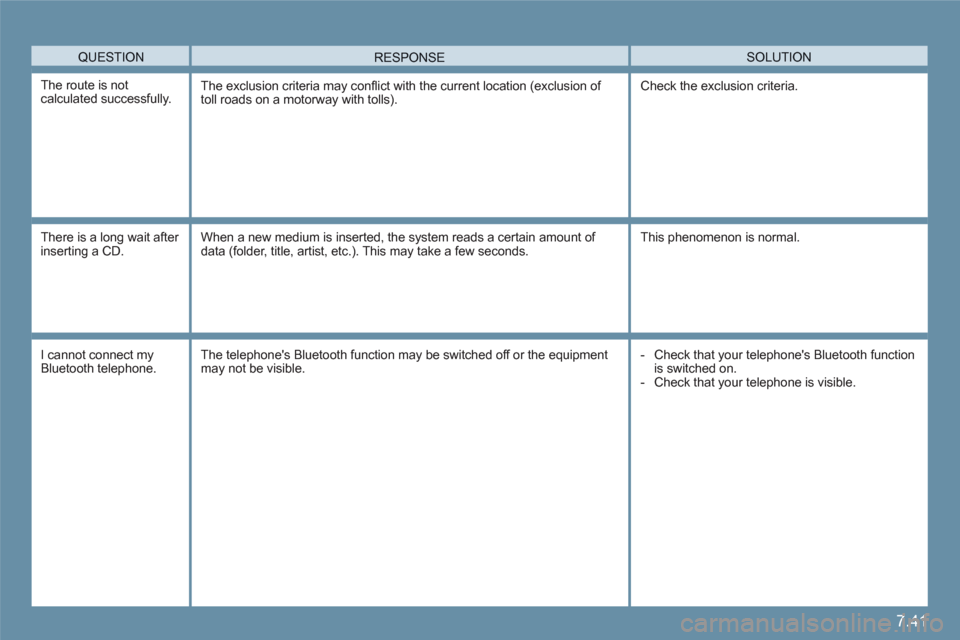
QUESTION SOLUTIONRESPONSE
The route is not calculated successfully. The exclusion criteria may confl ict with the current location (exclusion of toll roads on a motorway with tolls). Check the exclusion criteria.
There is a long wait after inserting a CD.
When a new medium is inserted, the system reads a certain amount of data (folder, title, artist, etc.). This may take a few seconds.This phenomenon is normal.
I cannot connect my Bluetooth telephone.
The telephone's Bluetooth function may be switched off or the equipmentmay not be visible. - Check that your telephone's Bluetooth functionis switched on. - Check that your telephone is visible.
Page 194 of 216
7.44
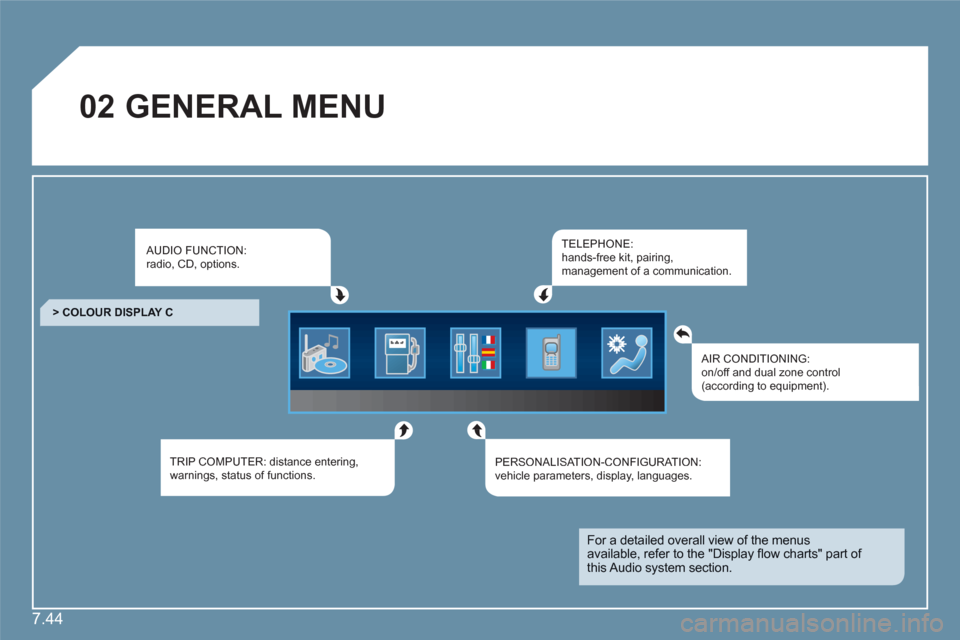
02GENERAL MENU
AUDIO FUNCTION:radio, CD, options.
TRIP COMPUTER: distance entering,warnings, status of functions.
TELEPHONE:hands-free kit, pairing, management of a communication.
PERSONALISAT ION-CONFIGURATION:vehicle parameters, display, languages.
> COLOUR DISPLAY C
AIR CONDITIONING:on/off and dual zone control(according to equipment).
For a detailed overall view of the menusavailable, refer to the "Display fl ow charts" part of this Audio system section.
Page 198 of 216
7.48
11
22
33
11
22
4411
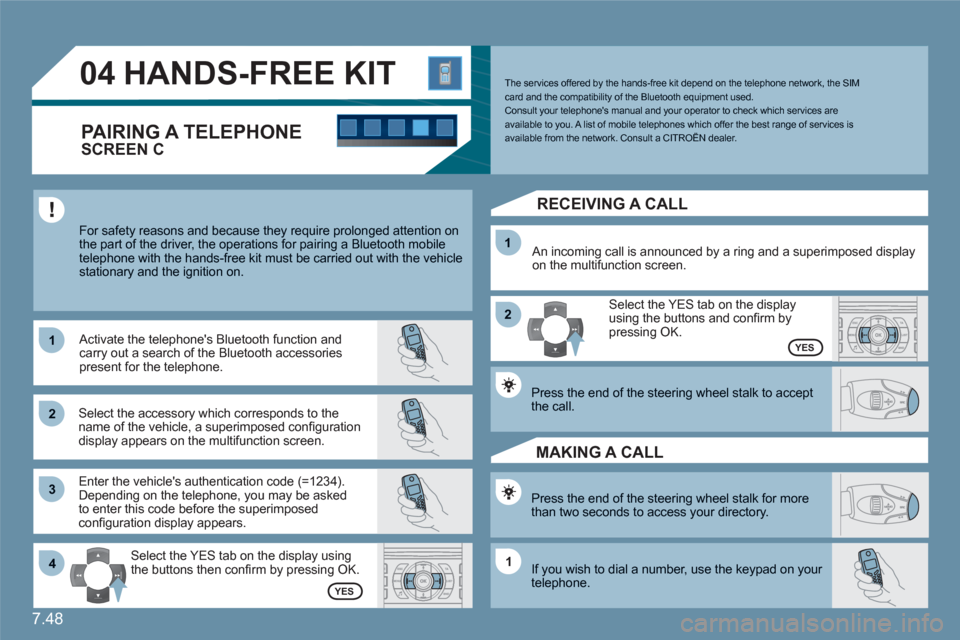
04HANDS-FREE KIT
For safety reasons and because they require prolonged attention on the part of the driver, the operations for pairing a Bluetooth mobile telephone with the hands-free kit must be carried out with the vehiclestationary and the ignition on.
Select the accessory which corresponds to the name of the vehicle, a superimposed confi guration display appears on the multifunction screen.
Activate the telephone's Bluetooth function andcarry out a search of the Bluetooth accessories present for the telephone.
Select the YES tab on the display using the buttons then confi rm by pressing OK.
Enter the vehicle's authentication code (=1234).Depending on the telephone, you may be asked to enter this code before the superimposed confi guration display appears.
YES
YES
The services offered by the hands-free kit depend on the telephone network, the SIM card and the compatibility of the Bluetooth equipment used. Consult your telephone's manual and your operator to check which services areavailable to you. A list of mobile telephones which offer the best range of services is available from the network. Consult a CITROËN dealer.
RECEIVING A CALL
An incoming call is announced by a ring and a superimposed display on the multifunction screen.
Select the YES tab on the display using the buttons and confi rm bypressing OK.
Press the end of the steering wheel stalk to acceptthe call.
Press the end of the steering wheel stalk for morethan two seconds to access your directory.
If you wish to dial a number, use the keypad on your telephone.
MAKING A CALL
SCREEN C
PAIRING A TELEPHONE
Page 201 of 216
7.51
11
66
22
77
44
99
55
101
33
88
06
Saisir code authentification
01
OK Del23456789 _
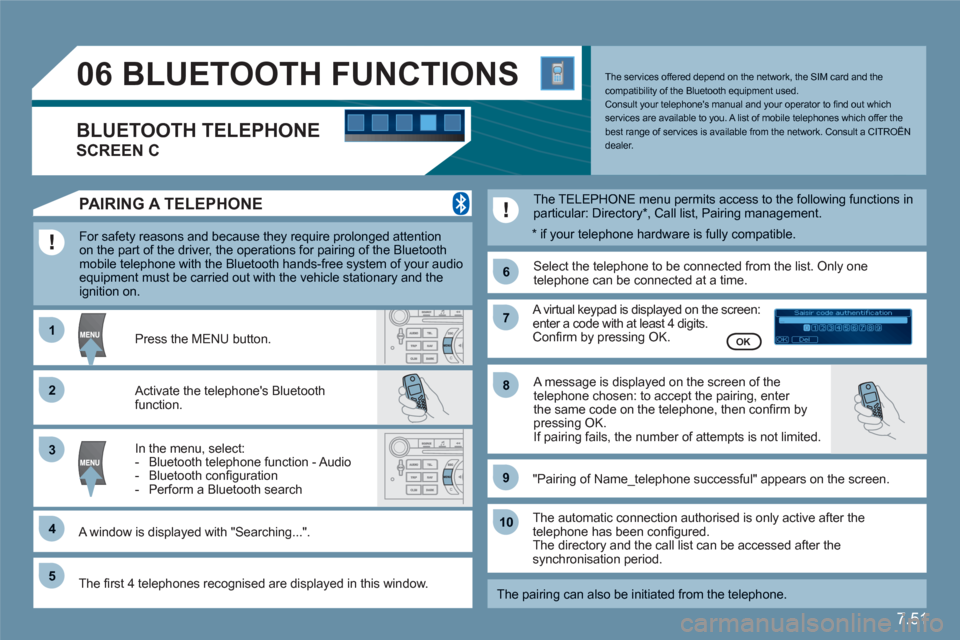
BLUETOOTH FUNCTIONS
For safety reasons and because they require prolonged attention on the part of the driver, the operations for pairing of the Bluetooth mobile telephone with the Bluetooth hands-free system of your audioequipment must be carried out with the vehicle stationary and the ignition on.
Activate the telephone's Bluetooth function.
A window is displayed with "Searching...".
Press the MENU button.
In the menu, select:
- Bluetooth telephone function - Audio
- Bluetooth confi guration
- Perform a Bluetooth search
The services offered depend on the network, the SIM card and thecompatibility of the Bluetooth equipment used.
Consult your telephone's manual and your operator to fi nd out whichservices are available to you. A list of mobile telephones which offer thebest range of services is available from the network. Consult a CITROËN dealer. BLUETOOTH TELEPHONE
SCREEN C
The TELEPHONE menu permits access to the following functions inparticular: Directory *
, Call list, Pairing management.
The fi rst 4 telephones recognised are displayed in this window.
A virtual keypad is displayed on the screen: enter a code with at least 4 digits. Confi rm by pressing OK.
"Pairing of Name_telephone successful" appears on the screen.
Select the telephone to be connected from the list. Only onetelephone can be connected at a time.
A message is displayed on the screen of thetelephone chosen: to accept the pairing, enter the same code on the telephone, then confi rm bypressing OK. If pairing fails, the number of attempts is not limited.
The automatic connection authorised is only active after the telephone has been confi gured.The directory and the call list can be accessed after thesynchronisation period.
OK
PAIRING A TELEPHONE
The pairing can also be initiated from the telephone.
*
if your telephone hardware is fully compatible.