USB Citroen DS3 2011 1.G User Guide
[x] Cancel search | Manufacturer: CITROEN, Model Year: 2011, Model line: DS3, Model: Citroen DS3 2011 1.GPages: 324, PDF Size: 25.11 MB
Page 244 of 324
013
Audio and telematics
This section covers emergency and assistance calls, as well as the
functions of the audio-navigation units, such as MP3 -compatible player,
USB player, Bluetooth system, MyWay with 16/9 colour screen, auxiliary
inputs, Hi-Fi audio system.
Page 268 of 324
07
43 1
2
MUSIC MEDIA PLAYERS
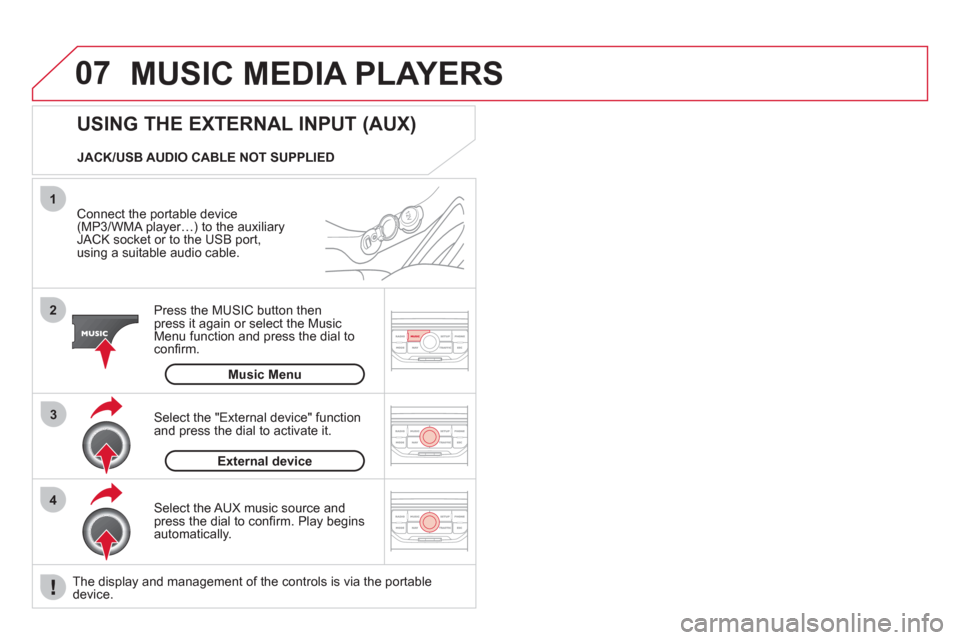
Connect the portable device
(MP3/WMA player…) to the auxiliary
JACK socket or to the USB port,
using a suitable audio cable.
Press the MUSIC button then
press it again or select the Music
Menu function and press the dial to
confi rm.
Select the AUX music source and
press the dial to confi rm. Play begins
automatically.
Select the "External device" function
and press the dial to activate it.
External device
USING THE EXTERNAL INPUT (AUX)
Music Menu
JACK/USB AUDIO CABLE NOT SUPPLIED
The display and management of the controls is via the portable
device.
Page 283 of 324
281
AUDIO SYSTEM
Your Audio system is coded in such a way that it will
only operate in your vehicle. If it is to be installed in
another vehicle, contact your CITROËN dealer for
confi guration of the system.
For safety reasons, the driver must carry out operations
which require prolonged attention while the vehicle is
stationary.
When the engine is switched off and to prevent
discharging of the battery, the audio equipment may
switch off after a few minutes.
AUDIO SYSTEM/BLUETOOTH
01 First steps
02 Steering mounted controls
03 Main menu
04 Audio
05 USB Box
06 Bluetooth functions
07 Configuration
08 Trip computer
09 Screen menu map p.
p.
p.
p.
p.
p.
p.
p.
p. 282
283
284
285
288
291
293
295
296
CONTENTS
Frequently asked questions p. 301
Page 284 of 324
01
1 2
1011
13 14 153456 789
12
FIRST STEPS
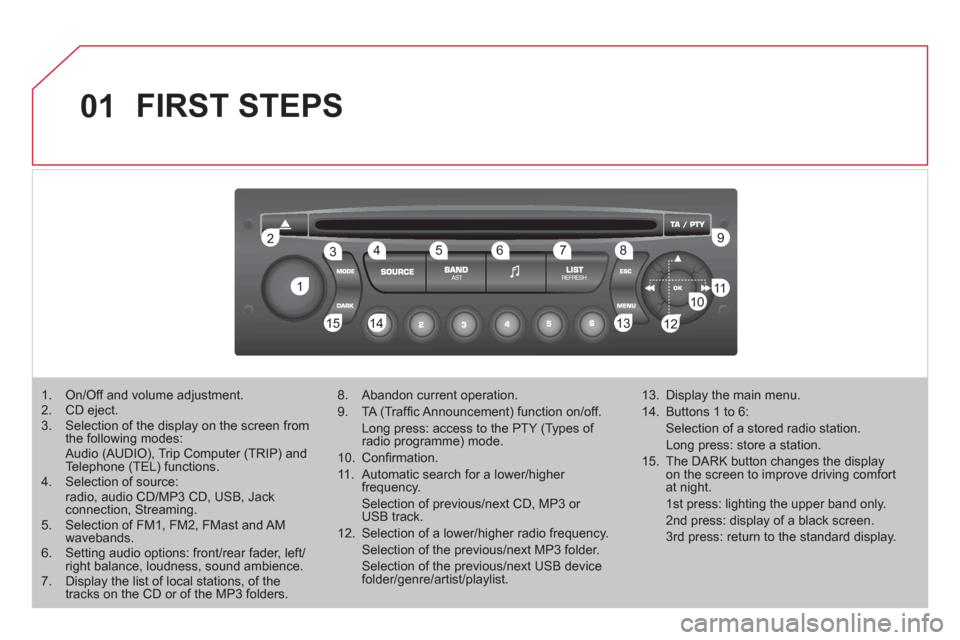
1. On/Off and volume adjustment.
2. CD eject.
3. Selection of the display on the screen from
the following modes:
Audio (AUDIO), Trip Computer (TRIP) and
Telephone (TEL) functions.
4. Selection of source:
radio, audio CD/MP3 CD, USB, Jack
connection, Streaming.
5. Selection of FM1, FM2, FMast and AM
wavebands.
6. Setting audio options: front/rear fader, left/
right balance, loudness, sound ambience.
7. Display the list of local stations, of the
tracks on the CD or of the MP3 folders.
8. Abandon current operation.
9. TA (Traffi c Announcement) function on/off.
Long press: access to the PTY (Types of
radio programme) mode.
10. Confi rmation.
11. Automatic search for a lower/higher
frequency.
Selection of previous/next CD, MP3 or
USB track.
12. Selection of a lower/higher radio frequency.
Selection of the previous/next MP3 folder.
Selection of the previous/next USB device
folder/genre/artist/playlist.
13. Display the main menu.
14. Buttons 1 to 6:
Selection of a stored radio station.
Long press: store a station.
15. The DARK button changes the display
on the screen to improve driving comfort
at night.
1st press: lighting the upper band only.
2nd press: display of a black screen.
3rd press: return to the standard display.
Page 285 of 324
02
283
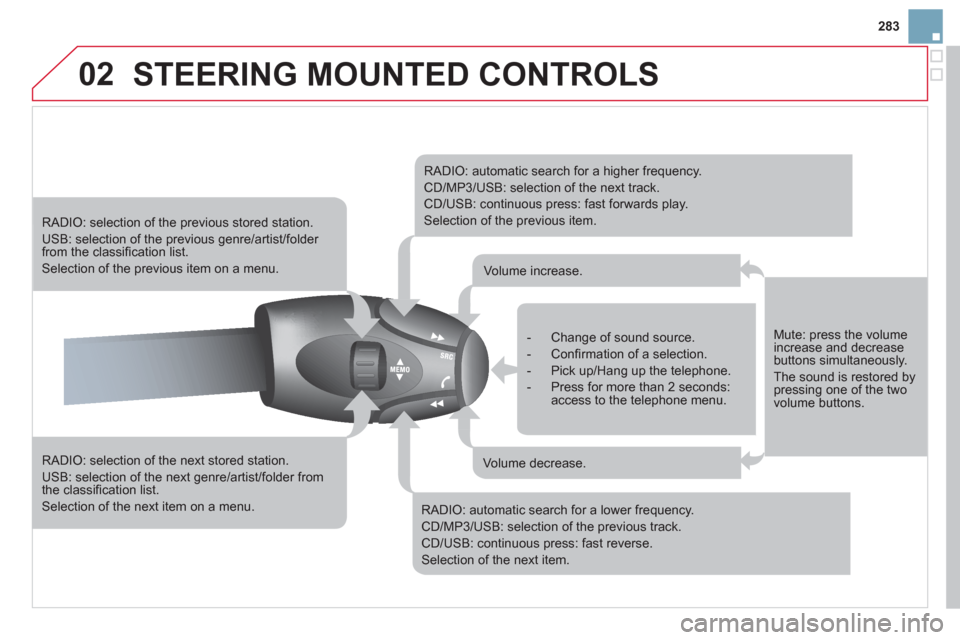
STEERING MOUNTED CONTROLS
RADIO: selection of the next stored station.
USB: selection of the next genre/artist/folder from
the classifi cation list.
Selection of the next item on a menu.
RADIO: selection of the previous stored station.
USB: selection of the previous genre/artist/folder
from the classifi cation list.
Selection of the previous item on a menu.
RADIO: automatic search for a higher frequency.
CD/MP3/USB: selection of the next track.
CD/USB: continuous press: fast forwards play.
Selection of the previous item.
RADIO: automatic search for a lower frequency.
CD/MP3/USB: selection of the previous track.
CD/USB: continuous press: fast reverse.
Selection of the next item.
- Change of sound source.
- Confi rmation of a selection.
- Pick up/Hang up the telephone.
- Press for more than 2 seconds:
access to the telephone menu.
Volume increase.
Volume decrease.
Mute: press the volume
increase and decrease
buttons simultaneously.
The sound is restored by
pressing one of the two
volume buttons.
Page 286 of 324
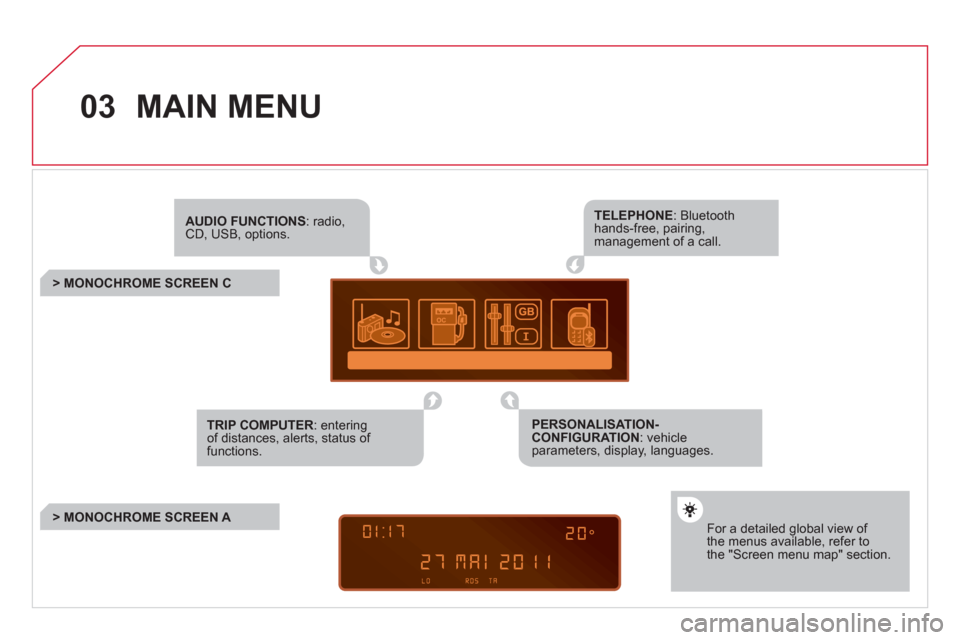
03 MAIN MENU
AUDIO FUNCTIONS
: radio,
CD, USB, options.
> MONOCHROME SCREEN C
For a detailed global view of
the menus available, refer to
the "Screen menu map" section.
TELEPHONE
: Bluetooth
hands-free, pairing,
management of a call.
PERSONALISATION-
CONFIGURATION
: vehicle
parameters, display, languages.
TRIP COMPUTER
: entering
of distances, alerts, status of
functions.
> MONOCHROME SCREEN A
Page 290 of 324
05
1
1
2
3
USB BOX
The system puts together playlists (temporary memory) created
over a period which depends on the capacity of the USB device.
The other sources are available during this time.
The playlists are updated each time the ignition is switched off or
each time a USB memory stick is connected.
When connecting for the fi rst time, the classifi cation suggested
is by folder. When you reconnect, the classifi cation selected
previously is retained.
Connect the memory stick to the port, directly or
using a lead. If the audio equipment is switched
on, the USB source is detected as soon as it
is connected. Play begins automatically after a
delay which depends on the capacity of the USB
memory stick.
The fi le formats recognised are .mp3 (mpeg1
layer 3 only), .wma (standard 9 only, 128 kbits/sec
compression), .wav and .ogg.
The playlists types accepted are m3u, .pls, .wpl.
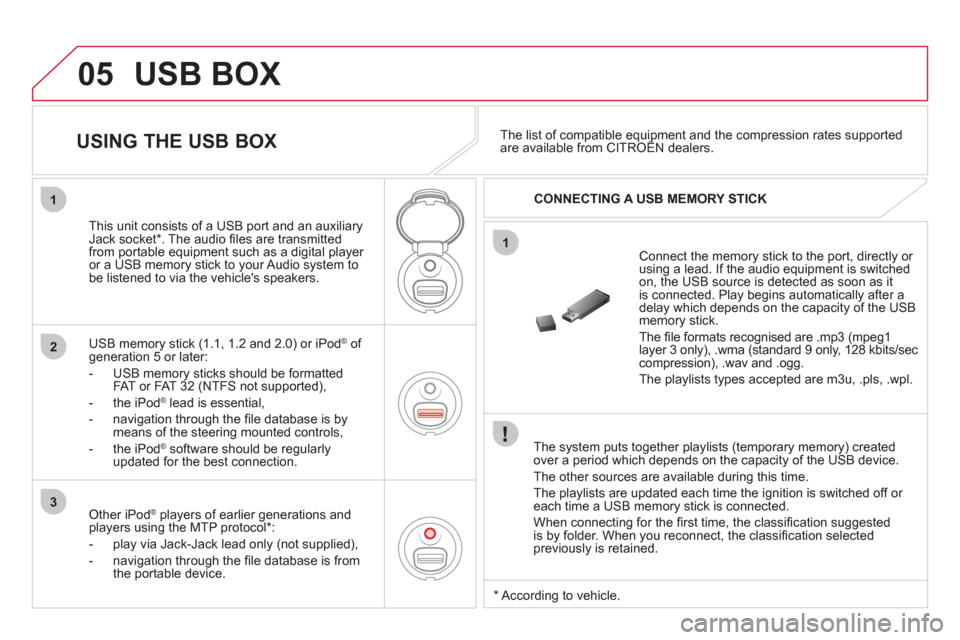
This unit consists of a USB port and an auxiliary
Jack socket * . The audio fi les are transmitted
from portable equipment such as a digital player
or a USB memory stick to your Audio system to
be listened to via the vehicle's speakers.
USB memory stick (1.1, 1.2 and 2.0) or iPod
®
of
generation 5 or later:
- USB memory sticks should be formatted
FAT or FAT 32 (NTFS not supported),
- the iPod
®
lead is essential,
- navigation through the fi le database is by
means of the steering mounted controls,
- the iPod
®
software should be regularly
updated for the best connection.
The list of compatible equipment and the compression rates supported
are available from CITROËN dealers.
USING THE USB BOX
CONNECTING A USB MEMORY STICK
Other iPod
®
players of earlier generations and
players using the MTP protocol * :
- play via Jack-Jack lead only (not supplied),
- navigation through the fi le database is from
the portable device.
*
According to vehicle.
Page 291 of 324
05
42
3
1
5
289
USB BOX
USING THE USB PORT
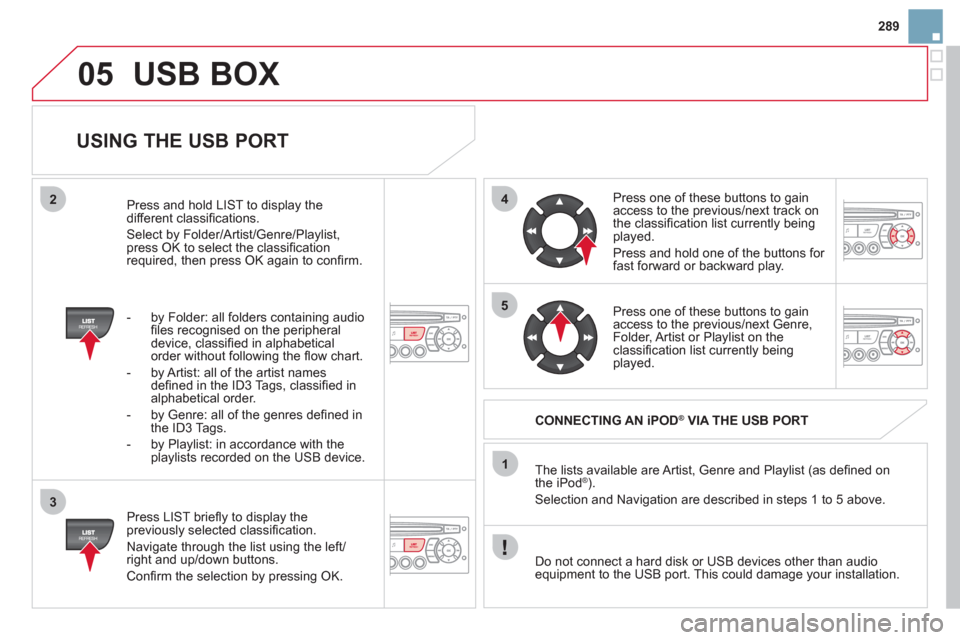
Press LIST briefl y to display the
previously selected classifi cation.
Navigate through the list using the left/
right and up/down buttons.
Confi rm the selection by pressing OK. The lists available are Artist, Genre and Playlist (as defi ned on
the iPod
® ).
Selection and Navigation are described in steps 1 to 5 above.
Do not connect a hard disk or USB devices other than audio
equipment to the USB port. This could damage your installation.
CONNECTING AN iPOD
®
VIA THE USB PORT
Press one of these buttons to gain
access to the previous/next track on
the classifi cation list currently being
played.
Press and hold one of the buttons for
fast forward or backward play.
Press one of these buttons to gain
access to the previous/next Genre,
Folder, Artist or Playlist on the
classifi cation list currently being
played.
Press and hold LIST to display the
different classifi cations.
Select by Folder/Artist/Genre/Playlist,
press OK to select the classifi cation
required, then press OK again to confi rm.
- by Folder: all folders containing audio
fi les recognised on the peripheral
device, classifi ed in alphabetical
order without following the fl ow chart.
- by Artist: all of the artist names
defi ned in the ID3 Tags, classifi ed in
alphabetical order.
- by Genre: all of the genres defi ned in
the ID3 Tags.
- by Playlist: in accordance with the
playlists recorded on the USB device.
Page 292 of 324
05
1
21
2
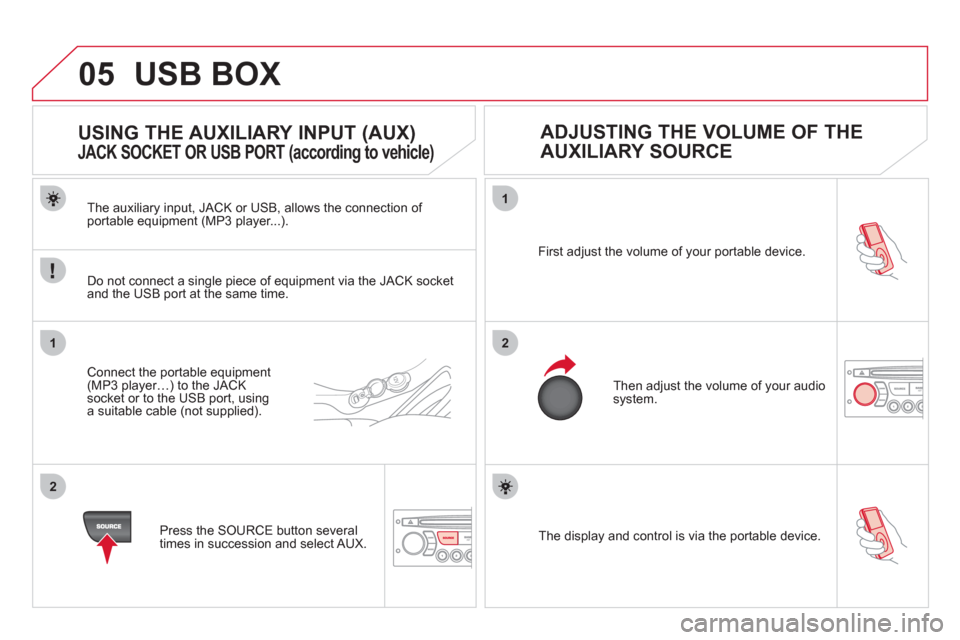
The display and control is via the portable device. First adjust the volume of your portable device.
Then adjust the volume of your audio
system.
USING THE AUXILIARY INPUT (AUX)
JACK SOCKET OR USB PORT (according to vehicle)
ADJUSTING THE VOLUME OF THE
AUXILIARY SOURCE
USB BOX
The auxiliary input, JACK or USB, allows the connection of
portable equipment (MP3 player...).
Do not connect a single piece of equipment via the JACK socket
and the USB port at the same time.
Connect the portable equipment
(MP3 player…) to the JACK
socket or to the USB port, using
a suitable cable (not supplied).
Press the SOURCE button several
times in succession and select AUX.
Page 300 of 324
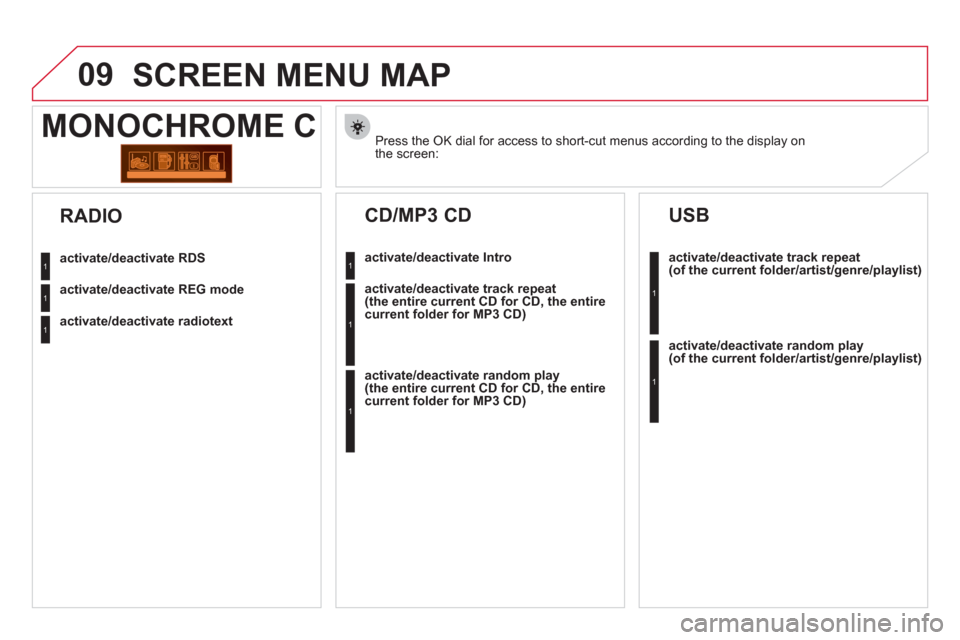
09 SCREEN MENU MAP
Press the OK dial for access to short-cut menus according to the display on
the screen:
MONOCHROME C
activate/deactivate RDS
activate/deactivate REG mode
activate/deactivate radiotext
RADIO
activate/deactivate Intro
CD/MP3 CD
activate/deactivate track repeat
(the entire current CD for CD, the entire
current folder for MP3 CD)
activate/deactivate random play
(the entire current CD for CD, the entire
current folder for MP3 CD)
activate/deactivate track repeat
(of the current folder/artist/genre/playlist)
USB
activate/deactivate random play
(of the current folder/artist/genre/playlist)
1
1
1
1
1
1
1
1