ad blue CITROEN DS3 CABRIO 2016 Handbook (in English)
[x] Cancel search | Manufacturer: CITROEN, Model Year: 2016, Model line: DS3 CABRIO, Model: CITROEN DS3 CABRIO 2016Pages: 450, PDF Size: 17.47 MB
Page 406 of 450

6
2
7
3
8
4
9
5
1011
1
Audio and Telematics
Level 1
Level 2
Usage monitor
Internet connection settings
Wi- Fi network connection
Bluetooth
(devices)
Page 407 of 450

1
1
1
2
3
4
5
6
7
8
9
10
11
Audio and Telematics 5
Level 1
Level 2
Comments
Connected
services
Secondary page
Bluetooth
connection
Search
Start the search for a device to connect.
Connect / Disconnect
Start or end the Bluetooth connection to the
selected device.
Update
Import contacts from the selected telephone to
save them in the audio system.
Delete
Delete the selected telephone.
Confirm
Save the settings.
Connected
services
Secondary page
Tr a n s f e r r a t e
Reset
Reset the usage monitor, them confirm.
Confirm
Connected
services
Secondary page
WiFi connection
All
Display all Wi-Fi networks.
Secure
Display secure Wi-Fi networks.
Stored
Memorise the selected Wi-Fi network(s).
Add
Add a new Wi-Fi network.
Off/
On
Activate or deactivate a Wi-Fi network.
Connect
Select a Wi-Fi network found by the system and
connect to it.
Page 409 of 450

Audio and Telematics 7
As a safety measure and because it
requires sustained attention by the
driver, using a smartphone when
driving is prohibited.
All operations must be done with the
vehicle stationary
.
The synchronisation of a
smartphone allows applications on a
smartphone that are adapted to the
MirrorLink
TM technology to be displayed
in the vehicle's screen.
As the principles and standards are
constantly evolving, it is recommended
that you update the operating system of
your smartphone.
For the list of eligible smar tphones,
connect to the brand's internet website
in your country.
Please note:
- if your smartphone is supported, to
make it "MirrorLink
TM " compatible,
some phone manufacturers
nevertheless invite you to first
download a dedicated application.
- iPhone
®
is not supported yet; an
Apple ® application, "CarPlay ®
", is
being developed.
When connecting a smartphone to
the system, it is recommended that
Bluetooth
® be started on the smartphone
Start the application on the
smartphone (optional, depending
on the smartphone and operating
system).
Access to the different audio sources remains
accessible in the margin of the MirrorLink
TM
display, using touch buttons in the upper bar.
Access to the menus for the system is possible
at any time using the dedicated buttons
If the smartphone is locked,
communication with the system is only
by USB cable.
During the procedure, several screen
pages relating to certain functions
are displayed.
Accept to start and end the
connection.
Connect a USB cable. The
smartphone charges when
connected by a USB cable.
Press " MirrorLink
TM
" to start
the application in the system.
Once connection is established, an
" Applications
" page is displayed with the
list of applications already downloaded to
your smartphone and adapted to MirrorLink
TM
technology.
If only one application has been downloaded to
the smartphone, it starts automatically.
MirrorLink TM
smartphone
connection
Press the end of the lighting control stalk to
start voice recognition of your smartphone via
the system.
Voice recognition requires a compatible
smartphone connected to the vehicle by
Bluetooth.
Voice recognition
As a safety measure, applications
can only be viewed with the vehicle
stationary; display is interrupted once
the vehicle is moving.
From the system, press " Connected
services
" to display the primary
page.
Page 431 of 450

18Technical data
Diesel enginee-HDi 90BlueHDi 100BlueHDi 120BlueHDi 115 **
Gearbox Manual (5-speed) ETG6 electronic (6-speed) Manual (5-speed) Manual (6-speed)
Model code: SB... 9HPK /S 9HP8/PS BHY6/S BHZM/S BHXM/S **
Cubic capacity (cc) 1 560 1 560 1 560
Bore x stroke (mm) 75 x 88.3 75 x 88.3 75 x 88.3
Max power: EU standard (kW) * 68 73 88 85 **
Max power engine speed (rpm) 4 000 3 750 3 500
Max torque: EU standard (Nm) 230 254 300
Max torque engine speed (rpm) 1 750 1 750 1 750
Fuel Diesel Diesel Diesel
Catalytic converter Ye s Ye s Ye s
Particle filter (FAP) Ye s Ye s Ye s
Engine oil capacity (in litres)(with filter replacement) 3.75 3.75 3.75
* The maximum power corresponds to the value type-approved on a test bed, under conditions defined in European legislation (Directive 1999/99/EC). ** For Belgium.
Diesel engines
.../S: model fitted with Stop & Start .
Page 432 of 450
19Technical data
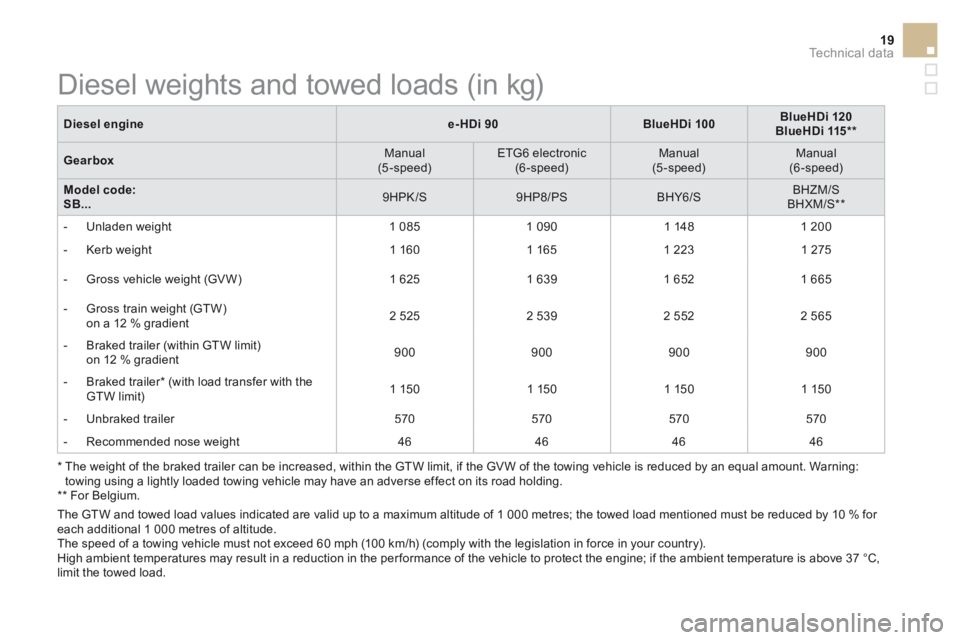
Diesel enginee-HDi 90BlueHDi 100BlueHDi 120BlueHDi 115 **
Gearbox Manual (5-speed) ETG6 electronic (6-speed) Manual (5-speed) Manual (6-speed)
Model code: SB... 9HPK /S 9HP8/PS BHY6/S BHZM/S BHXM/S **
- Unladen weight 1 085 1 090 1 148 1 200
- Kerb weight 1 160 1 165 1 223 1 275
- Gross vehicle weight (GV W) 1 625 1 639 1 652 1 665
- Gross train weight (GTW) on a 12 % gradient 2 525 2 539 2 552 2 565
- Braked trailer (within GTW limit) on 12 % gradient 900 900 900 900
- Braked trailer * (with load transfer with the GTW limit) 1 150 1 150 1 150 1 150
- Unbraked trailer 570 570 570 570
- Recommended nose weight 46 46 46 46
The GTW and towed load values indicated are valid up to a maximum altitude of 1 000 metres; the towed load mentioned must be reduced by 10 % for each additional 1 000 metres of altitude. The speed of a towing vehicle must not exceed 60 mph (100 km/h) (comply with the legislation in force in your country). High ambient temperatures may result in a reduction in the per formance of the vehicle to protect the engine; if the ambient temperature is above 37 °C, limit the towed load.
* The weight of the braked trailer can be increased, within the GTW limit, if the GV W of the towing vehicle is reduced by an equal amount. Warning: towing using a lightly loaded towing vehicle may have an adverse effect on its road holding. ** For Belgium.
Diesel weights and towed loads (in kg)
Page 444 of 450

Audio and Telematics 3
Internet browser
Authentication for Internet browsing via
a smartphone is done using the Dial-Up
Networking (DUN) standard.
Press on " Internet browser
" to
displays the browser's home page;
first connect your smartphone by
Bluetooth, option "Internet", see the
" Te l e p h o n e
" section.
Some smartphones of the latest
generation do not support this
standard.
Press on Connected services
to
display the primary page.
Page 445 of 450

6
2
7
3
8
4
9
5
1011
1
Audio and Telematics
Level 1
Level 2
Usage monitor
Internet connection settings
Wi- Fi network connection
Bluetooth
(devices)
Page 446 of 450
1
1
1
2
3
4
5
6
7
8
9
10
11
Audio and Telematics 5
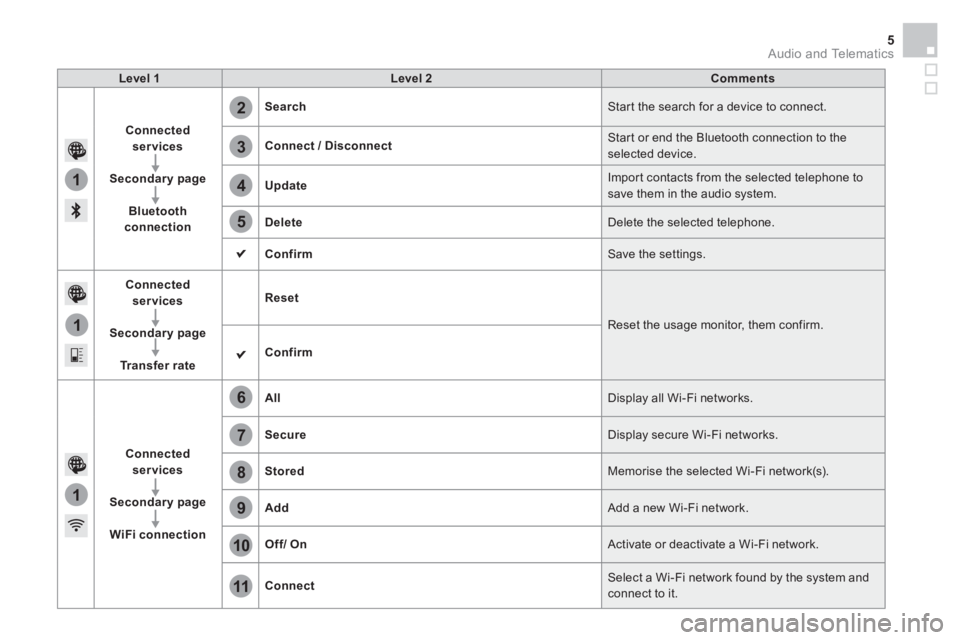
Level 1
Level 2
Comments
Connected
services
Secondary page
Bluetooth
connection
Search
Start the search for a device to connect.
Connect / Disconnect
Start or end the Bluetooth connection to the
selected device.
Update
Import contacts from the selected telephone to
save them in the audio system.
Delete
Delete the selected telephone.
Confirm
Save the settings.
Connected
services
Secondary page
Tr a n s f e r r a t e
Reset
Reset the usage monitor, them confirm.
Confirm
Connected
services
Secondary page
WiFi connection
All
Display all Wi-Fi networks.
Secure
Display secure Wi-Fi networks.
Stored
Memorise the selected Wi-Fi network(s).
Add
Add a new Wi-Fi network.
Off/
On
Activate or deactivate a Wi-Fi network.
Connect
Select a Wi-Fi network found by the system and
connect to it.
Page 448 of 450

Audio and Telematics 7
As a safety measure and because it
requires sustained attention by the
driver, using a smartphone when
driving is prohibited.
All operations must be done with the
vehicle stationary
.
The synchronisation of a
smartphone allows applications on a
smartphone that are adapted to the
MirrorLink
TM technology to be displayed
in the vehicle's screen.
As the principles and standards are
constantly evolving, it is recommended
that you update the operating system of
your smartphone.
For the list of eligible smar tphones,
connect to the brand's internet website
in your country.
Please note:
- if your smartphone is supported, to
make it "MirrorLink
TM " compatible,
some phone manufacturers
nevertheless invite you to first
download a dedicated application.
- iPhone
®
is not supported yet; an
Apple ® application, "CarPlay ®
", is
being developed.
When connecting a smartphone to
the system, it is recommended that
Bluetooth
® be started on the smartphone
Start the application on the
smartphone (optional, depending
on the smartphone and operating
system).
Access to the different audio sources remains
accessible in the margin of the MirrorLink
TM
display, using touch buttons in the upper bar.
Access to the menus for the system is possible
at any time using the dedicated buttons
If the smartphone is locked,
communication with the system is only
by USB cable.
During the procedure, several screen
pages relating to certain functions
are displayed.
Accept to start and end the
connection.
Connect a USB cable. The
smartphone charges when
connected by a USB cable.
Press " MirrorLink
TM
" to start
the application in the system.
Once connection is established, an
" Applications
" page is displayed with the
list of applications already downloaded to
your smartphone and adapted to MirrorLink
TM
technology.
If only one application has been downloaded to
the smartphone, it starts automatically.
MirrorLink TM
smartphone
connection
Press the end of the lighting control stalk to
start voice recognition of your smartphone via
the system.
Voice recognition requires a compatible
smartphone connected to the vehicle by
Bluetooth.
Voice recognition
As a safety measure, applications
can only be viewed with the vehicle
stationary; display is interrupted once
the vehicle is moving.
From the system, press " Connected
services
" to display the primary
page.