system settings CITROEN DS3 CABRIO 2016 Handbook (in English)
[x] Cancel search | Manufacturer: CITROEN, Model Year: 2016, Model line: DS3 CABRIO, Model: CITROEN DS3 CABRIO 2016Pages: 450, PDF Size: 17.47 MB
Page 50 of 450
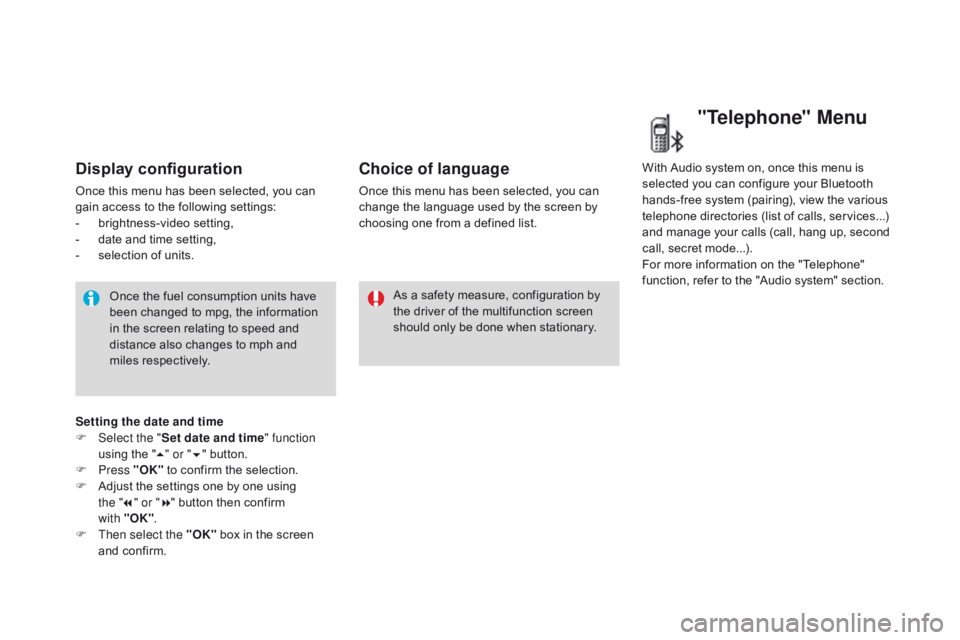
Display configuration
Once this menu has been selected, you can gain access to the following settings:
-
b
rightness-video
s
etting,
-
d
ate and time setting,
-
s
election of units.
Once
the fuel consumption units have
b
een changed to mpg, the information
i
n the screen relating to speed and
d
istance also changes to mph and
mil
es
re
spectively. As
a safety measure, configuration by
t
he driver of the multifunction screen
s
hould only be done when stationary.
Choice of language
Once this menu has been selected, you can change the language used by the screen by
c
hoosing one from a defined list.With
Audio system on, once this menu is s
elected you can configure your Bluetooth h
ands-free system (pairing), view the various
t
elephone directories (list of calls, services...)
a
nd manage your calls (call, hang up, second
c
all, secret mode...).
For
more information on the "Telephone"
f
unction, refer to the "Audio system" section.
"Telephone" Menu
Setting the date and time
F Sel ect the " Set date and time" function
using
the "5 " or " 6"
button.
F
Press "OK"
to confirm the selection.
F
A
djust the settings one by one using
t
he "7 " or " 8"
button then confirm
w
ith "OK".
F
T
hen select the "OK"
box in the screen
a
nd confirm.
Page 51 of 450
49
Touch screen tablet
This system gives access to:
- m enus for adjusting settings for vehicle
f
unctions and systems,
-
a
udio and display configuration menus,
-
a
udio system and telephone controls and
t
he display of associated information,
-
t
he display of alert messages,
-
t
he display of ambient temperature (a blue
s
now flake appears if there is a risk of ice),
-
t
he trip computer.
And,
depending on equipment, it allows:
-
t
he display of the visual parking sensors
i
nformation,
-
a
ccess to the controls for the navigation
s
ystem and Internet services, and the
d
isplay of associated information. After
a few moments with no action on
t
he secondary page, the primary page
i
s displayed automatically.
As
a safety measure, some functions
c
an only be viewed when stationary.
T
heir display is interrupted as soon as
t
he vehicle moves off.general operation
Recommendations
It is necessary to press firmly, particularly for "flick" gestures (scrolling through lists, moving
t
he
m
ap...).
A
light wipe is not enough.
The
screen does not recognise pressing with
m
ore than one finger.
This
technology allows use at all temperatures
a
nd when wearing gloves.
Do
not use pointed objects on the touch screen
t
ablet.
Do
not touch the touch screen tablet with wet
han
ds.
Uses a soft clean cloth to clean the touch
screen
t
ablet.
Principles
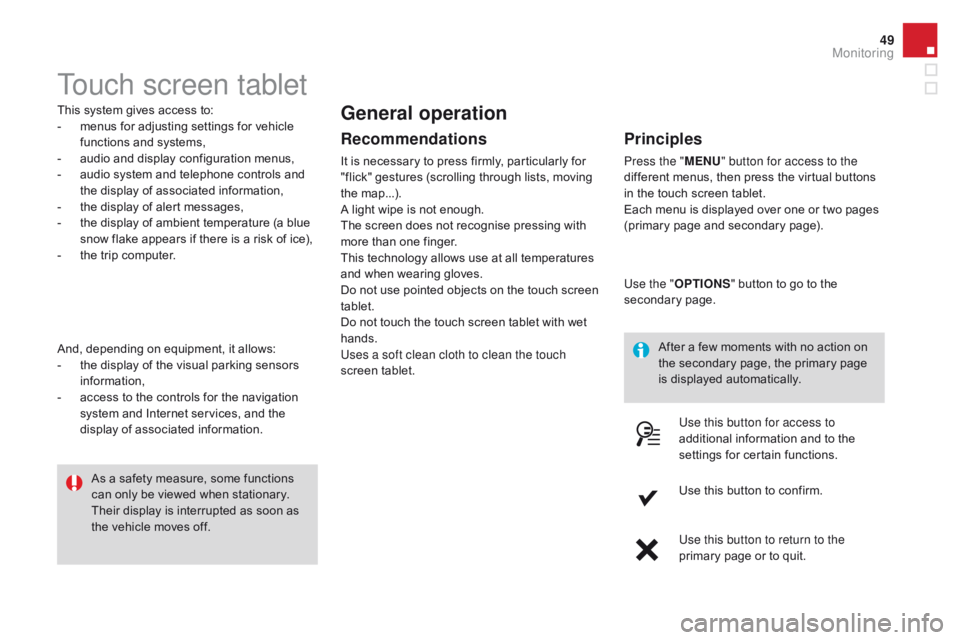
Press the " MEn U" button for access to the
different menus, then press the virtual buttons
i
n the touch screen tablet.
Each
menu is displayed over one or two pages
(
primary page and secondary page).
Use the " OPTIO
nS"
button to go to the
s
econdary
pag
e.
Use this button for access to
additional
information and to the
s
ettings for certain functions.
Use
this button to confirm.
Use this button to return to the
primary
page or to quit.
Monitoring
Page 52 of 450
Menus
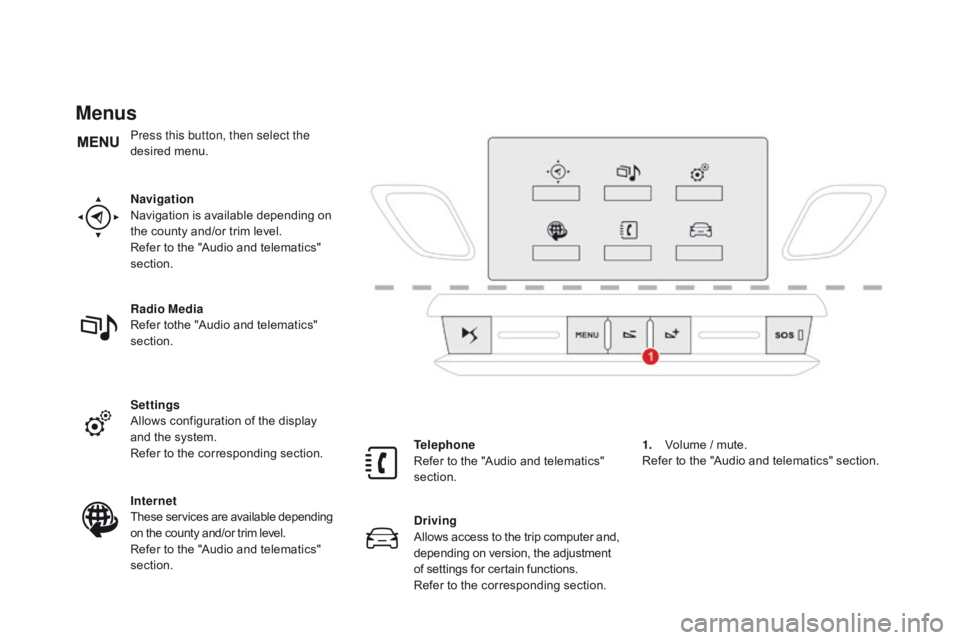
navigation
Navigation is available depending on
t
he county and/or trim level.
Refer
to the "Audio and telematics"
s
ection.
Radio Media
Refer
tothe "Audio and telematics"
s
ection.
Settings
Allows
configuration of the display
a
nd the system.
Refer
to the corresponding section.
Internet
These
services are available depending
o
n the county and/or trim level.
Refer
to the "Audio and telematics"
s
ection. Telephone
Refer
to the "Audio and telematics"
s
ection.
dr
iving
Allows
access
to
the
trip
computer
and,
d
epending on version, the adjustment
o
f settings for certain functions.
Refer
to the corresponding section.1.
V
olume / mute.
Refer
to the "Audio and telematics" section.
Press this button, then select the
desired
m
enu.
Page 54 of 450
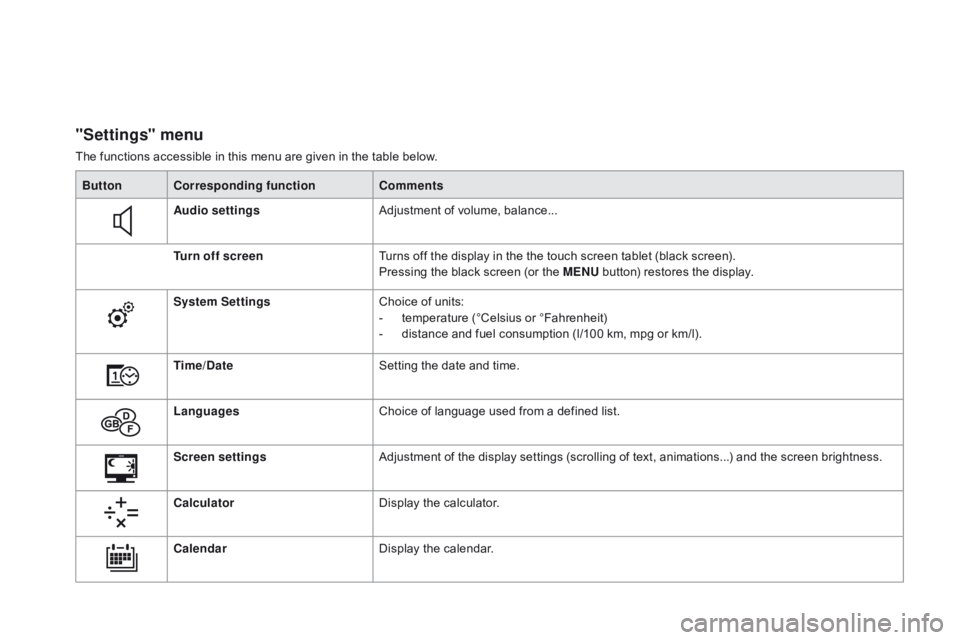
"Settings" menu
The functions accessible in this menu are given in the table below.
Bu tton Corresponding function Comments
Audio settings Adjustment
of volume, balance...
Turn off screen Turns
off the display in the the touch screen tablet (black screen).
Pressing
the black screen (or the ME
n
U
button) restores the display.
System Settings Choice
of units:
-
t
emperature (°Celsius or °Fahrenheit)
-
d
istance and fuel consumption (l/100 km, mpg or km/l).
Time/
d
a
te Setting
the date and time.
Languages Choice
of language used from a defined list.
Screen settings Adjustment
of the display settings (scrolling of text, animations...) and the screen brightness.
Calculator Display
the calculator.
Calendar Display
the calendar.
Page 92 of 450
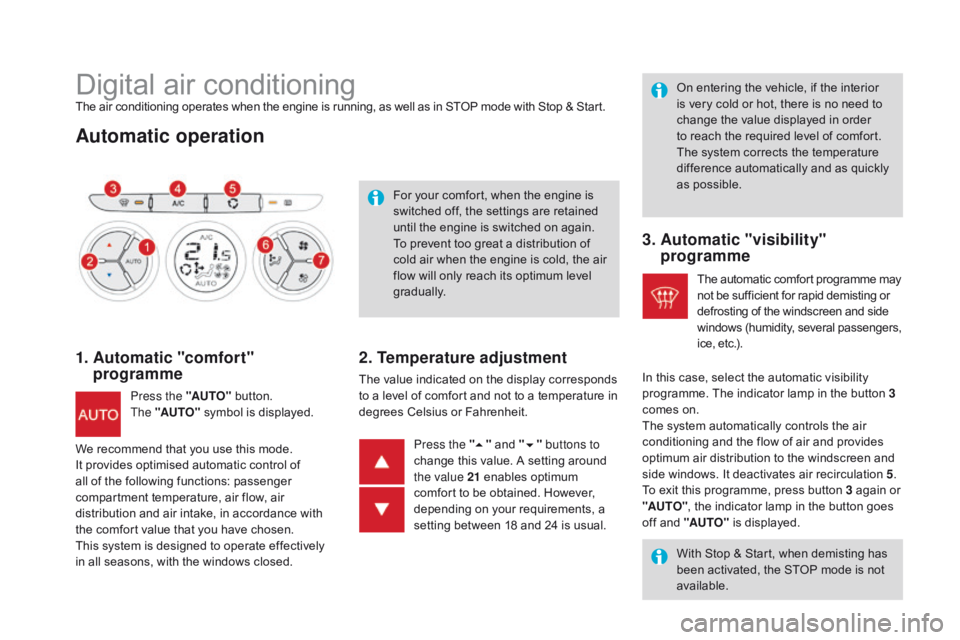
Digital air conditioningThe air conditioning operates when the engine is running, as well as in STOP mode with Stop & Start.
Automatic operation
1. Automatic "comfort" programme
Press the "AUTO" button. T
he "AUTO" symbol is displayed. For
your comfort, when the engine is
s
witched off, the settings are retained
u
ntil the engine is switched on again.
To prevent too great a distribution of
c
old air when the engine is cold, the air
f
low will only reach its optimum level
g
radually.
2. Temperature adjustment
The value indicated on the display corresponds t
o a level of comfort and not to a temperature in
d
egrees Celsius or Fahrenheit. On
entering the vehicle, if the interior
i
s very cold or hot, there is no need to
c
hange the value displayed in order
t
o reach the required level of comfort.
T
he system corrects the temperature
d
ifference automatically and as quickly
a
s possible.
Press the " 5"
and "6 " buttons to
change
this value. A setting around
t
he value 21
enables optimum
c
omfort to be obtained. However,
d
epending on your requirements, a
s
etting between 18 and 24 is usual.
3. Automatic "visibility" programme
The automatic comfort programme may n
ot be sufficient for rapid demisting or d
efrosting of the windscreen and side
w
indows
(
humidity,
se
veral
p
assengers,
i
ce, etc.).
With
Stop & Start, when demisting has
b
een activated, the STOP mode is not
a
vailable.
In
this
case, select the automatic visibility
p
rogramme. The indicator lamp in the button 3
comes
on.
The
system automatically controls the air
c
onditioning and the flow of air and provides
o
ptimum
air distribution to the windscreen and
s
ide
windows. It deactivates air recirculation 5.
To
exit
this programme, press button 3 again or
"A
UTO" ,
the indicator lamp in the button goes
o
ff
and
"AUTO"
is displayed.
We
recommend
that
you
use
this
mode.
I
t
provides
optimised
automatic
control
of
a
ll
of
the
following
functions:
passenger
c
ompartment
temperature,
air
flow,
air
d
istribution
and
air
intake,
in
accordance
with
t
he
comfort
value
that
you
have
chosen.
This
system
is
designed
to
operate
effectively
i
n
all
seasons,
with
the
windows
closed.
Page 96 of 450

Rear screen demist - defrost
The control button is located on the heating or air conditioning system control panel.
Switching on
The rear screen demisting/defrosting can only operate when the engine is running.
F
P
ress this button to demist /defrost the
r
ear screen and (depending on version)
t
he door mirrors. The indicator lamp
a
ssociated with the button comes on.
Switching off
The demisting/defrosting switches off automatically to prevent an excessive
c
onsumption of current.
F
I
t is possible to stop the demisting/
defrosting
operation before it is switched
o
ff automatically by pressing the button
a
gain. The indicator lamp associated with
t
he button switches off. Switch
off the demisting/defrosting
o
f the rear screen and door mirrors
a
s soon as appropriate, as reducing e
lectrical power consumption results in r
educed f uel c onsumption.
If the engine is switched off before the d
emisting/defrosting is switched off a
utomatically,
d
emisting/defrosting
w
ill
r
esume next time the engine is switched on.
Scented air
f
reshener
This diffuses a fragrance in the passenger c
ompartment, by means of the adjustment dial
a
nd the various fragrance cartridges available.
This
dial is located on the dashboard.
It
allows you to adjust the intensity of diffusion
o
f the fragrance.
F
T
urn the dial to the right to permit diffusion
o
f the fragrance.
F
T
urn the dial to the left to stop diffusion of
t
he
f
ragrance.
Adjustment dial
Leave the central vents open.
T he intensity of diffusion of the
f
ragrance may depend on the
v
entilation or air conditioning settings.
Page 155 of 450
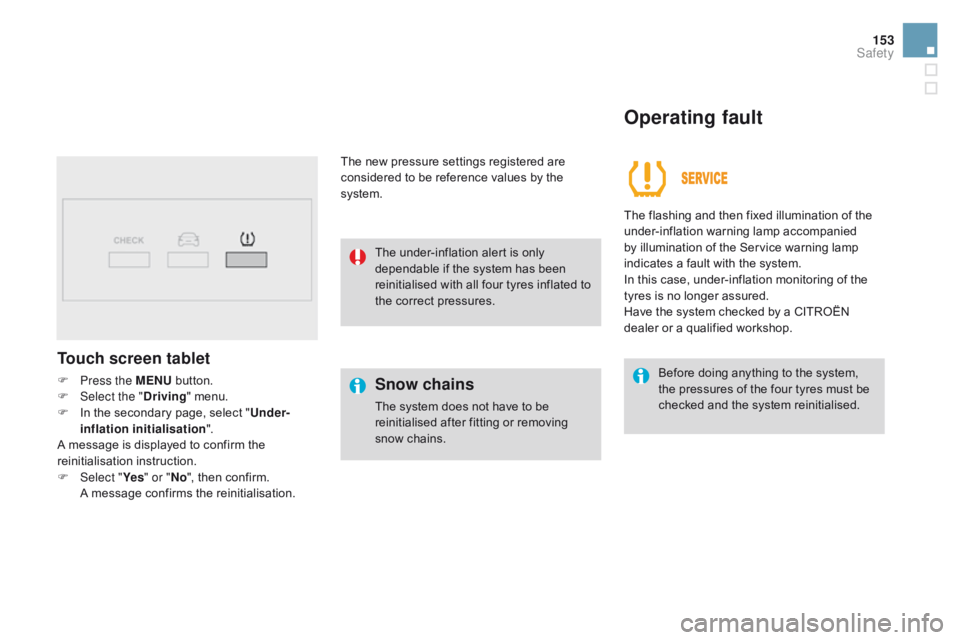
153
Touch screen tablet
F Press the MEnU button.
F Sel ect the "dr iving"
menu.
F
I
n the secondary page, select "Under-
inflation initialisation ".
A
message is displayed to confirm the
r
einitialisation
i
nstruction.
F
Sel
ect "Ye s" or "
n
o",
then confirm.
A
message confirms the reinitialisation.The
new pressure settings registered are
c
onsidered to be reference values by the
s
ystem.Snow chains
The system does not have to be r
einitialised after fitting or removing
sn
ow
c
hains. Before
doing anything to the system,
t
he pressures of the four tyres must be c
hecked and the system reinitialised.
The under-inflation alert is only
d
ependable if the system has been
r
einitialised with all four tyres inflated to
t
he correct pressures.
Operating fault
The flashing and then fixed illumination of the u
nder-inflation w arning lam p a ccompanied b
y illumination of the Service warning lamp
i
ndicates a fault with the system.
In
this case, under-inflation monitoring of the
t
yres is no longer assured.
Have
the system checked by a CITROËN
d
ealer or a qualified workshop.
Safety
Page 161 of 450

159
Operating limits
The system only detects vehicles that are stationary or moving in the same direction as
y
our vehicle.
It
does not detect small vehicles
(
bicycles, motorcycles), pedestrians or
a
nimals, nor non-reflective stationary
ob
jects.
The
system is not triggered or is interrupted if
t
he
d
river:
-
a
ccelerates strongly
-
o
r turns the steering wheel suddenly
(
avoiding
m
anoeuvre).With the monochrome screen C
F Press the MEn U button for access to the
main menu.
F
Sel
ect "Personalisation-Configuration ".
F
Sel
ect "
def
ine vehicle parameters ".
F
Sel
ect "
dr
iving assistance ".
F
Sel
ect "Automatic emergency braking:
OFF " or " Automatic emergency braking :
O
n".
F
P
ress the " 7" or " 8"
button to check or
u
ncheck the box and activate or deactivate
t
he system respectively.
F
P
ress the " 5" or " 6" button, then the OK
button to select the "OK"
box and confirm
o
r the Back
button to cancel.
With the touch screen tablet
F Press the "MEn U" button.
F Sel ect the "dr iving"
menu.
F
I
n the secondary page, select "Vehicle
settings ".
F
Sel
ect "
dr
iving assistance "
tab.
F
C
heck or uncheck the "Automatic
emergency braking "
box to activate or
d
eactivate the system.
F
C
onfirm.
Safety
Page 275 of 450
273
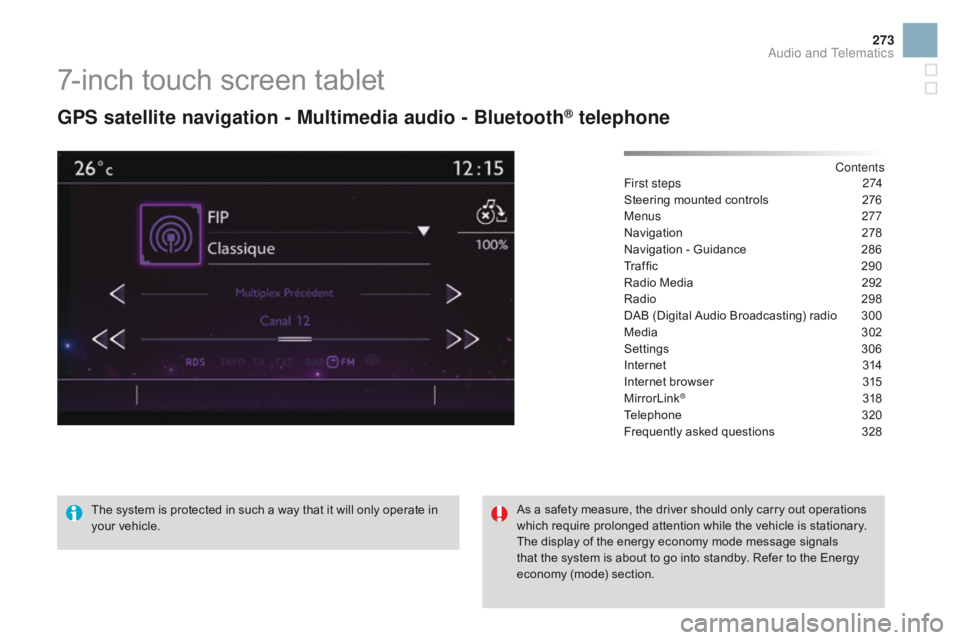
7-inch touch screen tablet
gPS satellite navigation - Multimedia audio - Bluetooth® telephone
Contents
First steps
2 74
Steering
mounted
controls
2
76
Menus
277
Navigation
2
78
Navigation
-
Guidance
2
86
Traffic
29
0
Radio
Media
2
92
Radio
2
98
DAB
(Digital
Audio
Broadcasting)
radio
3
00
Media
3
02
Settings
3
06
Internet
3
14
Internet
browser
3
15
MirrorLink
® 31 8
Telephone
3
20
Frequently
asked questions
3
28
The
system
is
protected
in
such
a
way
that
it
will
only
operate
in
y
our
vehicle. As
a
safety
measure,
the
driver should only carry out operations
w
hich
require
prolonged
attention while the vehicle is stationary.
The
display
of
the
energy
economy mode message signals
t
hat
the
system
is
about
to
go
into standby. Refer to the Energy
ec
onomy
(
mode)
s
ection.
Audio and Telematics
Page 288 of 450

1
2
10
Navigation - Guidance
Choosing a new destination
Select "Enter destination ". Select "
Save" to save the address
e
ntered as a contact entry.
The system allows up to 200 entries.
Select " Confirm ".
Press " Show route on map " to start
navigation.
Select "
Address ".
Select the " Country:"
from the
l
ist offered, then in the same
w
ay the "City:" or its post
code,
the "Road: ", the "
n°:".
C
onfirm each time. Select "n
avigate to
".
Choose the restriction criteria:
"I
nclude tollroads", "Include
ferries ", "Tr a f f i c ", "Strict ", "Close ".
Choose
the navigation criteria:
"F
astest" or "Shortest " or "Time/
distance " or "Ecological". To
delete navigation information, press
"
S
ettings
".
Press " Stop navigation ".
To resume navigation press "Settings ".
Press " Resume navigation ".
Press on
n
a
vigation
to display the
p
rimary
pag
e.
Press on the secondary page.
Towards a new destination
Or