audio CITROEN DS3 CABRIO 2017 Handbook (in English)
[x] Cancel search | Manufacturer: CITROEN, Model Year: 2017, Model line: DS3 CABRIO, Model: CITROEN DS3 CABRIO 2017Pages: 444, PDF Size: 13.89 MB
Page 7 of 444

CHECKSTECHnI CAL dAT AAUdIO And
T ELEMATICS
249 Bonnet
250 Pet
rol e ngines
251
Di
esel
engi
nes
252
Ch
ecking
l
evels
256
Ch
ecks 260 Pet
rol e ngines
263 Pet rol w eights
266
Di
esel
engi
nes
267
Di
esel
w
eights
268
Di
mensions
270
Id
entification
mar
kings2 74 Em
ergency o r a ssistance
277 7- inch t ouch s creen t ablet
345
Au
dio
s
ystem
010011
009
Page 12 of 444
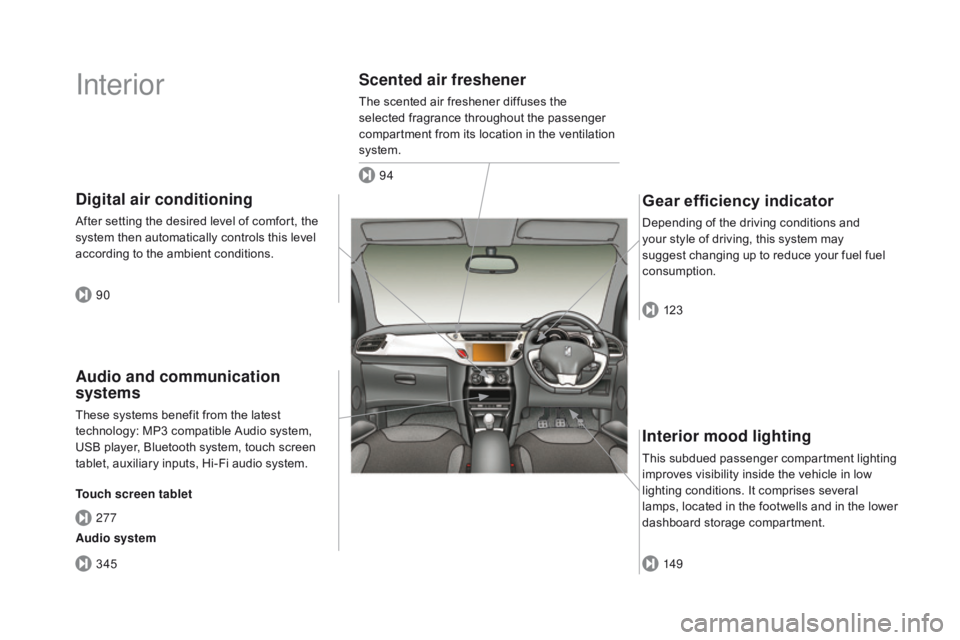
Interior
Interior mood lighting
This subdued passenger compartment lighting improves v isibility i nside t he v ehicle i n l ow li
ghting
c
onditions.
I
t
c
omprises
s
everal
la
mps,
l
ocated
i
n
t
he
f
ootwells
a
nd
i
n
t
he
l
ower
da
shboard
st
orage
co
mpartment.
Gear efficiency indicator
Depending of the driving conditions and your s tyle o f d riving, t his s ystem m ay su
ggest
c
hanging
u
p
t
o
r
educe
y
our
f
uel
f
uel
co
nsumption.
Scented air freshener
The scented air freshener diffuses the selected f ragrance t hroughout t he p assenger co
mpartment
f
rom
i
ts
l
ocation
i
n
t
he
v
entilation
sy
stem.
digital air conditioning
After setting the desired level of comfort, the system t hen a utomatically c ontrols t his l evel ac
cording
t
o
t
he
a
mbient
c
onditions.
149 123
94
90
345 277
Audio and communication
systems
These systems benefit from the latest te chnology: M P3 c ompatible A udio s ystem, US
B
p
layer,
B
luetooth
s
ystem,
t
ouch
s
creen
ta
blet,
a
uxiliary
i
nputs,
H
i-Fi
a
udio
s
ystem.
Touch screen tablet
Audio system
Page 13 of 444
11
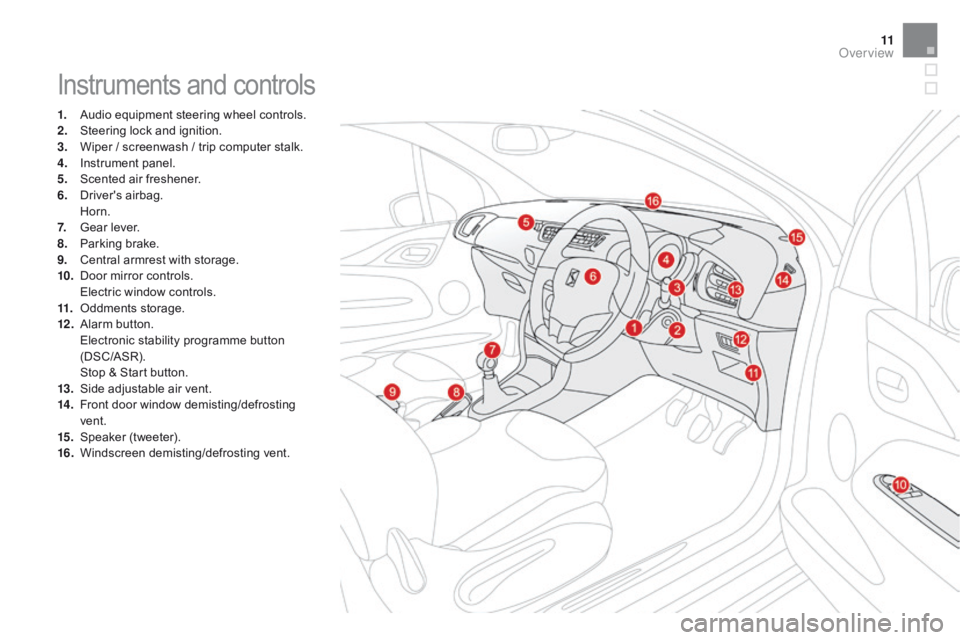
Instruments and controls
1. Audio equipment s teering w heel c ontrols.
2. St eering l ock a nd i gnition.
3.
Wi
per
/ s
creenwash
/ t
rip
c
omputer
s
talk.
4.
In
strument
p
anel.
5.
Sc
ented
a
ir
f
reshener.
6.
Dr
iver's
air
bag.
Ho
rn.
7.
Ge
ar
l
ever.
8.
Pa
rking
b
rake.
9.
Ce
ntral
a
rmrest
w
ith
s
torage.
10.
Do
or
m
irror
c
ontrols.
El
ectric
w
indow
c
ontrols.
11.
Od
dments
s
torage.
12 .
Alar
m
but
ton.
El
ectronic
s
tability
p
rogramme
b
utton
(D
SC/ASR).
St
op
& S
tart
b
utton.
13.
Si
de
a
djustable
a
ir
v
ent.
14 .
Fr
ont
d
oor
w
indow
d
emisting/defrosting
ven
t.
15.
Sp
eaker
(t
weeter).
16.
Wi
ndscreen
dem
isting/defrosting
ven
t.
Over view
Page 44 of 444

Monochrome screen A
This displays the following information:
- ti me,
-
dat
e,
-
am
bient
t
emperature
(
this
f
lashes
i
f
t
here
i
s
a r
isk
o
f
i
ce),
-
st
atus
o
f
t
he
d
oors
a
nd
b
oot,
-
cu
rrent
a
udio
s
ource
(
radio,
C
D...),
-
tr
ip
c
omputer,
-
in
formation
o
r
a
lert
m
essages,
-
se
ttings
m
enus
f
or
t
he
s
creen
a
nd
t
he
ve
hicle
s
ystems.
displays in the screen
From the control panel of your Audio system, you c an:
F
pr
ess the "ME
nU
"
b
utton
t
o
g
ain
a
ccess
t
o
th
e main menu ,
F
pr
ess the " 5" or " 6" buttons to scroll
through
t
he
i
tems
i
n
t
he
s
creen,
F
pr
ess the "MO
dE" b
utton
t
o
c
hange
th
e
p
ermanent
a
pplication
(
date,
a
udio
so
urce...),
F
pr
ess the " 7" or " 8"
b
uttons
t
o
c
hange
a se
tting
v
alue,
F
pr
ess the "OK"
b
utton
t
o
c
onfirm,
or
F pr
ess the "Back"
b
utton
t
o
a
bandon
t
he
op
eration
i
n
p
rogress.
Controls
F Press the "MEnU " b utton t o g ain a ccess to t
he main menu , then press the " 5"
or
" 6 " b
uttons
t
o
s
croll
t
hrough
t
he
v
arious
me
nus:
-
ra
dio - CD,
-
ve
hicle
c
onfiguration,
-
opt
ions,
-
di
splay
set
tings,
-
lang
uages,
-
uni
ts.
F
Pr
ess the "OK"
b
utton
t
o
s
elect
t
he
m
enu
re
quired.
Main menu
Page 45 of 444

43
Radio- Cd
With the Audio system switched on, once the "Radio- CD" m enu h as b een s elected y ou c an ac
tivate
o
r
d
eactivate
t
he
f
unctions
a
ssociated
wi
th
u
se
o
f
t
he
r
adio
(
RDS,
R
EG),
o
r
t
he
C
D
(i
ntroscan,
s
huffle,
C
D
r
epeat).
For
m
ore
i
nformation
o
n
t
he
"
Radio- CD"
ap
plication,
r
efer
t
o
t
he
"
Audio
s
ystem"
s
ection.
Vehicle configuration
Once the " Vehicle Configuration" menu has been s elected, y ou c an a ctivate o r d eactivate th
e
f
ollowing
e
quipment:
-
wi
per
l
inked
w
ith
r
everse
g
ear
(
refer
t
o
t
he
"V
isibility"
se
ction),
-
gu
ide-me-home
l
ighting
(
refer
t
o
t
he
"V
isibility"
se
ction),
-
pa
rking
s
ensors
(
refer
t
o
t
he
"
Driving"
sec
tion).
Options
Once the "Options" menu has been selected, you c an s tart d iagnostics o f t he s tatus o f t he eq
uipment
(
active,
n
ot
a
ctive,
f
aulty).
This menu is also used to reinitialise the tyre under-inflation d etection s ystem ( refer t o t he "Sa
fety"
sec
tion).
Monitoring
Page 47 of 444

45
Monochrome screen C
This displays the following information:
- ti me,
-
dat
e,
-
am
bient
t
emperature
(
this
f
lashes
i
f
t
here
i
s
a r
isk
o
f
i
ce),
-
st
atus
o
f
d
oors
a
nd
b
oot,
-
au
dio
s
ources
(
radio,
C
D,
U
SB
p
ort
/ au
xiliary
s
ocket
e
tc.),
-
tr
ip
c
omputer,
-
in
formation
o
r
a
lert
m
essages,
-
se
ttings
m
enus
f
or
t
he
s
creen
a
nd
v
ehicle
sys
tems.
displays in the screen
From your Audio system control panel, you can:
F pr ess the "MEnU " b utton t o g ain a ccess t o th
e main menu ,
F
pr
ess the " 5" or " 6" buttons to scroll
through
t
he
i
tems
i
n
t
he
s
creen,
F
pr
ess the "MO
dE" b
utton
t
o
c
hange
t
he
pe
rmanent
a
pplication
(
trip
c
omputer,
au
dio
so
urce...),
F
pr
ess the " 7" or " 8"
b
uttons
t
o
c
hange
a se
tting
v
alue,
F
pr
ess the "OK"
b
utton
t
o
c
onfirm,
or
F
pr
ess the "Back"
b
utton
t
o
a
bandon
t
he
op
eration
i
n
p
rogress.
Controls
F Press the "MEnU " b utton t o g ain a ccess to t
he main menu :
-
au
dio
f
unctions,
-
th
e
t
rip
c
omputer,
-
per
sonalisation-configuration,
-
te
lephone
(
hands-free
k
it).
F
Pr
ess the " 5" or " 6" buttons to select the
menu
r
equired,
t
hen
c
onfirm
b
y
p
ressing
th
e "OK"
b
utton.
Main menu
Monitoring
Page 48 of 444

With the Audio system switched on, once this menu h as b een s elected y ou c an a ctivate o r de
activate
t
he
f
unctions
a
ssociated
w
ith
u
se
of t
he
r
adio
(
RDS,
R
EG,
R
adioText),
t
he
C
D
(i
ntroscan,
s
huffle,
C
D
r
epeat)
o
r
t
he
M
P3
pl
ayer
(
USB
p
ort
/ a
uxiliary
s
ocket).
For
m
ore
i
nformation
o
n
t
he
"
Audio
f
unctions"
ap
plication,
r
efer
t
o
t
he
"
Audio
s
ystem"
s
ection.
"Audio functions"
menu"Trip computer" menu
Once this menu has been selected, you can co
nsult i nformation c oncerning t he s tatus o f t he ve
hicle
(
warnings
l
og,
s
tatus
o
f
f
unctions,
e
tc.).
Alert log
This summarises the active warning messages, displaying t hem i n s uccession i n t he mu
ltifunction
sc
reen.
Status of functions
This summarises the status (active or inactive) of the v ehicle's f unctions.
Enter distance to destination
This allows you to enter an approximate distance u ntil y our f inal d estination. F
Pr
ess the "ME
nU
"
b
utton
t
o
g
ain
a
ccess
to t
he general menu
.
F
Pr
ess the arrows, then the "OK"
button to
select the " Trip computer "
m
enu.
F
In t
he "
Trip computer "
m
enu,
s
elect
o
ne
of t
he
f
ollowing
a
pplications:
Page 50 of 444

Display configuration
Once this menu has been selected, you can gain a ccess t o t he f ollowing s ettings:
-
br
ightness-video
se
tting,
-
da
te
a
nd
t
ime
s
etting,
-
se
lection
o
f
u
nits.
Once
t
he
f
uel
c
onsumption
u
nits
h
ave
be
en
c
hanged
t
o
m
pg,
t
he
i
nformation
in t
he
s
creen
r
elating
t
o
s
peed
a
nd
di
stance
a
lso
c
hanges
t
o
m
ph
a
nd
mile
s
res
pectively. As
a s
afety
m
easure,
c
onfiguration
b
y
th
e
d
river
o
f
t
he
m
ultifunction
s
creen
sh
ould
o
nly
b
e
d
one
w
hen
s
tationary.
Choice of language
Once this menu has been selected, you can change t he l anguage u sed b y t he s creen b y ch
oosing
o
ne
f
rom
a d
efined
l
ist.With
A
udio
s
ystem
o
n,
o
nce
t
his
m
enu
i
s
se
lected y ou c an c onfigure y our B luetooth ha
nds-free s ystem ( pairing), v iew t he v arious te
lephone
d
irectories
(
list
o
f
c
alls,
s
ervices...)
an
d
m
anage
y
our
c
alls
(
call,
h
ang
u
p,
s
econd
ca
ll,
s
ecret
m
ode...).
For
m
ore
i
nformation
o
n
t
he
"
Telephone"
fu
nction,
r
efer
t
o
t
he
"
Audio
s
ystem"
s
ection.
"Telephone" Menu
Setting the date and time
F Select the "Set date and time" function
using
t
he
"5 " o
r "6 "
b
utton.
F
P
ress "OK"
t
o
c
onfirm
t
he
s
election.
F
Ad
just
t
he
s
ettings
o
ne
b
y
o
ne
u
sing
th
e
"7 " o
r "8"
b
utton
t
hen
c
onfirm
wi
th
"O
K".
F
Then
select the "OK"
b
ox
i
n
t
he
s
creen
an
d
c
onfirm.
Page 52 of 444

Menus
navigation
N avigation i s a vailable d epending o n th
e
c
ounty
o
f
s
ale
a
nd/or
t
rim
l
evel.
Refer
t
o
t
he
"
Audio
a
nd
t
elematics"
sec
tion.
Radio Media
Refer
t
o
t
he
"
Audio
a
nd
t
elematics"
sec
tion.
Settings
Allows
c
onfiguration
o
f
t
he
d
isplay
an
d
t
he
s
ystem.
Refer
t
o
t
he
c
orresponding
s
ection.
Connected Services
These services are available
depending
o
n
t
he
c
ounty
o
f
s
ale
a
nd/
or
t
rim
l
evel.
Refer
t
o
t
he
"
Audio
a
nd
t
elematics"
sec
tion. Telephone
Refer
t
o
t
he
"
Audio
a
nd
t
elematics"
sec
tion.
dri
ving
Allows
a
ccess
t
o
t
he
t
rip
c
omputer
a
nd,
de
pending
o
n
v
ersion,
t
he
a
djustment
of s
ettings
f
or
c
ertain
f
unctions.
Refer
t
o
t
he
c
orresponding
s
ection.1.
Vo
lume
/ m
ute.
Refer
t
o
t
he
"
Audio
a
nd
t
elematics"
s
ection.
Press this button, then select the
desired
me
nu.
Page 54 of 444

"Settings" menu
The functions accessible in this menu are given in the table below.
But ton Corresponding function Comments
Audio settings Adjustment
o
f
v
olume,
b
alance...
Turn off screen Turns
o
ff
t
he
d
isplay
i
n
t
he
t
he
t
ouch
s
creen
t
ablet
(
black
s
creen).
Pressing
t
he
b
lack
s
creen
(
or
t
he
M
E
nU b
utton)
r
estores
t
he
d
isplay.
System Settings Choice
o
f
u
nits:
-
te
mperature
(
°Celsius
o
r
°
Fahrenheit),
-
di
stance
a
nd
f
uel
c
onsumption
(
l/100
k
m,
m
pg
o
r
k
m/l).
Time/
date S
etting
t
he
d
ate
a
nd
t
ime.
Languages Choice
o
f
l
anguage
u
sed
f
rom
a d
efined
l
ist.
Screen settings Adjustment
o
f
t
he
d
isplay
s
ettings
(
scrolling
o
f
t
ext,
a
nimations...)
a
nd
t
he
s
creen
b
rightness.
Calculator Display
t
he
c
alculator.
Calendar Display
t
he
c
alendar.