warning CITROEN DS3 CROSSBACK 2020 Repair Manual
[x] Cancel search | Manufacturer: CITROEN, Model Year: 2020, Model line: DS3 CROSSBACK, Model: CITROEN DS3 CROSSBACK 2020Pages: 244, PDF Size: 7.7 MB
Page 152 of 244

150In the event of a breakdown08
For more information about the Temporary
puncture repair kit, refer to the corresponding
section.
With spare wheel
5.Wheelbrace.
For removing the wheel trim and the wheel bolts.
6.Jack with integrated handle.
To raise the vehicle.
7.Wheel bolt cap remover (depending on
equipment).
For removing the wheel bolt head finishers on
alloy wheels.
For more information on the Spare wheel, refer to
the corresponding section.
Temporary puncture repair
kit
Scan the QR Code on page 3 to view
explanatory videos.
Made up of a compressor and a sealant cartridge,
it allows the temporary repair of a tyre so that you
can drive to the nearest garage.
It is designed to repair most punctures which
could affect the tyre, located on the tyre tread.
The vehicle's electric system allows the
connection of the compressor for long
enough to inflate a tyre after a puncture repair.
For more information on the Tool kit, refer
to the corresponding section.
Repair procedure
Do not remove any foreign bodies (e.g.
nail, screw) which have penetrated into
the tyre.
► Park the vehicle without obstructing traffic
and apply the parking brake.
► Follow the safety instructions (hazard warning
lamps, warning triangle, high visibility vest, etc.)
according to the legislation in force in the country
of driving.
► Switch off the ignition.
► Uncoil the pipe stowed under the compressor.
► Connect the pipe from the compressor to the
bottle of sealant.
► Turn the bottle of sealant over and secure it in
the notch provided on the compressor.
► Remove the valve cap from the tyre to be
repaired, and place it in a clean area.
Page 159 of 244

157In the event of a breakdown08
► Turn the connector a quarter turn
anti-clockwise.
► Pull the bulb connector.
► Remove the bulb and change it.
Amber-coloured bulbs must be replaced
by bulbs with identical specifications and
colour.
Rear lamps
Model with "Full LED" technology lamps
1. Sidelamps / Daytime running lamps (LED)
2.Reversing lamps (W16W)
3. Direction indicators with sequential effect
(LED)
4. Brake lamps (LED)
Model with halogen lamps
1.Brake lamps/sidelamps (W21/5W)
2. Direction indicators (WY16W amber)
3. Reversing lamps (W16W)
Direction indicators and brake lamps/
sidelamps
Rapid flashing of a direction indicator
warning lamp (left or right) indicates that
one of the bulbs on the corresponding side has
failed.
Amber coloured bulbs, such as the
direction indicators, must be replaced by
bulbs with identical specifications and colour.
These bulbs are changed from inside the boot. ►
Open the boot.
► Remove the access flap on the corresponding
side trim, so that the lamp unit fixing screw can
be accessed.
► Slacken the lamp unit fixing using a socket
wrench.
► Finish slackening it by hand to recover the nut,
making sure not to let it drop.
► Remove the lamp unit.
► Unclip the lamp unit connector.
► Squeeze and pull the connector.
Page 168 of 244
166In the event of a breakdown08
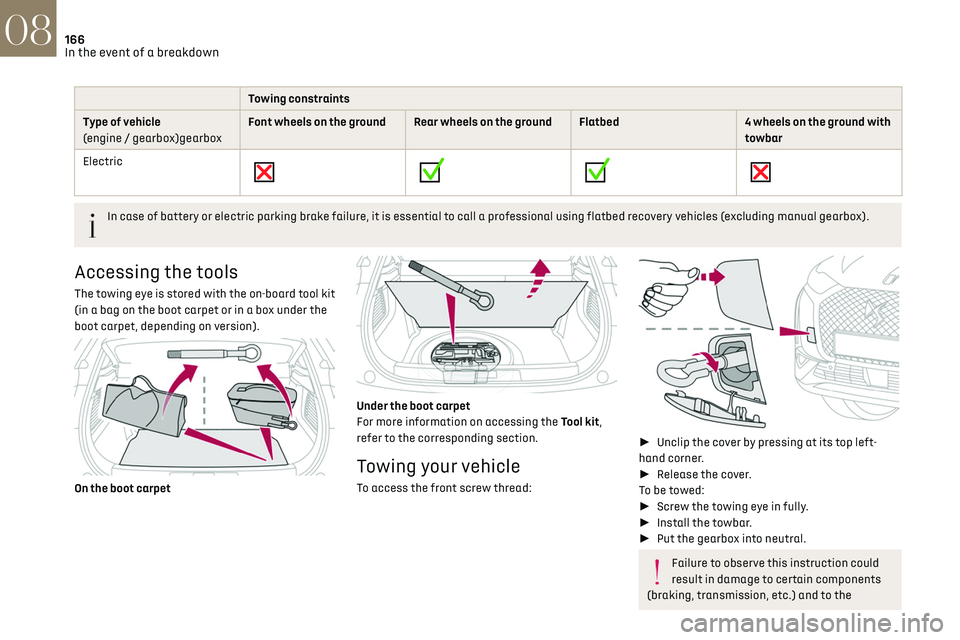
Towing constraints
Type of vehicle
(engine / gearbox)gearbox Font wheels on the ground Rear wheels on the ground Flatbed
4 wheels on the ground with
towbar
Electric
In case of battery or electric parking brake failure, it is essential to call a professional using flatbed recovery vehicles (excluding manual gearbox).
Accessing the tools
The towing eye is stored with the on-board tool kit
(in a bag on the boot carpet or in a box under the
boot carpet, depending on version).
On the boot carpet
Under the boot carpet
For more information on accessing the Tool kit,
refer to the corresponding section.
Towing your vehicle
To access the front screw thread:
►
Unclip the cover by pressing at its top left-
hand corner.
► Release the cover.
To be towed:
► Screw the towing eye in fully.
► Install the towbar.
► Put the gearbox into neutral.
Failure to observe this instruction could
result in damage to certain components
(braking, transmission, etc.) and to the
absence of braking assistance the next time
the engine is started.
Automatic gearbox: never tow the vehicle
with the driving wheels on the ground and
the engine off.
► Unlock the steering and release the parking
brake.
► Switch on the hazard warning lamps on both
vehicles.
► Move off gently, drive slowly and only for a
short distance.
Towing another vehicle
To access the rear screw thread:
► Unclip the cover by pressing at its left-hand
section.
► Pull the cover downwards.
To tow:
► Screw the towing eye in fully.
Page 169 of 244
167In the event of a breakdown08
absence of braking assistance the next time
the engine is started.
Automatic gearbox: never tow the vehicle
with the driving wheels on the ground and
the engine off.
► Unlock the steering and release the parking
brake.
► Switch on the hazard warning lamps on both
vehicles.
► Move off gently, drive slowly and only for a
short distance.
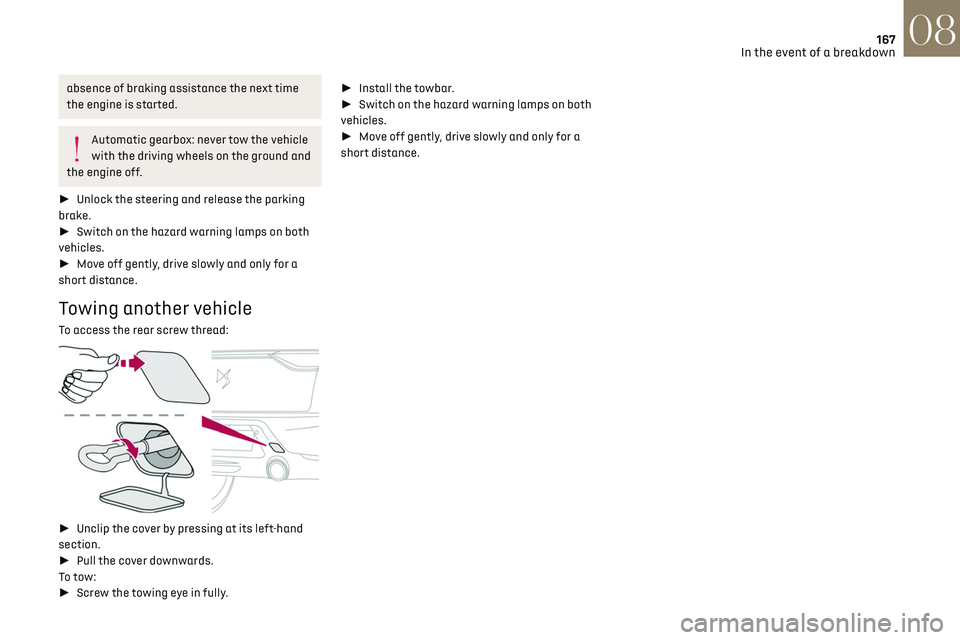
Towing another vehicle
To access the rear screw thread:
► Unclip the cover by pressing at its left-hand
section.
► Pull the cover downwards.
To tow:
► Screw the towing eye in fully. ►
Install the towbar.
► Switch on the hazard warning lamps on both
vehicles.
► Move off gently, drive slowly and only for a
short distance.
Page 206 of 244
204DS CONNECT NAV12
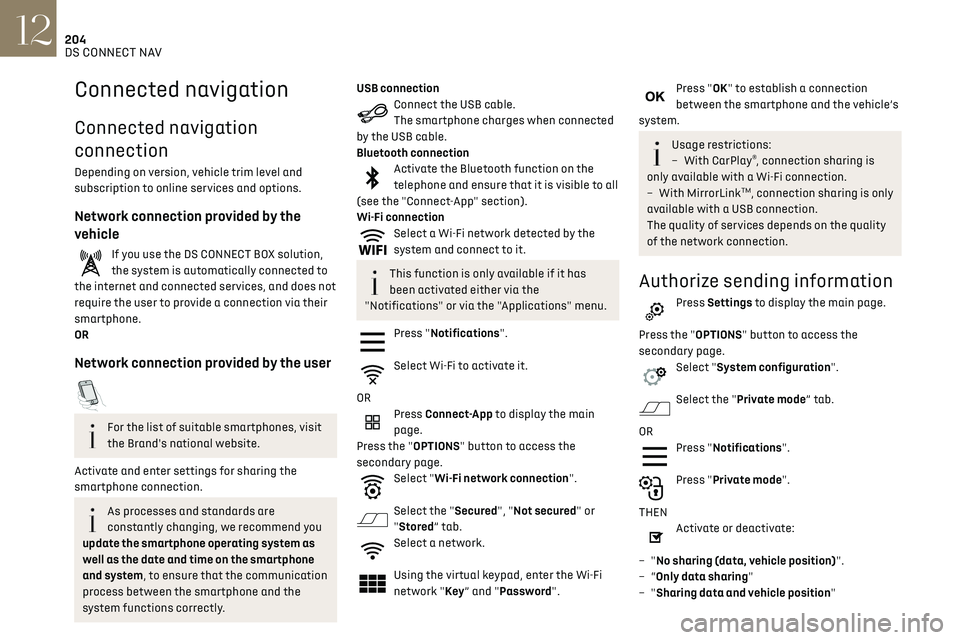
Settings specific to connected
navigation
Press Navigation to display the main page.
Press the "MENU" button to access the secondary
page.
Select "Settings".
Select the "Map” tab.
Activate or deactivate:
– "Allow declaration of danger zones".
– "Guidance to final destination on foot".
These settings must be configured for each
profile.
Press “OK” to confirm your selection.
Select the "Alerts” tab.
Activate or deactivate:
– "Advise of car park nearby".
– "Filling station alert".
– “Risk areas alert" then press the warning icon
(triangle) to configure alerts.
– "Give an audible warning".
– "Advise proximity of POI 1".
– "Advise proximity of POI 2".
Press “OK” to confirm your selection.
The "Notifications", in the upper bar, can
be accessed at any time.
Connected navigation
Connected navigation
connection
Depending on version, vehicle trim level and
subscription to online services and options.
Network connection provided by the
vehicle
If you use the DS CONNECT BOX solution,
the system is automatically connected to
the internet and connected services, and does not
require the user to provide a connection via their
smartphone.
OR
Network connection provided by the user
For the list of suitable smartphones, visit
the Brand's national website.
Activate and enter settings for sharing the
smartphone connection.
As processes and standards are
constantly changing, we recommend you
update the smartphone operating system as
well as the date and time on the smartphone
and system, to ensure that the communication
process between the smartphone and the
system functions correctly.
USB connectionConnect the USB cable.
The smartphone charges when connected
by the USB cable.
Bluetooth connection
Activate the Bluetooth function on the
telephone and ensure that it is visible to all
(see the "Connect-App" section).
Wi-Fi connection
Select a Wi-Fi network detected by the
system and connect to it.
This function is only available if it has
been activated either via the
"Notifications" or via the "Applications" menu.
Press "Notifications".
Select Wi-Fi to activate it.
OR
Press Connect-App to display the main
page.
Press the "OPTIONS" button to access the
secondary page.
Select "Wi-Fi network connection".
Select the "Secured", "Not secured" or
"Stored” tab.
Select a network.
Using the virtual keypad, enter the Wi-Fi
network "Key ” and "Password".
Press "OK" to establish a connection
between the smartphone and the vehicle’s
system.
Usage restrictions:
– With CarPla y®, connection sharing is
only available with a Wi-Fi connection.
–
With MirrorLinkTM, connection sharing is only
available with a USB connection.
The quality of services depends on the quality
of the network connection.
Authorize sending information
Press Settings to display the main page.
Press the "OPTIONS" button to access the
secondary page.
Select "System configuration".
Select the "Private mode” tab.
OR
Press "Notifications".
Press "Private mode".
THEN
Activate or deactivate:
–
"No sharing (data, vehicle position)".
–
“Only data sharing"
–
"Sharing data and vehicle position"
Page 207 of 244
205DS CONNECT NAV12
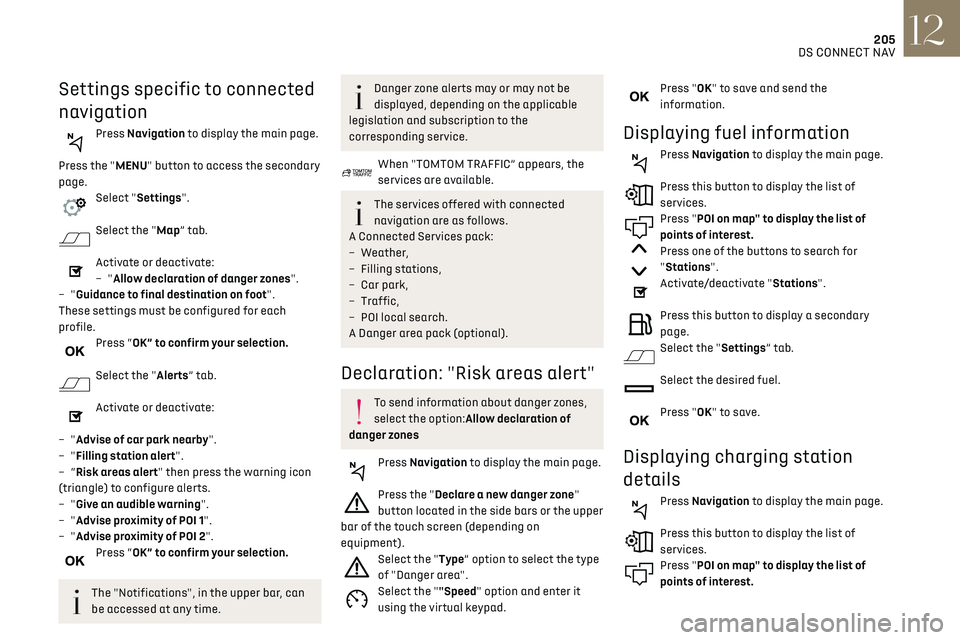
Settings specific to connected
navigation
Press Navigation to display the main page.
Press the "MENU" button to access the secondary
page.
Select "Settings".
Select the "Map” tab.
Activate or deactivate:
– "Allow declaration of danger zones".
–
"Guidance to final destination on foot".
These settings must be configured for each
profile.
Press “OK” to confirm your selection.
Select the "Alerts” tab.
Activate or deactivate:
–
"Advise of car park nearby".
–
"Filling station alert".
–
“Risk areas alert" then press the warning icon
(triangle) to configure alerts.
–
"Give an audible warning".
–
"Advise proximity of POI 1".
–
"Advise proximity of POI 2".
Press “OK” to confirm your selection.
The "Notifications", in the upper bar, can
be accessed at any time.
Danger zone alerts may or may not be
displayed, depending on the applicable
legislation and subscription to the
corresponding service.
When "TOMTOM TRAFFIC” appears, the
services are available.
The services offered with connected
navigation are as follows.
A Connected Services pack:
–
Weather,
–
Filling st
ations,
–
Car park,
–
Traffic,
–
POI loc
al search.
A Danger area pack (optional).
Declaration: "Risk areas alert"
To send information about danger zones,
select the option:Allow declaration of
danger zones
Press Navigation to display the main page.
Press the "Declare a new danger zone"
button located in the side bars or the upper
bar of the touch screen (depending on
equipment).
Select the "Type” option to select the type
of "Danger area".
Select the ""Speed" option and enter it
using the virtual keypad.
Press "OK" to save and send the
information.
Displaying fuel information
Press Navigation to display the main page.
Press this button to display the list of
services.
Press "POI on map" to display the list of
points of interest.
Press one of the buttons to search for
"Stations".
Activate/deactivate "Stations".
Press this button to display a secondary
page.
Select the "Settings” tab.
Select the desired fuel.
Press "OK" to save.
Displaying charging station
details
Press Navigation to display the main page.
Press this button to display the list of
services.
Press "POI on map" to display the list of
points of interest.
Page 218 of 244
216DS CONNECT NAV12
Select "Setting the time-date".
Select "Date".
Press this button to set the date.
Press "OK" to confirm.
Select the display format for the date.
Time and date setting is only available if
"GPS synchronisation" is deactivated.
Setting the time
Press Settings to display the main page.
Press the "OPTIONS" button to access the
secondary page.
Select "Setting the time-date".
Select "Time".
Press this button to set the time using the
virtual keypad.
Press "OK" to confirm.
Press this button to set the time zone.
Select the display format for the time
(12h/24h).
Activate or deactivate summer time (+1
hour).
Activate or deactivate GPS synchronisation
(UTC).
Press "OK" to confirm.
The system may not automatically
manage the change between winter and
summer time (depending on the country of
sale).
Colour schemes
Depending on equipment/Depending on version.
As a safety measure, the procedure for
changing the colour scheme is only
possible when the vehicle is stationary.
Press Settings to display the main page.
Select "Color schemes".
Select a colour scheme in the list then
press "OK" to confirm.
Whenever the colour scheme is changed,
the system restarts, temporarily
displaying a black screen.
Frequently asked
questions
The following information groups together the
answers to the most frequently asked questions
concerning the system.
Navigation
I cannot enter the navigation address.
The address is not recognised.
► Use the "intuitive method" by pressing
the "Search…" button at the bottom of the
"Navigation” page.
The route calculation is not successful.
The route settings may conflict with the current
location (for example, if toll roads are excluded
but the vehicle is on a toll road).
► Check the route settings in the "Navigation"
menu.
I do not receive "Danger zone” alerts.
You have not subscribed to the online services
option.
► If you have subscribed to the option:
- a few days may elapse before the service is
activated,
- services may not be selected in the system
menu,
- online services are not active ("TOMTOM
TRAFFIC" not shown on the map).
The POIs do not appear.
The POIs have not been selected.
► Set the zoom level to 600 ft (200 m) or select
POIs in the POI list.
The "Danger zone" audible warning feature is not
working.
The audible warning is not active or the volume is
too low.
Page 219 of 244
217DS CONNECT NAV12
► Activate the audible warning in the
"Navigation" menu and check the voice volume in
the sound settings.
The system does not suggest a detour around an
incident on the route.
The route settings do not take account of TMC
messages.
► Configure the "Traffic info " function in
the route settings list (Without, Manual or
Automatic).
I receive a warning about a "Danger area" that is
not on my route.
As well as providing guided navigation, the
system announces all "Danger areas" positioned
in a cone located in front of the vehicle. It may
provide an alert for "Danger areas" located on
nearby or parallel roads.
► Zoom the map to show the exact location
of the "Danger area". You can select "On the
route" to stop receiving warnings or decrease the
warning duration.
Certain traffic jams along the route are not
indicated in real time.
On starting, a few minutes may elapse before the
system begins to receive traffic information.
► Wait until traffic information is being received
correctly (traffic information icons shown on the
map).
In certain countries, only major routes
(motorways, etc.) are listed for the traffic
information.
This is perfectly normal. The system is dependent
on the traffic information available. The altitude is not displayed.
On starting, GPS initialisation may take up to
3 minutes to receive more than 4 satellites
correctly.
►
Wait until the system has started up
completely so that there is GPS coverage by at
least 4 satellites.
Depending on the geographical environment
(tunnel, etc.) or the weather, the conditions of
reception of the GPS signal may vary.
This behaviour is normal. The system is dependent
on the GPS signal reception conditions.
My navigation is no longer connected.
During start-up and in certain geographical areas,
the connection may be unavailable.
► Check that the online services are activated
(settings, contract).
Radio
The reception quality of the tuned radio station
gradually deteriorates or the station presets are
not working (no sound, 87.5 MHz is displayed,
etc.).
The vehicle is too far from the selected station’s
transmitter, or no transmitter is present in the
geographical area.
► Activate the "" function by means of the short-
cut menu to enable the system to check whether
there is a more powerful transmitter in the
geographical area.
The aerial is missing or has been damaged
(for example while entering a car wash or
underground car park). ►
Have the aerial checked by a dealer.
The environment (hills, buildings, tunnels,
basement car parks, etc.) is blocking reception,
including in RDS mode.
This is a perfectly normal phenomenon, and is not
indicative of an audio system malfunction.
I cannot find some radio stations in the list of
stations received.
The name of the radio station changes.
The station is no longer received or its name has
changed in the list.
Some radio stations send other information in
place of their name (the title of the song for
example).
The system interprets these details as the station
name.
► Press the "Update list" button in the "Radio
stations” secondary menu.Media
Playback of my USB memory stick starts only
after a very long wait (around 2 to 3 minutes).
Some files supplied with the memory stick may
greatly slow down access to reading the memory
stick (multiplication by 10 of the cataloguing
time).
► Delete the files supplied with the memory
stick and limit the number of sub-folders in the
file structure on the memory stick.
There may be an extended pause after inserting a
USB stick.
Page 222 of 244
220
Alphabetical index
A
ABS 66
Accessories
63
Active Safety Brake
115–117
AdBlue®
18, 144
AdBlue® tank
145
Additive, Diesel
143
Adjusting headlamps
56
Adjusting head restraints
39
Adjusting seat
38–39
Adjusting the air distribution
44, 46
Adjusting the air flow
44–45
Adjusting the date
193, 215
Adjusting the height and reach of
the steering wheel
40
Adjusting the lumbar support
39
Adjusting the seat angle
38
Adjusting the temperature
44–45
Adjusting the time
180, 193, 216
Advanced Traction Control
67
Advice on care and maintenance
131, 146
Advice on driving
7, 80–81
Airbags
70–72, 74
Airbags, curtain
71–72
Airbags, front
70–71, 74
Airbags, lateral
71–72
Air conditioning
43, 46
Air conditioning, automatic
45
Air conditioning, manual
44
Air intake
47
Air vents
43
Alarm
34–36
Amplifier, audio
50
Android Auto connection
207
Anti-lock braking system (ABS)
66
Antitheft / Immobiliser 31, 81
Apple CarPlay connection
189, 206
Applications
207
Armrest, front
49
Assistance call
64
Assistance, emergency braking
66, 116
Audible warning
64
Audio streaming (Bluetooth)
177–178, 187, 211
B
Battery 138
Battery, 12 V
142, 161–164
Battery, ancillaries
161–162
Battery, charging
130, 134, 163–164
Battery, remote control
32–33
Blind spot monitoring system, active
114
Blind spot sensors
113–114
BlueHDi
18, 142, 148
Bluetooth (hands-free)
178, 190, 212
Bluetooth (telephone)
178, 190, 212–213
Bodywork
147
Bonnet
139
Boot
34, 53
Brake discs
143
Brake lamps
157–158
Brakes
143
Braking
90
Braking assistance system
66
Braking, automatic emergency
115–117
Braking, dynamic emergency
84–85
Brightness
179, 192
Bulbs
156
Bulbs (changing)
155–158
C
Cable, audio 211
Cable, Jack
211
Capacity, fuel tank
129
Cap, fuel filler
129
Care of the bodywork
147
CD
177, 187
CD, MP3
177, 187
Central locking
30
Changing a bulb
155–158
Changing a fuse
159–161
Changing a wheel
149, 152
Changing a wiper blade
61
Changing the remote control battery
32
Charger, induction
50
Charger, wireless
50
CHECK
21
Checking the levels
140–142
Checking tyre pressures
(using the kit)
150, 152
Checks
140, 142–144
Checks, routine
142–143
Child lock
79
Children
69, 75–76
Children (safety)
79
Child seats
69, 72–74
Child seats, conventional
74
Child seats, i-Size
76
Child seats, ISOFIX
75–76
Cleaning (advice)
131, 146–147
Closing the boot
30, 34
Closing the doors
29–30, 33
Collision Risk Alert
115–116
Configuration, vehicle
24
Connected applications
207
Page 223 of 244

221
Alphabetical index
Connection, Bluetooth 178, 190, 208, 212–213
Connection, MirrorLink
189–190, 207
Connection, Wi-Fi network
208
Connectivity
206
Consumption figures
25
Container, AdBlue®
145
Control, emergency boot release
34
Control, emergency door
31–32
Control, heated seats
40
Controls, steering mounted
86–89
Control stalk, lighting
54–55
Control stalk, wipers
60–62
Control unit
132–133
Courtesy lamp, front
52
Courtesy lamps
51–52
Cover, load space
53
Cruise control
98, 100–102
Cruise control, adaptive
103
Cruise control by speed limit recognition
98
Cruise control, dynamic with Stop function
98
D
DAB (Digital Audio Broadcasting) -
Digital radio
176, 187–188, 210
Date (setting)
193, 215
Daytime running lamps
55, 156
Deactivating the passenger airbag
70, 74
Deadlocking
28, 30
Defrosting
47
Demisting
47
Demisting, rear
47
Demisting, rear screen
47
Dials and gauges
9
Dimensions
172
Dipstick 141
Direction indicators
55, 156–158
Display, head-up
10–11
Display screen, instrument panel
9, 91
Doors
33–34
Driving
80–81
Driving aids camera (warnings)
95
Driving aids (recommendations)
94
Driving economically
7
Driving modes
90
DS Park Pilot
124
Dynamic stability control (DSC)
66–67
E
EBFD 66
Eco-driving (advice)
7
ECO mode
90
Economy mode
138
Electric motor
5, 25, 130, 171
Electronic brake force distribution (EBFD)
66
Emergency braking assistance (EBA)
66
Emergency call
64
Emergency switching off
83
Emergency warning lamps
63, 148
Emissions control system, SCR
19, 144
Energy economy mode
138
Energy flows
25
Energy recovery
19, 90
Engine
144
Engine compartment
140
Engine, Diesel
129, 140, 148, 170
Engine, petrol
140, 169
Engines
168–170
Environment
7, 33, 80
ESC (electronic stability control) 66
Expanded traffic sign recognition
98–99
F
Filling the AdBlue® tank 142, 145
Filling the fuel tank
129–130
Filter, air
142
Filter, oil
143
Filter, particle
143
Filter, passenger compartment
43, 142
Fitting a wheel
153–154
Fitting roof bars
137–138
Fittings, boot
52
Fittings, interior
48–49
Flap, charging
25, 131, 134–136
Flap, fuel filler
129–130
Flashing indicators
55, 156
Fluid, brake
141
Fluid, engine coolant
141
Foglamp, rear
54, 158
Folding the rear seats
42–43
Frequency (radio)
209–210
Fuel
7, 129
Fuel consumption
7
Fuel tank
129–130
Fusebox, dashboard
159
Fusebox, engine compartment
159, 161
Fuses
159–161
Fuses, dashboard
160
Fuses, engine compartment
161