phone Citroen DS4 2016 1.G Service Manual
[x] Cancel search | Manufacturer: CITROEN, Model Year: 2016, Model line: DS4, Model: Citroen DS4 2016 1.GPages: 436, PDF Size: 10.28 MB
Page 406 of 436

DS4_en_Chap12d_RD5_ed03-2015
A message is displayed on the screen of the
telephone: enter the same code and confirm.
Select "
Bluetooth connection " and
confirm. A virtual keypad is displayed on the
screen: enter a code with at least
4 digits and conform with OK.
Select " Search for a device".
Select the telephone to be connected
from the list. Only one telephone can
be connected at a time.
A window is displayed "
Search in progress…".
In some cases, the reference number of the
telephone or the Bluetooth address may appear
instead of the name of the telephone.
If pairing fails, try again; the number of attempts is not limited.
Accept the connection to the telephone.
A message appears in the screen to confirm
successful connection. Pairing can also be initiated from the
telephone by searching for detected
Bluetooth devices.
The directory and the calls list can be
accessed after the synchronisation
period (if the telephone is compatible).
Automatic connection must be
configured in the telephone to allow
the connection each time the vehicle
is started.
Press MENU
.
Telephone
Pairing a telephone
First connection
The services offered depend on the network,
the SIM card and the compatibility of the
Bluetooth telephone used.
Consult your telephone's manual and your
operator to find out which services are
available to you.
As a safety measure and because they
require prolonged attention on the part
of the driver, the operations for pairing
of the Bluetooth mobile telephone with
the Bluetooth hands-free system of
your audio system must be carried out
with the vehicle stationary and the
ignition on.
Visit www.citroen.co.uk for more
information (compatibility, additional
help, ...).
Activate the telephone's Bluetooth function
and ensure that it is "visible to all" (refer to the
telephone user guide).
Page 407 of 436

405
DS4_en_Chap12d_RD5_ed03-2015
Streaming - Playing audio
files via Bluetooth
Pair/connect the telephone then play the files:
see the "Pairing" section.The telephone connection
automatically includes hands free
operation and audio streaming.
The ability of the system to connect
to just one profile depends on the
telephone. Both profiles may connect
by default.Indicates that a device is connected.
Indicates connection of the audio
steaming profile.
Indicates connection of the hands-
free profile.
Press MENU
.
Managing connections
Select "Bluetooth connection " and
confirm.
Select " Connections management "
and confirm. The list of paired
telephones is displayed. Select a telephone and confirm.
Audio and Telematics
Page 408 of 436
DS4_en_Chap12d_RD5_ed03-2015
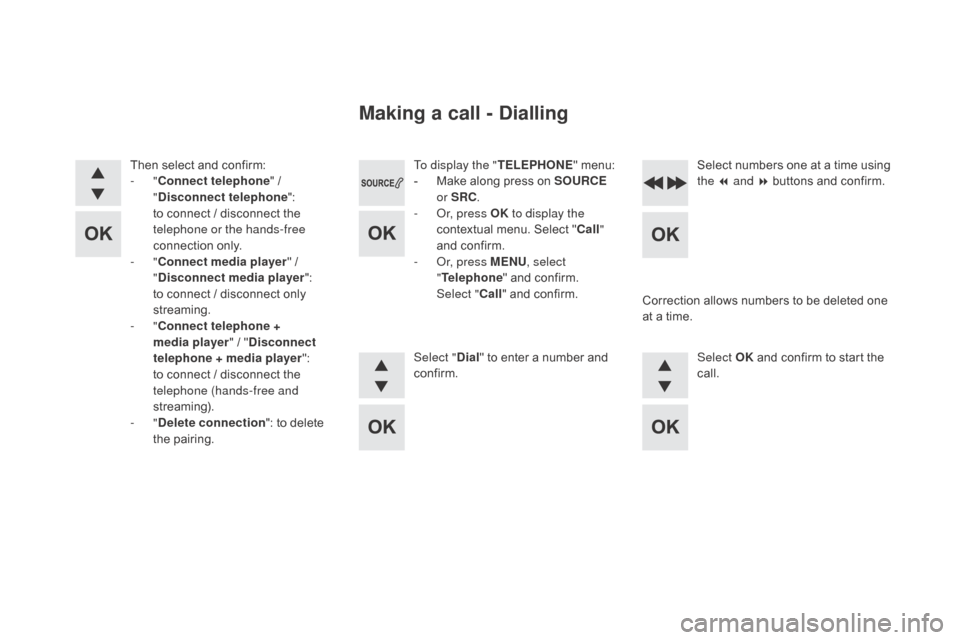
To display the "TELEPHONE" menu:
- M ake along press on SOURCE
or SRC .
-
O
r, press OK to display the
contextual menu. Select " Call"
and confirm.
-
O
r, press MENU , select
" Telephone " and confirm.
Select " Call" and confirm.
Select "
di
al" to enter a number and
confirm. Select OK
and confirm to start the
call. Select numbers one at a time using
the 7 and 8 buttons and confirm.
Making a call - di alling
Correction allows numbers to be deleted one
at a time.
Then select and confirm:
-
"
Connect telephone " /
"
di
sconnect telephone
":
to connect / disconnect the
telephone or the hands-free
connection only.
-
"
Connect media player " /
"
di
sconnect media player
":
to connect / disconnect only
streaming.
-
" Connect telephone +
media player " / "
d
isconnect
telephone
+ media player ":
to connect / disconnect the
telephone (hands-free and
streaming).
-
"
de
lete connection ": to delete
the pairing.
Page 409 of 436

407
DS4_en_Chap12d_RD5_ed03-2015
To display the "TELEPHONE" menu:
- M ake a long press on SRC/TEL .
-
O
r, press the dial to display the
contextual menu. Select " Call"
and confirm.
-
O
r, press MENU , select
" Telephone " and confirm.
Select " Call" and confirm.
To display the "
TELEPHONE" menu:
-
M
ake a long press on SRC/TEL .
-
O
r, press the dial to display the
contextual menu. Select " Call"
and confirm.
-
O
r, press MENU , select
" Telephone " and confirm. Select
" Call " and confirm.
Select " Calls list " and confirm. Select "
dir
ectory" and confirm.
Select the number and confirm to
start the call.
Making a call - Recently
called numbers*
Making a call - From the
directory of contacts
The calls list includes calls sent
and received in the vehicle using
the
c
onnected telephone.
It is possible to make a call directly
from the telephone; park the vehicle
first as a safety measure.
*
Depending on the compatibility of the telephone.
Audio and Telematics
Page 410 of 436
DS4_en_Chap12d_RD5_ed03-2015
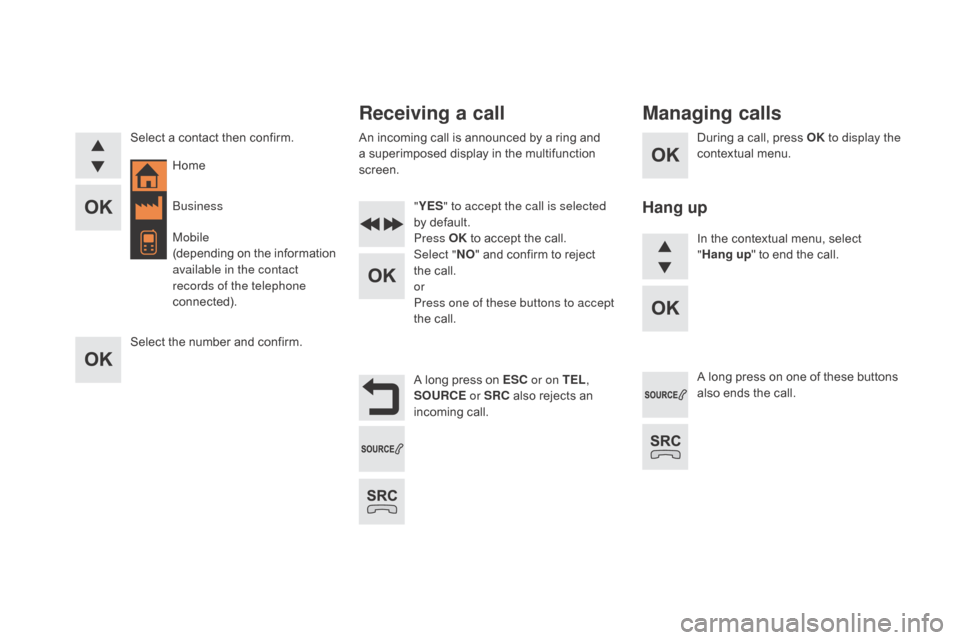
During a call, press OK to display the
contextual menu.
A long press on ESC or on TEL,
SOURCE
or SRC also rejects an
incoming call.
Select a contact then confirm.
Select the number and confirm.
"
YES " to accept the call is selected
by default.
Press OK to accept the call.
Select " NO" and confirm to reject
the call.
or
Press one of these buttons to accept
the call. In the contextual menu, select
"
Hang up " to end the call.
A long press on one of these buttons
also ends the call.
Home
Receiving a call
An incoming call is announced by a ring and
a superimposed display in the multifunction
screen.
Business
Mobile
(depending on the information
available in the contact
records of the telephone
connected).
Managing calls
Hang up
Page 411 of 436
409
DS4_en_Chap12d_RD5_ed03-2015
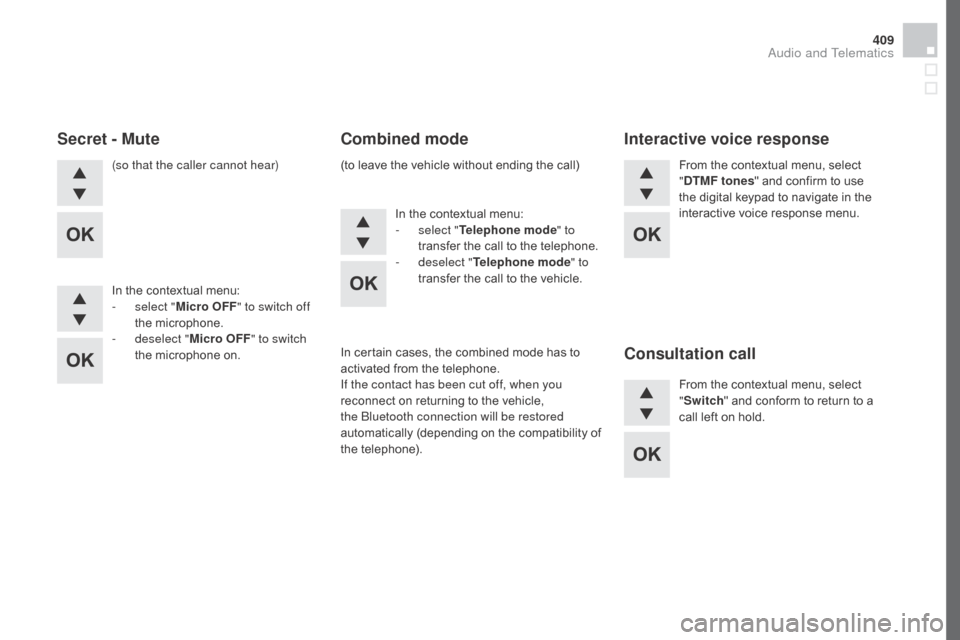
(so that the caller cannot hear)
In the contextual menu:
-
s
elect " Micro OFF " to switch off
the microphone.
-
d
eselect " Micro OFF " to switch
the microphone on. In the contextual menu:
-
s
elect "Telephone mode " to
transfer the call to the telephone.
-
d
eselect "Telephone mode " to
transfer the call to the vehicle. From the contextual menu, select
"dT
MF tones" and confirm to use
the digital keypad to navigate in the
interactive voice response menu.
From the contextual menu, select
" Switch " and conform to return to a
call left on hold.
Secret - Mute Combined modeInteractive voice response
Consultation call
In certain cases, the combined mode has to
activated from the telephone.
If the contact has been cut off, when you
reconnect on returning to the vehicle,
the Bluetooth connection will be restored
automatically (depending on the compatibility of
the telephone). (to leave the vehicle without ending the call)
Audio and Telematics
Page 412 of 436
DS4_en_Chap12d_RD5_ed03-2015
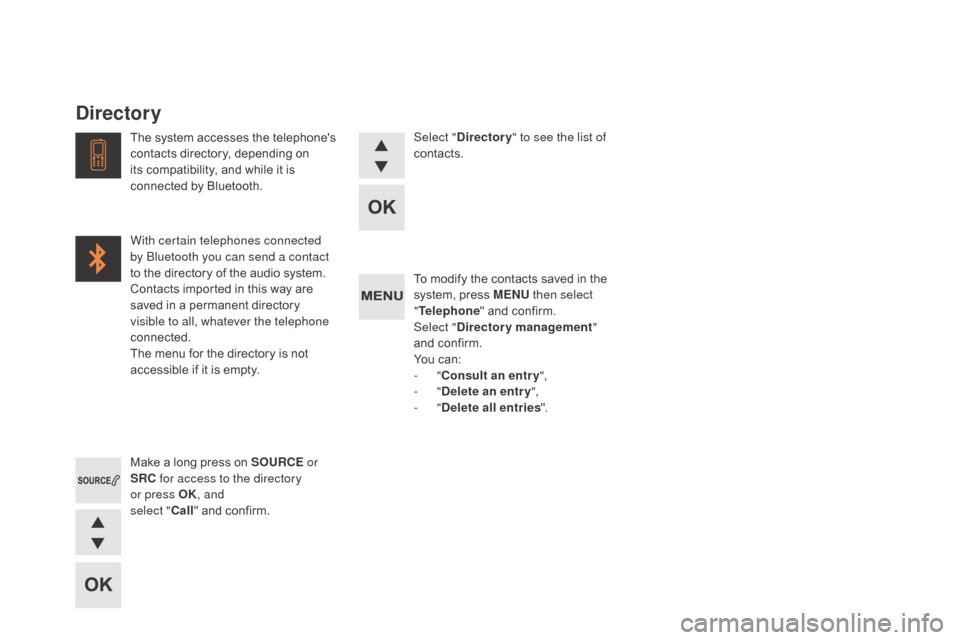
To modify the contacts saved in the
system, press MENU then select
" Telephone " and confirm.
Select "
dir
ectory management "
and confirm.
You can:
-
"Consult an entr y ",
-
"
del
ete an entry ",
-
"
del
ete all entries ".
Make a long press on SOURCE or
SRC for access to the directory
or press OK , and
select " Call" and confirm.
The system accesses the telephone's
contacts directory, depending on
its compatibility, and while it is
connected by Bluetooth.
With certain telephones connected
by Bluetooth you can send a contact
to the directory of the audio system.
Contacts imported in this way are
saved in a permanent directory
visible to all, whatever the telephone
connected.
The menu for the directory is not
accessible if it is empty.
Select "
dir
ectory
" to see the list of
contacts.
directory
Page 414 of 436
DS4_en_Chap12d_RD5_ed03-2015
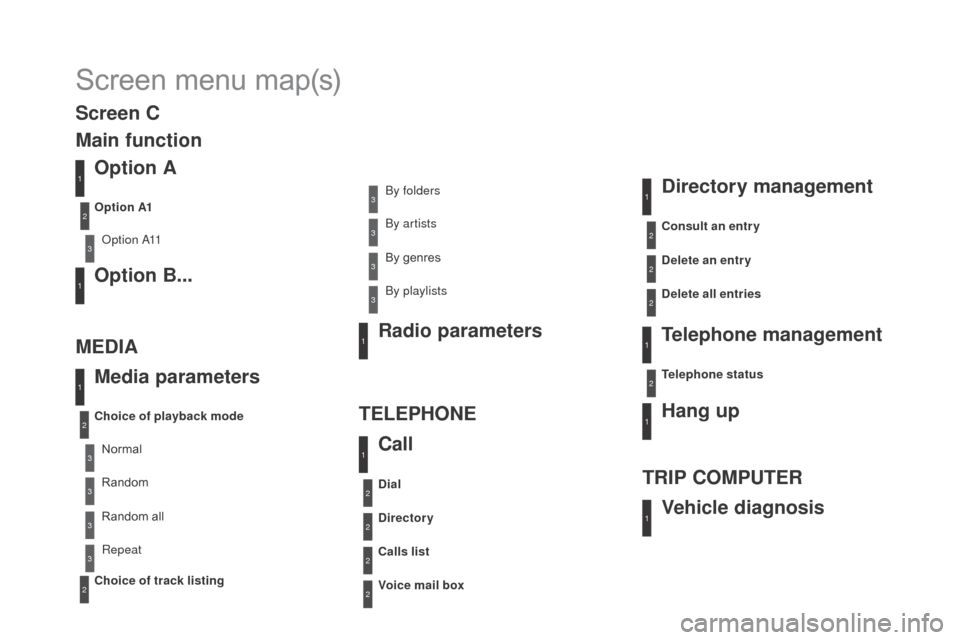
Screen menu map(s)
Option A
Option A11
Option B...
Media parameters
ME
d
I
A TELEPHONE
Choice of playback mode
Choice of track listing Option A1
Normal By folders
Random all By genres
Random By artists
Repeat By playlists
3
3
3
3
3
3
3
3
3
1
1
2
1
2
2
Main function
Call Radio parameters
directory
Calls list
Voice mail box
di
al
directory management
Telephone management
Hang up
Vehicle diagnosis
TRIP COMPUTER
delete an entry
del
ete all entries
Consult an entr y
Telephone status
1
1
1
1
2
2
2
2
1
1
2
2
2
2
Screen C
Page 418 of 436
DS4_en_Chap12d_RD5_ed03-2015
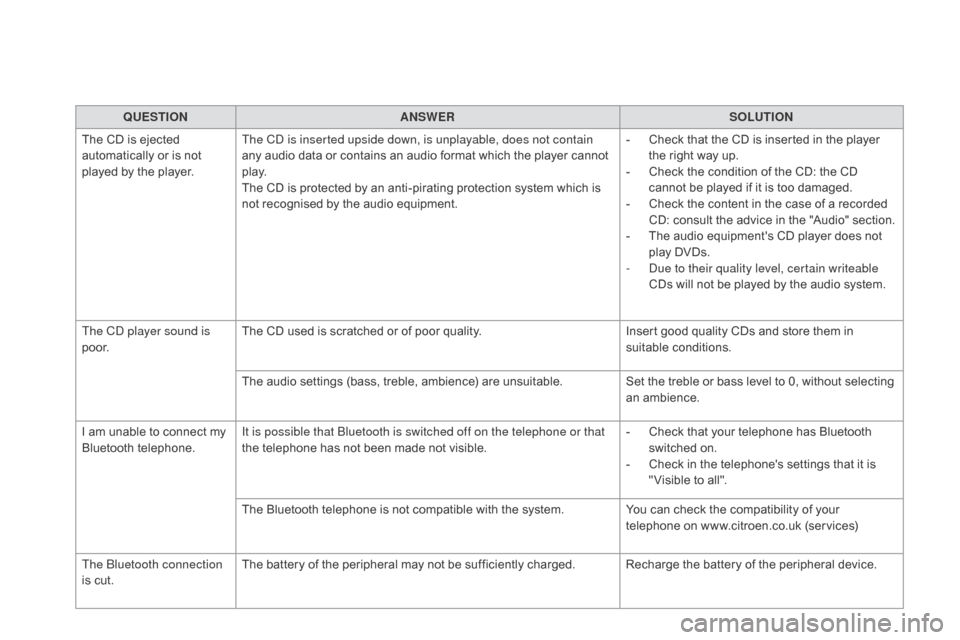
QUESTIONANSWER SOLUTION
The CD is ejected
automatically or is not
played by the player. The CD is inserted upside down, is unplayable, does not contain
any audio data or contains an audio format which the player cannot
p l ay.
The CD is protected by an anti-pirating protection system which is
not recognised by the audio equipment. -
C
heck that the CD is inserted in the player
the right way up.
-
C
heck the condition of the CD: the CD
cannot be played if it is too damaged.
-
C
heck the content in the case of a recorded
CD: consult the advice in the "Audio" section.
-
T
he audio equipment's CD player does not
play DVDs.
-
D
ue to their quality level, certain writeable
CDs will not be played by the audio system.
The CD player sound is
p o o r. The CD used is scratched or of poor quality.
Insert good quality CDs and store them in
suitable conditions.
The audio settings (bass, treble, ambience) are unsuitable. Set the treble or bass level to 0, without selecting
an ambience.
I am unable to connect my
Bluetooth telephone. It is possible that Bluetooth is switched off on the telephone or that
the telephone has not been made not visible. -
C
heck that your telephone has Bluetooth
switched on.
-
C
heck in the telephone's settings that it is
" Visible to all".
The Bluetooth telephone is not compatible with the system. You can check the compatibility of your
telephone on www.citroen.co.uk (services)
The Bluetooth connection
is cut. The battery of the peripheral may not be sufficiently charged. Recharge the battery of the peripheral device.
Page 419 of 436
417
DS4_en_Chap12d_RD5_ed03-2015
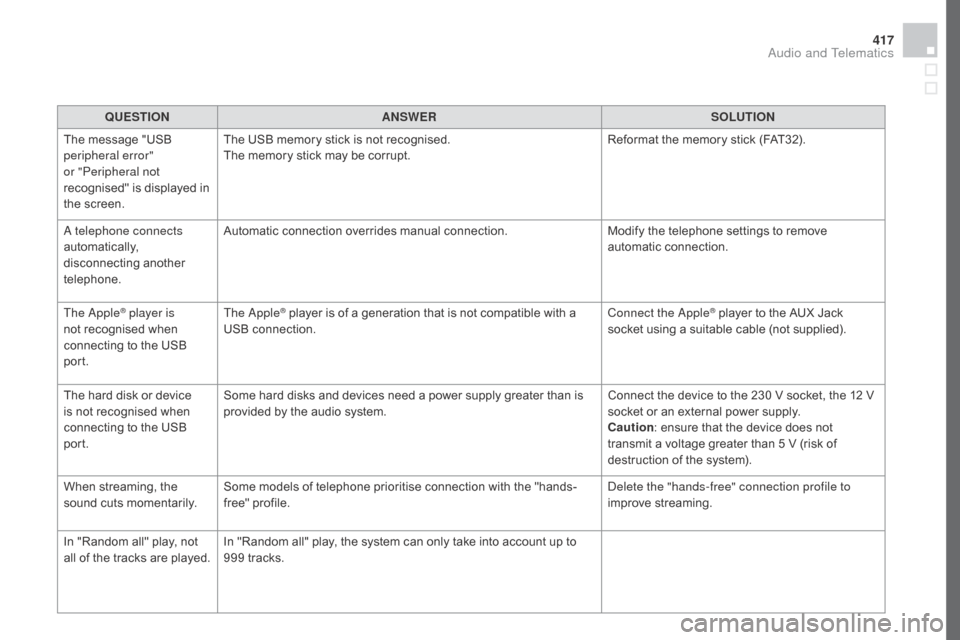
QUESTIONANSWER SOLUTION
The message "USB
peripheral error"
or "Peripheral not
recognised" is displayed in
the screen. The USB memory stick is not recognised.
The memory stick may be corrupt.
Reformat the memory stick (FAT32).
A telephone connects
automatically,
disconnecting another
telephone. Automatic connection overrides manual connection.
Modify the telephone settings to remove
automatic connection.
The Apple
® player is
not recognised when
connecting to the USB
port. The Apple® player is of a generation that is not compatible with a
USB connection. Connect the Apple® player to the AUX Jack
socket using a suitable cable (not supplied).
The hard disk or device
is not recognised when
connecting to the USB
port. Some hard disks and devices need a power supply greater than is
provided by the audio system.
Connect the device to the 230 V socket, the 12 V
socket or an external power supply.
Caution
: ensure that the device does not
transmit a voltage greater than 5 V (risk of
destruction of the system).
When streaming, the
sound cuts momentarily. Some models of telephone prioritise connection with the "hands-
free" profile. Delete the "hands-free" connection profile to
improve streaming.
In "Random all" play, not
all of the tracks are played. In "Random all" play, the system can only take into account up to
999 tracks.
Audio and Telematics