radio CITROEN DS4 2023 User Guide
[x] Cancel search | Manufacturer: CITROEN, Model Year: 2023, Model line: DS4, Model: CITROEN DS4 2023Pages: 296, PDF Size: 9.91 MB
Page 238 of 296
14
TMC (Traffic Message
Channel)
TMC (Traffic Message Channel)
messages are linked to a European
standard on the broadcasting of traffic
information via the RDS system on FM
radio, transmitting traffic information in
real time.
The TMC information is then displayed
on a GPS Navigation system map and
taken into account straight away during
navigation, so as to avoid accidents, traffic
jams and closed roads.
The display of danger zones depends on
the legislation in force and subscription to
the service.
Connected navigation
Depending on version
Depending on the equipment level of the
vehicle
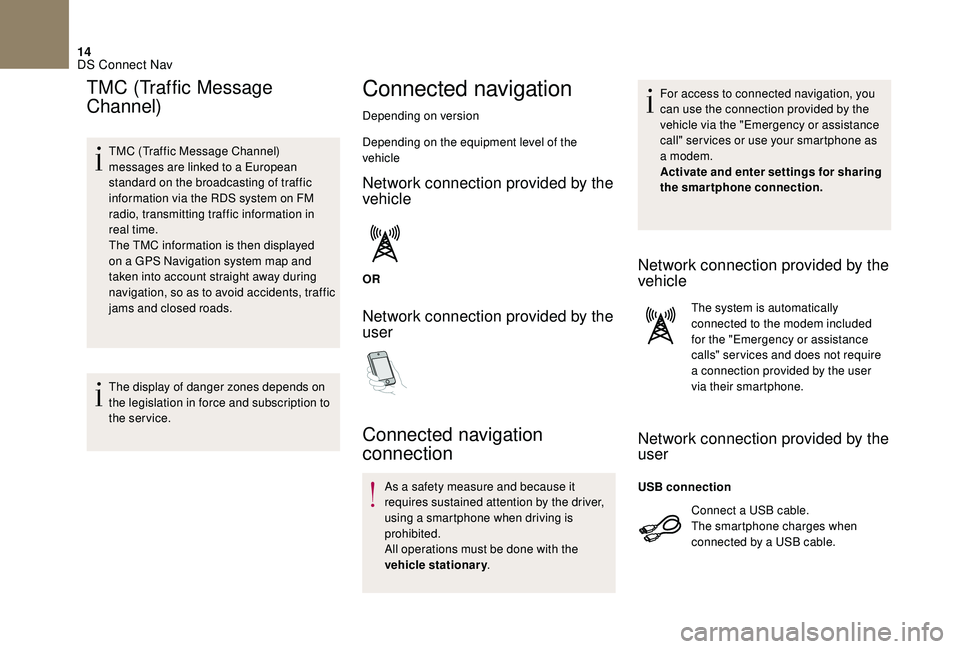
Network connection provided by the
vehicle
OR
Network connection provided by the
user
Connected navigation
connection
As a safety measure and because it
requires sustained attention by the driver,
using a smartphone when driving is
prohibited.
All operations must be done with the
vehicle stationary. For access to connected navigation, you
can use the connection provided by the
vehicle via the "Emergency or assistance
call" ser vices or use your smartphone as
a modem.
Activate and enter settings for sharing
the smartphone connection.
Network connection provided by the
vehicle
The system is automatically
connected to the modem included
for the "Emergency or assistance
calls" ser vices and does not require
a connection provided by the user
via their smartphone.
Network connection provided by the
user
Connect a USB cable.
The smartphone charges when
connected by a USB cable.
USB connection
DS Connect Nav
Page 239 of 296
15
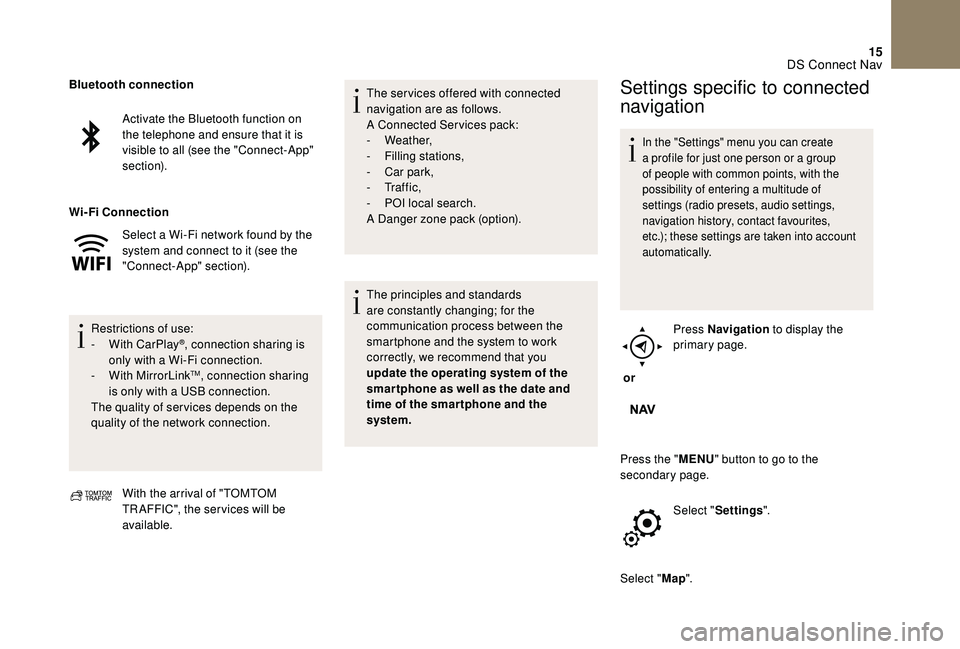
Activate the Bluetooth function on
the telephone and ensure that it is
visible to all (see the "Connect-App"
section).
Select a Wi-Fi network found by the
system and connect to it (see the
"Connect-App" section).
Restrictions of use:
-
W
ith CarPlay
®, connection sharing is
only with a Wi-Fi connection.
-
W
ith MirrorLink
TM, connection sharing
is only with a USB connection.
The quality of ser vices depends on the
quality of the network connection.
Bluetooth connection
Wi-Fi
Connection
With the arrival of "TOMTOM
TR AFFIC", the ser vices will be
available. The ser vices offered with connected
navigation are as follows.
A Connected Services pack:
-
Weather,
-
F
illing stations,
-
C
ar park,
-
Tr a f f i c ,
-
P
OI local search.
A Danger zone pack (option).
The principles and standards
are constantly changing; for the
communication process between the
smartphone and the system to work
correctly, we recommend that you
update the operating system of the
smar tphone as well as the date and
time of the smar tphone and the
system.
Settings specific to connected
navigation
In the "Settings" menu you can create
a profile for just one person or a group
of people with common points, with the
possibility of entering a multitude of
settings (radio presets, audio settings,
navigation history, contact favourites,
etc.); these settings are taken into account
automatically.
or Press Navigation
to display the
primary page.
Press the " MENU" button to go to the
secondary page.
Select "Settings ".
Select " Map".
DS Connect Nav
Page 247 of 296
23
Select "Manage connection ".
With this function you can view the access
to connected ser vices, the availability of
connected services and modify the connection
mode.Radio
Selecting a station
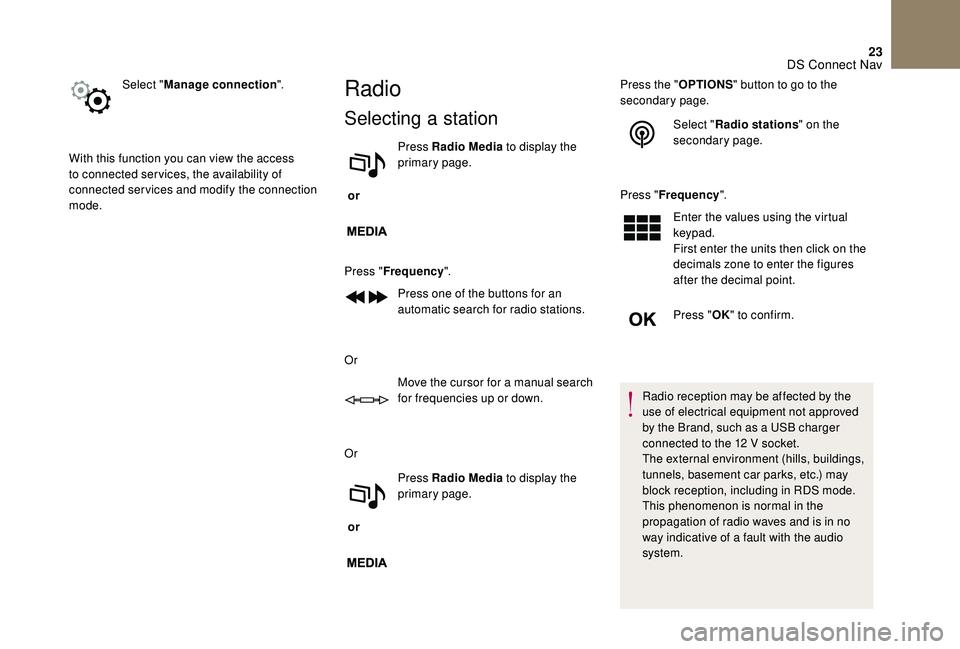
or Press Radio Media
to display the
primary page.
Press " Frequency ".
Press one of the buttons for an
automatic search for radio stations.
Or Move the cursor for a manual search
for frequencies up or down.
Or
or Press Radio Media
to display the
primary page. Press the "
OPTIONS" button to go to the
secondary page.
Select "Radio stations " on the
secondary page.
Press " Frequency ".
Enter the values using the virtual
keypad.
First enter the units then click on the
decimals zone to enter the figures
after the decimal point.
Press " OK" to confirm.
Radio reception may be affected by the
use of electrical equipment not approved
by the Brand, such as a USB charger
connected to the 12 V socket.
The external environment (hills, buildings,
tunnels, basement car parks, etc.) may
block reception, including in RDS mode.
This phenomenon is normal in the
propagation of radio waves and is in no
way indicative of a fault with the audio
system.
DS Connect Nav
Page 248 of 296
24
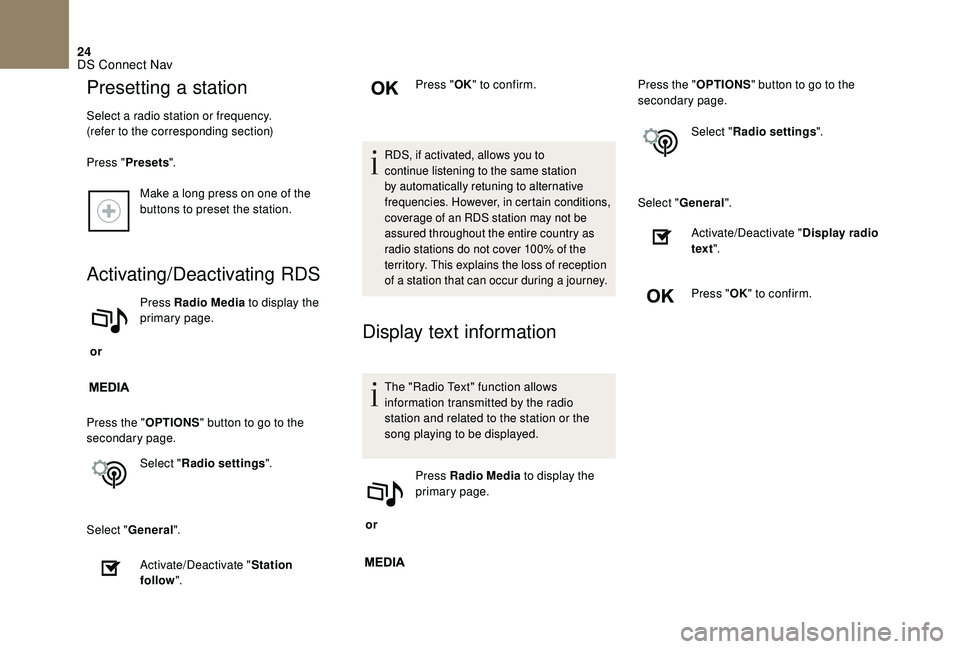
Make a long press on one of the
buttons to preset the station.
Activating/Deactivating RDS
or Press Radio Media
to display the
primary page.
Press the " OPTIONS" button to go to the
secondary page.
Select "Radio settings ".
Select " General ".
Activate/Deactivate " Station
follow ". Press "
OK" to confirm.
RDS, if activated, allows you to
continue listening to the same station
by automatically retuning to alternative
frequencies. However, in certain conditions,
coverage of an RDS station may not be
assured throughout the entire country as
radio stations do not cover 100% of the
territory. This explains the loss of reception
of a station that can occur during a journey.
Display text information
The "Radio Text" function allows
information transmitted by the radio
station and related to the station or the
song playing to be displayed.
or Press Radio Media
to display the
primary page. Press the "
OPTIONS" button to go to the
secondary page.
Select "Radio settings ".
Select " General ".
Activate/Deactivate " Display radio
text ".
Press " OK" to confirm.
Presetting a station
Select a radio station or frequency.
(refer to the corresponding section)
Press " Presets ".
DS Connect Nav
Page 249 of 296
25
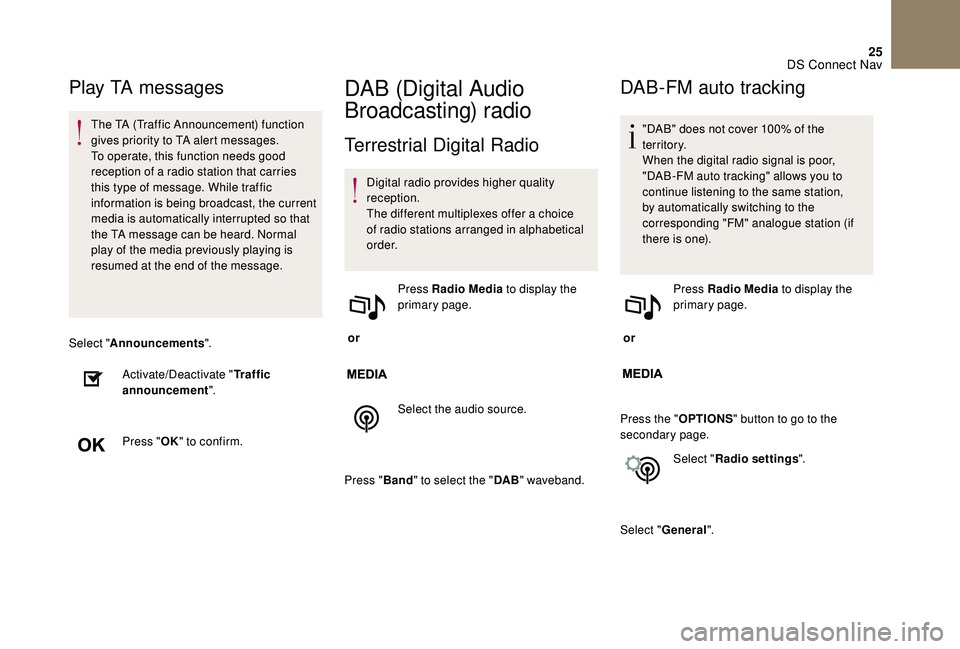
Play TA messages
The TA (Traffic Announcement) function
gives priority to TA alert messages.
To operate, this function needs good
reception of a radio station that carries
this type of message. While traffic
information is being broadcast, the current
media is automatically interrupted so that
the TA message can be heard. Normal
play of the media previously playing is
resumed at the end of the message.
Select " Announcements ".
Activate/Deactivate " Traffic
announcement ".
Press " OK" to confirm.
DAB (Digital Audio
Broadcasting) radio
Terrestrial Digital Radio
Digital radio provides higher quality
reception.
The different multiplexes offer a choice
of radio stations arranged in alphabetical
o r d e r.
or Press Radio Media
to display the
primary page.
Select the audio source.
Press " Band" to select the " DAB" waveband.
DAB-FM auto tracking
"DAB" does not cover 100% of the
te r r i to r y.
When the digital radio signal is poor,
"DAB-FM auto tracking" allows you to
continue listening to the same station,
by automatically switching to the
corresponding "FM" analogue station (if
there is one).
or Press Radio Media
to display the
primary page.
Press the " OPTIONS" button to go to the
secondary page.
Select "Radio settings ".
Select " General ".
DS Connect Nav
Page 250 of 296
26
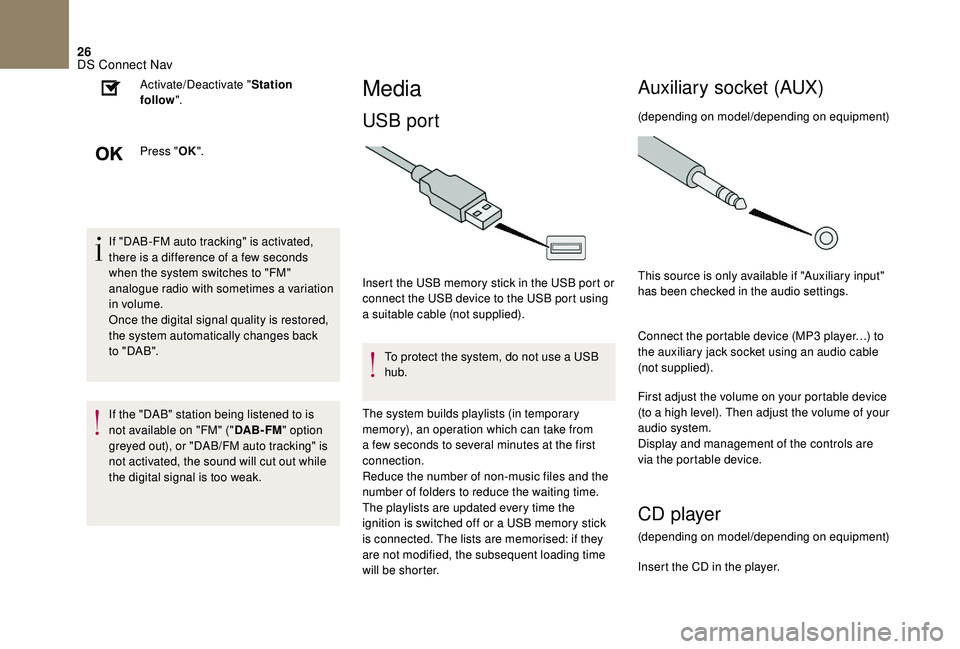
If "DAB-FM auto tracking" is activated,
there is a difference of a few seconds
when the system switches to "FM"
analogue radio with sometimes a variation
in volume.
Once the digital signal quality is restored,
the system automatically changes back
to " DA B ".
If the "DAB" station being listened to is
not available on "FM" ("DAB- FM" option
greyed out), or "DAB/FM auto tracking" is
not activated, the sound will cut out while
the digital signal is too weak. Activate/Deactivate "
Station
follow ".
Press " OK".
Media
USB port
Insert the USB memory stick in the USB port or
connect the USB device to the USB port using
a suitable cable (not supplied).
To protect the system, do not use a USB
hub.
The system builds playlists (in temporary
memory), an operation which can take from
a few seconds to several minutes at the first
connection.
Reduce the number of non-music files and the
number of folders to reduce the waiting time.
The playlists are updated every time the
ignition is switched off or a USB memory stick
is connected. The lists are memorised: if they
are not modified, the subsequent loading time
will be shorter.
Auxiliary socket (AUX)
(depending on model/depending on equipment)
This source is only available if "Auxiliary input"
has been checked in the audio settings.
Connect the portable device (MP3 player…) to
the auxiliary jack socket using an audio cable
(not supplied).
First adjust the volume on your portable device
(to a high level). Then adjust the volume of your
audio system.
Display and management of the controls are
via the portable device.
CD player
(depending on model/depending on equipment)
Insert the CD in the player.
DS Connect Nav
Page 251 of 296
27
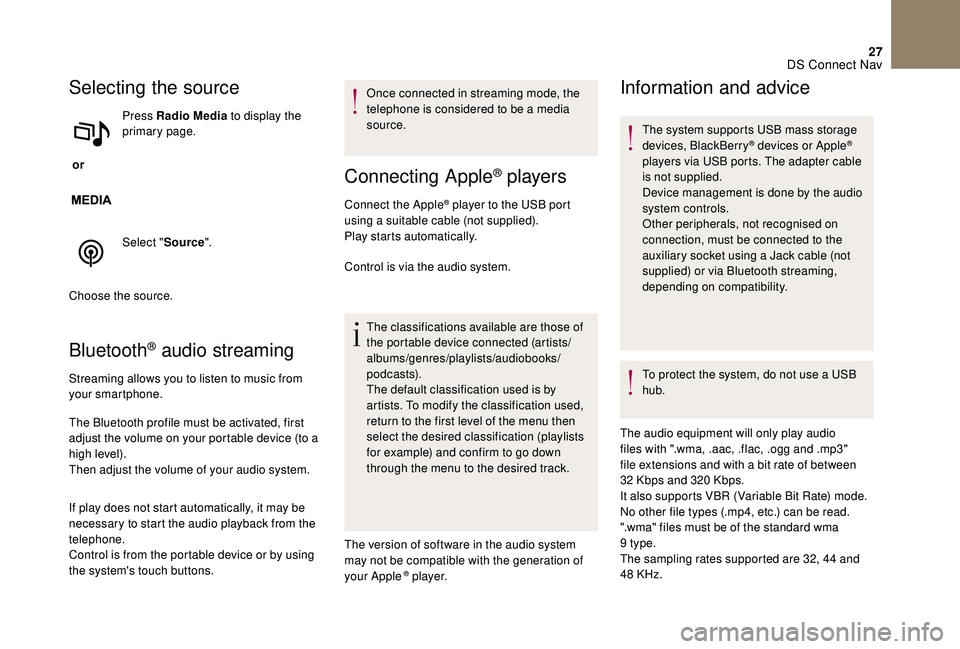
Selecting the source
or Press Radio Media
to display the
primary page.
Select " Source".
Choose the source.
Bluetooth® audio streaming
Streaming allows you to listen to music from
your smartphone.
The Bluetooth profile must be activated, first
adjust the volume on your portable device (to a
high level).
Then adjust the volume of your audio system.
If play does not start automatically, it may be
necessary to start the audio playback from the
telephone.
Control is from the portable device or by using
the system's touch buttons. Once connected in streaming mode, the
telephone is considered to be a media
source.
Connecting Apple® players
Connect the Apple® player to the USB port
using a suitable cable (not supplied).
Play starts automatically.
Control is via the audio system.
The classifications available are those of
the portable device connected (artists/
albums/genres/playlists/audiobooks/
podcasts).
The default classification used is by
artists. To modify the classification used,
return to the first level of the menu then
select the desired classification (playlists
for example) and confirm to go down
through the menu to the desired track.
The version of software in the audio system
may not be compatible with the generation of
your Apple
® p l aye r.
Information and advice
The system supports USB mass storage
devices, BlackBerry® devices or Apple®
players via USB ports. The adapter cable
is not supplied.
Device management is done by the audio
system controls.
Other peripherals, not recognised on
connection, must be connected to the
auxiliary socket using a Jack cable (not
supplied) or via Bluetooth streaming,
depending on compatibility.
To protect the system, do not use a USB
hub.
The audio equipment will only play audio
files with ".wma, .aac, .flac, .ogg and .mp3"
file extensions and with a bit rate of between
32
Kbps and 320 Kbps.
It also supports VBR (Variable Bit Rate) mode.
No other file types (.mp4, etc.) can be read.
".wma" files must be of the standard wma
9
type.
The sampling rates supported are 32, 44 and
48 KHz.
DS Connect Nav
Page 263 of 296
39
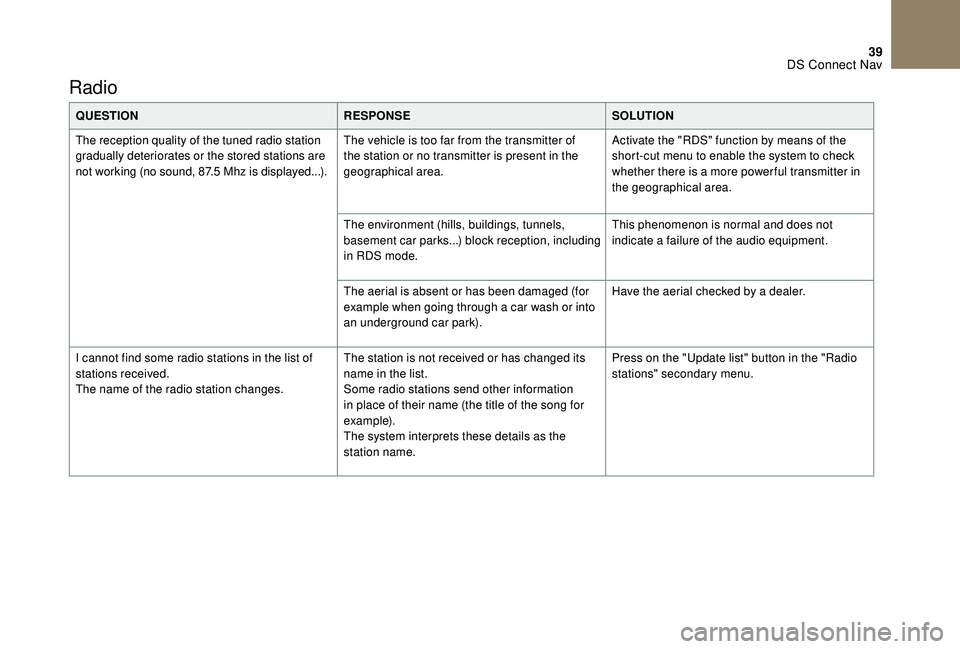
Radio
QUESTIONRESPONSESOLUTION
The reception quality of the tuned radio station
gradually deteriorates or the stored stations are
not working (no sound, 87.5 Mhz is displayed...).The vehicle is too far from the transmitter of
the station or no transmitter is present in the
geographical area.Activate the "RDS" function by means of the
short-cut menu to enable the system to check
whether there is a more power ful transmitter in
the geographical area.
The environment (hills, buildings, tunnels,
basement car parks...) block reception, including
in RDS mode. This phenomenon is normal and does not
indicate a failure of the audio equipment.
The aerial is absent or has been damaged (for
example when going through a car wash or into
an underground car park). Have the aerial checked by a dealer.
I cannot find some radio stations in the list of
stations received.
The name of the radio station changes. The station is not received or has changed its
name in the list.
Some radio stations send other information
in place of their name (the title of the song for
example).
The system interprets these details as the
station name.Press on the "Update list" button in the "Radio
stations" secondary menu.
DS Connect Nav
Page 266 of 296
42
Settings
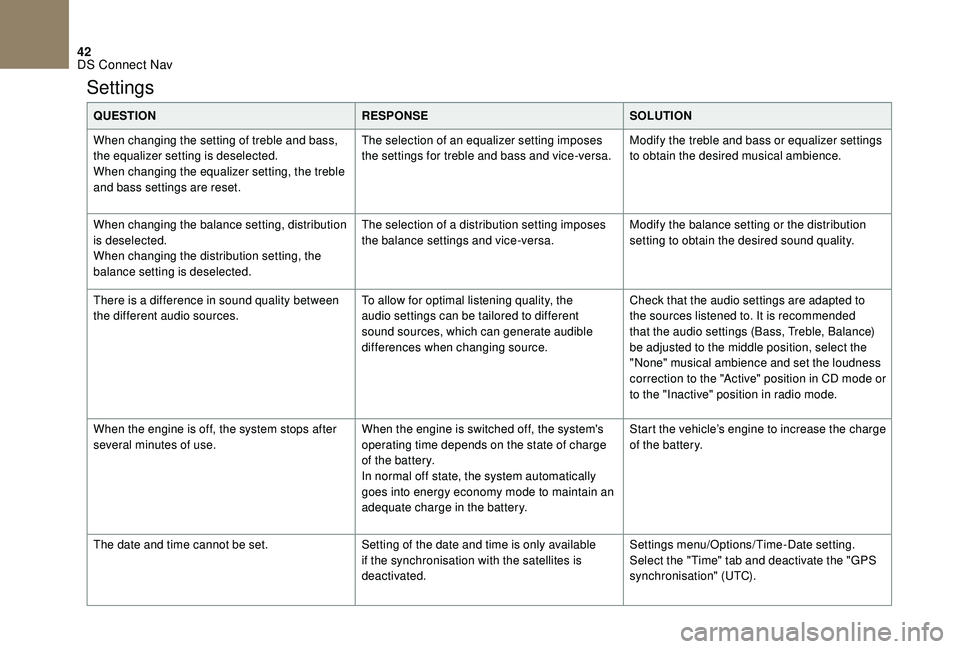
QUESTIONRESPONSESOLUTION
When changing the setting of treble and bass,
the equalizer setting is deselected.
When changing the equalizer setting, the treble
and bass settings are reset. The selection of an equalizer setting imposes
the settings for treble and bass and vice-versa.
Modify the treble and bass or equalizer settings
to obtain the desired musical ambience.
When changing the balance setting, distribution
is deselected.
When changing the distribution setting, the
balance setting is deselected. The selection of a distribution setting imposes
the balance settings and vice-versa.
Modify the balance setting or the distribution
setting to obtain the desired sound quality.
There is a difference in sound quality between
the different audio sources. To allow for optimal listening quality, the
audio settings can be tailored to different
sound sources, which can generate audible
differences when changing source.Check that the audio settings are adapted to
the sources listened to. It is recommended
that the audio settings (Bass, Treble, Balance)
be adjusted to the middle position, select the
"None" musical ambience and set the loudness
correction to the "Active" position in CD mode or
to the "Inactive" position in radio mode.
When the engine is off, the system stops after
several minutes of use. When the engine is switched off, the system's
operating time depends on the state of charge
of the battery.
In normal off state, the system automatically
goes into energy economy mode to maintain an
adequate charge in the battery.Start the vehicle’s engine to increase the charge
of the battery.
The date and time cannot be set. Setting of the date and time is only available
if the synchronisation with the satellites is
deactivated.Settings menu/Options/Time-Date setting.
Select the "Time" tab and deactivate the "GPS
synchronisation" (UTC).
DS Connect Nav
Page 271 of 296
1
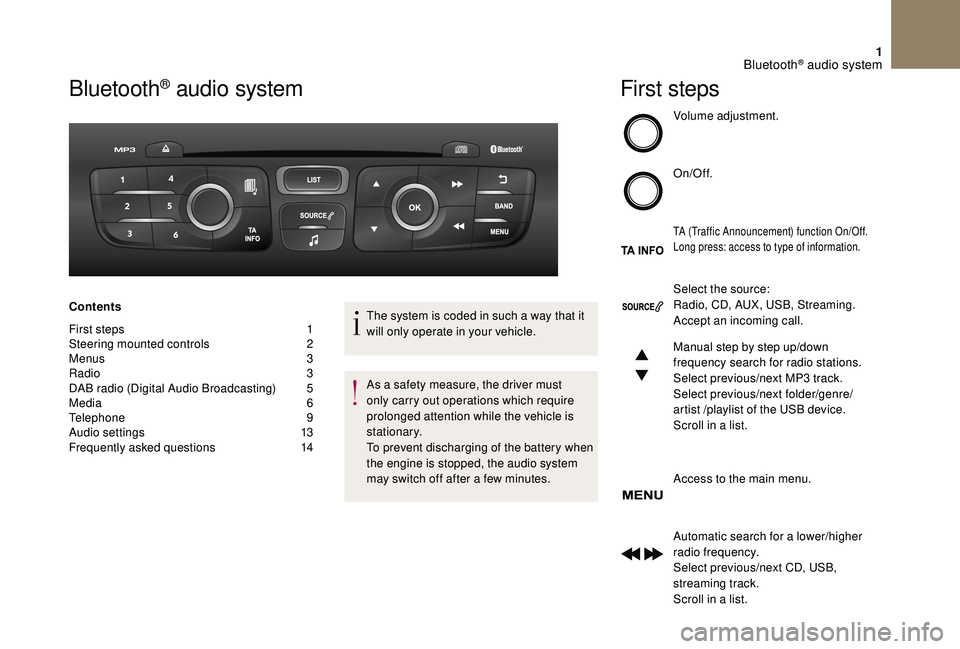
Bluetooth® audio system
Contents
First steps
1
S
teering mounted controls
2
M
enus
3
R
adio
3
D
AB radio (Digital Audio Broadcasting)
5
M
edia
6
T
elephone
9
A
udio settings
1
3
Frequently asked questions
1
4The system is coded in such a way that it
will only operate in your vehicle.
As a safety measure, the driver must
only carry out operations which require
prolonged attention while the vehicle is
stationary.
To prevent discharging of the battery when
the engine is stopped, the audio system
may switch off after a few minutes.
First steps
Volume adjustment.
On/Off.
TA (Traffic Announcement) function On/Off.
Long press: access to type of information.
Select the source:
Radio, CD, AUX, USB, Streaming.
Accept an incoming call.
Manual step by step up/down
frequency search for radio stations.
Select previous/next MP3 track.
Select previous/next folder/genre/
artist /playlist of the USB device.
Scroll in a list.
Access to the main menu.
Automatic search for a lower/higher
radio frequency.
Select previous/next CD, USB,
streaming track.
Scroll in a list.
Bluetooth® audio system