Mirrorlink Citroen DS5 2016 1.G Owner's Manual
[x] Cancel search | Manufacturer: CITROEN, Model Year: 2016, Model line: DS5, Model: Citroen DS5 2016 1.GPages: 500, PDF Size: 55.11 MB
Page 46 of 500
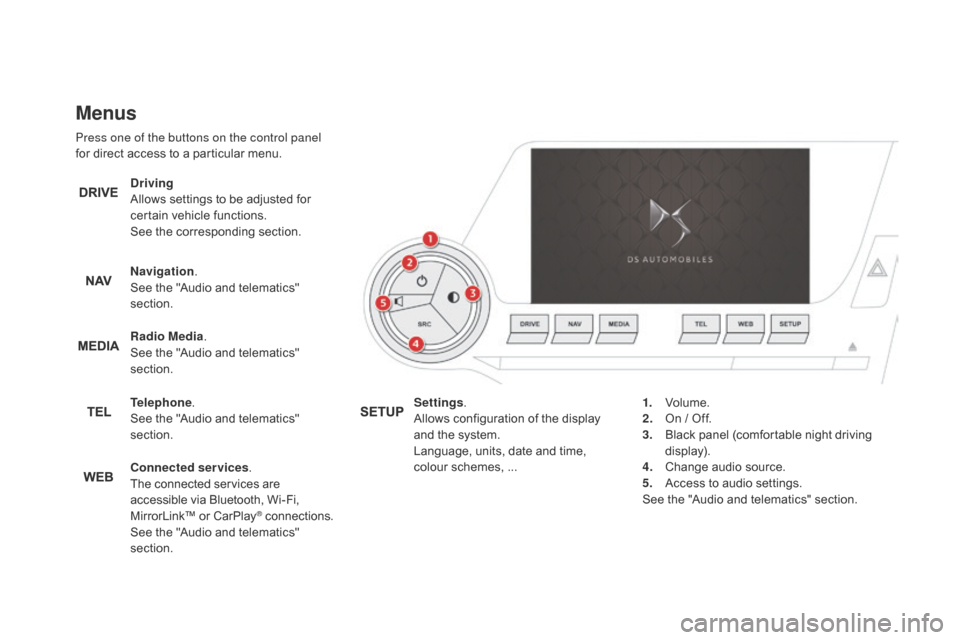
Menus
Press one of the buttons on the control panel
for direct access to a particular menu.
dri
ving
Allows settings to be adjusted for
certain vehicle functions.
See the corresponding section.
Navigation .
See the "Audio and telematics"
section.
Radio Media .
See the "Audio and telematics"
section.
Telephone .
See the "Audio and telematics"
section.
con
nected services .
The connected services are
accessible via Bluetooth, Wi-Fi,
MirrorLink™ or CarPlay
® connections.
See the "Audio and telematics"
section. Settings
.
Allows configuration of the display
and the system.
Language, units, date and time,
colour schemes, ... 1.
Vol
ume.
2.
On / O
ff.
3.
Bl
ack panel (comfortable night driving
display).
4.
Ch
ange audio source.
5.
Ac
cess to audio settings.
See the "Audio and telematics" section.
Page 87 of 500
85
DS5_en_Chap03_confort_ed02-2015
USB Player
This connection box comprises a USB port and
a Jack auxiliary socket.
Jack auxiliary socket
The Jack auxiliary socket allows the connection
of a portable device, such as a digital audio
player, so that your audio files can be heard
through the vehicle's speakers.
The management of these files is from the
portable device.
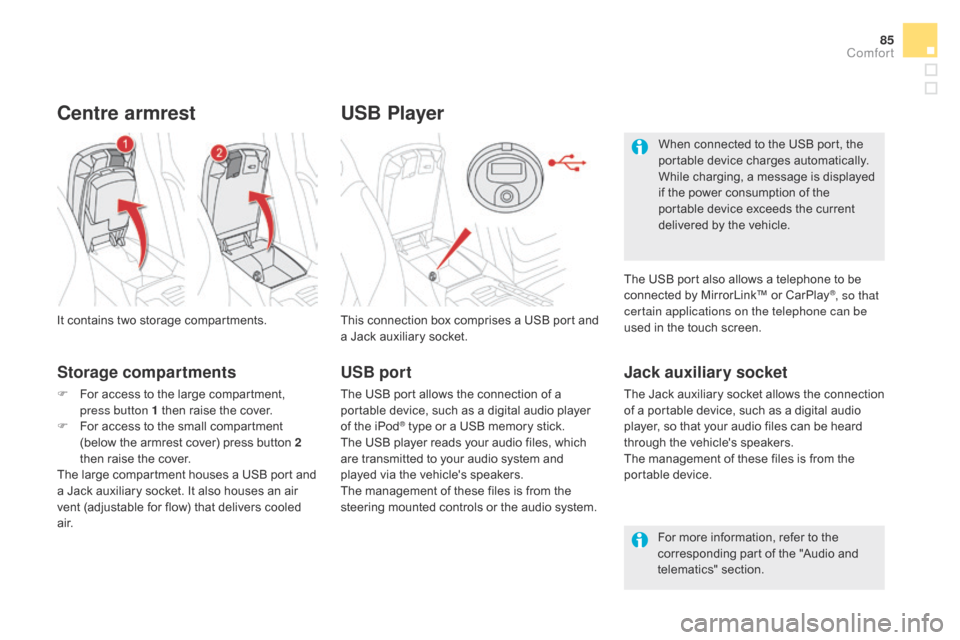
It contains two storage compartments.
centre armrest
Storage compartments
F For access to the large compartment,
p
ress button 1 then raise the cover.
F
Fo
r access to the small compartment
(below the armrest cover) press button 2
then raise the cover.
The large compartment houses a USB port and
a Jack auxiliary socket. It also houses an air
vent (adjustable for flow) that delivers cooled
a i r. For more information, refer to the
corresponding part of the "Audio and
telematics" section.
USB port
The USB port allows the connection of a
portable device, such as a digital audio player
of the iPod
® type or a USB memory stick.
The USB player reads your audio files, which
are transmitted to your audio system and
played via the vehicle's speakers.
The management of these files is from the
steering mounted controls or the audio system. When connected to the USB port, the
portable device charges automatically.
While charging, a message is displayed
if the power consumption of the
portable device exceeds the current
delivered by the vehicle.
The USB port also allows a telephone to be
connected by MirrorLink™ or CarPlay
®, so that
certain applications on the telephone can be
used in the touch screen.
comfort
Page 327 of 500
1 Audio and Telematics
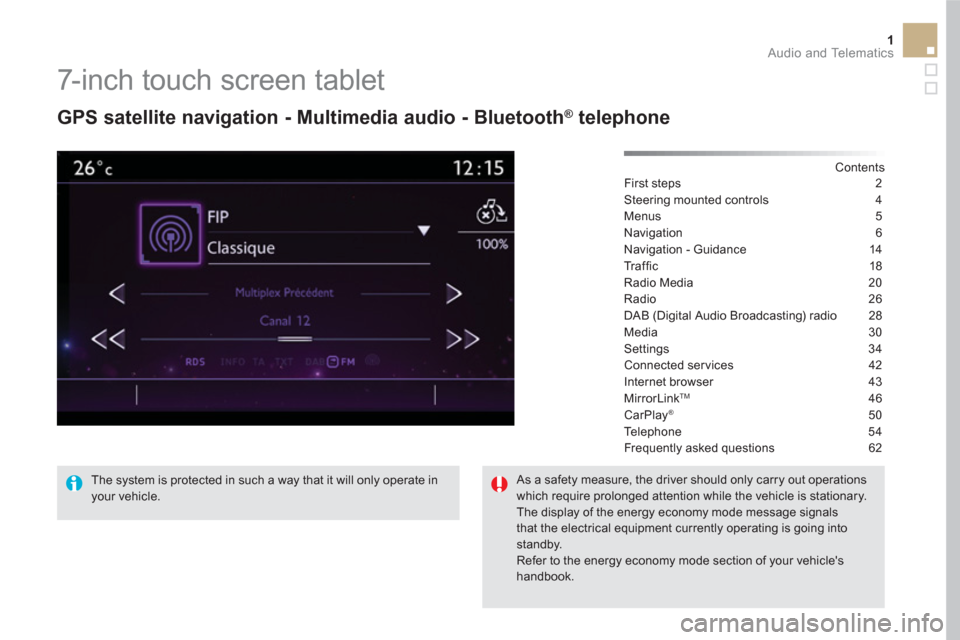
7-inch touch screen tablet
GPS satellite navigation - Multimedia audio - Bluetooth ®
telephone
Contents
First steps 2
Steering mounted controls 4
Menus 5
Navigation 6
Navigation - Guidance 14
Tr a ffi c 18
Radio Media 20
Radio 26
DAB (Digital Audio Broadcasting) radio 28
Media 30
Settings 34
Connected services 42
Internet browser 43
MirrorLink
TM 46
CarPlay® 50
Te l e p h o n e 5 4
Frequently asked questions 62
The system is protected in such a way that it will only operate in
your vehicle.
As a safety measure, the driver should only carry out operations
which require prolonged attention while the vehicle is stationary.
The display of the energy economy mode message signals
that the electrical equipment currently operating is going into
standby.
Refer to the energy economy mode section of your vehicle's
handbook.
Page 329 of 500
3 Audio and Telematics
With the engine running, press to
mute the sound.
With the ignition off, press to switch
the system on.
Volume adjustment (each source
is independent, including traffic
announcements (TA) and navigation
instructions).
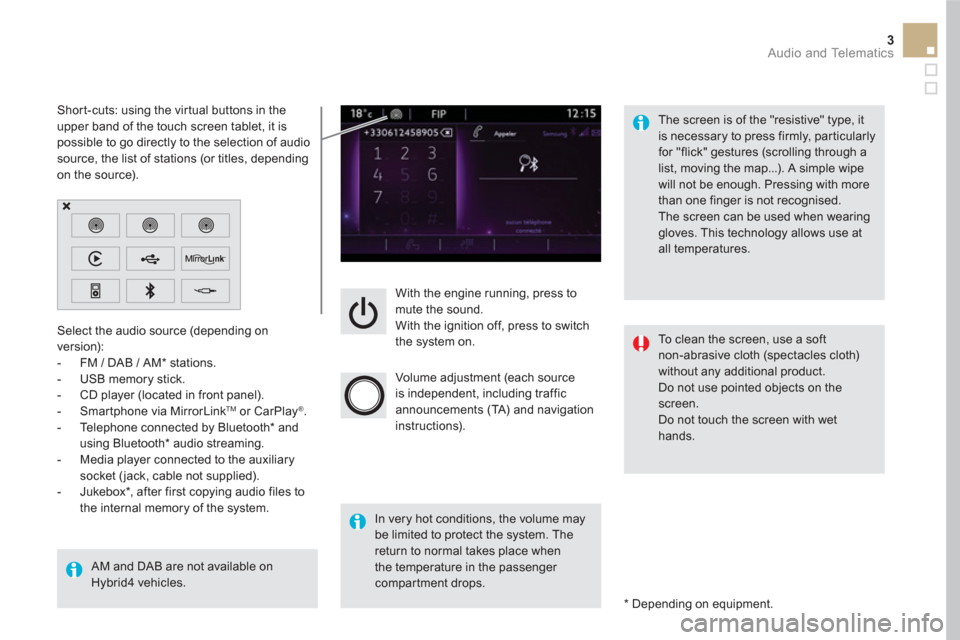
Select the audio source (depending on
version):
- FM / DAB / AM * stations.
- USB memory stick.
- CD player (located in front panel).
- Smartphone via MirrorLink
TM
or CarPlay ®
.
- Telephone connected by Bluetooth * and
using Bluetooth * audio streaming.
- Media player connected to the auxiliary
socket ( jack, cable not supplied).
- Jukebox * , after first copying audio files to
the internal memory of the system.
AM and DAB are not available on
Hybrid4 vehicles.
*
Depending on equipment.
Short-cuts: using the virtual buttons in the
upper band of the touch screen tablet, it is
possible to go directly to the selection of audio
source, the list of stations (or titles, depending
on the source).
The screen is of the "resistive" type, it
is necessary to press firmly, par ticularly
for "flick" gestures (scrolling through a
list, moving the map...). A simple wipe
will not be enough. Pressing with more
than one finger is not recognised.
The screen can be used when wearing
gloves. This technology allows use at
all temperatures.
In very hot conditions, the volume may
be limited to protect the system. The
return to normal takes place when
the temperature in the passenger
compartment drops.
To clean the screen, use a soft
non-abrasive cloth (spectacles cloth)
without any additional product.
Do not use pointed objects on the
screen.
Do not touch the screen with wet
hands.
Page 330 of 500
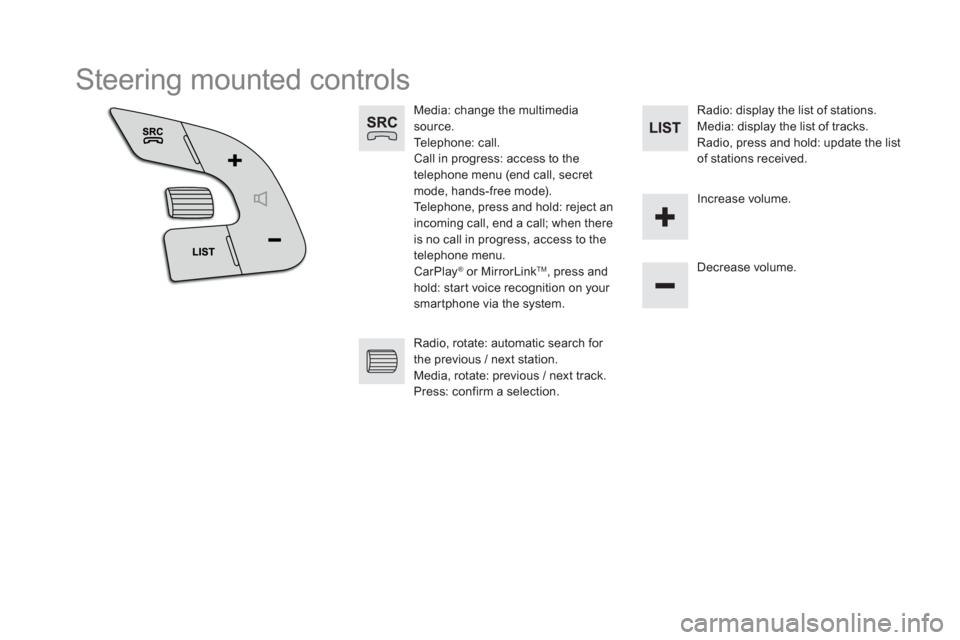
Steering mounted controls
Media: change the multimedia
source.
Telephone: call.
Call in progress: access to the
telephone menu (end call, secret
mode, hands-free mode).
Telephone, press and hold: reject an
incoming call, end a call; when there
is no call in progress, access to the
telephone menu.
CarPlay
®
or MirrorLink TM
, press and
hold: start voice recognition on your
smartphone via the system.
Decrease volume.
Radio, rotate: automatic search for
the previous / next station.
Media, rotate: previous / next track.
Press: confirm a selection.
Radio: display the list of stations.
Media: display the list of tracks.
Radio, press and hold: update the list
of stations received.
Increase volume.
Page 331 of 500
5 Audio and Telematics
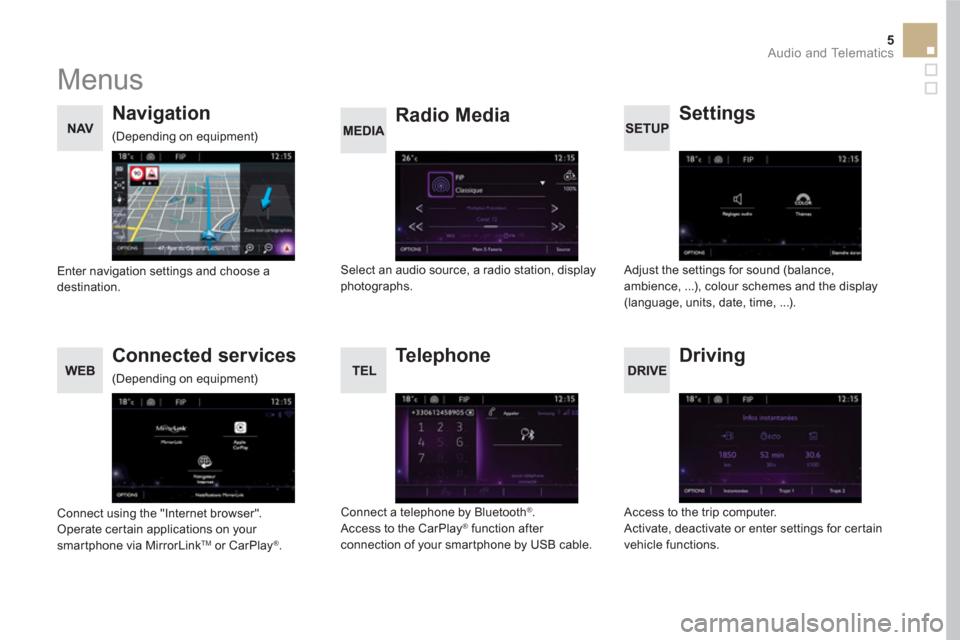
Menus
Settings
Radio Media
Navigation
Driving
Connected services
Te l e p h o n e
Adjust the settings for sound (balance,
ambience, ...), colour schemes and the display
(language, units, date, time, ...).
Select an audio source, a radio station, display
photographs.
Enter navigation settings and choose a
destination.
Access to the trip computer.
Activate, deactivate or enter settings for certain
vehicle functions.
Connect using the "Internet browser".
Operate certain applications on your
smartphone via MirrorLink
TM or CarPlay ®
.
Connect a telephone by Bluetooth
®
.
Access to the CarPlay ®
function after
connection of your smartphone by USB cable.
(Depending on equipment)
(Depending on equipment)
Page 347 of 500
3
2
21 Audio and Telematics
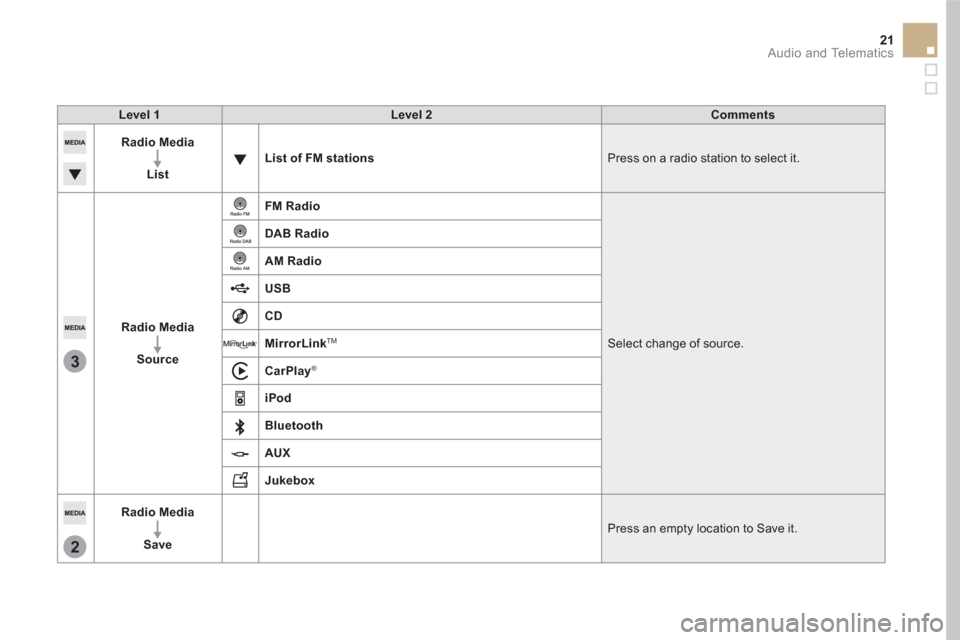
Level 1
Level 2
Comments
Radio Media
List
List of FM stations
Press on a radio station to select it.
Radio Media
Source
FM Radio
Select change of source.
DAB Radio
AM Radio
USB
CD
MirrorLink
TM
CarPlay
®
iPod
Bluetooth
AUX
Jukebox
Radio Media
Save
Press an empty location to Save it.
Page 372 of 500
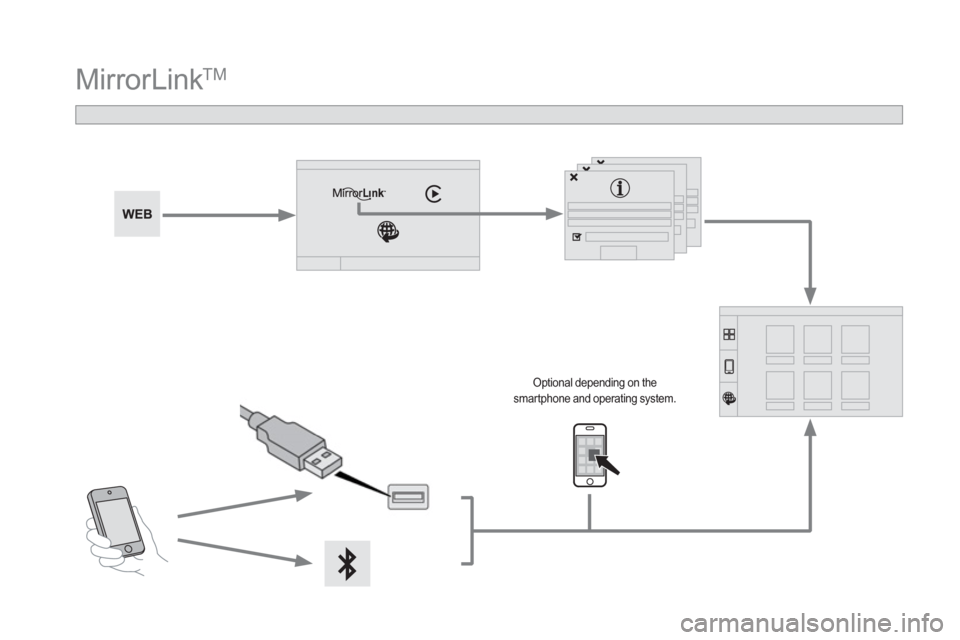
MirrorLink TM
Optional depending on the
smartphone and operating system.
Page 373 of 500
47 Audio and Telematics
As a safety measure and because it
requires sustained attention by the
driver, using a smartphone when
driving is prohibited.
All operations must be done with the
vehicle stationary
.
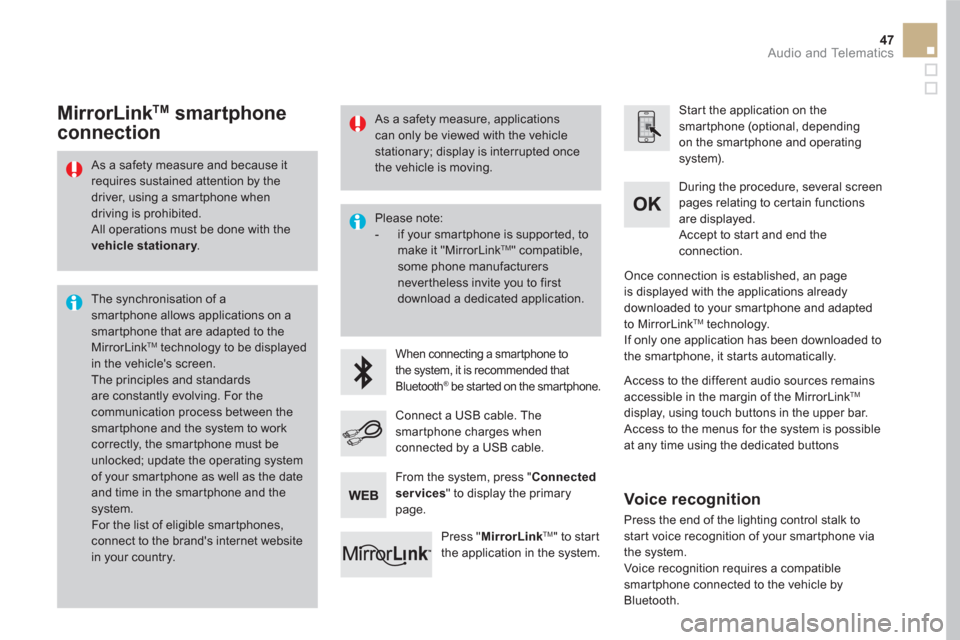
The synchronisation of a
smartphone allows applications on a
smartphone that are adapted to the
MirrorLink
TM technology to be displayed
in the vehicle's screen.
The principles and standards
are constantly evolving. For the
communication process between the
smartphone and the system to work
correctly, the smartphone must be
unlocked; update the operating system
of your smartphone as well as the date
and time in the smartphone and the
system.
For the list of eligible smar tphones,
connect to the brand's internet website
in your country.
Please note:
- if your smartphone is supported, to
make it "MirrorLink
TM " compatible,
some phone manufacturers
nevertheless invite you to first
download a dedicated application.
When connecting a smartphone to
the system, it is recommended that
Bluetooth
® be started on the smartphone
.
Start the application on the
smartphone (optional, depending
on the smartphone and operating
system).
During the procedure, several screen
pages relating to certain functions
are displayed.
Accept to start and end the
connection.
Connect a USB cable. The
smartphone charges when
connected by a USB cable.
Press " MirrorLink
TM
" to start
the application in the system.
Once connection is established, an page
is displayed with the applications already
downloaded to your smartphone and adapted
to MirrorLink
TM technology.
If only one application has been downloaded to
the smartphone, it starts automatically.
MirrorLink TM
smartphone
connection
Access to the different audio sources remains
accessible in the margin of the MirrorLink TM
display, using touch buttons in the upper bar.
Access to the menus for the system is possible
at any time using the dedicated buttons
From the system, press " Connected
services
" to display the primary
page.
As a safety measure, applications
can only be viewed with the vehicle
stationary; display is interrupted once
the vehicle is moving.
Voice recognition
Press the end of the lighting control stalk to
start voice recognition of your smartphone via
the system.
Voice recognition requires a compatible
smartphone connected to the vehicle by
Bluetooth.
Page 375 of 500
49 Audio and Telematics
Level 1
Level 2
Level 3
Comments
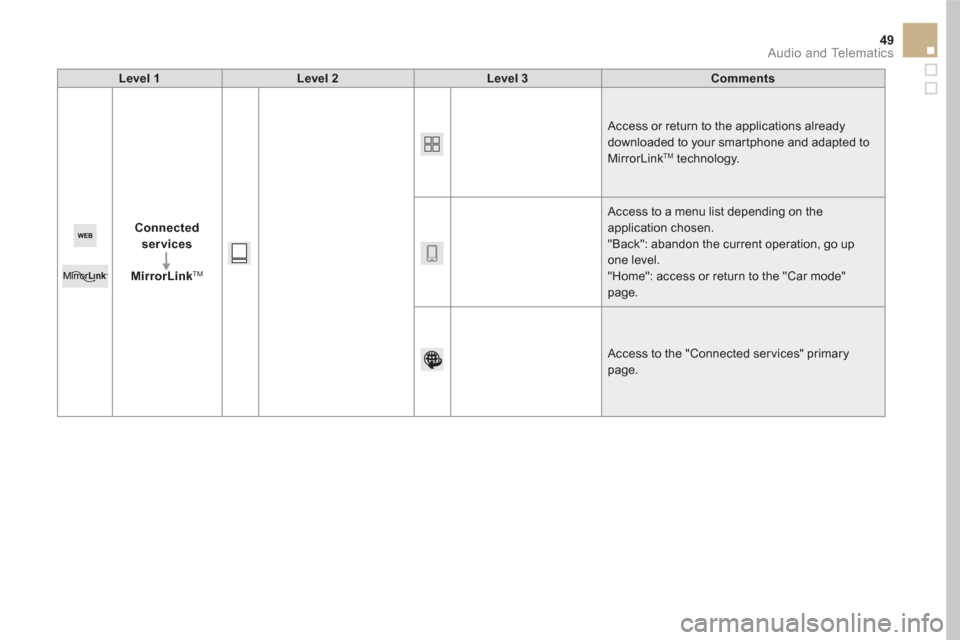
Connected
services
MirrorLink
TM
Access or return to the applications already
downloaded to your smartphone and adapted to
MirrorLink
TM technology.
Access to a menu list depending on the
application chosen.
"Back": abandon the current operation, go up
one level.
"Home": access or return to the "Car mode"
page.
Access to the "Connected ser vices" primary
page.