E save CITROEN DS7 CROSSBACK 2022 Owner's Manual
[x] Cancel search | Manufacturer: CITROEN, Model Year: 2022, Model line: DS7 CROSSBACK, Model: CITROEN DS7 CROSSBACK 2022Pages: 244, PDF Size: 6.87 MB
Page 140 of 244

138
Driving06
The sound emitted by the speaker (front
or rear) locates the obstacle relative to
the vehicle, whether in front of or behind it on
its path.
Side parking sensors
Using four additional sensors located on the sides
of the bumpers, the system records the position
of obstacles during the manoeuvre and indicates
them when they are located alongside the vehicle.
Only fixed obstacles are indicated
correctly. Moving obstacles detected at
the beginning of the manoeuvre may be
indicated mistakenly, while moving obstacles
that appear alongside the vehicle but were not
previously recorded will not be indicated.
Objects memorised during the manoeuvre
will no longer be stored after switching off
the ignition.
Deactivation/Activation
(Depending on country of sale)
It is configured in the ADAS touch screen
application.
If the function is deactivated, this
indicator lamp lights up on the instrument
panel.
The system status is saved when the ignition is
switched off.
The rear parking sensors are deactivated
automatically if a trailer or bicycle carrier
is connected to a towing device installed in
accordance with the Manufacturer's
recommendations.
In this case, the outline of a trailer is displayed
at the rear of the image of the vehicle.
When starting the vehicle, the graphic
and audible aids are only available after
the touch screen has started up.
Operating limits
If the boot is heavily loaded, the vehicle may tilt,
affecting distance measurements.
Malfunction
In the event of a malfunction when
changing into reverse gear, these
warning lamps light up on the instrument panel,
accompanied by the display of a message and an
audible signal (short beep).
Have it checked by a dealer or a qualified
workshop.
Reversing camera
For more information, refer to the General
recommendations on the use of driving
and manoeuvring aids.
When reverse gear is engaged, with the engine
running, this system displays views of the
vehicle's close surroundings on the touch screen
using a camera located at the rear of the vehicle.
The screen is divided into 3 parts with a side
menu, a contextual view and a view from above
the vehicle in its close surroundings.
Page 141 of 244
139
Driving06
The parking sensors supplement the information
in the view from above the vehicle.
Different contextual views are available:
–
Aut
omatic zoom view.
–
St
andard view.
–
Panoramic vie
w.
Depending on the context, the system chooses
the best view to display (standard or automatic
zoom).
The view type can be changed at any time during
the manoeuvre.
The system status is not saved when the ignition
is switched off.
Operating principle
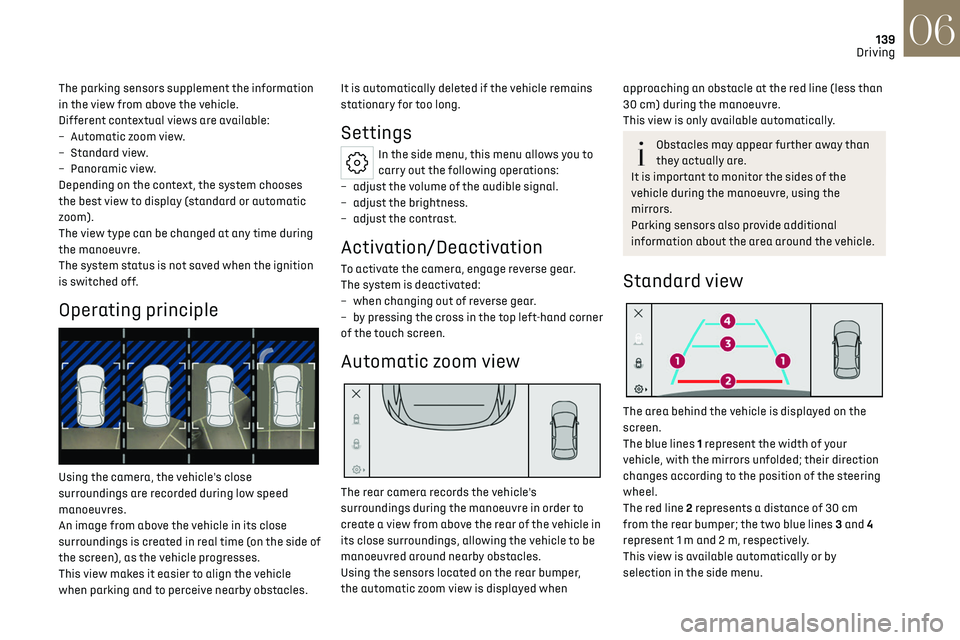
Using the camera, the vehicle's close
surroundings are recorded during low speed
manoeuvres.
An image from above the vehicle in its close
surroundings is created in real time (on the side of
the screen), as the vehicle progresses.
This view makes it easier to align the vehicle
when parking and to perceive nearby obstacles. It is automatically deleted if the vehicle remains
stationary for too long.
Settings
In the side menu, this menu allows you to
carry out the following operations:
–
adjust the v
olume of the audible signal.
–
adjust the brigh
tness.
–
adjust the c
ontrast.
Activation/Deactivation
To activate the camera, engage reverse gear.
The system is deactivated:
–
when changing out o
f reverse gear.
–
b
y pressing the cross in the top left-hand corner
of the touch screen.
Automatic zoom view
The rear camera records the vehicle's
surroundings during the manoeuvre in order to
create a view from above the rear of the vehicle in
its close surroundings, allowing the vehicle to be
manoeuvred around nearby obstacles.
Using the sensors located on the rear bumper,
the automatic zoom view is displayed when
approaching an obstacle at the red line (less than
30 cm) during the manoeuvre.
This view is only available automatically.
Obstacles may appear further away than
they actually are.
It is important to monitor the sides of the
vehicle during the manoeuvre, using the
mirrors.
Parking sensors also provide additional
information about the area around the vehicle.
Standard view
The area behind the vehicle is displayed on the
screen.
The blue lines 1 represent the width of your
vehicle, with the mirrors unfolded; their direction
changes according to the position of the steering
wheel.
The red line 2 represents a distance of 30 cm
from the rear bumper; the two blue lines 3 and 4
represent 1 m and 2 m, respectively.
This view is available automatically or by
selection in the side menu.
Page 142 of 244

140
Driving06
Panoramic view
The panoramic view allows you to leave, in
reverse, a parking space by anticipating the
arrival of vehicles, pedestrians or cyclists.
This view is not recommended for carrying out a
complete manoeuvre.
This view is only available by selection in the side
menu.
360 Vision
For more information, refer to the General
recommendations on the use of driving
and manoeuvring aids.
This system allows you to view your vehicle's
close surroundings on the touch screen using
cameras, located at the front and rear of the
vehicle.
The screen is divided into 4 parts with two side
menus, a contextual view and a view from above
the vehicle in its close surroundings.
The parking sensors supplement the information
in the view from above the vehicle.
Depending on the view angle chosen in the left-
hand side menu, the system provides specific
visual assistance in particular driving conditions,
such as entering a blind intersection or
manoeuvring in areas with reduced visibility.
Different contextual views are available for the
rear or for the front:
–
Aut
omatic zoom view.
–
St
andard view.
–
Panoramic vie
w.
Depending on the context, the system chooses
the best view to display (standard or automatic
zoom).
The view type can be changed at any time during
the manoeuvre.
The system status is not saved when the ignition
is switched off.
Operating principle
Reconstructed view
The cameras are activated and a reconstruction
of a view from above your vehicle in its close
surroundings is displayed on the touch screen.
Live view
The front and rear views automatically appear in
the view from above the vehicle.
It is also possible to display any live view by
selecting the corresponding zone.
The front view can be selected in forward gear up
to 10 mph (16 km/h).
Installing the very cold climate screen can
alter the image transmitted by the front
camera.
Settings
In the side menu, this menu allows you to
carry out the following operations:
–
adjust the v
olume of the audible signal.
–
adjust the brigh
tness.
–
adjust the c
ontrast.
Page 157 of 244

155
Practical information07
► If the vehicle is unlocked, lock it and then
unlock it.
If selective unlocking of the doors is
activated, press the unlocking button on
the remote control twice to disconnect the
nozzle.
The red indicator lamp in the flap goes out to
confirm that the nozzle is unlocked.
► Within 30 seconds, remove the charging
nozzle.
Domestic charging (mode 2)
The end of charging is confirmed when the
green CHARGE indicator lamp on the control unit
comes on fixed and the green light guides in the
flap come on fixed.
► After disconnection, replace the protective
cover over the nozzle and close the charging flap.
► Disconnect the control unit's charging cable
from the domestic socket.
Accelerated charging (mode 3)
The end of charging is confirmed by the
accelerated charging unit (Wallbox) and when the
green light guides in the flap come on fixed.
► After disconnection, replace the nozzle on to
the charging unit and close the charging flap.
Deferred charging
By default, the deferred charging start time is set
to be around midnight. Depending on equipment, this time can be
changed.
Settings
►
In the Energy touch screen application,
select the Charging tab.
► Set the charging start time.
► Press OK.
The setting is saved in the system.
You can also programme the deferred
charging function using a smartphone, via
the MyDS App application.
For more information on Remotely operable
additional functions, refer to the corresponding
section.
Activation
► After programming the deferred charging,
connect the vehicle to the desired charging
equipment.
► Press this button in the flap within one
minute to activate the deferred charging
(confirmed by the light guides coming on in blue).
Towing device
Load distribution
► Distribute the load in the trailer so that
the heaviest items are as close as possible to
the axle, and the nose weight approaches the
maximum permitted without exceeding it.
Air density decreases with altitude, thus reducing
engine performance. The maximum towable
load must be reduced by 10% per 1,000 metres of
altitude.
Use genuine towing devices and wiring
harnesses approved by the Manufacturer.
We recommend having them fitted by a dealer
or a qualified workshop.
If not fitted by a dealer, they must still be
fitted in accordance with the Manufacturer's
instructions.
Important: if the vehicle has a motorised
tailgate and Hands-Free Tailgate Access
function, and a towing device has been fitted
outside the dealer network, it is essential to
visit a dealer or a qualified workshop to have
the detection system recalibrated - risk of
malfunction of the Hands-Free Tailgate Access
function.
Certain driving or manoeuvring aid functions
are automatically deactivated while an
approved towing system is in use.
For more information about driving with a
towing device fitted to a trailer and associated
with the Trailer stability assist, refer to the
corresponding section.
Comply with the maximum authorised
towable weight, as indicated on your
vehicle's registration certificate, on the
manufacturer's label and in the Technical data
section of this guide.
Page 160 of 244
158
Practical information07
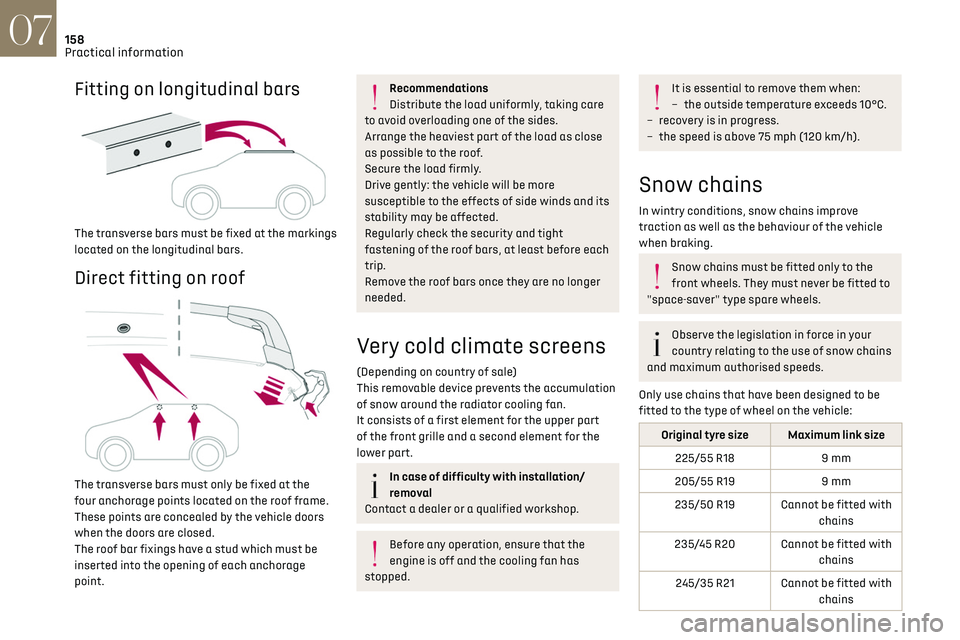
Fitting on longitudinal bars
The transverse bars must be fixed at the markings
located on the longitudinal bars.
Direct fitting on roof
The transverse bars must only be fixed at the
four anchorage points located on the roof frame.
These points are concealed by the vehicle doors
when the doors are closed.
The roof bar fixings have a stud which must be
inserted into the opening of each anchorage
point.
Recommendations
Distribute the load uniformly, taking care
to avoid overloading one of the sides.
Arrange the heaviest part of the load as close
as possible to the roof.
Secure the load firmly.
Drive gently: the vehicle will be more
susceptible to the effects of side winds and its
stability may be affected.
Regularly check the security and tight
fastening of the roof bars, at least before each
trip.
Remove the roof bars once they are no longer
needed.
Very cold climate screens
(Depending on country of sale)
This removable device prevents the accumulation
of snow around the radiator cooling fan.
It consists of a first element for the upper part
of the front grille and a second element for the
lower part.
In case of difficulty with installation/
removal
Contact a dealer or a qualified workshop.
Before any operation, ensure that the
engine is off and the cooling fan has
stopped.
It is essential to remove them when:
– the outside t emperature exceeds 10°C.
–
rec
overy is in progress.
–
the speed is abo
ve 75 mph (120 km/h).
Snow chains
In wintry conditions, snow chains improve
traction as well as the behaviour of the vehicle
when braking.
Snow chains must be fitted only to the
front wheels. They must never be fitted to
"space-saver" type spare wheels.
Observe the legislation in force in your
country relating to the use of snow chains
and maximum authorised speeds.
Only use chains that have been designed to be
fitted to the type of wheel on the vehicle:
Original tyre size Maximum link size 225/55 R18 9 mm
205/55 R19 9 mm
235/50 R19 Cannot be fitted with chains
235/45 R20 Cannot be fitted with chains
245/35 R21 Cannot be fitted with chains
Page 177 of 244
175
In the event of a breakdown08
Spare wheel
Visit this link to view explanatory videos:
http://q-r.to/bagGl9
For more information on the Tool kit, refer
to the corresponding section.
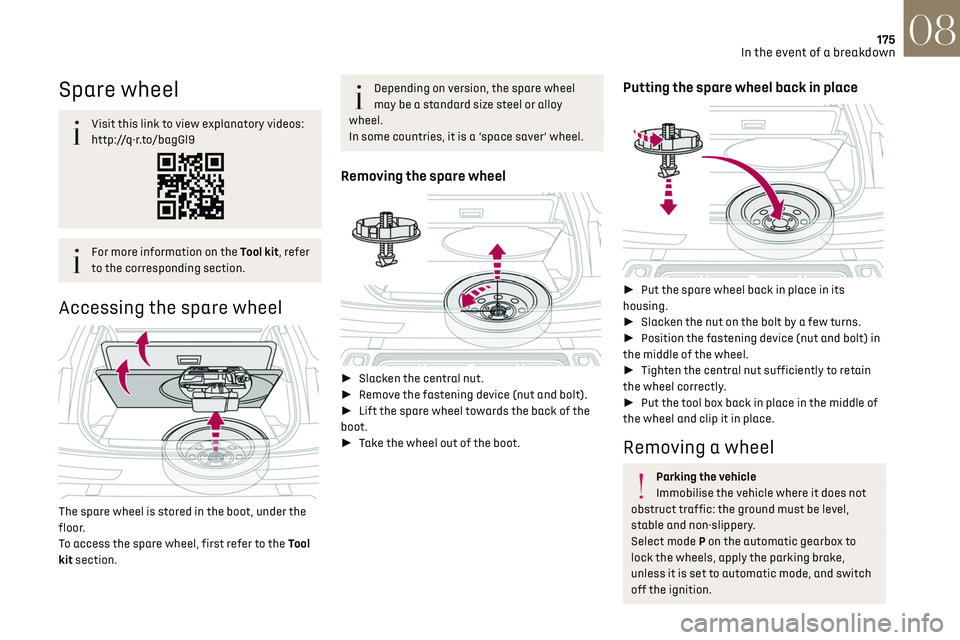
Accessing the spare wheel
The spare wheel is stored in the boot, under the
floor.
To access the spare wheel, first refer to the Tool
kit section.
Depending on version, the spare wheel
may be a standard size steel or alloy
wheel.
In some countries, it is a ‘space saver’ wheel.
Removing the spare wheel
► Slacken the central nut.
► Remove the fastening device (nut and bolt).
► Lift the spare wheel towards the back of the
boot.
► Take the wheel out of the boot.
Putting the spare wheel back in place
► Put the spare wheel back in place in its
housing.
► Slacken the nut on the bolt by a few turns.
► Position the fastening device (nut and bolt) in
the middle of the wheel.
► Tighten the central nut sufficiently to retain
the wheel correctly.
► Put the tool box back in place in the middle of
the wheel and clip it in place.
Removing a wheel
Parking the vehicle
Immobilise the vehicle where it does not
obstruct traffic: the ground must be level,
stable and non-slippery.
Select mode P on the automatic gearbox to
lock the wheels, apply the parking brake,
unless it is set to automatic mode, and switch
off the ignition.
Page 179 of 244

177
In the event of a breakdown08
► Remove the bolts and store them in a clean
place.
► Remove the wheel.
Fitting a wheel
Fitting a steel or "space-saver" type spare
wheel
If the vehicle is fitted with alloy wheels, the
washers A do not make contact with the steel
or "space-saver" type spare wheel. The wheel
is held in place by the conical contact surface
B of each bolt.
► Fit the wheel on the hub.
► Screw in the bolts by hand as far as possible.
► Pre-tighten the security bolt using the
wheelbrace 5 equipped with a security socket 2.
► Pre-tighten the other bolts using the
wheelbrace 5 only.
► Lower the vehicle again fully.
► Fold jack 6 and remove it.
► Tighten the security bolt using the
wheelbrace 5 equipped with a security socket 2.
► Tighten the other bolts using the wheelbrace 5
only.
► Refit the bolt covers to each of the bolts
(depending on equipment).
► Store the tools.
After changing a wheel
Store the punctured wheel in the boot or,
depending on version, remove the central cover
first to store it beneath the floor in place of the
spare wheel.
With a "space-saver" type spare wheel
Deactivate certain driving aid functions (Active
Safety Brake, Adaptive cruise control, etc.).
Page 180 of 244

178
In the event of a breakdown08
Do not exceed the maximum authorised speed
of 50 mph (80 km/h) or the maximum distance
of 50 miles (80 km).
Driving with more than one "space-saver" type
spare wheel is prohibited.
Visit a dealer or a qualified workshop.
Have the tightening of the spare wheel's
bolts and its tyre pressure checked.
Have the punctured tyre examined. After
inspection, the technician will advise you on
whether the tyre can be repaired or if it must
be replaced.
Changing a bulb
In some weather conditions (e.g. low
temperature or humidity), misting on the
internal surface of the glass of the headlamps
and rear lamps is normal, and will disappear
after the lamps have been on for a few
minutes.
Never look too closely at the light beam of
LED technology lamps - risk of serious eye
injury!
The headlamps have polycarbonate
lenses with a protective coating:
–
Do not clean them with a dry or abrasiv
e
cloth, nor with detergent or solvent products.
–
U
se a sponge and soapy water or a pH
neutral product.
–
When using a high-pre
ssure washer on
persistent marks, do not keep the lance
directed towards the headlamps, lamps or
their edges for too long, so as not to damage
their protective coating and seals.
Changing a bulb must only be done with
the ignition off and after the headlamp /
lamp has been switched off for several
minutes - risk of serious burns!
Do not touch the bulb directly with your
fingers; use a lint-free cloth.
It is essential only to use anti-ultraviolet (UV)
type bulbs, so as not to damage the headlamp.
Always replace a failed bulb with a new bulb
of the same type and specification. To avoid
lighting imbalance, replace the bulbs in pairs.
After changing a bulb
To refit, carry out the operations in
reverse order to removal.
Close the protective cover very carefully to
guarantee the sealing of the lamps.
Light-emitting diode (LED)
headlamps and lamps
Depending on version, the affected types of
headlamps/lamps are:
–
LED t
echnology headlamps.
–
DS PIXEL LED VISION 3
.0 headlamps.
–
Offset da
ytime running lamps/sidelamps/
direction indicators.
–
Direction indic
ator side repeaters.
–
Side spo
tlamps.
–
B
rake lamps.
–
T
ailgate rear lamps.
–
Third brak
e lamp.
–
Number pla
te lamps.
If you need to replace this type of bulb,
you must contact a dealer or a qualified
workshop.
Do not touch the LED technology bulbs - risk of
electrocution!
Page 197 of 244
195DS IRIS SYSTEM - 12" touch screen Infotainment system10
– Time.
– Q uick access to the Mirror Screen® functions
(associated with a connected smartphone).
Swipe down from the upper edge of the touch
screen to access the notifications centre and
display a list of quick settings :Guest, Privacy
Settings, Brightness, My Devices, night mode, etc.
Principles
► Use this button (HOME) to display the
most recent home page used; a second
press displays the first home page, then press the
virtual buttons displayed on the touch screen.
Scroll through the home pages by sliding
your finger along the screen to the right or
to the left.
Principle of movement in the system
Depending on the pages displayed on the screen,
scroll through the text or the menu (on the left
side of the screen) by sliding your finger, as with
a smartphone.
Touch buttons
Display/hide the context menu.
Return to the previous page.
► To change the status of a function, press the
description for the corresponding line (change
confirmed by the slider moving to the right/left:
function activated/deactivated).
Access to additional information about the
function.
Access to a function’s settings.
Add/delete shortcuts.
Configuring profiles
Press the "Settings" application.
In the list, select the "Profile" tab.
The screen displays a "Guest" profile built
into the system and allows you to create and
personalise several new profiles with or without
an associated mobile device.
The "Guest" profile has a default display
with the possibility of adding to it and/or
returning it to its initial configuration. This profile
is built into the system and cannot be deleted.
Each profile created can be associated
with a mobile device of your choice
connected via Bluetooth
®; the Bluetooth® function
of the mobile device must first be activated. This
association allows the system to detect your
presence in the vehicle when it starts and to
propose the activation of your personalised
profile.
The connected mobile device serves as an access
key to the profile and restores the last value of the
associated Private Mode.
If a profile is not connected to the mobile device,
the last profile used will be highlighted.
Select "Create Profile", then follow the
procedure.
Creating a new profile allows you to personalise: –
Language
, units, Privacy Settings.
–
Screen c
onfiguration, appearance, SMART
TOUCH (depending on equipment).
–
Audio settings, fa
vourite radio stations.
–
Ligh
ting, interior ambience (refer to the "Ease
of use and comfort" section).
–
Na
vigation history, favourite points of interest
(POIs), navigation settings.
–
Some driving aids and the list o
f favourites.
To delete a profile, select it from the list of
profiles then press the bin.
Privacy Settings
"Privacy Settings" management is associated
with each profile. This function is used with:
a "Guest" profile configured by default in "Sharing
Data and Location" mode,
or
a profile to be created in the system, with or
without connection to a mobile device.
If there is no connection to a mobile device, the
mode value will be set to "Sharing Data and
Location" mode.
The connected mobile device serves as an access
key to personal information. First activate the
Bluetooth
® function on the mobile device. The last
saved mode value will be restored.
"Sharing Data and Location"
This mode allows the vehicle to externally
transmit all the personal data needed for each
valid available connected service.
Page 198 of 244
196DS IRIS SYSTEM - 12" touch screen Infotainment system10
The personal data required to use the
connected services is sent to the
providers of these services.
"Sharing Data"
This mode allows the vehicle to externally
transmit all the data needed for each valid
available connected service, with the exception of
vehicle location data (e.g. GPS coordinates).
Some connected services may not
function without the vehicle location
data.
This mode will not be applied to the
emergency call function or to specific
services to which the user has consented
under the terms of commercial contracts
(Connected alarm).
"Private Mode"
This mode does not allow the vehicle to
transmit personal data outside the vehicle.
Connected services will only perform local
processing inside the vehicle with limited
functions.
This mode will not be applied to the
emergency call function or to specific
services to which the user has consented
under the terms of commercial contracts
(Connected alarm).
If the vehicle is used for professional purposes
or under the terms of specific contracts
(e.g. corporate fleet, government assignment),
some privacy modes will not be available for
the user on the screen, depending on the data
sharing needs of the services.
To change mode, swipe down from the upper edge
of the touch screen to display all of the quick
settings.
Press this button and select the chosen
mode. The mode is highlighted.
OR
Press the "Settings" application.
In the list, select the "Connectivity".
Select "Privacy Settings".
Choose the mode.
Internet portal
During the first use, upon acquisition of the
vehicle, the user is invited to select the country of
residence for the use of the Internet portal.
If the country is not selected, the notification is
stored in the notification centre and disappears
once the country is selected. Slide a finger on the
touch screen from top to bottom to display all the
notifications.
The selection of a country is necessary to use the
available internet applications.
Press the "Settings" application.
In the list, select the "Connected Services".
Choose the country.
The first time you use it, via a connected
mobile device, the system links to your
profile. The connected mobile device serves as an
access key to saved personal information. First
activate the mobile device’s Bluetooth
® function.
Select the desired application, authentication will
be requested if necessary. This authentication
will be saved for future uses via the mobile device
connected to the current profile.
An authentication will be requested at each use if
the mobile device is not connected to the current
profile or if the Guest profile is used.
With the use of the “Guest” profile, an
identification will be requested for each
use.
Updating the system
Managing devices remotely and remote
updating of software and firmware.
Being an integral part of the service used to
provide connected services contract(s), the
required management of devices as well as
the required updating of the software and
firmware associated with the aforementioned