Kwh CITROEN DS7 CROSSBACK 2022 Owners Manual
[x] Cancel search | Manufacturer: CITROEN, Model Year: 2022, Model line: DS7 CROSSBACK, Model: CITROEN DS7 CROSSBACK 2022Pages: 244, PDF Size: 6.87 MB
Page 26 of 244
24
Dashboard instruments01
Long press, ignition on: start standby mode (mute
sound, screens and clock display off).
Volume adjustment.
Applications
Press this button to access the
applications wall.
From any page, press the touch screen
with three fingers to display the
applications wall.
To obtain information about the other
applications not listed here, refer to the sections
describing the audio and telematic systems.
ADAS
Activation/Deactivation and configuration
of the driving aid functions.
Climate
Settings for temperature, air flow, etc.
For more information on Dual-zone automatic air
conditioning, refer to the corresponding section.
Seats
Activation/Deactivation and configuration
of the seat comfort functions (heating, ventilation
and massages).
For more information on the Heated and/or
ventilated seats or on the Multi-point massages,
refer to the corresponding section.
Settings
Main settings for the audio system, touch
screen and digital instrument panel. Activation/Deactivation and configuration of
the exterior lighting, vehicle access and safety
functions.
Energy
Access to the rechargeable hybrid system
features (energy flow, consumption statistics,
deferred charging, e
- SAVE function).
Energy application
Energy Flow
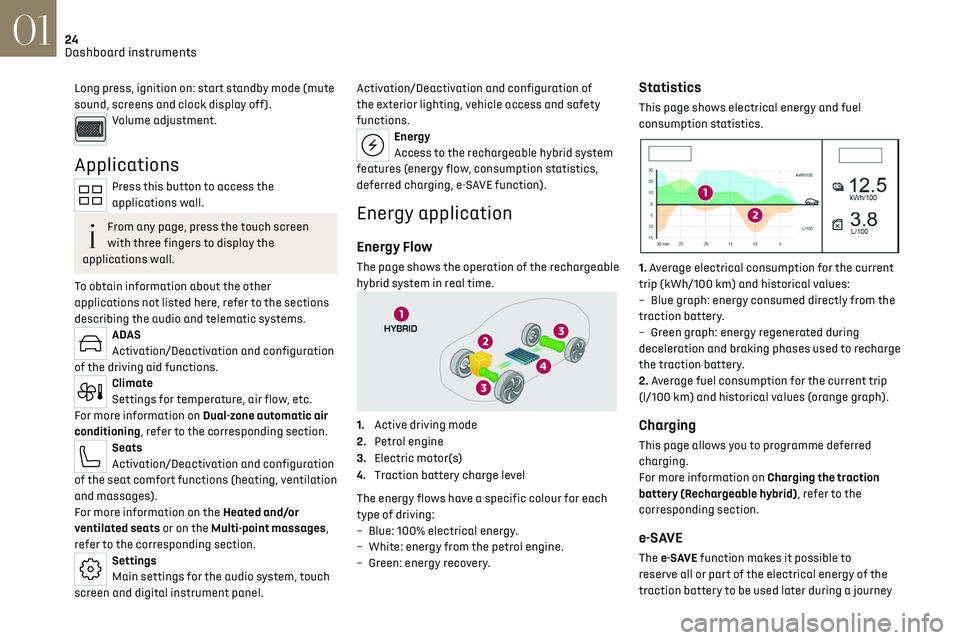
The page shows the operation of the rechargeable
hybrid system in real time.
1.Active driving mode
2. Petrol engine
3. Electric motor(s)
4. Traction battery charge level
The energy flows have a specific colour for each
type of driving:
–
Blue
: 100% electrical energy.
–
Whit
e: energy from the petrol engine.
–
G
reen: energy recovery.
Statistics
This page shows electrical energy and fuel
consumption statistics.
1. Average electrical consumption for the current
trip (kWh/100 km) and historical values:
–
Blue graph
: energy consumed directly from the
traction battery.
–
G
reen graph: energy regenerated during
deceleration and braking phases used to recharge
the traction battery.
2. Average fuel consumption for the current trip
(l/100 km) and historical values (orange graph).
Charging
This page allows you to programme deferred
charging.
For more information on Charging the traction
battery (Rechargeable hybrid), refer to the
corresponding section.
e-SAVE
The e-SAVE function makes it possible to
re serve all or part of the electrical energy of the
traction battery to be used later during a journey
Page 194 of 244
192Technical data09
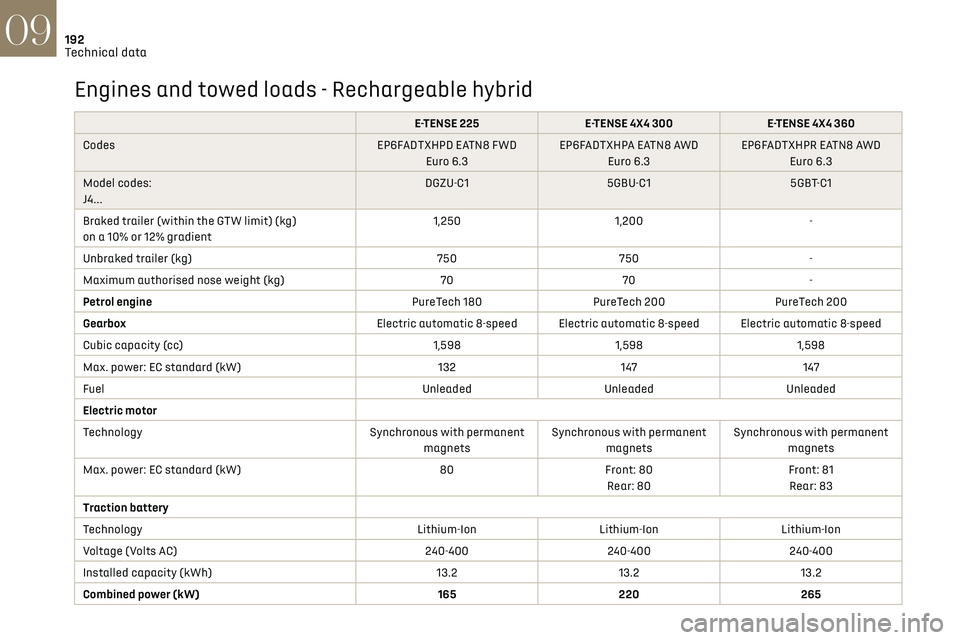
Engines and towed loads - Rechargeable hybrid
E-TENSE 225E-TENSE 4X4 300 E-TENSE 4X4 360
Codes EP6FADTXHPD EATN8 FWD
Euro 6.3 EP6FADTXHPA EATN8 AWD
Euro 6.3 EP6FADTXHPR EATN8 AWD
Euro 6.3
Model codes:
J4... DGZU-C1
5GBU-C1 5GBT-C1
Braked trailer (within the GTW limit) (kg)
on a 10% or 12% gradient 1,250
1,200 -
Unbraked trailer (kg) 750750 -
Maximum authorised nose weight (kg) 7070 -
Petrol engine PureTech 180PureTech 200 PureTech 200
Gearbox Electric automatic 8-speed Electric automatic 8-speed Electric automatic 8-speed
Cubic capacity (cc) 1,5981,5981,598
Max. power: EC standard (kW) 132147147
Fuel UnleadedUnleadedUnleaded
Electric motor
Technology Synchronous with permanent
magnets Synchronous with permanent
magnets Synchronous with permanent
magnets
Max. power: EC standard (kW) 80Front: 80
Rear: 80 Front: 81
Rear: 83
Traction battery
Technology Lithium-IonLithium-IonLithium-Ion
Voltage (Volts AC) 240-400240-400240-400
Installed capacity (kWh) 13.213.213.2
Combined power (kW) 165220 265
Page 209 of 244

207
DS IRIS SYSTEM - 12" touch screen Infotainment system10
Making a call using the list of recent calls
Press the "Phone" application.
In the list, select the "Calls" tab.
Or
Briefly press...
...the telephone button on the steering-
mounted controls.
Select and call one of the most recent numbers
called in the list.
It is always possible to make a call
directly from the telephone; as a safety
measure, first park the vehicle.
Calling a contact
Press the "Phone" application.
In the list, select the "Contacts” tab.
Select the desired contact in the displayed list.
Call the contact by selecting one of the
contact's phone numbers.
Organising the contact list
Press the "Phone" application.
In the list, select the “Settings” tab to display the
telephone-related settings.
Choose to list the contacts starting with
their first or last name.
Connecting two phones
The system allows two phones to be
connected simultaneously:
–
2 via Bluet
ooth
® connection.
or
–
1 via Bluet
ooth
® connection and 1 via Mirror
Screen® connection.
Display and content priority is given to the last
phone used.
To change the priority of the phone:
Press the "Phone" application.
Press this button to change the priority of
the phone.
Settings
Configuring the screen display
Press the "Settings" application.
In the list, select the "Customization" tab.
It is possible to configure:
–
the screen c
olours associated with the interior
ambient lighting. Refer to the "Ease of use and
comfort" section.
–
the sound ambienc
e.
–
the visual w
elcome and goodbye animations.
–
the screen transition anima
tions.
Managing the system
connectivity
Press the "Settings" application.
In the list, select the "Connectivity" tab.
It is possible to manage:
–
The Bluet
ooth
® connection.
–
The Mirror Screen® smartphone connections
(Apple®CarPlay®/Android Auto).
–
The Wi-Fi c
onnection.
–
The priv
acy mode.
Configuring the system
Press the "Settings" application.
In the list, select the "System” tab.
It is possible to configure:
–
the language
.
–
the da
te & time.
–
the unit o
f distance and consumption
(kWh/100 miles - miles, mi/kWh - miles, km/kWh
- km).
–
the t
emperature unit (Fahrenheit, Celsius).
It is also possible to reset the system
configuration.
Selecting the language
Select "Language" to change the
language.
Press the desired language.