Jack CITROEN RELAY 2017 Handbook (in English)
[x] Cancel search | Manufacturer: CITROEN, Model Year: 2017, Model line: RELAY, Model: CITROEN RELAY 2017Pages: 292, PDF Size: 9.04 MB
Page 8 of 292
6
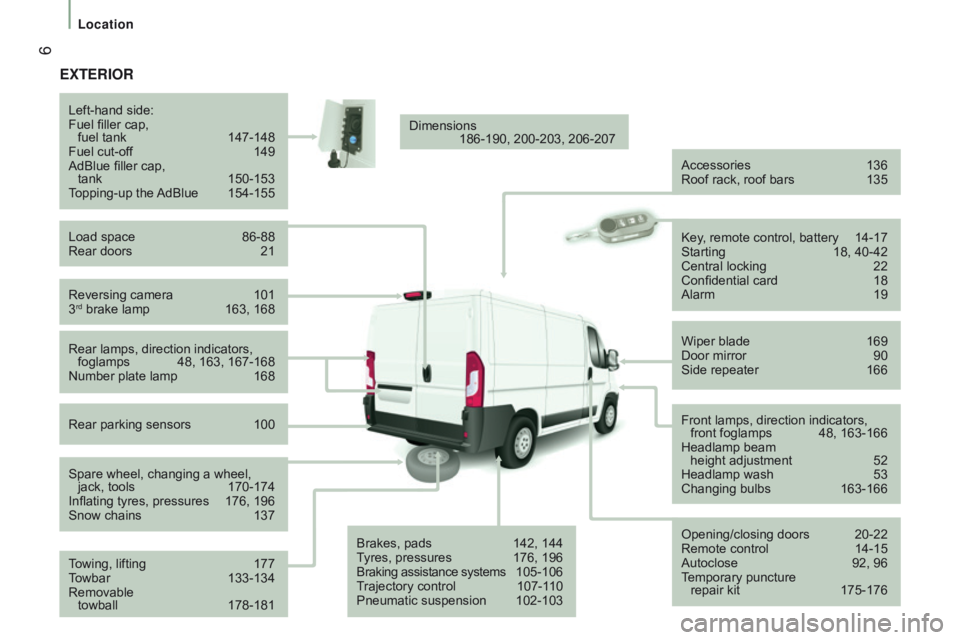
ExtErIOr
Reversing camera 101
3rd brake lamp 163, 168
Left-hand side:
Fuel filler cap,
fuel tank
147-148
Fuel cut-of
f
149
AdBlue filler cap,
tank
150-153
T
opping-up the AdBlue
154-155
Load space
86-88
Rear doors
21
Rear lamps, direction indicators, foglamps
48, 163, 167-168
Number plate lamp
168
Rear parking sensors
100
Spare wheel, changing a wheel, jack, tools
170-174
Inflating tyres, pressures
176, 196
Snow chains
137
T
owing, lifting
177
T
owbar
133-134
Removable
towball
178-181 Dimensions
186-190, 20
0-203, 206-207
Accessories
136
Roof rack, roof bars
135
Brakes, pads
142, 144
T
yres, pressures
176, 196
Braking assistance systems
1
05-106
Trajectory control
107-1
10
Pneumatic suspension
102-103Key
, remote control, battery
14-17
Starting
18, 40-42
Central locking
22
Confidential card
18
Alarm
19
Wiper blade
169
Door mirror
90
Side repeater
166
Opening/closing doors
20-22
Remote control
14-15
Autoclose
92, 96
T
emporary puncture
repair kit
175-176
Front lamps, direction indicators,
front foglamps
48, 163-166
Headlamp beam
height adjustment
52
Headlamp wash
53
Changing bulbs
163-166
Location
Page 9 of 292
7
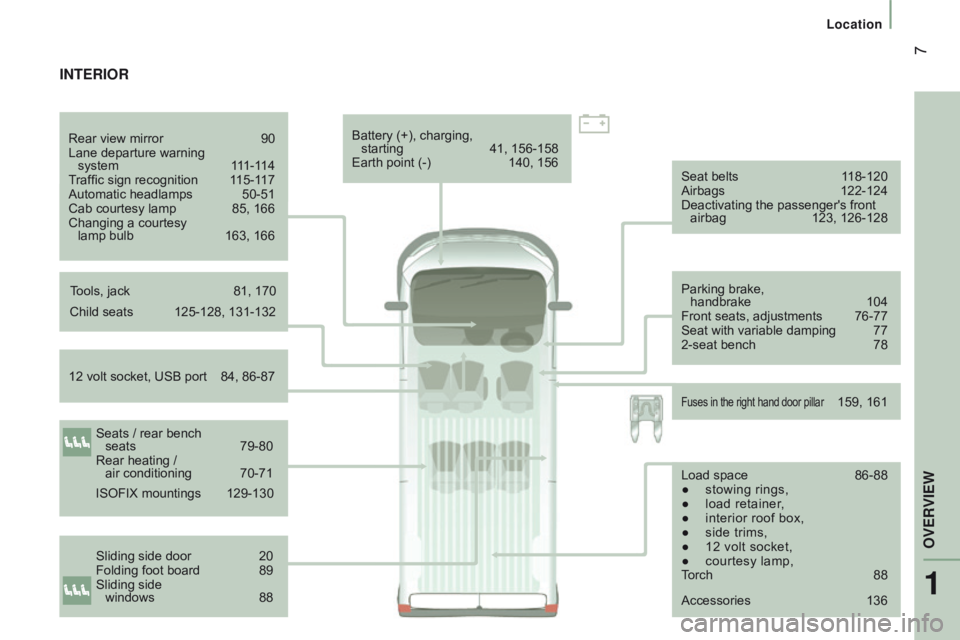
Seat belts 118-120
Airbags 122-124
Deactivating the passenger's front airbag
123, 126-128
Parking brake,
handbrake
104
Front seats, adjustments
76-77
Seat with variable damping
77
2-seat bench
78
Child seats
125-128, 131-132
12 volt socket, USB port
84, 86-87 Battery (+), charging,
starting
41, 156-158
Earth point (-)
140, 156
Fuses in the right hand door pillar 159, 161
IntErIOr
Seats / rear bench
seats 79-80
Rear heating /
air conditioning
70-71
Sliding side door
20
Folding foot board
89
Sliding side
windows
88
Rear view mirror
90
Lane departure warning
system
1
11-114
Traffic sign recognition
1
15-117
Automatic headlamps
50-51
Cab courtesy lamp
85, 166
Changing a courtesy
lamp bulb
163, 166
ISOFIX mountings
129-130
T
ools, jack
81, 170
Accessories
136
Load space
86-88
●
stowing rings,
●
load retainer
,
●
interior roof box,
●
side trims,
●
12 volt socket,
●
courtesy lamp,
T
orch
88
1
OVERVIEW
Location
Page 83 of 292
81
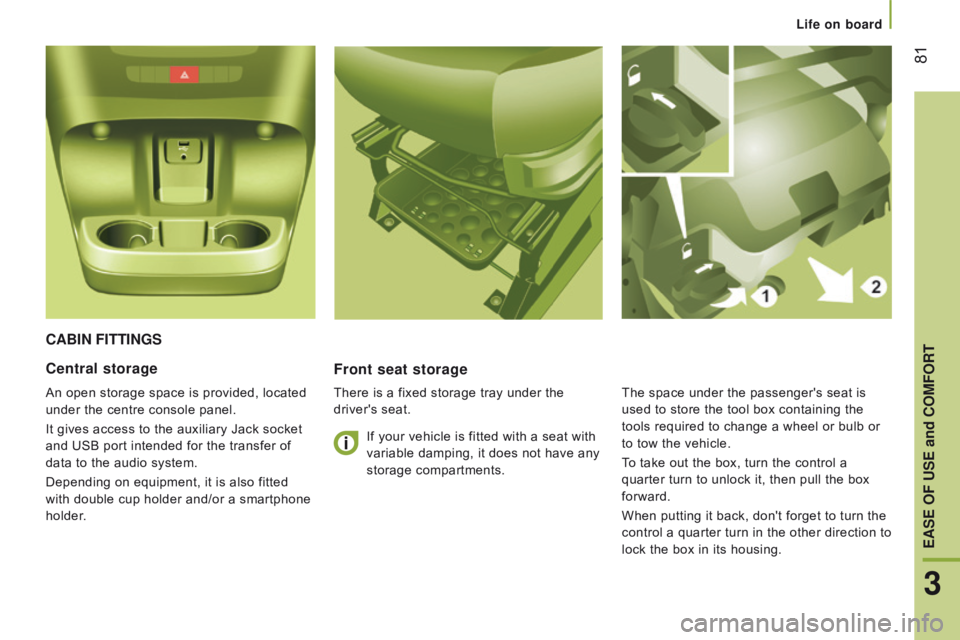
cABIn FIttInGS
Front seat storage
There is a fixed storage tray under the
driver's seat.
central storage
An open storage space is provided, located
under the centre console panel.
It gives access to the auxiliary Jack socket
and USB port intended for the transfer of
data to the audio system.
Depending on equipment, it is also fitted
with double cup holder and/or a smartphone
holder.If your vehicle is fitted with a seat with
variable damping, it does not have any
storage compartments.
The space under the passenger's seat is
used to store the tool box containing the
tools required to change a wheel or bulb or
to tow the vehicle.
To take out the box, turn the control a
quarter turn to unlock it, then pull the box
forward.
When putting it back, don't forget to turn the
control a quarter turn in the other direction to
lock the box in its housing.
3
EASE OF uSE and cOMFOrt
Life on board
Page 172 of 292
170
Parking the vehicle
Where possible, park the vehicle on level,
stable and non-slippery ground.
Apply the parking brake, switch off the
ignition and engage first gear.
Wear a high visibility vest and position the
warning triangle on the road.
You must ensure that the occupants get out
of the vehicle and wait in a safe location.
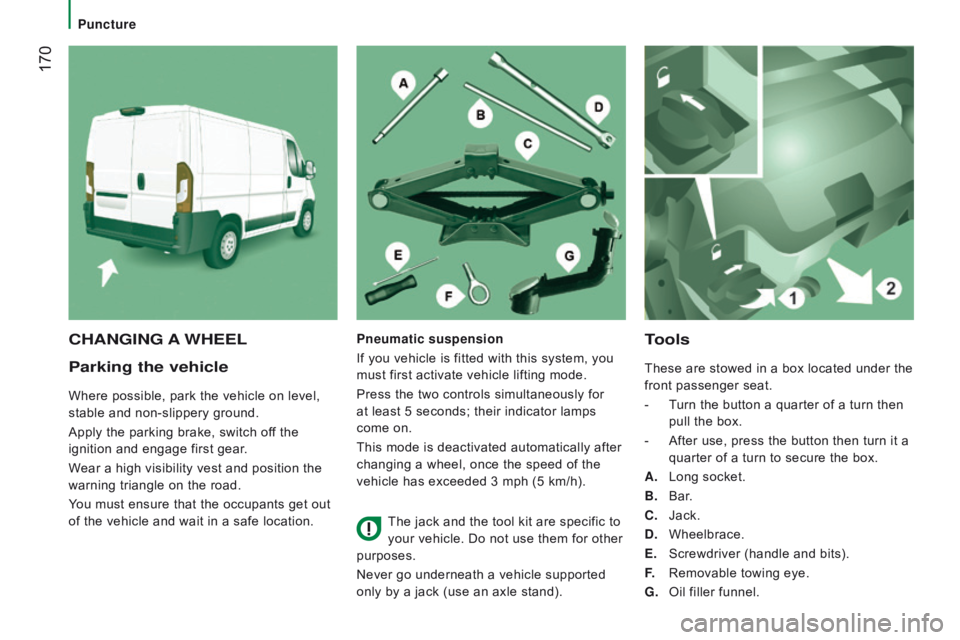
tools
These are stowed in a box located under the
front passenger seat.
-
T
urn the button a quarter of a turn then
pull the box.
-
After use, press the button then turn it a
quarter of a turn to secure the box.
A.
Long socket.
B.
Bar
.
c
.
Jack.
d
.
Wheelbrace.
E.
Screwdriver (handle and bits).
F.
Removable towing eye.
G.
Oil filler funnel.
cHAnGInG A WHEELPneumatic suspension
If you vehicle is fitted with this system, you
must first activate vehicle lifting mode.
Press the two controls simultaneously for
at least 5 seconds; their indicator lamps
come on.
This mode is deactivated automatically after
changing a wheel, once the speed of the
vehicle has exceeded 3 mph (5 km/h).
The jack and the tool kit are specific to
your vehicle. Do not use them for other
purposes.
Never go underneath a vehicle supported
only by a jack (use an axle stand).
Puncture
Page 174 of 292

172
- Extend the jack using the wheelbrace d
and the bar B until the wheel is a few
centimetres off the ground.
-
Unscrew the bolts fully and remove the
wheel to be repaired.
-
Position the jack
c at one of the four
locations provided on the underbody
near the wheels.
If your vehicle has a folding foot board, the
jack must be positioned at 45°.
removing the wheel to be repaired
- Remove the trim (depending on version)
using the screwdriver E as a lever.
-
Release the bolts using the
wheelbrace
d
and the bar
B.
Puncture
Page 175 of 292

173
Fitting the spare wheelStowing the wheel
- Put the spare wheel in place on the hub
and fit the bolts by hand.
-
Pre-tighten the bolts using the
wheelbrace
d and the bar
B.
-
Lower the vehicle completely by folding
the jack
c
, then remove the jack.
-
T
ighten the bolts again using the
wheelbrace
d and the bar
B (tighten
them fully without forcing them). You must place the wheel to be repaired or
the spare wheel under the vehicle to secure
the carrier system.
-
Place the wheel at the rear of the vehicle.
●
For versions with
steel wheels, hook
the carrier I on the outside.
●
Screw in the grip
H to secure the carrier
and wheel. ●
For versions with alloy wheels, position
the strap K on the outside.
●
Fit the three strap fixing screws
j
to the
alloy wheel.
QuIcK HELP
8
Puncture
Page 236 of 292
234
uSB player
The system builds playlists (in temporary
memory), an operation which can take from
a few seconds to several minutes at the first
connection.
Reduce the number of non-music files and the
number of folders to reduce the waiting time.
The playlists are updated every time the
ignition is switched off or connection of a USB
memory stick. However, the audio system
memorises these lists and if they are not
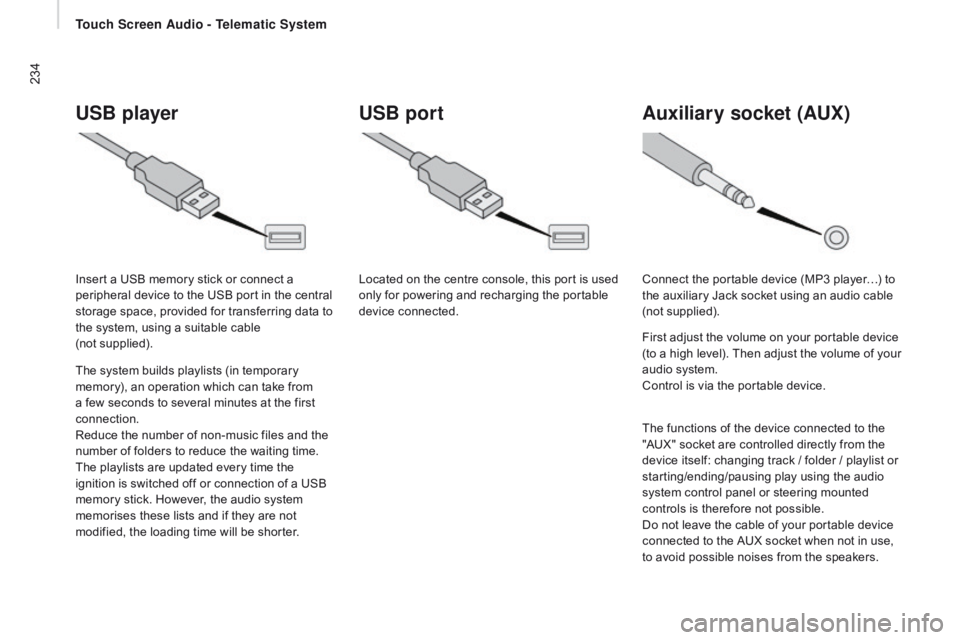
modified, the loading time will be shorter. Insert a USB memory stick or connect a
peripheral device to the USB port in the central
storage space, provided for transferring data to
the system, using a suitable cable
(not supplied).
Auxiliary socket (Aux)
Connect the portable device (MP3 player…) to
the auxiliary Jack socket using an audio cable
(not supplied).
Located on the centre console, this port is used
only for powering and recharging the portable
device connected.
uSB port
First adjust the volume on your portable device
(to a high level). Then adjust the volume of your
audio system.
Control is via the portable device.
The functions of the device connected to the
"AUX" socket are controlled directly from the
device itself: changing track / folder / playlist or
starting/ending/pausing play using the audio
system control panel or steering mounted
controls is therefore not possible.
Do not leave the cable of your portable device
connected to the AUX socket when not in use,
to avoid possible noises from the speakers.
touch Screen Audio - telematic System
Page 237 of 292

235
Selection of source
Select the source.
Select the "
Source" tab to display
the carousel of audio sources. Press on " MEd
I
A
".
Use the play settings in the screen.
Press the "
ra
ndom " and/or "
rep
eat" button to
activate them, press again to deactivate them. The audio system plays audio files with
".wav, .wma, .mp3" extensions and bit rate
between
32 Kbps and 320 Kbps.
With audio files .aac, .m4a, .m4b, .mp4
extensions, the sampling rates supported
are 8 - 96 KHz.
It also supports .m3u and .wpl mode.
Use only USB memory sticks formatted FAT32
(File Allocation Table).
The system does not manage devices with a
capacity greater than 64 GB.
It is advisable to restrict file names to
20
characters, without using of special
characters (e.g.: " " ?
; ù) to avoid any playing
and displaying problems.
Information and advice
The system supports USB mass
storage devices, BlackBerry® devices
or Apple® players via USB ports. The
adaptor cable is not supplied.
Control of the peripheral device is with
the audio system controls.
Other peripherals, not recognised on
connection, must be connected to the
auxiliary socket using a Jack cable (not
supplied).
It is recommended that official Apple
®
USB cables are used to ensure correct
operation. The system does not support two
identical devices connected at the
same time (two memory sticks, two
Apple
® players) but it is possible to
c
onnect one memory stick and one
Apple
® player at the same time.
touch Screen Audio - telematic System
AudIO and tELEMAtIcS
10
Page 274 of 292
272
uSB playerAuxiliary socket (Au x)uSB port
Media
The system builds playlists (in temporary
memory), an operation which can take from
a few seconds to several minutes at the first
connection.
Reduce the number of non-music files and the
number of folders to reduce the waiting time.
The playlists are updated every time the
ignition is switched off or connection of a USB
memory stick. However, the audio system
memorises these lists and if they are not
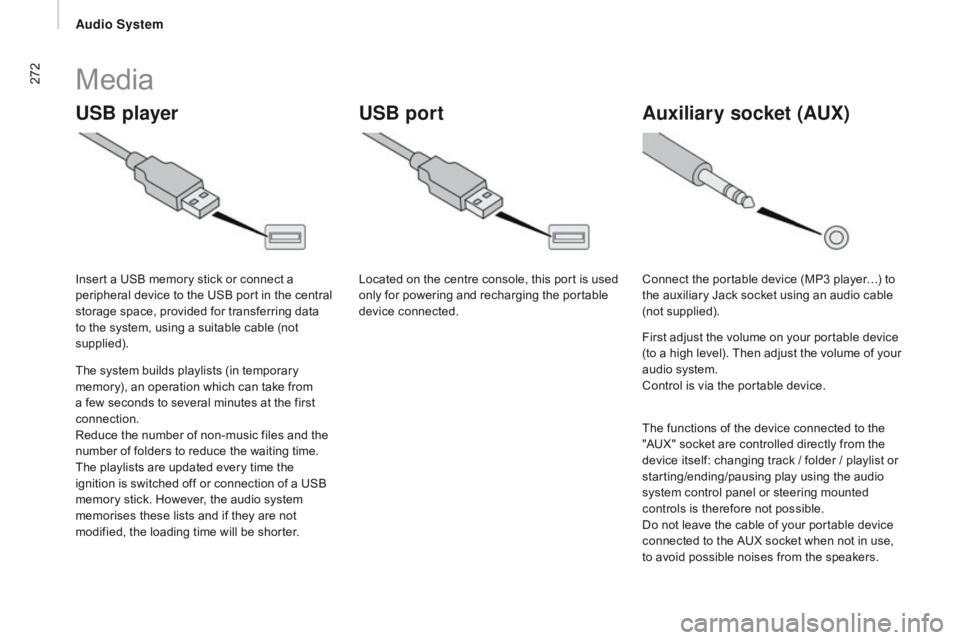
modified, the loading time will be shorter. Insert a USB memory stick or connect a
peripheral device to the USB port in the central
storage space, provided for transferring data
to the system, using a suitable cable (not
supplied). Located on the centre console, this port is used
only for powering and recharging the portable
device connected.
Connect the portable device (MP3 player…) to
the auxiliary Jack socket using an audio cable
(not supplied).
First adjust the volume on your portable device
(to a high level). Then adjust the volume of your
audio system.
Control is via the portable device.
The functions of the device connected to the
"AUX" socket are controlled directly from the
device itself: changing track / folder / playlist or
starting/ending/pausing play using the audio
system control panel or steering mounted
controls is therefore not possible.
Do not leave the cable of your portable device
connected to the AUX socket when not in use,
to avoid possible noises from the speakers.
Audio System
Page 275 of 292
273
It is recommended that official Apple®
USB cables are used to ensure correct
operation. The system does not support
two
identical devices connected at
the same time (two memory sticks,
two Apple
® players) but it is possible
t
o connect one memory stick and one
Apple
® player at the same time.
The system supports USB mass storage
devices, BlackBerry
® devices or Apple®
players via USB ports. The adaptor cable is not
supplied.
Other peripherals, not recognised on
connection, must be connected to the auxiliary
socket using a Jack cable (not supplied).
Use only USB memory sticks formatted FAT 32
(File Allocation Table).
It is advisable to restrict file names to
20
characters, without using of special
characters (e.g.: "
"
?
; ù) to avoid any playing
and displaying problems.
Information and advice
The version of software in the audio
system may not be compatible with the
generation of your Apple
® player.
connecting Apple® players
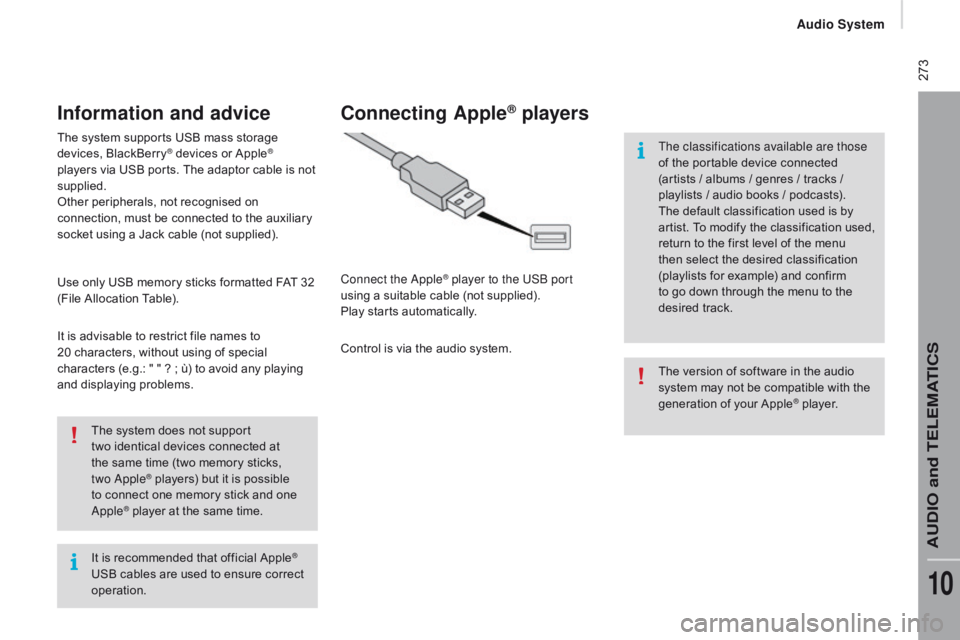
Connect the Apple® player to the USB port
using a suitable cable (not supplied).
Play starts automatically.
Control is via the audio system. The classifications available are those
of the portable device connected
(artists / albums / genres / tracks /
playlists / audio books / podcasts).
The default classification used is by
artist. To modify the classification used,
return to the first level of the menu
then select the desired classification
(playlists for example) and confirm
to go down through the menu to the
desired track.
Audio System
AUDIO and TELEMATICS
10