reset DODGE AVENGER 2008 Owner's Manual
[x] Cancel search | Manufacturer: DODGE, Model Year: 2008, Model line: AVENGER, Model: DODGE AVENGER 2008Pages: 467, PDF Size: 7.16 MB
Page 232 of 467
List or Browse Mode
During Play mode, pressing any of the following buttons
will take you to List mode. List mode enables you to
scroll through the list of menus and tracks on the iPod t
device.
Tune/Scroll Knob
In the List mode, the Tune/Scroll knob functions in a
similar manner as the scroll wheel on the iPod t .
Turning the Tune/Scroll knob clockwise (forward) and
counterclockwise (backward) scrolls through lists, dis-
playing the track detail on the radio display. Once you
have the track to be played highlighted on the radio
display, press the Tune/Scroll knob to select and start
playing the track. By turning the Tune/Scroll knob fast,
you can jump through the list faster. During fast scroll,
you may notice a slight delay in updating the informa-
tion on the radio display. During all List modes, the iPod t will display all lists in
ªwrap-aroundº mode. So if the track you wish to select is
at the bottom of the list, you just turn the Tune/Scroll
knob backward (counterclockwise) to get to the track
faster.
Radio Preset Buttons
In the List mode, the radio preset buttons are used as
shortcuts to the following lists on the iPod t device.
² 1 ± Playlists
² 2 ± Artists
² 3 ± Albums
² 4 ± Genres
² 5 - Audiobooks
² 6 ± Podcasts230 UNDERSTANDING YOUR INSTRUMENT PANEL
Page 233 of 467
After pressing a preset button, you will see the list you
are in on the top line and the first item in that list on the
second line.
To exit the List mode without selecting a track, press the
same preset button again to go back to Play mode.
LIST Button
Pressing the LIST button will take to the top level menu
of the iPod t . This takes you to the same top level menu
as on your iPod t . Turn the Tune/Scroll knob to list the
top menu item you wish to select and then press the
Tune/Scroll knob. This will take you to the next sub
menu list item of the iPod t and you can follow the same
steps to go to the desired track in that list. Not all iPod t
sub menu levels are available on this system.
MUSIC TYPE Button
The MUSIC TYPE button is another shortcut button to
the genre listing on your iPod t . SATELLITE RADIO Ð IF EQUIPPED
(REN/REQ/RER/RES/REU RADIOS ONLY)
Satellite radio uses direct satellite-to-receiver broadcast-
ing technology to provide clear digital sound, coast to
coast. The subscription service provider is Sirius Satellite
Radio. This service offers over 130 channels of music,
sports, news, entertainment, and programming for chil-
dren, directly from its satellites and broadcasting studios.
NOTE: Sirius service is not available in Hawaii and has
limited coverage in Alaska.
System Activation
Sirius Satellite Radio service is pre-activated, and you
may begin listening immediately to the one year of audio
service that is included with the factory-installed satellite
radio system in your vehicle. Sirius will supply a wel-
come kit that contains general information, including
how to setup your on-line listening account at no addi-
tional charge. For further information, call the toll-free UNDERSTANDING YOUR INSTRUMENT PANEL 231
4
Page 237 of 467
By pressing the SEEK button when the Music Type
function is active, the radio will be tuned to the next
channel with the same selected Music Type name.
If a preset button is activated while in the Music Type
(Program Type) mode, the Music Type mode will be
exited and the radio will tune to the preset channel.
MUSIC TYPE Button Ð REU Radio
Pressing this button provides a MUSIC TYPES list from
which you can make a selection. Once a selection is
made, you can seek up, or down, or scan the channels
and the radio will tune to the next station matching the
selected format. There is no time-out for this screen.
Pressing the MUSIC TYPE button again will close the
MUSIC TYPE screen. Once closed, seek up, seek down,
and scan will no longer be based on your selection. SETUP Button
Pressing the SETUP button allows you to select the
following items:
² Display Sirius ID number Ð Press the AUDIO/
SELECT button to display the Sirius ID number. This
number is used to activate, deactivate, or change the
Sirius subscription.
SET Button ± To Set the Pushbutton Memory
When you are receiving a channel that you wish to
commit to pushbutton memory, press the SET button.
The symbol SET 1 will now show in the display window.
Select the button (1-6) you wish to lock onto this channel
and press and release that button. If a button is not
selected within five seconds after pressing the SET but-
ton, the channel will continue to play but will not be
stored into pushbutton memory. UNDERSTANDING YOUR INSTRUMENT PANEL 235
4
Page 238 of 467
You may add a second channel to each pushbutton by
repeating the above procedure with this exception: Press
the SET button twice and SET 2 will show in the display
window. Each button can be set for SET 1 and SET 2. This
allows a total of 12 Satellite channels to be stored into
pushbutton memory. The channels stored in SET 2
memory can be selected by pressing the pushbutton
twice.
Every time a preset button is used, a corresponding
button number will display.
Button s1-6
These buttons tune the radio to the channels that you
commit to pushbutton memory (12 Satellite stations). Operating Instructions - Hands-Free Phone (If
Equipped)
Refer to ªHands-Free Communication (UConnect t )º in
Section 3.
Operating Instructions - Video Entertainment
System (VES T ) (If Equipped)
Refer to separate ªVideo Entertainment System (VES t )
Guide.º
REMOTE SOUND SYSTEM CONTROLS Ð IF
EQUIPPED
The remote sound system controls are located on the rear
surface of the steering wheel. The left- and right-hand
controls are rocker-type switches with a push-button in
the center of each switch. Reach behind the steering
wheel to access the switches.236 UNDERSTANDING YOUR INSTRUMENT PANEL
Page 239 of 467
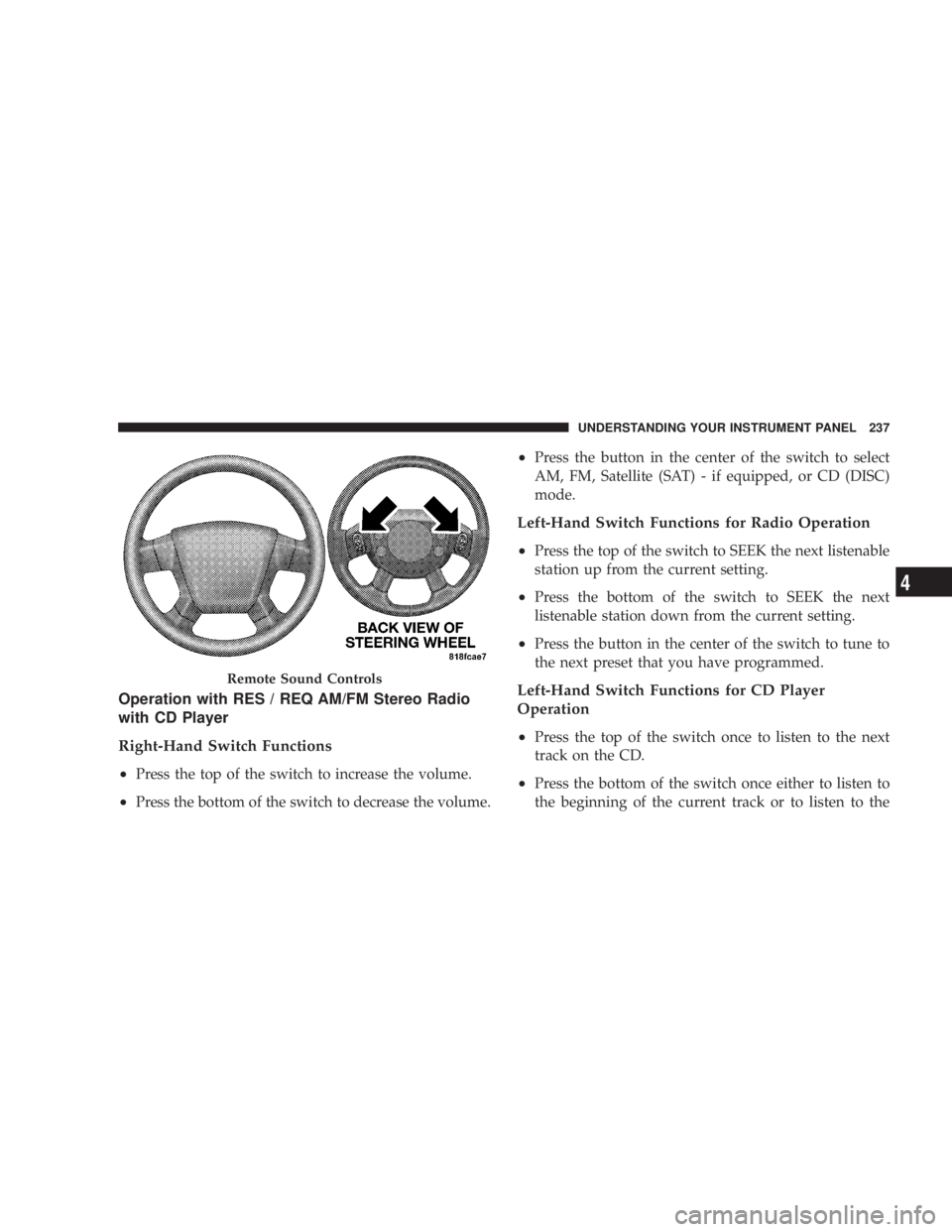
Operation with RES / REQ AM/FM Stereo Radio
with CD Player
Right-Hand Switch Functions
² Press the top of the switch to increase the volume.
² Press the bottom of the switch to decrease the volume. ² Press the button in the center of the switch to select
AM, FM, Satellite (SAT) - if equipped, or CD (DISC)
mode.
Left-Hand Switch Functions for Radio Operation
² Press the top of the switch to SEEK the next listenable
station up from the current setting.
² Press the bottom of the switch to SEEK the next
listenable station down from the current setting.
² Press the button in the center of the switch to tune to
the next preset that you have programmed.
Left-Hand Switch Functions for CD Player
Operation
² Press the top of the switch once to listen to the next
track on the CD.
² Press the bottom of the switch once either to listen to
the beginning of the current track or to listen to theRemote Sound Controls UNDERSTANDING YOUR INSTRUMENT PANEL 237
4
Page 240 of 467
beginning of the previous track if it is within one
second after the current track begins to play.
² Press the switch up or down twice to listen to the
second track on the CD, three times to listen to the
third track, and so forth.
² Press the button located in the center of the control to
change CDs on the 6-Disc in-dash CD changer radio.
This button does not function for other radios.
Operation with RER Multi-Media System
Right-Hand Switch Functions
² Press the top of the switch to increase the volume.
² Press the bottom of the switch to decrease the volume.
² Press the button in the center of the switch to select
AM, FM, Satellite (SAT), Hard Drive (HD), or CD
(DISC) mode. Left-Hand Switch Functions for Radio Operation
² Press the top of the switch to SEEK the next listenable
station up from the current setting.
² Press the bottom of the switch to SEEK the next
listenable station down from the current setting.
² Press the button in the center of the switch to go to the
next preset that you have programmed.
Left-Hand Switch Functions for CD Player
Operation
² Press the top of the switch once to listen to the next
track on the CD.
² Press the bottom of the switch once either to listen to
the beginning of the current track or to listen to the
beginning of the previous track if it is within one
second after the current track begins to play.238 UNDERSTANDING YOUR INSTRUMENT PANEL
Page 275 of 467
CAUTION!If the transaxle operating temperature exceeds ac-
ceptable limits, the vehicle computer will override
OVERDRIVE and ª3º DRIVE range by changing
shift points. This is done to prevent transaxle damage
due to overheating.
Reset Mode - Electronic Transaxle
The transaxle is monitored electronically for abnormal
conditions. If a condition is detected that could cause
damage, the transaxle automatically shifts into second
gear. The transaxle remains in second gear (3rd gear with
a six speed automatic) despite the forward gear selected.
Park (P), Reverse (R), and Neutral (N) will continue to
operate. This Reset feature allows the vehicle to be driven
to a dealer for service without damaging the transaxle. In the event that the problem has been momentary, the
transaxle can be reset to regain all forward gears.
1. Stop the vehicle.
2. Shift into PARK.
3. Turn the ignition OFF, and then restart the engine.
4. Shift into the desired gear range and resume driving.
NOTE: Even if the transaxle can be reset, it is recom-
mended that you visit a dealer at your earliest possible
convenience. Your dealer has diagnostic equipment to
determine if the problem could recur.
If the transaxle cannot be reset, dealer service is required. STARTING AND OPERATING 273
5
Page 332 of 467
WARNING!² Never have any smoking materials lit in or near
the vehicle when the gas cap is removed or the
tank filled.
² Never add fuel when the engine is running. This is
in violation of most state and federal fire regula-
tions and doing so will cause the malfunction
indicator light to turn on.
² A fire may result if gasoline is pumped into a
portable container that is inside of a vehicle. You
could be burned. Always place gas containers on
the ground while filling.
NOTE:
² Tighten the gas cap until you hear a ªclickingº sound.
This is an indication that the gas cap is tightened
properly. The Malfunction Indicator Light in the in-
strument cluster may turn on if the gas cap is not secured properly. Make sure that the gas cap is tight-
ened each time the vehicle is refueled.
² When the fuel nozzle ªclicksº or shuts off, the fuel
tank is full.
LOOSE FILLER CAP MESSAGE
If the vehicles diagnostic system determines that the fuel
filler cap in loose, improperly installed, or damaged, a
ªgASCAPº message will be displayed in the instrument
cluster. Tighten the gas cap until a ªclickingº sound is
heard. This is an indication that the gas cap is properly
tightened. Press the trip odometer reset button to turn off
the message. If the problem persists, the message will
appear the next time the vehicle is started. This might
indicate a damaged cap. If the problem is detected twice
in a row, the system will turn on the Malfunction
Indicator Light (MIL). Resolving the problem will turn
the MIL light off.330 STARTING AND OPERATING
Page 374 of 467
RESET button to turn off the message. If the problem
persists, the message will appear the next time the
vehicle is started. This might indicate a damaged cap. If
the problem is detected twice in a row, the system will
turn on the MIL. Resolving the problem will turn the MIL
light off.
EMISSIONS INSPECTION AND MAINTENANCE
PROGRAMS
In some localities, it may be a legal requirement to pass
an inspection of this vehicle's emissions control system.
Failure to pass could prevent vehicle registration.
For states that require an Inspection and Mainte-
nance (I/M), this check verifies the Malfunction
Indicator Light (MIL) is functioning and is not on
when the engine is running, and that the OBD II system
is ready for testing. Normally, the OBD II system will be ready. The OBD II
system may not be ready if the vehicle was recently
serviced, recently had a dead battery, or a battery replace-
ment. If the OBD II system should be determined not
ready for the I/M test, the vehicle may fail the test.
This vehicle has a simple ignition key-actuated test,
which you can use prior to going to the test station. To
check if this vehicle's OBD II system is ready, you must
do the following:
1. Insert the ignition key into the ignition switch.
2. Turn the ignition to the ON position, but do not crank
or start the engine.
3. If you crank or start the engine, you will have to start
this test over.
4. As soon as you turn the ignition key to the ON
position, you will see the MIL symbol come on as part of
a normal bulb check.372 MAINTAINING YOUR VEHICLE
Page 429 of 467
oil if it has been six months since your last oil change
even if the oil change indicator message is NOT
illuminated.
² Change your engine oil more often if you drive your
vehicle off-road for an extended period of time.
² Under no circumstances should oil change intervals
exceed 6,000 mi (10 000 km) or six months, whichever
comes first.
Your authorized dealer will reset the oil change indicator
message after completing the scheduled oil change. If a
scheduled oil change is performed by someone other
than your authorized dealer, the message can be reset by
referring to the steps described under ªOil Change
Requiredº under ªElectronic Vehicle Information Center
(EVIC)º in Section 4 or under ªOdometer/Trip Odom-
eterº under ªInstrument Cluster Descriptionsº in Section
4. At Each Stop for Fuel
² Check the engine oil level about five minutes after a
fully warmed engine is shut off. Checking the oil level
while the vehicle is on level ground will improve the
accuracy of the oil level reading. Add oil only when
the level is at or below the SAFE or MIN mark.
² Check the windshield washer solvent and add if
required.
Once a Month
² Check tire pressure and look for unusual wear or
damage.
² Inspect the battery and clean and tighten the terminals
as required.
² Check the fluid levels of coolant reservoir, brake
master cylinder, power steering, and automatic trans-
axle, and add fluid as needed. MAINTENANCE SCHEDULES 427
8 M
A
I
N
T
E
N
A
N
C
E
S
C
H
E
D
U
L
E
S