radio DODGE AVENGER 2008 Owners Manual
[x] Cancel search | Manufacturer: DODGE, Model Year: 2008, Model line: AVENGER, Model: DODGE AVENGER 2008Pages: 467, PDF Size: 7.16 MB
Page 15 of 467
NOTE:
² If you try to remove the key before you place the
selector lever in PARK, the key may become trapped
temporarily in the ignition switch lock cylinder. If this
occurs, rotate the key to the right slightly, then remove
the key as described. If a malfunction occurs, the
system will trap the key in the ignition switch lock
cylinder to warn you that this safety feature is inop-
erable. The engine can be started and stopped, but the
key cannot be removed until you obtain service.
² For vehicles not equipped with the Electronic Vehicle
Information Center (EVIC), the power window
switches, radio, hands±free system (if equipped), and
power outlets will remain active for approximately 45
seconds after the ignition switch is turned to the LOCK
position. Opening either door will cancel this feature.
² For vehicles equipped with the Electronic Vehicle
Information Center (EVIC), the power window switches, radio, hands±free system (if equipped), and
power outlets will remain active for up to 10 minutes
after the ignition switch is turned to the LOCK posi-
tion. Opening either door will cancel this feature. The
time for this feature is programmable. For details, refer
to ªKey-Off Power Delay,º under ªPersonal Settings
(Customer Programmable Features)º under ªElec-
tronic Vehicle Information Center (EVIC)º in Section 4
of this manual.
WARNING!NEVER leave children alone in a vehicle. Leaving
children in a vehicle unattended is dangerous for a
number of reasons. A child or others could be seri-
ously or fatally injured. Don't leave the keys in the
ignition. A child could operate power windows,
other controls, or move the vehicle THINGS TO KNOW BEFORE STARTING YOUR VEHICLE 13
2
Page 23 of 467
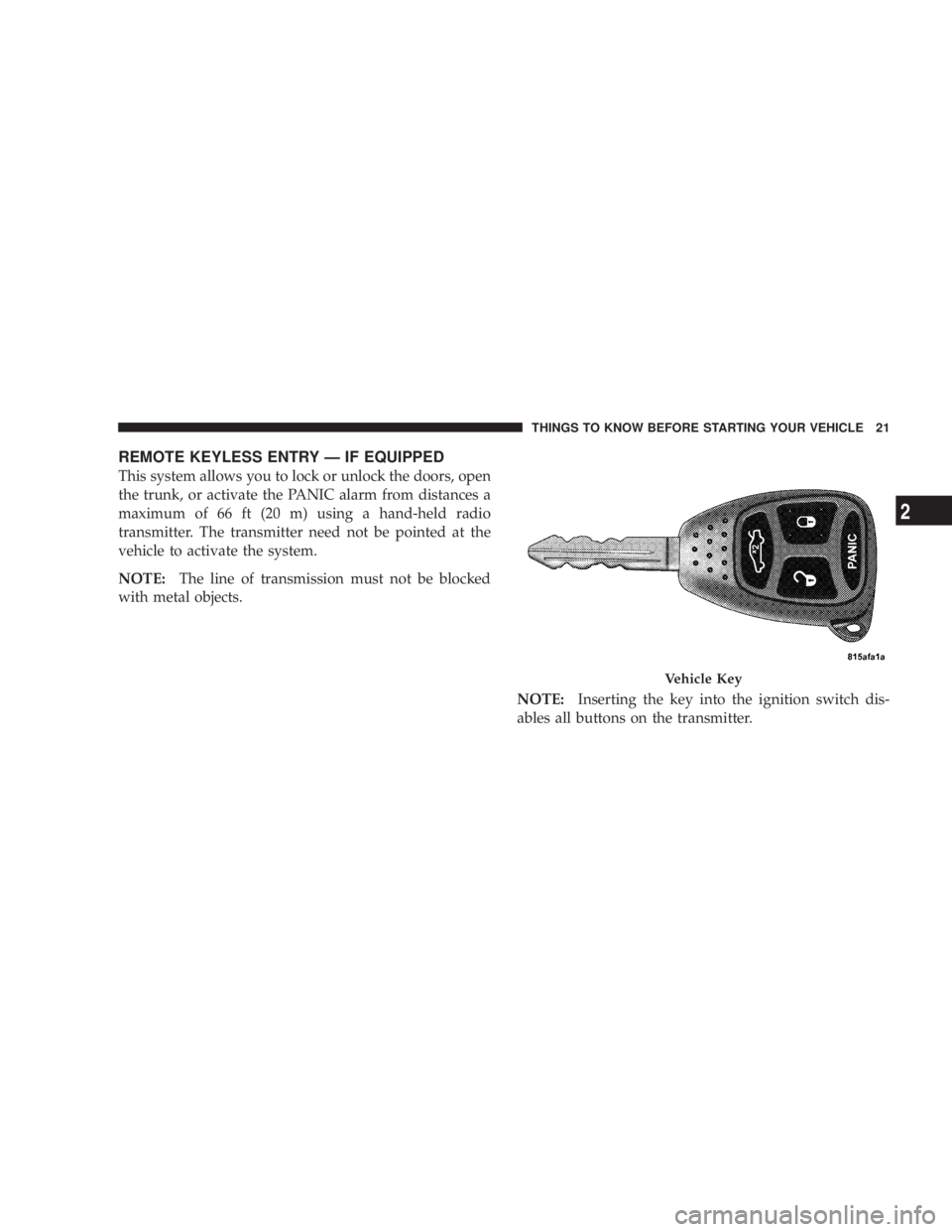
REMOTE KEYLESS ENTRY Ð IF EQUIPPED
This system allows you to lock or unlock the doors, open
the trunk, or activate the PANIC alarm from distances a
maximum of 66 ft (20 m) using a hand-held radio
transmitter. The transmitter need not be pointed at the
vehicle to activate the system.
NOTE: The line of transmission must not be blocked
with metal objects.
NOTE: Inserting the key into the ignition switch dis-
ables all buttons on the transmitter. Vehicle KeyTHINGS TO KNOW BEFORE STARTING YOUR VEHICLE 21
2
Page 27 of 467
NOTE: Pressing the LOCK button on the transmitter
while you are in the vehicle will activate the Security
Alarm. Opening a door with the Security Alarm activated
will cause the alarm to sound. Press the UNLOCK button
to deactivate the Security Alarm.
TO UNLATCH THE TRUNK
Press the TRUNK button on the transmitter two times to
unlatch the trunk.
USING THE EXPRESS DOWN WINDOWS
FEATURE Ð IF EQUIPPED
This feature allows you to remotely lower both front door
windows at the same time. To use this feature, press and
release the UNLOCK button on the transmitter and then
immediately press and hold the UNLOCK button until
the windows lower to the level desired or until they
lower completely. USING THE PANIC ALARM
To turn the PANIC alarm feature ON or OFF, press and
hold the PANIC button on the transmitter for at least one
second and release. When the PANIC alarm is on, the
headlights and park lights will flash, the horn will pulse
on and off, and the illuminated entry system (if
equipped) will turn on.
The PANIC alarm will stay on for three minutes unless
you turn it off by pressing the PANIC button a second
time or if the vehicle speed is 5 mph (8 km/h) or greater.
NOTE: You may need to be close to the vehicle when
using the transmitter to turn off the PANIC alarm due to
the radio frequency noises emitted by the system. THINGS TO KNOW BEFORE STARTING YOUR VEHICLE 25
2
Page 29 of 467
GENERAL INFORMATION
This device complies with part 15 of FCC rules and with
RS-210 of Industry Canada. Operation is subject to the
following conditions:
1. This device may not cause harmful interference.
2. This device must accept any interference that may be
received including interference that may cause undesired
operation.
NOTE: Changes or modifications not expressly ap-
proved by the party responsible for compliance could
void the user's authority to operate the equipment. If your Remote Lock Control fails to operate from a
normal distance, check for these two conditions.
1. Weak batteries in the transmitter. The expected life of
batteries is five years.
2. Closeness to a radio transmitter such as a radio station
tower, airport transmitter, military base, and some mobile
or CB radios. THINGS TO KNOW BEFORE STARTING YOUR VEHICLE 27
2
Page 91 of 467
HANDS-FREE COMMUNICATION (UConnect T )Ð
IF EQUIPPED
NOTE: The sales code RER, REN and REU radios
contain an integrated Hands-Free Communication
(UConnect t ) system. Refer to your ªNavigation User's
Manualº for UConnect t system operating instructions
for these radios.
UConnect t is a voice-activated, hands-free, in-vehicle
communications system. UConnect t allows you to dial a
phone number with your cellular phone using simple
voice commands (e.g., 9 Callº { ªMikeº { ºWork 9 or 9 Dialº
{ ª248-555-1212 9 ). Your cellular phone's audio is trans-
mitted through your vehicle's audio system; the system
will automatically mute your radio when using the
UConnect t system. NOTE: The UConnect t system requires a cellular phone
equipped with the Bluetooth t9 Hands-Free Profile, 9 Ve r -
sion 0.96 or higher. See the UConnect t website for
supported phones.
NOTE: For UConnect t customer support, visit the
following websites:
² www.chrysler.com/uconnect
² www.dodge.com/uconnect
² www.jeep.com/uconnect
² or call 1±877±855±8400
UConnect t allows you to transfer calls between the
system and your cellular phone as you enter or exit your
vehicle and enables you to mute the system's microphone
for private conversation.
The UConnect t phonebook enables you to store up to 32
names, with four numbers per name. Each language has UNDERSTANDING THE FEATURES OF YOUR VEHICLE 89
3
Page 92 of 467
a separate 32-name phonebook accessible only in that
language. This system is driven through your Bluetooth t
ªHands-Free profileº cellular phone. UConnect t features
Bluetooth t technology - the global standard that enables
different electronic devices to connect to each other
without wires or a docking station, so UConnect t works
no matter where you stow your cellular phone (be it your
purse, pocket, or briefcase), as long as your phone is
turned on and has been paired to the vehicle's
UConnect t system. The UConnect t system allows up to
seven cellular phones to be linked to the system. Only
one linked (or paired) cellular phone can be used with the
system at a time. The system is available in English,
Spanish, or French languages.
Phone Button
The rearview mirror contains the microphone
for the system (depending on the type of
mirror and radio equipped), and either the radio or the mirror has the two control buttons (PHONE
Button and VOICE RECOGNITION button) that will
enable you to access the system.
Voice Recognition Button
Actual button location may vary with radio.
The individual buttons are described in the
ªOperationº section.
The UConnect t system can be used with any Hands-Free
Profile certified Bluetooth t cellular phone. See the
UConnect t website for supported phones. If your cellu-
lar phone supports a different profile (e.g., Headset
Profile) you may not be able to use any UConnect t
features. Refer to your cellular service provider or the
phone manufacturer for details.
The UConnect t system is fully integrated with the vehi-
cle's audio system. The volume of the UConnect t system90 UNDERSTANDING THE FEATURES OF YOUR VEHICLE
Page 93 of 467
can be adjusted either from the radio volume control
knob or from the steering wheel radio control (right
switch), if so equipped.
The radio display will be used for visual prompts from
the UConnect t system such as 9 CELL 9 or caller ID on
certain radios.
Operation
Voice commands can be used to operate the UConnect t
system and to navigate through the UConnect t menu
structure. Voice commands are required after most
UConnect t system prompts. You will be prompted for a
specific command and then guided through the available
options.
² Prior to giving a voice command, one must wait for
the beep, which follows the 9 Ready 9 prompt or another
prompt. ² For certain operations, compound commands can be
used. For example, instead of saying 9 Setup 9 and then
9 Phone Pairing, 9 the following compound command
can be said: 9 Setup Phone Pairing. 9
² For each feature explanation in this section, only the
combined form of the voice command is given. You
can also break the commands into parts and say each
part of the command when you are asked for it. For
example, you can use the combined form voice com-
mand 9 Phonebook New Entry, 9 or you can break the
combined form command into two voice commands:
9 Phonebook 9 and 9 New Entry. 9 Please remember, the
UConnect t system works best when you talk in a
normal conversational tone, as if speaking to someone
sitting a few feet/meters away from you.
Voice Command Tree
Refer to ªVoice Treeº in this section. UNDERSTANDING THE FEATURES OF YOUR VEHICLE 91
3
Page 94 of 467
Help Command
If you need assistance at any prompt, or if you want to
know your options at any prompt, say 9 Help 9 following
the beep. The UConnect t system will play all the options
at any prompt if you ask for help.
To activate the UConnect t system from idle, simply press
the PHONE button and follow the audible prompts for
directions. All UConnect t system sessions begin with a
press of the PHONE button on the radio control head.
Cancel Command
At any prompt, after the beep, you can say 9 Cancel 9 and
you will be returned to the main menu. However, in a
few instances the system will take you back to the
previous menu.
Pair (Link) UConnect t System to a Cellular Phone
To begin using your UConnect t system, you must pair
your compatible Bluetooth t enabled cellular phone. To complete the pairing process, you will need to refer-
ence your cellular phone Owner's Manual. The
UConnect t website may also provide detailed instruc-
tions for pairing.
The following are general phone to UConnect t system
pairing instructions:
² Press the PHONE button to begin.
² After the 9 Ready 9 prompt and the following beep, say
9 Setup Phone Pairing. 9
² When prompted, after the beep, say 9 Pair a Phone 9 and
follow the audible prompts.
² You will be asked to say a four-digit Personal Identi-
fication Number (PIN), which you will later need to
enter into your cellular phone. You can enter any
four-digit PIN. You will not need to remember this PIN
after the initial pairing process.92 UNDERSTANDING THE FEATURES OF YOUR VEHICLE
Page 95 of 467
² For identification purposes, you will be prompted to
give the UConnect t system a name for your cellular
phone. Each cellular phone that is paired should be
given a unique phone name.
² You will then be asked to give your cellular phone a
priority level between 1 and 7, with 1 being the highest
priority. You can pair up to seven cellular phones to
your UConnect t system. However, at any given time,
only one cellular phone can be in use, connected to
your UConnect t system. The priority allows the
UConnect t system to know which cellular phone to
use if multiple cellular phones are in the vehicle at the
same time. For example, if priority 3 and priority 5
phones are present in the vehicle, the UConnect t
system will use the priority 3 cellular phone when you
make a call. You can select to use a lower priority
cellular phone at any time (refer to 9 Advanced Phone
Connectivity 9 in this section). Dial by Saying a Number
² Press the PHONE button to begin.
² After the 9 Ready 9 prompt and the following beep, say
9 Dial. 9
² The system will prompt you to say the number you
want to call.
² For example, you can say 9 234-567-8901. 9 The phone
number that you enter must be of valid length and
combination. Based on the country in which the ve-
hicle was purchased, the UConnect t system limits the
user from dialing an invalid combination of numbers.
For example, in the U.S., 234-567-890 is nine digits
long, which is not a valid U.S. phone number - the
closest valid phone number has 10 digits.
² The UConnect t system will confirm the phone num-
ber and then dial. The number will appear in the
display of certain radios. UNDERSTANDING THE FEATURES OF YOUR VEHICLE 93
3
Page 96 of 467
Call by Saying a Name
² Press the PHONE button to begin.
² After the 9 Ready 9 prompt and the following beep, say
ªCall. 9
² The system will prompt you to say the name of the
person you want to call.
² After the 9 Ready 9 prompt and the following beep, say
the name of the person you want to call. For example,
you can say 9 John Doe, 9 where John Doe is a previ-
ously stored name entry in the UConnect t phonebook.
To learn how to store a name in the phonebook, refer
to 9 Add Names to Your UConnect t Phonebook, 9 in
this section.
² The UConnect t system will confirm the name and
then dial the corresponding phone number, which
may appear in the display of certain radios. Add Names to Your UConnect t Phonebook
NOTE: Adding names to the phonebook is recom-
mended when the vehicle is not in motion.
² Press the PHONE button to begin.
² After the 9 Ready 9 prompt and the following beep, say
9 Phonebook New Entry. 9
² When prompted, say the name of the new entry. Use of
long names helps the voice recognition and it is
recommended. For example, say 9 Robert Smith 9 or
9 Robert 9 instead of 9 Bob. 9
² When prompted, enter the number designation (e.g.,
9 Home, 99 Work, 99 Mobile, 9 or 9 Pager 9 ). This will allow
you to store multiple numbers for each phonebook
entry, if desired.
² When prompted, recite the phone number for the
phonebook entry that you are adding.94 UNDERSTANDING THE FEATURES OF YOUR VEHICLE