reset DODGE CARAVAN 2008 5.G Owner's Manual
[x] Cancel search | Manufacturer: DODGE, Model Year: 2008, Model line: CARAVAN, Model: DODGE CARAVAN 2008 5.GPages: 531, PDF Size: 7.72 MB
Page 248 of 531
COMPASS DISPLAY
The compass readings indicate the direction
the vehicle is facing. Press and release the
compass button to display one of eight com-
pass readings and the outside temperature.
Automatic Compass Calibration
This compass is self-calibrating, which eliminates the
need to manually reset the compass. When the vehicle is
new, the compass may appear erratic and the EVIC will
display CAL until the compass is calibrated. You may
also calibrate the compass by completing one or more
360É turns (in an area free from large metal or metallic
objects) until the CAL indicator displayed in the EVIC
turns off. The compass will now function normally.
Manual Compass Calibration
If the compass appears erratic and the CAL indicator
does not appear in the EVIC display, you must put the
compass into the Calibration Mode manually as follows:
1. Turn on the ignition switch.
2. Press the MENU button until Personal Settings (Cus-
tomer Programmable Features) menu is reached.
3. Press the STEP button until ªCalibrate Compassº is
displayed in the EVIC.
4. Press and release the RESET button to start the cali-
bration. The ªCALº indicator will be displayed in the
EVIC.
5. Complete one or more 360É turns (in an area free from
large metal or metallic objects) until the CAL indicator
turns off. The compass will now function normally.
246 UNDERSTANDING YOUR INSTRUMENT PANEL
Page 250 of 531
1. Turn the ignition switch ON.
2. Press and hold the compass button for approximately
two seconds.
3. Press the STEP button until ªCompass Varianceº mes-
sage and the last variance zone number displays in the
EVIC.
4. Press and release STEP button until the proper vari-
ance zone is selected according to the map.
5. Press and release the compass button to exit.
PERSONAL SETTINGS (CUSTOMER
PROGRAMMABLE FEATURES)
Personal Settings allows the driver to set and recall
features when the transmission is in PARK. If the trans-
mission is out of PARK or the vehicle begins moving, a
warning messagePERSONAL SETTING NOT AVAIL-
ABLEfollowed in three seconds byVEHICLE NOT IN
PARK.Press and release the MENU button until Personal Set-
tings displays in the EVIC.
Use the Step button to display one of the following
choices:
Language
When in this display you may select one of five lan-
guages for all display nomenclature, including the trip
functions and the navigation system (if equipped). Press
the reset button while in this display to select English,
Spanish (EspaÞol), French (FranÕais), Italian (Italiano),
German (Deutsch), and Dutch (Nederlands). Then, as
you continue, the information will display in the selected
language.
Lock Doors Automatically at 15 mph (24 km/h)
When ON is selected, all doors will lock automatically
when the vehicle reaches a speed of 15 mph (24 km/h).
To make your selection, press and release the RESET
button until ON or OFF appears.
248 UNDERSTANDING YOUR INSTRUMENT PANEL
Page 251 of 531
Unlock Doors Automatically on Exit
When ON is selected, all doors will unlock when the
vehicle is stopped and the transmission is in the PARK or
NEUTRAL position and the driver's door is opened. To
make your selection, press and release the RESET button
until ON or OFF appears.
Remote Key Unlock
WhenDriver Door 1st Pressis selected, only the driver's
door will unlock on the first press of the remote keyless
entry unlock button. When Driver Door 1st Press is
selected, you must press of the remote keyless entry
unlock button twice to unlock the passenger's doors.
WhenAll Doors 1st Pressis selected, all of the doors will
unlock on the first press of the remote keyless entry
unlock button. To make your selection, press and release
the RESET button until ªDriver Door 1st Pressº or ªAll
Doors 1st Pressº appears.
Sound Horn with Remote Key Lock
When ON is selected, a short horn sound will occur when
the remote keyless entry LOCK button is pressed. This
feature may be selected with or without the flash lights
on lock/unlock feature. To make your selection, press
and release the RESET button until ON or OFF appears.
Flash Lights with Remote Key Lock
When ON is selected, the front and rear turn signals will
flash when the doors are locked or unlocked with the
remote keyless entry transmitter. This feature may be
selected with or without the sound horn on lock feature
selected. To make your selection, press and release the
RESET button until ON or OFF appears.
Automatic High Beams Ð If Equipped
When this feature is selected, the high beam headlights
will deactivate automatically under certain conditions. To
make your selection, press and release the FUNCTION
UNDERSTANDING YOUR INSTRUMENT PANEL 249
4
Page 252 of 531
SELECT button until YES (Y) or NO (N) appears. Refer to
ªLights/SmartBeams Ð If Equippedº in Section 3 of this
manual for more information.
Headlights On with Wipers (Available with Auto
Headlights Only)
When YES (Y) is selected, and the headlight switch is in
the AUTO position, the headlights will turn on approxi-
mately 10 seconds after the wipers are turned on. The
headlights will also turn off when the wipers are turned
off if they were turned on by this feature. To make your
selection, press and release the FUNCTION SELECT
button until YES (Y) or NO (N) appears.
NOTE:Turning the headlights on during the daytime
causes the instrument panel lights to dim. To increase the
brightness, refer to ªLightsº in Section 3 of this manual.
Delay Turning Headlights Off
When this feature is selected, the driver can choose to
have the headlights remain on for 0, 30, 60, or 90 secondswhen exiting the vehicle. To make your selection, press
and release the RESET button until 0, 30, 60, or 90
appears.
Turn Headlights On with Remote Key Unlock
When this feature is selected, the headlights will activate
and remain on for up to 90 seconds when the doors are
unlocked with the remote keyless entry transmitter. To
make your selection, press and release the RESET button
until OFF, 30 sec., 60 sec., or 90 sec. appears.
Delay Power Off to Accessories Until Exit
When this feature is selected, the power window
switches, radio, hands±free system (if equipped), DVD
video system (if equipped), power sunroof (if equipped),
and power outlets will remain active for up to 10 minutes
after the ignition switch is turned off. Opening a vehicle
door will cancel this feature. To make your selection,
press and release the RESET button until Off, 45 sec., 5
min., or 10 min. appears.
250 UNDERSTANDING YOUR INSTRUMENT PANEL
Page 253 of 531
Rear Park Assist System Ð If Equipped
When ENABLE is selected, the Rear Park Assist System is
activated. When DISABLE is selected, the System is
deactivated and, the instrument cluster will display the
9PARK ASSIST DISABLED9message.
Display Units of Measure in
The EVIC, odometer, and navigation system (if
equipped) can be changed between English and Metric
units of measure. To make your selection, press and
release the RESET button until US or METRIC appears.
RADIO GENERAL INFORMATION
RADIO BROADCAST SIGNALS
Your radio will provide excellent reception under most
operating conditions. Like any system, however, car
radios have performance limitations, due to mobile op-
eration and natural phenomena, which might lead you to
believe your sound system is malfunctioning. To helpyou understand and save you concern about these ªap-
parentº malfunctions, you must understand a point or
two about the transmission and reception of radio sig-
nals.
Two Types of Signals
There are two basic types of radio signals:
1. AM or Amplitude Modulation, in which the transmit-
ted sound causes the amplitude, or height, of the radio
waves to vary.
2. FM or Frequency Modulation, in which the frequency
of the wave is varied to carry the sound.
AM Reception
AM sound is based on wave amplitude, so AM reception
can be disrupted by such things as lightning, power lines
and neon signs.
UNDERSTANDING YOUR INSTRUMENT PANEL 251
4
Page 259 of 531
station with the same selected Music Type name. The
Music Type function only operates when in the FM
mode.
If a preset button is activated while in the Music Type
(Program Type) mode, the Music Type mode will be
exited and the radio will tune to the preset station.
SETUP Button
Pressing the SETUP button allows you to select between
the following items:
NOTE:Turn the Tune/Scroll control knob to scroll
through the entries. Push the AUDIO/SELECT button to
select an entry and make changes.
²DVD Enter -When the disc is in DVD Menu mode,
selecting DVD Enter will allow you to play the current
highlighted selection. Use the remote control to scroll
up and down the menu (if equipped).
²DISC Play/Pause -You can toggle between
playing the DVD and pausing the DVD by
pushing the SELECT button (if equipped).
²DVD Play Options -Selecting the DVD Play Options
will display the following:
²Subtitle ± Repeatedly pressing SELECT will switch
subtitles to different subtitle languages that are
available on the disc (if equipped).
²Audio Stream ± Repeatedly pressing SELECT will
switch to different audio languages (if supported on
the disc) (if equipped).
²Angle ± Repeatedly pressing SELECT will change
the viewing angle if supported by the DVD disc (if
equipped).
NOTE:The available selections for each of the above
entries varies depending upon the disc.
UNDERSTANDING YOUR INSTRUMENT PANEL 257
4
Page 262 of 531
SET Button Ð To Set the Pushbutton Memory
When you are receiving a station that you wish to
commit to pushbutton memory, press the SET button.
The symbol SET 1 will now show in the display window.
Select the button (1-6) you wish to lock onto this station
and press and release that button. If a button is not
selected within five seconds after pressing the SET but-
ton, the station will continue to play but will not be
stored into pushbutton memory.
You may add a second station to each pushbutton by
repeating the above procedure with this exception: Press
the SET button twice and SET 2 will show in the display
window. Each button can be set for SET 1 and SET 2 in
both AM and FM. This allows a total of 12 AM, 12 FM,
and 12 Satellite (if equipped) stations to be stored into
pushbutton memory. The stations stored in SET 2
memory can be selected by pressing the pushbutton
twice.Every time a preset button is used, a corresponding
button number will display.
Buttons1-6
These buttons tune the radio to the stations that you
commit to pushbutton memory {12 AM, 12 FM, and 12
Satellite (if equipped) stations}.
DISC Button
Pressing the DISC button will allow you to switch from
AM/FM modes to Disc modes.
Operation Instructions - (DISC MODE for CD and
MP3/WMA Audio Play, DVD-VIDEO)
The radio DVD player and many DVD discs are coded by
geographic region. These region codes must match in
order for the disc to play. If the region code for the DVD
disc does not match the region code for the radio DVD
player, it will not play the disc. Customers may take their
vehicle to an authorized dealer to change the region code
of the player a maximum of five times.
260 UNDERSTANDING YOUR INSTRUMENT PANEL
Page 274 of 531
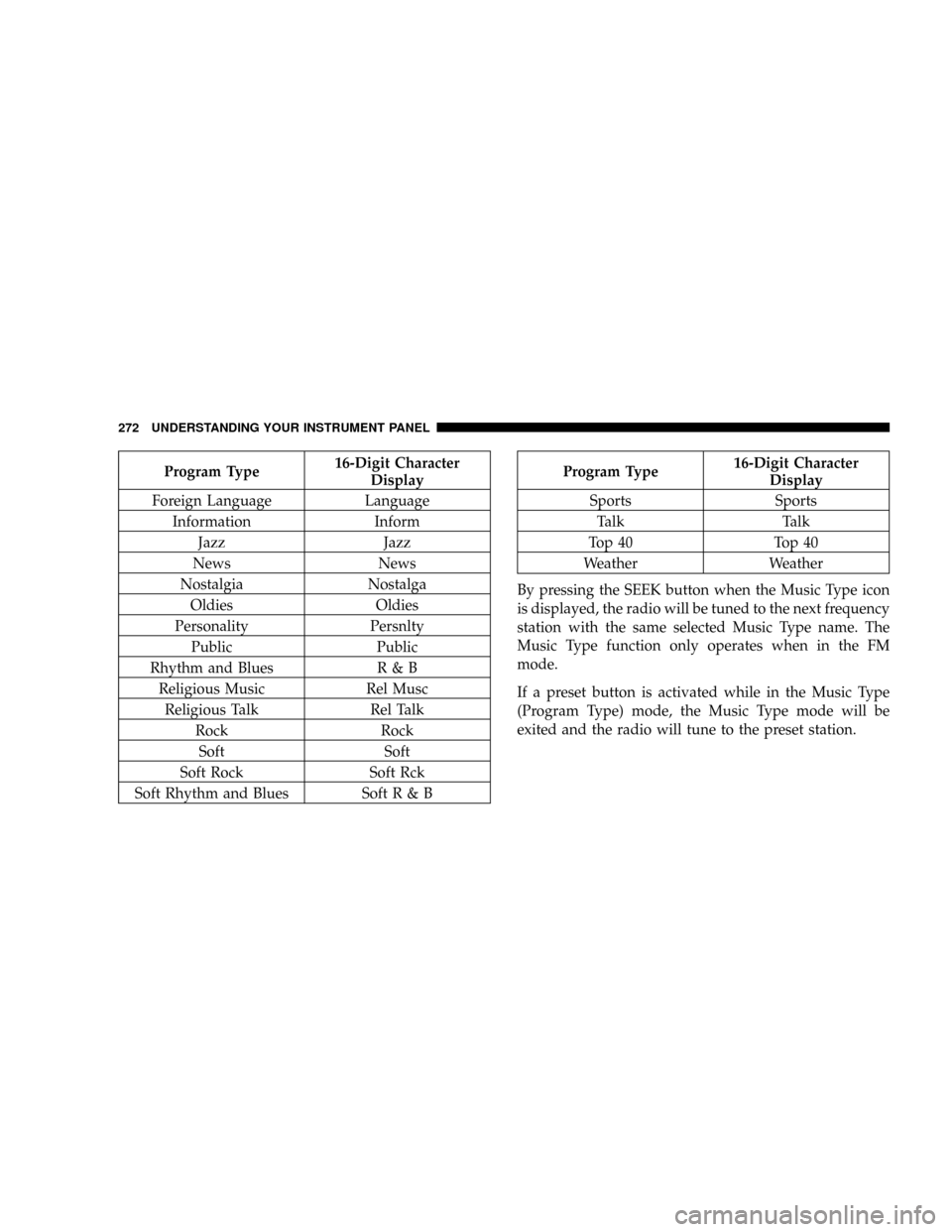
Program Type16-Digit Character
Display
Foreign Language Language
Information Inform
Jazz Jazz
News News
Nostalgia Nostalga
Oldies Oldies
Personality Persnlty
Public Public
Rhythm and Blues R & B
Religious Music Rel Musc
Religious Talk Rel Talk
Rock Rock
Soft Soft
Soft Rock Soft Rck
Soft Rhythm and Blues SoftR&BProgram Type16-Digit Character
Display
Sports Sports
Talk Talk
Top 40 Top 40
Weather Weather
By pressing the SEEK button when the Music Type icon
is displayed, the radio will be tuned to the next frequency
station with the same selected Music Type name. The
Music Type function only operates when in the FM
mode.
If a preset button is activated while in the Music Type
(Program Type) mode, the Music Type mode will be
exited and the radio will tune to the preset station.
272 UNDERSTANDING YOUR INSTRUMENT PANEL
Page 275 of 531
SETUP Button
Pressing the SETUP button allows you to select between
the following items:
²Set ClockÐ Pressing the SELECT button will allow
you to set the clock. Turn the Tune/Scroll control knob
to adjust the hours and then press and turn the
Tune/Scroll control knob to adjust the minutes. Press
the Tune/Scroll control knob again to save changes.
AM and FM Buttons
Press the buttons to select AM or FM modes.
SET Button Ð To Set the Pushbutton Memory
When you are receiving a station that you wish to
commit to pushbutton memory, press the SET button.
The symbol SET 1 will now show in the display window.
Select the button (1 to 6) you wish to lock onto this station
and press and release that button. If a button is notselected within five seconds after pressing the SET but-
ton, the station will continue to play but will not be
stored into pushbutton memory.
You may add a second station to each pushbutton by
repeating the above procedure with this exception: Press
the SET button twice and SET 2 will show in the display
window. Each button can be set for SET 1 and SET 2 in
both AM and FM. This allows a total of 12 AM and 12 FM
stations to be stored into pushbutton memory. The sta-
tions stored in SET 2 memory can be selected by pressing
the pushbutton twice.
Every time a preset button is used, a corresponding
button number will display.
Buttons1-6
These buttons tune the radio to the stations that you
commit to pushbutton memory (12 AM and 12 FM
stations).
UNDERSTANDING YOUR INSTRUMENT PANEL 273
4
Page 283 of 531
through the system's wireless headphones. This means
rear seat passengers can watch a DVD on the optional
rear seat entertainment system, while the driver and
front-seat passenger listen to the radio.
Other special features include direct tune, music type
selections, easy store presets, backup camera display for
vehicles equipped with a backup camera, and on some
models, a dual display screen operation. Refer to your
radio-specific user's manual for detailed operating in-
structions.
Operating Instructions Ð Satellite Radio (If
Equipped)
Refer to your Radio-specific user's manual for detailed
operating instructions.
Operating Instructions Ð Voice Recognition
System (VR) (If Equipped)
For the radio, refer to ªVoice Recognition System (VR)º in
Section 3.
For Hands Free Phone Communication (UConnectt)
ªVoice Recognition System (VR),º refer to ªHands-Free
Communication (UConnectt)º in Section 3.
Operating Instructions Ð Hands-Free
Communication (UConnectT) (If Equipped)
Refer to ªHands-Free Communication (UConnectt)º in
Section 3.
Clock Setting Procedure
Setting the Clock
1. Turn on the multimedia system.
2. Touch the screen where the time is displayed. The
clock setting menu will appear on the screen.
UNDERSTANDING YOUR INSTRUMENT PANEL 281
4