light DODGE CARAVAN 2008 5.G Manual PDF
[x] Cancel search | Manufacturer: DODGE, Model Year: 2008, Model line: CARAVAN, Model: DODGE CARAVAN 2008 5.GPages: 531, PDF Size: 7.72 MB
Page 252 of 531
SELECT button until YES (Y) or NO (N) appears. Refer to
ªLights/SmartBeams Ð If Equippedº in Section 3 of this
manual for more information.
Headlights On with Wipers (Available with Auto
Headlights Only)
When YES (Y) is selected, and the headlight switch is in
the AUTO position, the headlights will turn on approxi-
mately 10 seconds after the wipers are turned on. The
headlights will also turn off when the wipers are turned
off if they were turned on by this feature. To make your
selection, press and release the FUNCTION SELECT
button until YES (Y) or NO (N) appears.
NOTE:Turning the headlights on during the daytime
causes the instrument panel lights to dim. To increase the
brightness, refer to ªLightsº in Section 3 of this manual.
Delay Turning Headlights Off
When this feature is selected, the driver can choose to
have the headlights remain on for 0, 30, 60, or 90 secondswhen exiting the vehicle. To make your selection, press
and release the RESET button until 0, 30, 60, or 90
appears.
Turn Headlights On with Remote Key Unlock
When this feature is selected, the headlights will activate
and remain on for up to 90 seconds when the doors are
unlocked with the remote keyless entry transmitter. To
make your selection, press and release the RESET button
until OFF, 30 sec., 60 sec., or 90 sec. appears.
Delay Power Off to Accessories Until Exit
When this feature is selected, the power window
switches, radio, hands±free system (if equipped), DVD
video system (if equipped), power sunroof (if equipped),
and power outlets will remain active for up to 10 minutes
after the ignition switch is turned off. Opening a vehicle
door will cancel this feature. To make your selection,
press and release the RESET button until Off, 45 sec., 5
min., or 10 min. appears.
250 UNDERSTANDING YOUR INSTRUMENT PANEL
Page 253 of 531
Rear Park Assist System Ð If Equipped
When ENABLE is selected, the Rear Park Assist System is
activated. When DISABLE is selected, the System is
deactivated and, the instrument cluster will display the
9PARK ASSIST DISABLED9message.
Display Units of Measure in
The EVIC, odometer, and navigation system (if
equipped) can be changed between English and Metric
units of measure. To make your selection, press and
release the RESET button until US or METRIC appears.
RADIO GENERAL INFORMATION
RADIO BROADCAST SIGNALS
Your radio will provide excellent reception under most
operating conditions. Like any system, however, car
radios have performance limitations, due to mobile op-
eration and natural phenomena, which might lead you to
believe your sound system is malfunctioning. To helpyou understand and save you concern about these ªap-
parentº malfunctions, you must understand a point or
two about the transmission and reception of radio sig-
nals.
Two Types of Signals
There are two basic types of radio signals:
1. AM or Amplitude Modulation, in which the transmit-
ted sound causes the amplitude, or height, of the radio
waves to vary.
2. FM or Frequency Modulation, in which the frequency
of the wave is varied to carry the sound.
AM Reception
AM sound is based on wave amplitude, so AM reception
can be disrupted by such things as lightning, power lines
and neon signs.
UNDERSTANDING YOUR INSTRUMENT PANEL 251
4
Page 259 of 531
station with the same selected Music Type name. The
Music Type function only operates when in the FM
mode.
If a preset button is activated while in the Music Type
(Program Type) mode, the Music Type mode will be
exited and the radio will tune to the preset station.
SETUP Button
Pressing the SETUP button allows you to select between
the following items:
NOTE:Turn the Tune/Scroll control knob to scroll
through the entries. Push the AUDIO/SELECT button to
select an entry and make changes.
²DVD Enter -When the disc is in DVD Menu mode,
selecting DVD Enter will allow you to play the current
highlighted selection. Use the remote control to scroll
up and down the menu (if equipped).
²DISC Play/Pause -You can toggle between
playing the DVD and pausing the DVD by
pushing the SELECT button (if equipped).
²DVD Play Options -Selecting the DVD Play Options
will display the following:
²Subtitle ± Repeatedly pressing SELECT will switch
subtitles to different subtitle languages that are
available on the disc (if equipped).
²Audio Stream ± Repeatedly pressing SELECT will
switch to different audio languages (if supported on
the disc) (if equipped).
²Angle ± Repeatedly pressing SELECT will change
the viewing angle if supported by the DVD disc (if
equipped).
NOTE:The available selections for each of the above
entries varies depending upon the disc.
UNDERSTANDING YOUR INSTRUMENT PANEL 257
4
Page 284 of 531
3. To move the hour forward, touch the screen where the
word ªHourº with the arrow pointing upward is dis-
played. To move the hour backward, touch the screen
where the word ªHourº with the arrow pointing down-
ward is displayed.
4. To move the minute forward, touch the screen where
the word ªMinº with the arrow pointing upward is
displayed. To move the minute backward, touch the
screen where the word ªMinº with the arrow pointing
downward is displayed.
5. To save the new time setting, touch the screen where
the word ªSaveº is displayed.
Changing Daylight Savings Time
When selected, this feature will display the time of day in
daylight savings time. Proceed as follows to change the
current setting:
1. Turn on the multimedia system.2. Touch the screen where the time is displayed. The
clock setting menu will appear on the screen.
3. When this feature is on, a check mark will appear in
the box next to the words ªDaylight Savings.º Touch the
screen where the words ªDaylight Savingsº are dis-
played to change the current setting.
Show Time if Radio is Off
When selected, this feature will display the time of day
on the touch screen when the multimedia system is
turned off. Proceed as follows to change the current
setting:
1. Turn on the multimedia system.
2. Touch the screen where the time is displayed. The
clock setting menu will appear on the screen.
3. When this feature is on, a check mark will appear in
the box next to the words ªShow Time if Radio is Off.º
282 UNDERSTANDING YOUR INSTRUMENT PANEL
Page 287 of 531
Clock Setting Procedure
The GPS receiver in this system is synchronized to the
time data being transmitted by the GPS satellites. The
satellites' clock is Greenwich Mean Time (GMT). This is
the worldwide standard for time. This makes the sys-
tem's clock very accurate once the appropriate time zone
and daylight savings information is set.
Changing the Time Zone
1. Turn on the multimedia system.
2. Touch the screen where the time is displayed. The
clock setting menu will appear on the screen. If the words
ªTime: GPS Timeº are displayed at the top of the screen,
proceed to Step 4. Otherwise, proceed to Step 3.
3. If the words ªTime: User Clockº are displayed at the
top of the screen, touch the bottom of the screen where
the words ªUser Clockº are displayed. The GPS time
setting menu will appear on the screen.4. Touch the screen where the words ªSet Time Zoneº are
displayed. The time zone selection menu will appear on
the screen.
5. Select a time zone by touching the screen where your
selection appears. If you do not see a time zone that you
want to select, touch the screen where the word ªPageº is
displayed to view additional time zones in the menu.
Changing Daylight Savings Time
When selected, this feature will display the time of day in
daylight savings time. Proceed as follows to change the
current setting:
1. Turn on the multimedia system.
2. Touch the screen where the time is displayed. The
clock setting menu will appear on the screen.
UNDERSTANDING YOUR INSTRUMENT PANEL 285
4
Page 288 of 531
3. When this feature is on, a check mark will appear in
the box next to the words ªDaylight Savings.º Touch the
screen where the words ªDaylight Savingsº are dis-
played to change the current setting.
Setting the User Clock
If you wish to set the clock to a time different from the
system clock, you can manually adjust the time by
performing the following:
1. Turn on the multimedia system.
2. Touch the screen where the time is displayed. The
clock setting menu will appear on the screen. If the words
ªTime: User Clockº are displayed at the top of the screen,
proceed to Step 4. Otherwise, proceed to Step 3.
3. If the words ªTime: GPS Timeº are displayed at the top
of the screen, touch the bottom of the screen where the
words ªGPS Timeº are displayed. The user clock time
setting menu will appear on the screen.4. To move the hour forward, touch the screen where the
word ªHourº with the arrow pointing upward is dis-
played. To move the hour backward, touch the screen
where the word ªHourº with the arrow pointing down-
ward is displayed.
5. To move the minute forward, touch the screen where
the word ªMinº with the arrow pointing upward is
displayed. To move the minute backward, touch the
screen where the word ªMinº with the arrow pointing
downward is displayed.
6. To save the new time setting, touch the screen where
the word ªSaveº is displayed.
Show Time if Radio is Off
When selected, this feature will display the time of day
on the touch screen when the system is turned off.
Proceed as follows to change the current setting:
1. Turn on the multimedia system.
286 UNDERSTANDING YOUR INSTRUMENT PANEL
Page 297 of 531
SCAN Button
Pressing the SCAN button will play the first five seconds
of each track in the current list and then forward to the
next song. To stop the SCAN mode and start playing the
desired track, press the SCAN button again.
During the SCAN mode, you can also press the SEEK
button to the left or right to go to the previous or next
tracks.
RND (Random) Button (RES/REL Radios Only)
Pressing the RND button will switch between the shuffle
on and shuffle off modes of the iPodt. If the RND icon is
showing on the radio display then the Shuffle mode is on.
List or Browse Mode
During Play mode, pressing any of the following buttons
will take you to List mode. List mode enables you to
scroll through the list of menus and tracks on the iPodt
device.Tune/Scroll Knob
In the List mode, the Tune/Scroll knob functions in a
similar manner as the scroll wheel on the iPodt.
Turning the Tune/Scroll knob clockwise (forward) and
counterclockwise (backward) scrolls through lists, dis-
playing the track detail on the radio display. Once you
have the track to be played highlighted on the radio
display, press the Tune/Scroll knob to select and start
playing the track. By turning the Tune/Scroll knob fast,
you can jump through the list faster. During fast scroll,
you may notice a slight delay in updating the informa-
tion on the radio display.
During all List modes, the iPodtwill display all lists in
ªwrap-aroundº mode. So if the track you wish to select is
at the bottom of the list, you just turn the Tune/Scroll
knob backward (counterclockwise) to get to the track
faster.
UNDERSTANDING YOUR INSTRUMENT PANEL 295
4
Page 302 of 531
CD Player
Pressing the top of the switch once will go to the next
track on the CD. Pressing the bottom of the switch once
will go to the beginning of the current track or to the
beginning of the previous track if it is within one second
after the current track begins to play.
If you press the switch up or down twice it plays the
second track, three times, it will play the third, etc.
The button in the center of the left-hand switch has no
function in this mode.
CD/DVD MAINTENANCE
To keep the CD/DVD discs in good condition, take the
following precautions:
1. Handle the disc by its edge; avoid touching the
surface.2. If a disc is stained, clean the surface with a soft cloth,
wiping from center to edge.
3. Do not apply paper, paper CD labels, or tape to the
disc; avoid scratching a disc.
4. Do not use solvents such as benzine, thinner, cleaners,
or antistatic sprays.
5. Store a disc in its case after playing.
6. Do not expose a disc to direct sunlight.
7. Do not store a disc where temperatures may become
too high.
8. Do not play discs that are small in size or have
irregular shapes.
300 UNDERSTANDING YOUR INSTRUMENT PANEL
Page 307 of 531
ECONOMY Mode
If ECONOMY mode is desired, press the A/C button to
turn off the indicator light and the A/C compressor.
Rotate the temperature control knob to the desired tem-
perature.
Air Conditioning Operation
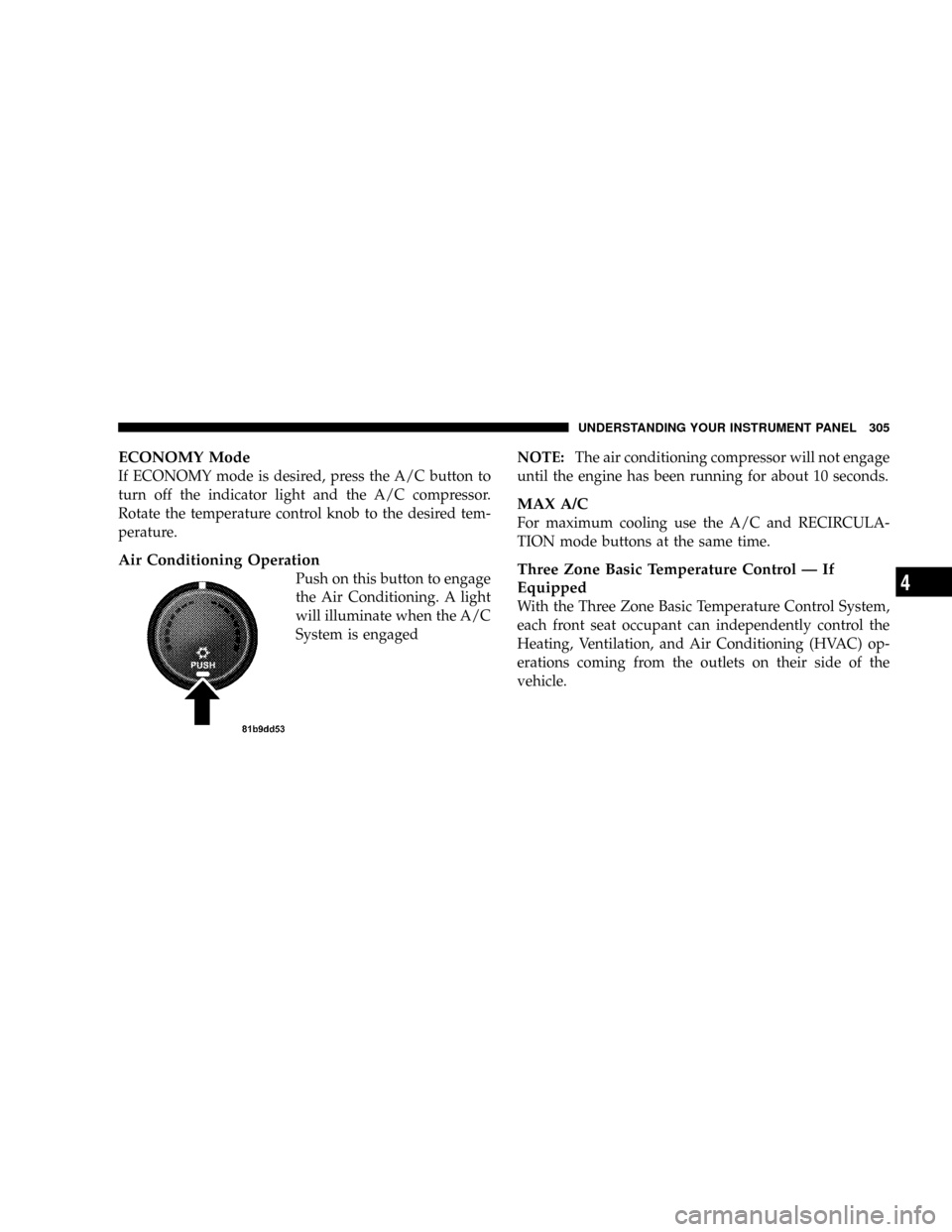
Push on this button to engage
the Air Conditioning. A light
will illuminate when the A/C
System is engagedNOTE:The air conditioning compressor will not engage
until the engine has been running for about 10 seconds.
MAX A/C
For maximum cooling use the A/C and RECIRCULA-
TION mode buttons at the same time.
Three Zone Basic Temperature Control Ð If
Equipped
With the Three Zone Basic Temperature Control System,
each front seat occupant can independently control the
Heating, Ventilation, and Air Conditioning (HVAC) op-
erations coming from the outlets on their side of the
vehicle.
UNDERSTANDING YOUR INSTRUMENT PANEL 305
4
Page 315 of 531
PANEL Mode
Air comes from the outlets in the instrument panel.
Each of these outlets can be individually adjusted to
direct the flow of air. Moving the air vanes of the center
outlets down, will close off the airflow from the center
outlets. The thumbwheel next to the outboard outlets can
be rotated to regulate or shut off the airflow from these
outlets.
BI-LEVEL Mode
Air comes from both the instrument panel outlets,
floor outlets and defrost. A slight amount of air is
also directed through the side window demister outlets.
NOTE:In many temperature positions, the BI-LEVEL
mode is designed to provide cooler air out of the panel
outlets and warmer air from the floor outlets.FLOOR Mode
Air comes from the floor outlets. A slight amount of
air is directed through the defrost and side window
demister outlets.
MIX Mode
Air comes from the floor, defrost and side window
demist outlets. This mode works best in cold or
snowy conditions. It allows you to stay comfortable
while keeping the windshield clear.
DEFROST Mode
Air comes from the windshield and side window
demist outlets. Use DEFROST mode with maxi-
mum blower and temperature settings for best wind-
shield and side window defrosting.
NOTE:While operating in the other modes, the system
will not automatically sense the presence of fog, mist or
ice on the windshield. DEFROST mode must be manually
selected to clear the windshield and side glass.
UNDERSTANDING YOUR INSTRUMENT PANEL 313
4