engine DODGE CHALLENGER 2018 Owners Manual
[x] Cancel search | Manufacturer: DODGE, Model Year: 2018, Model line: CHALLENGER, Model: DODGE CHALLENGER 2018Pages: 516, PDF Size: 5.17 MB
Page 421 of 516
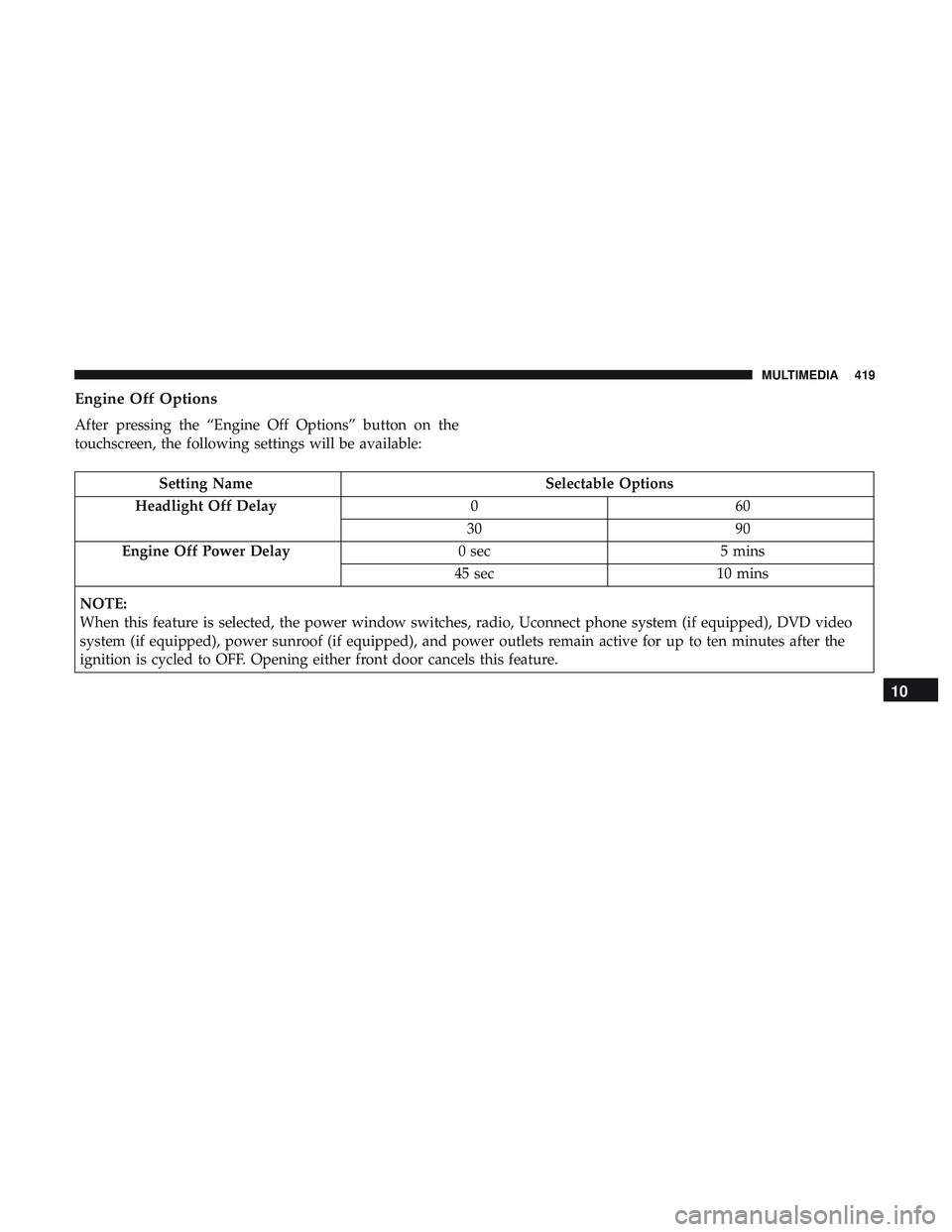
Engine Off Options
After pressing the “Engine Off Options” button on the
touchscreen, the following settings will be available:
Setting NameSelectable Options
Headlight Off Delay 060
30 90
Engine Off Power Delay 0 sec5 mins
45 sec 10 mins
NOTE:
When this feature is selected, the power window switches, radio, Uconnect phone system (if equipped), DVD video
system (if equipped), power sunroof (if equipped), and power outlets remain active for up to ten minutes after the
ignition is cycled to OFF. Opening either front door cancels this feature.
10
MULTIMEDIA 419
Page 429 of 516
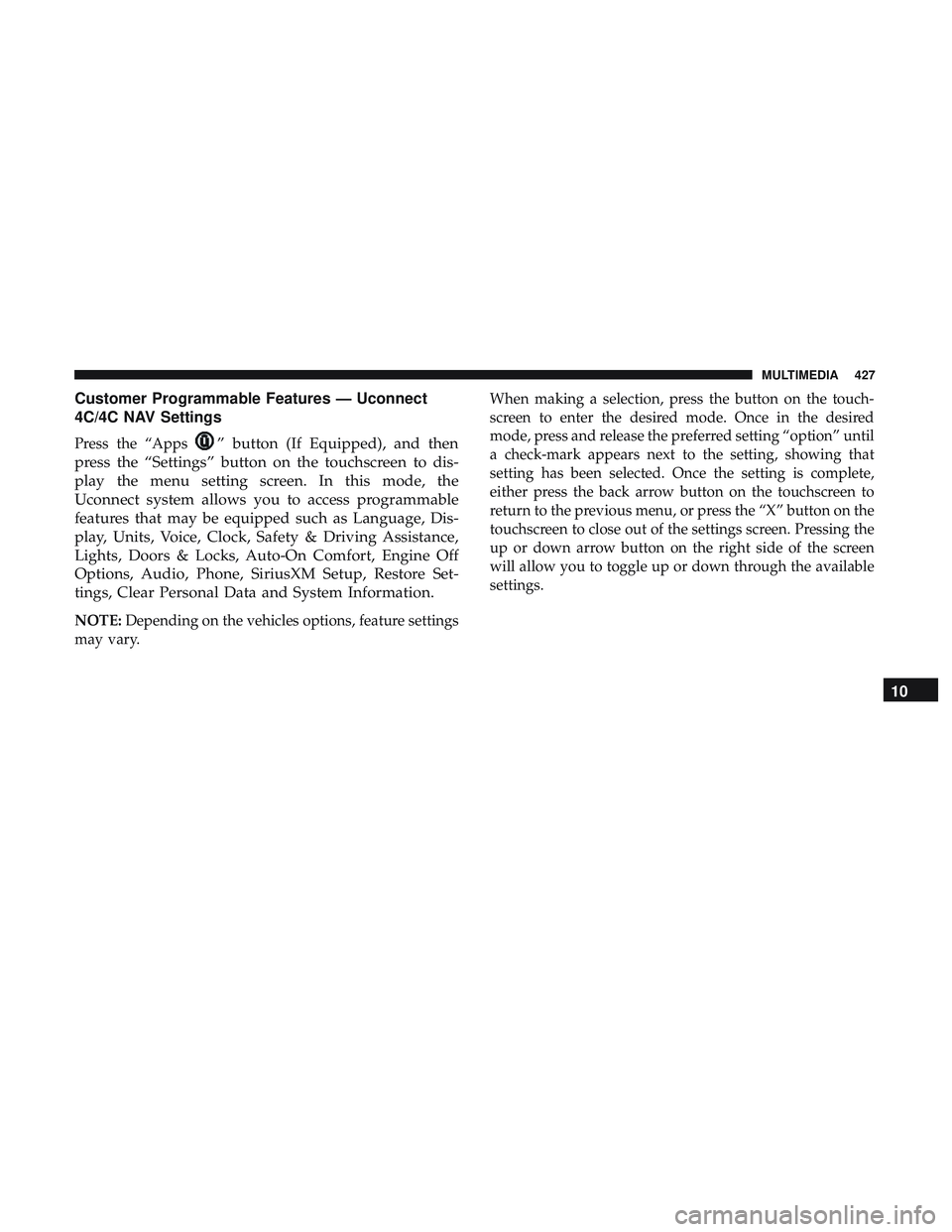
Customer Programmable Features — Uconnect
4C/4C NAV Settings
Press the “Apps” button (If Equipped), and then
press the “Settings” button on the touchscreen to dis-
play the menu setting screen. In this mode, the
Uconnect system allows you to access programmable
features that may be equipped such as Language, Dis-
play, Units, Voice, Clock, Safety & Driving Assistance,
Lights, Doors & Locks, Auto-On Comfort, Engine Off
Options, Audio, Phone, SiriusXM Setup, Restore Set-
tings, Clear Personal Data and System Information.
NOTE: Depending on the vehicles options, feature settings
may vary. When making a selection, press the button on the touch-
screen to enter the desired mode. Once in the desired
mode, press and release the preferred setting “option” until
a check-mark appears next to the setting, showing that
setting has been selected. Once the setting is complete,
either press the back arrow button on the touchscreen to
return to the previous menu, or press the “X” button on the
touchscreen to close out of the settings screen. Pressing the
up or down arrow button on the right side of the screen
will allow you to toggle up or down through the available
settings.
10
MULTIMEDIA 427
Page 443 of 516
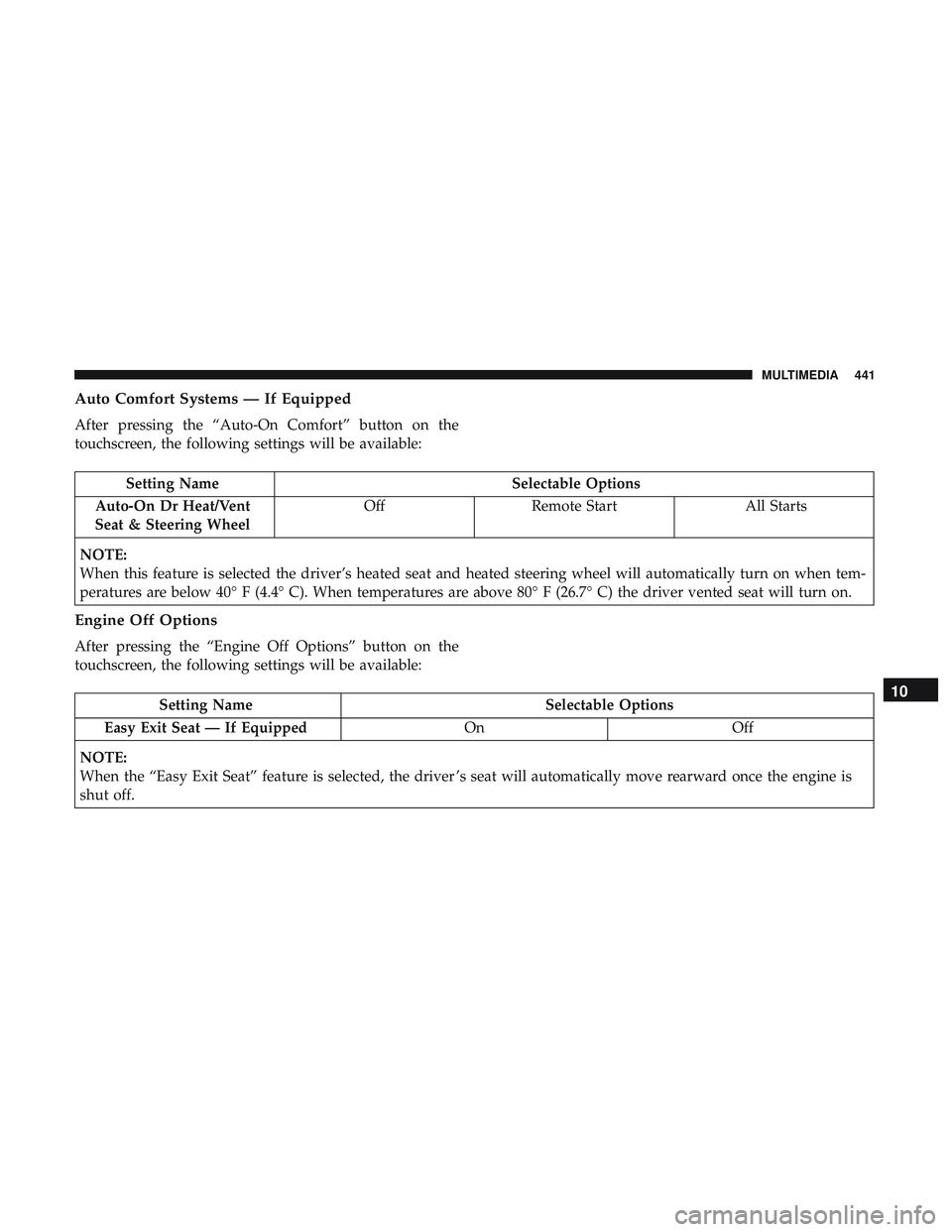
Auto Comfort Systems — If Equipped
After pressing the “Auto-On Comfort” button on the
touchscreen, the following settings will be available:
Setting NameSelectable Options
Auto-On Dr Heat/Vent
Seat & Steering Wheel Off
Remote Start All Starts
NOTE:
When this feature is selected the driver’s heated seat and heated steering wheel will automatically turn on when tem-
peratures are below 40° F (4.4° C). When temperatures are above 80° F (26.7° C) the driver vented seat will turn on.
Engine Off Options
After pressing the “Engine Off Options” button on the
touchscreen, the following settings will be available:
Setting Name Selectable Options
Easy Exit Seat — If Equipped OnOff
NOTE:
When the “Easy Exit Seat” feature is selected, the driver ’s seat will automatically move rearward once the engine is
shut off.10
MULTIMEDIA 441
Page 444 of 516
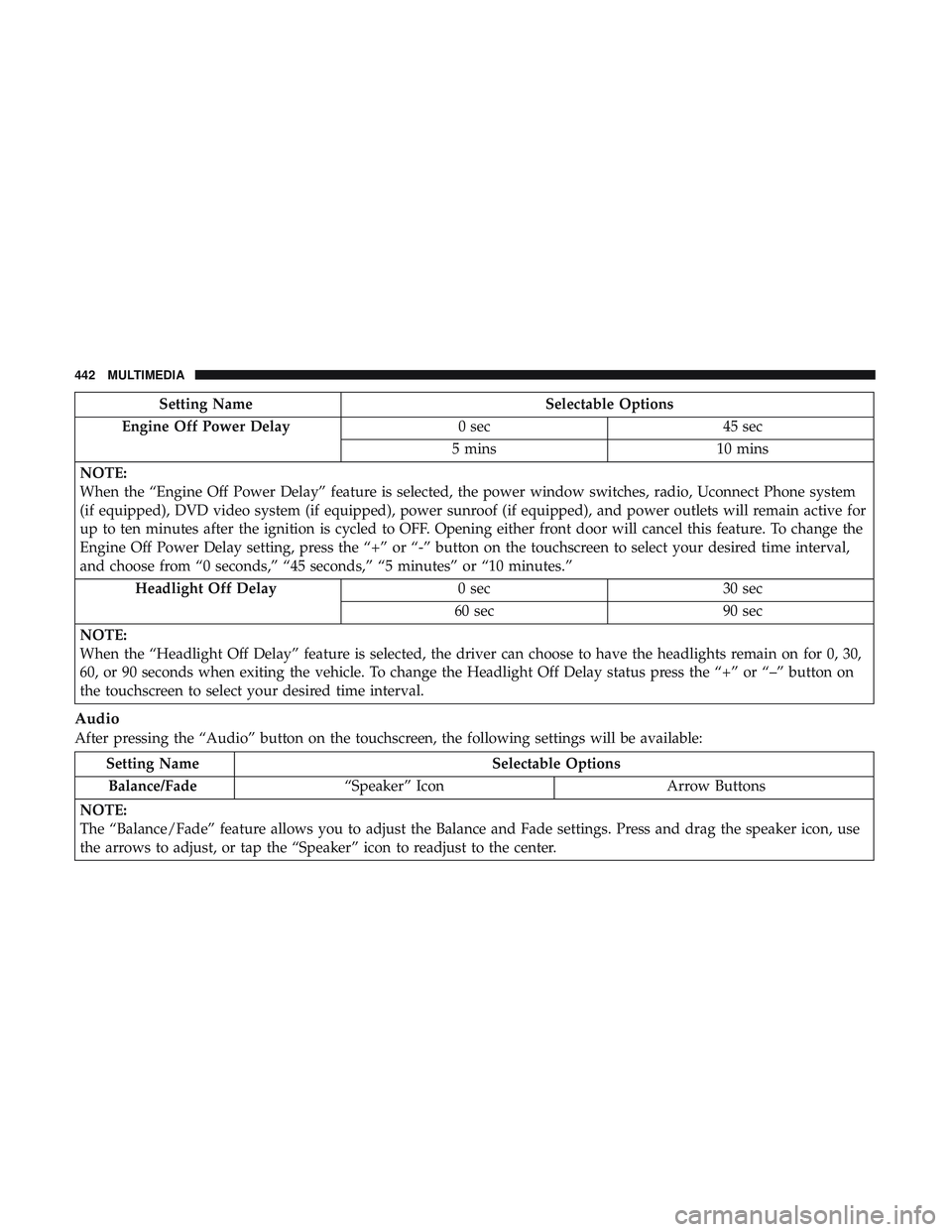
Setting NameSelectable Options
Engine Off Power Delay 0 sec45 sec
5 mins 10 mins
NOTE:
When the “Engine Off Power Delay” feature is selected, the power window switches, radio, Uconnect Phone system
(if equipped), DVD video system (if equipped), power sunroof (if equipped), and power outlets will remain active for
up to ten minutes after the ignition is cycled to OFF. Opening either front door will cancel this feature. To change the
Engine Off Power Delay setting, press the “+” or “-” button on the touchscreen to select your desired time interval,
and choose from “0 seconds,” “45 seconds,” “5 minutes” or “10 minutes.” Headlight Off Delay 0 sec30 sec
60 sec 90 sec
NOTE:
When the “Headlight Off Delay” feature is selected, the driver can choose to have the headlights remain on for 0, 30,
60, or 90 seconds when exiting the vehicle. To change the Headlight Off Delay status press the “+” or “–” button on
the touchscreen to select your desired time interval.
Audio
After pressing the “Audio” button on the touchscreen, the following settings will be available:
Setting Name Selectable Options
Balance/Fade “Speaker” Icon Arrow Buttons
NOTE:
The “Balance/Fade” feature allows you to adjust the Balance and Fade settings. Press and drag the speaker icon, use
the arrows to adjust, or tap the “Speaker” icon to readjust to the center.
442 MULTIMEDIA
Page 451 of 516
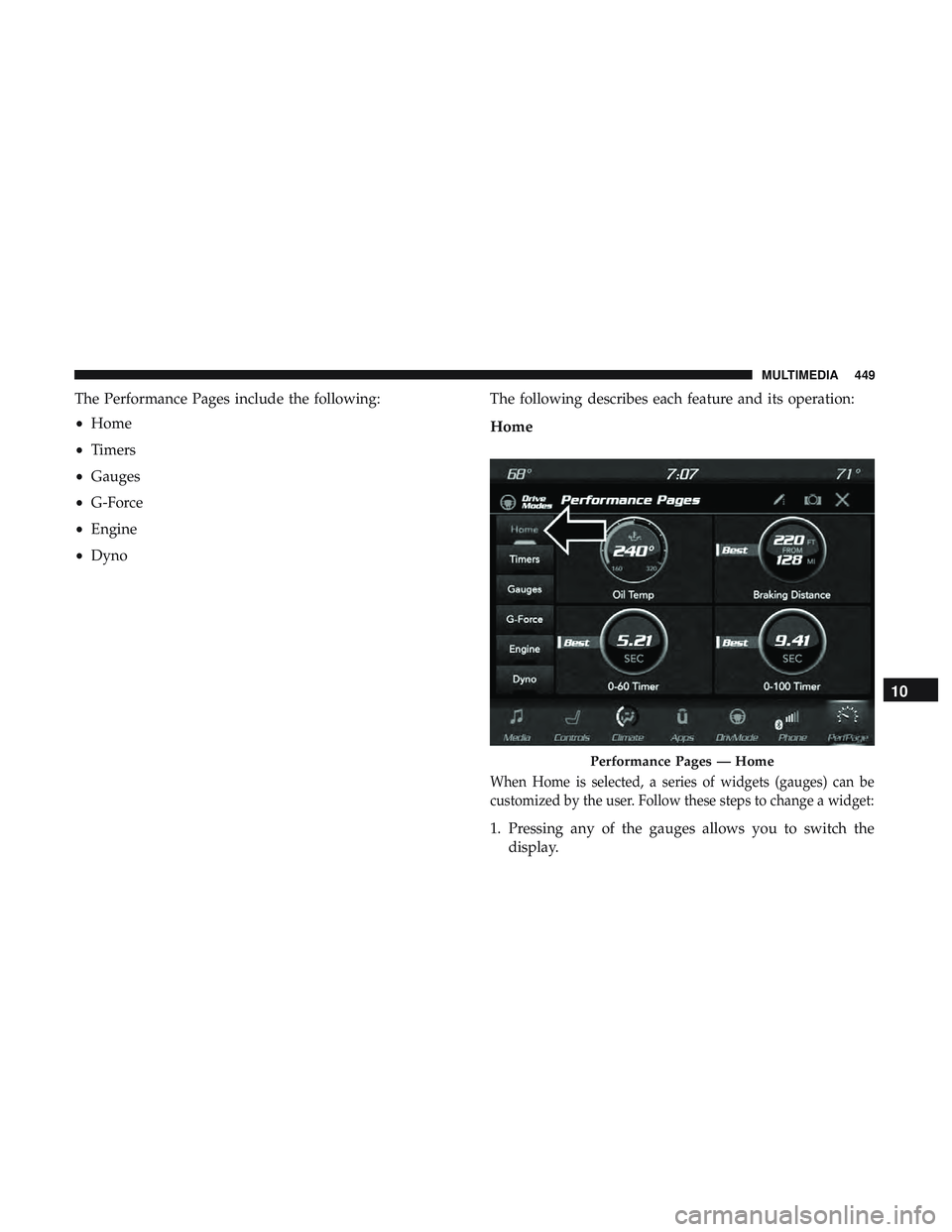
The Performance Pages include the following:
•Home
• Timers
• Gauges
• G-Force
• Engine
• Dyno The following describes each feature and its operation:
Home
When Home is selected, a series of widgets (gauges) can be
customized by the user. Follow these steps to change a widget:
1. Pressing any of the gauges allows you to switch the
display.
Performance Pages — Home
10
MULTIMEDIA 449
Page 452 of 516
2. Select the following option from the menu:•Set Widget: Top Left
• Set Widget: Top Right
• Set Widget: Bottom Left
• Set Widget: Bottom Right
3. After selecting a Widget location: select the gauge or timer to display:
• Gauge: Oil Temp
• Gauge: Oil Pressure
• Gauge: Coolant Temp
• Gauge: Battery Voltage
• Gauge: Trans Temp
• Gauge: Intake Air Temp
• Gauge: Engine Torque
• Gauge: Engine Power •
Gauge: G-Force
• Gauge: Steering Angle
• Gauge: Current Gear
• Gauge: Current Speed
• Timer: 0–60 MPH
• Timer: 0–100 MPH
• Timer: 1/8 Mile
• Timer: 1/4 Mile
• Timer: Brake Distance
• Timer: Reaction Time
NOTE: Pressing the “Camera” icon in the upper right
corner of the Performance Pages screen will take a screen-
shot of the current screen and save it to a USB that is
connected.
450 MULTIMEDIA
Page 459 of 516
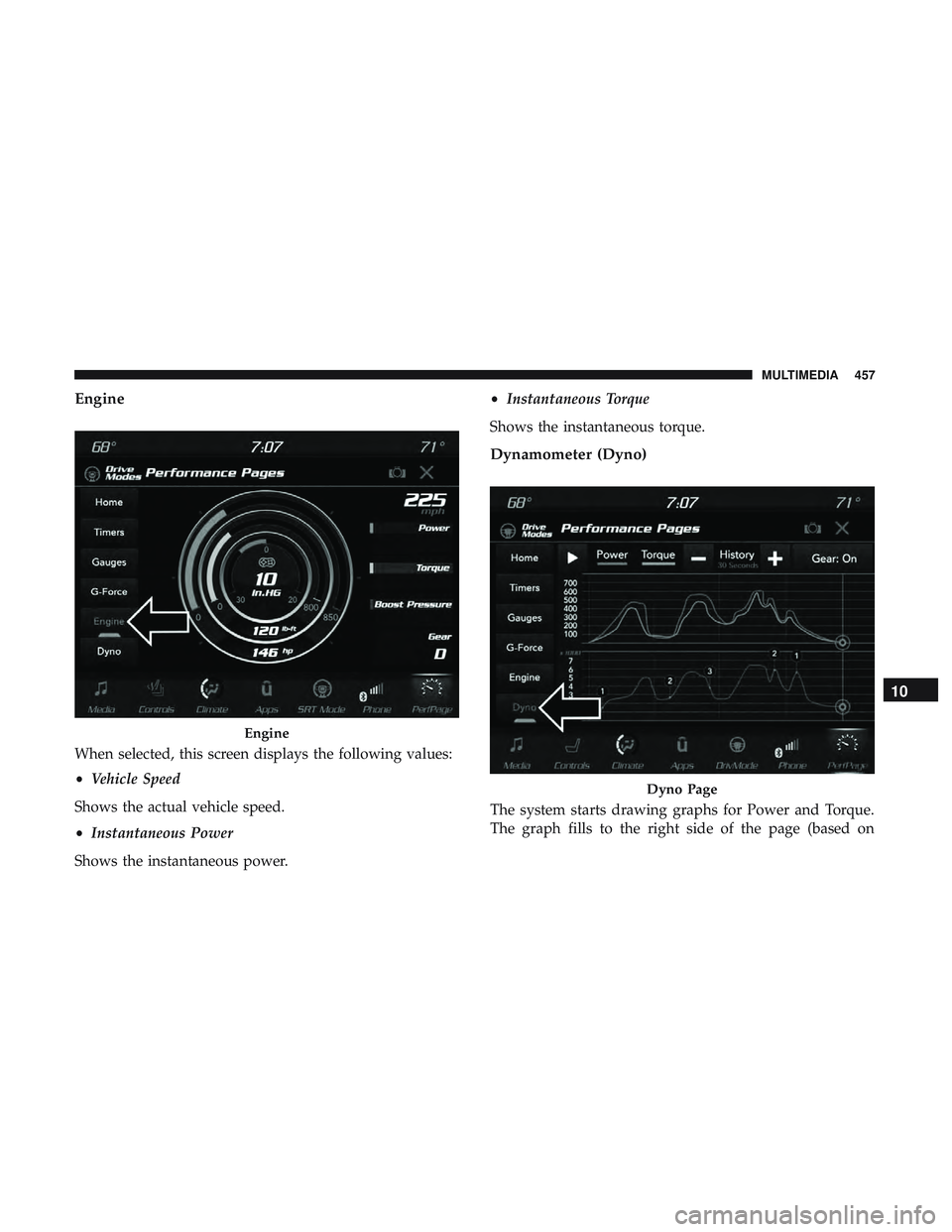
Engine
When selected, this screen displays the following values:
•Vehicle Speed
Shows the actual vehicle speed.
• Instantaneous Power
Shows the instantaneous power. •
Instantaneous Torque
Shows the instantaneous torque.
Dynamometer (Dyno)
The system starts drawing graphs for Power and Torque.
The graph fills to the right side of the page (based on
Engine
Dyno Page
10
MULTIMEDIA 457
Page 462 of 516
familiarity with the race track. Use of this feature in low
traction (cold, wet, gravel, etc.) conditions may results in
excess wheel slip outside this systems control resulting in
an aborted launch.
NOTE:
•Launch control should not be used on public roads.
Always check track conditions and the surrounding
area.
• Launch Control is not available for the first 500 miles of
the vehicle’s life.
• Launch Control should only be used when the engine
and transmission are at operating temperature.
• Launch Control is intended to be used on dry, paved
road surfaces only. Use on slippery or loose surfaces
may cause damage to vehicle components and is not
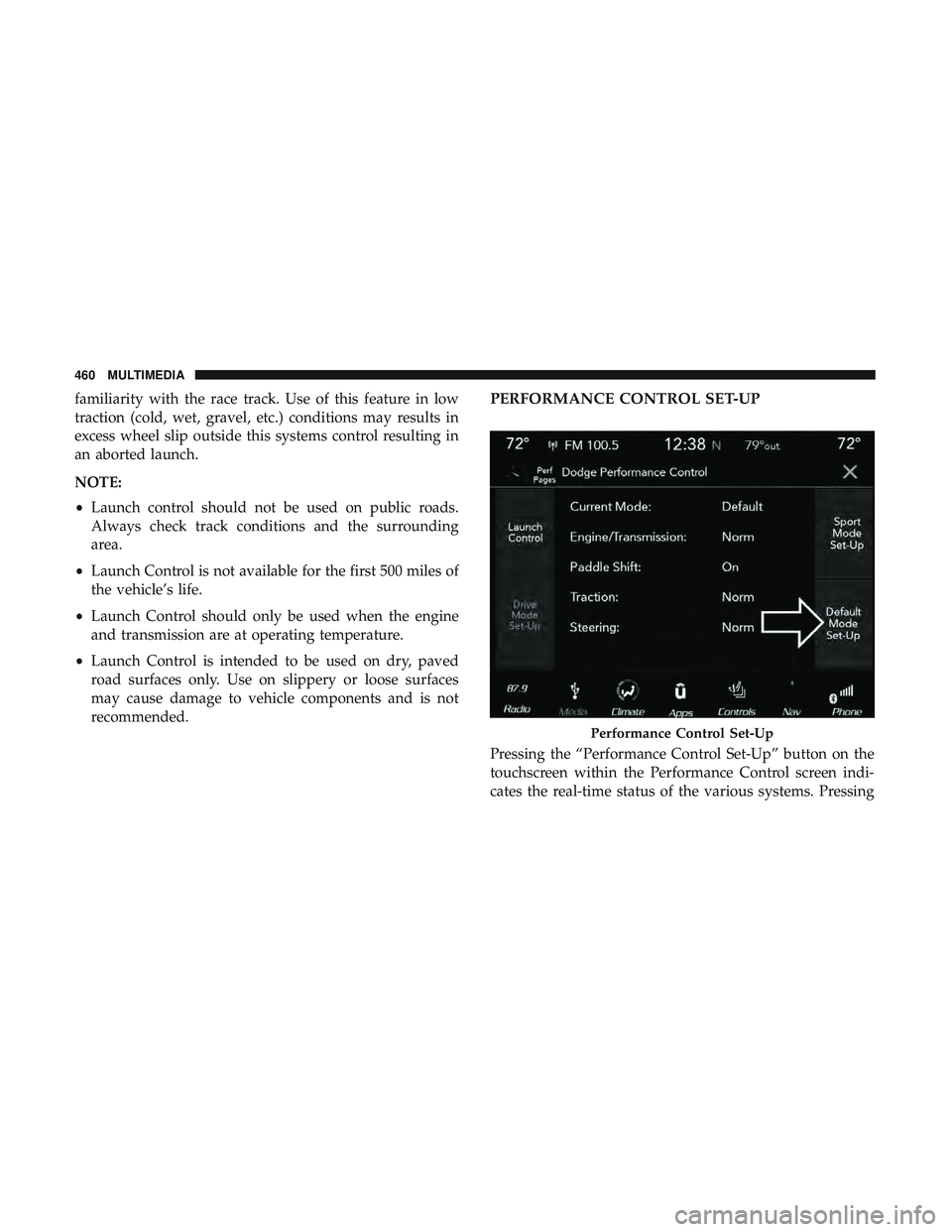
recommended.PERFORMANCE CONTROL SET-UP
Pressing the “Performance Control Set-Up” button on the
touchscreen within the Performance Control screen indi-
cates the real-time status of the various systems. Pressing
Performance Control Set-Up
460 MULTIMEDIA
Page 463 of 516
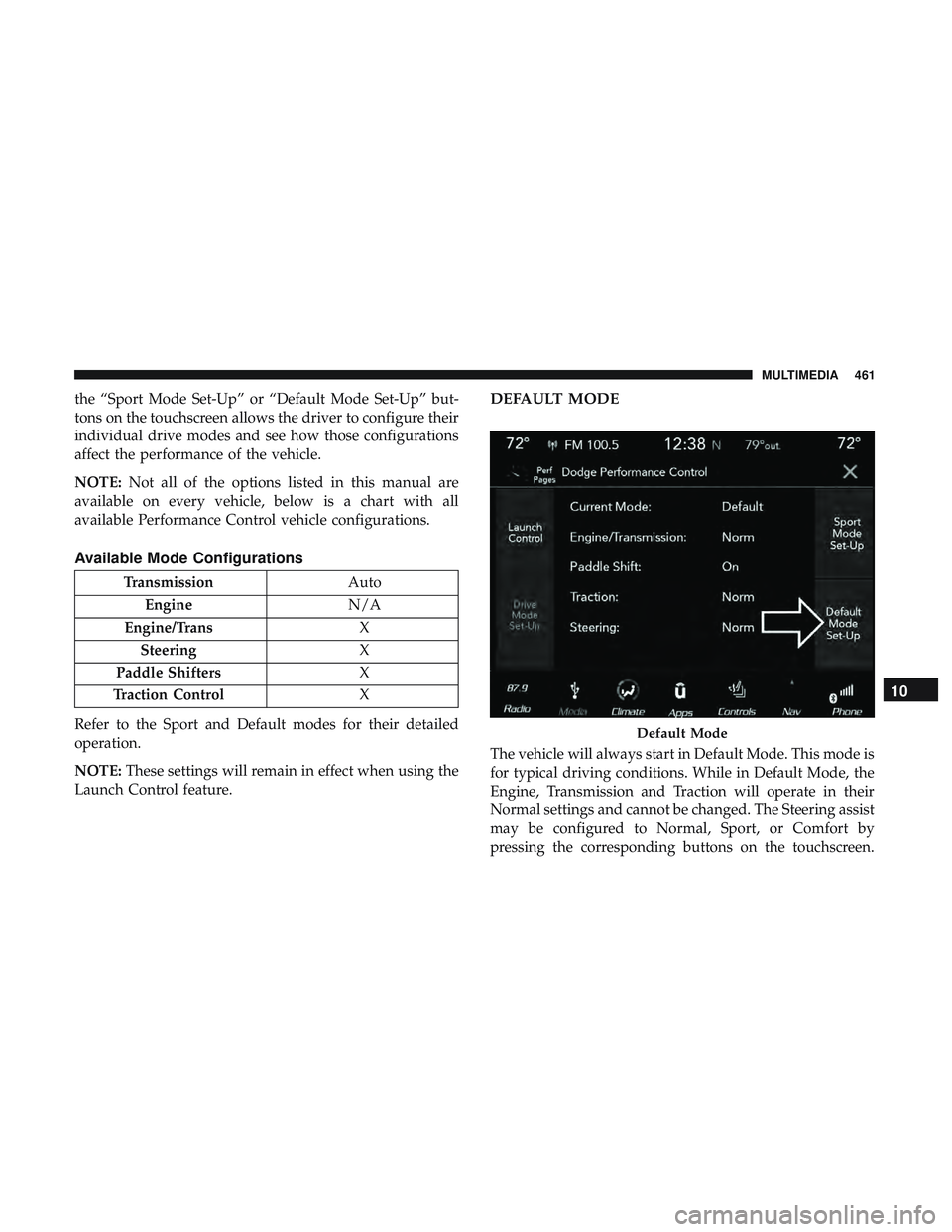
the “Sport Mode Set-Up” or “Default Mode Set-Up” but-
tons on the touchscreen allows the driver to configure their
individual drive modes and see how those configurations
affect the performance of the vehicle.
NOTE:Not all of the options listed in this manual are
available on every vehicle, below is a chart with all
available Performance Control vehicle configurations.
Available Mode Configurations
Transmission Auto
Engine N/A
Engine/Trans X
Steering X
Paddle Shifters X
Traction Control X
Refer to the Sport and Default modes for their detailed
operation.
NOTE: These settings will remain in effect when using the
Launch Control feature.
DEFAULT MODE
The vehicle will always start in Default Mode. This mode is
for typical driving conditions. While in Default Mode, the
Engine, Transmission and Traction will operate in their
Normal settings and cannot be changed. The Steering assist
may be configured to Normal, Sport, or Comfort by
pressing the corresponding buttons on the touchscreen.
Default Mode
10
MULTIMEDIA 461
Page 466 of 516
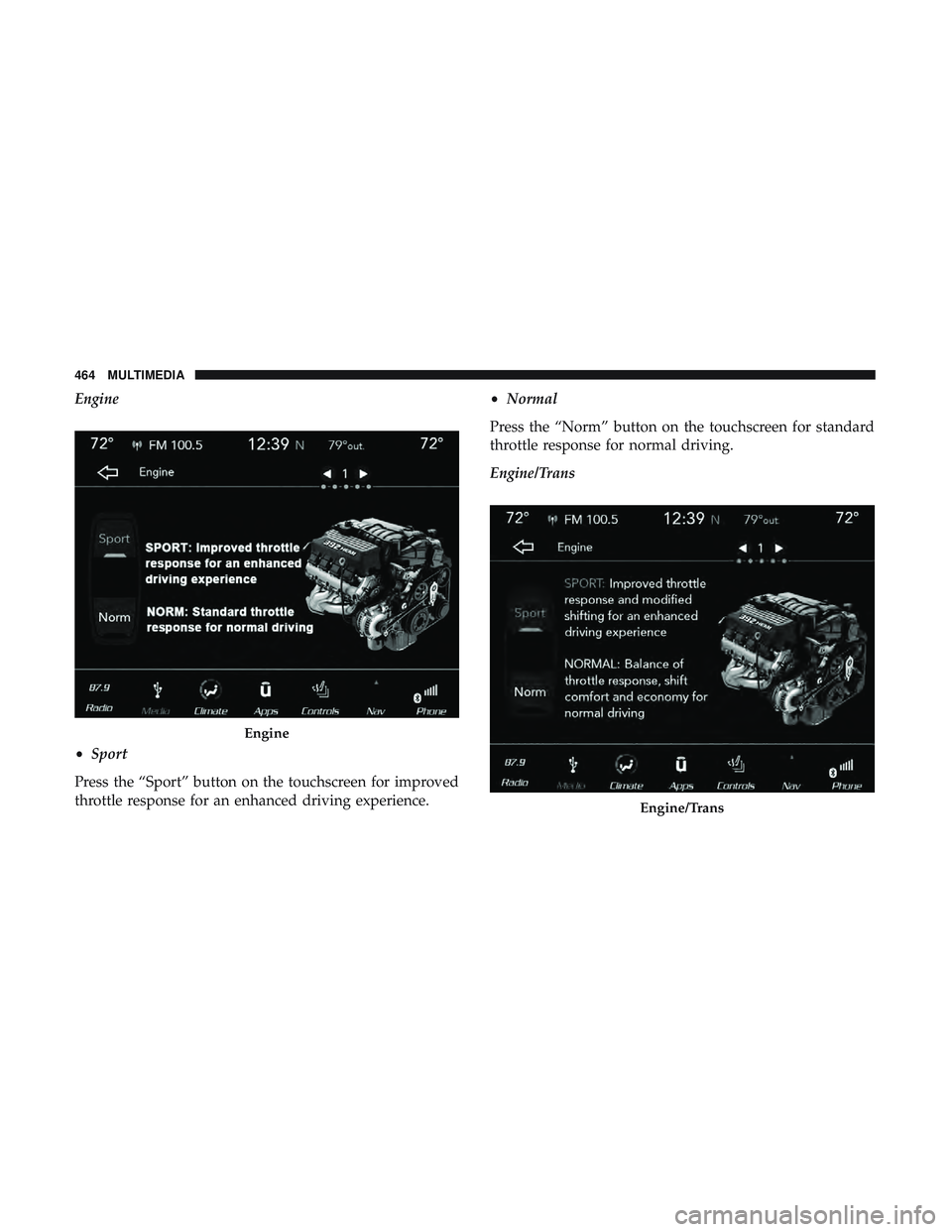
Engine
•Sport
Press the “Sport” button on the touchscreen for improved
throttle response for an enhanced driving experience. •
Normal
Press the “Norm” button on the touchscreen for standard
throttle response for normal driving.
Engine/Trans
Engine
Engine/Trans
464 MULTIMEDIA