wheel DODGE CHALLENGER 2022 Service Manual
[x] Cancel search | Manufacturer: DODGE, Model Year: 2022, Model line: CHALLENGER, Model: DODGE CHALLENGER 2022Pages: 336, PDF Size: 16.47 MB
Page 166 of 336
164MULTIMEDIA
Automatic reply messages can be:
“I am driving right now, I will get back to you
shortly”.
Create a custom auto reply message up to 160
characters.
NOTE:Only the first 25 characters can be seen on the
touchscreen while typing a custom message.
While in Do Not Disturb, Conference Call can be
selected so you can still place a second call
without being interrupted by incoming calls.
NOTE:
Reply with text message is not compatible with
iPhone® devices.
Auto reply with text message is only available on
phones that support Bluetooth® Message
Access Profile (MAP).
PLACE/RETRIEVE A CALL FROM HOLD
During an active call, press the Hold or Call On Hold
button on the Phone main screen.
MAKING A SECOND CALL WHILE CURRENT
CALL IS IN PROGRESS
You can place a call on hold by pressing the Hold
button on the Phone main screen, then dial a
number from the keypad (if supported by your
mobile phone), recent calls, SMS Inbox or from the
phonebooks.
TOGGLING BETWEEN CALLS
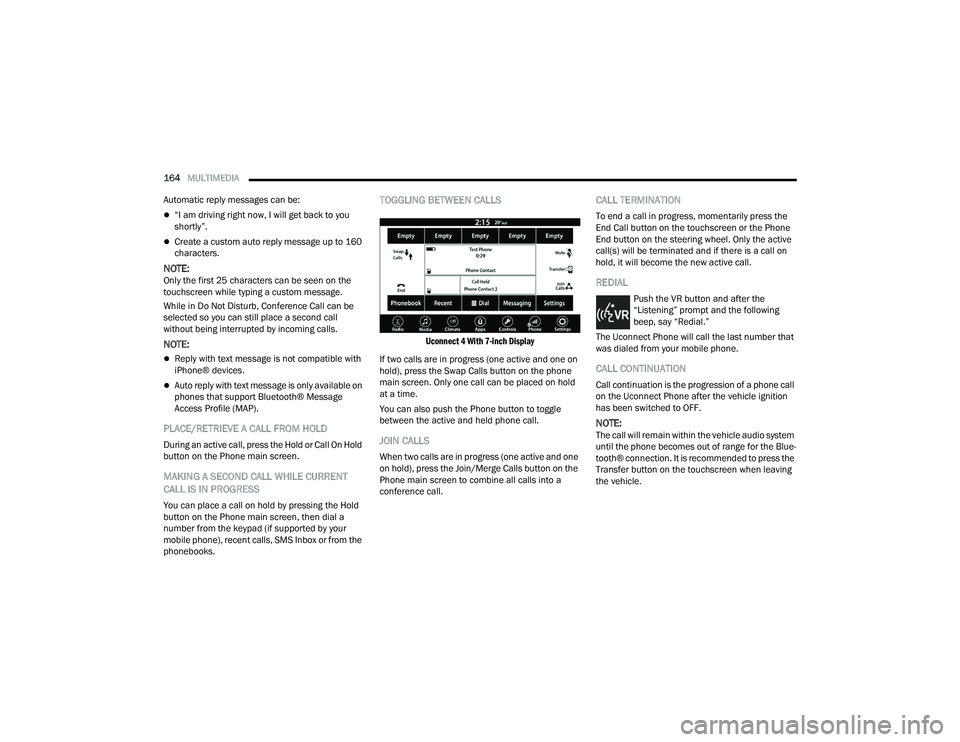
Uconnect 4 With 7-inch Display
If two calls are in progress (one active and one on
hold), press the Swap Calls button on the phone
main screen. Only one call can be placed on hold
at a time.
You can also push the Phone button to toggle
between the active and held phone call.
JOIN CALLS
When two calls are in progress (one active and one
on hold), press the Join/Merge Calls button on the
Phone main screen to combine all calls into a
conference call.
CALL TERMINATION
To end a call in progress, momentarily press the
End Call button on the touchscreen or the Phone
End button on the steering wheel. Only the active
call(s) will be terminated and if there is a call on
hold, it will become the new active call.
REDIAL
Push the VR button and after the
“Listening” prompt and the following
beep, say “Redial.”
The Uconnect Phone will call the last number that
was dialed from your mobile phone.
CALL CONTINUATION
Call continuation is the progression of a phone call
on the Uconnect Phone after the vehicle ignition
has been switched to OFF.
NOTE:The call will remain within the vehicle audio system
until the phone becomes out of range for the Blue -
tooth® connection. It is recommended to press the
Transfer button on the touchscreen when leaving
the vehicle.
22_LA_OM_EN_USC_t.book Page 164
Page 167 of 336
MULTIMEDIA165
Advanced Phone Connectivity
TRANSFER CALL TO AND FROM MOBILE
PHONE
The Uconnect Phone allows ongoing calls to be
transferred from your mobile phone without
terminating the call. To transfer an ongoing call
from your connected mobile phone to the
Uconnect Phone or vice versa, press the Transfer
button on the Phone main screen.
Things You Should Know About Uconnect
Phone
VOICE COMMAND
For the best performance:
Always wait for the beep before speaking
Speak normally, without pausing, just as you
would speak to a person sitting a few feet/
meters away from you
Ensure that no one other than you is speaking
during a voice command period
Low-To-Medium Blower Setting
Low-To-Medium Vehicle Speed
Low Road Noise
Smooth Road Surface
Fully Closed Windows
Dry Weather Conditions Even though the system is designed for many
languages and accents, the system may not always
work for some.
NOTE:It is recommended that you do not store names in
your Favorites phonebook while the vehicle is in
motion.
Number and name recognition rate is optimized
when the entries are not similar. You can say “O”
(letter “O”) for “0” (zero).
Even though international dialing for most number
combinations is supported, some shortcut dialing
number combinations may not be supported. Audio Performance
Audio quality is maximized under:
Low-To-Medium Blower Setting
Low-To-Medium Vehicle Speed
Low Road Noise
Smooth Road Surface
Fully Closed Windows
Dry Weather Conditions
Operation From The Driver's Seat
Performance such as audio clarity, echo, and
loudness to a large degree rely on the phone and
network, and not the Uconnect Phone.
Echo at the far end can sometimes be reduced by
lowering the in-vehicle audio volume.
Phone Voice Commands
Making and answering hands-free phone calls is
easy with Uconnect. When the Phonebook button
is illuminated on your touchscreen, your system is
ready. Check
UconnectPhone.com for mobile
phone compatibility and pairing instructions.
WARNING!
ALWAYS drive safely with your hands on the
wheel. You have full responsibility and assume
all risks related to the use of the Uconnect
features and applications in this vehicle. Only
use Uconnect when it is safe to do so. Failure to
do so may result in an accident involving serious
injury or death.
5
22_LA_OM_EN_USC_t.book Page 165
Page 168 of 336
166MULTIMEDIA
Push the Phone button and wait for the beep to
say a command. See some examples below:
“ Call John Smith”
“Dial 123 456 7890”
“Redial ” (call previous outgoing phone number)
“Call back ” (call previously answered incoming
phone number)
Did You Know: When providing a Voice Command,
push the Phone button and say “ Call”, then
pronounce the name exactly as it appears in your
phonebook. When a contact has multiple phone
numbers, you can say “ Call John Smith work ”.
Voice Text Reply — If Equipped
Uconnect can announce incoming text messages.
Push the VR button or Phone button and
say:
1. “
Listen
” to have the system read an incoming
text message. (Must have compatible mobile
phone paired to Uconnect system.)
2. “ Reply ” after an incoming text message has
been read.
Listen to the Uconnect prompts. After the
beep, repeat one of the predefined messag -
es and follow the system prompts. NOTE:
Only use the numbering listed in the provided
table. Otherwise, the system will not transpose the
message. Did You Know:
Your mobile phone must have the
full implementation of the Message Access Profile
(MAP) to take advantage of this feature. For details
about MAP, visit
UconnectPhone.com.
Apple® iPhone® iOS 6 or later supports reading
incoming text messages only. For further
information on how to enable this feature on your
Apple® iPhone®, refer to your iPhone® “User
Manual”.
Did You Know: Voice Text Reply is not compatible
with iPhone®, but if your vehicle is equipped with
Siri® Eyes Free, you can use your voice to send a
text message.
Siri® Eyes Free — If Equipped
When used with your Apple® iPhone® connected
to your vehicle via Bluetooth®, Siri lets you use
your voice to send text messages, select media,
place phone calls and much more. Siri uses your
natural language to understand what you mean
and responds back to confirm your requests. The
system is designed to keep your eyes on the road
and your hands on the wheel by letting Siri help you
perform useful tasks.
To enable Siri, push and hold, then release the
Uconnect Voice Recognition (VR) button on the
steering wheel. After you hear a double beep, you
can ask Siri to play podcasts and music, get
directions, read text messages, and many other
useful requests.
PRE-DEFINED VOICE TEXT REPLY
RESPONSES
Yes. Stuck in
traffic. See you later.
No. Start without
me. I’ll be late.
Okay. Where are
you? I will be 5
25, 30, 45,
60> minutes late.
Call me.
Are you there
yet?
I’ll call you later. I need
directions. See you in 5
minutes.
I’m on my way.
Can’t talk right
now.
I’m lost. Thanks.
22_LA_OM_EN_USC_t.book Page 166
Page 169 of 336
MULTIMEDIA167
BLUETOOTH® COMMUNICATION LINK
Mobile phones may lose connection to the
Uconnect Phone. When this happens, the
connection can generally be re-established by
restarting the mobile phone. Your mobile phone is
recommended to remain in Bluetooth® ON mode.
POWER-UP
After switching the ignition key from OFF to either
the ON/RUN or ACC position, or after a language
change, you must wait at least 15 seconds prior to
using the system Ú page 322.
ANDROID AUTO™ & APPLE CARPLAY® —
IF EQUIPPED
ANDROID AUTO™
Use this QR code to access your
digital experience.
Android Auto™ is a feature of your
Uconnect system, and your
Android™ 6.0 or higher powered
smartphone with a data plan, that
allows you to project your
smartphone and a number of its apps onto the
touchscreen radio display. Android Auto™ brings
you useful information, and organizes it into simple
cards that appear just when they are needed.
Android Auto™ can be used with speech technology, the steering wheel controls, the knobs
and buttons on your radio faceplate, and the radio
display’s touchscreen to control many of your
apps. To use Android Auto™, perform the following
procedure:
NOTE:Feature availability depends on your carrier and
mobile phone manufacturer. Some Android Auto™
features may or may not be available in every
region and/or language.
1. Download the Android Auto™ app from the
Google Play store on your Android™-powered
smartphone.
2. Connect your Android™-powered smartphone to one of the media USB ports in your vehicle.
If the Android Auto™ app was not downloaded,
the first time you plug your device in the app
begins to download. Your vehicle should be in
PARK the first time you use the app.
NOTE:Be sure to use the factory-provided USB cable that
came with your phone, as aftermarket cables may
not work.
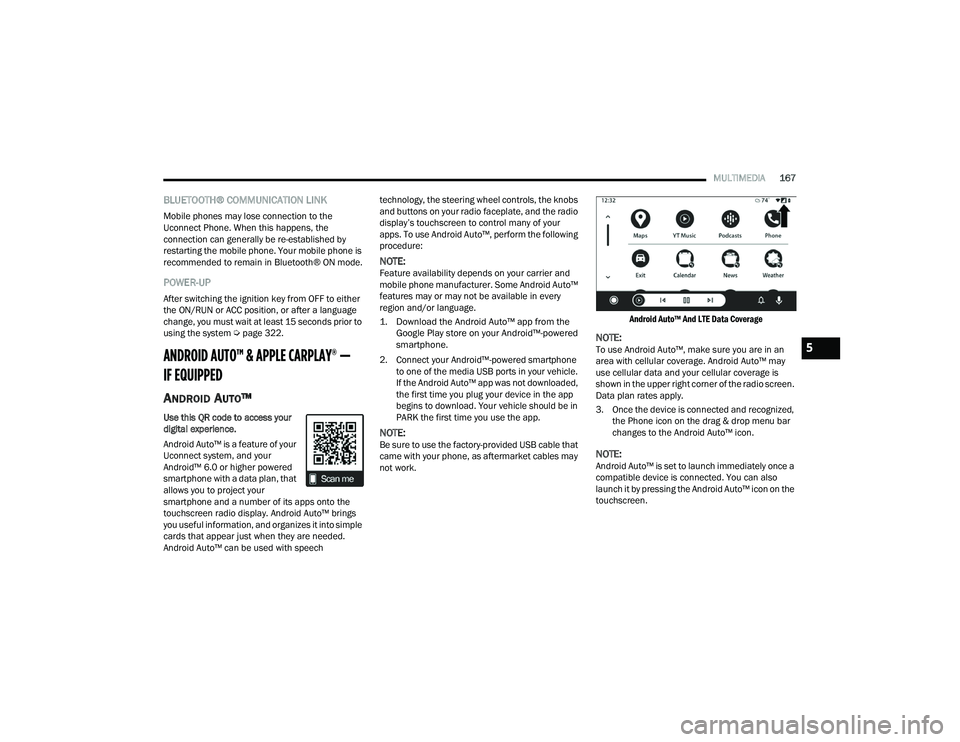
Android Auto™ And LTE Data Coverage
NOTE:To use Android Auto™, make sure you are in an
area with cellular coverage. Android Auto™ may
use cellular data and your cellular coverage is
shown in the upper right corner of the radio screen.
Data plan rates apply.
3. Once the device is connected and recognized,
the Phone icon on the drag & drop menu bar
changes to the Android Auto™ icon.
NOTE:Android Auto™ is set to launch immediately once a
compatible device is connected. You can also
launch it by pressing the Android Auto™ icon on the
touchscreen.
5
22_LA_OM_EN_USC_t.book Page 167
Page 170 of 336
168MULTIMEDIA
Once Android Auto™ is up and running on your
Uconnect system, the following features can be
utilized using your smartphone’s data plan:
Google Maps™ for navigation
YouTube Music, Spotify, iHeart Radio, etc. for
music
Hands-free calling and texting for communica -
tion
Various compatible apps
Maps
Push and hold the Voice Recognition (VR)
button on the steering wheel until the
beep or tap the Microphone icon to ask
Google to take you to a desired
destination by voice. You can also touch the
Navigation icon in Android Auto™ to access other
navigation apps.
While using Android Auto™, Google Maps™
provides voice-guided:
Navigation
Live traffic information
Lane guidance
For further information, refer to
www.android.com/auto/ (US) or https://
www.android.com/intl/en_ca/auto/ (Canada). For further information on the navigation function,
please refer to
https://support.google.com/
android or https://support.google.com/
androidauto/.
Music
Android Auto™ allows you to access and
stream your favorite music with apps like
YouTube Music, iHeartRadio, and Spotify.
Using your smartphone’s data plan, you
can stream endless music on the road.
NOTE:Music apps, playlists, and stations must be set up
on your smartphone prior to using Android Auto™
for them to work with Android Auto™.
NOTE:To see the track details for the music playing
through Android Auto™, select the Uconnect
system’s media screen.
For further information, refer to
https://
support.google.com/androidauto.
Communication
With Android Auto™ connected, push and
hold the VR button on the steering wheel
to activate voice recognition specific to
Android Auto™. This allows you to send
and reply to text messages, have incoming text
messages read out loud, and place and receive
hands-free calls.
Apps
The Android Auto™ App displays all the compatible
apps that are available to use with Android Auto™,
every time it is launched. You must have the
compatible app downloaded, and you must be
signed in to the app through your mobile device for
it to work with Android Auto™.
Refer to
https://play.google.com/store/apps/ to
see the latest list of available apps for Android
Auto™.
Android Auto™ Voice Command
NOTE:Feature availability depends on your carrier and
mobile phone manufacturer. Some Android Auto™
features may or may not be available in every
region and/or language.
Android Auto™ allows you to use your voice to
interact with Android’s™ best-in-class speech
technology through your vehicle’s voice recognition
system, and use your smartphone’s data plan to
project your Android™-powered smartphone and a
number of its apps onto your Uconnect
touchscreen. Connect your Android™ 6.0 or higher
to one of the media USB ports, using the
factory-provided USB cable, and press the new
Android Auto™ icon that replaces your “Phone”
icon on the main menu bar to begin Android Auto™.
Push and hold the VR button on the steering wheel,
or press and hold the “Microphone” icon within
22_LA_OM_EN_USC_t.book Page 168
Page 172 of 336
170MULTIMEDIA
Once Apple CarPlay® is up and running on your
Uconnect system, the following features can be
utilized using your iPhone’s® data plan:
Phone
Music
Messages
Maps
Phone
With Apple CarPlay®, push and hold the
VR button on the steering wheel to
activate a Siri voice recognition session.
You can also press and hold the Home
button within Apple CarPlay® to start talking to Siri.
This allows you to make calls or listen to voicemail
as you normally would using Siri on your iPhone®.
NOTE:Only temporarily pushing the VR button on the
steering wheel launches a built-in Uconnect VR
session, not a Siri session, and it will not function
with Apple CarPlay®.
Music
Apple CarPlay® allows you to access all
your artists, playlists, and music from
iTunes® or any third party application
installed on your device. Using your
iPhone’s® data plan, you can also use select third
party audio apps including music, news, sports,
podcasts, and more.
Messages
Push and hold the VR button on the
steering wheel to activate a Siri voice
recognition session. Apple CarPlay®
allows you to use Siri to send or reply to
text messages. Siri can also read incoming text
messages, but drivers will not be able to read
messages, as everything is done via voice.
Maps
Push and hold the VR button on the
steering wheel until the beep or tap the
Microphone icon to ask Apple® Siri to
take you to a desired destination by
voice. You can also touch the Navigation icon in
Apple CarPlay® to access Apple® Maps.
Apps
The Apple CarPlay® App plays all compatible apps
that are available to use, every time it is launched.
You must have the compatible app downloaded,
and you must be signed in to the app through your
mobile device for it to work with Apple CarPlay®.
Refer to
http://www.apple.com/ios/carplay/
(US) or https://www.apple.com/ca/ios/carplay/
(Canada) to see the latest list of available apps for
Apple CarPlay®.
Apple CarPlay® Voice Command
NOTE:Feature availability depends on your carrier and
mobile phone maker. Some Apple CarPlay®
features may not be available in every region and/
or language.
Apple CarPlay® allows you to use your voice to
interact with Siri through your vehicle’s voice
recognition system, and use your smartphone’s
data plan to project your iPhone® and a number of
its apps onto your Uconnect touchscreen. Connect
your iPhone® 5 or higher to one of the media USB
ports, using the factory-provided Lightning cable,
and press the new Apple CarPlay® icon that
replaces your “Phone” icon on the main menu bar
to begin Apple CarPlay®. Push and hold the VR
button on the steering wheel, or press and hold the
Home button within Apple CarPlay®, to activate
Siri, which recognizes natural voice commands to
use a list of your iPhone’s® features:
Phone
Music
Messages
Maps — If Equipped
Additional Apps — If Equipped
22_LA_OM_EN_USC_t.book Page 170
Page 179 of 336
MULTIMEDIA177
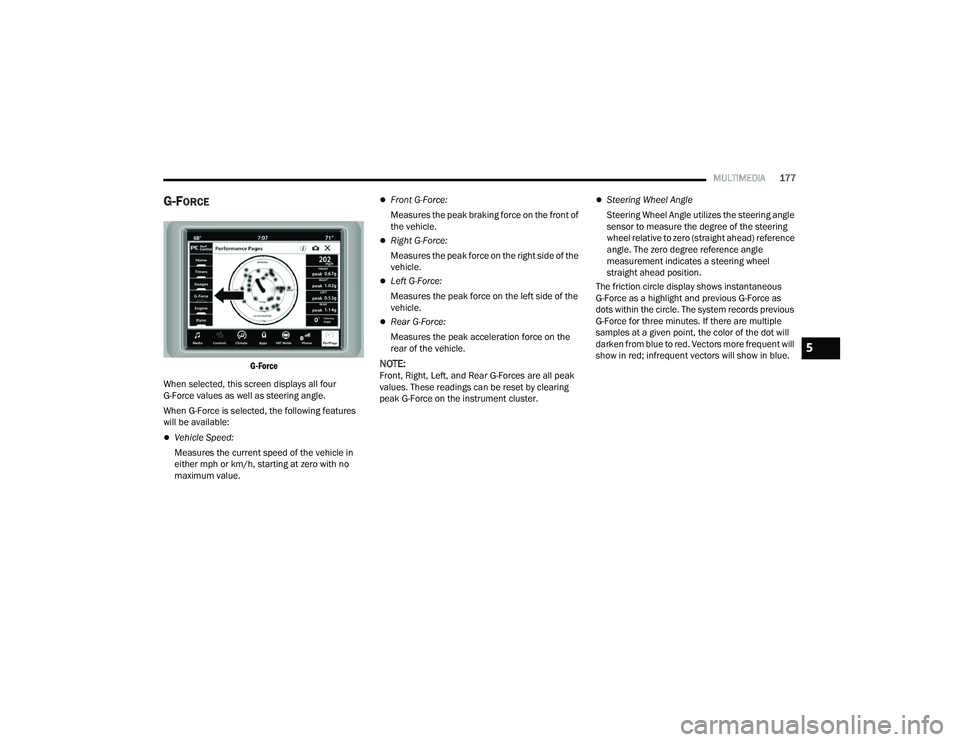
G-FORCE
G-Force
When selected, this screen displays all four
G-Force values as well as steering angle.
When G-Force is selected, the following features
will be available:
Vehicle Speed:
Measures the current speed of the vehicle in
either mph or km/h, starting at zero with no
maximum value.
Front G-Force:
Measures the peak braking force on the front of
the vehicle.
Right G-Force:
Measures the peak force on the right side of the
vehicle.
Left G-Force:
Measures the peak force on the left side of the
vehicle.
Rear G-Force:
Measures the peak acceleration force on the
rear of the vehicle.
NOTE:Front, Right, Left, and Rear G-Forces are all peak
values. These readings can be reset by clearing
peak G-Force on the instrument cluster.
Steering Wheel Angle
Steering Wheel Angle utilizes the steering angle
sensor to measure the degree of the steering
wheel relative to zero (straight ahead) reference
angle. The zero degree reference angle
measurement indicates a steering wheel
straight ahead position.
The friction circle display shows instantaneous
G-Force as a highlight and previous G-Force as
dots within the circle. The system records previous
G-Force for three minutes. If there are multiple
samples at a given point, the color of the dot will
darken from blue to red. Vectors more frequent will
show in red; infrequent vectors will show in blue.
5
22_LA_OM_EN_USC_t.book Page 177
Page 183 of 336
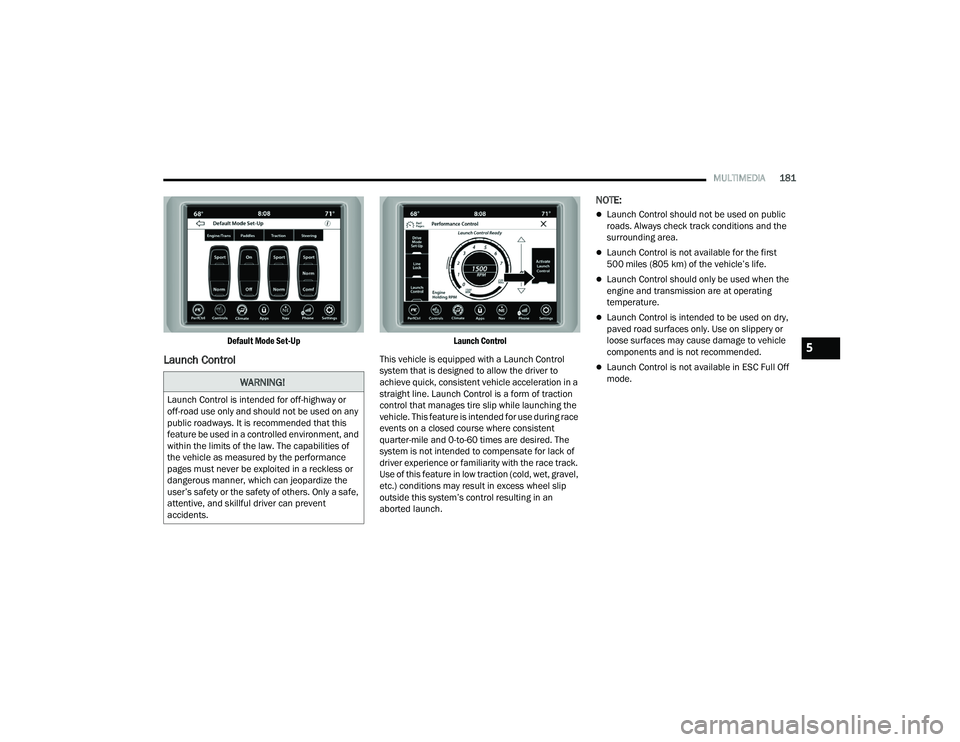
MULTIMEDIA181
Default Mode Set-Up
Launch Control
Launch Control
This vehicle is equipped with a Launch Control
system that is designed to allow the driver to
achieve quick, consistent vehicle acceleration in a
straight line. Launch Control is a form of traction
control that manages tire slip while launching the
vehicle. This feature is intended for use during race
events on a closed course where consistent
quarter-mile and 0-to-60 times are desired. The
system is not intended to compensate for lack of
driver experience or familiarity with the race track.
Use of this feature in low traction (cold, wet, gravel,
etc.) conditions may result in excess wheel slip
outside this system’s control resulting in an
aborted launch.
NOTE:
Launch Control should not be used on public
roads. Always check track conditions and the
surrounding area.
Launch Control is not available for the first
500 miles (805 km) of the vehicle’s life.
Launch Control should only be used when the
engine and transmission are at operating
temperature.
Launch Control is intended to be used on dry,
paved road surfaces only. Use on slippery or
loose surfaces may cause damage to vehicle
components and is not recommended.
Launch Control is not available in ESC Full Off
mode.
WARNING!
Launch Control is intended for off-highway or
off-road use only and should not be used on any
public roadways. It is recommended that this
feature be used in a controlled environment, and
within the limits of the law. The capabilities of
the vehicle as measured by the performance
pages must never be exploited in a reckless or
dangerous manner, which can jeopardize the
user’s safety or the safety of others. Only a safe,
attentive, and skillful driver can prevent
accidents.
5
22_LA_OM_EN_USC_t.book Page 181
Page 184 of 336
182MULTIMEDIA
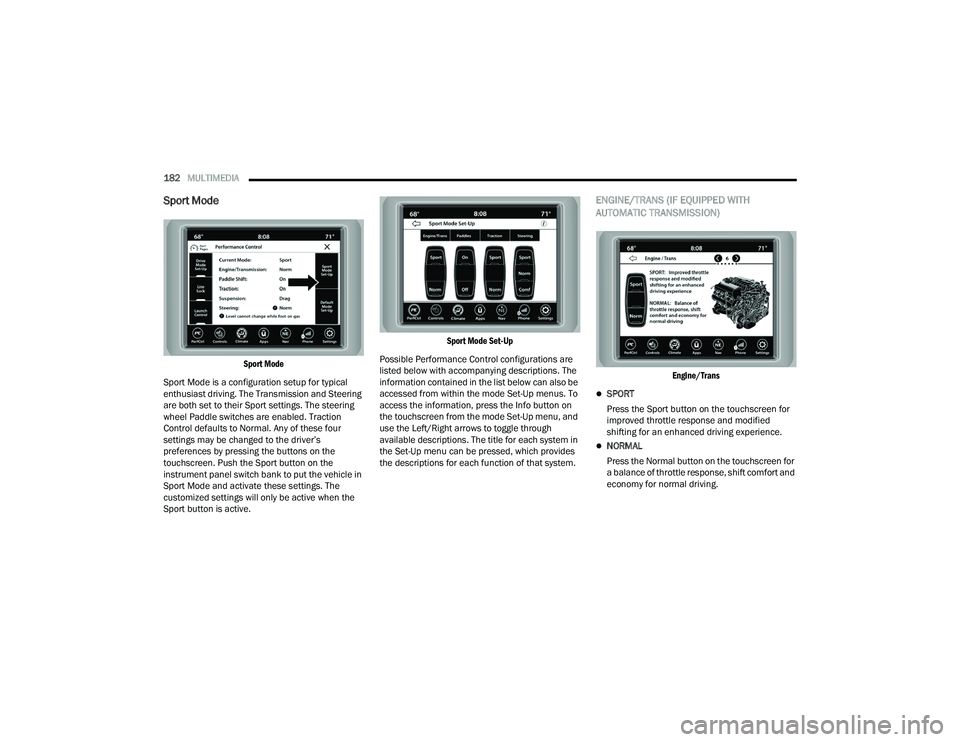
Sport Mode
Sport Mode
Sport Mode is a configuration setup for typical
enthusiast driving. The Transmission and Steering
are both set to their Sport settings. The steering
wheel Paddle switches are enabled. Traction
Control defaults to Normal. Any of these four
settings may be changed to the driver’s
preferences by pressing the buttons on the
touchscreen. Push the Sport button on the
instrument panel switch bank to put the vehicle in
Sport Mode and activate these settings. The
customized settings will only be active when the
Sport button is active.
Sport Mode Set-Up
Possible Performance Control configurations are
listed below with accompanying descriptions. The
information contained in the list below can also be
accessed from within the mode Set-Up menus. To
access the information, press the Info button on
the touchscreen from the mode Set-Up menu, and
use the Left/Right arrows to toggle through
available descriptions. The title for each system in
the Set-Up menu can be pressed, which provides
the descriptions for each function of that system.
ENGINE/TRANS (IF EQUIPPED WITH
AUTOMATIC TRANSMISSION)
Engine/Trans
SPORT
Press the Sport button on the touchscreen for
improved throttle response and modified
shifting for an enhanced driving experience.
NORMAL
Press the Normal button on the touchscreen for
a balance of throttle response, shift comfort and
economy for normal driving.
22_LA_OM_EN_USC_t.book Page 182
Page 185 of 336
MULTIMEDIA183
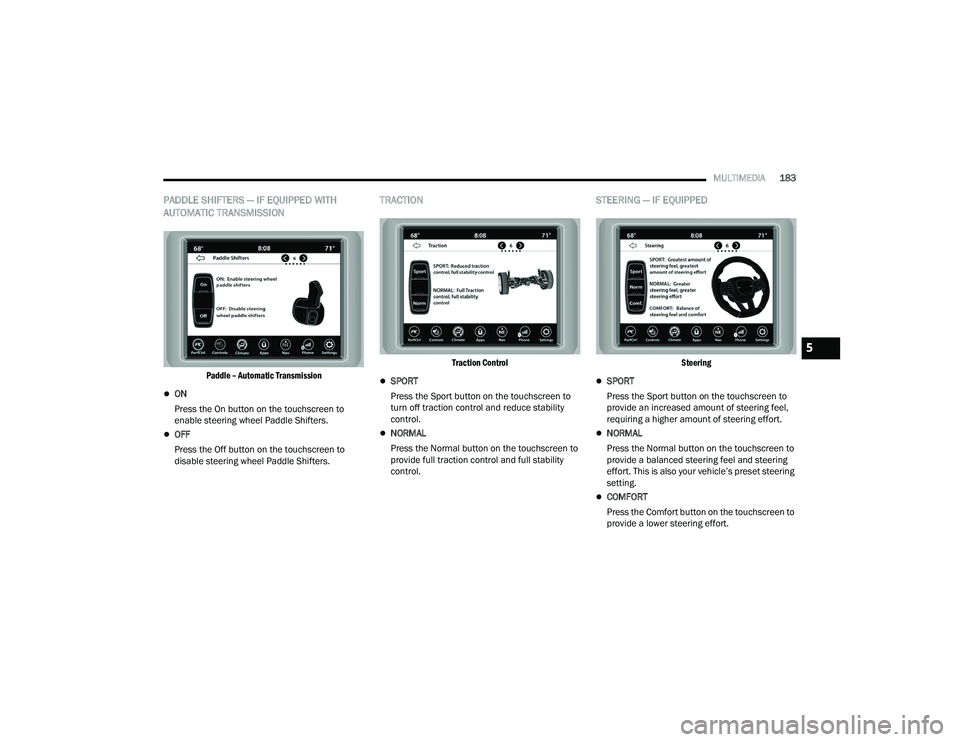
PADDLE SHIFTERS — IF EQUIPPED WITH
AUTOMATIC TRANSMISSION
Paddle – Automatic Transmission
ON
Press the On button on the touchscreen to
enable steering wheel Paddle Shifters.
OFF
Press the Off button on the touchscreen to
disable steering wheel Paddle Shifters.
TRACTION
Traction Control
SPORT
Press the Sport button on the touchscreen to
turn off traction control and reduce stability
control.
NORMAL
Press the Normal button on the touchscreen to
provide full traction control and full stability
control.
STEERING — IF EQUIPPED
Steering
SPORT
Press the Sport button on the touchscreen to
provide an increased amount of steering feel,
requiring a higher amount of steering effort.
NORMAL
Press the Normal button on the touchscreen to
provide a balanced steering feel and steering
effort. This is also your vehicle’s preset steering
setting.
COMFORT
Press the Comfort button on the touchscreen to
provide a lower steering effort.
5
22_LA_OM_EN_USC_t.book Page 183