AUX DODGE CHALLENGER 2022 Owners Manual
[x] Cancel search | Manufacturer: DODGE, Model Year: 2022, Model line: CHALLENGER, Model: DODGE CHALLENGER 2022Pages: 336, PDF Size: 16.47 MB
Page 5 of 336
3
Programming HomeLink® To A
Miscellaneous Device ......................................42
Reprogramming A Single HomeLink®
Button ...............................................................43
Canadian/Gate Operator Programming .........43
Security .............................................................44
Troubleshooting Tips ........................................44
EXTERIOR LIGHTS.................................................. 44
Headlight Switch...............................................44
Multifunction Lever .........................................45
Daytime Running Lights (DRLs) —
If Equipped........................................................45
High/Low Beam Switch ...................................45
Automatic High Beam Headlamp
Control — If Equipped ......................................45
Flash-To-Pass ..................................................46
Automatic Headlights ......................................46
Parking Lights ..................................................46
Automatic Headlights With Wipers..................46
Headlight Time Delay .......................................47
Lights-On Reminder..........................................47
Fog Lights — If Equipped ..................................47
Turn Signals ......................................................47
Lane Change Assist — If Equipped ..................47
INTERIOR LIGHTS ................................................. 48
Front Map/Reading Lights ..............................48
Ambient Light — If Equipped ............................48
Dimmer Controls .............................................49
Illuminated Entry .............................................49 WINDSHIELD WIPERS AND WASHERS............... 50
Windshield Wiper Operation ............................50
Rain Sensing Wipers — If Equipped ................51
CLIMATE CONTROLS .............................................51
Automatic Climate Control Descriptions
And Functions ..................................................51
Automatic Temperature Control (ATC) ...........54
Climate Voice Commands................................55
Operating Tips .................................................55
INTERIOR STORAGE AND EQUIPMENT ............... 56
Storage..............................................................56
Illuminated Cupholders — If Equipped............57
USB/AUX Control .............................................57
Electrical Power Outlets ..................................57
WINDOWS ..............................................................59
Power Window Controls ...................................59
Wind Buffeting ..................................................60
POWER SUNROOF — IF EQUIPPED ...................... 60
Opening And Closing The Sunroof...................61
Pinch Protect Feature — If Equipped ..............61
Sunshade Operation ........................................61
Sunroof Maintenance ......................................61
Ignition Off Operation.......................................61
HOOD .......................................................................62
Opening The Hood............................................62
Closing The Hood .............................................62
TRUNK......................................................................62
Opening The Trunk ...........................................62
Closing The Trunk.............................................63
Trunk Safety .....................................................63
GETTING TO KNOW YOUR
INSTRUMENT PANEL
INSTRUMENT CLUSTER ........................................ 64
Instrument Cluster Descriptions ..................... 65
INSTRUMENT CLUSTER DISPLAY ........................ 65
Location And Controls...................................... 66
Engine Oil Life Reset ....................................... 67
Performance Shift Indicator
(PSI) — If Equipped ........................................... 68
Instrument Cluster Display Selectable
Menu Items ...................................................... 68
Battery Saver On/Battery Saver Mode
Message — Electrical Load Reduction
Actions — If Equipped ..................................... 72
WARNING LIGHTS AND MESSAGES ................... 73
Red Warning Lights ..........................................73
Yellow Warning Lights ...................................... 76
Yellow Indicator Lights ..................................... 79
Green Indicator Lights ..................................... 79
White Indicator Lights ...................................... 80
Blue Indicator Lights ........................................ 80
ONBOARD DIAGNOSTIC SYSTEM — OBD II ........ 80
Onboard Diagnostic System
(OBD II) Cybersecurity ...................................... 80
EMISSIONS INSPECTION AND MAINTENANCE
PROGRAMS .......................................................... 81
22_LA_OM_EN_USC_t.book Page 3
Page 7 of 336
5
MULTIMEDIA
UCONNECT SYSTEMS ......................................... 122
CYBERSECURITY ................................................. 122
UCONNECT SETTINGS ........................................ 123Customer Programmable Features .............. 123
UCONNECT INTRODUCTION................................ 141
System Overview ........................................... 141Drag & Drop Menu Bar ................................. 143Safety And General Information ................... 143
UCONNECT MODES ............................................. 144
Steering Wheel Audio Controls ..................... 144
Radio Mode .................................................. 145
Media Mode .................................................. 154
Phone Mode ................................................. 156
ANDROID AUTO™ & APPLE CARPLAY® —
IF EQUIPPED ........................................................ 167
Android Auto™ .............................................. 167Apple CarPlay®.............................................. 169Android Auto™ And Apple CarPlay®
Tips And Tricks............................................... 171
PERFORMANCE PAGES ...................................... 171
Home .............................................................. 172
Timers ............................................................ 174
Gauges ........................................................... 176G-Force ........................................................... 177Engine ............................................................ 178
Dynamometer (Dyno) .................................... 178 DODGE DRIVE MODES — IF EQUIPPED ............ 179
Performance Control — If Equipped ............. 179
RADIO OPERATION AND MOBILE
PHONES ............................................................... 184
Regulatory And Safety Information .............. 184
SAFETY
SAFETY FEATURES .............................................. 185 Anti-Lock Brake System (ABS) ..................... 185
Electronic Brake Control (EBC) System ...... 186
AUXILIARY DRIVING SYSTEMS.......................... 191
Blind Spot Monitoring (BSM) —
If Equipped..................................................... 191Forward Collision Warning (FCW)
Operation — If Equipped ............................... 194
Tire Pressure Monitoring System (TPMS) .... 196
OCCUPANT RESTRAINT SYSTEMS ................... 200
Occupant Restraint Systems Features ....... 200
Important Safety Precautions ...................... 200Seat Belt Systems ........................................ 201Supplemental Restraint Systems (SRS) ...... 207Child Restraints ............................................ 216 SAFETY TIPS ........................................................ 230
Transporting Passengers.............................. 230
Transporting Pets ....................................... 230
Safety Checks You Should Make
Inside The Vehicle ........................................ 230
Periodic Safety Checks You Should
Make Outside The Vehicle ............................ 231
Exhaust Gas................................................... 232
Carbon Monoxide Warnings ........................ 232
IN CASE OF EMERGENCY
HAZARD WARNING FLASHERS ........................ 233
ASSIST AND SOS MIRROR — IF EQUIPPED...... 233
JACKING AND TIRE CHANGING ......................... 237Preparations For Jacking ............................ 237
Jack Location/Spare Tire Stowage ............. 237
Jacking And Changing A Tire ....................... 238
TIRE SERVICE KIT — IF EQUIPPED ..................... 241
Tire Service Kit Storage ................................ 241Tire Service Kit Components And
Operation ....................................................... 242Tire Service Kit Usage Precautions .............. 242
Sealing A Tire With Tire Service Kit .............. 244
22_LA_OM_EN_USC_t.book Page 5
Page 59 of 336
GETTING TO KNOW YOUR VEHICLE57
ILLUMINATED CUPHOLDERS —
I
F EQUIPPED
The front cupholders are equipped with a light ring
that illuminates the cupholders for the front
passengers. The light ring is controlled by the
dimmer control Ú page 49.
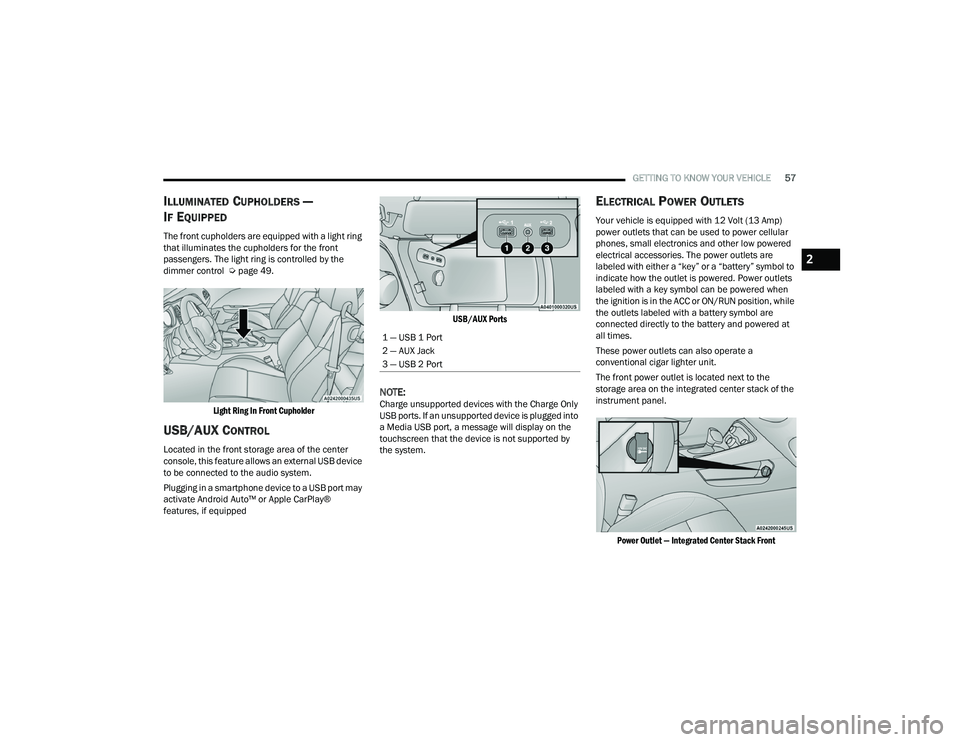
Light Ring In Front Cupholder
USB/AUX CONTROL
Located in the front storage area of the center
console, this feature allows an external USB device
to be connected to the audio system.
Plugging in a smartphone device to a USB port may
activate Android Auto™ or Apple CarPlay®
features, if equipped
USB/AUX Ports
NOTE:Charge unsupported devices with the Charge Only
USB ports. If an unsupported device is plugged into
a Media USB port, a message will display on the
touchscreen that the device is not supported by
the system.
ELECTRICAL POWER OUTLETS
Your vehicle is equipped with 12 Volt (13 Amp)
power outlets that can be used to power cellular
phones, small electronics and other low powered
electrical accessories. The power outlets are
labeled with either a “key” or a “battery” symbol to
indicate how the outlet is powered. Power outlets
labeled with a key symbol can be powered when
the ignition is in the ACC or ON/RUN position, while
the outlets labeled with a battery symbol are
connected directly to the battery and powered at
all times.
These power outlets can also operate a
conventional cigar lighter unit.
The front power outlet is located next to the
storage area on the integrated center stack of the
instrument panel.
Power Outlet — Integrated Center Stack Front
1 — USB 1 Port
2 — AUX Jack
3 — USB 2 Port
2
22_LA_OM_EN_USC_t.book Page 57
Page 138 of 336
136MULTIMEDIA
Audio
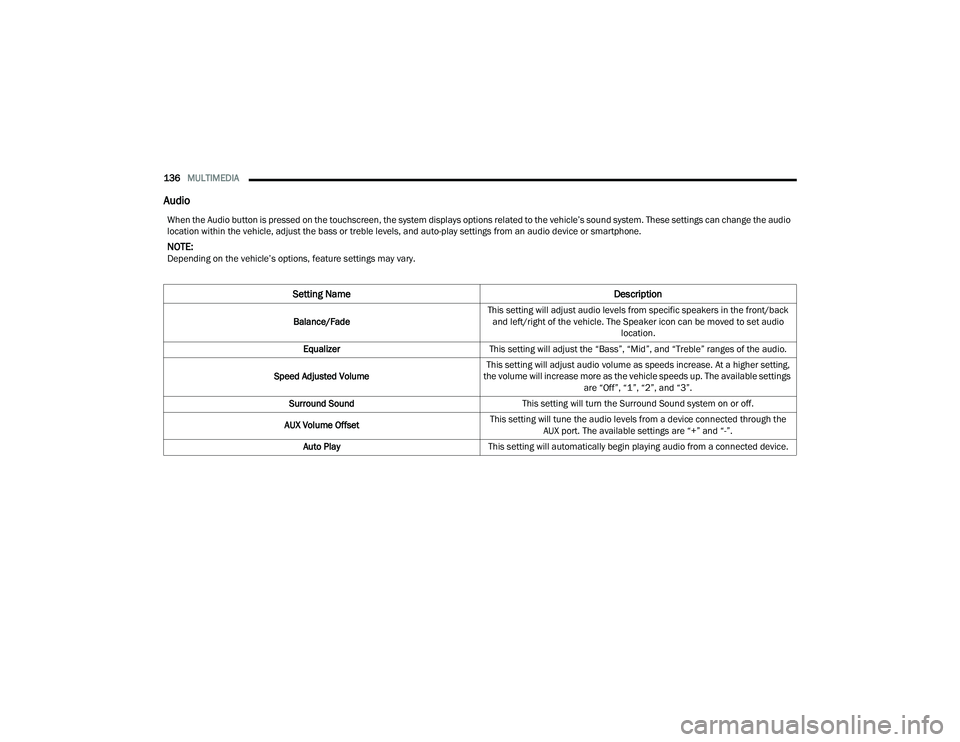
When the Audio button is pressed on the touchscreen, the system displays options related to the vehicle’s sound system. These settings can change the audio
location within the vehicle, adjust the bass or treble levels, and auto-play settings from an audio device or smartphone.
NOTE:Depending on the vehicle’s options, feature settings may vary.
Setting Name Description
Balance/FadeThis setting will adjust audio levels from specific speakers in the front/back
and left/right of the vehicle. The Speaker icon can be moved to set audio location.
Equalizer This setting will adjust the “Bass”, “Mid”, and “Treble” ranges of the audio.
Speed Adjusted Volume This setting will adjust audio volume as speeds increase. At a higher setting,
the volume will increase more as the vehicle speeds up. The available settings are “Off”, “1”, “2”, and “3”.
Surround Sound This setting will turn the Surround Sound system on or off.
AUX Volume Offset This setting will tune the audio levels from a device connected through the
AUX port. The available settings are “+” and “-”.
Auto Play This setting will automatically begin playing audio from a connected device.
22_LA_OM_EN_USC_t.book Page 136
Page 147 of 336
MULTIMEDIA145
Radio Operation
Pushing the top of the switch will Seek Up for the
next available station and pushing the bottom of
the switch will Seek Down for the next available
station.
The button located in the center of the left-hand
control will tune to the next preset station that you
have programmed in the radio presets.
Media Mode
Pushing the top of the switch skips to the next
track on the selected media (AUX/USB/
Bluetooth®). Pushing the switch up twice will go
forward two tracks. Pushing the bottom switch
goes to the beginning of the current track, or the
beginning of the previous track if it is within eight
seconds after the current track begins to play.
Double pressing the bottom button switch will skip
to the previous track if it is after eight seconds into
the current track.
RADIO MODE
Radio Controls
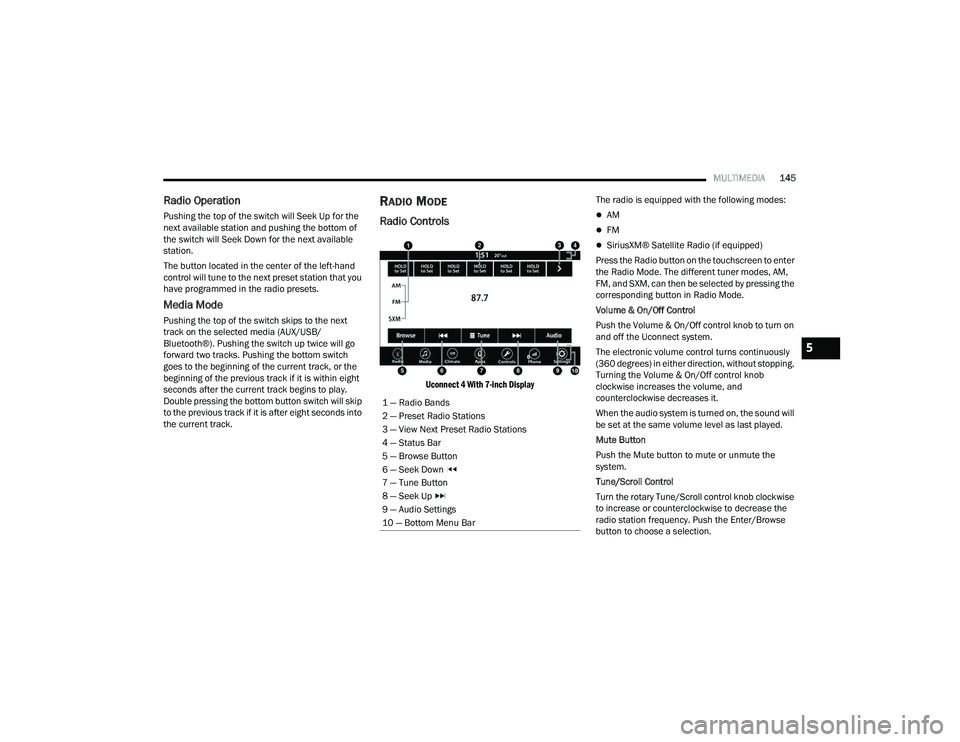
Uconnect 4 With 7-inch Display
The radio is equipped with the following modes:
AM
FM
SiriusXM® Satellite Radio (if equipped)
Press the Radio button on the touchscreen to enter
the Radio Mode. The different tuner modes, AM,
FM, and SXM, can then be selected by pressing the
corresponding button in Radio Mode.
Volume & On/Off Control
Push the Volume & On/Off control knob to turn on
and off the Uconnect system.
The electronic volume control turns continuously
(360 degrees) in either direction, without stopping.
Turning the Volume & On/Off control knob
clockwise increases the volume, and
counterclockwise decreases it.
When the audio system is turned on, the sound will
be set at the same volume level as last played.
Mute Button
Push the Mute button to mute or unmute the
system.
Tune/Scroll Control
Turn the rotary Tune/Scroll control knob clockwise
to increase or counterclockwise to decrease the
radio station frequency. Push the Enter/Browse
button to choose a selection.
1 — Radio Bands
2 — Preset Radio Stations
3 — View Next Preset Radio Stations
4 — Status Bar
5 — Browse Button
6 — Seek Down
7 — Tune Button
8 — Seek Up
9 — Audio Settings
10 — Bottom Menu Bar
5
22_LA_OM_EN_USC_t.book Page 145
Page 155 of 336
MULTIMEDIA153
Audio Setting Description
Balance/FadePress the Balance/Fade button on the touchscreen to balance audio between
the front speakers or fade the audio between the rear and front speakers.
Press the Front, Rear, Left or Right button or press and drag the red Speaker icon to adjust the Balance/Fade.
Equalizer Press the + or – button or press and drag the level bar to increase or decrease
each of the equalizer bands. The level value, which spans between plus or minus nine, is displayed at the top of each of the bands.
Speed Adjusted Volume The Speed Adjusted Volume is adjusted by selecting from “Off”, “1”, “2”, and
“3”. This alters the automatic adjustment of the audio volume with variation to vehicle speed. Volume increases automatically as speed increases to compensate for normal road noise.
Surround Sound — If Equipped When Surround Sound is on, you can hear audio coming from every direction
as in a movie theatre or home theatre system.
Loudness — If Equipped When Loudness is on, the sound quality at lower volumes improves.
AUX Volume Offset The AUX Volume Offset is adjusted by pressing + and – buttons. This alters the
AUX input audio volume. The level value, which spans between plus or minus three, is displayed above the adjustment bar.
Auto Play — If Equipped The Auto Play feature begins playing music as soon as a USB Media device is
connected to one of the vehicle’s Media USB ports, when it is turned on. Press “Off” to turn the setting off.
Radio Off With Door — If Equipped The Radio Off With Door feature, when activated, keeps the radio on until the
driver or passenger door is opened or until the Radio Off Delay selected time has expired.
5
22_LA_OM_EN_USC_t.book Page 153
Page 156 of 336
154MULTIMEDIA
MEDIA MODE
Operating Media Mode
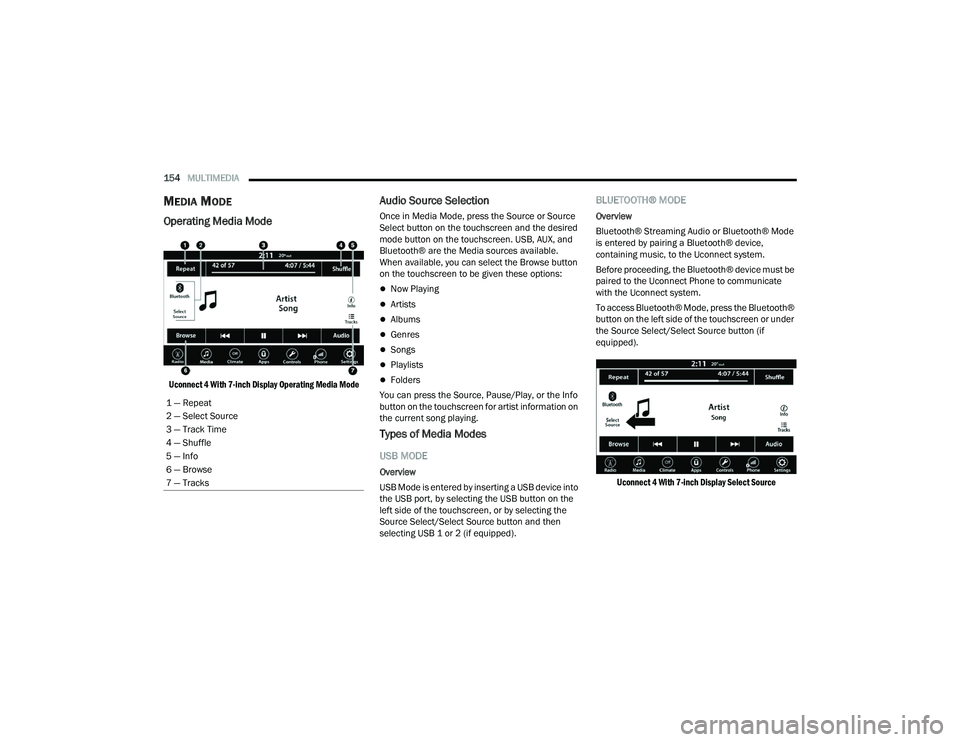
Uconnect 4 With 7-inch Display Operating Media Mode
Audio Source Selection
Once in Media Mode, press the Source or Source
Select button on the touchscreen and the desired
mode button on the touchscreen. USB, AUX, and
Bluetooth® are the Media sources available.
When available, you can select the Browse button
on the touchscreen to be given these options:
Now Playing
Artists
Albums
Genres
Songs
Playlists
Folders
You can press the Source, Pause/Play, or the Info
button on the touchscreen for artist information on
the current song playing.
Types of Media Modes
USB MODE
Overview
USB Mode is entered by inserting a USB device into
the USB port, by selecting the USB button on the
left side of the touchscreen, or by selecting the
Source Select/Select Source button and then
selecting USB 1 or 2 (if equipped).
BLUETOOTH® MODE
Overview
Bluetooth® Streaming Audio or Bluetooth® Mode
is entered by pairing a Bluetooth® device,
containing music, to the Uconnect system.
Before proceeding, the Bluetooth® device must be
paired to the Uconnect Phone to communicate
with the Uconnect system.
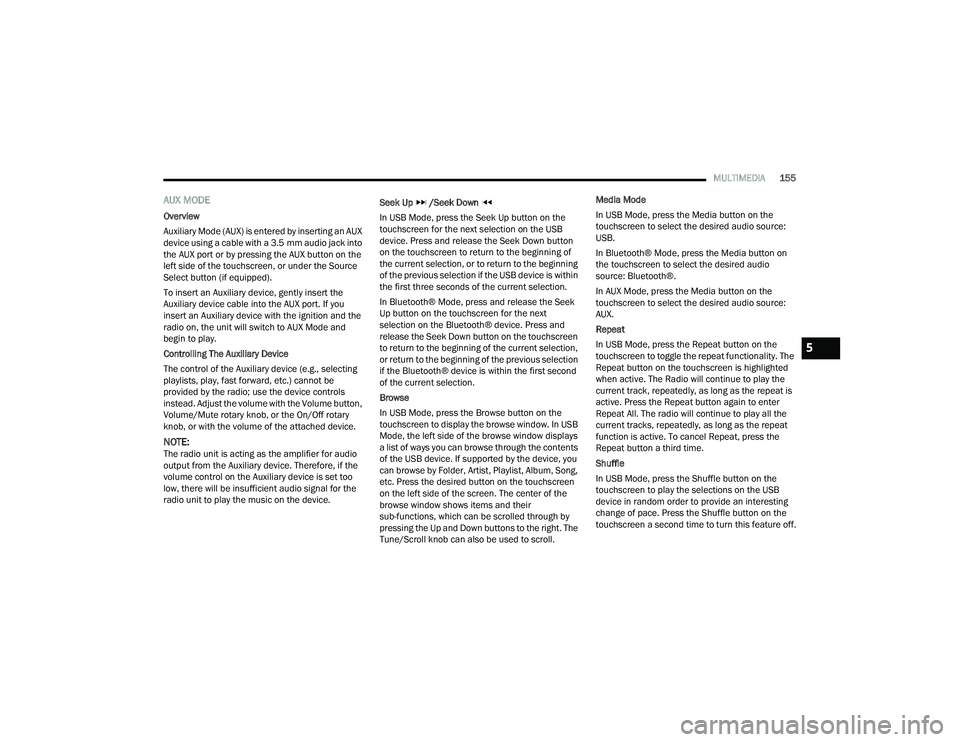
To access Bluetooth® Mode, press the Bluetooth®
button on the left side of the touchscreen or under
the Source Select/Select Source button (if
equipped).
Uconnect 4 With 7-inch Display Select Source
1 — Repeat
2 — Select Source
3 — Track Time
4 — Shuffle
5 — Info
6 — Browse
7 — Tracks
22_LA_OM_EN_USC_t.book Page 154
Page 157 of 336
MULTIMEDIA155
AUX MODE
Overview
Auxiliary Mode (AUX) is entered by inserting an AUX
device using a cable with a 3.5 mm audio jack into
the AUX port or by pressing the AUX button on the
left side of the touchscreen, or under the Source
Select button (if equipped).
To insert an Auxiliary device, gently insert the
Auxiliary device cable into the AUX port. If you
insert an Auxiliary device with the ignition and the
radio on, the unit will switch to AUX Mode and
begin to play.
Controlling The Auxiliary Device
The control of the Auxiliary device (e.g., selecting
playlists, play, fast forward, etc.) cannot be
provided by the radio; use the device controls
instead. Adjust the volume with the Volume button,
Volume/Mute rotary knob, or the On/Off rotary
knob, or with the volume of the attached device.
NOTE:The radio unit is acting as the amplifier for audio
output from the Auxiliary device. Therefore, if the
volume control on the Auxiliary device is set too
low, there will be insufficient audio signal for the
radio unit to play the music on the device. Seek Up
/Seek Down
In USB Mode, press the Seek Up button on the
touchscreen for the next selection on the USB
device. Press and release the Seek Down button
on the touchscreen to return to the beginning of
the current selection, or to return to the beginning
of the previous selection if the USB device is within
the first three seconds of the current selection.
In Bluetooth® Mode, press and release the Seek
Up button on the touchscreen for the next
selection on the Bluetooth® device. Press and
release the Seek Down button on the touchscreen
to return to the beginning of the current selection,
or return to the beginning of the previous selection
if the Bluetooth® device is within the first second
of the current selection.
Browse
In USB Mode, press the Browse button on the
touchscreen to display the browse window. In USB
Mode, the left side of the browse window displays
a list of ways you can browse through the contents
of the USB device. If supported by the device, you
can browse by Folder, Artist, Playlist, Album, Song,
etc. Press the desired button on the touchscreen
on the left side of the screen. The center of the
browse window shows items and their
sub-functions, which can be scrolled through by
pressing the Up and Down buttons to the right. The
Tune/Scroll knob can also be used to scroll. Media Mode
In USB Mode, press the Media button on the
touchscreen to select the desired audio source:
USB.
In Bluetooth® Mode, press the Media button on
the touchscreen to select the desired audio
source: Bluetooth®.
In AUX Mode, press the Media button on the
touchscreen to select the desired audio source:
AUX.
Repeat
In USB Mode, press the Repeat button on the
touchscreen to toggle the repeat functionality. The
Repeat button on the touchscreen is highlighted
when active. The Radio will continue to play the
current track, repeatedly, as long as the repeat is
active. Press the Repeat button again to enter
Repeat All. The radio will continue to play all the
current tracks, repeatedly, as long as the repeat
function is active. To cancel Repeat, press the
Repeat button a third time.
Shuffle
In USB Mode, press the Shuffle button on the
touchscreen to play the selections on the USB
device in random order to provide an interesting
change of pace. Press the Shuffle button on the
touchscreen a second time to turn this feature off.
5
22_LA_OM_EN_USC_t.book Page 155
Page 158 of 336
156MULTIMEDIA
Audio
Audio settings can be accessed by pressing the
Audio button Ú page 145.
Info
In USB Mode, press the Info button on the
touchscreen to display the current track
information. Press the Info or X button on the
touchscreen a second time to cancel this feature.
Tracks
In USB Mode, press the Tracks button on the
touchscreen to display a pop-up with the Song List.
The song currently playing is indicated by an arrow
and lines above and below the song title. When in
the Tracks List screen you can rotate the Tune/
Scroll knob to highlight a track (indicated by the
line above and below the track name) and then
push the Enter/Browse knob to start playing that
track.
In Bluetooth® Mode, if the Bluetooth® device
supports this feature, press the Tracks button on
the touchscreen to display a pop-up with the Song
List. The currently playing song is indicated by a red
arrow and lines above and below the song title.
Pressing the Tracks button on the touchscreen
while the pop-up is displayed will close the pop-up.
MEDIA VOICE COMMANDS
Uconnect offers connections via USB, Bluetooth®,
and auxiliary (AUX) ports. Voice operation is only
available for connected USB and AUX devices.
Push the VR button located on the steering
wheel. After the beep, say one of the following
commands and follow the prompts to switch your
media source or choose an artist:
“ Change source to Bluetooth®”
“Change source to AUX”
“Change source to USB”
“Play artist Beethoven”; “ Play album Greatest
Hits”; “ Play song Moonlight Sonata”; “ Play genre
Classical”
Did You Know: Press the Browse button on the
touchscreen to see all of the music on your USB
device. Your Voice Command must match exactly
how the artist, album, song, and genre information
is displayed.
PHONE MODE
Overview
Uconnect Phone is a voice-activated, hands-free,
in-vehicle communications system. It allows you to
dial a phone number with your mobile phone. The feature supports the following:
Voice Activated Features
Hands-Free dialing via Voice (“Call John Smith
Mobile” or “Dial 248-555-1212”).
Hands-Free text-to-speech listening of your
incoming SMS messages.
Hands-Free Text Message Replying: Forward
one of 18 predefined SMS messages to
incoming calls/text messages.
Redialing last dialed numbers (“Redial”).
Calling Back the last incoming call number
(“Call Back”).
Viewing call logs on screen (“Show Incoming
Calls,” “Show Outgoing Calls,” “Show Missed
Calls,” or “Show Recent Calls”).
Searching Contacts phone number (“Search for
John Smith Mobile”).
Screen Activated Features
Dialing via Keypad using touchscreen.
Viewing and Calling contacts from Phonebooks
displayed on the touchscreen.
Setting Favorite Contact phone numbers so they
are easily accessible on the Main Phone screen.
Viewing and Calling contacts from Recent Call
logs.
22_LA_OM_EN_USC_t.book Page 156
Page 193 of 336
SAFETY191
AUXILIARY DRIVING SYSTEMS
BLIND SPOT MONITORING (BSM) —
I
F EQUIPPED
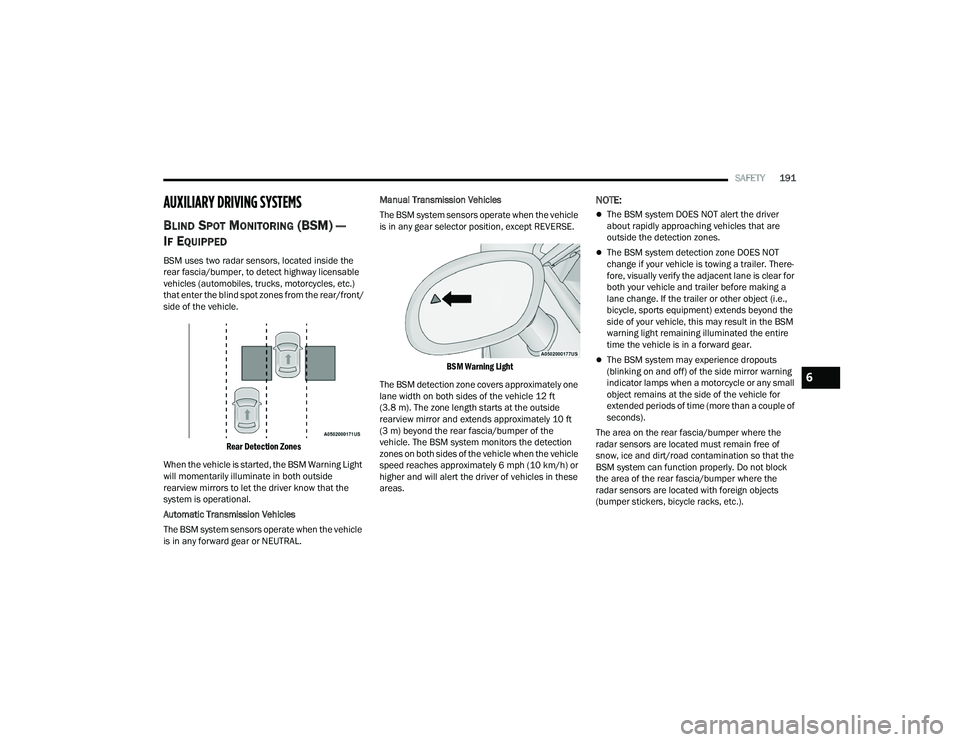
BSM uses two radar sensors, located inside the
rear fascia/bumper, to detect highway licensable
vehicles (automobiles, trucks, motorcycles, etc.)
that enter the blind spot zones from the rear/front/
side of the vehicle.
Rear Detection Zones
When the vehicle is started, the BSM Warning Light
will momentarily illuminate in both outside
rearview mirrors to let the driver know that the
system is operational.
Automatic Transmission Vehicles
The BSM system sensors operate when the vehicle
is in any forward gear or NEUTRAL. Manual Transmission Vehicles
The BSM system sensors operate when the vehicle
is in any gear selector position, except REVERSE.
BSM Warning Light
The BSM detection zone covers approximately one
lane width on both sides of the vehicle 12 ft
(3.8 m). The zone length starts at the outside
rearview mirror and extends approximately 10 ft
(3 m) beyond the rear fascia/bumper of the
vehicle. The BSM system monitors the detection
zones on both sides of the vehicle when the vehicle
speed reaches approximately 6 mph (10 km/h) or
higher and will alert the driver of vehicles in these
areas.
NOTE:
The BSM system DOES NOT alert the driver
about rapidly approaching vehicles that are
outside the detection zones.
The BSM system detection zone DOES NOT
change if your vehicle is towing a trailer. There -
fore, visually verify the adjacent lane is clear for
both your vehicle and trailer before making a
lane change. If the trailer or other object (i.e.,
bicycle, sports equipment) extends beyond the
side of your vehicle, this may result in the BSM
warning light remaining illuminated the entire
time the vehicle is in a forward gear.
The BSM system may experience dropouts
(blinking on and off) of the side mirror warning
indicator lamps when a motorcycle or any small
object remains at the side of the vehicle for
extended periods of time (more than a couple of
seconds).
The area on the rear fascia/bumper where the
radar sensors are located must remain free of
snow, ice and dirt/road contamination so that the
BSM system can function properly. Do not block
the area of the rear fascia/bumper where the
radar sensors are located with foreign objects
(bumper stickers, bicycle racks, etc.).
6
22_LA_OM_EN_USC_t.book Page 191