MPG DODGE CHALLENGER 2022 Owners Manual
[x] Cancel search | Manufacturer: DODGE, Model Year: 2022, Model line: CHALLENGER, Model: DODGE CHALLENGER 2022Pages: 336, PDF Size: 16.47 MB
Page 72 of 336
70GETTING TO KNOW YOUR INSTRUMENT PANEL
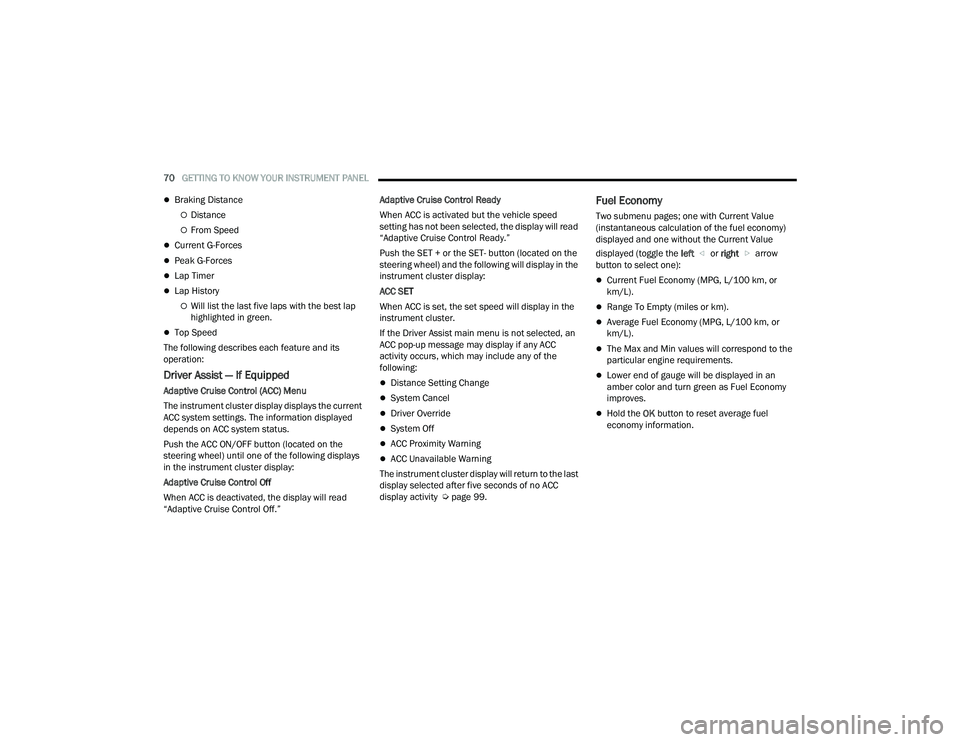
Braking Distance
Distance
From Speed
Current G-Forces
Peak G-Forces
Lap Timer
Lap History
Will list the last five laps with the best lap
highlighted in green.
Top Speed
The following describes each feature and its
operation:
Driver Assist — If Equipped
Adaptive Cruise Control (ACC) Menu
The instrument cluster display displays the current
ACC system settings. The information displayed
depends on ACC system status.
Push the ACC ON/OFF button (located on the
steering wheel) until one of the following displays
in the instrument cluster display:
Adaptive Cruise Control Off
When ACC is deactivated, the display will read
“Adaptive Cruise Control Off.” Adaptive Cruise Control Ready
When ACC is activated but the vehicle speed
setting has not been selected, the display will read
“Adaptive Cruise Control Ready.”
Push the SET + or the SET- button (located on the
steering wheel) and the following will display in the
instrument cluster display:
ACC SET
When ACC is set, the set speed will display in the
instrument cluster.
If the Driver Assist main menu is not selected, an
ACC pop-up message may display if any ACC
activity occurs, which may include any of the
following:Distance Setting Change
System Cancel
Driver Override
System Off
ACC Proximity Warning
ACC Unavailable Warning
The instrument cluster display will return to the last
display selected after five seconds of no ACC
display activity Ú page 99.
Fuel Economy
Two submenu pages; one with Current Value
(instantaneous calculation of the fuel economy)
displayed and one without the Current Value
displayed (toggle the left or right arrow
button to select one):
Current Fuel Economy (MPG, L/100 km, or
km/L).
Range To Empty (miles or km).
Average Fuel Economy (MPG, L/100 km, or
km/L).
The Max and Min values will correspond to the
particular engine requirements.
Lower end of gauge will be displayed in an
amber color and turn green as Fuel Economy
improves.
Hold the OK button to reset average fuel
economy information.
22_LA_OM_EN_USC_t.book Page 70
Page 73 of 336
GETTING TO KNOW YOUR INSTRUMENT PANEL71
Trip Info
Push and release the up or down arrow
button until the Trip Menu item is displayed in the
instrument cluster display. Toggle the left
or right arrow button to select Trip A or Trip B.
The Trip information will display the following:
Distance – Shows the total distance (mi or km)
traveled for Trip A or Trip B since the last reset.
Average Fuel Economy – Shows the average
fuel economy (MPG, L/100km or km/L) of Trip A
or Trip B since the last reset.
Elapsed Time – Shows the total elapsed time of
travel since the last reset.
Hold the OK button to reset feature information.
Audio
This menu displays the Audio information of the
currently playing audio source (e.g. FM radio).
Messages
This feature shows the number of stored warning
messages, if any. Pushing the right or left
arrow button will allow you to scroll through the
stored messages.
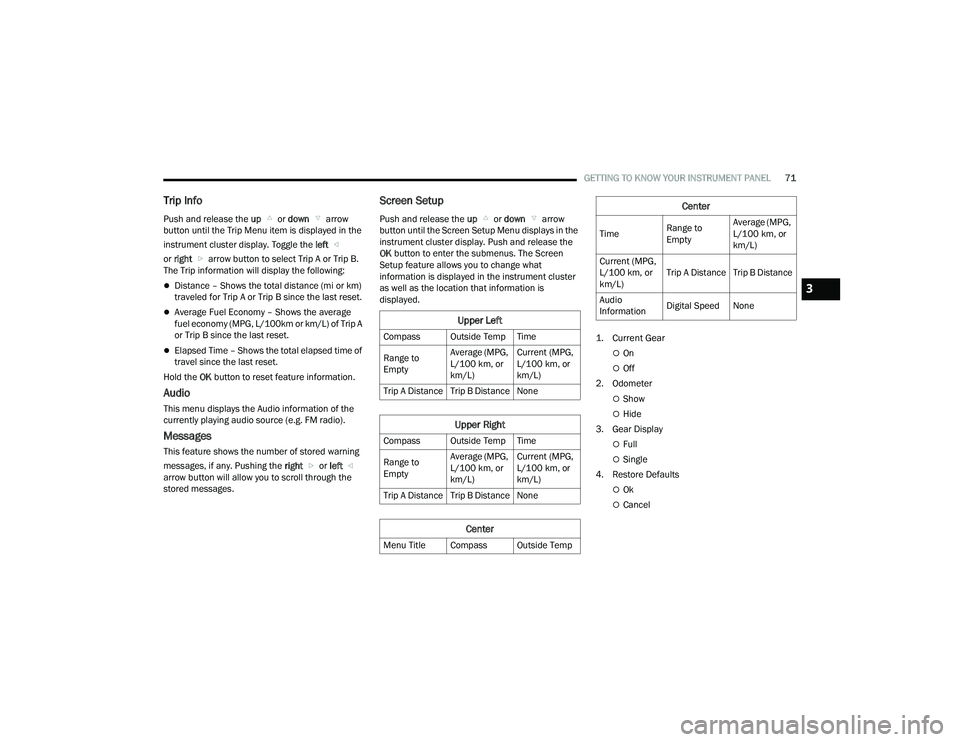
Screen Setup
Push and release the up or down arrow
button until the Screen Setup Menu displays in the
instrument cluster display. Push and release the
OK button to enter the submenus. The Screen
Setup feature allows you to change what
information is displayed in the instrument cluster
as well as the location that information is
displayed.
1. Current Gear
On
Off
2. Odometer
Show
Hide
3. Gear Display
Full
Single
4. Restore Defaults
Ok
Cancel
Upper Left
Compass Outside Temp Time
Range to
Empty Average (MPG,
L/100 km, or
km/L)Current (MPG,
L/100 km, or
km/L)
Trip A Distance Trip B Distance None
Upper Right
Compass Outside Temp Time
Range to
Empty Average (MPG,
L/100 km, or
km/L)Current (MPG,
L/100 km, or
km/L)
Trip A Distance Trip B Distance None
Center
Menu Title Compass Outside Temp
Time Range to
EmptyAverage (MPG,
L/100 km, or
km/L)
Current (MPG,
L/100 km, or
km/L) Trip A Distance Trip B Distance
Audio
Information Digital Speed None
Center
3
22_LA_OM_EN_USC_t.book Page 71
Page 127 of 336
MULTIMEDIA125
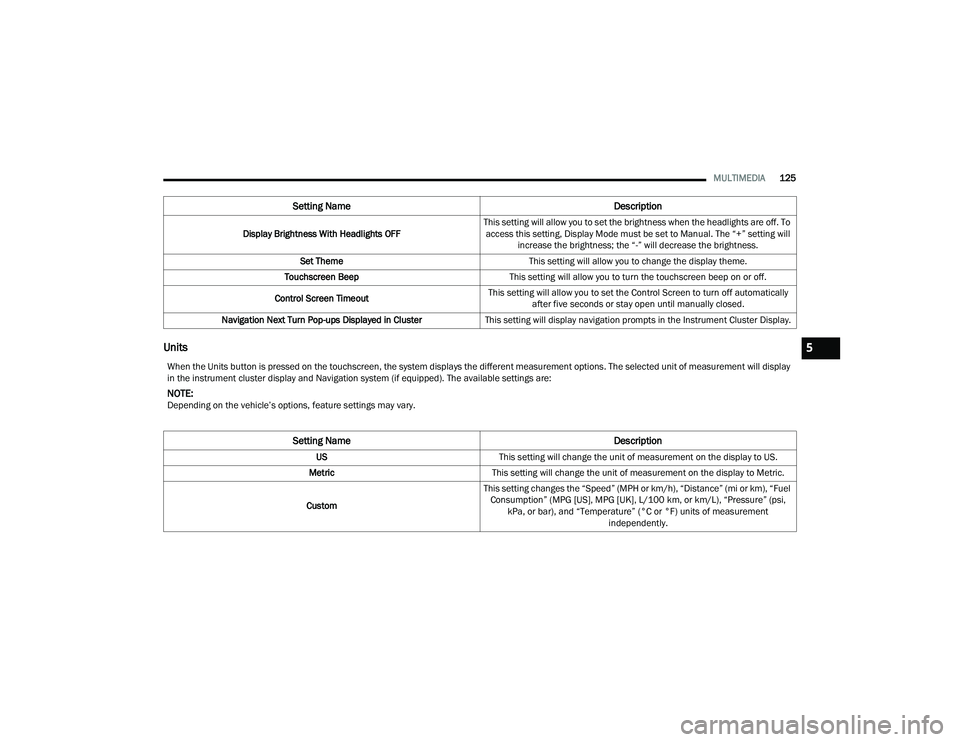
Units
Display Brightness With Headlights OFF This setting will allow you to set the brightness when the headlights are off. To
access this setting, Display Mode must be set to Manual. The “+” setting will increase the brightness; the “-” will decrease the brightness.
Set Theme This setting will allow you to change the display theme.
Touchscreen Beep This setting will allow you to turn the touchscreen beep on or off.
Control Screen Timeout This setting will allow you to set the Control Screen to turn off automatically
after five seconds or stay open until manually closed.
Navigation Next Turn Pop-ups Displayed in Cluster This setting will display navigation prompts in the Instrument Cluster Display.
Setting Name Description
When the Units button is pressed on the touchscreen, the system displays the different measurement options. The selected unit of measurement will display
in the instrument cluster display and Navigation system (if equipped). The available settings are:
NOTE:Depending on the vehicle’s options, feature settings may vary.
Setting NameDescription
USThis setting will change the unit of measurement on the display to US.
Metric This setting will change the unit of measurement on the display to Metric.
Custom This setting changes the “Speed” (MPH or km/h), “Distance” (mi or km), “Fuel
Consumption” (MPG [US], MPG [UK], L/100 km, or km/L), “Pressure” (psi, kPa, or bar), and “Temperature” (°C or °F) units of measurement independently.
5
22_LA_OM_EN_USC_t.book Page 125