USB port DODGE CHALLENGER 2023 User Guide
[x] Cancel search | Manufacturer: DODGE, Model Year: 2023, Model line: CHALLENGER, Model: DODGE CHALLENGER 2023Pages: 300, PDF Size: 12.82 MB
Page 148 of 300
146MULTIMEDIA
APPLE CARPLAY®
Use this QR code to access your digital
experience.
Uconnect works seamlessly with Apple
CarPlay®, the smarter, more secure
way to use your iPhone® in the car, and
stay focused on the road. Use your
Uconnect Touchscreen display, the
vehicle's knobs and controls, and your
voice with Siri to get access to Apple Music®, Maps,
Messages, and more.
NOTE:Feature availability depends on your carrier and mobile
phone manufacturer. Some Apple CarPlay® features may
or may not be available in every region and/or language.
To use Apple CarPlay®, make sure you are using iPhone®
5 or later, have Siri enabled in Settings, ensure your
iPhone® is unlocked for the very first connection only, and
then use the following procedure:
1. Connect your iPhone® to one of the media USB
ports in your vehicle.
NOTE:Be sure to use the factory-provided Lightning cable that
came with your phone, as aftermarket cables may not
work.
2. Once the device is connected and recognized, the Phone icon on the drag & drop menu bar changes to
the Apple CarPlay® Icon.
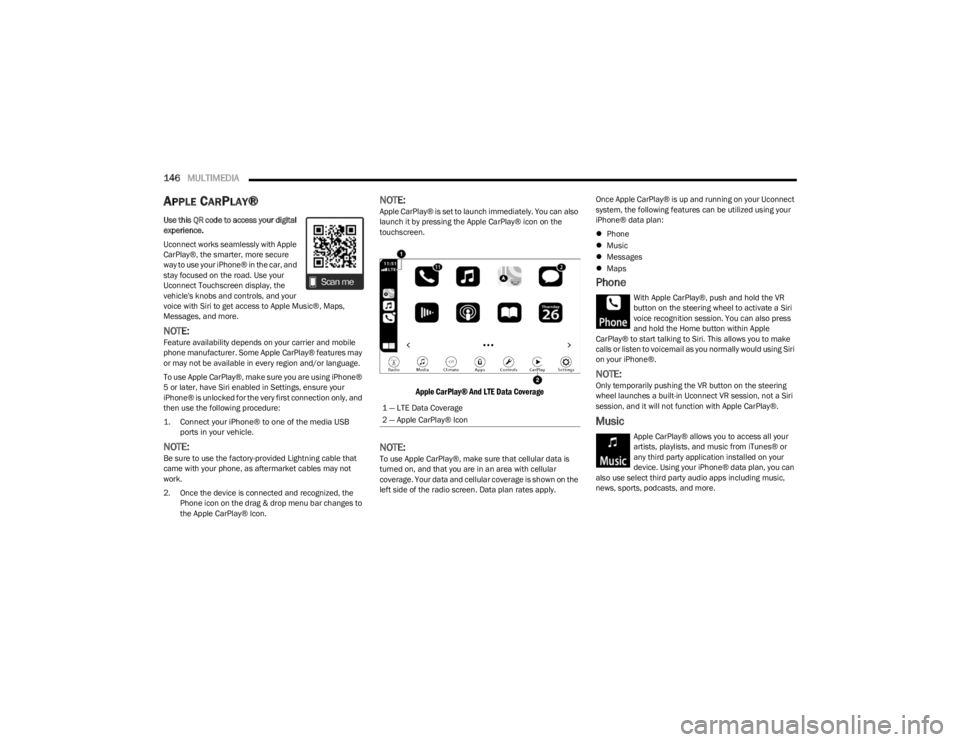
NOTE:Apple CarPlay® is set to launch immediately. You can also
launch it by pressing the Apple CarPlay® icon on the
touchscreen.
Apple CarPlay® And LTE Data Coverage
NOTE:To use Apple CarPlay®, make sure that cellular data is
turned on, and that you are in an area with cellular
coverage. Your data and cellular coverage is shown on the
left side of the radio screen. Data plan rates apply. Once Apple CarPlay® is up and running on your Uconnect
system, the following features can be utilized using your
iPhone® data plan:
Phone
Music
Messages
Maps
Phone
With Apple CarPlay®, push and hold the VR
button on the steering wheel to activate a Siri
voice recognition session. You can also press
and hold the Home button within Apple
CarPlay® to start talking to Siri. This allows you to make
calls or listen to voicemail as you normally would using Siri
on your iPhone®.
NOTE:Only temporarily pushing the VR button on the steering
wheel launches a built-in Uconnect VR session, not a Siri
session, and it will not function with Apple CarPlay®.
Music
Apple CarPlay® allows you to access all your
artists, playlists, and music from iTunes® or
any third party application installed on your
device. Using your iPhone® data plan, you can
also use select third party audio apps including music,
news, sports, podcasts, and more.
1 — LTE Data Coverage
2 — Apple CarPlay® Icon
23_LA_OM_EN_USC_t.book Page 146
Page 149 of 300

MULTIMEDIA147
Messages
Push and hold the VR button on the steering
wheel to activate a Siri voice recognition
session. Apple CarPlay® allows you to use Siri
to send or reply to text messages. Siri can also
read incoming text messages, but drivers will not be able
to read messages, as everything is done via voice.
Maps
Push and hold the VR button on the steering
wheel until the beep or tap the Microphone
icon to ask Apple® Siri to take you to a desired
destination by voice. You can also touch the
Navigation icon in Apple CarPlay® to access
Apple® Maps.
Apps
The Apple CarPlay® App plays all compatible apps that are
available to use, every time it is launched. You must have
the compatible app downloaded, and you must be signed
in to the app through your mobile device for it to work with
Apple CarPlay®.
Refer to http://www.apple.com/ios/carplay/ (US) or
https://www.apple.com/ca/ios/carplay/ (Canada) to see
the latest list of available apps for Apple CarPlay®.
Apple CarPlay® Voice Command
NOTE:Feature availability depends on your carrier and mobile
phone maker. Some Apple CarPlay® features may not be
available in every region and/or language.
Apple CarPlay® allows you to use your voice to interact
with Siri through your vehicle’s voice recognition system,
and use your smartphone’s data plan to project your
iPhone® and a number of its apps onto your Uconnect
touchscreen. Connect your iPhone® 5 or higher to one of
the media USB ports, using the factory-provided Lightning
cable, and press the new Apple CarPlay® icon that
replaces your Phone icon on the main menu bar to begin
Apple CarPlay®. Push and hold the VR button on the
steering wheel, or press and hold the Home button within
Apple CarPlay®, to activate Siri, which recognizes natural
voice commands to use a list of your iPhone® features:
Phone
Music
Messages
Maps — If Equipped
Additional Apps — If Equipped
NOTE:Apple CarPlay® is a trademark of Apple® Inc. iPhone® is
a trademark of Apple® Inc., registered in the US and other
countries. Apple® terms of use and privacy statements
apply.
ANDROID AUTO™ AND APPLE
C
ARPLAY® TIPS AND TRICKS
Android Auto™ And Apple CarPlay® Automatic Bluetooth®
Pairing
After connecting to Android Auto™ or Apple CarPlay® for
the first time and undergoing the setup procedure, the
smartphone pairs to the Uconnect system via Bluetooth®
without any setup required every time it is within range, if
Bluetooth® is turned on.
NOTE:Apple CarPlay® uses a USB connection while Android
Auto™ uses both USB and Bluetooth® connections to
function. The connected device is unavailable to other
devices when connected using Android Auto™ or Apple
CarPlay®.
Multiple Devices Connecting To The Uconnect System —
If Equipped
It is possible to have multiple devices connected to the
Uconnect system. For example, if using Android Auto™/
Apple CarPlay®, the connected device will be used to
place hands-free phone calls or send hands-free text
messages. However, another device can also be paired to
the Uconnect system, via Bluetooth®, as an audio source,
so the passenger can stream music.
NOTE:Apple CarPlay® and Android Auto™ can only be launched
from the front and center console USB ports.
5
23_LA_OM_EN_USC_t.book Page 147
Page 153 of 300
MULTIMEDIA151
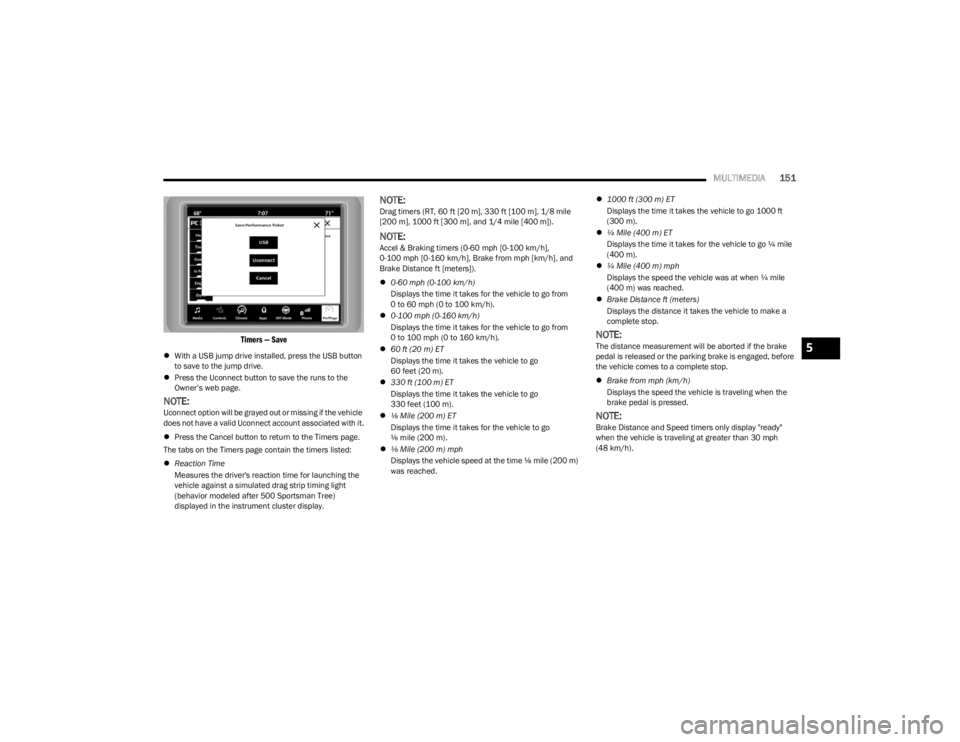
Timers — Save
With a USB jump drive installed, press the USB button
to save to the jump drive.
Press the Uconnect button to save the runs to the
Owner’s web page.
NOTE:Uconnect option will be grayed out or missing if the vehicle
does not have a valid Uconnect account associated with it.
Press the Cancel button to return to the Timers page.
The tabs on the Timers page contain the timers listed:
Reaction Time
Measures the driver's reaction time for launching the
vehicle against a simulated drag strip timing light
(behavior modeled after 500 Sportsman Tree)
displayed in the instrument cluster display.
NOTE:Drag timers (RT, 60 ft [20 m], 330 ft [100 m], 1/8 mile
[200 m], 1000 ft [300 m], and 1/4 mile [400 m]).
NOTE:Accel & Braking timers (0-60 mph [0-100 km/h],
0-100 mph [0-160 km/h], Brake from mph [km/h], and
Brake Distance ft [meters]).
0-60 mph (0-100 km/h)
Displays the time it takes for the vehicle to go from
0 to 60 mph (0 to 100 km/h).
0-100 mph (0-160 km/h)
Displays the time it takes for the vehicle to go from
0 to 100 mph (0 to 160 km/h).
60 ft (20 m) ET
Displays the time it takes the vehicle to go
60 feet (20 m).
330 ft (100 m) ET
Displays the time it takes the vehicle to go
330 feet (100 m).
⅛ Mile (200 m) ET
Displays the time it takes for the vehicle to go
⅛ mile (200 m).
⅛ Mile (200 m) mph
Displays the vehicle speed at the time ⅛ mile (200 m)
was reached.
1000 ft (300 m) ET
Displays the time it takes the vehicle to go 1000 ft
(300 m).
¼ Mile (400 m) ET
Displays the time it takes for the vehicle to go ¼ mile
(400 m).
¼ Mile (400 m) mph
Displays the speed the vehicle was at when ¼ mile
(400 m) was reached.
Brake Distance ft (meters)
Displays the distance it takes the vehicle to make a
complete stop.
NOTE:The distance measurement will be aborted if the brake
pedal is released or the parking brake is engaged, before
the vehicle comes to a complete stop.
Brake from mph (km/h)
Displays the speed the vehicle is traveling when the
brake pedal is pressed.
NOTE:Brake Distance and Speed timers only display "ready"
when the vehicle is traveling at greater than 30 mph
(48 km/h).
5
23_LA_OM_EN_USC_t.book Page 151
Page 248 of 300
246SERVICING AND MAINTENANCE
Rear Fuses
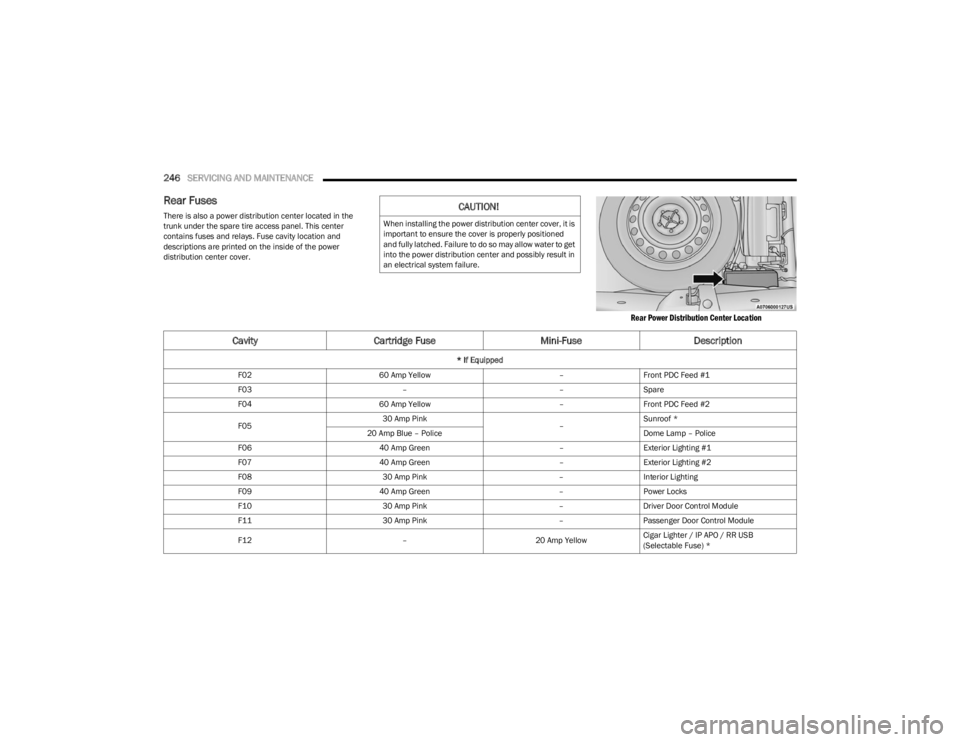
There is also a power distribution center located in the
trunk under the spare tire access panel. This center
contains fuses and relays. Fuse cavity location and
descriptions are printed on the inside of the power
distribution center cover.
Rear Power Distribution Center Location
CAUTION!
When installing the power distribution center cover, it is
important to ensure the cover is properly positioned
and fully latched. Failure to do so may allow water to get
into the power distribution center and possibly result in
an electrical system failure.
CavityCartridge Fuse Mini-FuseDescription
* If Equipped
F02 60 Amp Yellow –Front PDC Feed #1
F03 ––Spare
F04 60 Amp Yellow –Front PDC Feed #2
F05 30 Amp Pink
–Sunroof *
20 Amp Blue – Police Dome Lamp – Police
F06 40 Amp Green –Exterior Lighting #1
F07 40 Amp Green –Exterior Lighting #2
F08 30 Amp Pink –Interior Lighting
F09 40 Amp Green –Power Locks
F10 30 Amp Pink –Driver Door Control Module
F11 30 Amp Pink –Passenger Door Control Module
F12 –20 Amp YellowCigar Lighter / IP APO / RR USB
(Selectable Fuse) *
23_LA_OM_EN_USC_t.book Page 246