turn signal DODGE CHALLENGER 2023 User Guide
[x] Cancel search | Manufacturer: DODGE, Model Year: 2023, Model line: CHALLENGER, Model: DODGE CHALLENGER 2023Pages: 300, PDF Size: 12.82 MB
Page 44 of 300
42GETTING TO KNOW YOUR VEHICLE
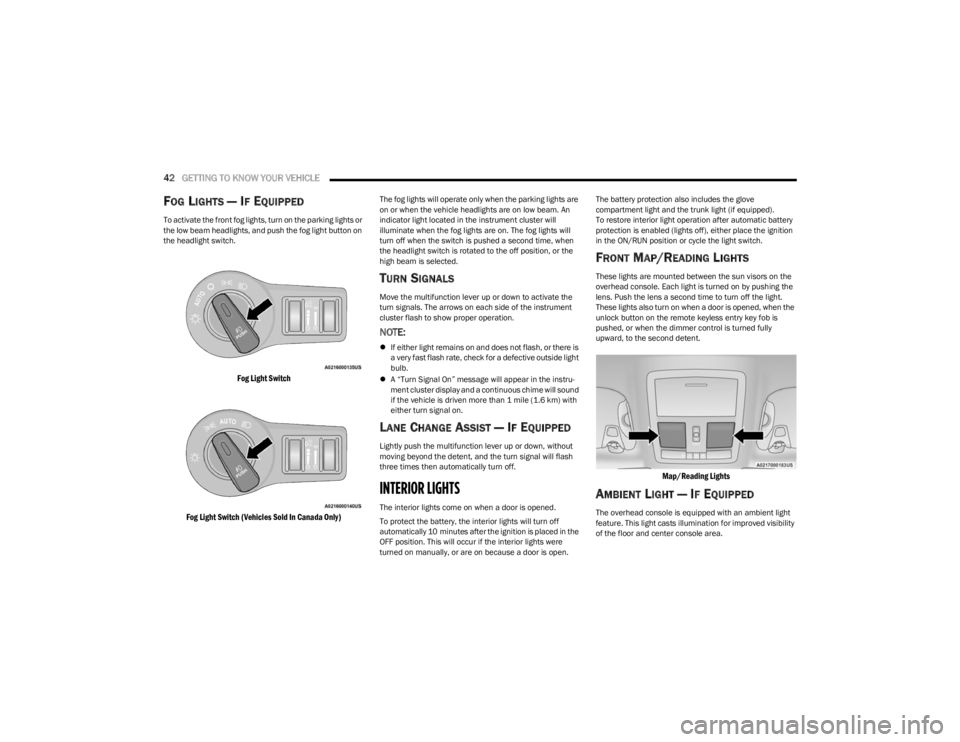
FOG LIGHTS — IF EQUIPPED
To activate the front fog lights, turn on the parking lights or
the low beam headlights, and push the fog light button on
the headlight switch.
Fog Light Switch
Fog Light Switch (Vehicles Sold In Canada Only)
The fog lights will operate only when the parking lights are
on or when the vehicle headlights are on low beam. An
indicator light located in the instrument cluster will
illuminate when the fog lights are on. The fog lights will
turn off when the switch is pushed a second time, when
the headlight switch is rotated to the off position, or the
high beam is selected.
TURN SIGNALS
Move the multifunction lever up or down to activate the
turn signals. The arrows on each side of the instrument
cluster flash to show proper operation.
NOTE:
If either light remains on and does not flash, or there is
a very fast flash rate, check for a defective outside light
bulb.
A “Turn Signal On” message will appear in the instru -
ment cluster display and a continuous chime will sound
if the vehicle is driven more than 1 mile (1.6 km) with
either turn signal on.
LANE CHANGE ASSIST — IF EQUIPPED
Lightly push the multifunction lever up or down, without
moving beyond the detent, and the turn signal will flash
three times then automatically turn off.
INTERIOR LIGHTS
The interior lights come on when a door is opened.
To protect the battery, the interior lights will turn off
automatically 10 minutes after the ignition is placed in the
OFF position. This will occur if the interior lights were
turned on manually, or are on because a door is open. The battery protection also includes the glove
compartment light and the trunk light (if equipped).
To restore interior light operation after automatic battery
protection is enabled (lights off), either place the ignition
in the ON/RUN position or cycle the light switch.
FRONT MAP/READING LIGHTS
These lights are mounted between the sun visors on the
overhead console. Each light is turned on by pushing the
lens. Push the lens a second time to turn off the light.
These lights also turn on when a door is opened, when the
unlock button on the remote keyless entry key fob is
pushed, or when the dimmer control is turned fully
upward, to the second detent.
Map/Reading Lights
AMBIENT LIGHT — IF EQUIPPED
The overhead console is equipped with an ambient light
feature. This light casts illumination for improved visibility
of the floor and center console area.
23_LA_OM_EN_USC_t.book Page 42
Page 65 of 300
GETTING TO KNOW YOUR INSTRUMENT PANEL63
NOTE:
The charging system is independent from load reduc -
tion. The charging system performs a diagnostic on the
charging system continuously.
If the Battery Charge Warning Light is on it may indicate
a problem with the charging system
Úpage 64.
The electrical loads that may be switched off (if equipped),
and vehicle functions which can be affected by load
reduction:
Heated Seat/Vented Seats/Heated Wheel
Heated/Cooled Cup Holders — If Equipped
Rear Defroster And Heated Mirrors
HVAC System
115 Volts AC Power Inverter System
Audio and Telematics System
Loss of the battery charge may indicate one or more of the
following conditions:
The charging system cannot deliver enough electrical
power to the vehicle system because the electrical
loads are larger than the capability of the charging
system. The charging system is still functioning prop -
erly.
Turning on all possible vehicle electrical loads
(e.g. HVAC to max settings, exterior and interior lights,
overloaded power outlets +12 Volts, 115 Volts AC, USB
ports) during certain driving conditions (city driving,
towing, frequent stopping).
Installing options like additional lights, upfitter elec -
trical accessories, audio systems, alarms and similar
devices.
Unusual driving cycles (short trips separated by long
parking periods).
The vehicle was parked for an extended period of time
(weeks, months).
The battery was recently replaced and was not charged
completely.
The battery was discharged by an electrical load left on
when the vehicle was parked.
The battery was used for an extended period with the
engine not running to supply radio, lights, chargers,
+12 Volts portable appliances like vacuum cleaners,
game consoles and similar devices.
What to do when an electrical load reduction action
message is present (“Battery Saver On” or “Battery Saver
Mode”)
During a trip:
Reduce power to unnecessary loads if possible:
Turn off redundant lights (interior or exterior)
Check what may be plugged in to power outlets
+12 Volts, 115 Volts AC, USB ports
Check HVAC settings (blower, temperature)
Check the audio settings (volume)
After a trip:
Check if any aftermarket equipment was installed
(additional lights, upfitter electrical accessories, audio
systems, alarms) and review specifications if any (load
and Ignition Off Draw currents).
Evaluate the latest driving cycles (distance, driving
time and parking time).
The vehicle should have service performed if the
message is still present during consecutive trips and
the evaluation of the vehicle and driving pattern did not
help to identify the cause.
WARNING LIGHTS AND MESSAGES
The warning/indicator lights will illuminate in the
instrument panel together with a dedicated message
and/or acoustic signal when applicable. These indications
are indicative and precautionary and as such must not be
considered as exhaustive and/or alternative to the
information contained in the Owner’s Manual, which you
are advised to read carefully in all cases. Always refer to
the information in this chapter in the event of a failure
indication. All active telltales will display first if applicable.
The system check menu may appear different based upon
equipment options and current vehicle status. Some
telltales are optional and may not appear.
RED WARNING LIGHTS
Air Bag Warning Light
This warning light will illuminate to indicate a
fault with the air bag, and will turn on for four to
eight seconds as a bulb check when the
ignition is placed in the ON/RUN or ACC/ON/
RUN position. This light will illuminate with a single chime
when a fault with the air bag has been detected, it will stay
on until the fault is cleared. If the light is either not on
during startup, stays on, or turns on while driving, have the
system inspected at an authorized dealer as soon as
possible.
3
23_LA_OM_EN_USC_t.book Page 63
Page 70 of 300
68GETTING TO KNOW YOUR INSTRUMENT PANEL
As an added safety feature, your vehicle has been
equipped with a TPMS that illuminates a low tire pressure
telltale when one or more of your tires is significantly
underinflated. Accordingly, when the low tire pressure
telltale illuminates, you should stop and check your tires
as soon as possible, and inflate them to the proper
pressure. Driving on a significantly underinflated tire
causes the tire to overheat and can lead to tire failure.
Underinflation also reduces fuel efficiency and tire tread
life, and may affect the vehicle’s handling and stopping
ability.
Please note that the TPMS is not a substitute for proper
tire maintenance, and it is the driver’s responsibility to
maintain correct tire pressure, even if underinflation has
not reached the level to trigger illumination of the TPMS
low tire pressure telltale.
Your vehicle has also been equipped with a TPMS
malfunction indicator to indicate when the system is not
operating properly. The TPMS malfunction indicator is
combined with the low tire pressure telltale. When the
system detects a malfunction, the telltale will flash for
approximately one minute and then remain continuously
illuminated. This sequence will continue upon subsequent
vehicle start-ups as long as the malfunction exists. When
the malfunction indicator is illuminated, the system may
not be able to detect or signal low tire pressure as
intended. TPMS malfunctions may occur for a variety of
reasons, including the installation of replacement or
alternate tires or wheels on the vehicle that prevent the
TPMS from functioning properly. Always check the TPMS malfunction telltale after
replacing one or more tires or wheels on your vehicle to
ensure that the replacement or alternate tires and wheels
allow the TPMS to continue to function properly.
YELLOW INDICATOR LIGHTS
Forward Collision Warning (FCW) OFF
Indicator Light — If Equipped
This indicator light illuminates to indicate that
Forward Collision Warning is off.
GREEN INDICATOR LIGHTS
Adaptive Cruise Control (ACC) Set Without
Target Vehicle Indicator Light —
If Equipped
This will display the distance setting for the ACC
system when the system is engaged
Úpage 85.
Adaptive Cruise Control (ACC) Set With
Target Vehicle Indicator Light —
If Equipped
This will display when the ACC is set and the
vehicle in front is detected Úpage 85.
Parking/Headlights On Indicator Light
This indicator light will illuminate when the
parking lights or headlights are turned on
Úpage 39.
Front Fog Indicator Light — If Equipped
This indicator light will illuminate when the
front fog lights are on Úpage 39.
CAUTION!
The TPMS has been optimized for the original
equipment tires and wheels. TPMS pressures and
warning have been established for the tire size
equipped on your vehicle. Undesirable system
operation or sensor damage may result when using
replacement equipment that is not of the same size,
type, and/or style. Aftermarket wheels can cause
sensor damage. Using aftermarket tire sealants may
cause the Tire Pressure Monitoring System (TPMS)
sensor to become inoperable. After using an
aftermarket tire sealant it is recommended that you
take your vehicle to an authorized dealer to have your
sensor function checked.
23_LA_OM_EN_USC_t.book Page 68
Page 71 of 300
GETTING TO KNOW YOUR INSTRUMENT PANEL69
Turn Signal Indicator Lights
When the left or right turn signal is activated,
the turn signal indicator will flash
independently and the corresponding exterior
turn signal lamps will flash. Turn signals can be
activated when the multifunction lever is moved down
(left) or up (right).
NOTE:
A continuous chime will sound if the vehicle is driven
more than 1 mile (1.6 km) with either turn signal on.
Check for an inoperative outside light bulb if either indi -
cator flashes at a rapid rate.
ECO Mode Indicator Light — If Equipped
This light will turn on when ECO mode is active.
Refer to the Drive modes Supplement for
further information.
Cruise Control Set Indicator Light —
If Equipped
This indicator light will illuminate when the
cruise control is set to the desired speed
Úpage 84.
Sport Mode Indicator Light — If Equipped
This light will turn on when Sport mode is
active.
Refer to the Drive Modes Supplement for
further information.
WHITE INDICATOR LIGHTS
Cruise Control Ready Indicator Light
This indicator light will illuminate when the
cruise control is ready, but not set Úpage 84.
Adaptive Cruise Control (ACC) Ready
Indicator Light — If Equipped
This light will turn on when ACC has been
turned on, but is not set Úpage 85.
BLUE INDICATOR LIGHTS
High Beam Indicator Light
This indicator light will illuminate to indicate
that the high beam headlights are on. With the
low beams activated, push the multifunction
lever forward (toward the front of the vehicle) to
turn on the high beams. Pull the multifunction lever
rearward (toward the rear of the vehicle) to turn off the
high beams. If the high beams are off, pull the lever toward
you for a temporary high beam on, "flash to pass"
scenario.
ONBOARD DIAGNOSTIC SYSTEM — OBD II
Your vehicle is equipped with a sophisticated Onboard
Diagnostic system called OBD II. This system monitors the
performance of the emissions, engine, and transmission
control systems. When these systems are operating
properly, your vehicle will provide excellent performance
and fuel economy, as well as engine emissions well within
current government regulations.
If any of these systems require service, the OBD II system
will turn on the Malfunction Indicator Light (MIL). It will
also store diagnostic codes and other information to
assist your service technician in making repairs. Although
your vehicle will usually be drivable and not need towing,
see an authorized dealer for service as soon as possible.
CAUTION!
Prolonged driving with the MIL on could cause further
damage to the emission control system. It could also
affect fuel economy and driveability. The vehicle
must be serviced before any emissions tests can be
performed.
If the MIL is flashing while the vehicle is running,
severe catalytic converter damage and power loss
will soon occur. Immediate service is required.
3
23_LA_OM_EN_USC_t.book Page 69
Page 91 of 300
STARTING AND OPERATING89
When ACC Is Active:
NOTE:
When you use the SET (-) button to decelerate, if the
engine’s braking power does not slow the vehicle suffi -
ciently to reach the set speed, the brake system will
automatically slow the vehicle.
The ACC system applies the brake down to 15 mph
(24 km/h) when following a vehicle ahead.
The ACC system maintains set speed when driving
uphill and downhill. However, a slight speed change on
moderate hills is normal. In addition, downshifting may
occur while climbing uphill or descending downhill. This
is normal operation and necessary to maintain set
speed. When driving uphill and downhill, the ACC
system will cancel if the braking temperature exceeds
normal range (overheated).
Setting The Following Distance In ACC
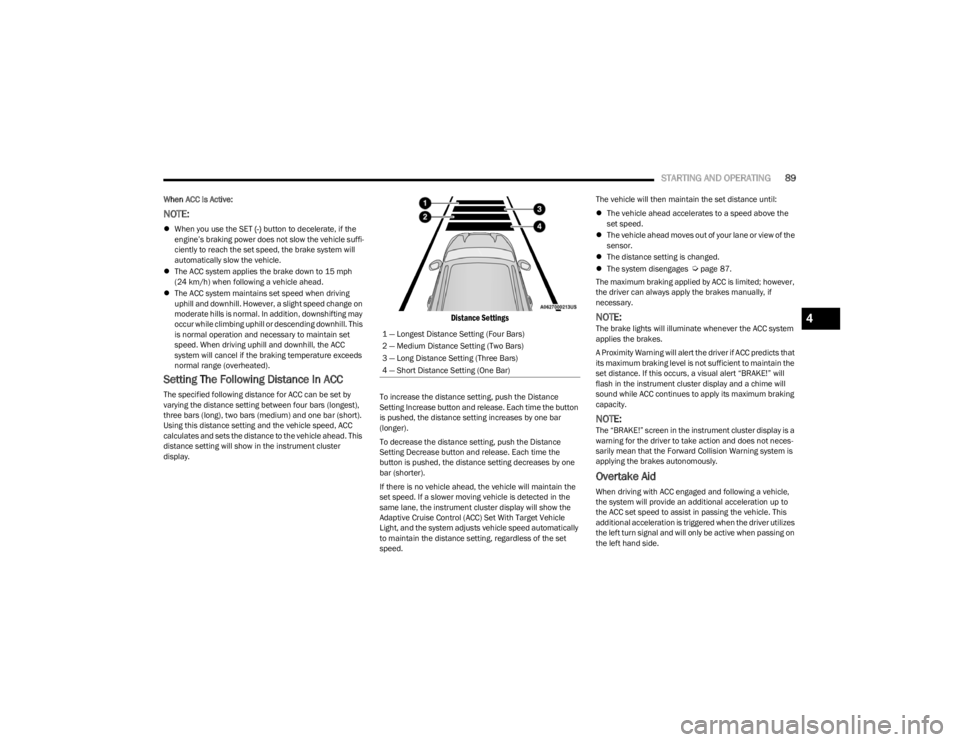
The specified following distance for ACC can be set by
varying the distance setting between four bars (longest),
three bars (long), two bars (medium) and one bar (short).
Using this distance setting and the vehicle speed, ACC
calculates and sets the distance to the vehicle ahead. This
distance setting will show in the instrument cluster
display.
Distance Settings
To increase the distance setting, push the Distance
Setting Increase button and release. Each time the button
is pushed, the distance setting increases by one bar
(longer).
To decrease the distance setting, push the Distance
Setting Decrease button and release. Each time the
button is pushed, the distance setting decreases by one
bar (shorter).
If there is no vehicle ahead, the vehicle will maintain the
set speed. If a slower moving vehicle is detected in the
same lane, the instrument cluster display will show the
Adaptive Cruise Control (ACC) Set With Target Vehicle
Light, and the system adjusts vehicle speed automatically
to maintain the distance setting, regardless of the set
speed. The vehicle will then maintain the set distance until:
The vehicle ahead accelerates to a speed above the
set speed.
The vehicle ahead moves out of your lane or view of the
sensor.
The distance setting is changed.
The system disengages
Úpage 87.
The maximum braking applied by ACC is limited; however,
the driver can always apply the brakes manually, if
necessary.
NOTE:The brake lights will illuminate whenever the ACC system
applies the brakes.
A Proximity Warning will alert the driver if ACC predicts that
its maximum braking level is not sufficient to maintain the
set distance. If this occurs, a visual alert “BRAKE!” will
flash in the instrument cluster display and a chime will
sound while ACC continues to apply its maximum braking
capacity.
NOTE:The “BRAKE!” screen in the instrument cluster display is a
warning for the driver to take action and does not neces -
sarily mean that the Forward Collision Warning system is
applying the brakes autonomously.
Overtake Aid
When driving with ACC engaged and following a vehicle,
the system will provide an additional acceleration up to
the ACC set speed to assist in passing the vehicle. This
additional acceleration is triggered when the driver utilizes
the left turn signal and will only be active when passing on
the left hand side.
1 — Longest Distance Setting (Four Bars)
2 — Medium Distance Setting (Two Bars)
3 — Long Distance Setting (Three Bars)
4 — Short Distance Setting (One Bar)
4
23_LA_OM_EN_USC_t.book Page 89
Page 104 of 300
102STARTING AND OPERATING
Perform the maintenance listed in the “Scheduled
Servicing” Úpage 223. When towing a trailer, never
exceed the GAWR or GCWR ratings.
Towing Requirements — Tires
Do not attempt to tow a trailer while using a compact
spare tire.
Do not drive more than 50 mph (80 km/h) when towing
while using a full size spare tire.
Proper tire inflation pressures are essential to the safe
and satisfactory operation of your vehicle. For proper
tire inflation procedures.
Check the trailer tires for proper tire inflation pressures
before trailer usage.
Check for signs of tire wear or visible tire damage
before towing a trailer.
Replacing tires with a higher load carrying capacity will
not increase the vehicle's GVWR and GAWR limits.
For further information
Úpage 253.
Towing Requirements — Trailer Brakes
Do not interconnect the hydraulic brake system or
vacuum system of your vehicle with that of the trailer.
This could cause inadequate braking and possible
personal injury.
An electronically actuated trailer brake controller is
required when towing a trailer with electronically actu -
ated brakes. When towing a trailer equipped with a
hydraulic surge actuated brake system, an electronic
brake controller is not required.
Trailer brakes are recommended for trailers over
1,000 lb (453 kg) and required for trailers in excess of
2,000 lb (907 kg).
Towing Requirements — Trailer Lights And
Wiring
Whenever you pull a trailer, regardless of the trailer size,
stoplights and turn signals on the trailer are required for
motoring safety.
The Trailer Tow Package may include a four- and seven-pin
wiring harness. Use a factory approved trailer harness and
connector.
NOTE:Do not cut or splice wiring into the vehicle’s wiring
harness.
CAUTION!
Do not tow a trailer at all during the first 500 miles
(805 km) the new vehicle is driven. The engine, axle
or other parts could be damaged.
Then, during the first 500 miles (805 km) that a
trailer is towed, do not drive over 50 mph (80 km/h)
and do not make starts at full throttle. This helps the
engine and other parts of the vehicle wear in at the
heavier loads.
WARNING!
Do not connect trailer brakes to your vehicle's
hydraulic brake lines. It can overload your brake
system and cause it to fail. You might not have
brakes when you need them and could have an acci -
dent.
Towing any trailer will increase your stopping
distance. When towing, you should allow for addi -
tional space between your vehicle and the vehicle in
front of you. Failure to do so could result in an
accident.
CAUTION!
If the trailer weighs more than 1,000 lb (453 kg)
loaded, it should have its own brakes and they should
be of adequate capacity. Failure to do this could lead to
accelerated brake lining wear, higher brake pedal
effort, and longer stopping distances.
23_LA_OM_EN_USC_t.book Page 102
Page 114 of 300

112MULTIMEDIA
Safety/Assistance
When the Safety/Assistance button is selected on the touchscreen, the system displays the options related to the vehicle’s safety settings. These options will differ depending on the
features equipped on the vehicle. The settings may display in list form or within subfolders on the screen. To access a subfolder, select the desired folder; the available options
related to that feature will then display on the screen.
NOTE:Depending on the vehicle’s options, feature settings may vary.
Setting Name Description
Forward Collision Warning SensitivityThis setting will change the distance at which the Forward Collision Warning (FCW) alert
sounds. The “Medium” setting will have the FCW system signal when an object is in view, and the possibility of a collision is detected. The “Near” setting will have the FCW system
signal when the object is closer to the vehicle. The “Far” setting will have the FCW system signal when an object is at a far distance from the vehicle.
Forward Collision Warning This setting will turn the Forward Collision Warning system on or off. The “Off” setting will
deactivate the FCW system. The “Warning Only” setting will provide only an audible chime when a collision is detected. The “Warning + Active Braking” setting will provide an audible chime and apply brake pressure when a collision is detected.
ParkSense This setting will change the type of ParkSense alert when a close object is detected and
can provide both an audible chime and a visual display.
Rear ParkSense Volume This setting adjusts the volume of the Rear ParkSense system. The available settings are
“Low”, “Medium”, and “High”.
Blind Spot Alert This setting will change the type of alert provided when an object is detected in a
vehicle’s blind spot. The “Off” setting will turn off Blind Spot Alert. The “Lights” setting will activate the Blind Spot Alert lights on the outside mirrors. The “Lights & Chime” setting will activate both the lights on the outside mirrors and an audible chime.
23_LA_OM_EN_USC_t.book Page 112
Page 136 of 300
134MULTIMEDIA
AUX MODE
Overview
Auxiliary Mode (AUX) is entered by inserting an AUX device
using a cable with a 3.5 mm audio jack into the AUX port,
or by pressing the AUX button on the left side of the
touchscreen or under the Source Select button (if
equipped).
To insert an Auxiliary device, gently insert the Auxiliary
device cable into the AUX port. If you insert an Auxiliary
device with the ignition and the radio on, the unit will
switch to AUX Mode and begin to play.
Controlling The Auxiliary Device
Auxiliary Mode (AUX) is entered by inserting an AUX device
using a cable with a 3.5 mm audio jack into the AUX port
or by pressing the AUX button on the left side of the
touchscreen, or under the Source Select button (if
equipped).
NOTE:The radio unit is acting as the amplifier for audio output
from the Auxiliary device. Therefore, if the volume control
on the Auxiliary device is set too low, there will be insuffi -
cient audio signal for the radio unit to play the music on
the device.
Seek Up /Seek Down
In USB Mode, press the Seek Up button on the
touchscreen for the next selection on the USB device.
Press and release the Seek Down button on the
touchscreen to return to the beginning of the current
selection, or to return to the beginning of the previous
selection if the USB device is within the first three seconds
of the current selection. In Bluetooth® Mode, press and release the Seek Up
button on the touchscreen for the next selection on the
Bluetooth® device. Press and release the Seek Down
button on the touchscreen to return to the beginning of
the current selection, or return to the beginning of the
previous selection if the Bluetooth® device is within the
first second of the current selection.
Browse
In USB Mode, press the Browse button on the touchscreen
to display the browse window. In USB Mode, the left side
of the browse window displays a list of ways you can
browse through the contents of the USB device. If
supported by the device, you can browse by Folder, Artist,
Playlist, Album, Song, etc. Press the desired button on the
touchscreen on the left side of the screen. The center of
the browse window shows items and their sub-functions,
which can be scrolled through by pressing the Up and
Down buttons to the right. The TUNE/SCROLL knob can
also be used to scroll.
Media Mode
In USB Mode, press the Media button on the touchscreen
to select the desired audio source: USB.
In Bluetooth® Mode, press the Media button on the
touchscreen to select the desired audio source:
Bluetooth®.
In AUX Mode, press the Media button on the touchscreen
to select the desired audio source: AUX.
Repeat
In USB Mode, press the Repeat button on the touchscreen
to toggle the repeat functionality. The Repeat button on
the touchscreen is highlighted when active. The Radio will
continue to play the current track, repeatedly, as long as
the repeat is active. Press the Repeat button again to
enter Repeat All. The radio will continue to play all the
current tracks, repeatedly, as long as the repeat function
is active. To cancel Repeat, press the Repeat button a
third time.
Shuffle
In USB Mode, press the Shuffle button on the touchscreen
to play the selections on the USB device in random order
to provide an interesting change of pace. Press the Shuffle
button on the touchscreen a second time to turn this
feature off.
Audio
Audio settings can be accessed by pressing the Audio
button Úpage 125.
Info
In USB Mode, press the Info button on the touchscreen to
display the current track information. Press the Info or X
button on the touchscreen a second time to cancel this
feature.
23_LA_OM_EN_USC_t.book Page 134
Page 138 of 300
136MULTIMEDIA
For Uconnect customer support:
US visit UconnectPhone.com or call 877-855-8400
Canada visit UconnectPhone.com or call
800-465-2001 (English) or (French) call
800-387-9983
Uconnect Phone allows you to transfer calls between the
system and your mobile phone as you enter or exit your
vehicle and enables you to mute the system's microphone
for private conversation.
The Phone feature is driven through your Bluetooth®
“Hands-Free Profile” mobile phone. Uconnect features
Bluetooth® technology — the global standard that enables
different electronic devices to connect to each other
without wires or a docking station. Ensure you phone is
turned on with Bluetooth® active and has been paired to
the Uconnect system. Up to 10 mobile phones or audio
devices are allowed to be linked to the system. Only one
linked (or paired) mobile phone and one audio device can
be used with the system at a time. Phone Button
The Phone button on your steering wheel is
used to get into the Phone Mode and make
calls, show recent, incoming or outgoing calls,
view phonebook, etc. When you push the
button you will hear a BEEP. The BEEP is your signal to give
a command.
Voice Command Button
The Voice Command button on your steering
wheel is only used for “barge in” and when you
are already in a call or want to make another
call.
The button on your steering wheel is also used to access
the Voice Commands for the Uconnect Voice Command
features if your vehicle is equipped.
Phone Operation
OPERATION
Voice commands can be used to operate the Uconnect
Phone and to navigate its menu structure. Voice
commands are required after most Uconnect Phone
prompts. There are two general methods for how Voice
Command works:
1. Say compound commands like “Call John Smith mobile”.
2. Say the individual commands and allow the system to guide you to complete the task. You will be prompted for a specific command and then
guided through the available options.
Prior to giving a voice command, one must wait for the
beep, which follows the “Listen” prompt or another
prompt.
For certain operations, compound commands can be
used. For example, instead of saying “Call” and then
“John Smith” and then “mobile”, the following
compound command can be said: “Call John Smith
mobile.”
For each feature explanation in this section, only the
compound command form of the voice command is
given. You can also break the commands into parts and
say each part of the command when you are asked for
it. For example, you can use the compound command
form voice command “Search for John Smith,” or you
can break the compound command form into two voice
commands: “Search Contacts” and when asked, “John
Smith.” Please remember, the Uconnect Phone works
best when you talk in a normal conversational tone, as
if speaking to someone sitting a few feet/meters away
from you.
NATURAL SPEECH
Your Uconnect Phone Voice system uses a Natural
Language Voice Recognition (VR) engine.
Natural speech allows the user to speak commands in
phrases or complete sentences. The system filters out
certain non-word utterances and sounds such as “ah”
and “eh.” The system handles fill-in words such as “I would
like to”.
WARNING!
ALWAYS drive safely with your hands on the steering
wheel. You have full responsibility and assume all risks
related to the use of the Uconnect features and
applications in this vehicle. Only use Uconnect when it
is safe to do so. Failure to do so may result in an
accident involving serious injury or death.
23_LA_OM_EN_USC_t.book Page 136
Page 168 of 300
166SAFETY
The BSM system is designed not to issue an alert on
stationary objects such as guardrails, posts, walls, foliage,
berms, etc. However, occasionally the system may alert on
such objects. This is normal operation and your vehicle
does not require service.
Overtaking/Passing
The BSM system will not alert you of objects that are
traveling in the opposite direction of the vehicle in
adjacent lanes
Úpage 284.
Opposing Traffic
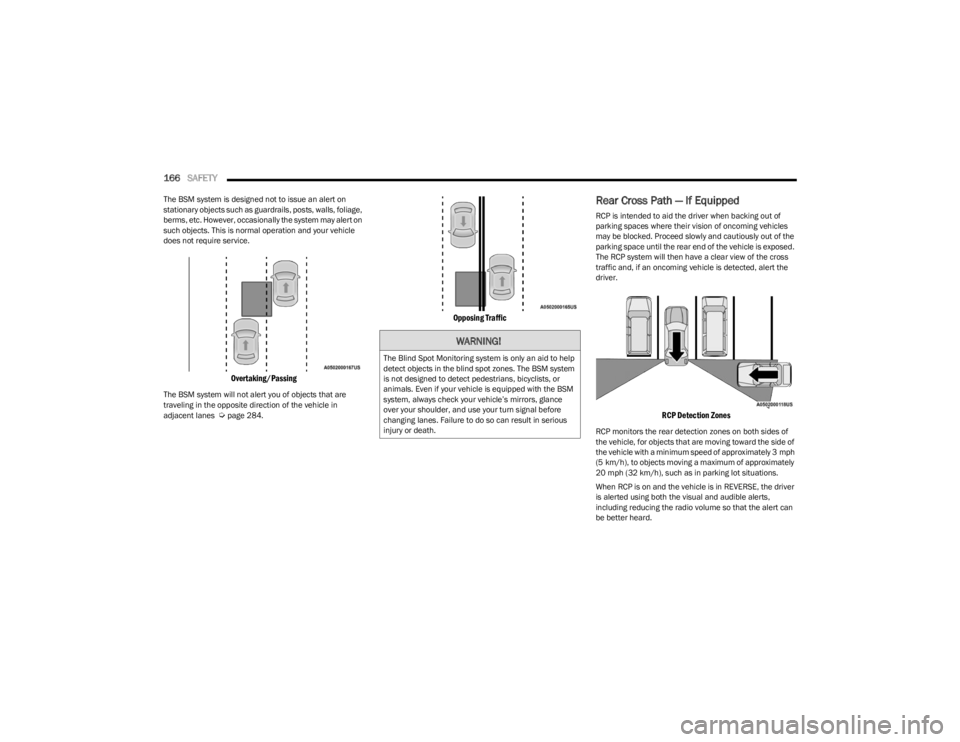
Rear Cross Path — If Equipped
RCP is intended to aid the driver when backing out of
parking spaces where their vision of oncoming vehicles
may be blocked. Proceed slowly and cautiously out of the
parking space until the rear end of the vehicle is exposed.
The RCP system will then have a clear view of the cross
traffic and, if an oncoming vehicle is detected, alert the
driver.
RCP Detection Zones
RCP monitors the rear detection zones on both sides of
the vehicle, for objects that are moving toward the side of
the vehicle with a minimum speed of approximately 3 mph
(5 km/h), to objects moving a maximum of approximately
20 mph (32 km/h), such as in parking lot situations.
When RCP is on and the vehicle is in REVERSE, the driver
is alerted using both the visual and audible alerts,
including reducing the radio volume so that the alert can
be better heard.
WARNING!
The Blind Spot Monitoring system is only an aid to help
detect objects in the blind spot zones. The BSM system
is not designed to detect pedestrians, bicyclists, or
animals. Even if your vehicle is equipped with the BSM
system, always check your vehicle’s mirrors, glance
over your shoulder, and use your turn signal before
changing lanes. Failure to do so can result in serious
injury or death.
23_LA_OM_EN_USC_t.book Page 166