instrument cluster DODGE CHALLENGER SRT 2016 3.G User Guide
[x] Cancel search | Manufacturer: DODGE, Model Year: 2016, Model line: CHALLENGER SRT, Model: DODGE CHALLENGER SRT 2016 3.GPages: 616, PDF Size: 4.45 MB
Page 227 of 616
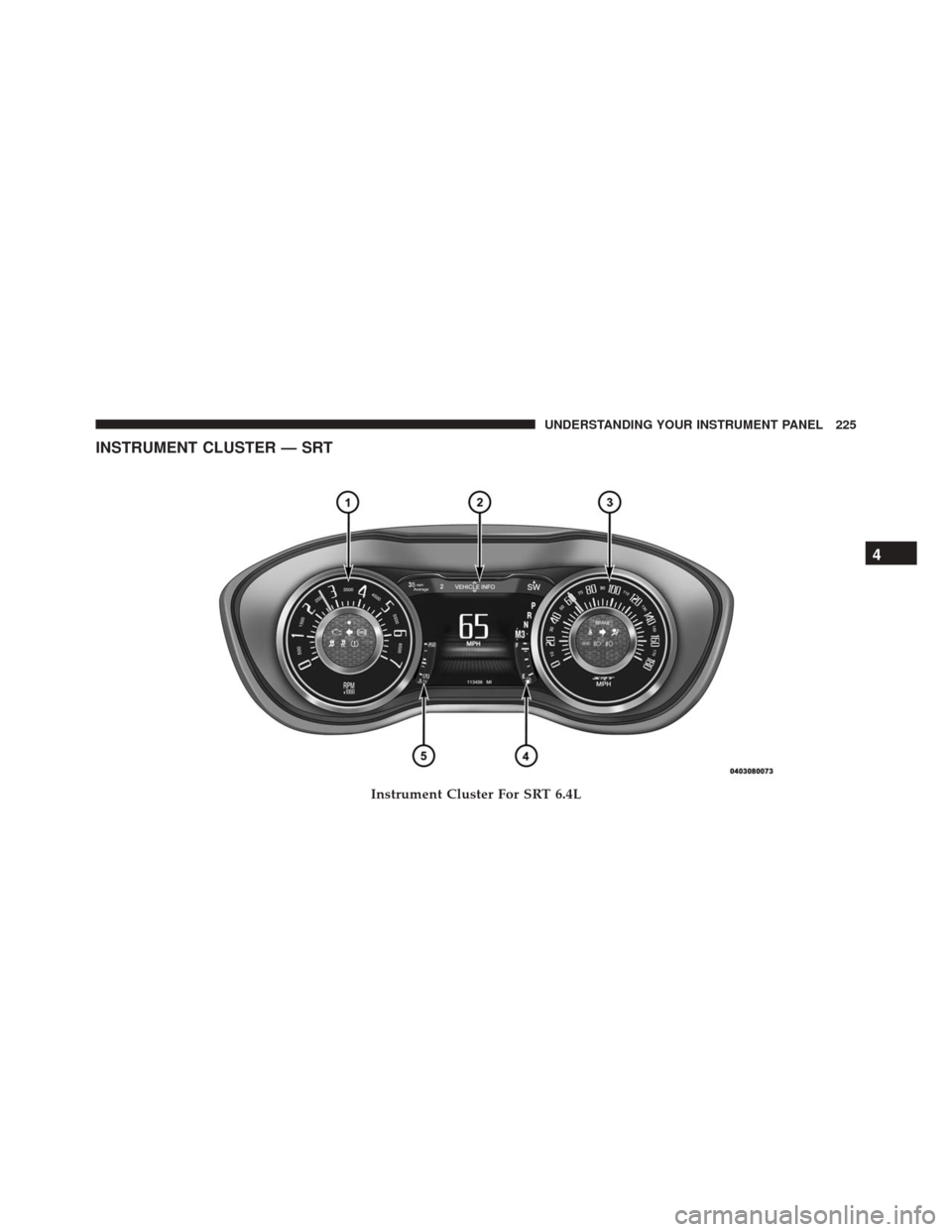
INSTRUMENT CLUSTER — SRT
Instrument Cluster For SRT 6.4L
4
UNDERSTANDING YOUR INSTRUMENT PANEL 225
Page 230 of 616
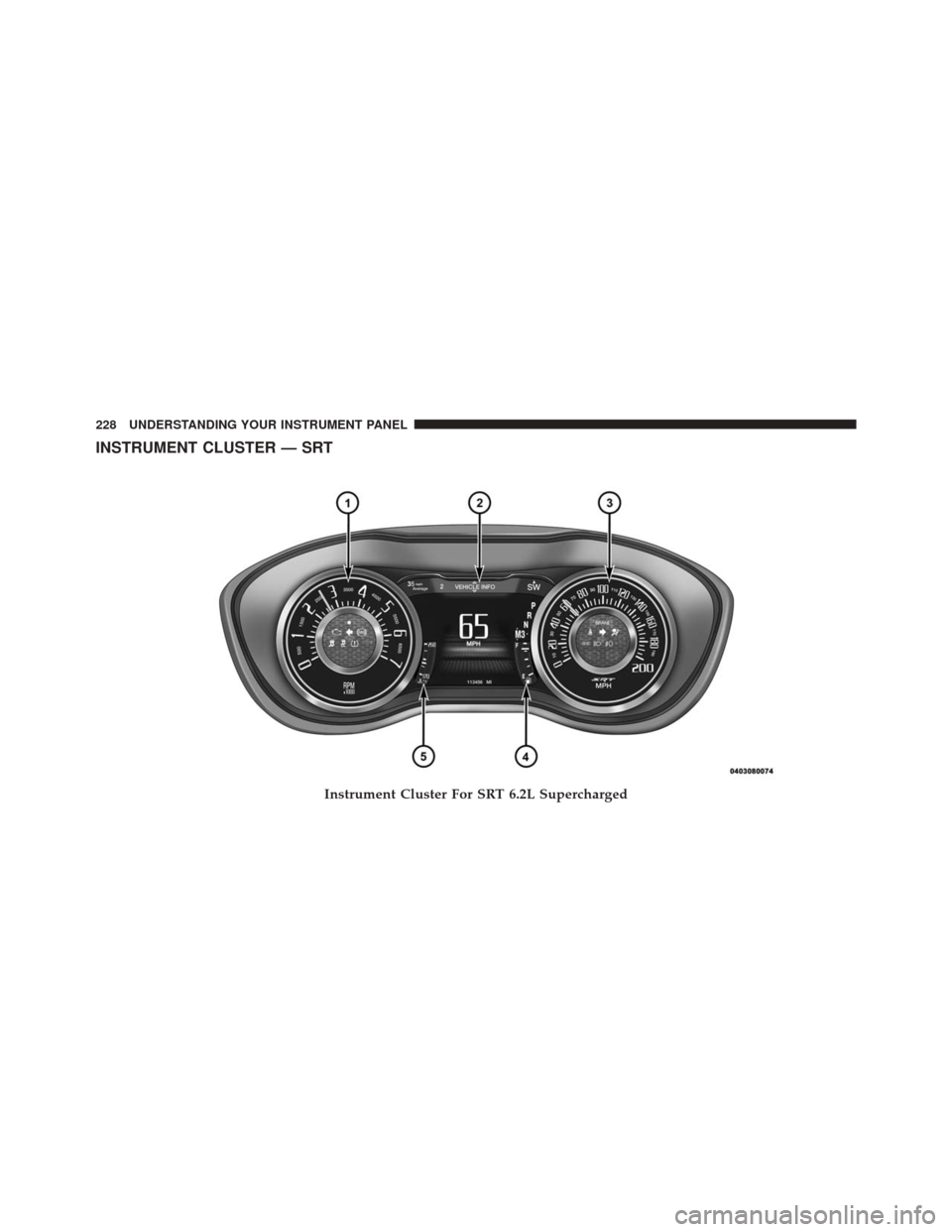
INSTRUMENT CLUSTER — SRT
Instrument Cluster For SRT 6.2L Supercharged
228 UNDERSTANDING YOUR INSTRUMENT PANEL
Page 247 of 616
Electronic Stability Control (ESC) Indicator Light — If Equipped
Yellow TelltaleLight What It Means
Electronic Stability Control (ESC) Indicator Light — If Equipped
The “ESC Indicator Light” in the instrument cluster will come on when the ignition switch
is turned to the ON/RUN position, and when ESC is activated. It should go out with the
engine running. If the “ESC Indicator Light” comes on continuously with the engine run-
ning, a malfunction has been detected in the ESC system. If this light remains on after sev-
eral ignition cycles, and the vehicle has been driven several miles (kilometers) at speeds
greater than 30 MPH (48 km/h), see your authorized dealer as soon as possible to have the
problem diagnosed and corrected.
•
The “ESC Off Indicator Light” and the “ESC Indicator Light” come on momentarily each
time the ignition switch is turned to ON/RUN.
• Each time the ignition is turned to ON/RUN, the ESC system will be ON, even if it was
turned off previously.
• The ESC system will make buzzing or clicking sounds when it is active. This is normal;
the sounds will stop when ESC becomes inactive. 4
UNDERSTANDING YOUR INSTRUMENT PANEL 245
Page 256 of 616
Turn Signal Indicator Lights
Green Tell-tale Light What It Means
Turn Signal Indicator Lights
The instrument cluster directional arrow will flash independently for the LEFT or RIGHT turn
signal as selected, as well as the exterior turn signal lamp(s) (front and rear) as selected when
the multifunction lever is moved down (LEFT) or up (RIGHT).
NOTE:
•A continuous chime will sound if the vehicle is driven more than 1 mile (1.6 km) with either
turn signal on.
•Check for an inoperative outside light bulb if either indicator flashes at a rapid rate.
254 UNDERSTANDING YOUR INSTRUMENT PANEL
Page 259 of 616
DRIVER INFORMATION DISPLAY (DID)
The Driver Information Display (DID) features an inter-
active display which is located in the instrument cluster.
This system conveniently allows the driver to select a
variety of useful information by pushing the arrowbuttons located on the left side of the steering wheel. The
DID Menu Items consists of the following:
•
Speedometer
• Vehicle Info
• Performance — If Equipped
• Driver Assist — If Equipped
• Fuel Economy
• Trip
• Audio
• Messages
• Screen Setup
• Diagnostics — If Equipped
Driver Information Display (DID) Display
4
UNDERSTANDING YOUR INSTRUMENT PANEL 257
Page 271 of 616
•Units will change with the global change in units.
Driver Assist — If Equipped
Adaptive Cruise Control (ACC) Menu
The DID displays the current ACC system settings. The
information displayed depends on ACC system status.
Push the ADAPTIVE CRUISE CONTROL (ACC) ON/
OFF button (located on the steering wheel) until one of
the following displays in the DID:
Adaptive Cruise Control Off
When ACC is deactivated, the display will read “Adap-
tive Cruise Control Off.”
Adaptive Cruise Control Ready
When ACC is activated but the vehicle speed setting has
not been selected, the display will read “Adaptive Cruise
Control Ready.” Push the SET + or the SET- button (located on the steering
wheel) and the following will display in the DID:
ACC SET
When ACC is set, the set speed will display in the
instrument cluster.
The ACC screen may display once again if any ACC
activity occurs, which may include any of the following:
•
Distance Setting Change
• System Cancel
• Driver Override
• System Off
• ACC Proximity Warning
• ACC Unavailable Warning
4
UNDERSTANDING YOUR INSTRUMENT PANEL 269
Page 273 of 616
•Average Fuel Economy – Shows the average fuel
economy (MPG or L/100 km) of Trip A or Trip B since
the last reset.
• Elapsed Time – Shows the total elapsed time of travel
since the last reset.
Hold the OKbutton to reset feature information.
Audio
Push and release the UPorDOWNarrow button
until the Audio Menu displays in the DID.
Stored Messages
Push and release the UPorDOWNarrow button
until the Messages Menu item is displayed in the DID.
This feature shows the number of stored warning
messages, if any. Pushing the RIGHT
orLEFT
arrow button will allow you to scroll through the
stored messages. Screen Setup
Push and release the
UPorDOWNarrow button
until the Screen Setup Menu displays in the DID. Push
and release the OKbutton to enter the submenus. The
Screen Setup feature allows you to change what
information is displayed in the instrument cluster as
well as the location that information is displayed.
1. Upper Left
•Compass
• Outside Temp.
• Time
• Range to Empty (default)
• Average L/100km (or MPG)
• Current L/100km (or MPG)
• Trip A Distance
• Trip B Distance
• None
4
UNDERSTANDING YOUR INSTRUMENT PANEL 271
Page 284 of 616
nomenclature, including the trip functions and the navi-
gation system (if equipped). Press the “Set Language”
button on the touchscreen, then press the desired lan-
guage button on the touchscreen until a check-mark
appears next to the language, showing that setting has
been selected.
•Touchscreen Beep
When in this display, you may turn on or shut off the
sound heard when a touchscreen button (button on the
touchscreen) is pressed. Press the “Touchscreen Beep”
button on the touchscreen until a check-mark appears
next to the setting, showing that setting has been se-
lected.
• Control Screen Time-Out — If Equipped
When this feature is selected, the Controls Screen will
stay open for five seconds before the screen times out.
With the feature deselected, the screen will stay open
until it is manually closed. Press the “Control Screen Time-Out” button on the touchscreen until a check-mark
appears next to the setting, showing that setting has been
selected.
•
Navigation Turn-By-Turn In Cluster — If Equipped
When this feature is selected, the turn-by-turn directions
will appear in the Driver Information Display (DID) as
the vehicle approaches a designated turn within a pro-
grammed route. To make your selection, press the “Navi-
gation Turn-By-Turn In Cluster” button on the touch-
screen, until a check-mark appears next to the setting,
showing that setting has been selected.
Units
After pressing the “Units” button on the touchscreen you
may select each unit of measure independently displayed
in the Driver Information Display (DID), and navigation
system (if equipped). The following selectable units of
measure are listed below:
282 UNDERSTANDING YOUR INSTRUMENT PANEL
Page 301 of 616
6. Sometimes, a second burnish session is required. If thebrake pads start smelling in the next track session,
reduce speed and braking deceleration to burnish
targets and follow steps 2 through 4.
7. New brake pads installed on old rotors still need to be burnished. New rotors installed with old pads should
be burnished at the track, or street driven for 300 city
miles, to develop an adequate lining transfer layer on
the rotor surface prior to track use.
8. Rotors that pulsate during track use should be re- placed. Resurfacing of the rotors is not recommended,
as it removes mass from the rotor, reducing its thermal
capacity. Resurfacing also thins the rotor cheek, mak-
ing it less robust and increasing the likelihood of
pulsation in further track use.SRT PERFORMANCE PAGES
Performance Pages is an application that provides a
display for performance indicators, as received from the
Instrument Cluster, that will help you gain familiarity
with the capabilities of your SRT vehicle in real-time.
To access the SRT Performance Pages, press the “Apps”
button on the touchscreen, then press the “SRT Perfor-
mance” button on the touchscreen, or press “SRT Pages”
in the top left of the touchscreen while in Drive Modes.
Press the desired button on the touchscreen to access that
specific Performance Page.
WARNING!
Measurement of vehicle statistics with the SRT Per-
formance Pages is intended for off-highway or off-
road use only and should not be done on any public
(Continued)
4
UNDERSTANDING YOUR INSTRUMENT PANEL 299
Page 393 of 616
Only shift from DRIVE to PARK or REVERSE when the
accelerator pedal is released and the vehicle is stopped.
Be sure to keep your foot on the brake pedal when
shifting between these gears.
The transmission gear selector has PARK, REVERSE,
NEUTRAL, DRIVE, and MANUAL (Autostick) shift po-
sitions. Manual shifts can be made using the Autostick
shift control (refer to “AutoStick” in this section for
further information). Toggling the gear selector forward
(-) or rearward (+) while in the MANUAL (AutoStick)
position (beside the DRIVE position) will manually select
the transmission gear, and will display the current gear in
the instrument cluster as M1, M2, M3, etc.NOTE:
If the gear selector cannot be moved to the PARK,
REVERSE, or NEUTRAL position (when pushed for-
ward) it is probably in the MANUAL (AutoStick, +/-)
position (beside the DRIVE position). In MANUAL
(AutoStick) mode, the transmission gear is displayed in
the instrument cluster (as M1, M2, M3, etc.). Move the
gear selector to the right (into the DRIVE [D] position) for
access to PARK, REVERSE, and NEUTRAL.
Gear Ranges
DO NOT race the engine when shifting from PARK or
NEUTRAL into another gear range.
NOTE: After selecting any gear range, wait a moment to
allow the selected gear to engage before accelerating.
This is especially important when the engine is cold.
PARK (P)
This range supplements the parking brake by locking the
transmission. The engine can be started in this range.
5
STARTING AND OPERATING 391