display DODGE CHALLENGER SRT 2018 Owners Manual
[x] Cancel search | Manufacturer: DODGE, Model Year: 2018, Model line: CHALLENGER SRT, Model: DODGE CHALLENGER SRT 2018Pages: 486, PDF Size: 4.56 MB
Page 429 of 486
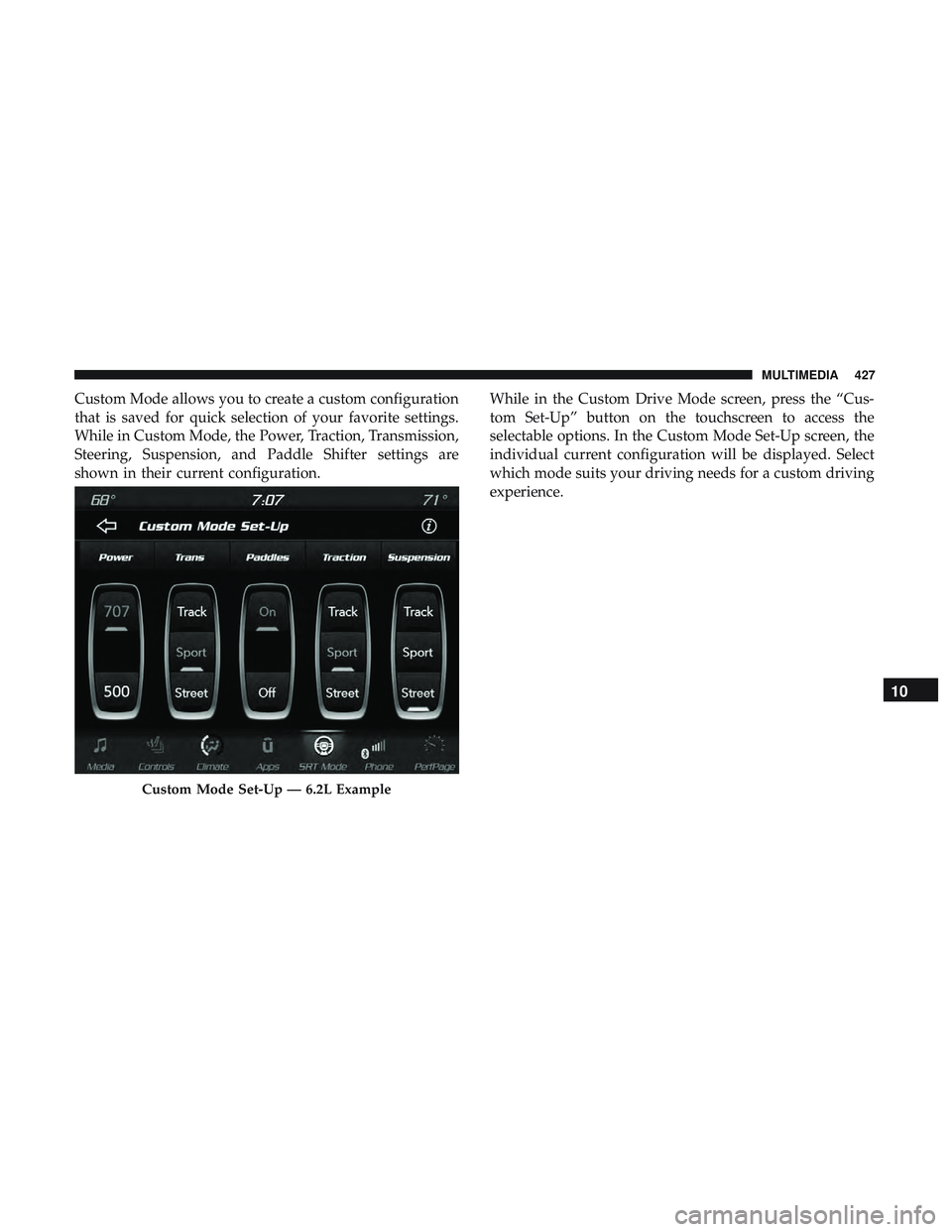
Custom Mode allows you to create a custom configuration
that is saved for quick selection of your favorite settings.
While in Custom Mode, the Power, Traction, Transmission,
Steering, Suspension, and Paddle Shifter settings are
shown in their current configuration.While in the Custom Drive Mode screen, press the “Cus-
tom Set-Up” button on the touchscreen to access the
selectable options. In the Custom Mode Set-Up screen, the
individual current configuration will be displayed. Select
which mode suits your driving needs for a custom driving
experience.
Custom Mode Set-Up — 6.2L Example
10
MULTIMEDIA 427
Page 436 of 486
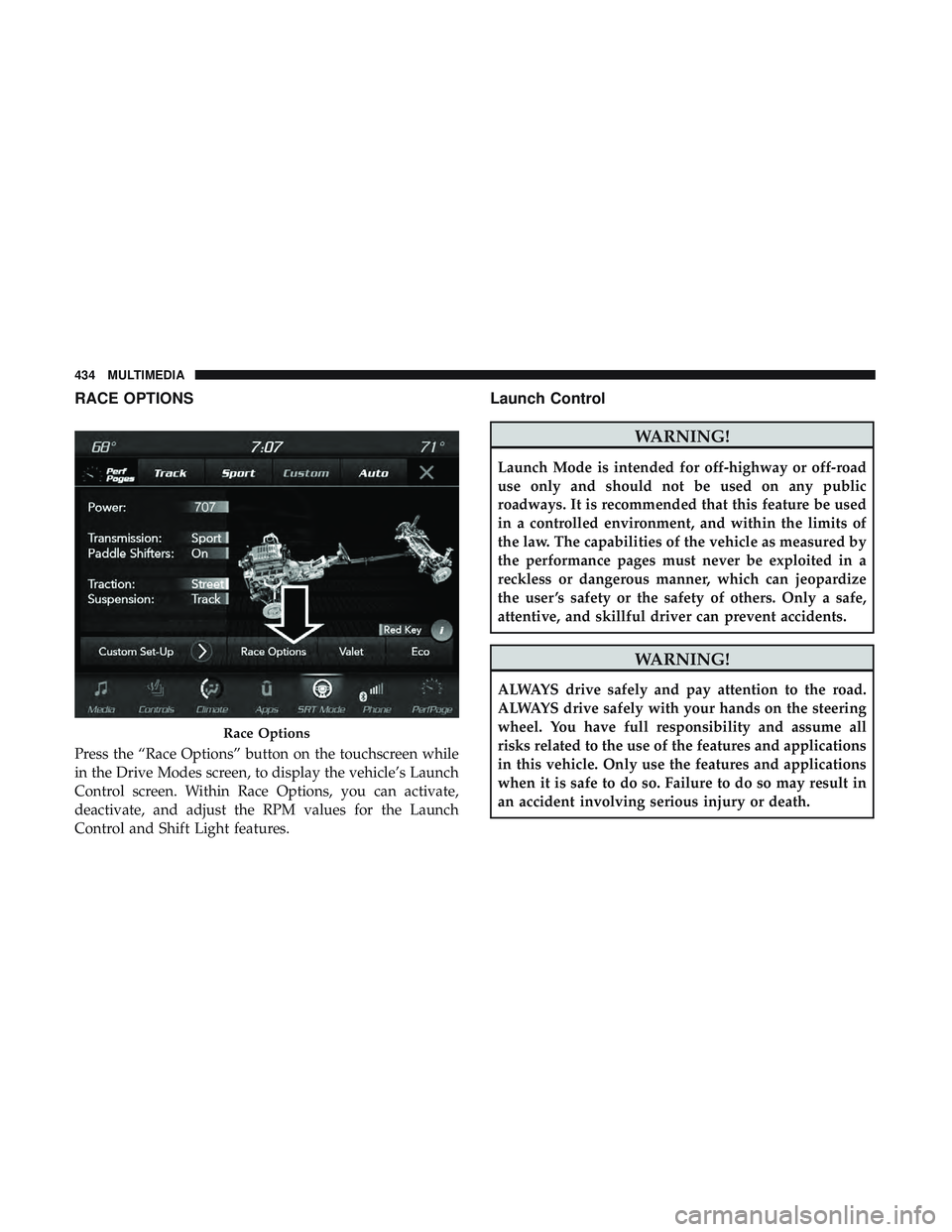
RACE OPTIONS
Press the “Race Options” button on the touchscreen while
in the Drive Modes screen, to display the vehicle’s Launch
Control screen. Within Race Options, you can activate,
deactivate, and adjust the RPM values for the Launch
Control and Shift Light features.
Launch Control
WARNING!
Launch Mode is intended for off-highway or off-road
use only and should not be used on any public
roadways. It is recommended that this feature be used
in a controlled environment, and within the limits of
the law. The capabilities of the vehicle as measured by
the performance pages must never be exploited in a
reckless or dangerous manner, which can jeopardize
the user ’s safety or the safety of others. Only a safe,
attentive, and skillful driver can prevent accidents.
WARNING!
ALWAYS drive safely and pay attention to the road.
ALWAYS drive safely with your hands on the steering
wheel. You have full responsibility and assume all
risks related to the use of the features and applications
in this vehicle. Only use the features and applications
when it is safe to do so. Failure to do so may result in
an accident involving serious injury or death.
Race Options
434 MULTIMEDIA
Page 437 of 486
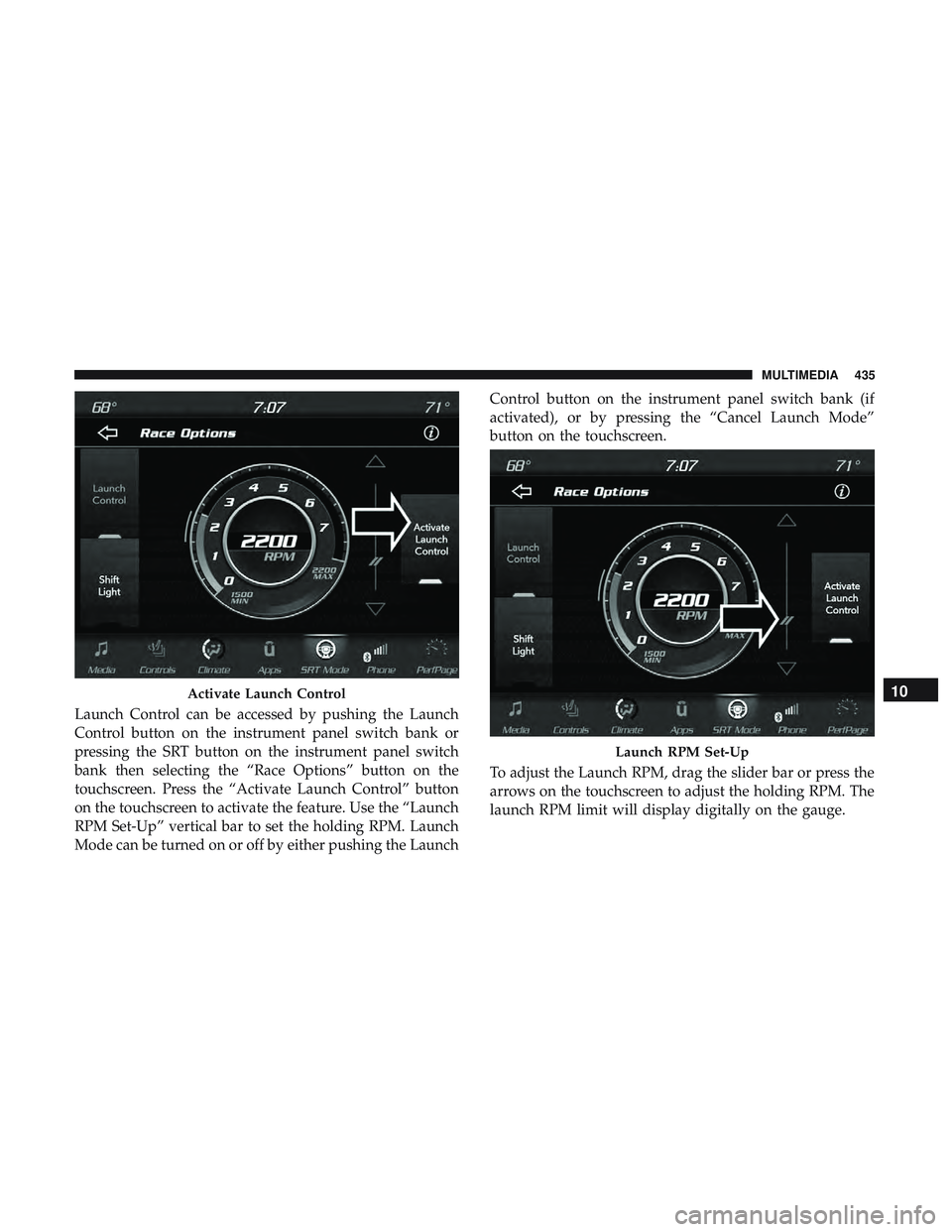
Launch Control can be accessed by pushing the Launch
Control button on the instrument panel switch bank or
pressing the SRT button on the instrument panel switch
bank then selecting the “Race Options” button on the
touchscreen. Press the “Activate Launch Control” button
on the touchscreen to activate the feature. Use the “Launch
RPM Set-Up” vertical bar to set the holding RPM. Launch
Mode can be turned on or off by either pushing the LaunchControl button on the instrument panel switch bank (if
activated), or by pressing the “Cancel Launch Mode”
button on the touchscreen.
To adjust the Launch RPM, drag the slider bar or press the
arrows on the touchscreen to adjust the holding RPM. The
launch RPM limit will display digitally on the gauge.
Activate Launch Control
Launch RPM Set-Up
10
MULTIMEDIA 435
Page 438 of 486
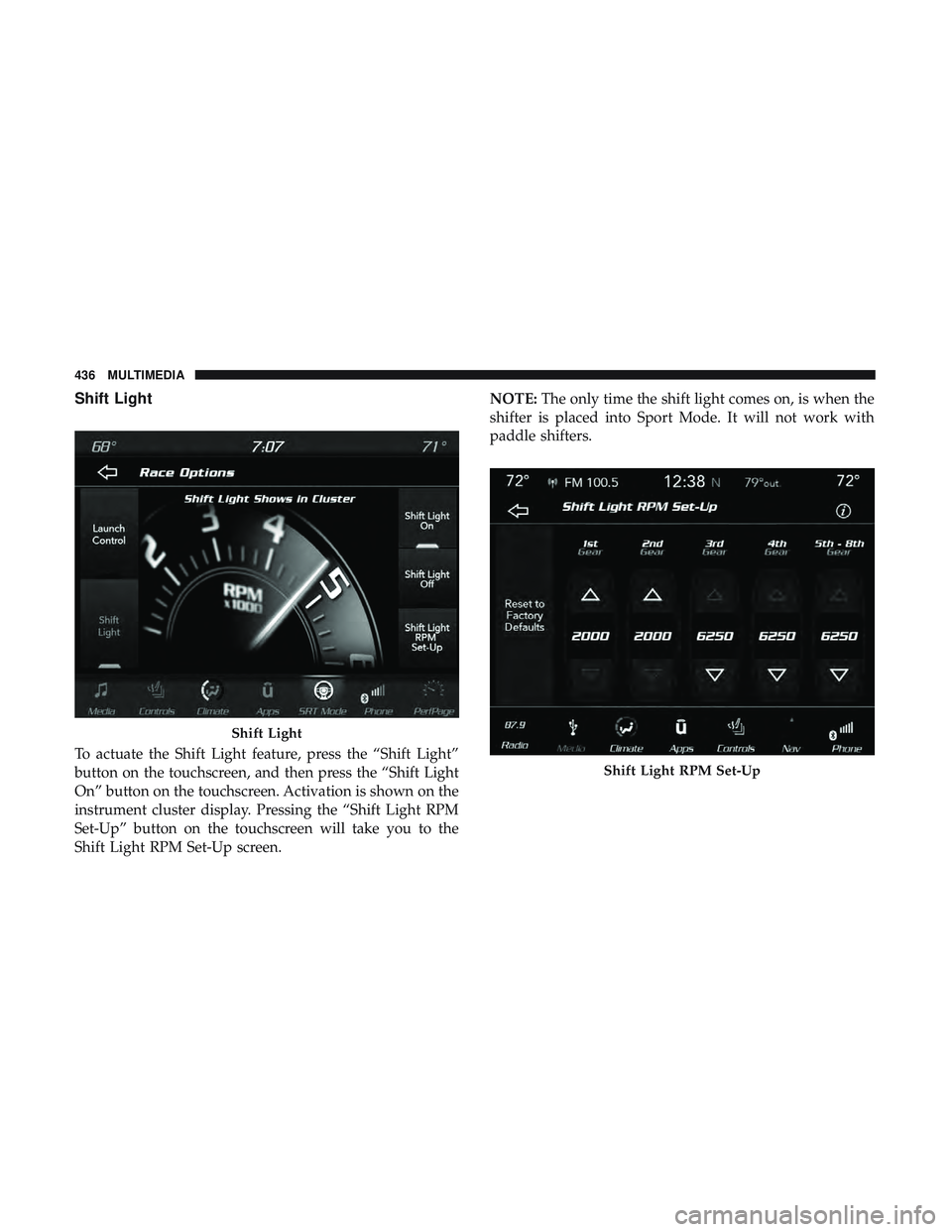
Shift Light
To actuate the Shift Light feature, press the “Shift Light”
button on the touchscreen, and then press the “Shift Light
On” button on the touchscreen. Activation is shown on the
instrument cluster display. Pressing the “Shift Light RPM
Set-Up” button on the touchscreen will take you to the
Shift Light RPM Set-Up screen.NOTE:
The only time the shift light comes on, is when the
shifter is placed into Sport Mode. It will not work with
paddle shifters.
Shift Light
Shift Light RPM Set-Up
436 MULTIMEDIA
Page 440 of 486
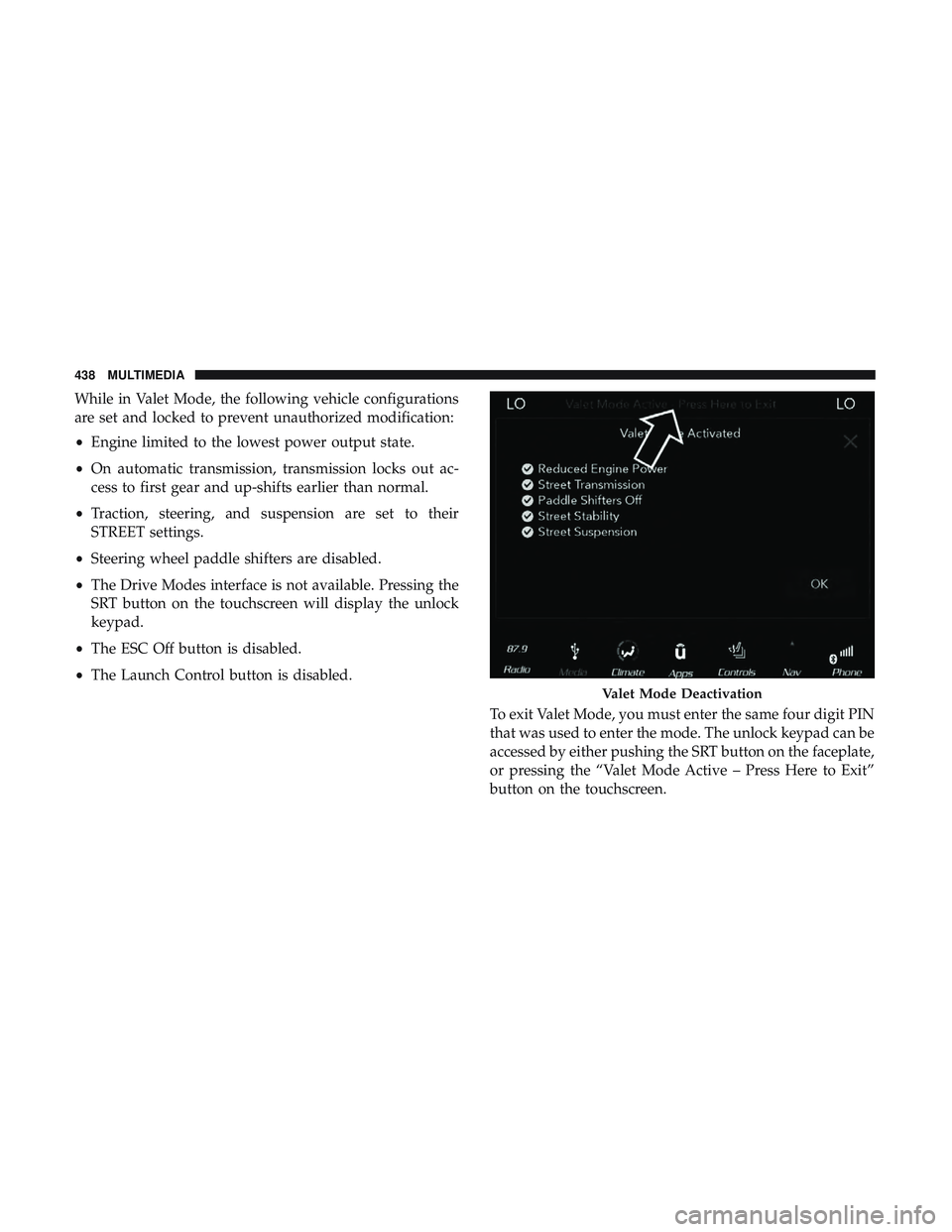
While in Valet Mode, the following vehicle configurations
are set and locked to prevent unauthorized modification:
•Engine limited to the lowest power output state.
• On automatic transmission, transmission locks out ac-
cess to first gear and up-shifts earlier than normal.
• Traction, steering, and suspension are set to their
STREET settings.
• Steering wheel paddle shifters are disabled.
• The Drive Modes interface is not available. Pressing the
SRT button on the touchscreen will display the unlock
keypad.
• The ESC Off button is disabled.
• The Launch Control button is disabled.
To exit Valet Mode, you must enter the same four digit PIN
that was used to enter the mode. The unlock keypad can be
accessed by either pushing the SRT button on the faceplate,
or pressing the “Valet Mode Active – Press Here to Exit”
button on the touchscreen.
Valet Mode Deactivation
438 MULTIMEDIA
Page 449 of 486

Media
Uconnect offers connections via USB, Bluetooth and auxil-
iary ports (If Equipped). Voice operation is only available
for connected USB and AUX devices.
Push the VR button
. After the beep, say one of the
following commands and follow the prompts to switch
your media source or choose an artist.
• “Change source to Bluetooth”
• “Change source to AUX”
• “Change source to USB”
• “Play artist Beethoven”; “ Play albumGreatest Hits”; “
Play song Moonlight Sonata”; “ Play genreClassical” TIP:
Press the Browse button on the touchscreen to see all
of the music on your USB device. Your Voice Command
must match exactlyhow the artist, album, song and genre
information is displayed.
Uconnect 4C/4C NAV Media
10
MULTIMEDIA 447
Page 453 of 486
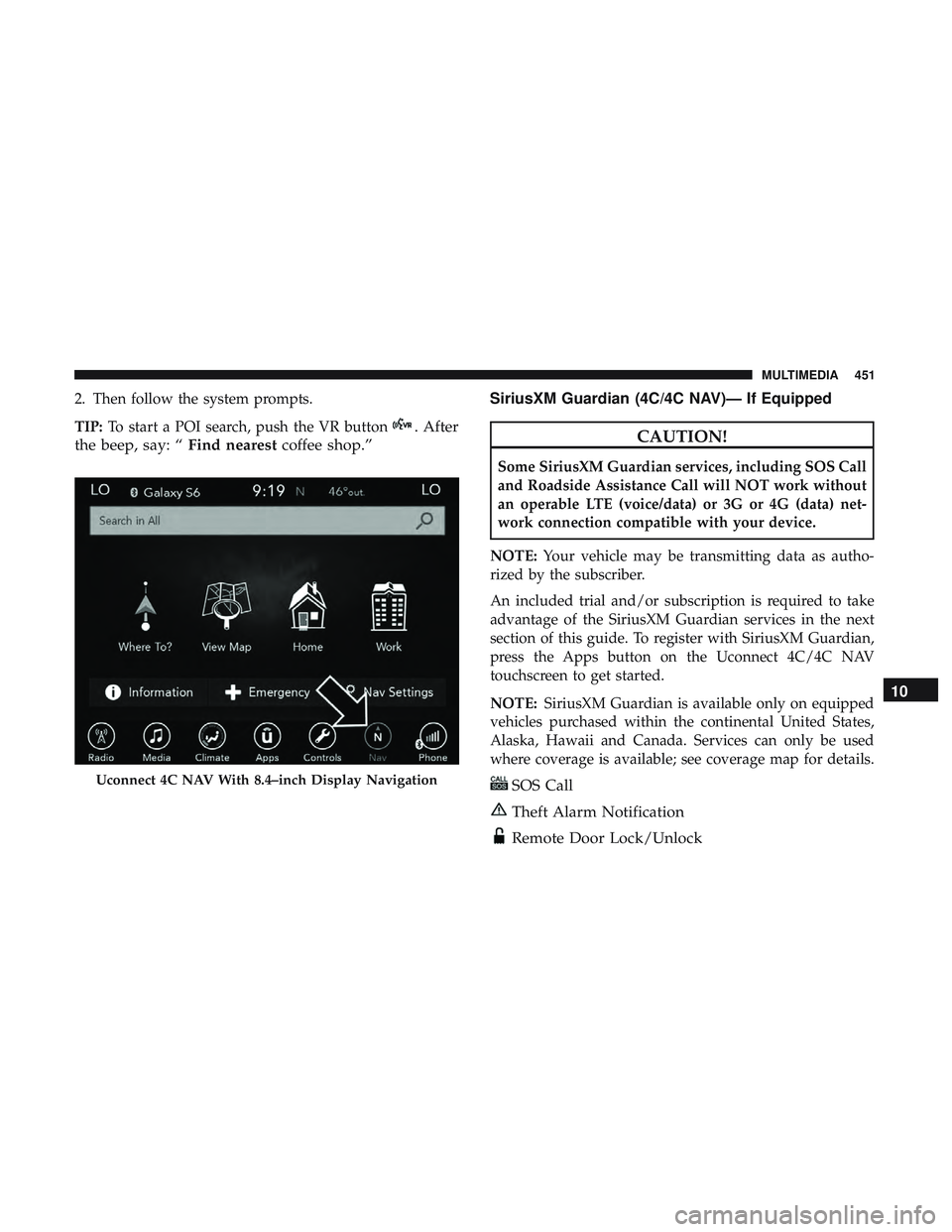
2. Then follow the system prompts.
TIP:To start a POI search, push the VR button
. After
the beep, say: “ Find nearestcoffee shop.” SiriusXM Guardian (4C/4C NAV)— If EquippedCAUTION!
Some SiriusXM Guardian services, including SOS Call
and Roadside Assistance Call will NOT work without
an operable LTE (voice/data) or 3G or 4G (data) net-
work connection compatible with your device.
NOTE: Your vehicle may be transmitting data as autho-
rized by the subscriber.
An included trial and/or subscription is required to take
advantage of the SiriusXM Guardian services in the next
section of this guide. To register with SiriusXM Guardian,
press the Apps button on the Uconnect 4C/4C NAV
touchscreen to get started.
NOTE: SiriusXM Guardian is available only on equipped
vehicles purchased within the continental United States,
Alaska, Hawaii and Canada. Services can only be used
where coverage is available; see coverage map for details.
SOS Call
Theft Alarm Notification
Remote Door Lock/Unlock
Uconnect 4C NAV With 8.4–inch Display Navigation
10
MULTIMEDIA 451
Page 457 of 486
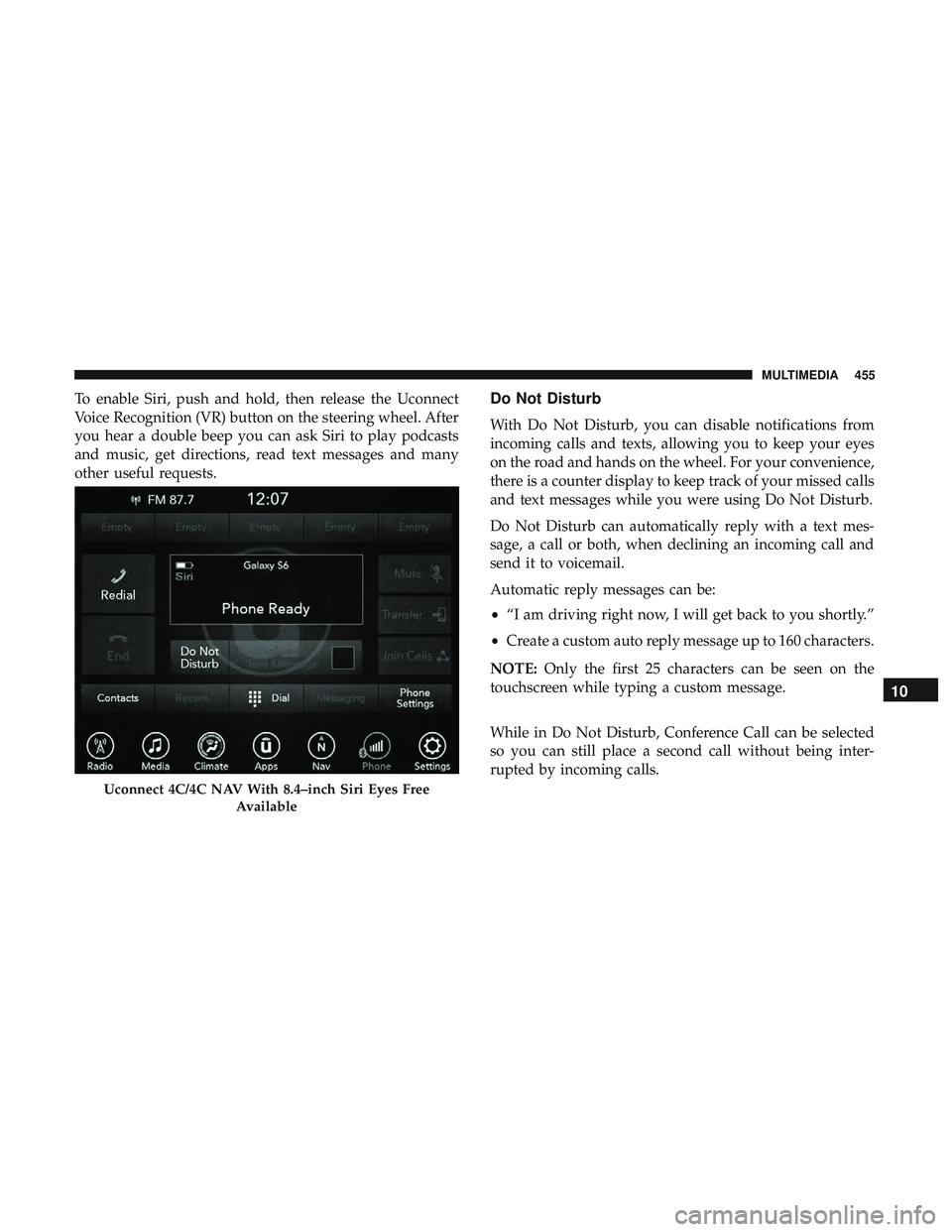
To enable Siri, push and hold, then release the Uconnect
Voice Recognition (VR) button on the steering wheel. After
you hear a double beep you can ask Siri to play podcasts
and music, get directions, read text messages and many
other useful requests.Do Not Disturb
With Do Not Disturb, you can disable notifications from
incoming calls and texts, allowing you to keep your eyes
on the road and hands on the wheel. For your convenience,
there is a counter display to keep track of your missed calls
and text messages while you were using Do Not Disturb.
Do Not Disturb can automatically reply with a text mes-
sage, a call or both, when declining an incoming call and
send it to voicemail.
Automatic reply messages can be:
•“I am driving right now, I will get back to you shortly.”
• Create a custom auto reply message up to 160 characters.
NOTE: Only the first 25 characters can be seen on the
touchscreen while typing a custom message.
While in Do Not Disturb, Conference Call can be selected
so you can still place a second call without being inter-
rupted by incoming calls.
Uconnect 4C/4C NAV With 8.4–inch Siri Eyes Free
Available
10
MULTIMEDIA 455
Page 458 of 486
NOTE:
•Reply with text message is not compatible with iPhones.
• Auto reply with text message is only available on
phones that support Bluetooth MAP.
Android Auto — If Equipped
NOTE: Feature availability depends on your carrier and
mobile phone manufacturer. Some Android Auto features
may or may not be available in every region and/or
language.
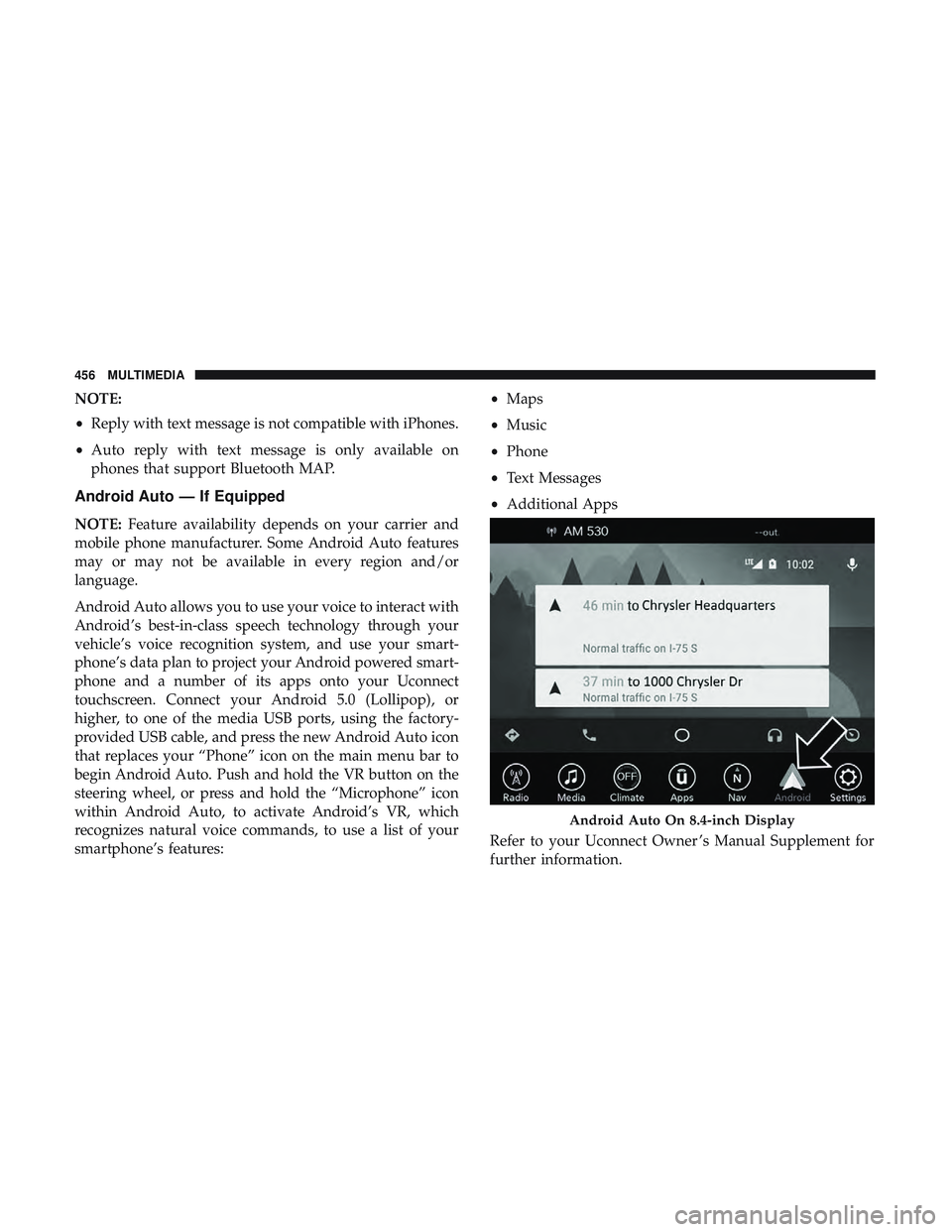
Android Auto allows you to use your voice to interact with
Android’s best-in-class speech technology through your
vehicle’s voice recognition system, and use your smart-
phone’s data plan to project your Android powered smart-
phone and a number of its apps onto your Uconnect
touchscreen. Connect your Android 5.0 (Lollipop), or
higher, to one of the media USB ports, using the factory-
provided USB cable, and press the new Android Auto icon
that replaces your “Phone” icon on the main menu bar to
begin Android Auto. Push and hold the VR button on the
steering wheel, or press and hold the “Microphone” icon
within Android Auto, to activate Android’s VR, which
recognizes natural voice commands, to use a list of your
smartphone’s features: •
Maps
• Music
• Phone
• Text Messages
• Additional Apps
Refer to your Uconnect Owner ’s Manual Supplement for
further information.
Android Auto On 8.4-inch Display
456 MULTIMEDIA
Page 459 of 486
NOTE:Requires compatible smartphone running
Android™ 5.0 Lollipop or higher and download app on
Google Play. Android, Android Auto, and Google Play are
trademarks of Google Inc.
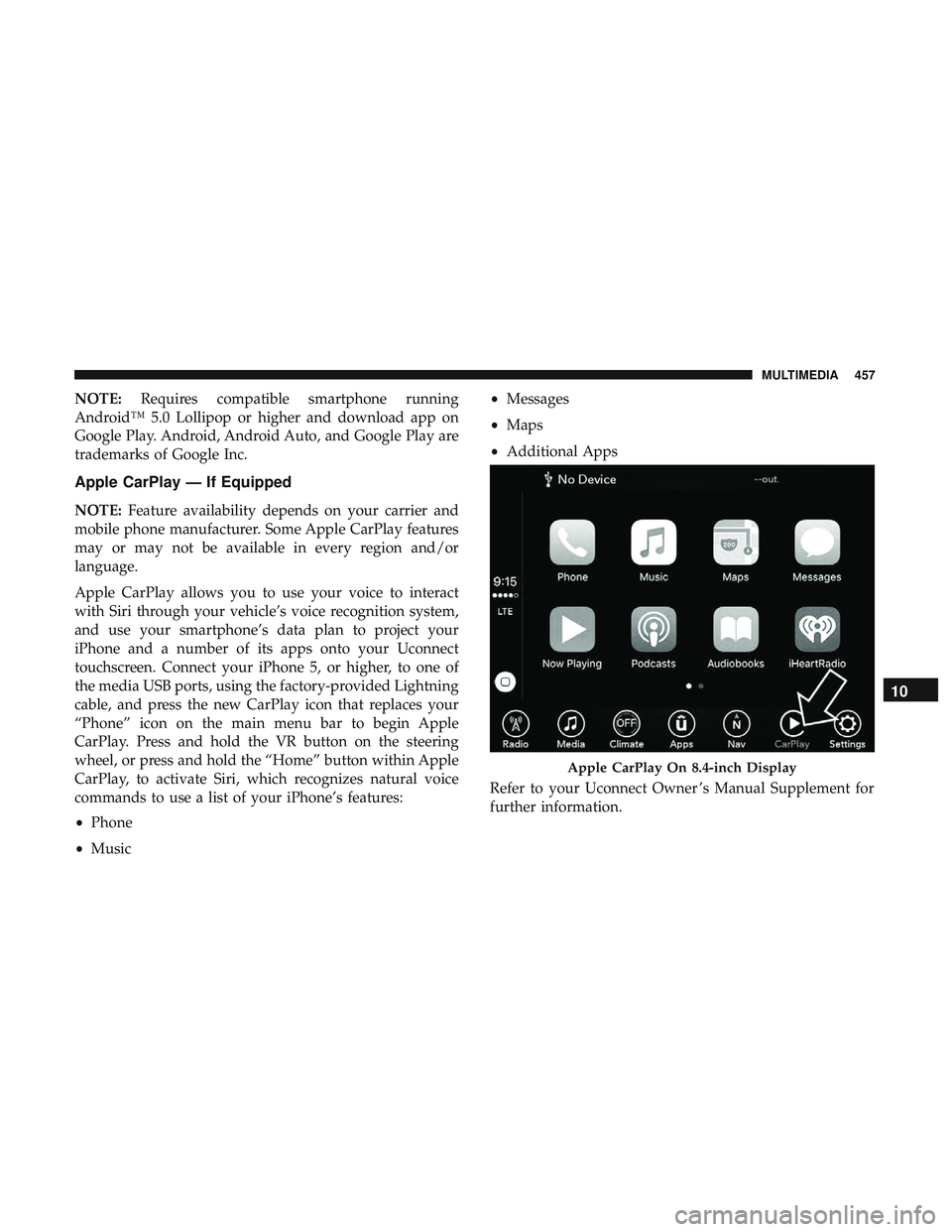
Apple CarPlay — If Equipped
NOTE: Feature availability depends on your carrier and
mobile phone manufacturer. Some Apple CarPlay features
may or may not be available in every region and/or
language.
Apple CarPlay allows you to use your voice to interact
with Siri through your vehicle’s voice recognition system,
and use your smartphone’s data plan to project your
iPhone and a number of its apps onto your Uconnect
touchscreen. Connect your iPhone 5, or higher, to one of
the media USB ports, using the factory-provided Lightning
cable, and press the new CarPlay icon that replaces your
“Phone” icon on the main menu bar to begin Apple
CarPlay. Press and hold the VR button on the steering
wheel, or press and hold the “Home” button within Apple
CarPlay, to activate Siri, which recognizes natural voice
commands to use a list of your iPhone’s features:
• Phone
• Music •
Messages
• Maps
• Additional Apps
Refer to your Uconnect Owner ’s Manual Supplement for
further information.
Apple CarPlay On 8.4-inch Display
10
MULTIMEDIA 457