reset DODGE CHARGER 2011 7.G Owners Manual
[x] Cancel search | Manufacturer: DODGE, Model Year: 2011, Model line: CHARGER, Model: DODGE CHARGER 2011 7.GPages: 104, PDF Size: 4.53 MB
Page 18 of 104
FRONT SEATS
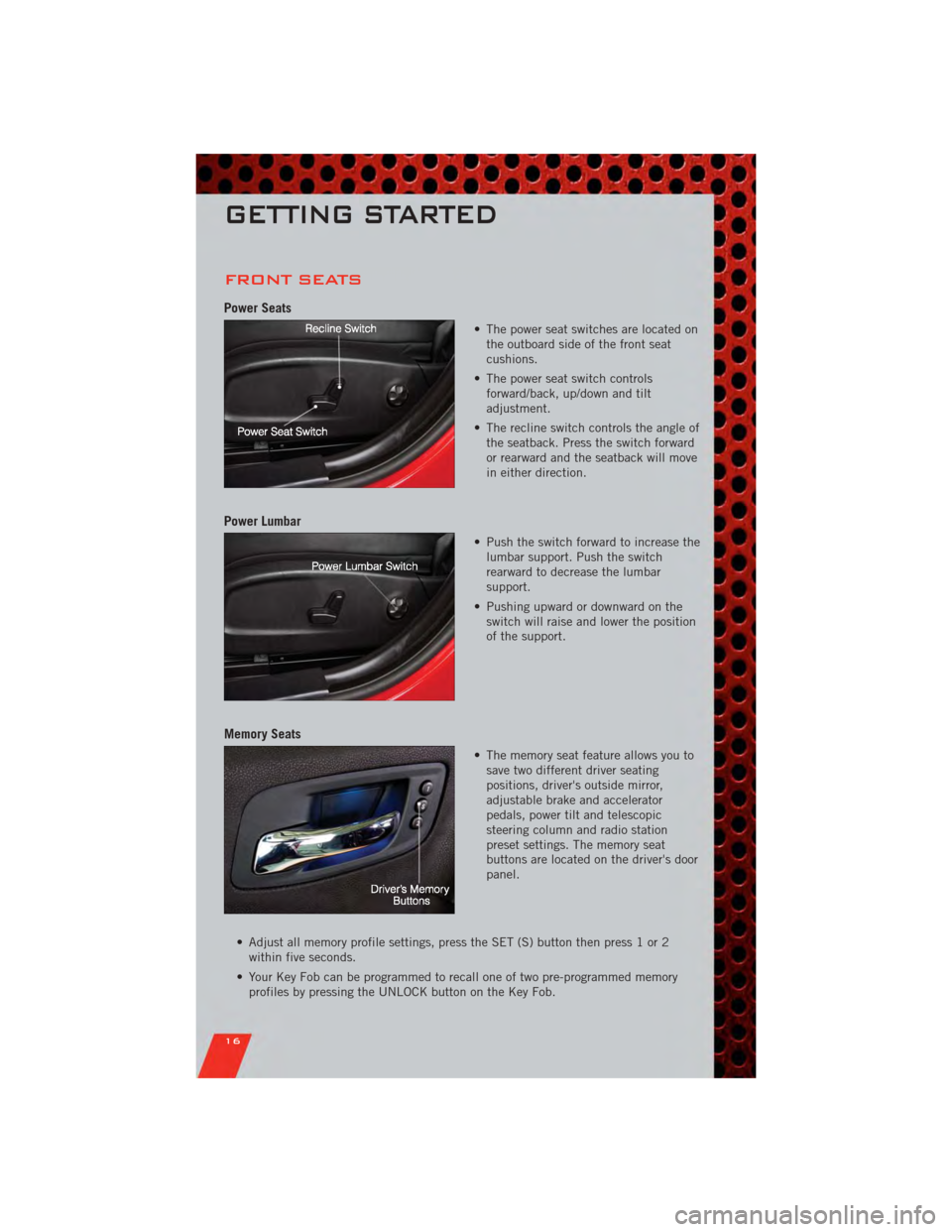
Power Seats
• The power seat switches are located onthe outboard side of the front seat
cushions.
• The power seat switch controls forward/back, up/down and tilt
adjustment.
• The recline switch controls the angle of the seatback. Press the switch forward
or rearward and the seatback will move
in either direction.
Power Lumbar
• Push the switch forward to increase thelumbar support. Push the switch
rearward to decrease the lumbar
support.
• Pushing upward or downward on the switch will raise and lower the position
of the support.
Memory Seats
• The memory seat feature allows you tosave two different driver seating
positions, driver's outside mirror,
adjustable brake and accelerator
pedals, power tilt and telescopic
steering column and radio station
preset settings. The memory seat
buttons are located on the driver's door
panel.
• Adjust all memory profile settings, press the SET (S) button then press 1 or 2 within five seconds.
• Your Key Fob can be programmed to recall one of two pre-programmed memory profiles by pressing the UNLOCK button on the Key Fob.
GETTING STARTED
16
Page 26 of 104
SPEED CONTROL
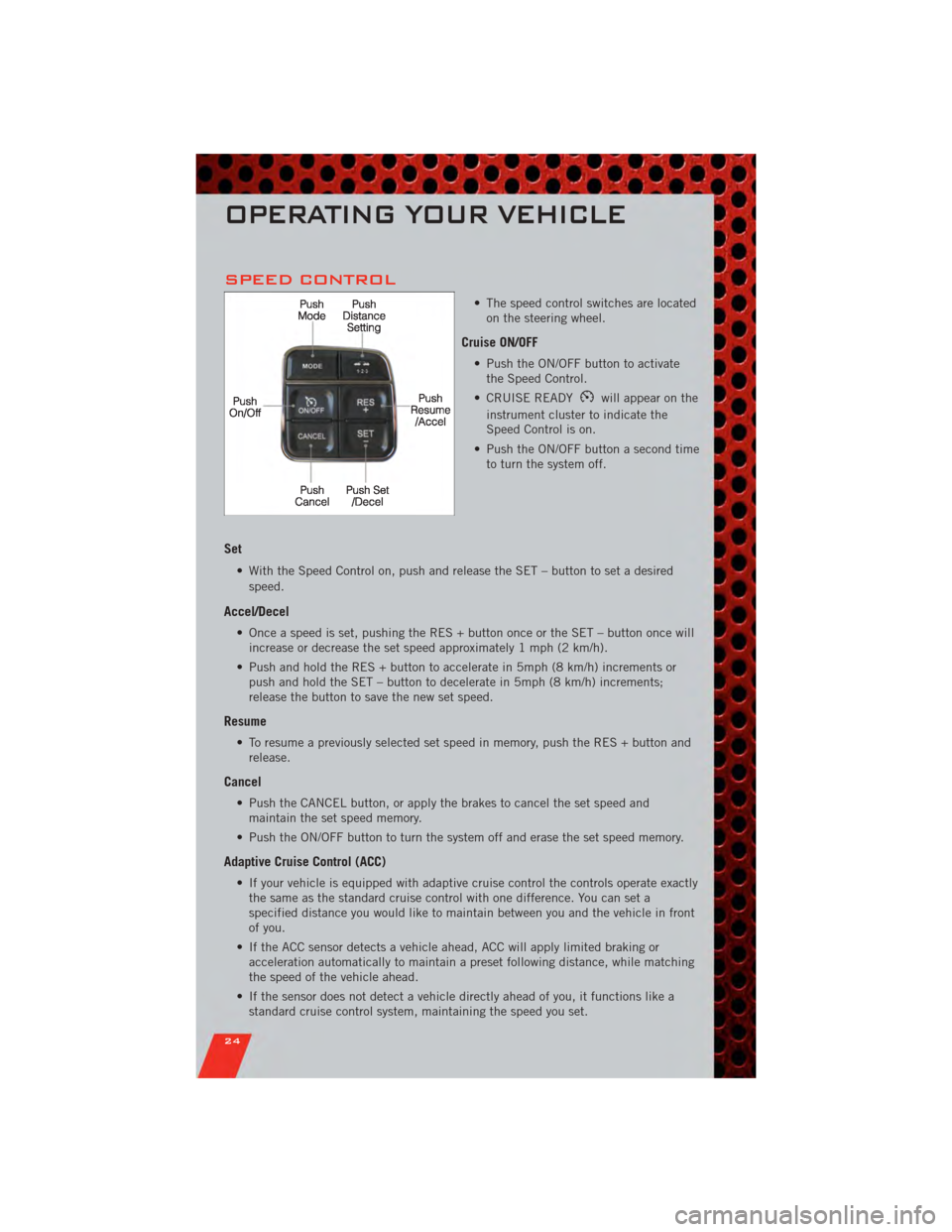
• The speed control switches are locatedon the steering wheel.
Cruise ON/OFF
• Push the ON/OFF button to activatethe Speed Control.
• CRUISE READY
will appear on the
instrument cluster to indicate the
Speed Control is on.
• Push the ON/OFF button a second time to turn the system off.
Set
• With the Speed Control on, push and release the SET – button to set a desired
speed.
Accel/Decel
• Once a speed is set, pushing the RES + button once or the SET – button once willincrease or decrease the set speed approximately 1 mph (2 km/h).
• Push and hold the RES + button to accelerate in 5mph (8 km/h) increments or push and hold the SET – button to decelerate in 5mph (8 km/h) increments;
release the button to save the new set speed.
Resume
• To resume a previously selected set speed in memory, push the RES + button andrelease.
Cancel
• Push the CANCEL button, or apply the brakes to cancel the set speed andmaintain the set speed memory.
• Push the ON/OFF button to turn the system off and erase the set speed memory.
Adaptive Cruise Control (ACC)
• If your vehicle is equipped with adaptive cruise control the controls operate exactly the same as the standard cruise control with one difference. You can set a
specified distance you would like to maintain between you and the vehicle in front
of you.
• If the ACC sensor detects a vehicle ahead, ACC will apply limited braking or acceleration automatically to maintain a preset following distance, while matching
the speed of the vehicle ahead.
• If the sensor does not detect a vehicle directly ahead of you, it functions like a standard cruise control system, maintaining the speed you set.
OPERATING YOUR VEHICLE
24
Page 38 of 104
Equalizer• Touch the Equalizer soft-key to adjust the Bass, Mid and Treble. Use the + or - soft-key to adjust the equalizer to your desired settings. Press the back arrow
soft-key when done.
Balance/Fade • Touch the Balance/Fade soft-key to adjust the sound from the speakers. Use the arrow soft-key to adjust the sound level from the front and rear or right and left
side speakers. Touch the Center "C" soft-key to reset the balance and fade to the
factory setting. Press the back arrow soft-key when done.
Speed Adjust Volume • Touch the Speed Adjust Volume soft-key to select between OFF, 1, 2 or 3. This will decrease the radio volume relative to a decrease in vehicle speed. Press the back
arrow soft-key when done.
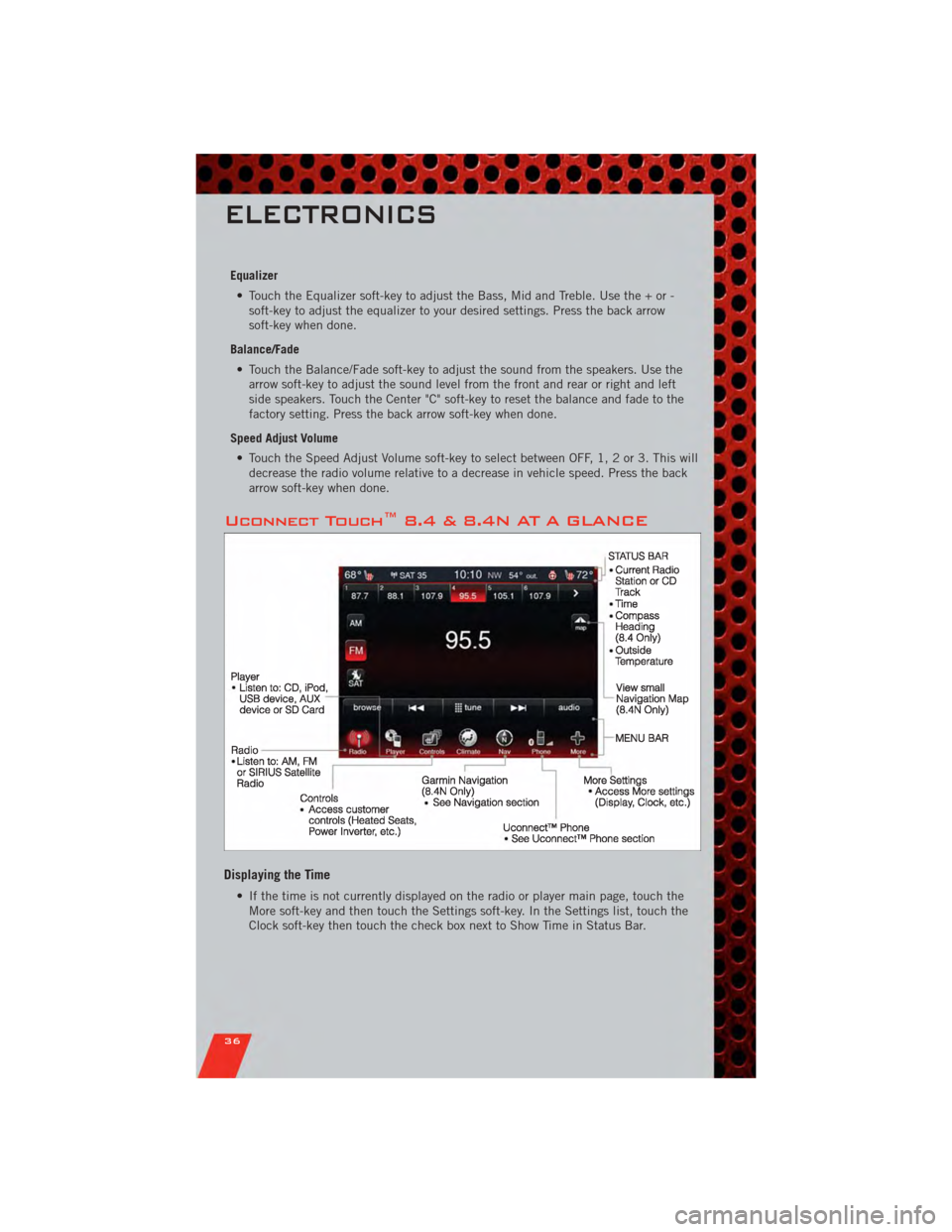
Uconnect Touch™ 8.4 & 8.4N AT A GLANCE
Displaying the Time
• If the time is not currently displayed on the radio or player main page, touch theMore soft-key and then touch the Settings soft-key. In the Settings list, touch the
Clock soft-key then touch the check box next to Show Time in Status Bar.
ELECTRONICS
36
Page 41 of 104
• To access the Radio mode, touch the Radio hard-key on the upper left side of thefaceplate (4.3 & 4.3S) or the Radio soft-key at the lower left of the screen (8.4 &
8.4N).
• Unless otherwise noted, the information provided on the operation and functionality of the radios in this section is common to all Uconnect Touch™
radios.
Selecting Radio Stations
• Touch the Radio band soft-key to cycle through AM, FM or SAT (4.3 & 4.3S) or thedesired radio band (AM, FM or SAT) soft-key (8.4 & 8.4N). Satellite Radio is not
only available on the 4.3.
Seek Up/Seek Down • Touch the Seek arrow soft-keys for less than 2 seconds to seek through radio stations.
• Touch and hold either arrow soft-key for more than 2 seconds to bypass stations without stopping. The radio will stop at the next listenable station once the arrow
soft-key is released.
Direct Tune • Tune directly to a radio station by pressing the “Tune” button on the screen, and entering the desired station number.
Store Radio Presets
• Your radio can store 12 total preset stations. They are shown at the top of yourscreen. To see all 12 stations, Press the all soft-key (4.3 & 4.3S) or press the
arrow soft-key at the top right of the screen to toggle between the six presets (8.4
& 8.4N).
• To set a station into memory press and hold the desired numbered soft-key for more than two seconds or until you hear a confirmation beep.
SIRIUS SATELLITE RADIO
• SIRIUS®Satellite Radio gives you over 130 channels, including 100%
commercial-free music from nearly every genre, plus all your favorite sports, news,
talk and entertainment channels –all with crystal clear, coast-to-coast coverage, all
in one place and all at your fingertips.
• To access SIRIUS Satellite Radio, touch the Radio band soft-key and select the SAT soft-key (4.3S) or touch the SAT soft-key on the main Radio screen (8.4 &
8.4N).
• The following describes features that are available when in SIRIUS Satellite Radio mode.
• Unless otherwise noted, the information provided on the operation and functionality of the radios in this section is common to all Uconnect Touch™
radios.
ELECTRONICS
39
Page 43 of 104
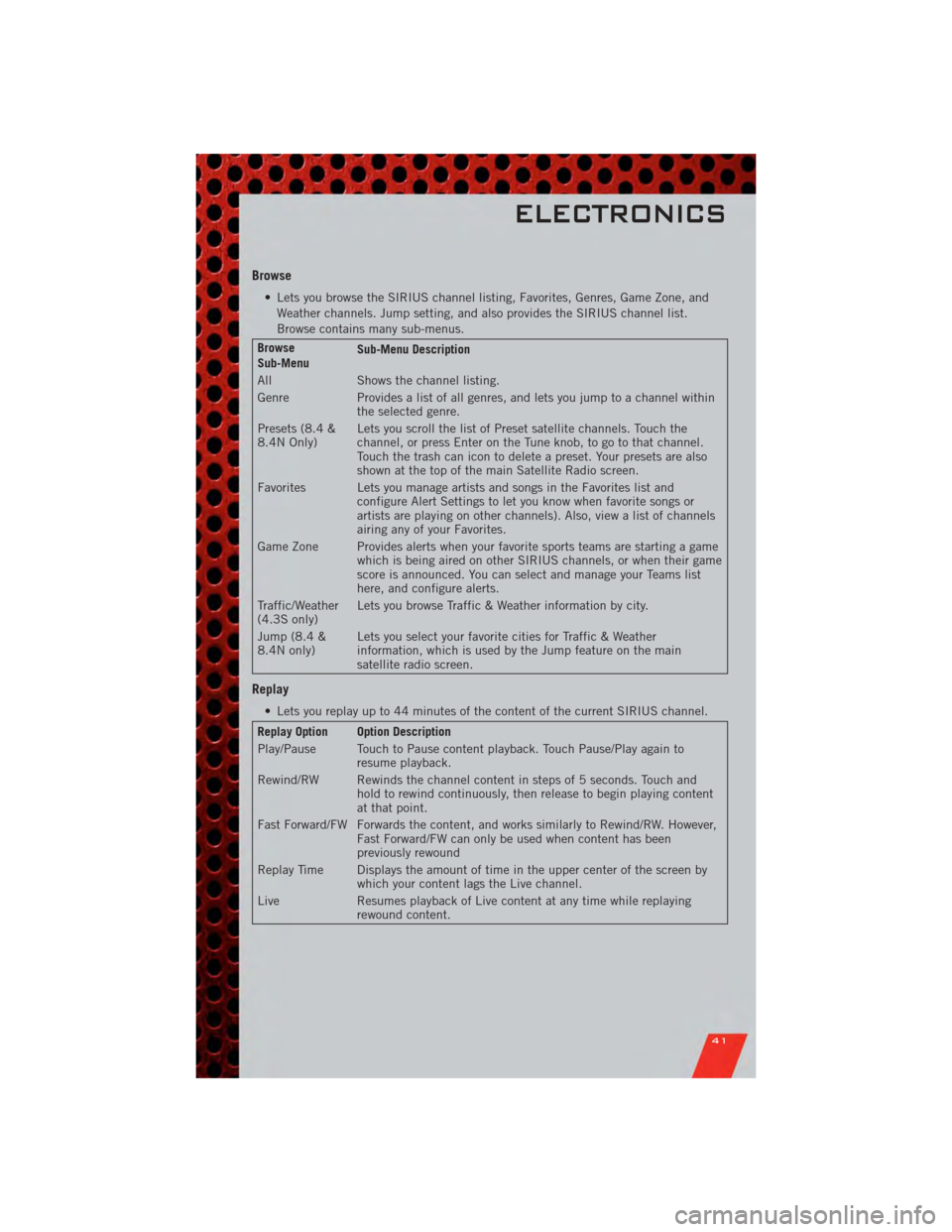
Browse
• Lets you browse the SIRIUS channel listing, Favorites, Genres, Game Zone, andWeather channels. Jump setting, and also provides the SIRIUS channel list.
Browse contains many sub-menus.
Browse
Sub-Menu Sub-Menu Description
All Shows the channel listing.
Genre Provides a list of all genres, and lets you jump to a channel within the selected genre.
Presets (8.4 &
8.4N Only) Lets you scroll the list of Preset satellite channels. Touch the
channel, or press Enter on the Tune knob, to go to that channel.
Touch the trash can icon to delete a preset. Your presets are also
shown at the top of the main Satellite Radio screen.
Favorites Lets you manage artists and songs in the Favorites list and configure Alert Settings to let you know when favorite songs or
artists are playing on other channels). Also, view a list of channels
airing any of your Favorites.
Game Zone Provides alerts when your favorite sports teams are starting a game which is being aired on other SIRIUS channels, or when their game
score is announced. You can select and manage your Teams list
here, and configure alerts.
Traffic/Weather
(4.3S only) Lets you browse Traffic & Weather information by city.
Jump (8.4 &
8.4N only) Lets you select your favorite cities for Traffic & Weather
information, which is used by the Jump feature on the main
satellite radio screen.
Replay
• Lets you replay up to 44 minutes of the content of the current SIRIUS channel.
Replay Option Option Description
Play/Pause Touch to Pause content playback. Touch Pause/Play again to
resume playback.
Rewind/RW Rewinds the channel content in steps of 5 seconds. Touch and hold to rewind continuously, then release to begin playing content
at that point.
Fast Forward/FW Forwards the content, and works similarly to Rewind/RW. However, Fast Forward/FW can only be used when content has been
previously rewound
Replay Time Displays the amount of time in the upper center of the screen by which your content lags the Live channel.
Live Resumes playback of Live content at any time while replaying rewound content.
ELECTRONICS
41
Page 59 of 104
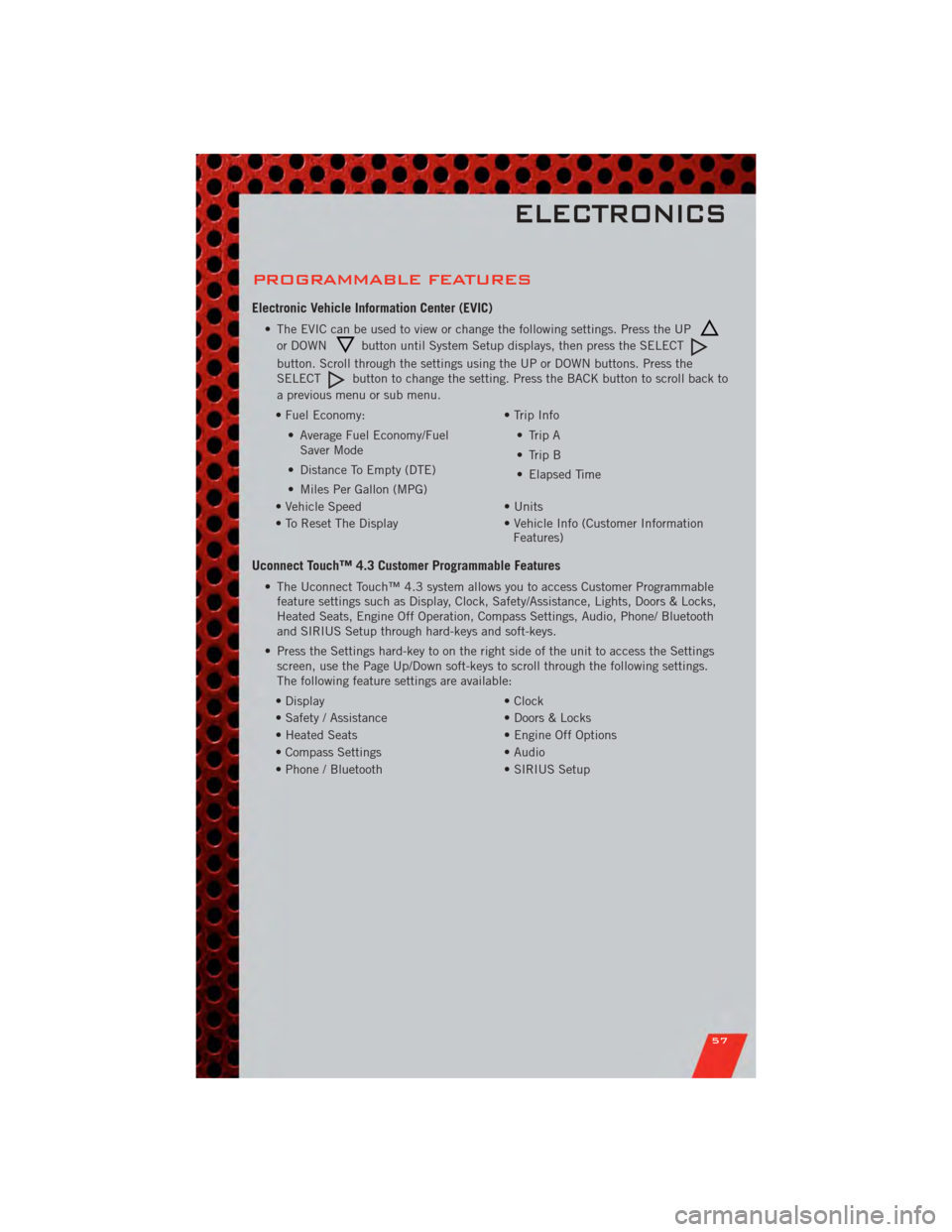
PROGRAMMABLE FEATURES
Electronic Vehicle Information Center (EVIC)
• The EVIC can be used to view or change the following settings. Press the UP
or DOWNbutton until System Setup displays, then press the SELECT
button. Scroll through the settings using the UP or DOWN buttons. Press the
SELECTbutton to change the setting. Press the BACK button to scroll back to
a previous menu or sub menu.
• Fuel Economy: • Average Fuel Economy/FuelSaver Mode
• Distance To Empty (DTE)
• Miles Per Gallon (MPG) • Trip Info
• Trip A
• Trip B
• Elapsed Time
• Vehicle Speed • Units
• To Reset The Display • Vehicle Info (Customer Information
Features)
Uconnect Touch™ 4.3 Customer Programmable Features
• The Uconnect Touch™ 4.3 system allows you to access Customer Programmable
feature settings such as Display, Clock, Safety/Assistance, Lights, Doors & Locks,
Heated Seats, Engine Off Operation, Compass Settings, Audio, Phone/ Bluetooth
and SIRIUS Setup through hard-keys and soft-keys.
• Press the Settings hard-key to on the right side of the unit to access the Settings screen, use the Page Up/Down soft-keys to scroll through the following settings.
The following feature settings are available:
• Display • Clock
• Safety / Assistance • Doors & Locks
• Heated Seats • Engine Off Options
• Compass Settings • Audio
• Phone / Bluetooth • SIRIUS Setup
ELECTRONICS
57
Page 68 of 104
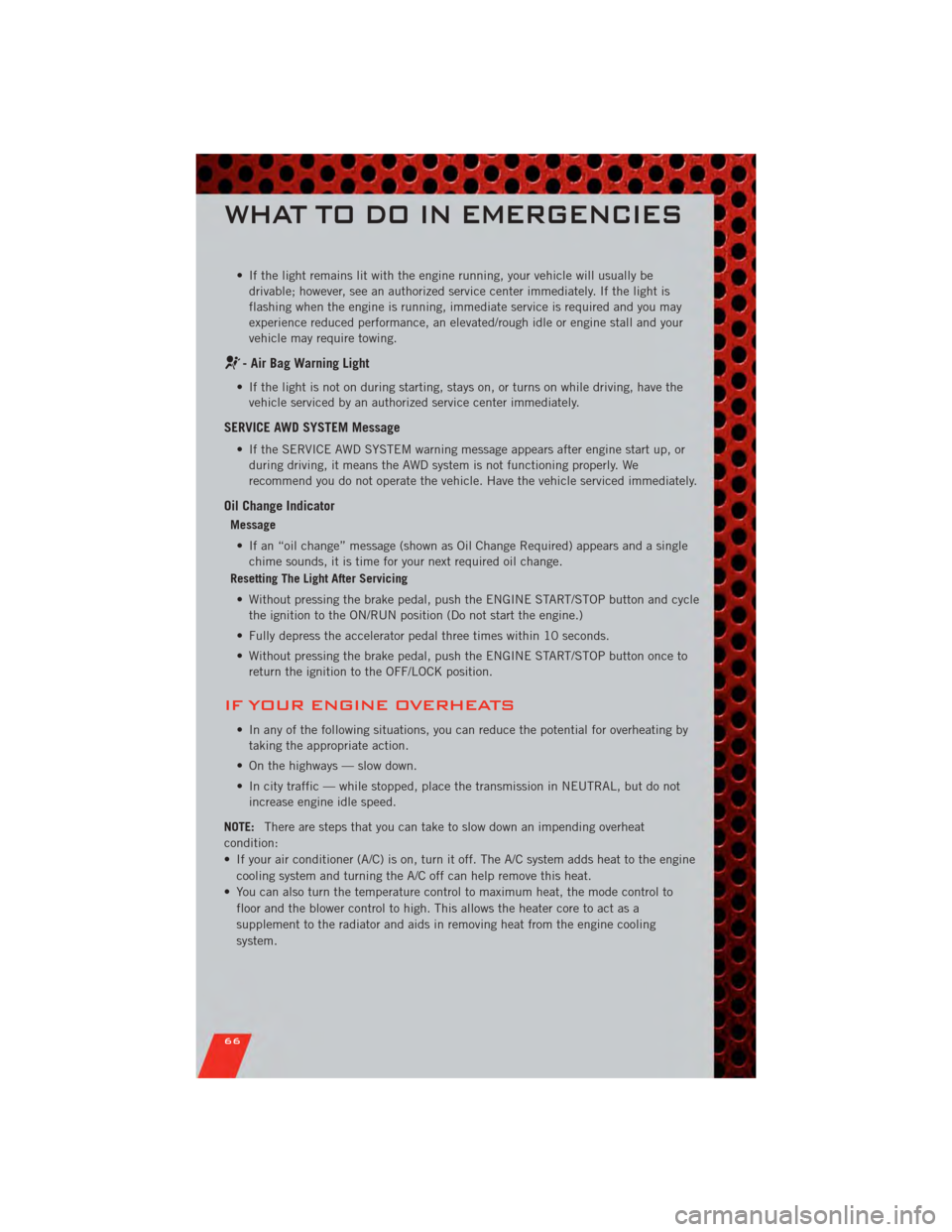
• If the light remains lit with the engine running, your vehicle will usually bedrivable; however, see an authorized service center immediately. If the light is
flashing when the engine is running, immediate service is required and you may
experience reduced performance, an elevated/rough idle or engine stall and your
vehicle may require towing.
- Air Bag Warning Light
• If the light is not on during starting, stays on, or turns on while driving, have thevehicle serviced by an authorized service center immediately.
SERVICE AWD SYSTEM Message
• If the SERVICE AWD SYSTEM warning message appears after engine start up, orduring driving, it means the AWD system is not functioning properly. We
recommend you do not operate the vehicle. Have the vehicle serviced immediately.
Oil Change Indicator
Message
• If an “oil change” message (shown as Oil Change Required) appears and a single chime sounds, it is time for your next required oil change.
Resetting The Light After Servicing
• Without pressing the brake pedal, push the ENGINE START/STOP button and cycle the ignition to the ON/RUN position (Do not start the engine.)
• Fully depress the accelerator pedal three times within 10 seconds.
• Without pressing the brake pedal, push the ENGINE START/STOP button once to return the ignition to the OFF/LOCK position.
IF YOUR ENGINE OVERHEATS
• In any of the following situations, you can reduce the potential for overheating bytaking the appropriate action.
• On the highways — slow down.
• In city traffic — while stopped, place the transmission in NEUTRAL, but do not increase engine idle speed.
NOTE: There are steps that you can take to slow down an impending overheat
condition:
• If your air conditioner (A/C) is on, turn it off. The A/C system adds heat to the engine cooling system and turning the A/C off can help remove this heat.
• You can also turn the temperature control to maximum heat, the mode control to floor and the blower control to high. This allows the heater core to act as a
supplement to the radiator and aids in removing heat from the engine cooling
system.
WHAT TO DO IN EMERGENCIES
66
Page 98 of 104
Jack Location.............. 67
Jump Starting .............. 70
KeyFob .................. 8
Keyless Enter-N-Go ........... 9
Lock/Unlock .............. 9
Starting/Stopping .......... 10
Lane Change Assist .......... 22
LATCH (Lower Anchors and Tether for
CHildren) ................ 13
Lights TurnSignal .............. 22
Warning (Instrument Cluster
Description) .............. 6
Maintenance Record .......... 85
MaintenanceSchedule ........ 83
MemorySeat .............. 16
MOPAR
®Accessories ......... 94
Navigation ................ 44
Oil Change Indicator .......... 66
Oil, Engine Capacity ............... 81
Outlet Power ................. 60
Overheating, Engine .......... 66
Panic Alarm ............... 8
Pedals, Adjustable ........... 20
Phone (Uconnect) ........... 49
Placard, Tire and Loading
Information ............... 90
Power Glass Sunroof ............ 30
Outlet (Auxiliary Electrical
Outlet) ................ 60
Seats ................. 16
Steering ................ 81
Tilt/Telescoping Steering
Column ................ 21
Programmable Electronic Features . . 57
Radio Operation ............ 38
Rain Sensitive Wiper System ..... 22Rear Heated Seats
........... 19
Rear Seat, Folding ........... 18
Recreational Towing .......... 62
Remote Starting System ........ 9
Replacement Bulbs .......... 91
Reporting Safety Defects ....... 93
Restraints, Child ............ 13
Seat Belts ................ 12
Seats ................... 16
Adjustment .............. 17
Heated ................ 18
Lumbar Support ........... 16
Memory ................ 16
Power ................. 16
RearFolding ............. 18
Setting the Clock .......... 35,37
Shift Lever Override .......... 72
Signals, Turn .............. 22
SIRIUS Travel Link ........... 47
SmartBeams .............. 23
Spark Plugs ............... 81
Speed Control (Cruise Control) .... 24
Starting Remote ................. 9
Steering Tilt Column .............. 21
Store Radio Presets .......... 39
SunRoof ................ 30
Supplemental Restraint System -
Airbag .................. 12
Temperature Gauge, Engine
Coolant ................. 67
Theft Alarm (Security Alarm) ..... 11
Theft System Arming ......... 11
Theft System Disarming ........ 11
Tilt Steering Column .......... 21
Tires AirPressure ............. 90
Changing ............... 68
FlatChanging ............ 68
Jacking ................ 68
Pressure Warning Light ....... 63
Towing .................. 61 24-Hour Towing Assistance ..... 63
Disabled Vehicle ........... 73
Recreational ............. 6
2
INDEX
96