pairing phone DODGE CHARGER 2014 7.G Owners Manual
[x] Cancel search | Manufacturer: DODGE, Model Year: 2014, Model line: CHARGER, Model: DODGE CHARGER 2014 7.GPages: 635, PDF Size: 4.72 MB
Page 126 of 635
•View Call logs on screen (“Show incoming calls,”
“Show Outgoing calls,” “Show missed Calls,” “Show
Recent Calls”)
• Searching Contacts phone number (“Search for John
Smith Mobile”)
Screen Activated Features:
• Dialing via Keypad using the touchscreen,
• Viewing and Calling contacts from Phonebooks dis-
played on the touchscreen,
• Setting Favorite Contact Phone numbers so they are
easily accessible on the Main Phone screen,
• Viewing and Calling contacts from Recent Call logs,
• Listen to Music on your Bluetooth® Device via the
touchscreen,
• Pairing up to 10 phones/audio devices for easy access
to connect to them quickly. Your mobile phone’s audio is transmitted through your
vehicle’s audio system; the system will automatically
mute your radio when using the Uconnect® Phone.
For Uconnect® customer support:
•
U.S. residents - visit www.UconnectPhone.com or call
1-877-855-8400.
• Canadian Residents - visit www.UconnectPhone.com
or call, 1-800-465-2001 (English) or 1-800-387-9983
(French).
If your mobile phone only supports the Headset Profile
you may not be able to use any Uconnect® Phone
features. Refer to your mobile service provider or the
phone manufacturer for details.
Uconnect® Phone allows you to transfer calls between
the system and your mobile phone as you enter or exit
your vehicle and enables you to mute the system’s
microphone for private conversation.
124 UNDERSTANDING THE FEATURES OF YOUR VEHICLE
Page 130 of 635
You can also push theorbutton on your steering
wheel when the system is listening for a command and
be returned to the main or previous menu.
Pair (Link) Uconnect® Phone To A Mobile Phone
To begin using your Uconnect® Phone, you must pair
your compatible Bluetooth® enabled mobile phone.
To complete the pairing process, you will need to refer-
ence your mobile phone Owner’s Manual. The
Uconnect® website may also provide detailed instruc-
tions for pairing.
NOTE:
• You must have Bluetooth® enabled on your phone to
complete this procedure.
• The vehicle must be in PARK. 1. You can do either of the following:
a. Press the SETTINGS hard-key, page down to the“Phone/Bluetooth®” soft-key, press it and you will
see the Paired Phones screen. If there are no paired
phones you will see
name.
b. Press the MORE hard-key, then press the “Phone” soft-key and you will go to the Uconnect® Phone
main screen. Press the “Settings” soft-key. If there
are no phones currently paired a pop-up will
appear. If you select Yes you will go the Paired
Phones screen, if you select No you will return to
the Uconnect® Phone main menu.
2. At the Paired Phones screen press the “Add Device” soft-key and a pop-up with instructions will appear.
3. Search for available devices on your Bluetooth® en- abled mobile phone. When prompted on the phone,
select the “Uconnect®” device and enter the PIN.
128 UNDERSTANDING THE FEATURES OF YOUR VEHICLE
Page 131 of 635
4. When the pairing process has successfully completed,the system will prompt you to choose whether or not
this is your favorite phone. Selecting Yes will make
this phone the highest priority. This phone will take
precedence over other paired phones within range.
Pair A Bluetooth® Streaming Audio Device
1. Press the PLAYER hard-key to begin.
2. Touch the “Source” soft-key.
3. Change the Source to Bluetooth®.
4. Touch the “Add Device” soft-key.
5. Search for available devices on your Bluetooth® en-abled Audio Device. When prompted on the device,
select the “Uconnect®” device and enter the PIN.
6. Uconnect® Phone will display an in process screen while the system is connecting. 7. When the pairing process has successfully completed,
the system will prompt you to choose whether or not
this is your favorite device. Selecting Yes will make
this device the highest priority. This device will take
precedence over other paired devices within range.
NOTE: If No is selected, device priority is determined by
the order in which it was paired. The latest device paired
will have the higher priority.
You can also use the following VR command to bring up
a list of paired audio devices.
• “Show Paired Audio Devices.”
Connecting To A Particular Mobile Phone Or
Audio Device
Uconnect® Phone will automatically connect to the high-
est priority paired phone and/or Audio Device within
range. If you need to choose a particular Phone or Audio
Device follow these steps:
3
UNDERSTANDING THE FEATURES OF YOUR VEHICLE 129
Page 149 of 635
•Setting Favorite Contact Phone numbers so they are
easily accessible on the Main Phone screen.
• Viewing and Calling contacts from Recent Call logs.
• Reviewing your recent Incoming SMS.
• Sending a text message via the touchscreen.
• Listen to Music on your Bluetooth® Device via the
touchscreen.
• Pairing up to 10 phones/audio devices for easy access
to connect to them quickly.
NOTE: Your phone must be capable of SMS messaging
via Bluetooth® for messaging features to work properly.
Your mobile phone’s audio is transmitted through your
vehicle’s audio system; the system will automatically
mute your radio when using the Uconnect® Phone.
For Uconnect® customer support: •
U.S. residents - visit www.UconnectPhone.com or call
1-877-855-8400.
• Canadian Residents - visit www.UconnectPhone.com
or call, 1-800-465-2001 (English) or 1-800-387-9983
(French).
Uconnect® Phone allows you to transfer calls between
the system and your mobile phone as you enter or exit
your vehicle and enables you to mute the system’s
microphone for private conversation.
WARNING!
Any voice commanded system should be used only
in safe driving conditions following all applicable
laws, including laws regarding phone use. Your at-
tention should be focused on safely operating the
vehicle. Failure to do so may result in an accident
causing serious injury or death.
3
UNDERSTANDING THE FEATURES OF YOUR VEHICLE 147
Page 153 of 635
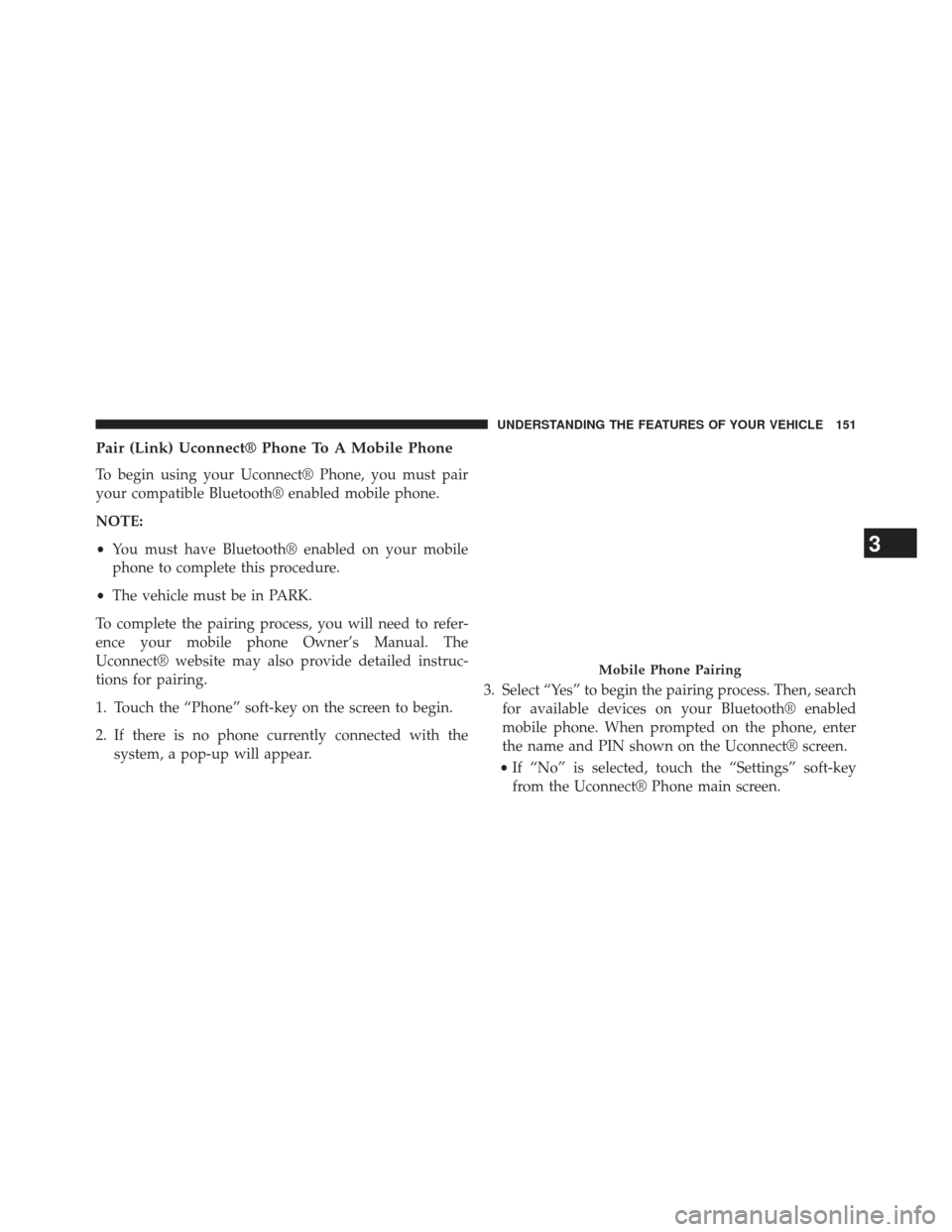
Pair (Link) Uconnect® Phone To A Mobile Phone
To begin using your Uconnect® Phone, you must pair
your compatible Bluetooth® enabled mobile phone.
NOTE:
•You must have Bluetooth® enabled on your mobile
phone to complete this procedure.
• The vehicle must be in PARK.
To complete the pairing process, you will need to refer-
ence your mobile phone Owner’s Manual. The
Uconnect® website may also provide detailed instruc-
tions for pairing.
1. Touch the “Phone” soft-key on the screen to begin.
2. If there is no phone currently connected with the system, a pop-up will appear. 3. Select “Yes” to begin the pairing process. Then, search
for available devices on your Bluetooth® enabled
mobile phone. When prompted on the phone, enter
the name and PIN shown on the Uconnect® screen.
• If “No” is selected, touch the “Settings” soft-key
from the Uconnect® Phone main screen.
Mobile Phone Pairing
3
UNDERSTANDING THE FEATURES OF YOUR VEHICLE 151
Page 154 of 635
•Touch the “Add Device” soft-key.
• Search for available devices on your Bluetooth®
enabled mobile phone. When prompted on the
phone, enter the name and PIN shown on the
Uconnect® screen.
• See step 4 to complete the process.
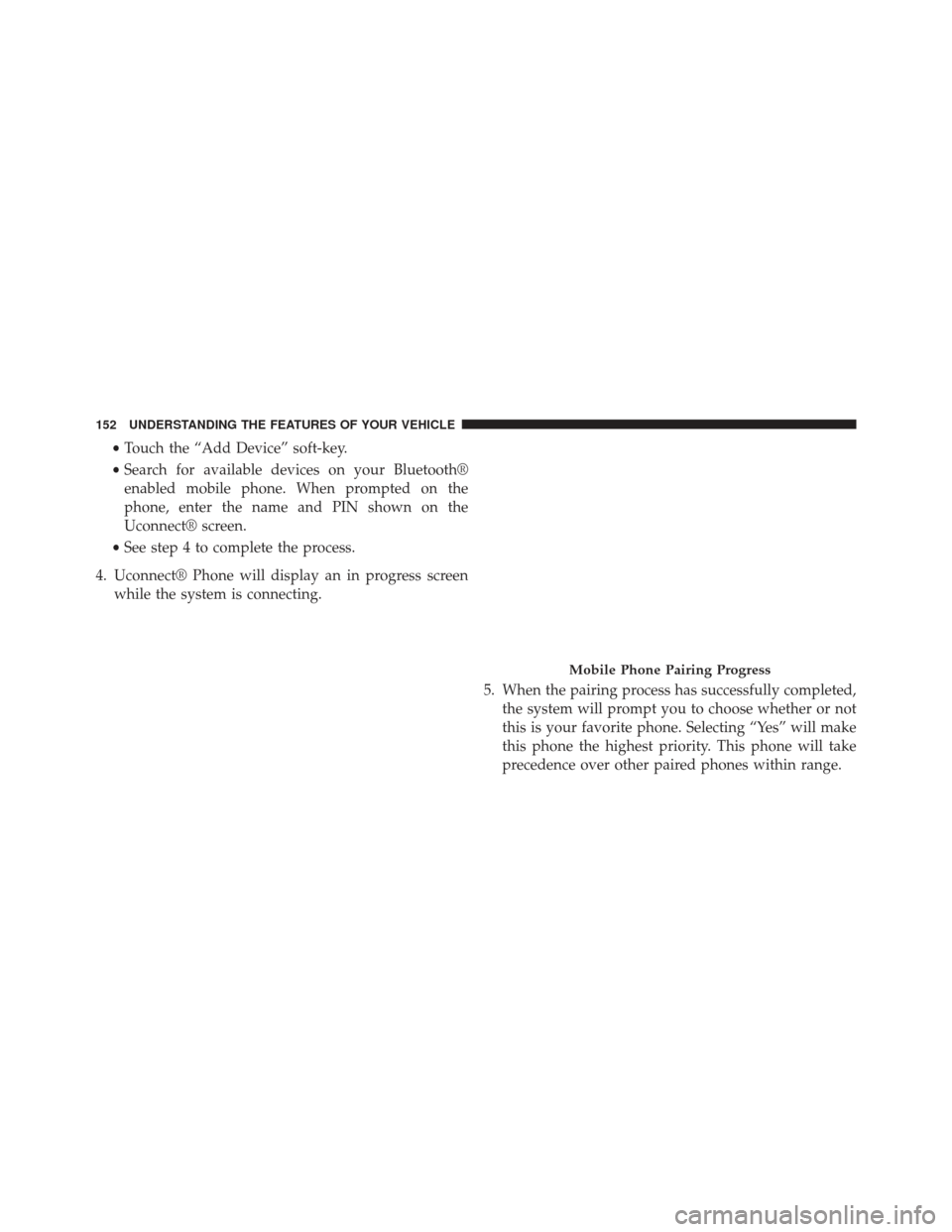
4. Uconnect® Phone will display an in progress screen while the system is connecting.
5. When the pairing process has successfully completed,the system will prompt you to choose whether or not
this is your favorite phone. Selecting “Yes” will make
this phone the highest priority. This phone will take
precedence over other paired phones within range.
Mobile Phone Pairing Progress
152 UNDERSTANDING THE FEATURES OF YOUR VEHICLE
Page 155 of 635
Pair Additional Mobile Phones
1. Touch the “Settings” soft-key from the Phone mainscreen.
2. Touch the “Add Device” soft-key.
3. Search for available devices on your Bluetooth® en- abled mobile phone. When prompted on the phone,
enter the name and PIN shown on the Uconnect®
screen.
4. Uconnect® Phone will display an in process screen while the system is connecting.
5. When the pairing process has successfully completed, the system will prompt you to choose whether or not
this is your favorite phone. Selecting “Yes” will make
this phone the highest priority. This phone will take
precedence over other paired phones within range. NOTE:
For phones which are not made a favorite, the
phone priority is determined by the order in which it was
paired. The latest phone paired will have the higher
priority.
You can also use the following VR commands to bring up
the Paired Phone screen from any screen on the radio:
• “Show Paired Phones”
• “Connect My Phone”
Pair A Bluetooth® Streaming Audio Device
1. Touch the “Player” soft-key to begin.
2. Change the Source to Bluetooth®.
3. Touch the “Bluetooth®” soft-key to display the Paired
Audio Devices screen.
4. Touch the “Add Device” soft-key.
3
UNDERSTANDING THE FEATURES OF YOUR VEHICLE 153
Page 156 of 635
NOTE:If there is no device currently connected with the
system, a pop-up will appear.
5. Search for available devices on your Bluetooth® en- abled audio device. When prompted on the device,
enter the PIN shown on the Uconnect® screen.
6. Uconnect® Phone will display an in process screen while the system is connecting.
7. When the pairing process has successfully completed, the system will prompt you to choose whether or not
this is your favorite device. Selecting “Yes” will make
this device the highest priority. This device will take
precedence over other paired devices within range.
NOTE: For devices which are not made a favorite, the
device priority is determined by the order in which it was
paired. The latest device paired will have the higher
priority. You can also use the following VR command to bring up
a list of paired audio devices:
•
“Show Paired Phones”
• “Connect My Phone”
Connecting To A Particular Mobile Phone Or
Audio Device After Pairing
Uconnect® Phone will automatically connect to the high-
est priority paired phone and/or Audio Device within
range. If you need to choose a particular phone or Audio
Device follow these steps:
1. Press the “Settings” button on the touchscreen.
2. Press the “Paired Phones” or “Paired Audio Sources”
button on the touchscreen.
3. Press to select the particular Phone or the particular Audio Device.
154 UNDERSTANDING THE FEATURES OF YOUR VEHICLE
Page 613 of 635
Automatic Door Locks......................32
Automatic Headlights ..................... .218
Automatic Oil Change Indicator ...............334
Automatic Temperature Control (ATC) ..........382
Automatic Transmission ....................400
Adding Fluid ......................... .563
Autostick ............................ .417
Fluid and Filter Changes ..................563
Fluid Change ......................... .563
Fluid Level Check ...................... .561
Fluid Type ........................... .590
Special Additives ...................... .562
Automatic Transmission Limp Home Mode .......408
Autostick .............................. .417
Auto Unlock, Doors ........................32
Auto Up Power Windows ....................40
Axle Fluid ............................. .590
Axle Lubrication (Axle Fluid) .................590Battery
................................ .543
Keyless Transmitter Replacement (RKE) ........25
Location ............................. .543
Remote Battery Replacement ................25
Transmitter Battery Replacement .............25
Belts, Seat ...............................48
Bluetooth® Connecting To A Particular Mobile Phone Or Audio
Device After Pairing .....................154
Connect Or Disconnect Link Between the Uconnect®
Phone And Mobile Phone .................141
Pair (Link) Uconnect® Phone To A Mobile
Phone .............................. .128
Body Mechanism Lubrication .................548
B-Pillar Location ......................... .447
Brake Assist System ...................... .432
Brake Control System, Electronic ..............431
Brake Fluid ............................ .590
Brake, Parking .......................... .426
10
INDEX 611
Page 625 of 635
Checking............................ .538
Dipstick ............................. .538
Disposal ............................. .542
Filter ............................... .542
Filter Disposal ........................ .542
Identification Logo ..................... .540
Materials Added to ..................... .542
Recommendation ...................... .540
Synthetic ............................ .542
Viscosity ............................ .541
Oil Filter, Selection ....................... .542
Onboard Diagnostic System ..................535
Operating Precautions ..................... .535
Operator Manual (Owner’s Manual) .............4
Outside Rearview Mirrors ...................109
Overdrive .............................. .416
Overdrive OFF Switch ..................... .416
Overheating, Engine ...................... .323Owner’s Manual (Operator Manual)
.............4
Paint Care ............................. .564
Panic Alarm ..............................24
Parking Brake ........................... .426
ParkSense® System, Rear ....................269
Passing Light ........................... .223
Passive Entry .............................34
Pedals, Adjustable ........................ .235
Pets ....................................95
Pets, Transporting ..........................95
Phone (Pairing) .......................... .153
Phone (Uconnect®) ....................... .123
Placard, Tire and Loading Information ..........448
Power Deck Lid Release ........................42
Distribution Center (Fuses) ................576
Door Locks ............................31
Mirrors ..............................111
10
INDEX 623