door lock DODGE CHARGER 2015 7.G Owner's Manual
[x] Cancel search | Manufacturer: DODGE, Model Year: 2015, Model line: CHARGER, Model: DODGE CHARGER 2015 7.GPages: 236, PDF Size: 35.67 MB
Page 69 of 236
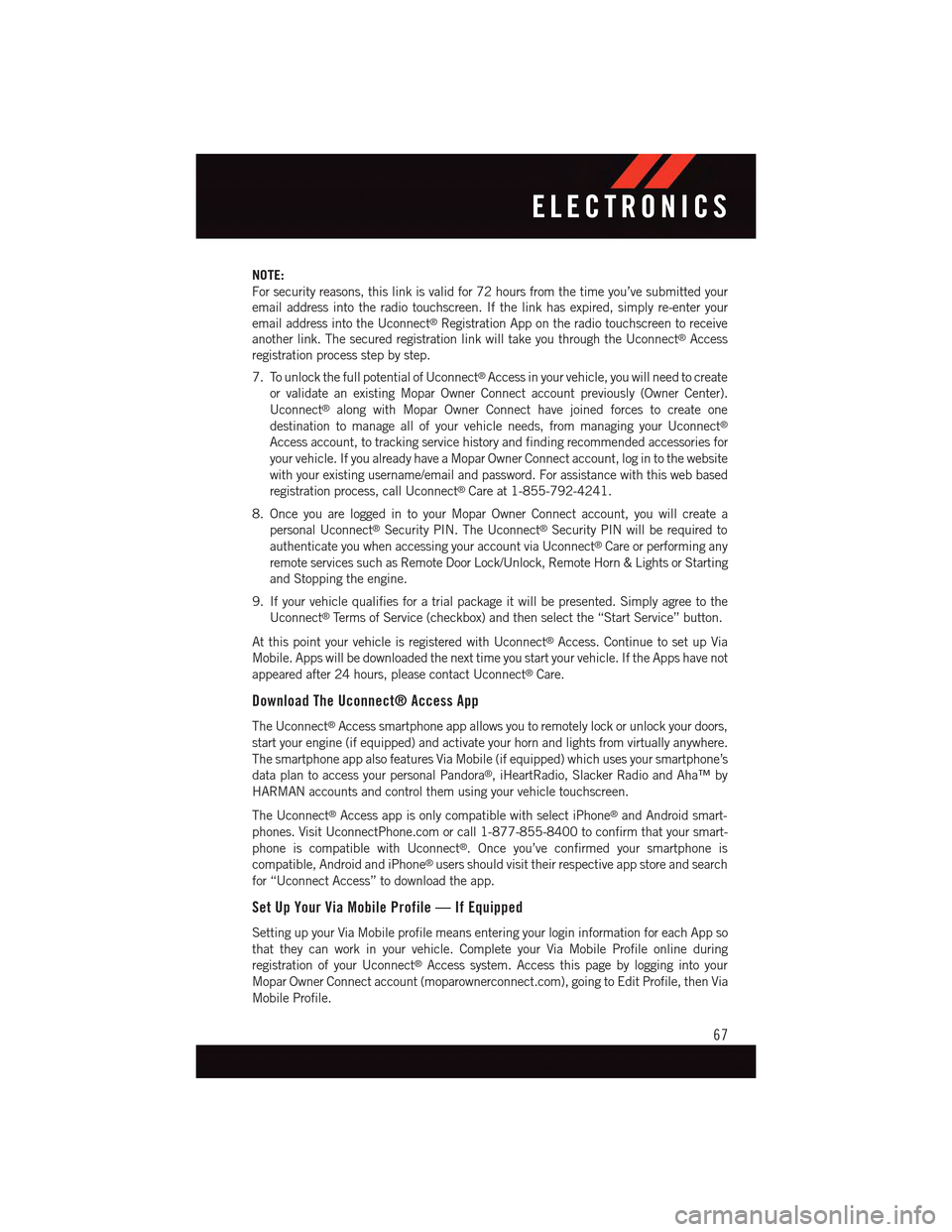
NOTE:
For security reasons, this link is valid for 72 hours from the time you’ve submitted your
email address into the radio touchscreen. If the link has expired, simply re-enter your
email address into the Uconnect®Registration App on the radio touchscreen to receive
another link. The secured registration link will take you through the Uconnect®Access
registration process step by step.
7. To unlock the full potential of Uconnect®Access in your vehicle, you will need to create
or validate an existing Mopar Owner Connect account previously (Owner Center).
Uconnect®along with Mopar Owner Connect have joined forces to create one
destination to manage all of your vehicle needs, from managing your Uconnect®
Access account, to tracking service history and finding recommended accessories for
your vehicle. If you already have a Mopar Owner Connect account, log in to the website
with your existing username/email and password. For assistance with this web based
registration process, call Uconnect®Care at 1-855-792-4241.
8. Once you are logged in to your Mopar Owner Connect account, you will create a
personal Uconnect®Security PIN. The Uconnect®Security PIN will be required to
authenticate you when accessing your account via Uconnect®Care or performing any
remote services such as Remote Door Lock/Unlock, Remote Horn & Lights or Starting
and Stopping the engine.
9. If your vehicle qualifies for a trial package it will be presented. Simply agree to the
Uconnect®Te r m s o f S e r v i c e ( c h e c k b o x ) a n d t h e n s e l e c t t h e “ S t a r t S e r v i c e ” b u t t o n .
At this point your vehicle is registered with Uconnect®Access. Continue to set up Via
Mobile. Apps will be downloaded the next time you start your vehicle. If the Apps have not
appeared after 24 hours, please contact Uconnect®Care.
Download The Uconnect® Access App
The Uconnect®Access smartphone app allows you to remotely lock or unlock your doors,
start your engine (if equipped) and activate your horn and lights from virtually anywhere.
The smartphone app also features Via Mobile (if equipped) which uses your smartphone’s
data plan to access your personal Pandora®,iHeartRadio,SlackerRadioandAha™by
HARMAN accounts and control them using your vehicle touchscreen.
The Uconnect®Access app is only compatible with select iPhone®and Android smart-
phones. Visit UconnectPhone.com or call 1-877-855-8400 to confirm that your smart-
phone is compatible with Uconnect®.Onceyou’veconfirmedyoursmartphoneis
compatible, Android and iPhone®users should visit their respective app store and search
for “Uconnect Access” to download the app.
Set Up Your Via Mobile Profile — If Equipped
Setting up your Via Mobile profile means entering your login information for each App so
that they can work in your vehicle. Complete your Via Mobile Profile online during
registration of your Uconnect®Access system. Access this page by logging into your
Mopar Owner Connect account (moparownerconnect.com), going to Edit Profile, then Via
Mobile Profile.
ELECTRONICS
67
Page 76 of 236
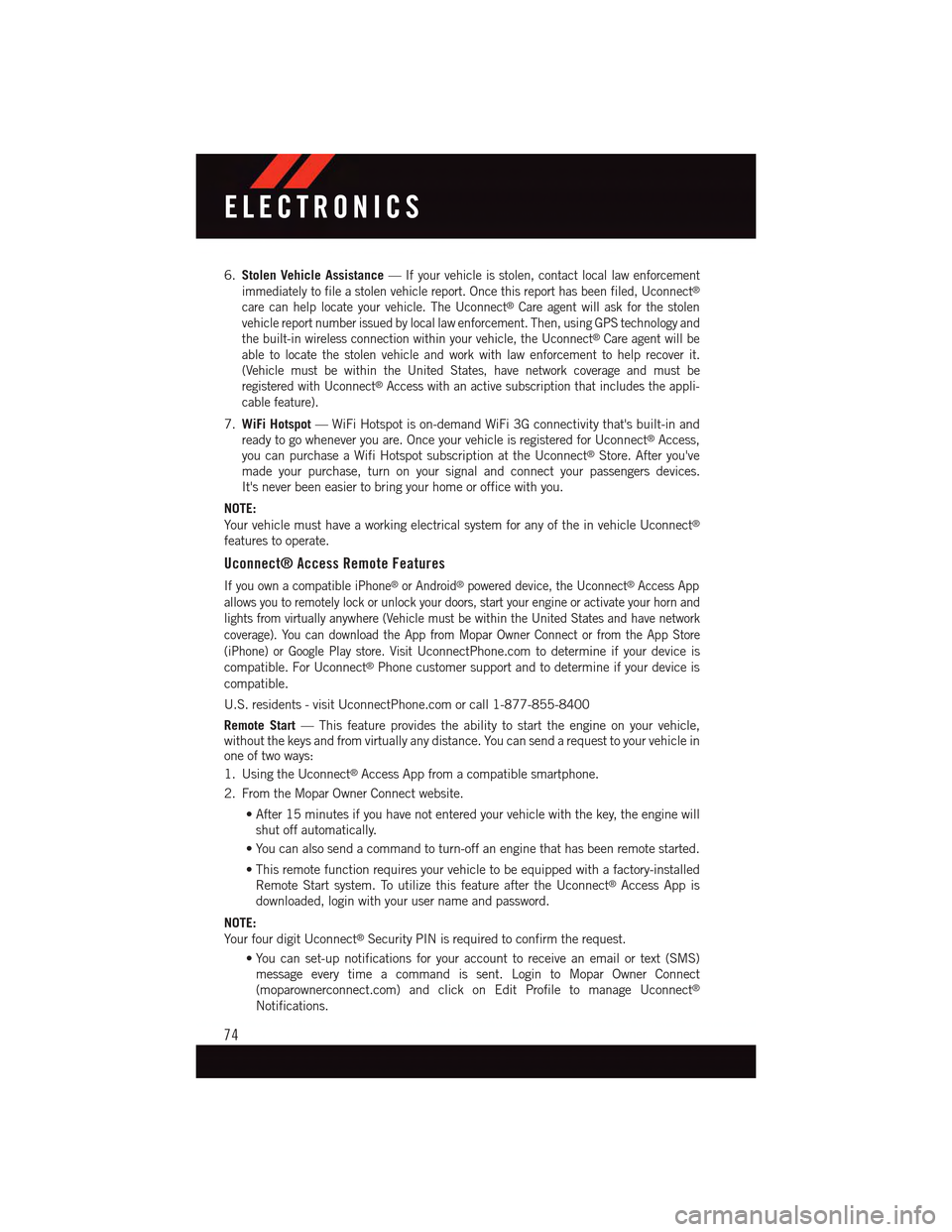
6.Stolen Vehicle Assistance—If your vehicle is stolen, contact local law enforcement
immediately to file a stolen vehicle report. Once this report has been filed, Uconnect®
care can help locate your vehicle. The Uconnect®Care agent will ask for the stolen
vehicle report number issued by local law enforcement. Then, using GPS technology and
the built-in wireless connection within your vehicle, the Uconnect®Care agent will be
able to locate the stolen vehicle and work with law enforcement to help recover it.
(Vehicle must be within the United States, have network coverage and must be
registered with Uconnect®Access with an active subscription that includes the appli-
cable feature).
7.WiFi Hotspot—WiFiHotspotison-demandWiFi3Gconnectivitythat'sbuilt-inand
ready to go whenever you are. Once your vehicle is registered for Uconnect®Access,
you can purchase a Wifi Hotspot subscription at the Uconnect®Store. After you've
made your purchase, turn on your signal and connect your passengers devices.
It's never been easier to bring your home or office with you.
NOTE:
Yo u r v e h i c l e m u s t h a v e a w o r k i n g e l e c t r i c a l s y s t e m f o r a n y o f t h e i n v e h i c l e U c o n n e c t®
features to operate.
Uconnect® Access Remote Features
If you own a compatible iPhone®or Android®powered device, the Uconnect®Access App
allows you to remotely lock or unlock your doors, start your engine or activate your horn and
lights from virtually anywhere (Vehicle must be within the United States and have network
coverage). You can download the App from Mopar Owner Connect or from the App Store
(iPhone) or Google Play store. VisitUconnectPhone.com to determine if your device is
compatible. For Uconnect®Phone customer support and to determine if your device is
compatible.
U.S. residents - visit UconnectPhone.com or call 1-877-855-8400
Remote Start—Thisfeatureprovidestheabilitytostarttheengineonyourvehicle,without the keys and from virtually any distance. You can send a request to your vehicle inone of two ways:
1. Using the Uconnect®Access App from a compatible smartphone.
2. From the Mopar Owner Connect website.
•After15minutesifyouhavenotenteredyourvehiclewiththekey,theenginewill
shut off automatically.
•Youcanalsosendacommandtoturn-offanenginethathasbeenremotestarted.
•Thisremotefunctionrequiresyourvehicletobeequippedwithafactory-installed
Remote Start system. To utilize this feature after the Uconnect®Access App is
downloaded, login with your user name and password.
NOTE:
Yo u r f o u r d i g i t U c o n n e c t®Security PIN is required to confirm the request.
•You can set-up notifications for your account to receive an email or text (SMS)message every time a command is sent. Login to Mopar Owner Connect(moparownerconnect.com) and click on Edit Profile to manage Uconnect®
Notifications.
ELECTRONICS
74
Page 77 of 236
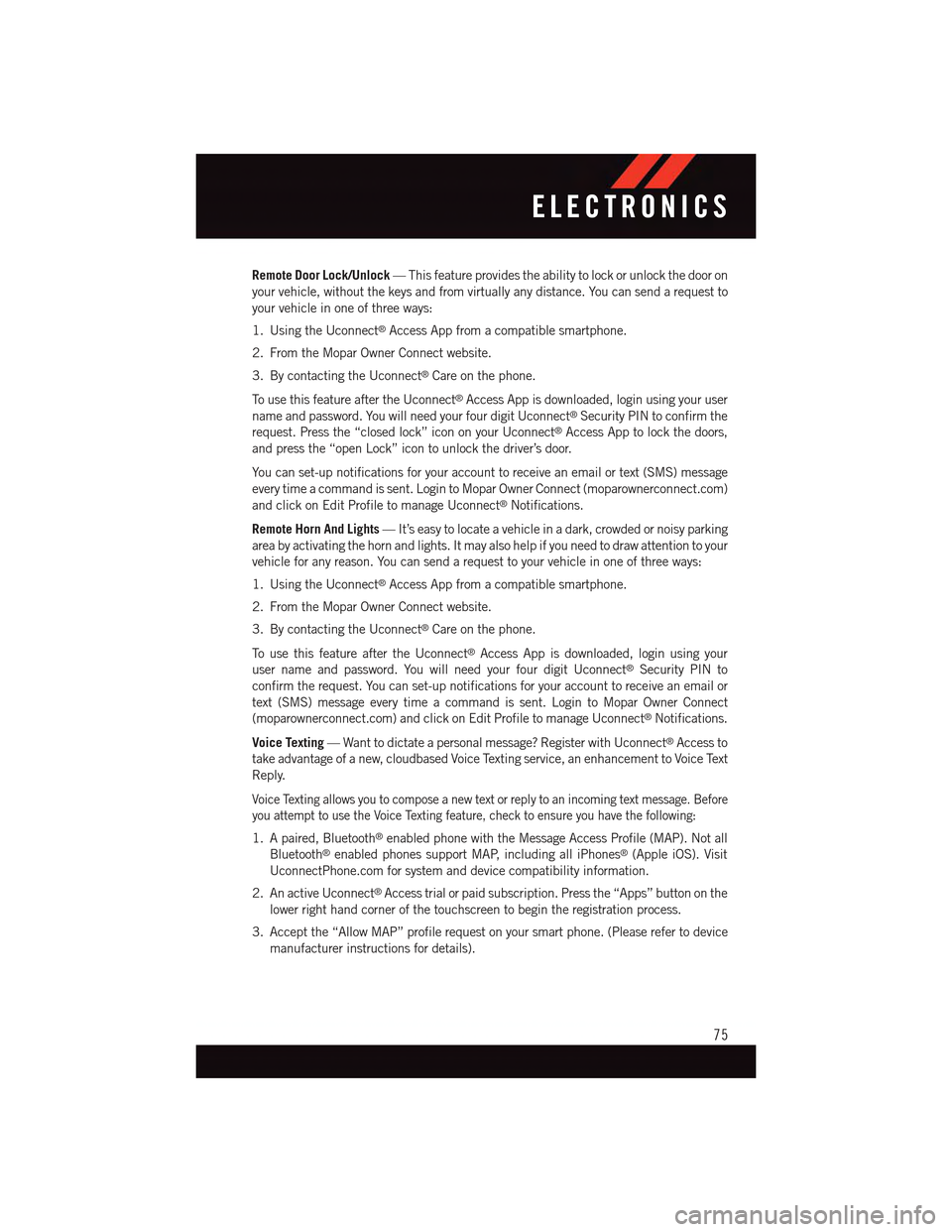
Remote Door Lock/Unlock—Thisfeatureprovidestheabilitytolockorunlockthedooron
your vehicle, without the keys and from virtually any distance. You can send a request to
your vehicle in one of three ways:
1. Using the Uconnect®Access App from a compatible smartphone.
2. From the Mopar Owner Connect website.
3. By contacting the Uconnect®Care on the phone.
To u s e t h i s f e a t u r e a f t e r t h e U c o n n e c t®Access App is downloaded, login using your user
name and password. You will need your four digit Uconnect®Security PIN to confirm the
request. Press the “closed lock” icon on your Uconnect®Access App to lock the doors,
and press the “open Lock” icon to unlock the driver’s door.
Yo u c a n s e t - u p n o t i f i c a t i o n s f o r y o u r a c c o u n t t o r e c e i v e a n e m a i l o r t e x t ( S M S ) m e s s a g e
every time a command is sent. Login to Mopar Owner Connect (moparownerconnect.com)
and click on Edit Profile to manage Uconnect®Notifications.
Remote Horn And Lights—It’seasytolocateavehicleinadark,crowdedornoisyparking
area by activating the horn and lights. It may also help if you need to draw attention to your
vehicle for any reason. You can send a request to your vehicle in one of three ways:
1. Using the Uconnect®Access App from a compatible smartphone.
2. From the Mopar Owner Connect website.
3. By contacting the Uconnect®Care on the phone.
To u s e t h i s f e a t u r e a f t e r t h e U c o n n e c t®Access App is downloaded, login using your
user name and password. You will need your four digit Uconnect®Security PIN to
confirm the request. You can set-up notifications for your account to receive an email or
text (SMS) message every time a command is sent. Login to Mopar Owner Connect
(moparownerconnect.com) and click on Edit Profile to manage Uconnect®Notifications.
Voice Texting—Wanttodictateapersonalmessage?RegisterwithUconnect®Access to
take advantage of a new, cloudbased Voice Texting service, an enhancement to Voice Text
Reply.
Voice Texting allows you to compose a new text or reply to an incoming text message. Before
you attempt to use the Voice Texting feature, check to ensure you have the following:
1. A paired, Bluetooth®enabled phone with the Message Access Profile (MAP). Not all
Bluetooth®enabled phones support MAP, including all iPhones®(Apple iOS). Visit
UconnectPhone.com for system and device compatibility information.
2. An active Uconnect®Access trial or paid subscription. Press the “Apps” button on the
lower right hand corner of the touchscreen to begin the registration process.
3. Accept the “Allow MAP” profile request on your smart phone. (Please refer to device
manufacturer instructions for details).
ELECTRONICS
75
Page 113 of 236
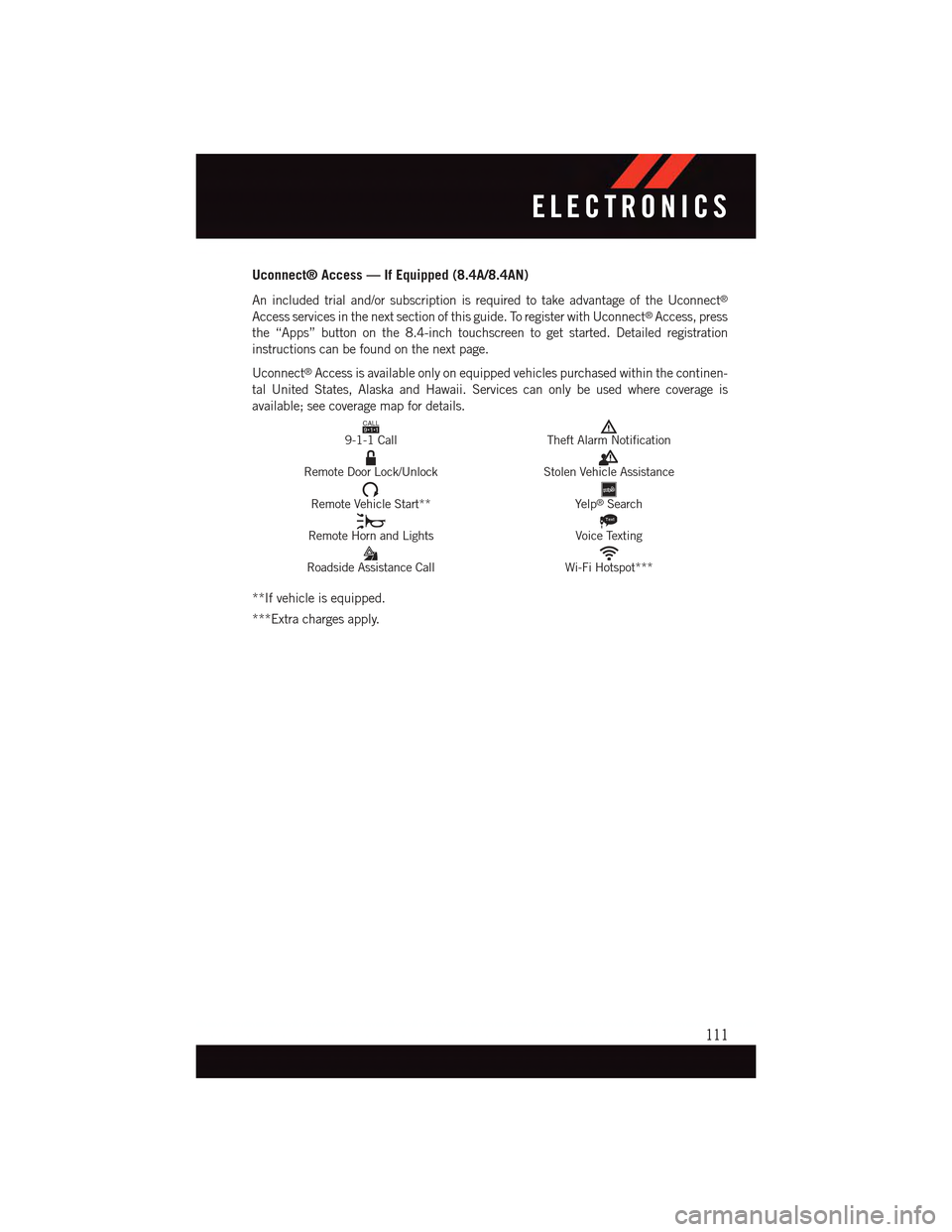
Uconnect® Access — If Equipped (8.4A/8.4AN)
An included trial and/or subscription is required to take advantage of the Uconnect®
Access services in the next section of this guide. To register with Uconnect®Access, press
the “Apps” button on the 8.4-inch touchscreen to get started. Detailed registration
instructions can be found on the next page.
Uconnect®Access is available only on equipped vehicles purchased within the continen-
tal United States, Alaska and Hawaii. Services can only be used where coverage is
available; see coverage map for details.CALL9119-1-1 CallTheft Alarm Notification
Remote Door Lock/UnlockStolen Vehicle Assistance
Remote Vehicle Start**Ye l p®Search
Remote Horn and Lights
Text
Voice Texting
Roadside Assistance CallWi-Fi Hotspot***
**If vehicle is equipped.
***Extra charges apply.
ELECTRONICS
111
Page 149 of 236
PROGRAMMABLE FEATURES
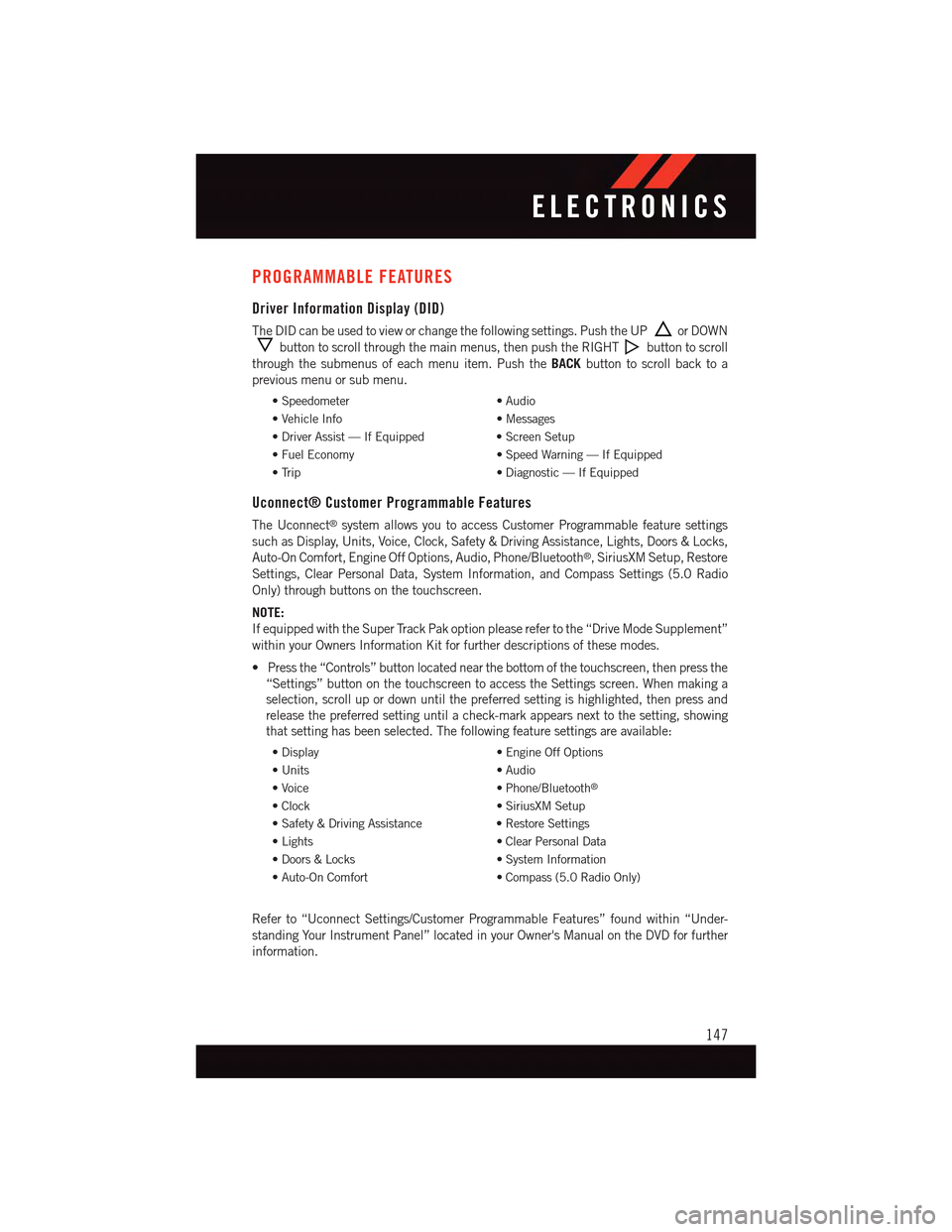
Driver Information Display (DID)
The DID can be used to view or change the following settings. Push the UPor DOWN
button to scroll through the main menus, then push the RIGHTbutton to scroll
through the submenus of each menu item. Push theBACKbutton to scroll back to a
previous menu or sub menu.
•Speedometer•Audio
•VehicleInfo•Messages
•DriverAssist—IfEquipped•ScreenSetup
•FuelEconomy•SpeedWarning—IfEquipped
•Trip•Diagnostic—IfEquipped
Uconnect® Customer Programmable Features
The Uconnect®system allows you to access Customer Programmable feature settings
such as Display, Units, Voice, Clock, Safety & Driving Assistance, Lights, Doors & Locks,
Auto-On Comfort, Engine Off Options, Audio, Phone/Bluetooth®,SiriusXMSetup,Restore
Settings, Clear Personal Data, System Information, and Compass Settings (5.0 Radio
Only) through buttons on the touchscreen.
NOTE:
If equipped with the Super Track Pak option please refer to the “Drive Mode Supplement”
within your Owners Information Kit for further descriptions of these modes.
•Pressthe“Controls”buttonlocatednearthebottomofthetouchscreen,thenpressthe
“Settings” button on the touchscreen to access the Settings screen. When making a
selection, scroll up or down until the preferred setting is highlighted, then press and
release the preferred setting until a check-mark appears next to the setting, showing
that setting has been selected. The following feature settings are available:
•Display•EngineOffOptions
•Units•Audio
•Voice•Phone/Bluetooth®
•Clock•SiriusXMSetup
•Safety&DrivingAssistance•RestoreSettings
•Lights•ClearPersonalData
•Doors&Locks•SystemInformation
•Auto-OnComfort•Compass(5.0RadioOnly)
Refer to “Uconnect Settings/Customer Programmable Features” found within “Under-
standing Your Instrument Panel” located in your Owner's Manual on the DVD for further
information.
ELECTRONICS
147
Page 152 of 236
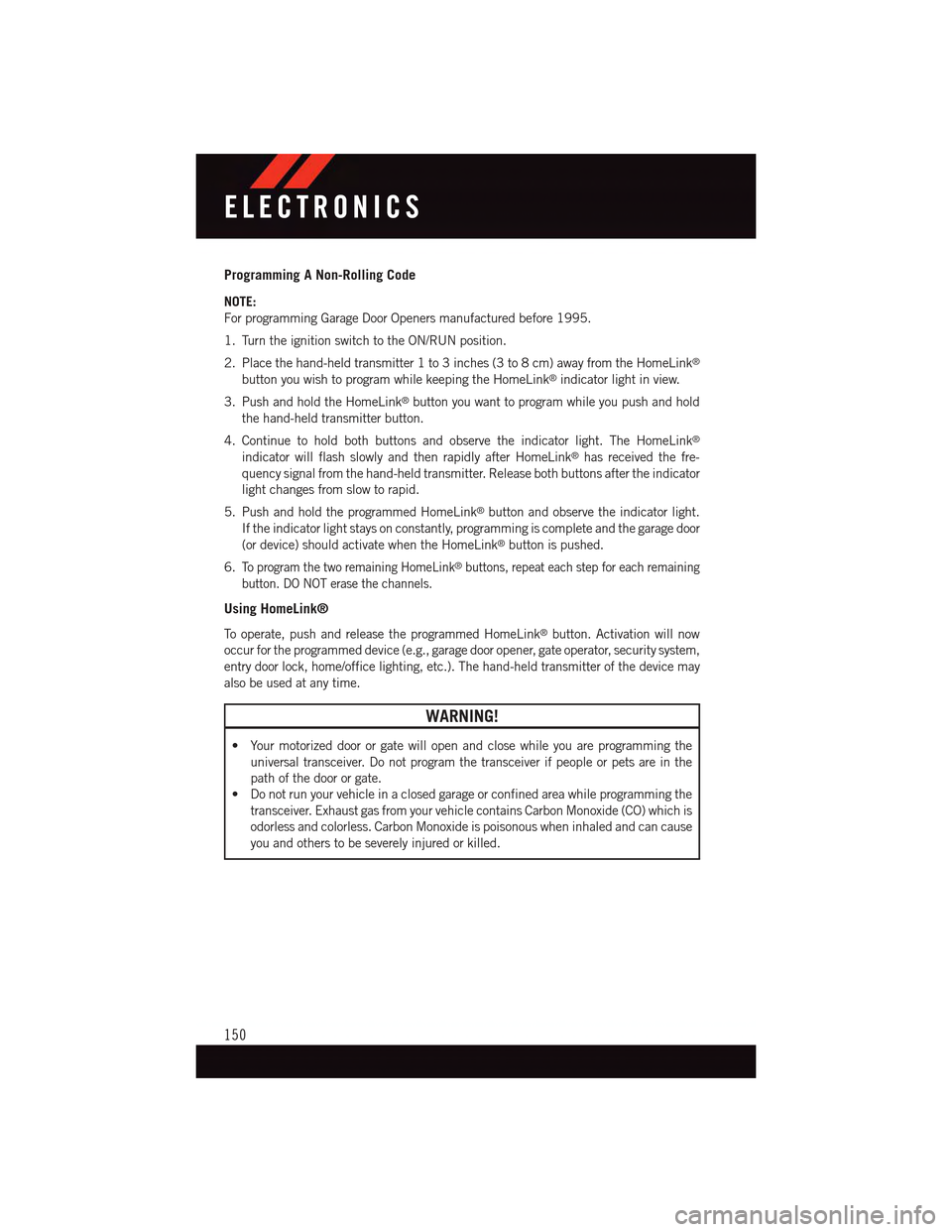
Programming A Non-Rolling Code
NOTE:
For programming Garage Door Openers manufactured before 1995.
1. Turn the ignition switch to the ON/RUN position.
2. Place the hand-held transmitter 1 to 3 inches (3 to 8 cm) away from the HomeLink®
button you wish to program while keeping the HomeLink®indicator light in view.
3. Push and hold the HomeLink®button you want to program while you push and hold
the hand-held transmitter button.
4. Continue to hold both buttons and observe the indicator light. The HomeLink®
indicator will flash slowly and then rapidly after HomeLink®has received the fre-
quency signal from the hand-held transmitter. Release both buttons after the indicator
light changes from slow to rapid.
5. Push and hold the programmed HomeLink®button and observe the indicator light.
If the indicator light stays on constantly, programming is complete and the garage door
(or device) should activate when the HomeLink®button is pushed.
6.To p r o g r a m t h e t w o r e m a i n i n g H o m e L i n k®buttons, repeat each step for each remaining
button. DO NOT erase the channels.
Using HomeLink®
To o p e r a t e , p u s h a n d r e l e a s e t h e p r o g r a m m e d H o m e L i n k®button. Activation will now
occur for the programmed device (e.g., garage door opener, gate operator, security system,
entry door lock, home/office lighting, etc.). The hand-held transmitter of the device may
also be used at any time.
WARNING!
•Yourmotorizeddoororgatewillopenandclosewhileyouareprogrammingthe
universal transceiver. Do not program the transceiver if people or pets are in the
path of the door or gate.
•Donotrunyourvehicleinaclosedgarageorconfinedareawhileprogrammingthe
transceiver. Exhaust gas from your vehicle contains Carbon Monoxide (CO) which is
odorless and colorless. Carbon Monoxide is poisonous when inhaled and can cause
you and others to be severely injured or killed.
ELECTRONICS
150
Page 166 of 236
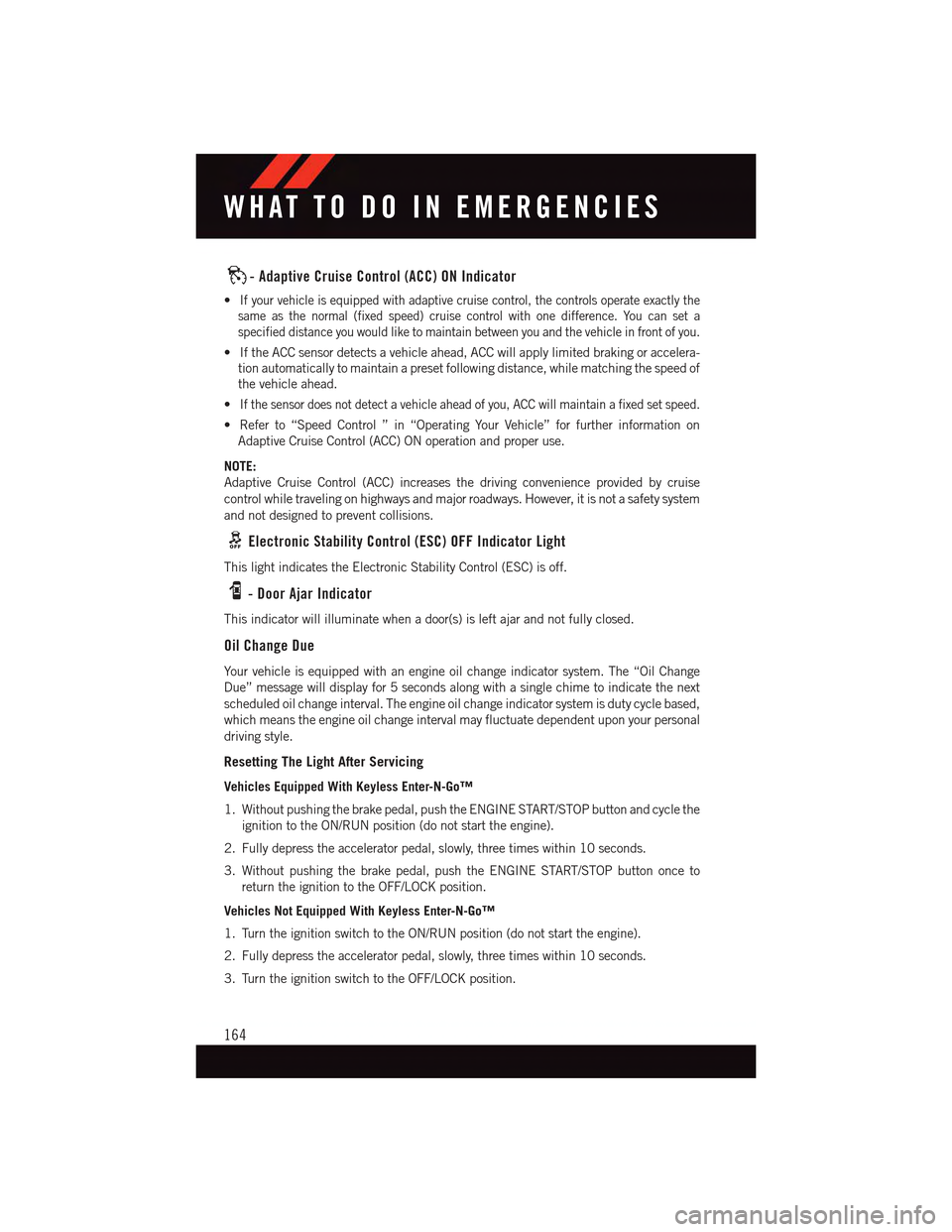
-AdaptiveCruiseControl(ACC)ONIndicator
•If your vehicle is equipped with adaptive cruise control, the controls operate exactly the
same as the normal (fixed speed) cruise control with one difference. You can set a
specified distance you would like to maintain between you and the vehicle in front of you.
•IftheACCsensordetectsavehicleahead,ACCwillapplylimitedbrakingoraccelera-
tion automatically to maintain a preset following distance, while matching the speed of
the vehicle ahead.
•If the sensor does not detect a vehicle ahead of you, ACC will maintain a fixed set speed.
•Referto“SpeedControl”in“OperatingYourVehicle”forfurtherinformationon
Adaptive Cruise Control (ACC) ON operation and proper use.
NOTE:
Adaptive Cruise Control (ACC) increases the driving convenience provided by cruise
control while traveling on highways and major roadways. However, it is not a safety system
and not designed to prevent collisions.
Electronic Stability Control (ESC) OFF Indicator Light
This light indicates the Electronic Stability Control (ESC) is off.
-DoorAjarIndicator
This indicator will illuminate when a door(s) is left ajar and not fully closed.
Oil Change Due
Yo u r v e h i c l e i s e q u i p p e d w i t h a n e n g i n e o i l c h a n g e i n d i c a t o r s y s t e m . T h e “ O i l C h a n g e
Due” message will display for 5 seconds along with a single chime to indicate the next
scheduled oil change interval. The engine oil change indicator system is duty cycle based,
which means the engine oil change interval may fluctuate dependent upon your personal
driving style.
Resetting The Light After Servicing
Vehicles Equipped With Keyless Enter-N-Go™
1. Without pushing the brake pedal, push the ENGINE START/STOP button and cycle the
ignition to the ON/RUN position (do not start the engine).
2. Fully depress the accelerator pedal, slowly, three times within 10 seconds.
3. Without pushing the brake pedal, push the ENGINE START/STOP button once to
return the ignition to the OFF/LOCK position.
Vehicles Not Equipped With Keyless Enter-N-Go™
1. Turn the ignition switch to the ON/RUN position (do not start the engine).
2. Fully depress the accelerator pedal, slowly, three times within 10 seconds.
3. Turn the ignition switch to the OFF/LOCK position.
WHAT TO DO IN EMERGENCIES
164
Page 212 of 236
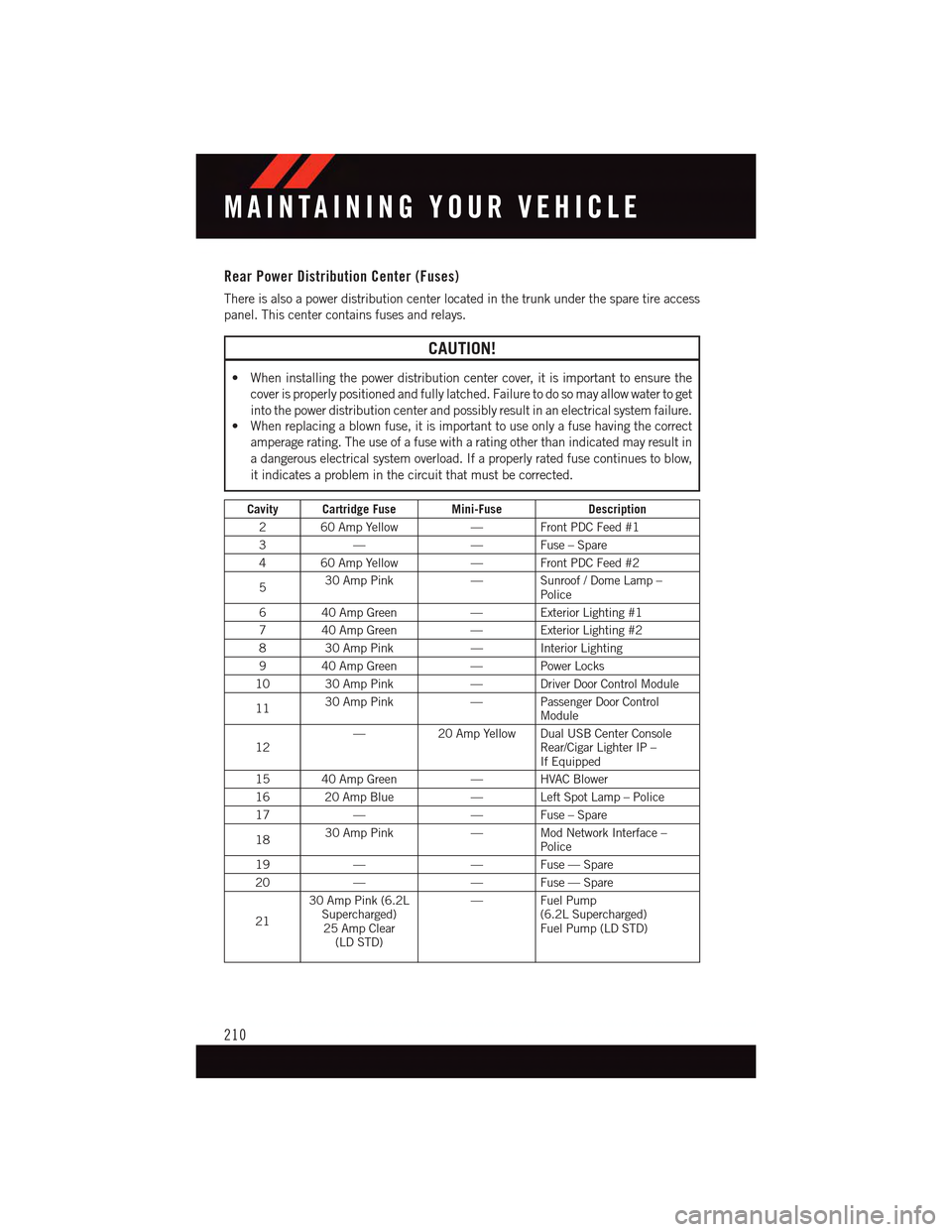
Rear Power Distribution Center (Fuses)
There is also a power distribution center located in the trunk under the spare tire access
panel. This center contains fuses and relays.
CAUTION!
•Wheninstallingthepowerdistributioncentercover,itisimportanttoensurethe
cover is properly positioned and fully latched. Failure to do so may allow water to get
into the power distribution center and possibly result in an electrical system failure.•Whenreplacingablownfuse,itisimportanttouseonlyafusehavingthecorrect
amperage rating. The use of a fuse with a rating other than indicated may result in
adangerouselectricalsystemoverload.Ifaproperlyratedfusecontinuestoblow,
it indicates a problem in the circuit that must be corrected.
Cavity Cartridge Fuse Mini-FuseDescription
260AmpYellow—FrontPDCFeed#1
3——Fuse–Spare
460AmpYellow—FrontPDCFeed#2
530 Amp Pink—Sunroof/DomeLamp–Police
640AmpGreen—ExteriorLighting#1
740AmpGreen—ExteriorLighting#2
830AmpPink—InteriorLighting
940AmpGreen—PowerLocks
10 30 Amp Pink—DriverDoorControlModule
1130 Amp Pink—PassengerDoorControlModule
12—20 Amp Yellow Dual USB Center ConsoleRear/Cigar Lighter IP –If Equipped
15 40 Amp Green—HVACBlower
16 20 Amp Blue—LeftSpotLamp–Police
17——Fuse–Spare
1830 Amp Pink—ModNetworkInterface–Police
19——Fuse—Spare
20——Fuse—Spare
21
30 Amp Pink (6.2LSupercharged)25 Amp Clear(LD STD)
—FuelPump(6.2L Supercharged)Fuel Pump (LD STD)
MAINTAINING YOUR VEHICLE
210
Page 213 of 236
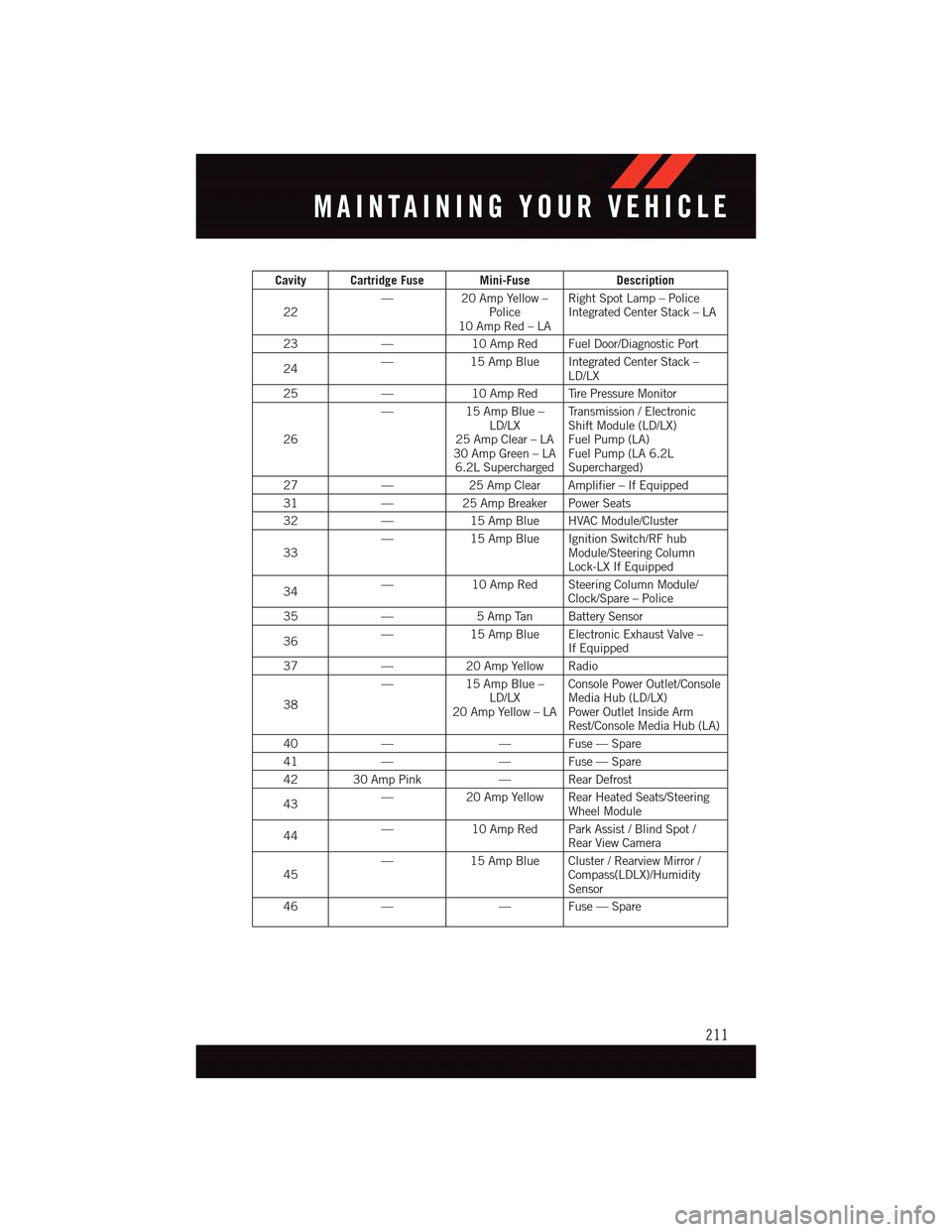
Cavity Cartridge Fuse Mini-FuseDescription
22—20 Amp Yellow –Police10 Amp Red – LA
Right Spot Lamp – PoliceIntegrated Center Stack – LA
23—10 Amp Red Fuel Door/Diagnostic Port
24—15 Amp Blue Integrated Center Stack –LD/LX
25—10 Amp Red Tire Pressure Monitor
26
—15 Amp Blue –LD/LX25 Amp Clear – LA30 Amp Green – LA6.2L Supercharged
Tr a n s m i s s i o n / E l e c t r o n i cShift Module (LD/LX)Fuel Pump (LA)Fuel Pump (LA 6.2LSupercharged)
27—25 Amp Clear Amplifier – If Equipped
31—25 Amp Breaker Power Seats
32—15 Amp Blue HVAC Module/Cluster
33—15 Amp Blue Ignition Switch/RF hubModule/Steering ColumnLock-LX If Equipped
34—10 Amp Red Steering Column Module/Clock/Spare – Police
35—5AmpTan BatterySensor
36—15 Amp Blue Electronic Exhaust Valve –If Equipped
37—20 Amp Yellow Radio
38
—15 Amp Blue –LD/LX20 Amp Yellow – LA
Console Power Outlet/ConsoleMedia Hub (LD/LX)Power Outlet Inside ArmRest/Console Media Hub (LA)
40——Fuse—Spare
41——Fuse—Spare
42 30 Amp Pink—RearDefrost
43—20 Amp Yellow Rear Heated Seats/SteeringWheel Module
44—10 Amp Red Park Assist / Blind Spot /Rear View Camera
45—15 Amp Blue Cluster / Rearview Mirror /Compass(LDLX)/HumiditySensor
46——Fuse—Spare
MAINTAINING YOUR VEHICLE
211
Page 223 of 236
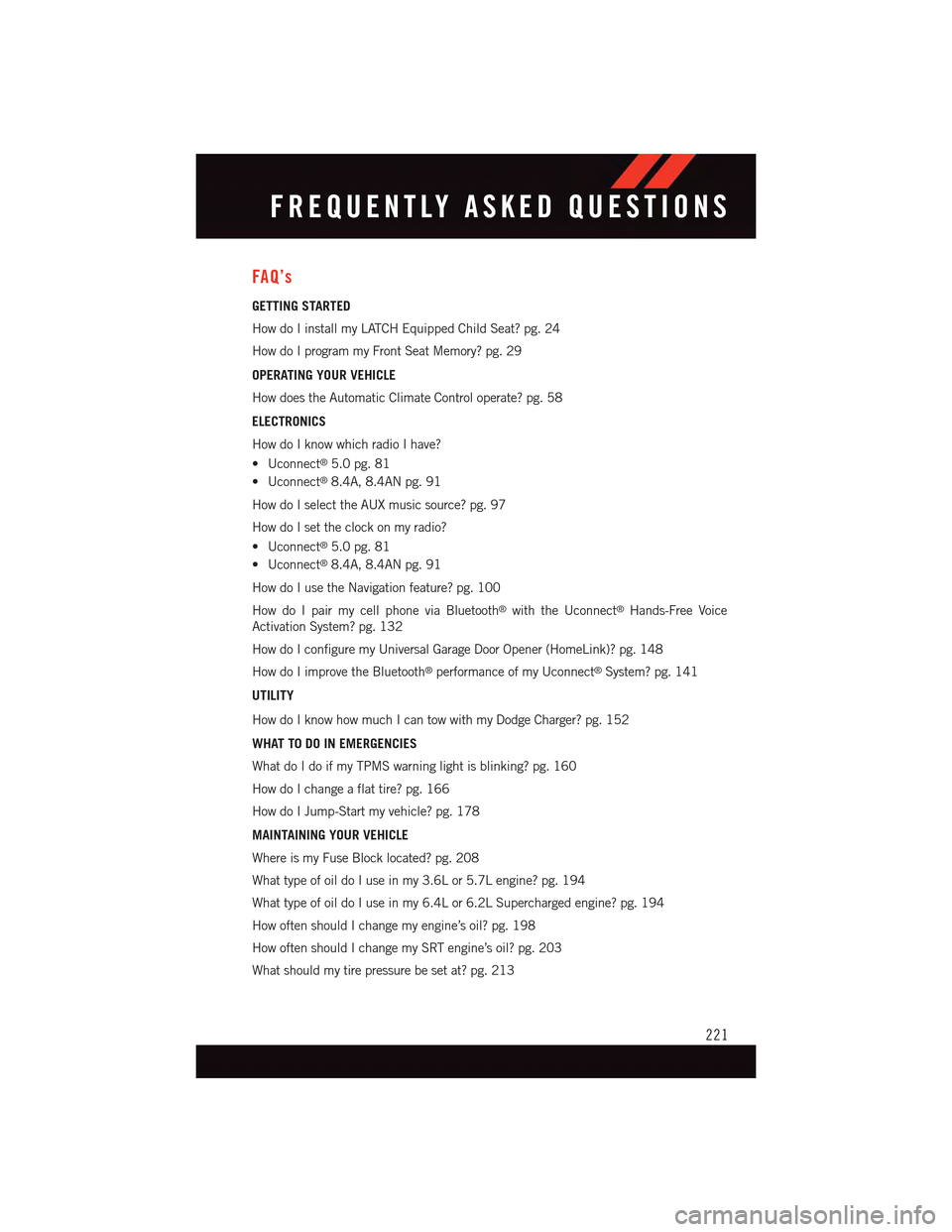
FAQ’s
GETTING STARTED
How do I install my LATCH Equipped Child Seat? pg. 24
How do I program my Front Seat Memory? pg. 29
OPERATING YOUR VEHICLE
How does the Automatic Climate Control operate? pg. 58
ELECTRONICS
How do I know which radio I have?
•Uconnect®5.0 pg. 81
•Uconnect®8.4A, 8.4AN pg. 91
How do I select the AUX music source? pg. 97
How do I set the clock on my radio?
•Uconnect®5.0 pg. 81
•Uconnect®8.4A, 8.4AN pg. 91
How do I use the Navigation feature? pg. 100
How do I pair my cell phone via Bluetooth®with the Uconnect®Hands-Free Voice
Activation System? pg. 132
How do I configure my Universal Garage Door Opener (HomeLink)? pg. 148
How do I improve the Bluetooth®performance of my Uconnect®System? pg. 141
UTILITY
How do I know how much I can tow with my Dodge Charger? pg. 152
WHAT TO DO IN EMERGENCIES
What do I do if my TPMS warning light is blinking? pg. 160
How do I change a flat tire? pg. 166
How do I Jump-Start my vehicle? pg. 178
MAINTAINING YOUR VEHICLE
Where is my Fuse Block located? pg. 208
What type of oil do I use in my 3.6L or 5.7L engine? pg. 194
What type of oil do I use in my 6.4L or 6.2L Supercharged engine? pg. 194
How often should I change my engine’s oil? pg. 198
How often should I change my SRT engine’s oil? pg. 203
What should my tire pressure be set at? pg. 213
FREQUENTLY ASKED QUESTIONS
221