Evic DODGE CHARGER 2015 7.G Owner's Manual
[x] Cancel search | Manufacturer: DODGE, Model Year: 2015, Model line: CHARGER, Model: DODGE CHARGER 2015 7.GPages: 236, PDF Size: 35.67 MB
Page 126 of 236
Replay
Lets you replay up to 44 minutes of the content of the current SiriusXM channel.
Replay Option Option Description
Play/Pause Press to Pause content playback. Press Pause/Play again to resumeplayback.
Rewind/RW Rewinds the channel content in steps of five seconds. Press and hold torewind continuously, then release to begin playing content at that point.
Fast Forward/FW Forwards the content, and works similarly to Rewind/RW. However, FastForward/FW can only be used when content has been previously re-wound.
Replay Time Displays the amount of time in the upper center of the screen by whichyour content lags the Live channel.
Live Resumes playback of Live content at any time while replaying rewoundcontent.
SiriusXM services require subscriptions, sold separately after the 12-month trial included
with the new vehicle purchase.If you decide to continue your service at the end of your
trial subscription, the plan you choose will automatically renew and bill at then-current
rates until you call SiriusXM at 1-866-635-2349 for U.S. residents and 1-888-539-7474
for Canadian residents to cancel. See SiriusXM Customer Agreement for complete terms
at www.siriusxm.com for U.S. residents and www.siriusxm.ca for Canadian residents.
All fees and programming subject to change. Our satellite service is available only to those
at least 18 and older in the 48 contiguous USA and D.C. Our Sirius satellite service is also
available in PR (with coverage limitations). Our Internet radio service is available
throughout our satellite service area and in AK and HI. © 2014 Sirius XM Radio Inc.
Sirius, XM and all related marks and logos are trademarks of Sirius XM Radio Inc.
MEDIA HUB — iPod®/USB/MP3/SD Card
There are many ways to play music from iPod®/MP3 players, SD card, or USB devices
through your vehicle's sound system.
•Pressyour“Media”buttononthetouch-
screen to begin.
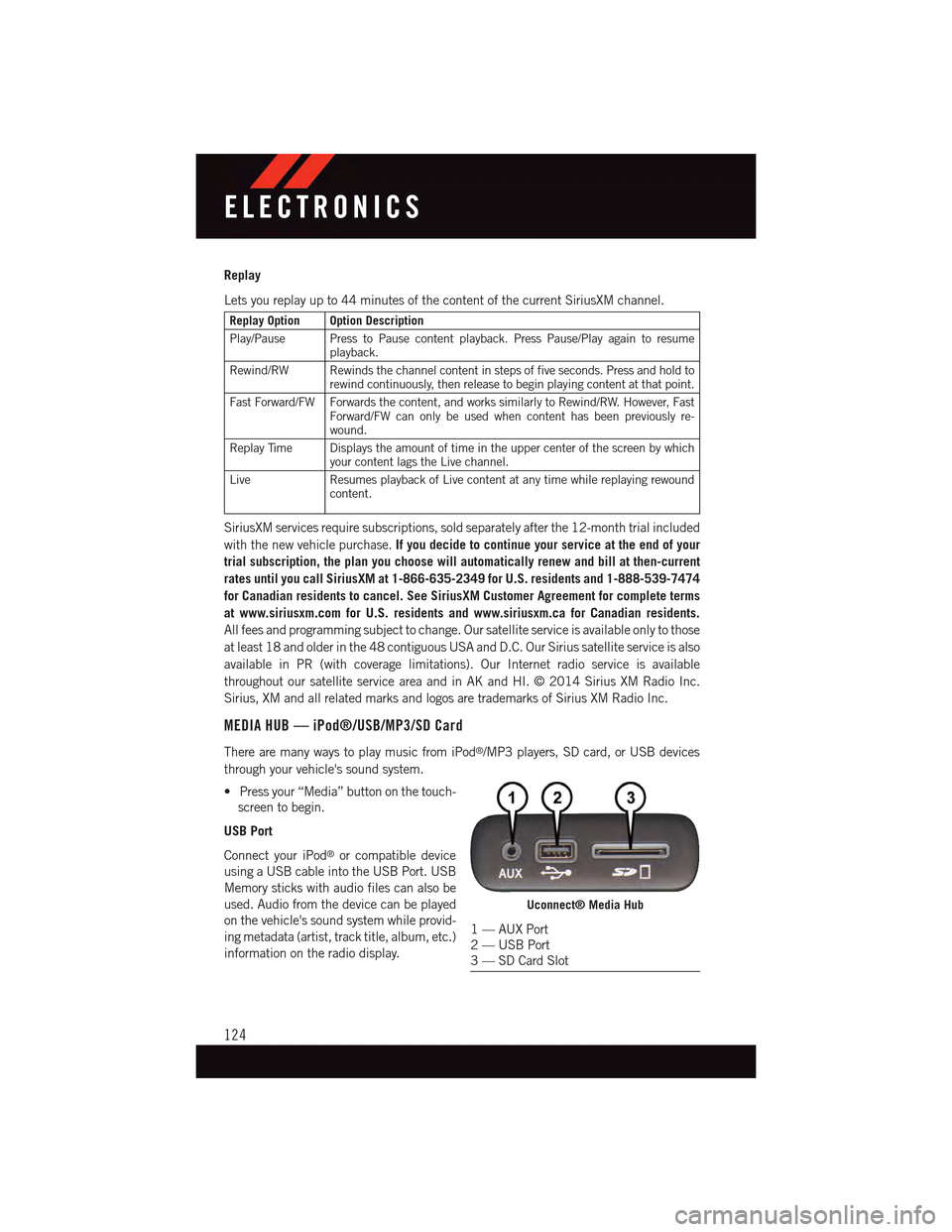
USB Port
Connect your iPod®or compatible device
using a USB cable into the USB Port. USB
Memory sticks with audio files can also be
used. Audio from the device can be played
on the vehicle's sound system while provid-
ing metadata (artist, track title, album, etc.)
information on the radio display.
Uconnect® Media Hub
1—AUXPort2—USBPort3—SDCardSlot
ELECTRONICS
124
Page 127 of 236
When connected, the iPod®/compatible USB device can be controlled using the radio or
Steering Wheel Audio Controls to play, skip to the next or previous track, browse, and list
the contents.
The iPod®battery charges when plugged into the USB port (if supported by the specific
device.)
To r o u t e t h e U S B / i P o d®cable out of the center console, use the access cut out.
NOTE:
•WhenconnectingyouriPod®device for the first time, the system may take several
minutes to read your music, depending on the number of files. For example, the system
will take approximately five minutes for every 1,000 songs loaded on the device. Also
during the reading process, the Shuffle and Browse functions will be disabled. This
process is needed to ensure the full use of your iPod®features and only happens the
first time it is connected. After the first time, the reading process of your iPod®will take
considerably less time unless changes are made or new songs are added to the playlist.
•TheUSBportsupportscertainMini,Classic,Nano,Touch,andiPhone®devices. The
USB port also supports playing music from compatible external USB Mass Storage
Class memory devices. Some iPod®software versions may not fully support the USB
port features. Please visit Apple’s website for iPod®software updates.
Audio Jack (AUX)
The AUX allows a portable device, such as an MP3 player or an iPod®,tobepluggedinto
the radio and utilize the vehicle’s sound system, using a 3.5 mm audio cable, to amplify
the source and play through the vehicle speakers.
•Pressingthe“AUX”buttononthetouchscreenwillchangethemodetoauxiliarydevice
if the audio jack is connected, allowing the music from your portable device to be heard
through the vehicle's speakers. In order to activate the AUX, plug in the audio jack.
•Thefunctionsoftheportabledevicearecontrolledusingthedevicebuttons.The
volume may be controlled using the radio or portable device.
•Toroutetheaudiocableoutofthecenterconsole,usetheaccesscutoutinthefront
of the console.
Bluetooth® Streaming Audio
If using a Bluetooth®-equippeddevice,youmayalsobeabletostreammusictoyour
vehicle's sound system. Your connected device must be Bluetooth-compatible, and paired
with your system (see Uconnect®Phone for pairing instructions).
•YoucanaccessthemusicfromyourconnectedBluetooth®device by pressing the
“Bluetooth®”button on the touchscreen while in Media mode.
ELECTRONICS
125
Page 132 of 236
Taking A Detour
To t a k e a d e t o u r y o u m u s t b e n a v i g a t i n g a r o u t e .
•Pressthe“Detour”buttononthetouchscreen.
NOTE:
•Iftherouteyouarecurrentlytakingistheonlyreasonableoption,thedevicemightnot
calculate a detour.
•Formoreinformation,seeyourUconnect®Supplement Manual.
SiriusXM TRAFFIC (US Market Only)
Don't Drive Through Traffic. Drive Around It.
Avoid congestion before you reach it. By enhancing your vehicle's navigation system with
the ability to see detailed traffic information, you can pinpoint traffic incidents, determine
average traffic speed and estimate travel time along your route. Since the service is
integrated with a vehicle's navigation system, SiriusXM Traffic can help drivers pick the
fastest route based on traffic conditions.
•Detailedinformationontrafficspeed,accidents,construction,androadclosings.
•Trafficinformationfrommultiplesources,includingpoliceandemergencyservices,
cameras and road sensors.
•Coast-to-coastdeliveryoftrafficinformation.
•Viewconditionsforpointsalongyourrouteandbeyond.Availableinover130markets.
SiriusXM TRAVEL LINK (US Market Only)
In addition to delivering over 130 channels of the best sports, entertainment, talk, and
commercial-free music, SiriusXM offers premium data services that work in conjunction
with compatible navigation systems. SiriusXM Travel Link brings a wealth of useful
information into your vehicle and right to your fingertips.
•Fuel Prices—Checklocalgasanddieselpricesinyourareaandroutetothestationof
your choice.
•Movie Listings—Checklocalmovietheatresandlistingsinyourareaandroutetothe
theater of your choice.
•Sports Scores—In-gameandfinalscoresaswellasweeklyschedules.
•Weather—Checkvarietyoflocalandnationalweatherinformationfromradarmapsto
current and 5-day forecast.
ELECTRONICS
130
Page 135 of 236
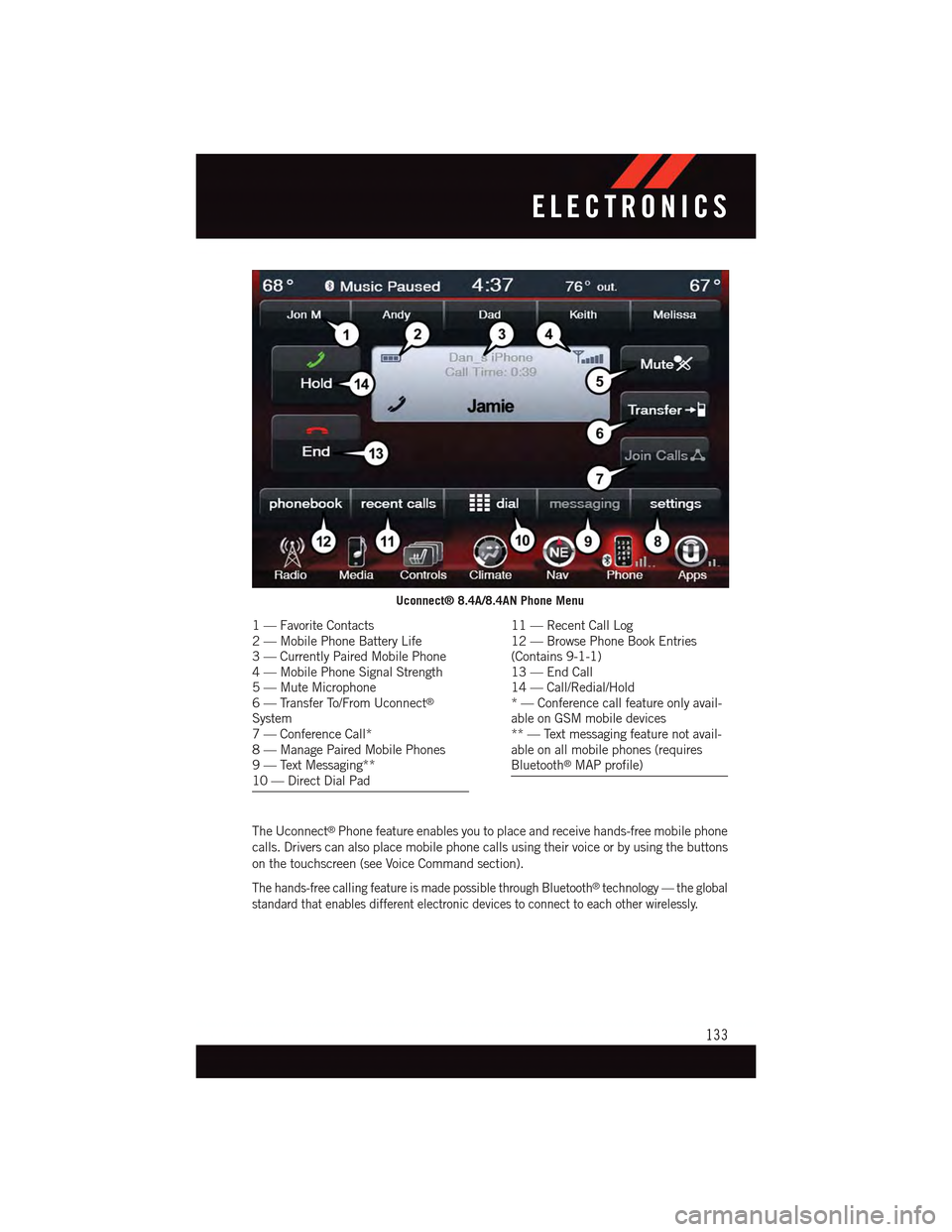
The Uconnect®Phone feature enables you to place and receive hands-free mobile phone
calls. Drivers can also place mobile phone calls using their voice or by using the buttons
on the touchscreen (see Voice Command section).
The hands-free calling feature is made possible through Bluetooth®technology — the global
standard that enables different electronic devices to connect to each other wirelessly.
Uconnect® 8.4A/8.4AN Phone Menu
1—FavoriteContacts2—MobilePhoneBatteryLife3—CurrentlyPairedMobilePhone4—MobilePhoneSignalStrength5—MuteMicrophone6—TransferTo/FromUconnect®
System7—ConferenceCall*8—ManagePairedMobilePhones9—TextMessaging**10 — Direct Dial Pad
11 — Recent Call Log12 — Browse Phone Book Entries(Contains 9-1-1)13 — End Call14 — Call/Redial/Hold*—Conferencecallfeatureonlyavail-able on GSM mobile devices** — Text messaging feature not avail-able on all mobile phones (requiresBluetooth®MAP profile)
ELECTRONICS
133
Page 136 of 236
If the Uconnect®Phone Buttonexists on your steering wheel, you then have the
Uconnect®Phone features.
Refer to theUnderstand The Features Of Your Vehiclesection of your vehicle's Owner's
Manual on the DVD for further details.
NOTE:
•TheUconnect®Phone requires a mobile phone equipped with the Bluetooth®
Hands-Free Profile, Version 1.0 or higher.
•Mostmobilephones/devicesarecompatiblewiththeUconnect®system, however
some mobile phones/devices may not be equipped with all of the required features to
utilize all of the Uconnect®system features.
•ForUconnect®Customer Care:
•U.S.residentsvisitUconnectPhone.comorcall1-877-855-8400.
•CanadianResidentsvisitUconnectPhone.comorcall,1-800-465-2001(English)or
1-800-387-9983 (French).
Pairing (Wirelessly Connecting) Your Mobile Phone To The Uconnect® System
Mobile phone pairing is the process of establishing a wireless connection between a
cellular phone and the Uconnect®system.
NOTE:
•To u s e t h e U c o n n e c t®Phone feature, you first must determine if your mobile phone and
software are compatible with the Uconnect®system. Please visitUconnectPhone.com for
complete mobile phone compatibility information.
•Mobilephonepairingisnotavailablewhilethevehicleisinmotion.
•Amaximumof10mobilephonescanbepairedtotheUconnect®system.
Start Pairing Procedure On The Radio
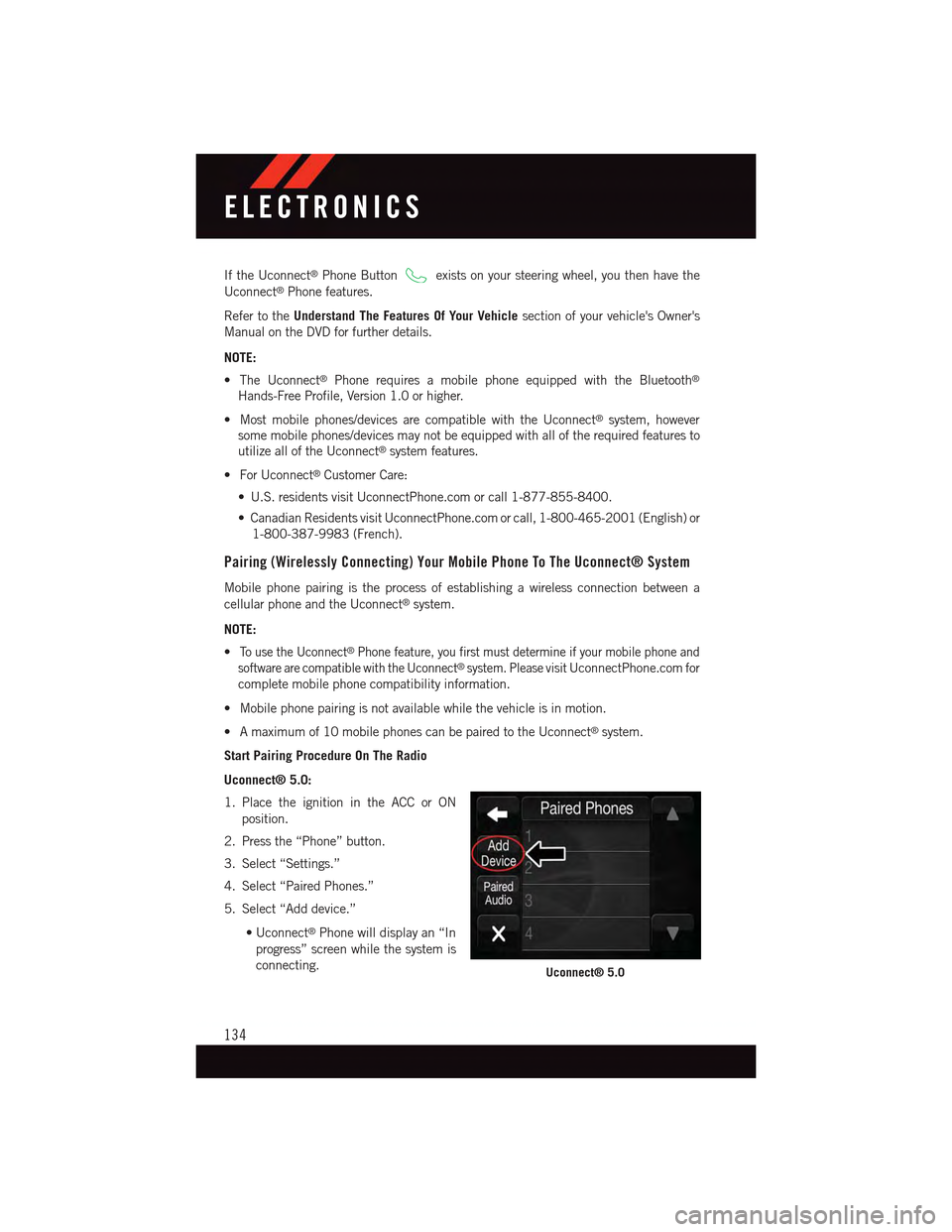
Uconnect® 5.0:
1. Place the ignition in the ACC or ON
position.
2. Press the “Phone” button.
3. Select “Settings.”
4. Select “Paired Phones.”
5. Select “Add device.”
•Uconnect®Phone will display an “In
progress” screen while the system is
connecting.Uconnect® 5.0
ELECTRONICS
134
Page 137 of 236
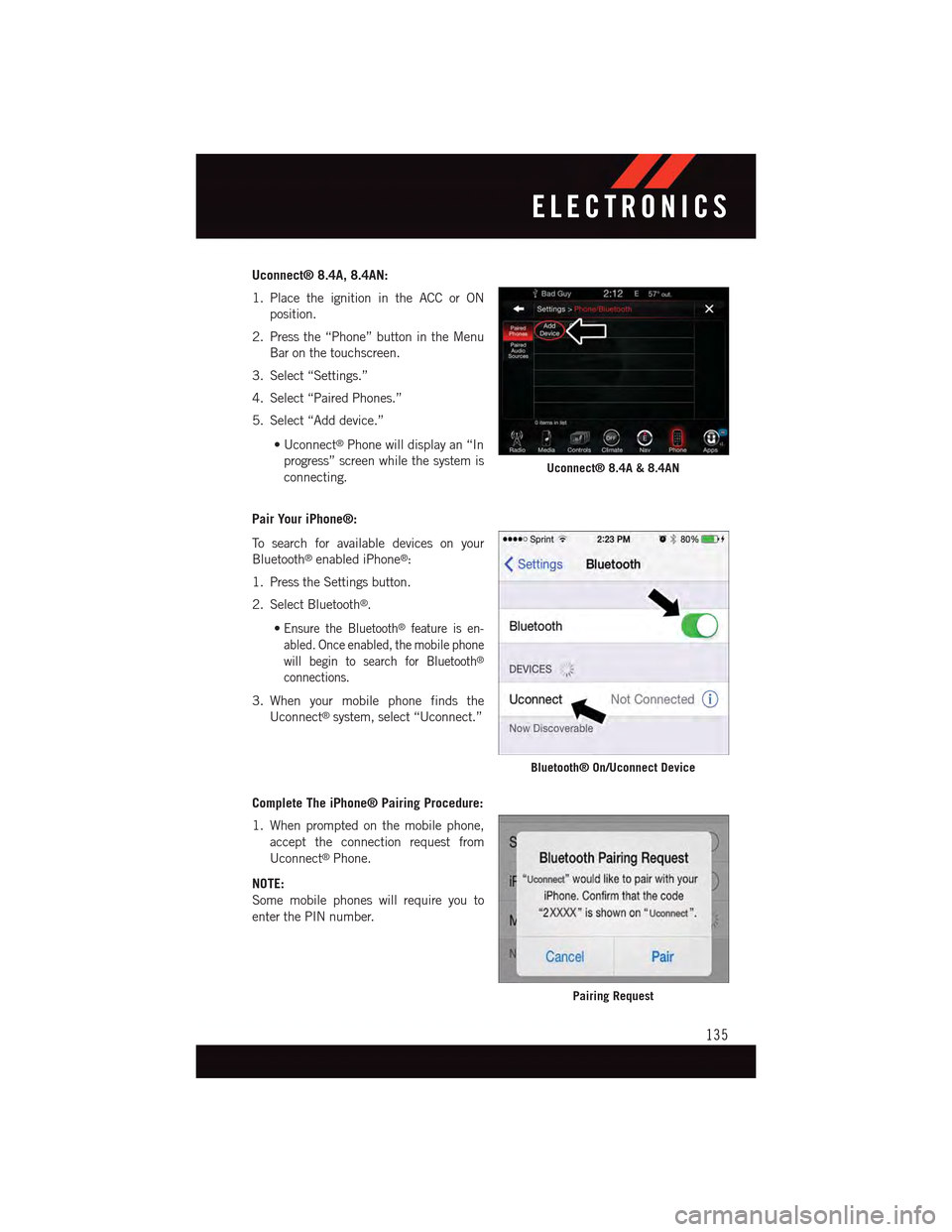
Uconnect® 8.4A, 8.4AN:
1. Place the ignition in the ACC or ON
position.
2. Press the “Phone” button in the Menu
Bar on the touchscreen.
3. Select “Settings.”
4. Select “Paired Phones.”
5. Select “Add device.”
•Uconnect®Phone will display an “In
progress” screen while the system is
connecting.
Pair Your iPhone®:
To s e a r c h f o r a v a i l a b l e d e v i c e s o n y o u r
Bluetooth®enabled iPhone®:
1. Press the Settings button.
2. Select Bluetooth®.
•Ensure the Bluetooth®feature is en-
abled. Once enabled, the mobile phone
will begin to search for Bluetooth®
connections.
3. When your mobile phone finds the
Uconnect®system, select “Uconnect.”
Complete The iPhone® Pairing Procedure:
1. When prompted on the mobile phone,
accept the connection request from
Uconnect®Phone.
NOTE:
Some mobile phones will require you to
enter the PIN number.
Uconnect® 8.4A & 8.4AN
Bluetooth® On/Uconnect Device
Pairing Request
ELECTRONICS
135
Page 138 of 236
Select The iPhone's Priority Level
When the pairing process has successfully completed, the system will prompt you to
choose whether or not this is your favorite mobile phone. Selecting “Yes” will make this
mobile phone the highest priority. This mobile phone will take precedence over other
paired mobile phones within range and will connect to the Uconnect®system automati-
cally when entering the vehicle. Only one mobile phone and/or one Bluetooth®audio
device can be connected to the Uconnect®system at a time. If “No” is selected, simply
select “Uconnect” from the mobile phone/audio device Bluetooth®screen, and the
Uconnect®system will reconnect to the Bluetooth®device.
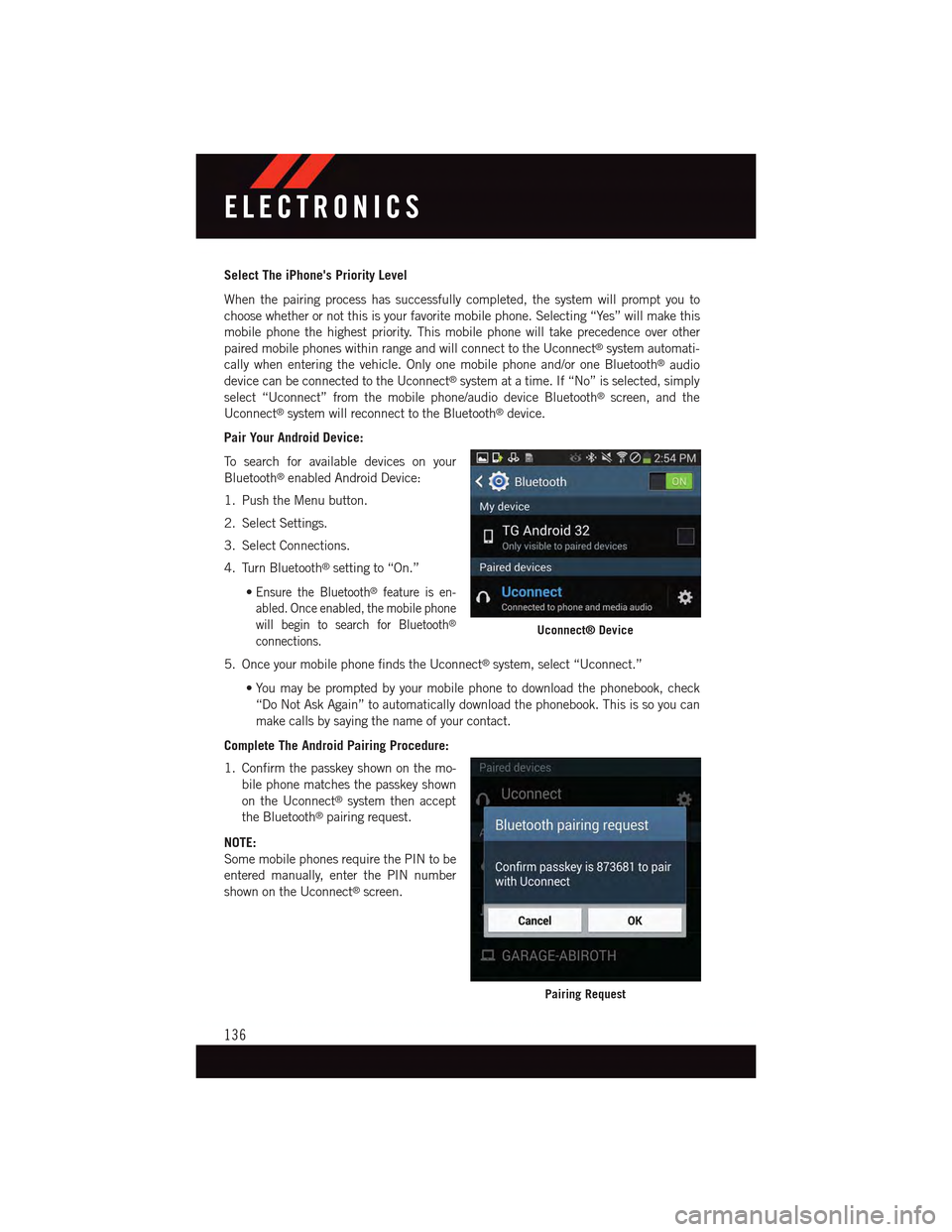
Pair Your Android Device:
To s e a r c h f o r a v a i l a b l e d e v i c e s o n y o u r
Bluetooth®enabled Android Device:
1. Push the Menu button.
2. Select Settings.
3. Select Connections.
4. Turn Bluetooth®setting to “On.”
•Ensure the Bluetooth®feature is en-
abled. Once enabled, the mobile phone
will begin to search for Bluetooth®
connections.
5. Once your mobile phone finds the Uconnect®system, select “Uconnect.”
•You may be prompted by your mobile phone to download the phonebook, check
“Do Not Ask Again” to automatically download the phonebook. This is so you can
make calls by saying the name of your contact.
Complete The Android Pairing Procedure:
1. Confirm the passkey shown on the mo-
bile phone matches the passkey shown
on the Uconnect®system then accept
the Bluetooth®pairing request.
NOTE:
Some mobile phones require the PIN to be
entered manually, enter the PIN number
shown on the Uconnect®screen.
Uconnect® Device
Pairing Request
ELECTRONICS
136
Page 139 of 236
Select The Android Mobile Phone's Priority Level
When the pairing process has successfully completed, the system will prompt you to
choose whether or not this is your favorite mobile phone. Selecting “Yes” will make this
mobile phone the highest priority. This mobile phone will take precedence over other
paired mobile phones within range and will connect to the Uconnect®system automati-
cally when entering the vehicle. Only one mobile phone and/or one Bluetooth audio device
can be connected to the Uconnect®system at a time. If “No” is selected, simply select
“Uconnect” from the mobile phone/audio device Bluetooth screen, and the Uconnect®
system will reconnect to the Bluetooth device.
Yo u a r e n o w r e a d y t o m a k e h a n d s - f r e e c a l l s . P r e s s t h e U c o n n e c t®“Phone” button
on your steering wheel to begin.
NOTE:
Refer to UconnectPhone.com website for additional information on mobile phone pairing
and for a list of compatible phones.
Making A Phone Call
•PushtheUconnect®Phone button.
•Say“dial”thenthenumber(or“call”thenthenameaslistedinyourphone;see
Phonebook) after the BEEP.
NOTE:
Yo u c a n a l s o i n i t i a t e a c a l l b y u s i n g t h e t o u c h s c r e e n o n t h e U c o n n e c t®Phone main
screen.
Common Phone Commands (Examples)
•“CallJohnSmith”
•“CallJohnSmithmobile”
•“Dial12485551212”
•“Redial”
Receiving A Call – Accept (And End)
•Whenanincomingcallrings/isannouncedonUconnect®,pushthePhonebutton
.
•Toendacall,pushtheHangUporPhonebutton.
Mute (Or Unmute) Microphone During Call
•Duringacall,pressthe“Mute”buttononthePhonemainscreentomuteandunmute
the call.
Transfer Ongoing Call Between Handset And Vehicle
•Duringanon-goingcall,pressthe“Transfer”buttononthePhonemainscreento
transfer an on-going call between handset and vehicle.
ELECTRONICS
137
Page 140 of 236
Phonebook
The Uconnect®system will automatically sync your phonebook from your paired phone, if
this feature is supported by your phone. Phonebook contacts are updated each time that
the phone is connected. If your phone book entries do not appear, check the settings on
your phone. Some phones require you to enable this feature manually.
•YourphonebookcanbebrowsedontheUconnect®system touchscreen, but editing
can only be done on your phone. To browse, press the “Phone” button on the
touchscreen, then the “Phonebook” button on the touchscreen.
Favorite phonebook entries can be saved as Favorites for quicker access. Favorites are
shown at the top of the main phone screen.
Voice Command Tips
•Speakingcompletenames(i.e;CallJohnDoevs.CallJohn)willresultingreatersystem
accuracy.
•Youcan“link”commandstogetherforfasterresults.Say“CallJohnDoe,mobile,”for
example.
•Ifyouarelisteningtoavailablevoicecommandoptions,youdonothavetolistentothe
entire list. When you hear the command that you need, push thebutton on the
steering wheel, wait for the beep and say your command.
Changing The Volume
•StartadialoguebypushingthePhonebutton,thensayacommandforexample
-"Help".
•UsetheradioVOLUME/MUTErotaryknobtoadjustthevolumetoacomfortablelevel
while the Uconnect®system is speaking. Please note the volume setting for Uconnect®
is different than the audio system.
NOTE:
To a c c e s s h e l p , p u s h t h e U c o n n e c t®Phonebutton on the steering wheel and say
"help." Press the display or press either the Phoneor VRbutton and say
"cancel" to cancel the help session.
Incoming Text Messages
After pairing your Uconnect®system with a Bluetooth®enabled mobile device with the
Message Access Profile (MAP), the Uconnect®system can announce a new incoming text
message and read it to you over the vehicle’s audio system.
NOTE:
Only incoming text messages received during the current ignition cycle can be viewed/
read.
ELECTRONICS
138
Page 141 of 236
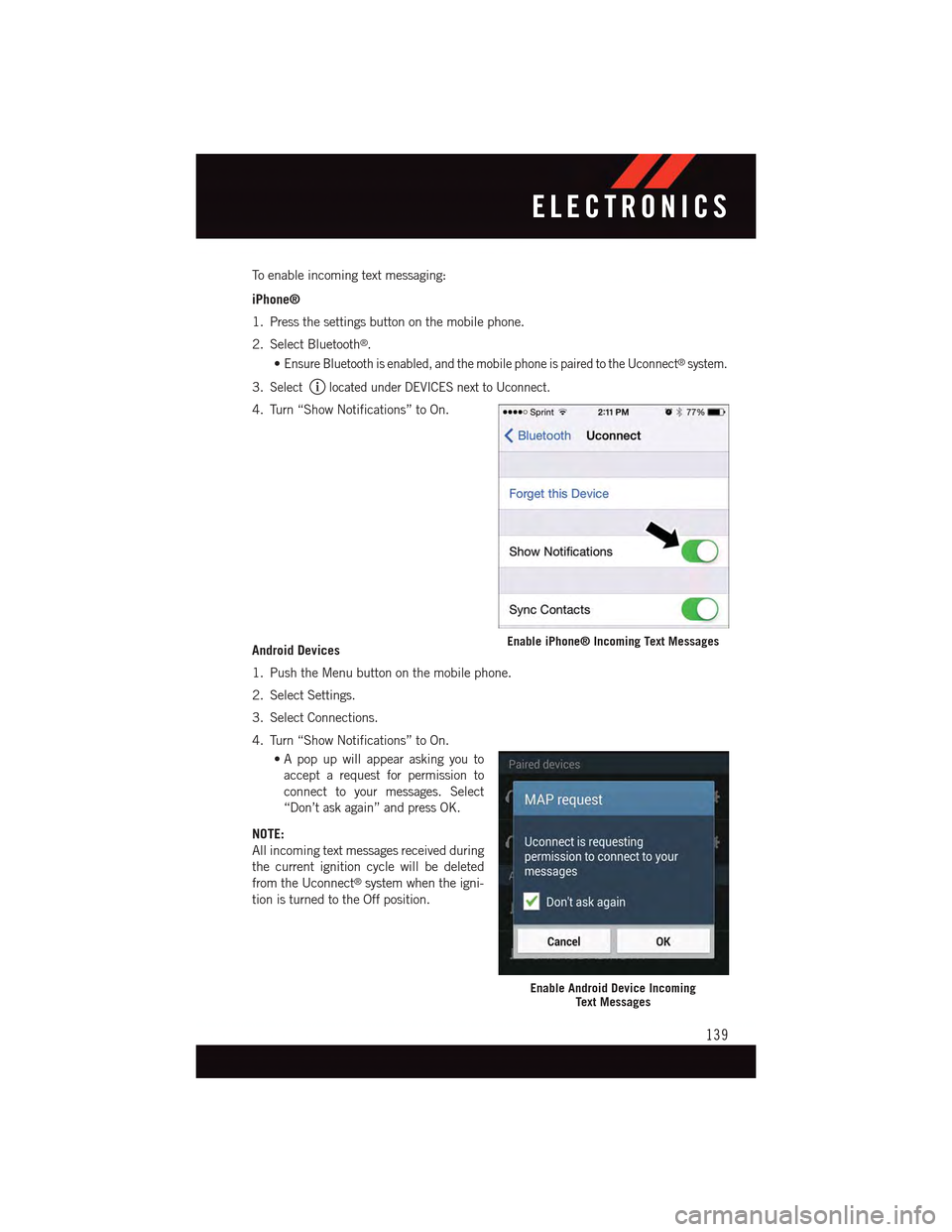
To e n a b l e i n c o m i n g t e x t m e s s a g i n g :
iPhone®
1. Press the settings button on the mobile phone.
2. Select Bluetooth®.
•Ensure Bluetooth is enabled, and the mobile phone is paired to the Uconnect®system.
3.Selectlocated under DEVICES next to Uconnect.
4. Turn “Show Notifications” to On.
Android Devices
1. Push the Menu button on the mobile phone.
2. Select Settings.
3. Select Connections.
4. Turn “Show Notifications” to On.
•A pop up will appear asking you to
accept a request for permission to
connect to your messages. Select
“Don’t ask again” and press OK.
NOTE:
All incoming text messages received during
the current ignition cycle will be deleted
from the Uconnect®system when the igni-
tion is turned to the Off position.
Enable iPhone® Incoming Text Messages
Enable Android Device IncomingText Messages
ELECTRONICS
139