buttons DODGE CHARGER 2016 7.G Service Manual
[x] Cancel search | Manufacturer: DODGE, Model Year: 2016, Model line: CHARGER, Model: DODGE CHARGER 2016 7.GPages: 661, PDF Size: 4.7 MB
Page 356 of 661
Drive Mode Set-Up
Pressing the “Drive Mode Set-Up” button on the touch-
screen within the Performance Control screen indicates
the real-time status of the various systems. Pressing the
“Sport Mode Set-Up” or “Default Mode Set-Up” buttonson the touchscreen, the driver can configure their indi-
vidual drive modes and see how those configurations
affect the performance of the vehicle.
NOTE:
Not all of the options listed in this manual are
available on every vehicle, below is a chart with all
available Drive Mode vehicle configurations.
Available Mode Configurations
Transmission Auto
Engine N/A
Engine/Trans X
Steering X
Paddle Shifters X
Traction Control X
Refer to the Sport and Default modes for their detailed
operation.
Drive Mode Set-Up
354 UNDERSTANDING YOUR INSTRUMENT PANEL
Page 357 of 661
NOTE:These settings will remain in effect when using
the Launch Control feature.
Default Mode
The vehicle will always start in Default Mode. This mode
is for typical driving conditions. While in Default Mode, the Engine, Transmission and Traction will operate in
their Normal settings and cannot be changed. The Steer-
ing assist may be configured to Normal, Sport, or Com-
fort by pressing the corresponding buttons on the touch-
screen. The Paddle Shifters may be enabled or disabled
while in this mode.
Default Mode
Default Mode Set-Up
4
UNDERSTANDING YOUR INSTRUMENT PANEL 355
Page 358 of 661
Sport Mode
Sport Mode is a configuration set-up for typical enthusi-
ast driving. The Transmission and Steering are both set to
their Sport settings. The steering wheel paddle switches
are enabled. The Traction Control defaults to Normal.Any of these four settings may be changed to the driver ’s
preferences by pressing the buttons on the touchscreen.
Push the Sport button on the instrument panel switch
bank to put the vehicle in Sport Mode and activate these
settings. The customized settings will only be active
when the Sport button is active.
Sport Mode
Sport Mode Set-Up
356 UNDERSTANDING YOUR INSTRUMENT PANEL
Page 366 of 661
CLIMATE CONTROLS
The air conditioning and heating system is designed to
make you comfortable in all types of weather. This
system can be operated through either the controls on the
instrument panel or through the Uconnect system dis-
play.
When the Uconnect system is in different modes (Radio,
Player, Settings, More, etc.) the driver and passenger
temperature settings will be indicated at the top of the
display.
Manual Climate Controls With Touchscreen — If
Equipped
Buttons On Your Uconnect Faceplate
The buttons on the faceplate are located below the
Uconnect screen.
Uconnect Manual Climate Controls — Buttons On TheFaceplate
364 UNDERSTANDING YOUR INSTRUMENT PANEL
Page 367 of 661
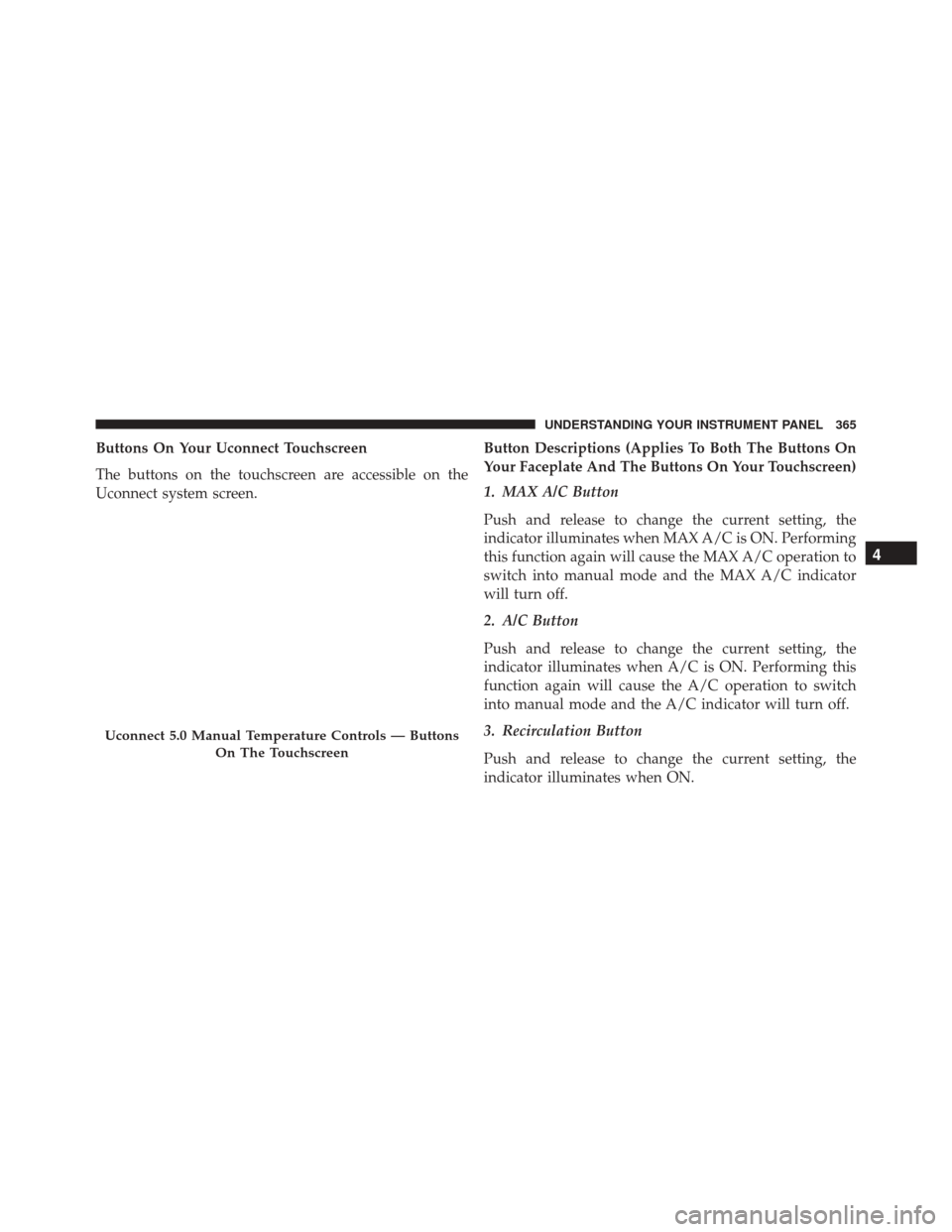
Buttons On Your Uconnect Touchscreen
The buttons on the touchscreen are accessible on the
Uconnect system screen.Button Descriptions (Applies To Both The Buttons On
Your Faceplate And The Buttons On Your Touchscreen)
1. MAX A/C Button
Push and release to change the current setting, the
indicator illuminates when MAX A/C is ON. Performing
this function again will cause the MAX A/C operation to
switch into manual mode and the MAX A/C indicator
will turn off.
2. A/C Button
Push and release to change the current setting, the
indicator illuminates when A/C is ON. Performing this
function again will cause the A/C operation to switch
into manual mode and the A/C indicator will turn off.
3. Recirculation Button
Push and release to change the current setting, the
indicator illuminates when ON.
Uconnect 5.0 Manual Temperature Controls — Buttons
On The Touchscreen
4
UNDERSTANDING YOUR INSTRUMENT PANEL 365
Page 369 of 661
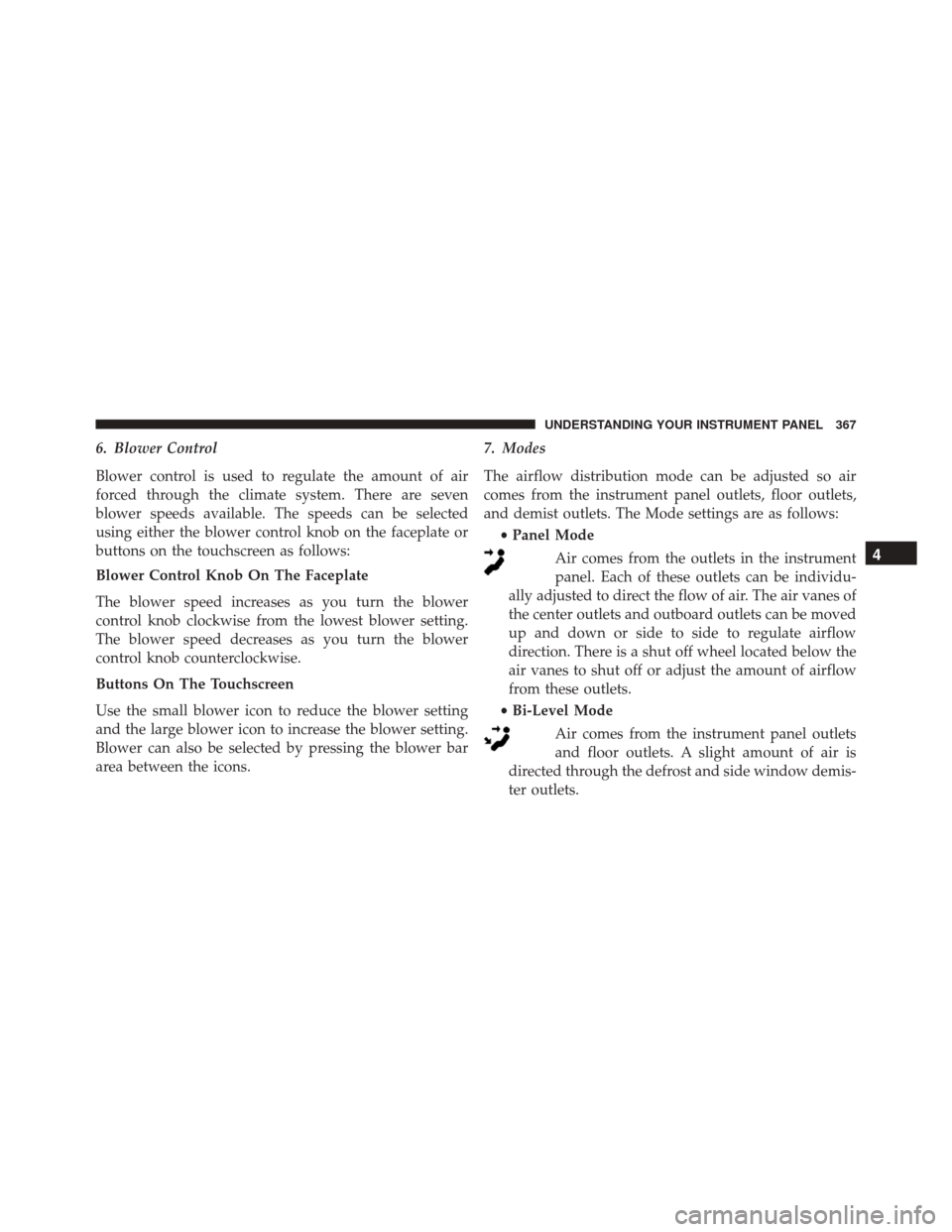
6. Blower Control
Blower control is used to regulate the amount of air
forced through the climate system. There are seven
blower speeds available. The speeds can be selected
using either the blower control knob on the faceplate or
buttons on the touchscreen as follows:
Blower Control Knob On The Faceplate
The blower speed increases as you turn the blower
control knob clockwise from the lowest blower setting.
The blower speed decreases as you turn the blower
control knob counterclockwise.
Buttons On The Touchscreen
Use the small blower icon to reduce the blower setting
and the large blower icon to increase the blower setting.
Blower can also be selected by pressing the blower bar
area between the icons.7. Modes
The airflow distribution mode can be adjusted so air
comes from the instrument panel outlets, floor outlets,
and demist outlets. The Mode settings are as follows:
•Panel Mode
Air comes from the outlets in the instrument
panel. Each of these outlets can be individu-
ally adjusted to direct the flow of air. The air vanes of
the center outlets and outboard outlets can be moved
up and down or side to side to regulate airflow
direction. There is a shut off wheel located below the
air vanes to shut off or adjust the amount of airflow
from these outlets.
• Bi-Level Mode
Air comes from the instrument panel outlets
and floor outlets. A slight amount of air is
directed through the defrost and side window demis-
ter outlets.
4
UNDERSTANDING YOUR INSTRUMENT PANEL 367
Page 372 of 661
14. Driver Temperature Control Down Button
Provides the passenger with independent temperature
control. Push the button on the faceplate for cooler
temperature settings or on the touchscreen, press and
slide the temperature bar button into the blue area for
cooler temperature settings.
NOTE:In Sync mode, this button will also automatically
adjust the passenger temperature setting at the same
time.Dual Zone Automatic Climate Controls With
Touchscreen — If Equipped
Buttons On The Faceplate
The buttons on the faceplate are located below the
Uconnect screen.
Automatic Climate Controls — Buttons On The Faceplate
370 UNDERSTANDING YOUR INSTRUMENT PANEL
Page 373 of 661
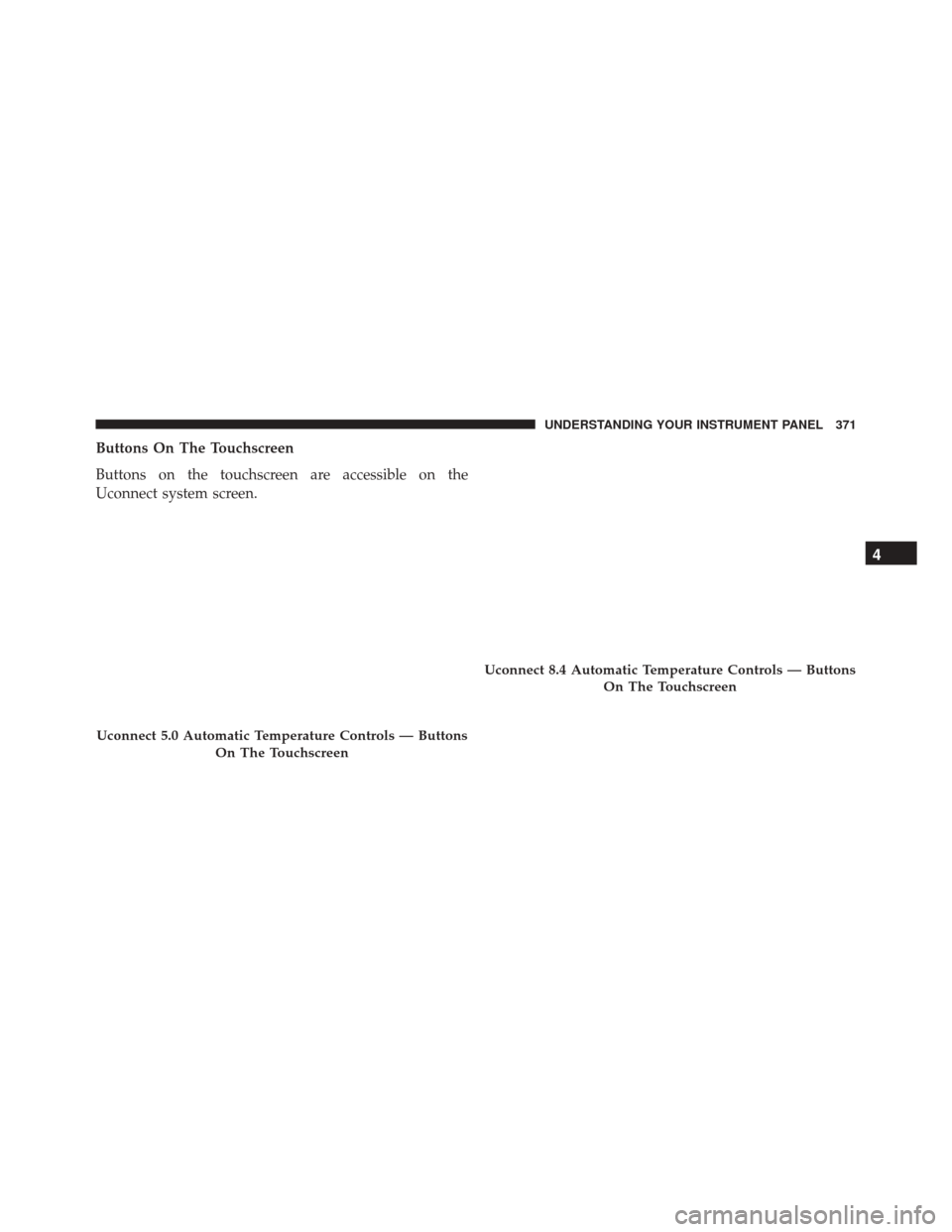
Buttons On The Touchscreen
Buttons on the touchscreen are accessible on the
Uconnect system screen.
Uconnect 5.0 Automatic Temperature Controls — ButtonsOn The Touchscreen
Uconnect 8.4 Automatic Temperature Controls — ButtonsOn The Touchscreen
4
UNDERSTANDING YOUR INSTRUMENT PANEL 371
Page 374 of 661
Button Descriptions (Applies To Both Buttons On The
Faceplate And Buttons On The Touchscreen)
1. MAX A/C Button
Press and release to change the current setting, the
indicator illuminates when MAX A/C is ON. Performing
this function again will cause the MAX A/C operation to
switch into manual mode and the MAX A/C indicator
will turn off.
2. A/C Button
Press and release to change the current setting, the
indicator illuminates when A/C is ON. Performing this
function again will cause the A/C operation to switch
into manual mode and the A/C indicator will turn off.
3. Recirculation Button
Press and release to change the current setting, the
indicator illuminates when ON.4. AUTO Operation Button
Automatically controls the interior cabin temperature by
adjusting airflow distribution and amount. Performing
this function will cause the system to switch between
manual mode and automatic modes. Refer to “Automatic
Operation” for more information.
5. Front Defrost Button
Press and release to change the current airflow setting to
Defrost mode. The indicator illuminates when this fea-
ture is ON. Air comes from the windshield and side
window demist outlets. When the defrost button is
selected, the blower level will increase. Use Defrost mode
with maximum temperature settings for best windshield
and side window defrosting and defogging. Performing
this function will cause the Automatic Temperature Con-
trol (ATC) to switch into manual mode. If the front
defrost mode is turned off the climate system will return
the previous setting.
372 UNDERSTANDING YOUR INSTRUMENT PANEL
Page 376 of 661
8. Passenger Temperature Control Down Button
(Uconnect 8.4 Radio Only)
Provides the passenger with independent temperature
control. Push the button on the faceplate for cooler
temperature settings or on the touchscreen, press and
slide the temperature bar button towards the blue arrow
for cooler temperature settings.
NOTE:Pressing this button while in Sync mode will
automatically exit Sync.
9. SYNC
Press the Sync button on the touchscreen to toggle the
Sync feature On/Off. The Sync indicator is illuminated
when this feature is enabled. Sync is used to synchronize
the passenger temperature setting with the driver tem-
perature setting. Changing the passenger temperature
setting while in Sync will automatically exit this feature. 10. Blower Control
Blower control is used to regulate the amount of air forced
through the climate system. There are seven blower
speeds available. Adjusting the blower will cause auto-
matic mode to switch to manual operation. The speeds
can be selected using either the blower control knob on
the faceplate or the buttons on the touchscreen as follows:
Blower Control Knob On The Faceplate
The blower speed increases as you turn the blower
control knob clockwise from the lowest blower setting.
The blower speed decreases as you turn the blower
control knob counterclockwise.
Button On The Touchscreen
Use the small blower icon to reduce the blower setting
and the large blower icon to increase the blower setting.
Blower can also be selected by pressing the blower bar
area between the icons.
374 UNDERSTANDING YOUR INSTRUMENT PANEL