change time DODGE CHARGER 2018 Service Manual
[x] Cancel search | Manufacturer: DODGE, Model Year: 2018, Model line: CHARGER, Model: DODGE CHARGER 2018Pages: 553, PDF Size: 5.3 MB
Page 472 of 553
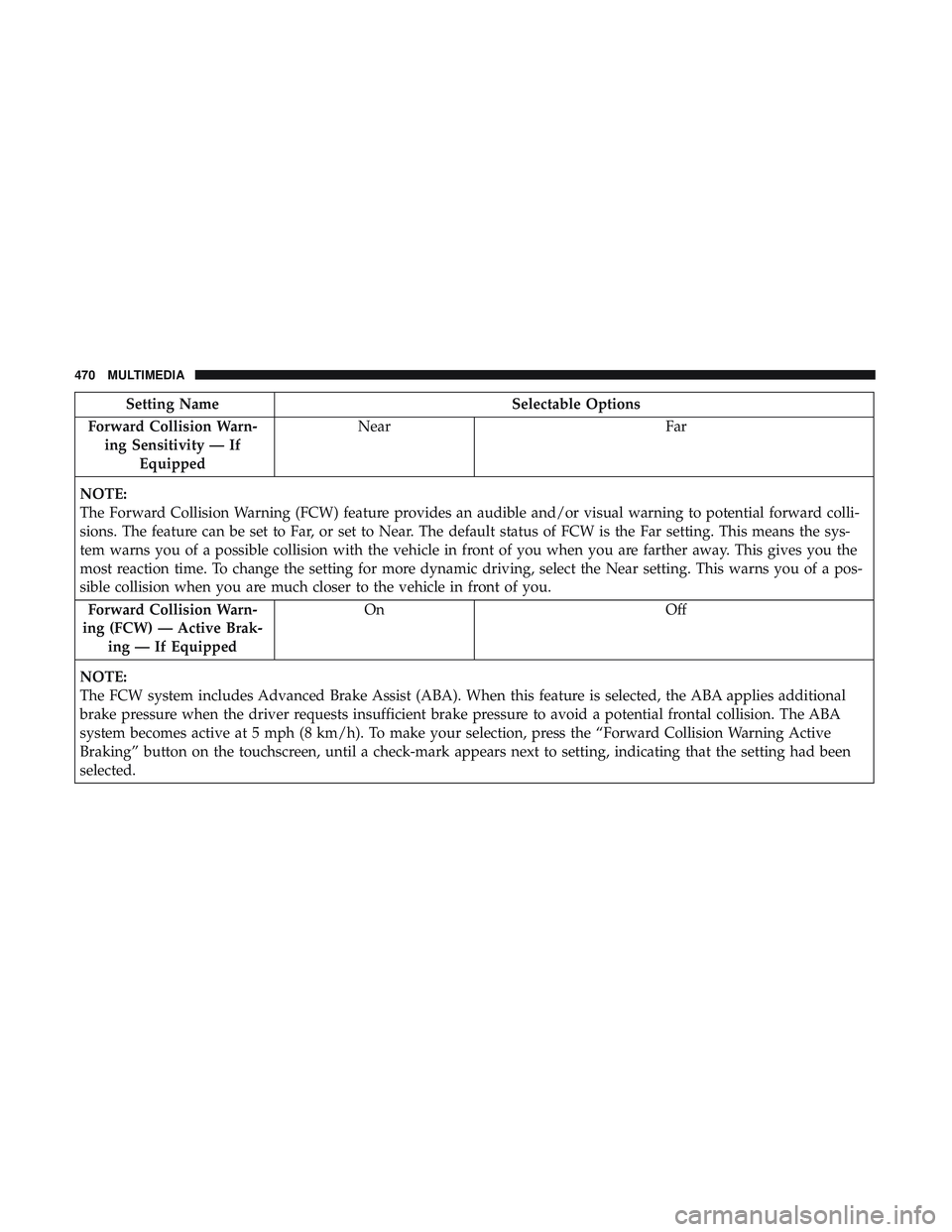
Setting NameSelectable Options
Forward Collision Warn- ing Sensitivity — If Equipped Near
Far
NOTE:
The Forward Collision Warning (FCW) feature provides an audible and/or visual warning to potential forward colli-
sions. The feature can be set to Far, or set to Near. The default status of FCW is the Far setting. This means the sys-
tem warns you of a possible collision with the vehicle in front of you when you are farther away. This gives you the
most reaction time. To change the setting for more dynamic driving, select the Near setting. This warns you of a pos-
sible collision when you are much closer to the vehicle in front of you. Forward Collision Warn-
ing (FCW) — Active Brak- ing — If Equipped On
Off
NOTE:
The FCW system includes Advanced Brake Assist (ABA). When this feature is selected, the ABA applies additional
brake pressure when the driver requests insufficient brake pressure to avoid a potential frontal collision. The ABA
system becomes active at 5 mph (8 km/h). To make your selection, press the “Forward Collision Warning Active
Braking” button on the touchscreen, until a check-mark appears next to setting, indicating that the setting had been
selected.
470 MULTIMEDIA
Page 481 of 553
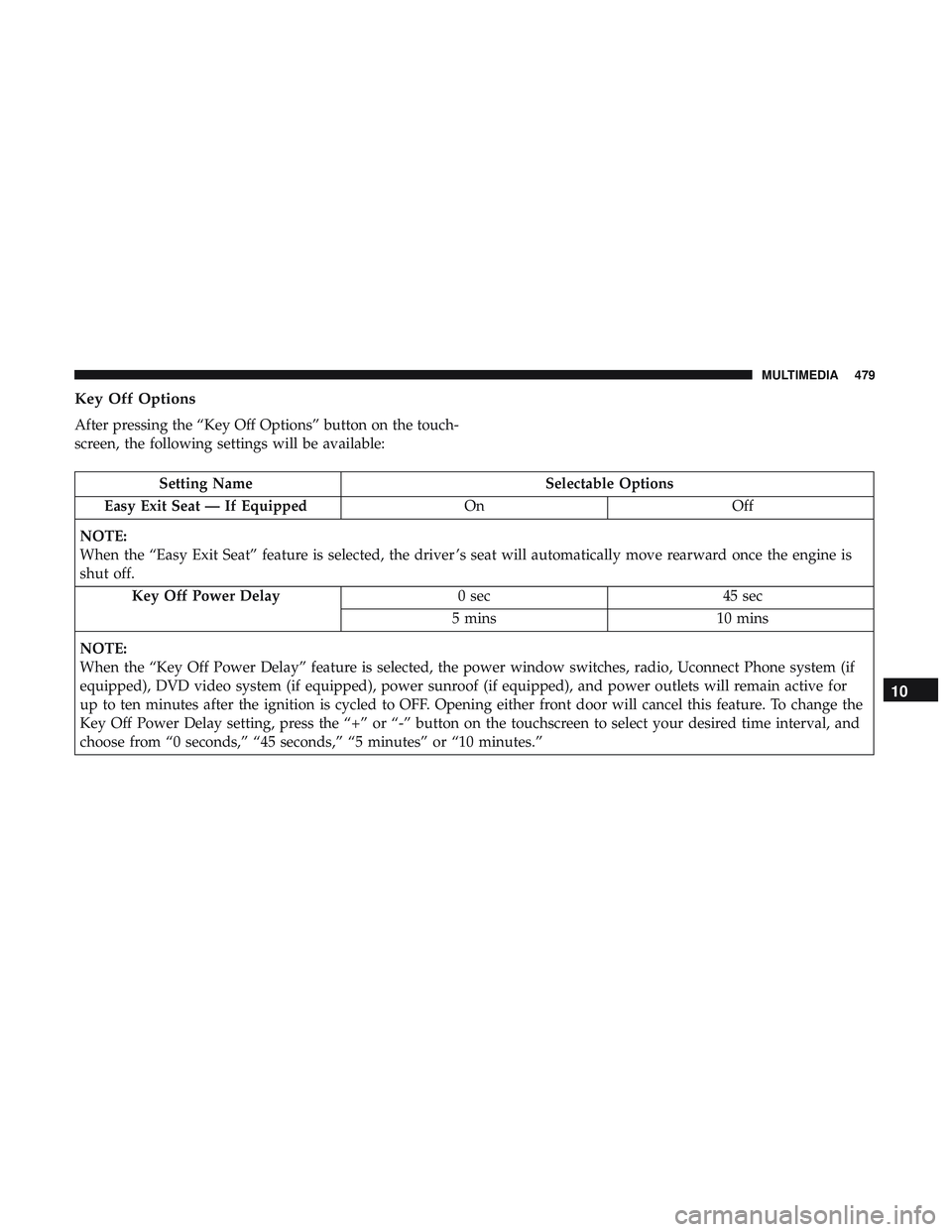
Key Off Options
After pressing the “Key Off Options” button on the touch-
screen, the following settings will be available:
Setting NameSelectable Options
Easy Exit Seat — If Equipped OnOff
NOTE:
When the “Easy Exit Seat” feature is selected, the driver ’s seat will automatically move rearward once the engine is
shut off. Key Off Power Delay 0 sec45 sec
5 mins 10 mins
NOTE:
When the “Key Off Power Delay” feature is selected, the power window switches, radio, Uconnect Phone system (if
equipped), DVD video system (if equipped), power sunroof (if equipped), and power outlets will remain active for
up to ten minutes after the ignition is cycled to OFF. Opening either front door will cancel this feature. To change the
Key Off Power Delay setting, press the “+” or “-” button on the touchscreen to select your desired time interval, and
choose from “0 seconds,” “45 seconds,” “5 minutes” or “10 minutes.”
10
MULTIMEDIA 479
Page 482 of 553
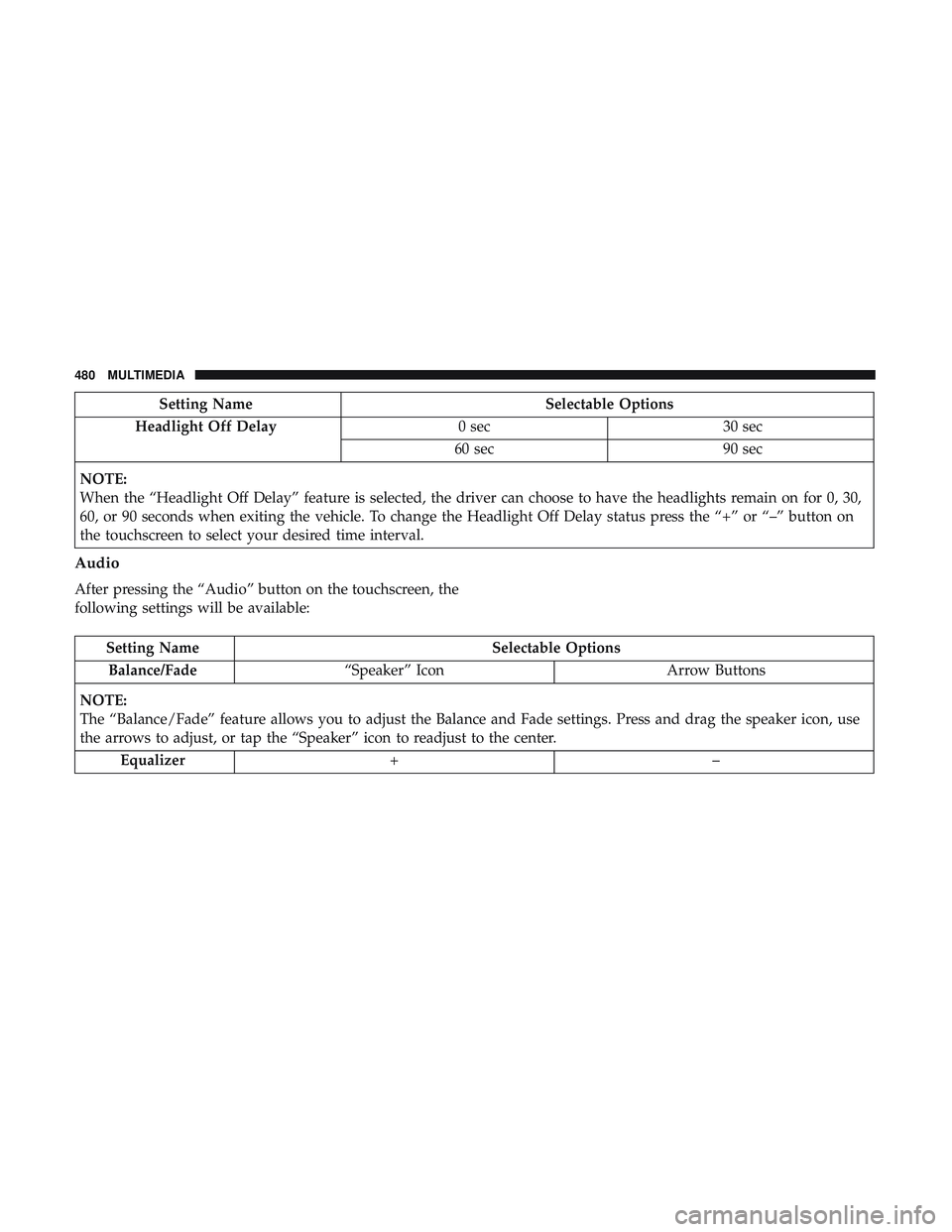
Setting NameSelectable Options
Headlight Off Delay 0 sec30 sec
60 sec 90 sec
NOTE:
When the “Headlight Off Delay” feature is selected, the driver can choose to have the headlights remain on for 0, 30,
60, or 90 seconds when exiting the vehicle. To change the Headlight Off Delay status press the “+” or “–” button on
the touchscreen to select your desired time interval.
Audio
After pressing the “Audio” button on the touchscreen, the
following settings will be available:
Setting Name Selectable Options
Balance/Fade “Speaker” Icon Arrow Buttons
NOTE:
The “Balance/Fade” feature allows you to adjust the Balance and Fade settings. Press and drag the speaker icon, use
the arrows to adjust, or tap the “Speaker” icon to readjust to the center. Equalizer +–
480 MULTIMEDIA
Page 483 of 553
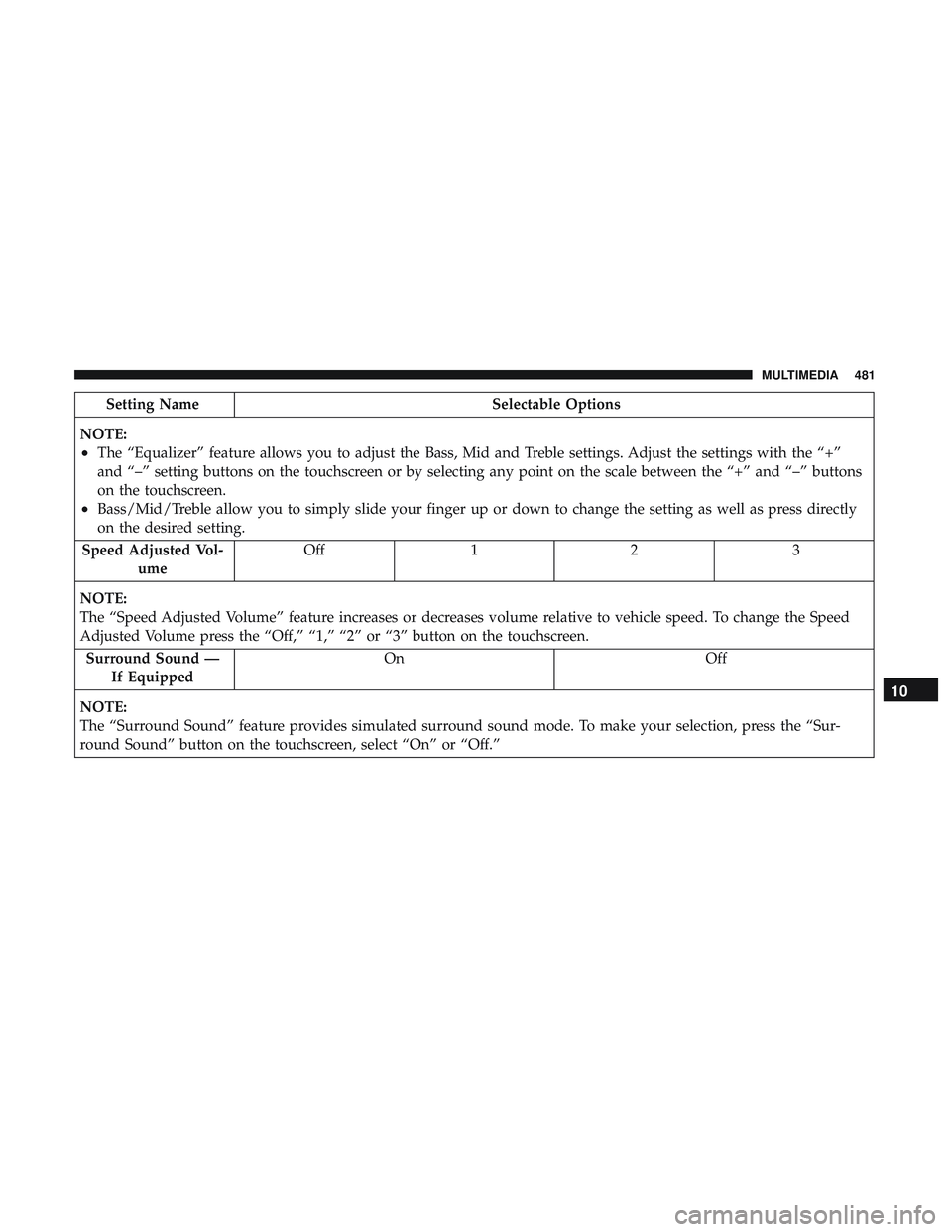
Setting NameSelectable Options
NOTE:
•The “Equalizer” feature allows you to adjust the Bass, Mid and Treble settings. Adjust the settings with the “+”
and “–” setting buttons on the touchscreen or by selecting any point on the scale between the “+” and “–” buttons
on the touchscreen.
•Bass/Mid/Treble allow you to simply slide your finger up or down to change the setting as well as press directly
on the desired setting.
Speed Adjusted Vol- ume Off 1 2 3
NOTE:
The “Speed Adjusted Volume” feature increases or decreases volume relative to vehicle speed. To change the Speed
Adjusted Volume press the “Off,” “1,” “2” or “3” button on the touchscreen. Surround Sound — If Equipped On Off
NOTE:
The “Surround Sound” feature provides simulated surround sound mode. To make your selection, press the “Sur-
round Sound” button on the touchscreen, select “On” or “Off.”
10
MULTIMEDIA 481
Page 489 of 553
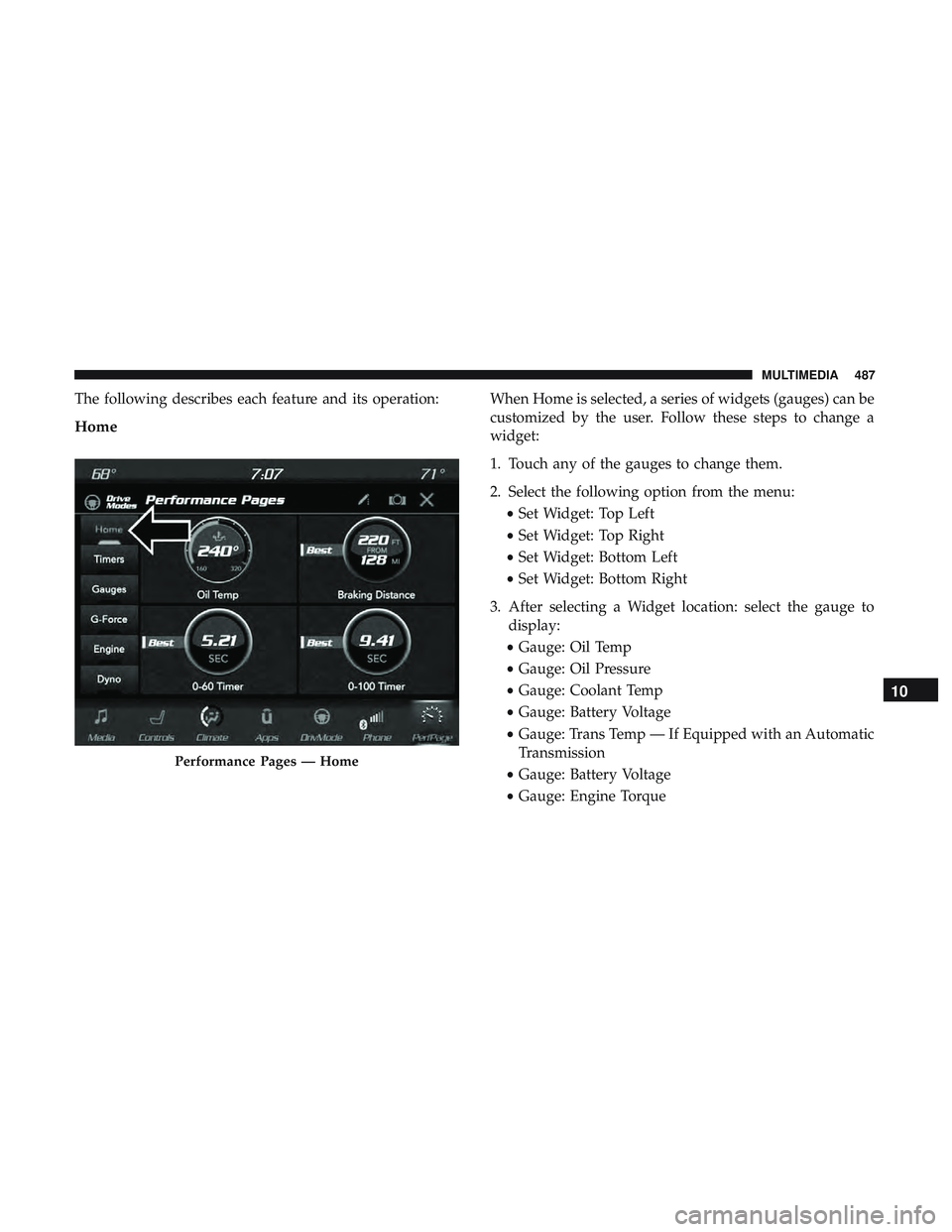
The following describes each feature and its operation:
Home
When Home is selected, a series of widgets (gauges) can be
customized by the user. Follow these steps to change a
widget:
1. Touch any of the gauges to change them.
2. Select the following option from the menu:•Set Widget: Top Left
• Set Widget: Top Right
• Set Widget: Bottom Left
• Set Widget: Bottom Right
3. After selecting a Widget location: select the gauge to display:
• Gauge: Oil Temp
• Gauge: Oil Pressure
• Gauge: Coolant Temp
• Gauge: Battery Voltage
• Gauge: Trans Temp — If Equipped with an Automatic
Transmission
• Gauge: Battery Voltage
• Gauge: Engine Torque
Performance Pages — Home
10
MULTIMEDIA 487
Page 497 of 553
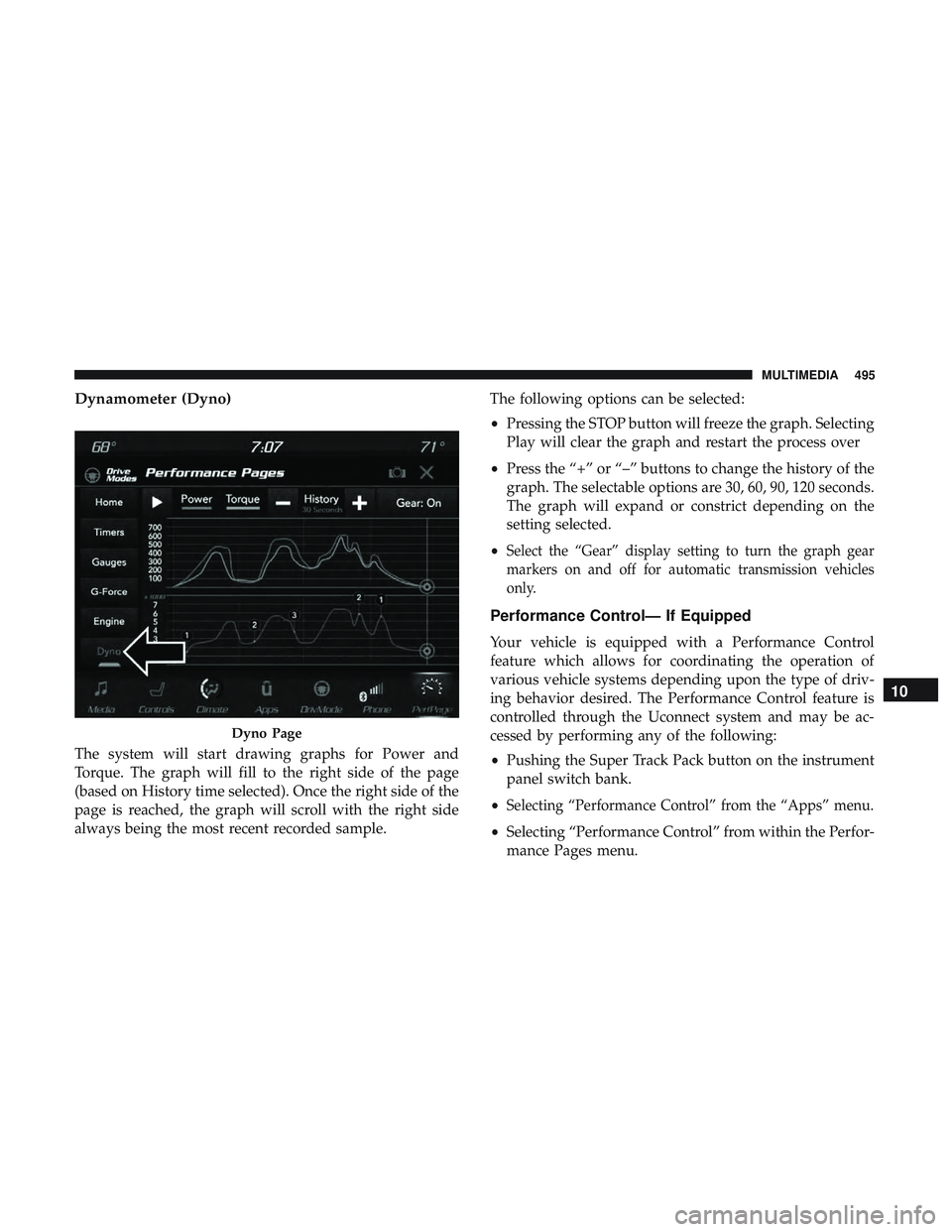
Dynamometer (Dyno)
The system will start drawing graphs for Power and
Torque. The graph will fill to the right side of the page
(based on History time selected). Once the right side of the
page is reached, the graph will scroll with the right side
always being the most recent recorded sample.The following options can be selected:
•
Pressing the STOP button will freeze the graph. Selecting
Play will clear the graph and restart the process over
• Press the “+” or “–” buttons to change the history of the
graph. The selectable options are 30, 60, 90, 120 seconds.
The graph will expand or constrict depending on the
setting selected.
•
Select the “Gear” display setting to turn the graph gear
markers on and off for automatic transmission vehicles
only.
Performance Control— If Equipped
Your vehicle is equipped with a Performance Control
feature which allows for coordinating the operation of
various vehicle systems depending upon the type of driv-
ing behavior desired. The Performance Control feature is
controlled through the Uconnect system and may be ac-
cessed by performing any of the following:
• Pushing the Super Track Pack button on the instrument
panel switch bank.
•
Selecting “Performance Control” from the “Apps” menu.
• Selecting “Performance Control” from within the Perfor-
mance Pages menu.
Dyno Page
10
MULTIMEDIA 495
Page 500 of 553
the “Sport Mode Set-Up” or “Default Mode Set-Up” but-
tons on the touchscreen allows the driver to configure their
individual drive modes and see how those configurations
affect the performance of the vehicle.
NOTE:Not all of the options listed in this manual are
available on every vehicle, below is a chart with all
available Performance Control vehicle configurations.
Available Mode Configurations
Transmission Auto
Engine N/A
Engine/Trans X
Steering X
Paddle Shifters X
Traction Control X
Refer to the Sport and Default modes for their detailed
operation.
NOTE: These settings will remain in effect when using the
Launch Control feature.
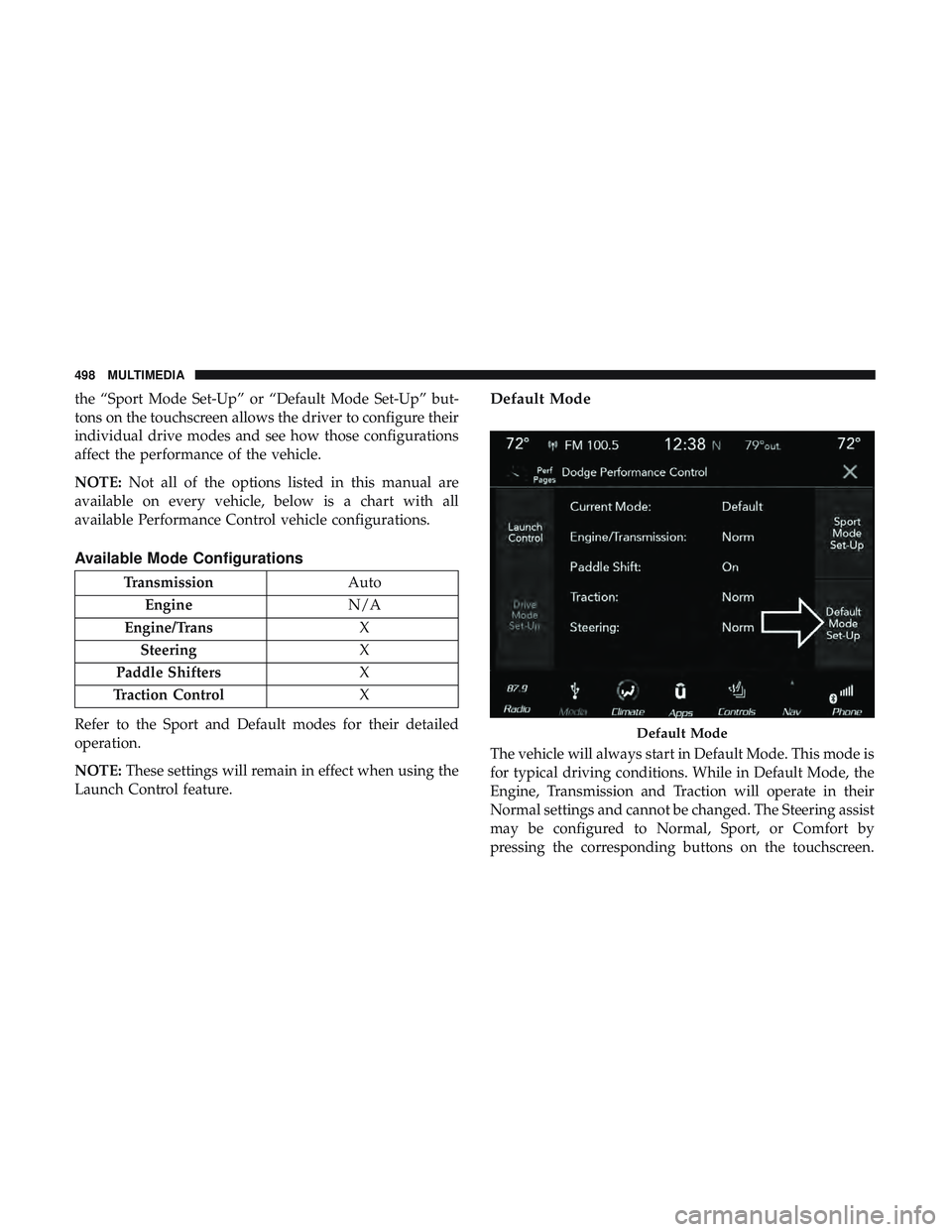
Default Mode
The vehicle will always start in Default Mode. This mode is
for typical driving conditions. While in Default Mode, the
Engine, Transmission and Traction will operate in their
Normal settings and cannot be changed. The Steering assist
may be configured to Normal, Sport, or Comfort by
pressing the corresponding buttons on the touchscreen.
Default Mode
498 MULTIMEDIA
Page 501 of 553
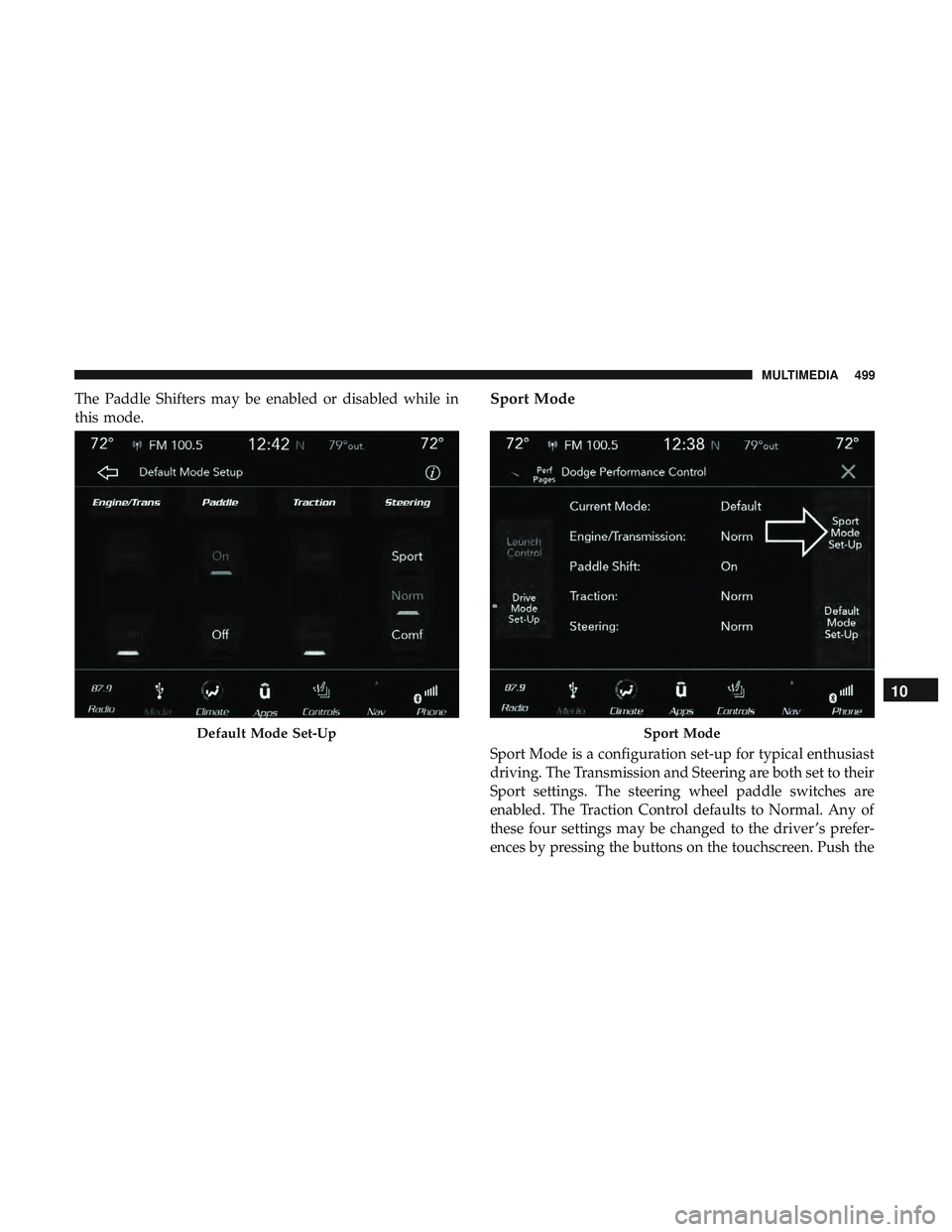
The Paddle Shifters may be enabled or disabled while in
this mode.Sport Mode
Sport Mode is a configuration set-up for typical enthusiast
driving. The Transmission and Steering are both set to their
Sport settings. The steering wheel paddle switches are
enabled. The Traction Control defaults to Normal. Any of
these four settings may be changed to the driver ’s prefer-
ences by pressing the buttons on the touchscreen. Push the
Default Mode Set-UpSport Mode
10
MULTIMEDIA 499
Page 509 of 553
environments, such as aboard airplanes. If you are unsure
of restrictions, you are encouraged to ask for authorization
before turning on the wireless radio.
The following regulatory statement applies to all Radio
Frequency (RF) devices equipped in this vehicle:
This device complies with Part 15 of the FCC Rules and
with Industry Canada license-exempt RSS standard(s).
Operation is subject to the following two conditions:
1. This device may not cause harmful interference, and
2. This device must accept any interference received, in-cluding interference that may cause undesired opera-
tion.
NOTE: Changes or modifications not expressly approved
by the party responsible for compliance could void the
user ’s authority to operate the equipment. NOTE:
•
This equipment has been tested and found to comply
with the limits for a Class B digital device, pursuant to
Part 15 of the FCC Rules. These limits are designed to
provide reasonable protection against harmful interfer-
ence in a residential installation. This equipment gener-
ates, uses and can radiate radio frequency energy and, if
not installed and used in accordance with the instruc-
tions, may cause harmful interference to radio commu-
nications. However, there is no guarantee that interfer-
ence will not occur in a particular installation.
• If this equipment does cause harmful interference to
radio or television reception, which can be determined
by turning the equipment off and on, the user is encour-
aged to try to correct the interference by one or more of
the following measures:
1. Increase the separation between the equipment and receiver.
2. Consult an authorized dealer or an experienced radio technician for help.
10
MULTIMEDIA 507
Page 514 of 553
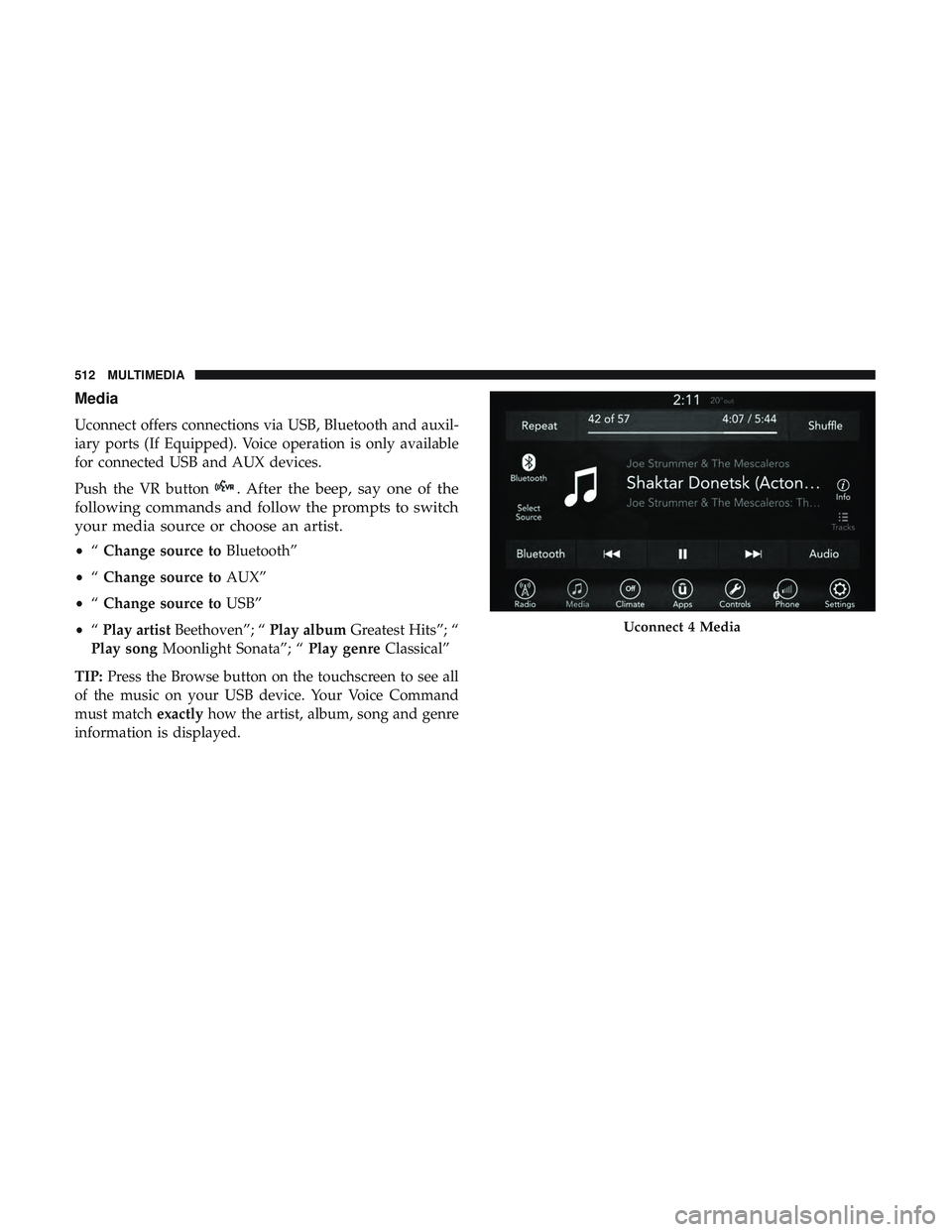
Media
Uconnect offers connections via USB, Bluetooth and auxil-
iary ports (If Equipped). Voice operation is only available
for connected USB and AUX devices.
Push the VR button
. After the beep, say one of the
following commands and follow the prompts to switch
your media source or choose an artist.
• “Change source to Bluetooth”
• “Change source to AUX”
• “Change source to USB”
• “Play artist Beethoven”; “ Play albumGreatest Hits”; “
Play song Moonlight Sonata”; “ Play genreClassical”
TIP: Press the Browse button on the touchscreen to see all
of the music on your USB device. Your Voice Command
must match exactlyhow the artist, album, song and genre
information is displayed.
Uconnect 4 Media
512 MULTIMEDIA