USB DODGE CHARGER 2019 User Guide
[x] Cancel search | Manufacturer: DODGE, Model Year: 2019, Model line: CHARGER, Model: DODGE CHARGER 2019Pages: 560, PDF Size: 6.03 MB
Page 490 of 560
Performance Pages — If Equipped
Performance Pages is an application that provides a dis-
play for performance indicators, as received from the
instrument cluster, that will help you gain familiarity with
the capabilities of your vehicle in real-time.
To access the Performance Pages, press the “Apps” button
on the touchscreen then press the “Performance Pages”
button on the touchscreen. Press the desired button on the
touchscreen to access that specific Performance Page.
WARNING!
Measurement of vehicle statistics with the Perfor-
mance Pages is intended for off-highway or off-road
use only and should not be done on any public
roadways. It is recommended that these features be
used in a controlled environment and within the limits
of the law. The capabilities of the vehicle as measured
by the Performance Pages must never be exploited in a
reckless or dangerous manner, which can jeopardize
the user ’s safety or the safety of others. Only a safe,
attentive, and skillful driver can prevent accidents.The Performance Pages include the following:
•
Home
• Timers
• Gauges
• G-Force
• Engine
• Dyno
If a USB drive is installed in the media hub, press the
Camera icon on the top right of the touchscreen when
using Performance Pages. A screen shot of the page will be
taken and saved onto the USB.
488 MULTIMEDIA
Page 493 of 560
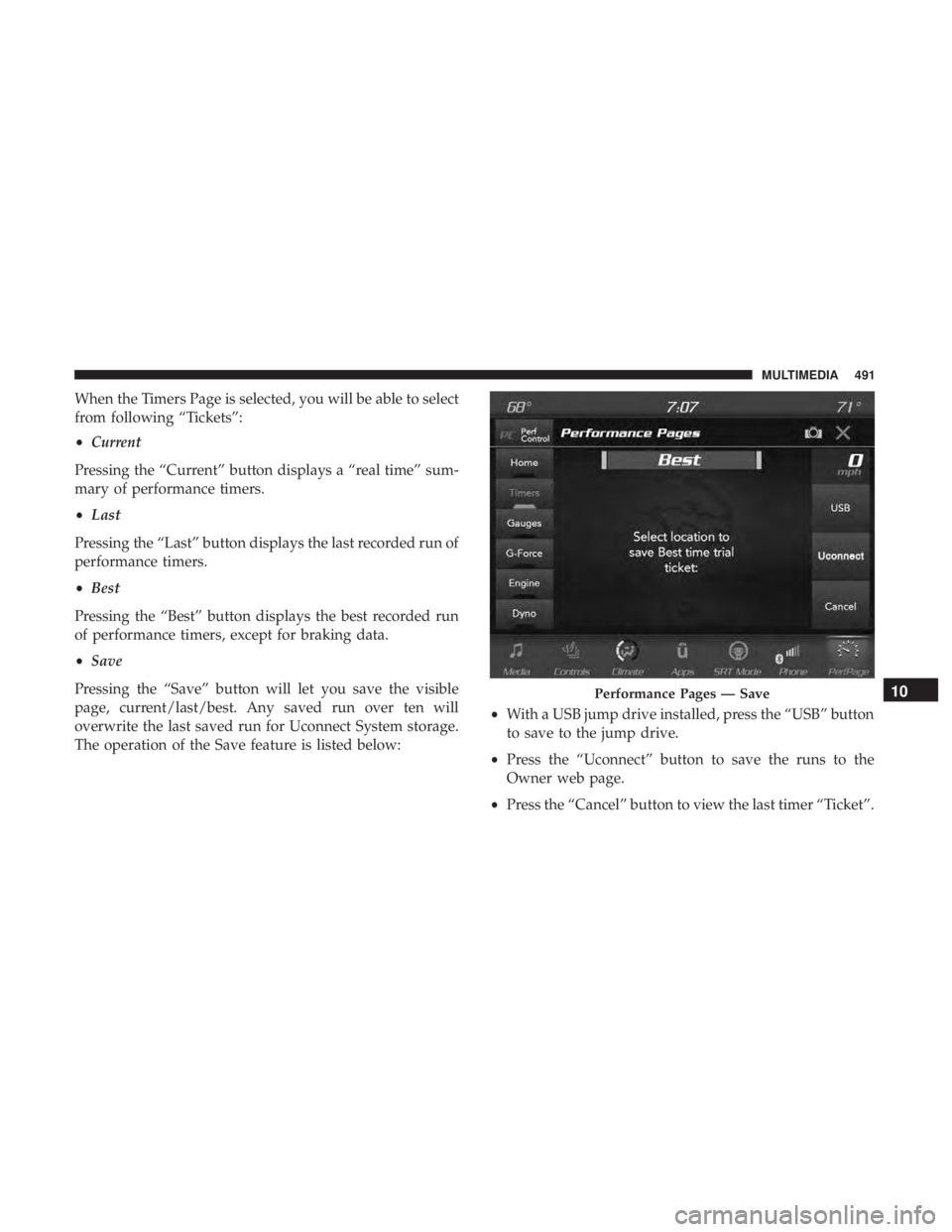
When the Timers Page is selected, you will be able to select
from following “Tickets”:
•Current
Pressing the “Current” button displays a “real time” sum-
mary of performance timers.
• Last
Pressing the “Last” button displays the last recorded run of
performance timers.
• Best
Pressing the “Best” button displays the best recorded run
of performance timers, except for braking data.
• Save
Pressing the “Save” button will let you save the visible
page, current/last/best. Any saved run over ten will
overwrite the last saved run for Uconnect System storage.
The operation of the Save feature is listed below: •
With a USB jump drive installed, press the “USB” button
to save to the jump drive.
• Press the “Uconnect” button to save the runs to the
Owner web page.
• Press the “Cancel” button to view the last timer “Ticket”.
Performance Pages — Save10
MULTIMEDIA 491
Page 512 of 560
Media Mode
Pushing the top of the switch once goes to the next track on
the selected media (AUX/USB/Bluetooth). Pushing the
bottom of the switch once goes to the beginning of the
current track, or to the beginning of the previous track if it
is within eight seconds after the current track begins to
play.
AUX/USB/MP3 CONTROL
This feature allows an external USB device to be plugged
into the USB port.
For further information, refer to the Uconnect Owner ’s
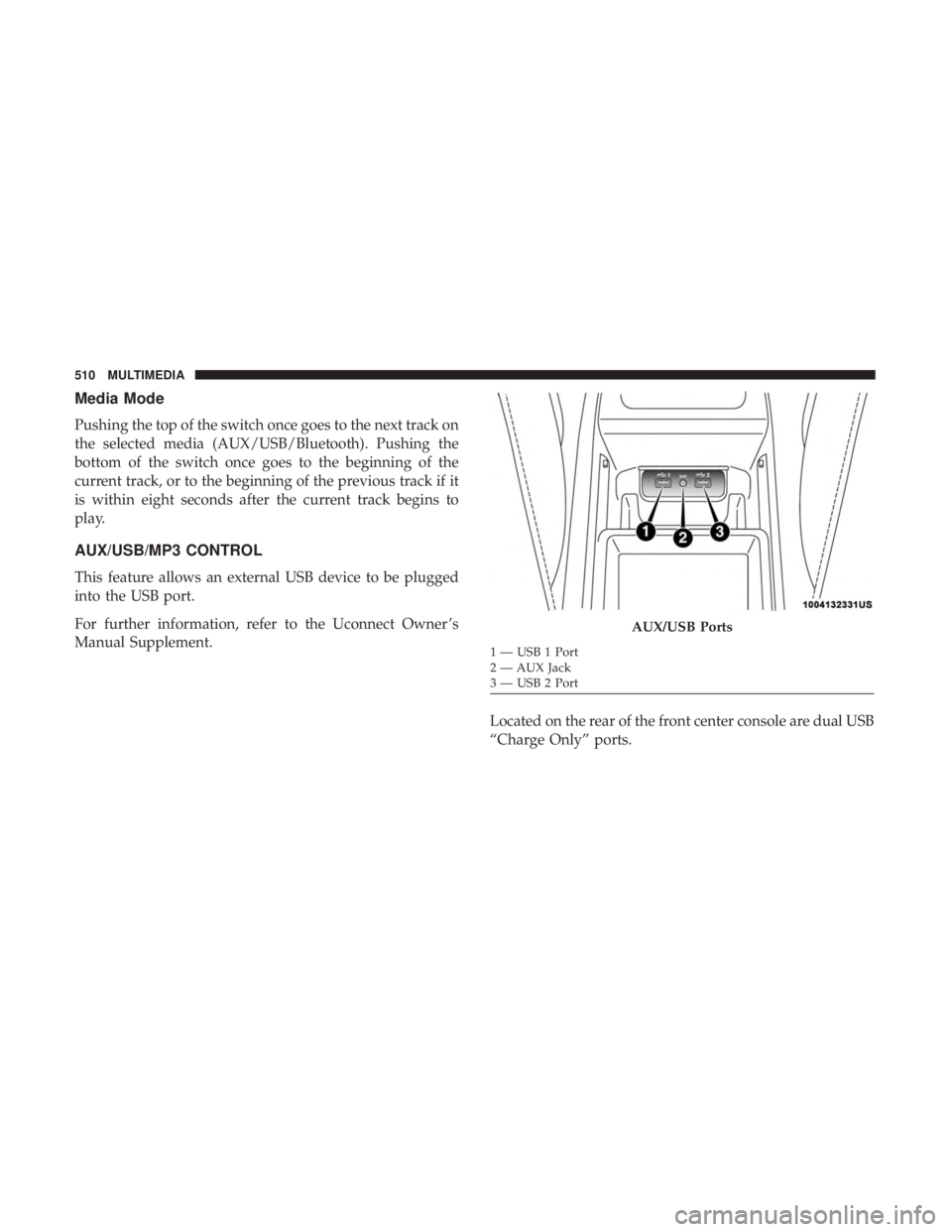
Manual Supplement.Located on the rear of the front center console are dual USB
“Charge Only” ports.
AUX/USB Ports
1 — USB 1 Port
2 — AUX Jack
3 — USB 2 Port
510 MULTIMEDIA
Page 513 of 560
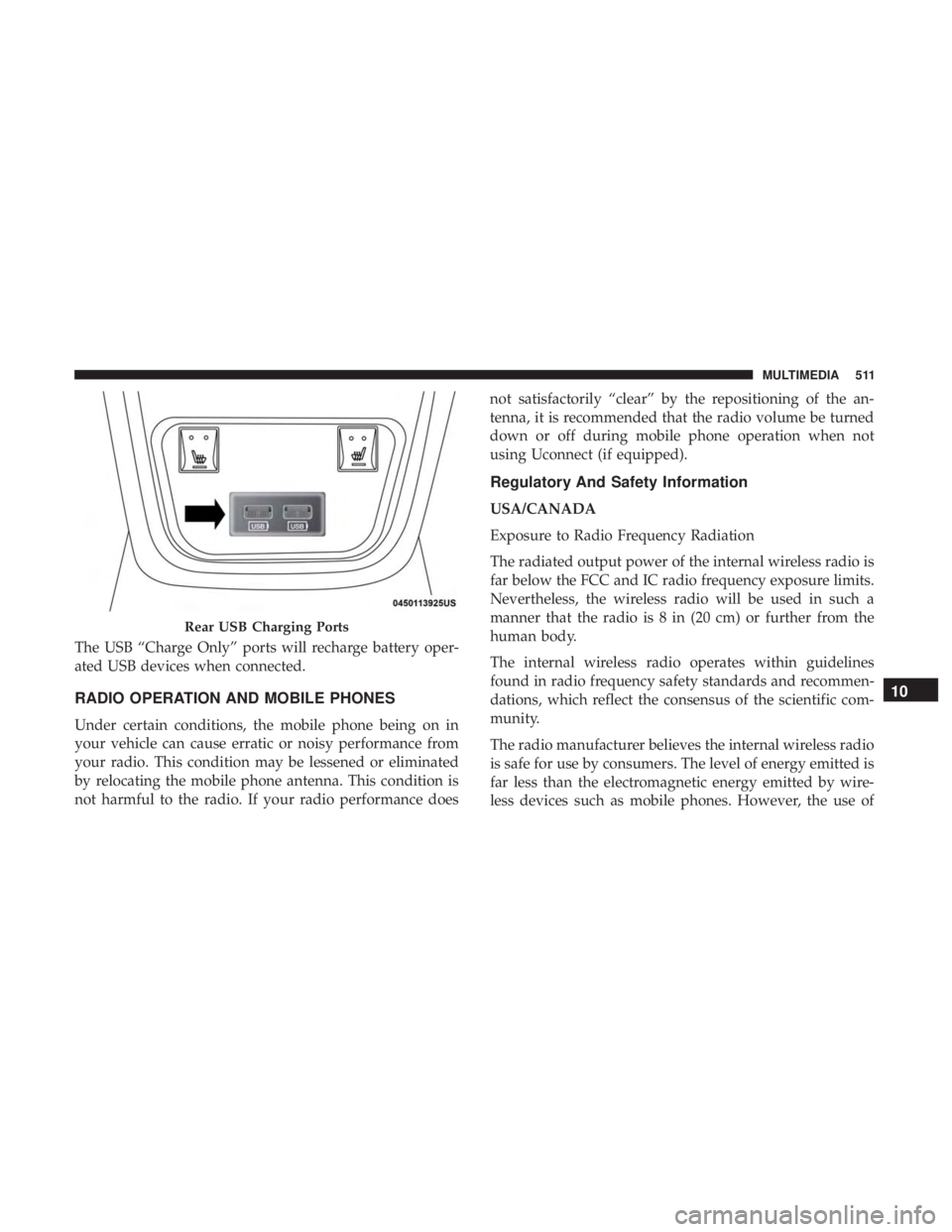
The USB “Charge Only” ports will recharge battery oper-
ated USB devices when connected.
RADIO OPERATION AND MOBILE PHONES
Under certain conditions, the mobile phone being on in
your vehicle can cause erratic or noisy performance from
your radio. This condition may be lessened or eliminated
by relocating the mobile phone antenna. This condition is
not harmful to the radio. If your radio performance doesnot satisfactorily “clear” by the repositioning of the an-
tenna, it is recommended that the radio volume be turned
down or off during mobile phone operation when not
using Uconnect (if equipped).
Regulatory And Safety Information
USA/CANADA
Exposure to Radio Frequency Radiation
The radiated output power of the internal wireless radio is
far below the FCC and IC radio frequency exposure limits.
Nevertheless, the wireless radio will be used in such a
manner that the radio is 8 in (20 cm) or further from the
human body.
The internal wireless radio operates within guidelines
found in radio frequency safety standards and recommen-
dations, which reflect the consensus of the scientific com-
munity.
The radio manufacturer believes the internal wireless radio
is safe for use by consumers. The level of energy emitted is
far less than the electromagnetic energy emitted by wire-
less devices such as mobile phones. However, the use of
Rear USB Charging Ports
10
MULTIMEDIA 511
Page 518 of 560
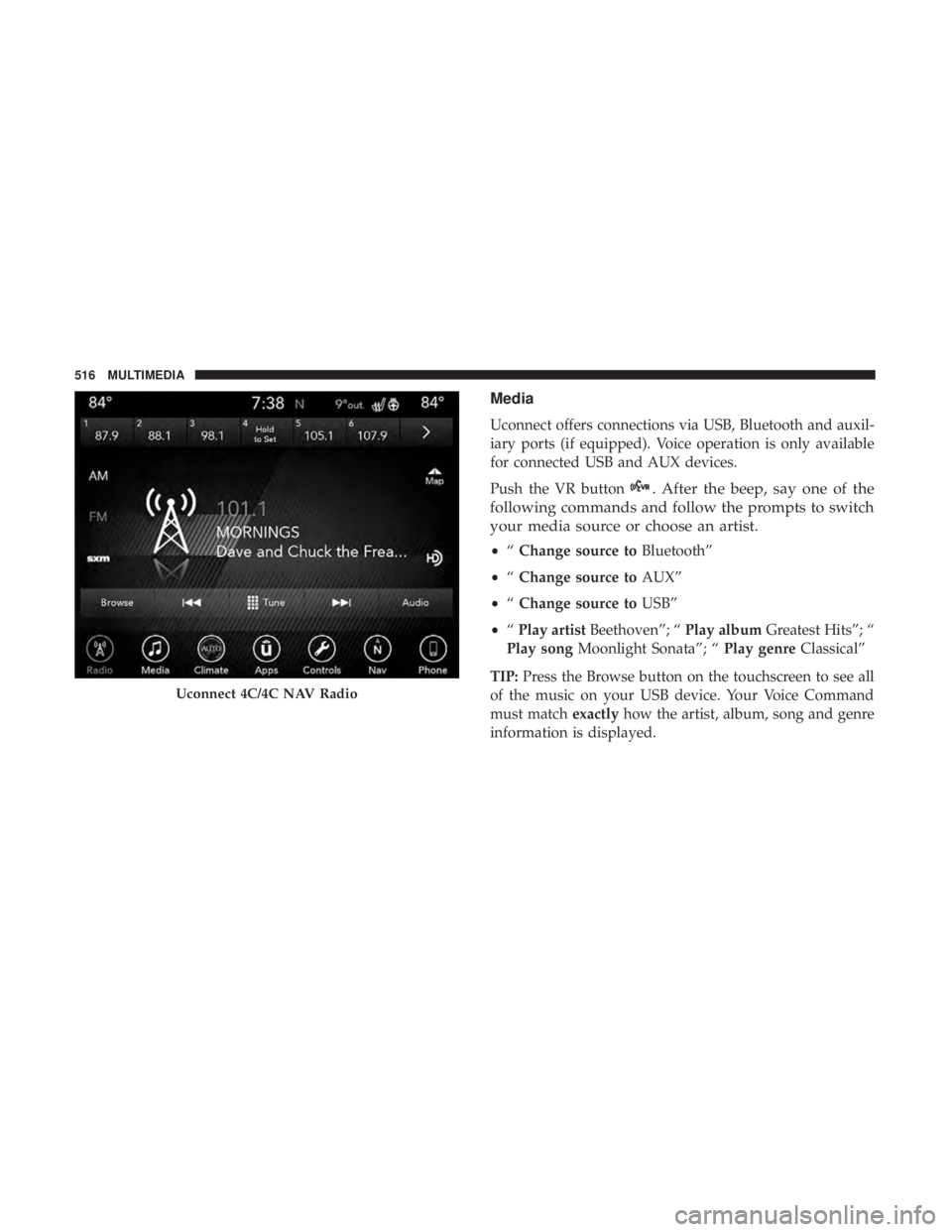
Media
Uconnect offers connections via USB, Bluetooth and auxil-
iary ports (if equipped). Voice operation is only available
for connected USB and AUX devices.
Push the VR button
. After the beep, say one of the
following commands and follow the prompts to switch
your media source or choose an artist.
• “Change source to Bluetooth”
• “Change source to AUX”
• “Change source to USB”
• “Play artist Beethoven”; “ Play albumGreatest Hits”; “
Play song Moonlight Sonata”; “ Play genreClassical”
TIP: Press the Browse button on the touchscreen to see all
of the music on your USB device. Your Voice Command
must match exactlyhow the artist, album, song and genre
information is displayed.
Uconnect 4C/4C NAV Radio
516 MULTIMEDIA
Page 531 of 560
NOTE:
•Reply with text message is not compatible with iPhones.
• Auto reply with text message is only available on
phones that support Bluetooth MAP.
Android Auto — If Equipped
NOTE: Feature availability depends on your carrier and
mobile phone manufacturer. Some Android Auto features
may or may not be available in every region and/or
language.
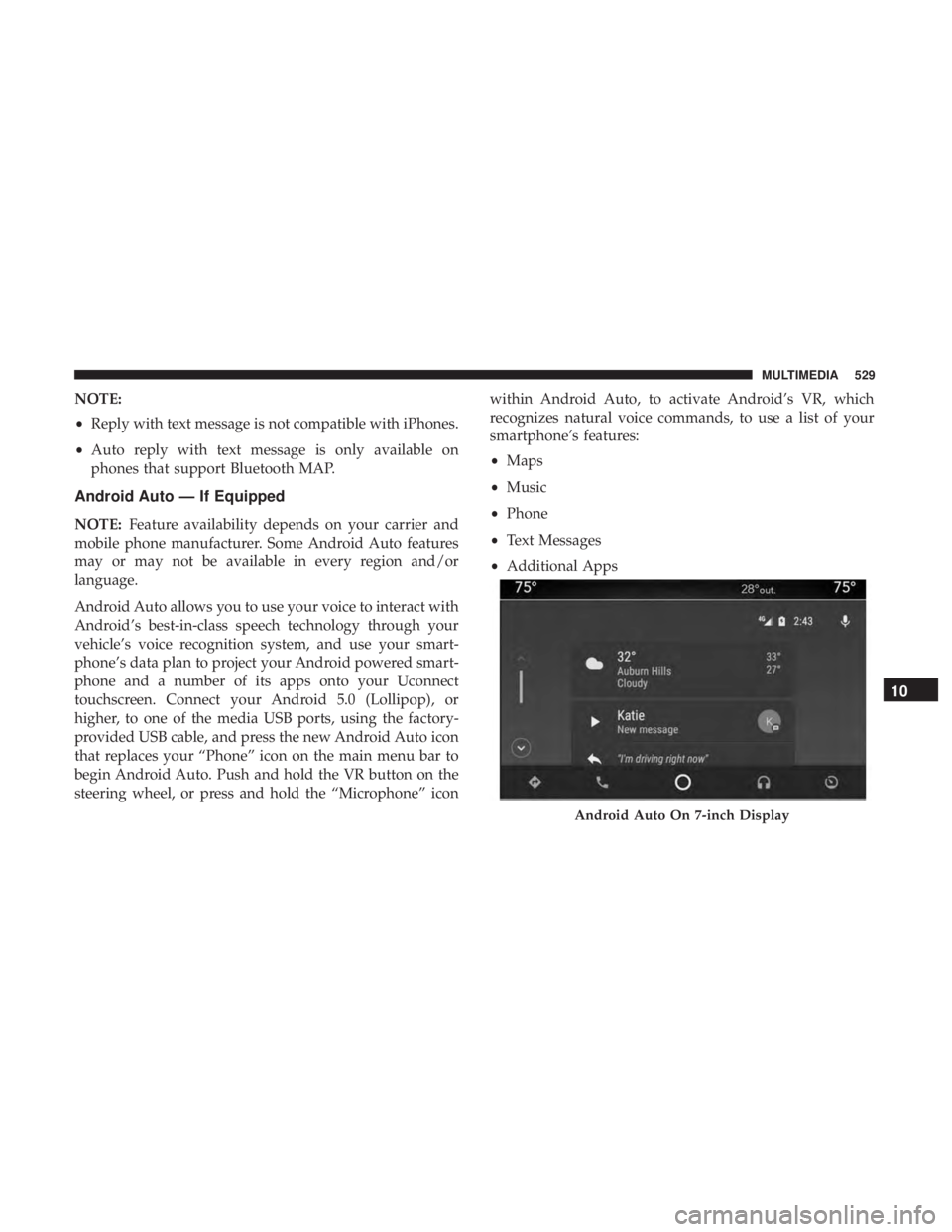
Android Auto allows you to use your voice to interact with
Android’s best-in-class speech technology through your
vehicle’s voice recognition system, and use your smart-
phone’s data plan to project your Android powered smart-
phone and a number of its apps onto your Uconnect
touchscreen. Connect your Android 5.0 (Lollipop), or
higher, to one of the media USB ports, using the factory-
provided USB cable, and press the new Android Auto icon
that replaces your “Phone” icon on the main menu bar to
begin Android Auto. Push and hold the VR button on the
steering wheel, or press and hold the “Microphone” icon within Android Auto, to activate Android’s VR, which
recognizes natural voice commands, to use a list of your
smartphone’s features:
•
Maps
• Music
• Phone
• Text Messages
• Additional Apps
Android Auto On 7-inch Display
10
MULTIMEDIA 529
Page 532 of 560
Refer to your Uconnect Owner ’s Manual Supplement for
further information.
NOTE:Requires compatible smartphone running Android
5.0 Lollipop or higher and download app on Google Play.
Android, Android Auto, and Google Play are trademarks
of Google Inc.
Apple CarPlay — If Equipped
NOTE: Feature availability depends on your carrier and
mobile phone manufacturer. Some Apple CarPlay features
may or may not be available in every region and/or
language.
Apple CarPlay allows you to use your voice to interact
with Siri through your vehicle’s voice recognition system,
and use your smartphone’s data plan to project your
iPhone and a number of its apps onto your Uconnect
touchscreen. Connect your iPhone 5, or higher, to one of
the media USB ports, using the factory-provided Lightning
cable, and press the new CarPlay icon that replaces your
“Phone” icon on the main menu bar to begin Apple
CarPlay. Push and hold the VR button on the steering
wheel, or press and hold the “Home” button within Apple
CarPlay, to activate Siri, which recognizes natural voice
commands to use a list of your iPhone’s features:
• Phone
• Music
• Messages
• Maps — if equipped
• Additional Apps — if equipped
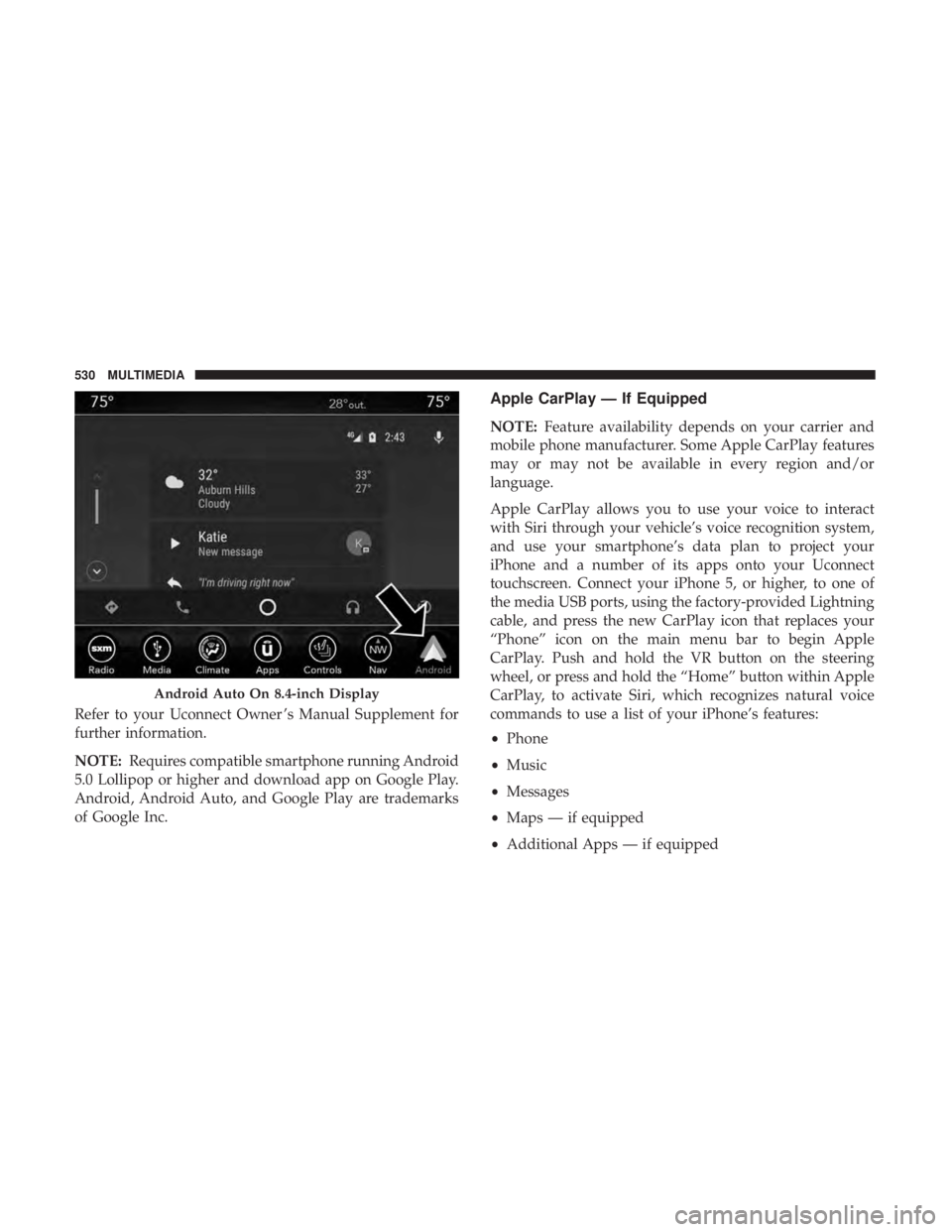
Android Auto On 8.4-inch Display
530 MULTIMEDIA
Page 556 of 560
Hitches............................... .295
Minimum Requirements ....................297
Tips ................................. .301
Trailer And Tongue Weight ..................296
Wiring ............................... .299
Trailer Towing Guide ....................... .295
Trailer Weight ............................ .295
Transfer Case Fluid .......................... .396, 438, 440
Maintenance ........................... .396
Transmission ............................. .239
Automatic ......................... .239, 395
Fluid ............................. .438, 440
Maintenance ........................... .395
Shifting .............................. .237
Transporting Pets ......................... .219
Tread Wear Indicators ...................... .410
Trunk Lid (Deck Lid) ....................... .101
Trunk Release Remote Control .................101
Turn Signals ........................... .71, 146
Uconnect Uconnect Settings .................21, 22, 32, 445
Uconnect 4C/4C Nav With 8.4-Inch Display ........466
Uconnect 4 With 7-Inch Display ................446Uconnect Settings
Customer Programmable Features ........32, 38, 445
Passive Entry Programming ..................38
Uniform Tire Quality Grades ..................419
Universal Garage Door Opener (HomeLink) ........105
Universal Transmitter ....................... .105
Unleaded Gasoline ........................ .429
Untwisting Procedure, Seat Belt ................184
USB................................... .510
Vanity Mirrors .............................65
Vehicle Certification Label ....................291
Vehicle Identification Number (VIN) .............427
Vehicle Loading .....................291, 292, 403
Vehicle Modifications/Alterations .................
5
Vehicle Security Alarm ........................34
Vehicle Storage ......................... .93, 420
Vehicle User Guide In Vehicle Help ...........................17
Navigation ..............................17
Operating Instructions ......................17
Searching User Guide ......................17
Viscosity, Engine Oil .....................377, 378
Voice Command .......................... .513
Voice Recognition System (VR) .................513
554 INDEX