ESP DODGE CHARGER 2021 Owner's Manual
[x] Cancel search | Manufacturer: DODGE, Model Year: 2021, Model line: CHARGER, Model: DODGE CHARGER 2021Pages: 320, PDF Size: 20.61 MB
Page 144 of 320
142MULTIMEDIA
The radio is equipped with the following modes:
AM
FM
SiriusXM® Satellite Radio (if equipped)
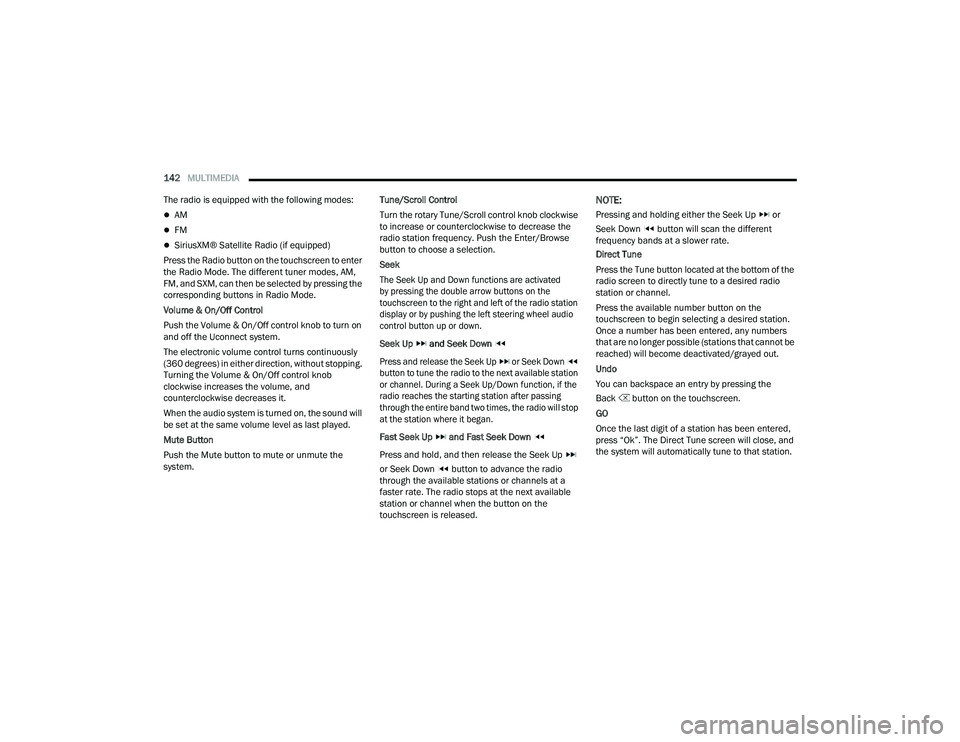
Press the Radio button on the touchscreen to enter
the Radio Mode. The different tuner modes, AM,
FM, and SXM, can then be selected by pressing the
corresponding buttons in Radio Mode.
Volume & On/Off Control
Push the Volume & On/Off control knob to turn on
and off the Uconnect system.
The electronic volume control turns continuously
(360 degrees) in either direction, without stopping.
Turning the Volume & On/Off control knob
clockwise increases the volume, and
counterclockwise decreases it.
When the audio system is turned on, the sound will
be set at the same volume level as last played.
Mute Button
Push the Mute button to mute or unmute the
system. Tune/Scroll Control
Turn the rotary Tune/Scroll control knob clockwise
to increase or counterclockwise to decrease the
radio station frequency. Push the Enter/Browse
button to choose a selection.
Seek
The Seek Up and Down functions are activated
by pressing the double arrow buttons on the
touchscreen to the right and left of the radio station
display or by pushing the left steering wheel audio
control button up or down.
Seek Up and Seek Down
Press and release the Seek Up or Seek Down
button to tune the radio to the next available station
or channel. During a Seek Up/Down function, if the
radio reaches the starting station after passing
through the entire band two times, the radio will stop
at the station where it began.
Fast Seek Up and Fast Seek Down
Press and hold, and then release the Seek Up
or Seek Down button to advance the radio
through the available stations or channels at a
faster rate. The radio stops at the next available
station or channel when the button on the
touchscreen is released.
NOTE:
Pressing and holding either the Seek Up or
Seek Down button will scan the different
frequency bands at a slower rate.
Direct Tune
Press the Tune button located at the bottom of the
radio screen to directly tune to a desired radio
station or channel.
Press the available number button on the
touchscreen to begin selecting a desired station.
Once a number has been entered, any numbers
that are no longer possible (stations that cannot be
reached) will become deactivated/grayed out.
Undo
You can backspace an entry by pressing the
Back button on the touchscreen.
GO
Once the last digit of a station has been entered,
press “Ok”. The Direct Tune screen will close, and
the system will automatically tune to that station.
21_LD_OM_EN_USC_t.book Page 142
Page 149 of 320
MULTIMEDIA147
Preset Selection
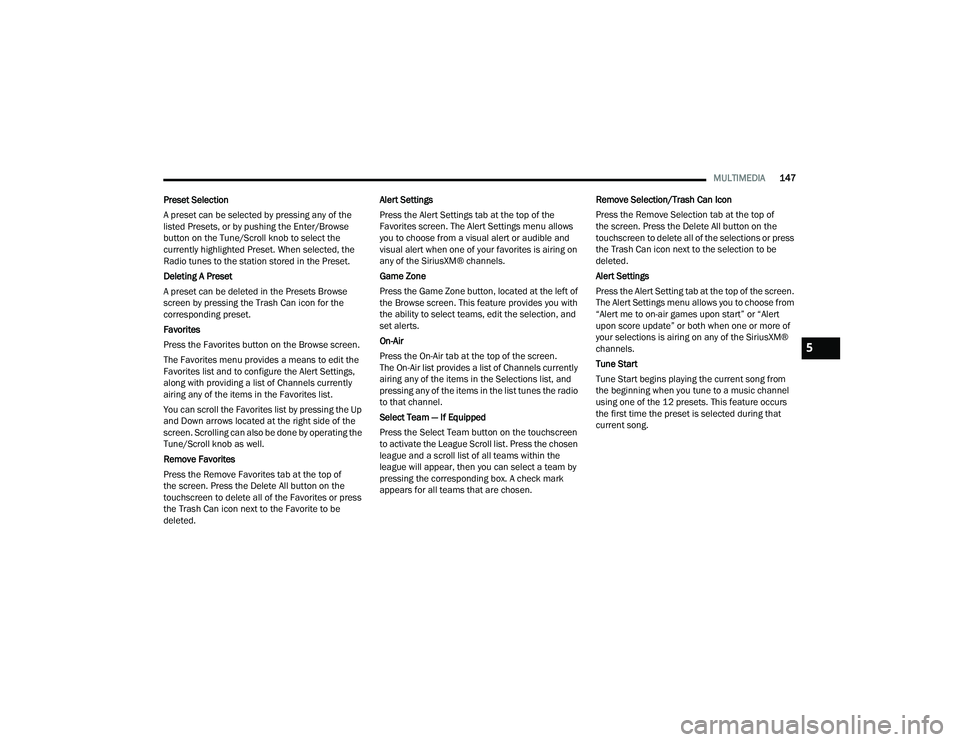
A preset can be selected by pressing any of the
listed Presets, or by pushing the Enter/Browse
button on the Tune/Scroll knob to select the
currently highlighted Preset. When selected, the
Radio tunes to the station stored in the Preset.
Deleting A Preset
A preset can be deleted in the Presets Browse
screen by pressing the Trash Can icon for the
corresponding preset.
Favorites
Press the Favorites button on the Browse screen.
The Favorites menu provides a means to edit the
Favorites list and to configure the Alert Settings,
along with providing a list of Channels currently
airing any of the items in the Favorites list.
You can scroll the Favorites list by pressing the Up
and Down arrows located at the right side of the
screen. Scrolling can also be done by operating the
Tune/Scroll knob as well.
Remove Favorites
Press the Remove Favorites tab at the top of
the screen. Press the Delete All button on the
touchscreen to delete all of the Favorites or press
the Trash Can icon next to the Favorite to be
deleted. Alert Settings
Press the Alert Settings tab at the top of the
Favorites screen. The Alert Settings menu allows
you to choose from a visual alert or audible and
visual alert when one of your favorites is airing on
any of the SiriusXM® channels.
Game Zone
Press the Game Zone button, located at the left of
the Browse screen. This feature provides you with
the ability to select teams, edit the selection, and
set alerts.
On-Air
Press the On-Air tab at the top of the screen.
The On-Air list provides a list of Channels currently
airing any of the items in the Selections list, and
pressing any of the items in the list tunes the radio
to that channel.
Select Team — If Equipped
Press the Select Team button on the touchscreen
to activate the League Scroll list. Press the chosen
league and a scroll list of all teams within the
league will appear, then you can select a team by
pressing the corresponding box. A check mark
appears for all teams that are chosen.
Remove Selection/Trash Can Icon
Press the Remove Selection tab at the top of
the screen. Press the Delete All button on the
touchscreen to delete all of the selections or press
the Trash Can icon next to the selection to be
deleted.
Alert Settings
Press the Alert Setting tab at the top of the screen.
The Alert Settings menu allows you to choose from
“Alert me to on-air games upon start” or “Alert
upon score update” or both when one or more of
your selections is airing on any of the SiriusXM®
channels.
Tune Start
Tune Start begins playing the current song from
the beginning when you tune to a music channel
using one of the 12 presets. This feature occurs
the first time the preset is selected during that
current song.
5
21_LD_OM_EN_USC_t.book Page 147
Page 150 of 320
148MULTIMEDIA
Setting Presets
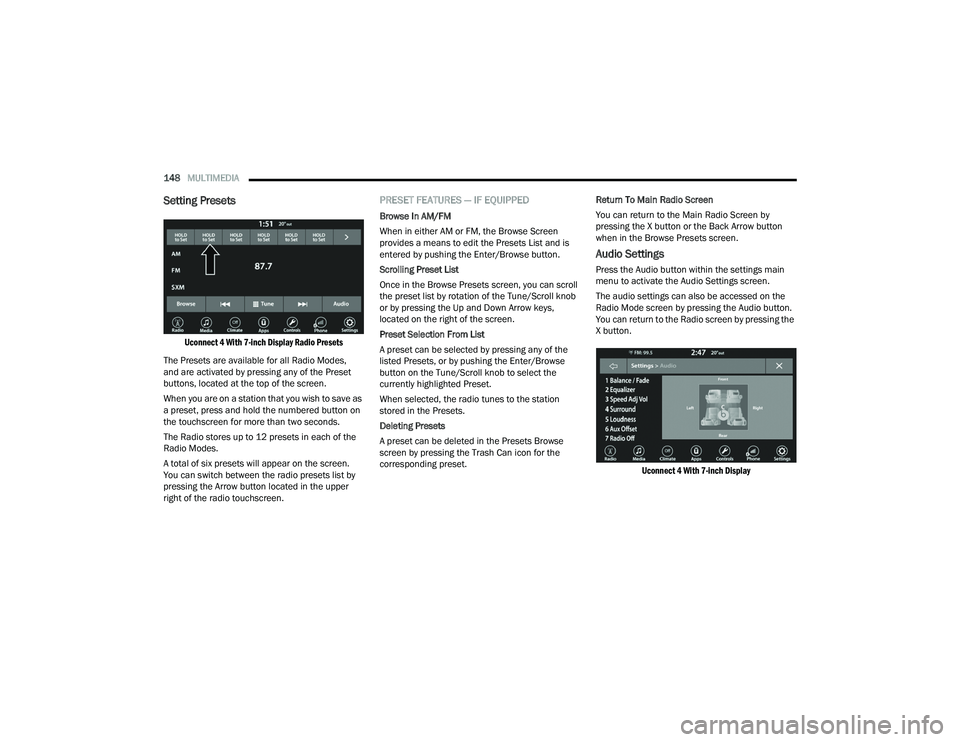
Uconnect 4 With 7-inch Display Radio Presets
The Presets are available for all Radio Modes,
and are activated by pressing any of the Preset
buttons, located at the top of the screen.
When you are on a station that you wish to save as
a preset, press and hold the numbered button on
the touchscreen for more than two seconds.
The Radio stores up to 12 presets in each of the
Radio Modes.
A total of six presets will appear on the screen.
You can switch between the radio presets list by
pressing the Arrow button located in the upper
right of the radio touchscreen.
PRESET FEATURES — IF EQUIPPED
Browse In AM/FM
When in either AM or FM, the Browse Screen
provides a means to edit the Presets List and is
entered by pushing the Enter/Browse button.
Scrolling Preset List
Once in the Browse Presets screen, you can scroll
the preset list by rotation of the Tune/Scroll knob
or by pressing the Up and Down Arrow keys,
located on the right of the screen.
Preset Selection From List
A preset can be selected by pressing any of the
listed Presets, or by pushing the Enter/Browse
button on the Tune/Scroll knob to select the
currently highlighted Preset.
When selected, the radio tunes to the station
stored in the Presets.
Deleting Presets
A preset can be deleted in the Presets Browse
screen by pressing the Trash Can icon for the
corresponding preset. Return To Main Radio Screen
You can return to the Main Radio Screen by
pressing the X button or the Back Arrow button
when in the Browse Presets screen.
Audio Settings
Press the Audio button within the settings main
menu to activate the Audio Settings screen.
The audio settings can also be accessed on the
Radio Mode screen by pressing the Audio button.
You can return to the Radio screen by pressing the
X button.
Uconnect 4 With 7-inch Display
21_LD_OM_EN_USC_t.book Page 148
Page 155 of 320
MULTIMEDIA153
Screen Activated Features
Dialing via Keypad using touchscreen.
Viewing and Calling contacts from Phonebooks
displayed on the touchscreen.
Setting Favorite Contact phone numbers so they
are easily accessible on the Main Phone screen.
Viewing and Calling contacts from Recent Call logs.
Reviewing your recent Incoming SMS Messages.
Pairing up to 10 phones/audio devices for easy
access to connect to them quickly.
NOTE:Your phone must be capable of SMS messaging via
Bluetooth® for messaging features to work
properly.
Your mobile phone’s audio is transmitted through
your vehicle’s audio system; the system will
automatically mute your radio when using the
Uconnect Phone.
For Uconnect customer support:
US visit UconnectPhone.com or
call 877-855-8400
Canada visit UconnectPhone.com or
call 800-465-2001 (English) or (French)
call 800-387-9983 Uconnect Phone allows you to transfer calls
between the system and your mobile phone as you
enter or exit your vehicle and enables you to mute
the system's microphone for private conversation.
The Phone feature is driven through your
Bluetooth® “Hands-Free Profile” mobile phone.
Uconnect features Bluetooth® technology — the
global standard that enables different electronic
devices to connect to each other without wires or a
docking station. Ensure you phone is turned on with
Bluetooth® active and has been paired to the
Uconnect system. Up to 10 mobile phones or audio
devices are allowed to be linked to the system. Only
one linked (or paired) mobile phone and one audio
device can be used with the system at a time.
Phone Button
The Phone button on your steering wheel is
used to get into the Phone Mode and make calls,
show recent, incoming or outgoing calls, view
phonebook, etc. When you push the button you will
hear a BEEP. The BEEP is your signal to give a
command.
Voice Command Button
The Voice Command button on your steering
wheel is only used for “barge in” and when you are
already in a call or want to make another call.
The button on your steering wheel is also used to
access the Voice Commands for the Uconnect
Voice Command features if your vehicle is
equipped.
Phone Operation
OPERATION
Voice commands can be used to operate the
Uconnect Phone and to navigate its menu
structure. Voice commands are required after
most Uconnect Phone prompts. There are two
general methods for how Voice Command works:
1. Say compound commands like “Call John
Smith mobile”.
2. Say the individual commands and allow the system to guide you to complete the task.
WARNING!
ALWAYS drive safely with your hands on the steering
wheel. You have full responsibility and assume all
risks related to the use of the Uconnect features and
applications in this vehicle. Only use Uconnect when
it is safe to do so. Failure to do so may result in an
accident involving serious injury or death.
5
21_LD_OM_EN_USC_t.book Page 153
Page 156 of 320
154MULTIMEDIA
You will be prompted for a specific command and
then guided through the available options.
Prior to giving a voice command, one must wait
for the beep, which follows the “Listen” prompt
or another prompt.
For certain operations, compound commands
can be used. For example, instead of saying
“Call” and then “John Smith” and then “mobile”,
the following compound command can be said:
“Call John Smith mobile.”
For each feature explanation in this section, only the
compound command form of the voice command is
given. You can also break the commands into parts
and say each part of the command when you are
asked for it. For example, you can use the compound
command form voice command “Search for John
Smith,” or you can break the compound command
form into two voice commands: “Search Contacts”
and when asked, “John Smith.” Please remember,
the Uconnect Phone works best when you talk in a
normal conversational tone, as if speaking to
someone sitting a few feet/meters away from you.
NATURAL SPEECH
Your Uconnect Phone Voice system uses a Natural
Language Voice Recognition (VR) engine.
Natural speech allows the user to speak
commands in phrases or complete sentences.
The system filters out certain non-word utterances
and sounds such as “ah” and “eh.” The system
handles fill-in words such as “I would like to”.
The system handles multiple inputs in the same
phrase or sentence such as “make a phone call”
and “to Kelly Smith”. For multiple inputs in the
same phrase or sentence, the system identifies
the topic or context and provides the associated
follow-up prompt such as “Who do you want to
call?” in the case where a phone call was
requested but the specific name was not
recognized.
The system utilizes continuous dialog. When the
system requires more information from the user, it
will ask a question to which the user can respond
without pushing the Voice Command button on the
steering wheel.
HELP COMMAND
If you need assistance at any prompt, or if you want
to know your options at any prompt, say “Help”
following the beep.
To activate the Uconnect Phone from idle, simply
push the Phone button (if active) on your steering
wheel and say a command or say “Help”. All Phone
sessions begin with a push of the VR button or the
Phone button.
CANCEL COMMAND
At any prompt, after the beep, you can say “Cancel”
and you will be returned to the main menu.
You can also push the VR button or Phone button
on your steering wheel when the system is listening
for a command and be returned to the main or
previous menu.
21_LD_OM_EN_USC_t.book Page 154
Page 163 of 320

MULTIMEDIA161
Advanced Phone Connectivity
TRANSFER CALL TO AND FROM MOBILE
PHONE
The Uconnect Phone allows ongoing calls to be
transferred from your mobile phone without
terminating the call. To transfer an ongoing call from
your connected mobile phone to the Uconnect
Phone or vice versa, press the Transfer button on the
Phone main screen.
Things You Should Know About Uconnect
Phone
VOICE COMMAND
For the best performance:
Always wait for the beep before speaking
Speak normally, without pausing, just as you
would speak to a person sitting a few feet/
meters away from you
Ensure that no one other than you is speaking
during a voice command period
Low-To-Medium Blower Setting
Low-To-Medium Vehicle Speed
Low Road Noise
Smooth Road Surface
Fully Closed Windows
Dry Weather Conditions Even though the system is designed for many
languages and accents, the system may not always
work for some.
NOTE:It is recommended that you do not store names in
your Favorites phonebook while the vehicle is in
motion.
Number and name recognition rate is optimized
when the entries are not similar. You can say “O”
(letter “O”) for “0” (zero).
Even though international dialing for most number
combinations is supported, some shortcut dialing
number combinations may not be supported.
Audio Performance
Audio quality is maximized under:
Low-To-Medium Blower Setting
Low-To-Medium Vehicle Speed
Low Road Noise
Smooth Road Surface
Fully Closed Windows
Dry Weather Conditions
Operation From The Driver's Seat
Performance such as audio clarity, echo, and
loudness to a large degree rely on the phone and
network, and not the Uconnect Phone.
Echo at the far end can sometimes be reduced by
lowering the in-vehicle audio volume.
Phone Voice Commands
Making and answering hands-free phone calls is
easy with Uconnect. When the Phonebook button
is illuminated on your touchscreen, your system is
ready. Check
UconnectPhone.com for mobile
phone compatibility and pairing instructions.
Push the Phone button and wait for the beep to
say a command. See some examples below:
“ Call John Smith”
“Dial 123 456 7890”
“Redial ” (call previous outgoing phone number)
“Call back ” (call previously answered incoming
phone number)
Did You Know: When providing a Voice Command,
push the Phone button and say “ Call”, then
pronounce the name exactly as it appears in your
WARNING!
ALWAYS drive safely with your hands on the
wheel. You have full responsibility and assume
all risks related to the use of the Uconnect
features and applications in this vehicle. Only
use Uconnect when it is safe to do so. Failure to
do so may result in an accident involving serious
injury or death.
5
21_LD_OM_EN_USC_t.book Page 161
Page 164 of 320
162MULTIMEDIA
phonebook. When a contact has multiple phone
numbers, you can say “ Call John Smith work”.
Voice Text Reply — If Equipped
Uconnect can announce incoming text messages.
Push the VR button or Phone button and say:
1. “
Listen
” to have the system read an incoming
text message. (Must have compatible mobile
phone paired to Uconnect system.)
2. “ Reply ” after an incoming text message has
been read.
Listen to the Uconnect prompts. After the
beep, repeat one of the predefined messages
and follow the system prompts.
NOTE:Only use the numbering listed in the provided
table. Otherwise, the system will not transpose the
message.
Did You Know: Your mobile phone must have the
full implementation of the Message Access Profile
(MAP) to take advantage of this feature. For details
about MAP, visit
UconnectPhone.com.
Apple® iPhone® iOS 6 or later supports reading
incoming text messages only. For further
information on how to enable this feature on your
Apple® iPhone®, refer to your iPhone’s® “User
Manual”.
Did You Know: Voice Text Reply is not compatible
with iPhone®, but if your vehicle is equipped with
Siri® Eyes Free, you can use your voice to send a
text message. Siri® Eyes Free — If Equipped
When used with your Apple® iPhone® connected
to your vehicle via Bluetooth®, Siri lets you use
your voice to send text messages, select media,
place phone calls and much more. Siri uses your
natural language to understand what you mean
and responds back to confirm your requests. The
system is designed to keep your eyes on the road
and your hands on the wheel by letting Siri help you
perform useful tasks.
To enable Siri, push and hold, then release the
Uconnect Voice Recognition (VR) button on the
steering wheel. After you hear a double beep, you
can ask Siri to play podcasts and music, get
directions, read text messages, and many other
useful requests.BLUETOOTH® COMMUNICATION LINK
Mobile phones may lose connection to the
Uconnect Phone. When this happens, the
connection can generally be re-established by
restarting the mobile phone. Your mobile phone is
recommended to remain in Bluetooth® ON mode.
POWER-UP
After switching the ignition key from OFF to either
the ON/RUN or ACC position, or after a language
change, you must wait at least 15 seconds prior to
using the system Ú
page 305.
PRE-DEFINED VOICE TEXT REPLY
RESPONSES
Yes. Stuck in
traffic. See you later.
No. Start without
me. I’ll be late.
Okay. Where are
you? I will be 5
25, 30, 45,
60> minutes late.
Call me.
Are you there
yet?
I’ll call you later. I need
directions. See you in 5
minutes.
I’m on my way.
Can’t talk right
now.
I’m lost. Thanks.
PRE-DEFINED VOICE TEXT REPLY
RESPONSES
21_LD_OM_EN_USC_t.book Page 162
Page 178 of 320
176MULTIMEDIA
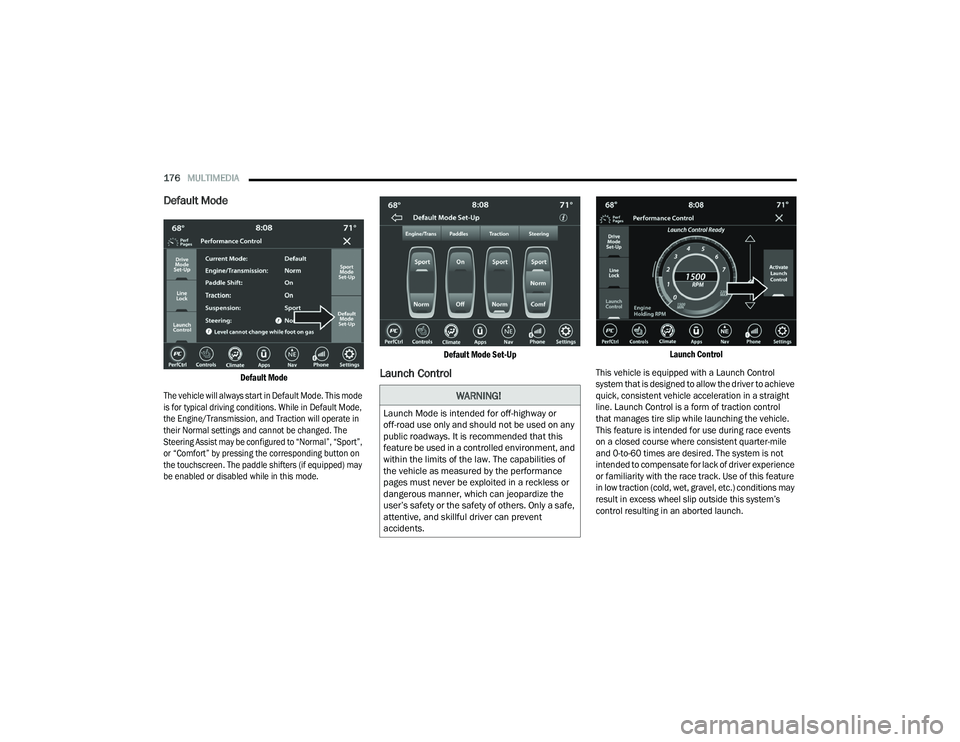
Default Mode
Default Mode
The vehicle will always start in Default Mode. This mode
is for typical driving conditions. While in Default Mode,
the Engine/Transmission, and Traction will operate in
their Normal settings and cannot be changed. The
Steering Assist may be configured to “Normal”, “Sport”,
or “Comfort” by pressing the corresponding button on
the touchscreen. The paddle shifters (if equipped) may
be enabled or disabled while in this mode.
Default Mode Set-Up
Launch Control
Launch Control
This vehicle is equipped with a Launch Control
system that is designed to allow the driver to achieve
quick, consistent vehicle acceleration in a straight
line. Launch Control is a form of traction control
that manages tire slip while launching the vehicle.
This feature is intended for use during race events
on a closed course where consistent quarter-mile
and 0-to-60 times are desired. The system is not
intended to compensate for lack of driver experience
or familiarity with the race track. Use of this feature
in low traction (cold, wet, gravel, etc.) conditions may
result in excess wheel slip outside this system’s
control resulting in an aborted launch.
WARNING!
Launch Mode is intended for off-highway or
off-road use only and should not be used on any
public roadways. It is recommended that this
feature be used in a controlled environment, and
within the limits of the law. The capabilities of
the vehicle as measured by the performance
pages must never be exploited in a reckless or
dangerous manner, which can jeopardize the
user’s safety or the safety of others. Only a safe,
attentive, and skillful driver can prevent
accidents.
21_LD_OM_EN_USC_t.book Page 176
Page 180 of 320
178MULTIMEDIA
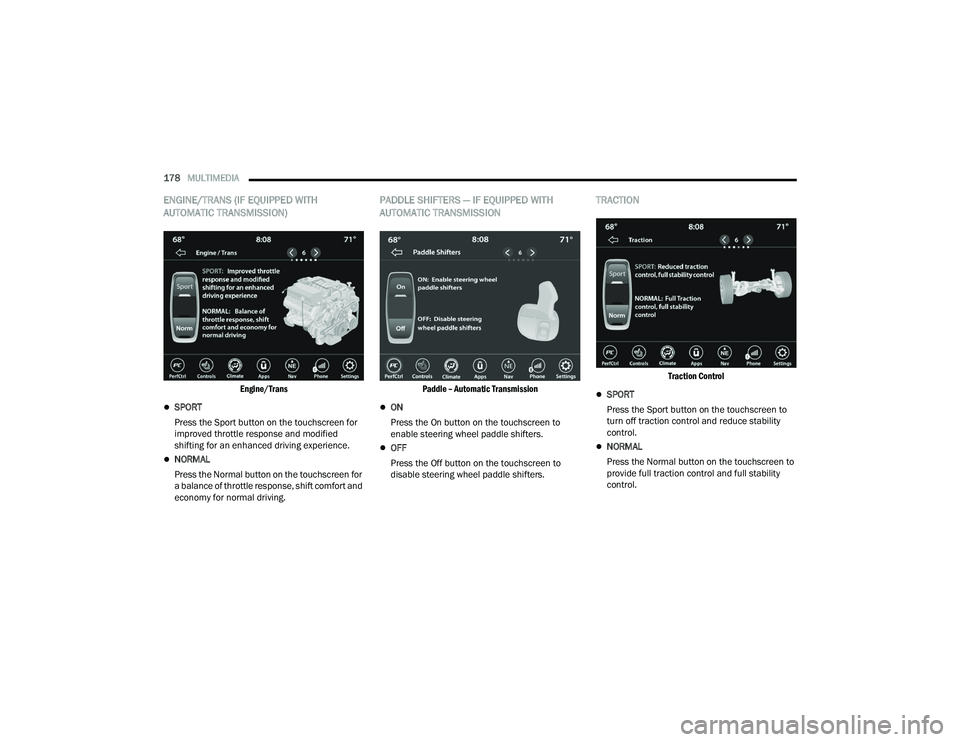
ENGINE/TRANS (IF EQUIPPED WITH
AUTOMATIC TRANSMISSION)
Engine/Trans
SPORT
Press the Sport button on the touchscreen for
improved throttle response and modified
shifting for an enhanced driving experience.
NORMAL
Press the Normal button on the touchscreen for
a balance of throttle response, shift comfort and
economy for normal driving.
PADDLE SHIFTERS — IF EQUIPPED WITH
AUTOMATIC TRANSMISSION
Paddle – Automatic Transmission
ON
Press the On button on the touchscreen to
enable steering wheel paddle shifters.
OFF
Press the Off button on the touchscreen to
disable steering wheel paddle shifters.
TRACTION
Traction Control
SPORT
Press the Sport button on the touchscreen to
turn off traction control and reduce stability
control.
NORMAL
Press the Normal button on the touchscreen to
provide full traction control and full stability
control.
21_LD_OM_EN_USC_t.book Page 178
Page 184 of 320
182SAFETY
(Continued)
Electronic Stability Control (ESC)
ESC enhances directional control and stability
of the vehicle under various driving conditions.
ESC corrects for oversteering or understeering
of the vehicle by applying the brake of the
appropriate wheel(s) to counteract the above
conditions. Engine power may also be reduced to
help the vehicle maintain the desired path.
Oversteer — when the vehicle is turning more
than appropriate for the steering wheel position.
Understeer — when the vehicle is turning less
than appropriate for the steering wheel position.
ESC uses sensors in the vehicle to determine the
vehicle path intended by the driver and compares
it to the actual path of the vehicle. When the actual
path does not match the intended path, ESC
applies the brake of the appropriate wheel to
assist in counteracting the above conditions.
The ESC Activation/Malfunction Indicator Light
located in the instrument cluster will start to flash as
soon as the ESC system becomes active. The ESC
Activation/Malfunction Indicator Light also flashes
when the TCS is active. If the ESC Activation/
Malfunction Indicator Light begins to flash during
acceleration, ease up on the accelerator and apply
as little throttle as possible. Be sure to adapt your
speed and driving to the prevailing road conditions.
ESC Operating Modes
Depending upon model and mode of operation, the
ESC system may have multiple operating modes.
"ESC On"
This is the normal operating mode for the ESC.
Whenever the vehicle is started, the ESC system
will be in this mode. This mode should be used for
most driving conditions. Alternate ESC modes
should only be used for specific reasons as noted
in the following paragraphs.
WARNING!
Many factors, such as vehicle loading, road
conditions and driving conditions, influence the
chance that wheel lift or rollover may occur. ERM
cannot prevent all wheel lift or roll overs, especially
those that involve leaving the roadway or striking
objects or other vehicles. The capabilities of an
ERM-equipped vehicle must never be exploited
in a reckless or dangerous manner which could
jeopardize the user's safety or the safety of others.
WARNING!
Electronic Stability Control (ESC) cannot
prevent the natural laws of physics from
acting on the vehicle, nor can it increase the
traction afforded by prevailing road conditions.
ESC cannot prevent accidents, including those
resulting from excessive speed in turns, driving
on very slippery surfaces, or hydroplaning. ESC
also cannot prevent accidents resulting from
loss of vehicle control due to inappropriate
driver input for the conditions. Only a safe,
attentive, and skillful driver can prevent acci
-
dents. The capabilities of an ESC equipped
vehicle must never be exploited in a reckless or
dangerous manner which could jeopardize the
user’s safety or the safety of others.
Vehicle modifications, or failure to properly
maintain your vehicle, may change the
handling characteristics of your vehicle, and
may negatively affect the performance of the
ESC system. Changes to the steering system,
suspension, braking system, tire type and size
or wheel size may adversely affect ESC perfor -
mance. Improperly inflated and unevenly worn
tires may also degrade ESC performance. Any
vehicle modification or poor vehicle mainte -
nance that reduces the effectiveness of the
ESC system can increase the risk of loss of
vehicle control, vehicle rollover, personal
injury and death.
WARNING!
21_LD_OM_EN_USC_t.book Page 182