radio controls DODGE CHARGER 2021 Owners Manual
[x] Cancel search | Manufacturer: DODGE, Model Year: 2021, Model line: CHARGER, Model: DODGE CHARGER 2021Pages: 320, PDF Size: 20.61 MB
Page 6 of 320
4
STARTING AND OPERATING
STARTING THE ENGINE ........................................ 83
Automatic Transmission .................................83
Normal Starting ...............................................83
AutoPark ...........................................................84
Keyless Enter ‘n Go™ — Ignition......................85
Cold Weather Operation
(Below –22°F Or −30°C) ...............................85
If Engine Fails To Start .....................................85
After Starting.....................................................86
ENGINE BLOCK HEATER — IF EQUIPPED ........... 86
ENGINE BREAK-IN RECOMMENDATIONS —
3.6L & 5.7L ........................................................... 86
PARKING BRAKE ................................................... 87
AUTOMATIC TRANSMISSION................................ 88 Ignition Park Interlock ......................................89
Brake Transmission Shift Interlock (BTSI)
System .............................................................89
8-Speed Automatic Transmission ...................89
SPORT MODE — WITHOUT PERFORMANCE
CONTROL ................................................................ 94
FUEL SAVER TECHNOLOGY 5.7L ONLY—
IF EQUIPPED ........................................................... 94
ELECTRIC POWER STEERING............................... 94
CRUISE CONTROL SYSTEMS — IF EQUIPPED ... 95
Cruise Control ...................................................95
Adaptive Cruise Control (ACC) .........................96 PARKSENSE REAR PARK ASSIST —
IF EQUIPPED ........................................................ 105
ParkSense Sensors ....................................... 105
ParkSense Display ........................................ 105ParkSense Warning Display ......................... 108
Enabling And Disabling ParkSense .............. 108
Service The ParkSense Park Assist System ...108
Cleaning The ParkSense System ................. 108
ParkSense System Usage Precautions........ 108
LANESENSE — IF EQUIPPED ............................. 109
LaneSense Operation ................................... 109Turning LaneSense On Or Off ....................... 110
LaneSense Warning Message ...................... 110Changing LaneSense Status ........................ 112
PARKVIEW REAR BACK UP CAMERA............... 112
REFUELING THE VEHICLE ................................... 113
VEHICLE LOADING ............................................. 114 Vehicle Certification Label ............................ 114
Gross Vehicle Weight Rating (GVWR) .......... 114
Gross Axle Weight Rating (GAWR) ............... 114
Overloading.................................................... 115
Loading ......................................................... 115
TRAILER TOWING ................................................ 115
Common Towing Definitions......................... 115
Trailer Hitch Classification ............................ 117
Trailer Towing Weights (Maximum Trailer
Weight Ratings) ............................................. 117Trailer And Tongue Weight ........................... 118Towing Requirements ................................... 118Towing Tips ................................................... 121 RECREATIONAL TOWING
(BEHIND MOTORHOME) ..................................... 121
DRIVING TIPS ....................................................... 122
Driving On Slippery Surfaces ........................ 122Driving Through Water ................................. 122
MULTIMEDIA
UCONNECT SYSTEMS ......................................... 124
CYBERSECURITY ................................................. 124
UCONNECT SETTINGS ........................................ 125 Customer Programmable Features ............. 125
UCONNECT INTRODUCTION................................ 138
System Overview .......................................... 138Drag & Drop Menu Bar ................................. 140
Safety And General Information................... 140
UCONNECT MODES ............................................. 141
Steering Wheel Audio Controls..................... 141Radio Mode .................................................. 141Media Mode ................................................. 150
Phone Mode ................................................. 152
ANDROID AUTO™ & APPLE CARPLAY® —
IF EQUIPPED ......................................................... 163
Android Auto™ .............................................. 163
Apple CarPlay® ............................................. 165Android Auto™ And Apple CarPlay® Tips And
Tricks.............................................................. 166
21_LD_OM_EN_USC_t.book Page 4
Page 35 of 320
GETTING TO KNOW YOUR VEHICLE33
Front Heated Seats
The front heated seats control buttons are located
within the Uconnect system. You can gain access
to the control buttons through the climate screen
and the controls screen.
You can choose from HI, LO, or OFF heat settings.
The indicator arrows in the touchscreen buttons
indicate the level of heat in use. Two indicator
arrows will illuminate for HI, and one for LO.
Turning the heating elements off will return the
user to the radio screen.
Press the heated seat button once to turn
the HI setting on.
Press the heated seat button a second time
to turn the LO setting on.
Press the heated seat button a third time to
turn the heating elements off.
If the HI-level setting is selected, the system will
automatically switch to LO-level after approximately
60 minutes of continuous operation. At that time, the
display will change from HI to LO, indicating the change.
The LO-level setting will turn off automatically after
approximately 45 minutes.
NOTE:
Once a heat setting is selected, heat will be felt
within two to five minutes.
The engine must be running for the heated
seats to operate.
For information on use with the Remote Start
system, see Ú page 19.
Rear Heated Seats
On some models, the two rear outboard seats
may be equipped with heated seats. There are
two heated seat switches that allow the rear
passengers to operate the seats independently.
The heated seat switches for each heater are
located on the rear of the center console.
You can choose from HI, LO, or OFF heat settings.
The indicator lights in each switch indicate the
level of heat in use. Two indicator lights will
illuminate for HI, one for LO, and none for off.
Push the switch once to turn the HI setting on.
Push the switch a second time to turn the
LO setting on.
Push the switch a third time to turn the
heating elements off.
If the HI-level setting is selected, the system will
automatically switch to LO-level after approximately
60 minutes of continuous operation. At that time,
the number of illuminated LEDs changes from two to
one, indicating the change. The LO-level setting will
turn off automatically after approximately
45 minutes.
WARNING!
Persons who are unable to feel pain to the
skin because of advanced age, chronic illness,
diabetes, spinal cord injury, medication,
alcohol use, exhaustion or other physical
condition must exercise care when using the
seat heater. It may cause burns even at low
temperatures, especially if used for long
periods of time.
Do not place anything on the seat or seatback
that insulates against heat, such as a blanket
or cushion. This may cause the seat heater to
overheat. Sitting in a seat that has been over -
heated could cause serious burns due to the
increased surface temperature of the seat.
2
21_LD_OM_EN_USC_t.book Page 33
Page 50 of 320
48GETTING TO KNOW YOUR VEHICLE
RAIN SENSING WIPERS — IF EQUIPPED
This feature senses rain or snowfall on the
windshield and automatically activates the wipers.
Rotate the end of the multifunction lever to one of
four detent positions to activate this feature.
The sensitivity of the system can be adjusted with
the multifunction lever. Wiper delay position one is
the least sensitive, and wiper delay detent position
four is the most sensitive.
Wiper delay position three should be used for
normal rain conditions.
NOTE:
The Rain Sensing feature will not operate when
the wiper switch is in the low or high-speed posi -
tion.
The Rain Sensing feature may not function prop -
erly when ice, or dried salt water is present on
the windshield.
Use of Rain-X or products containing wax or sili-
cone may reduce Rain Sensing performance.
The Rain Sensing feature can be turned on and
off using the Uconnect system Ú page 125.The Rain Sensing system has protection features
for the wiper blades and arms, and will not operate
under the following conditions:
Low Ambient Temperature
— When the ignition
is first placed in the ON position, the Rain
Sensing system will not operate until the wiper
switch is moved, vehicle speed is greater than
3 mph (5 km/h), or the outside temperature is
greater than 32°F (0°C).
Transmission In NEUTRAL Position — When the
ignition is ON, and the automatic transmission
is in the NEUTRAL position, the Rain Sensing
system will not operate until the wiper switch is
moved, vehicle speed is greater than 3 mph
(5 km/h), or the gear selector is moved out of
the NEUTRAL position.
Remote Start Mode Inhibit — On vehicles
equipped with the Remote Start system, Rain
Sensing wipers are not operational when the
vehicle is in the Remote Start mode.
CLIMATE CONTROLS
The Climate Control system allows you to regulate
the temperature, air flow, and direction of air
circulating throughout the vehicle. The controls are
located on the touchscreen (if equipped) and on
the instrument panel below the radio.
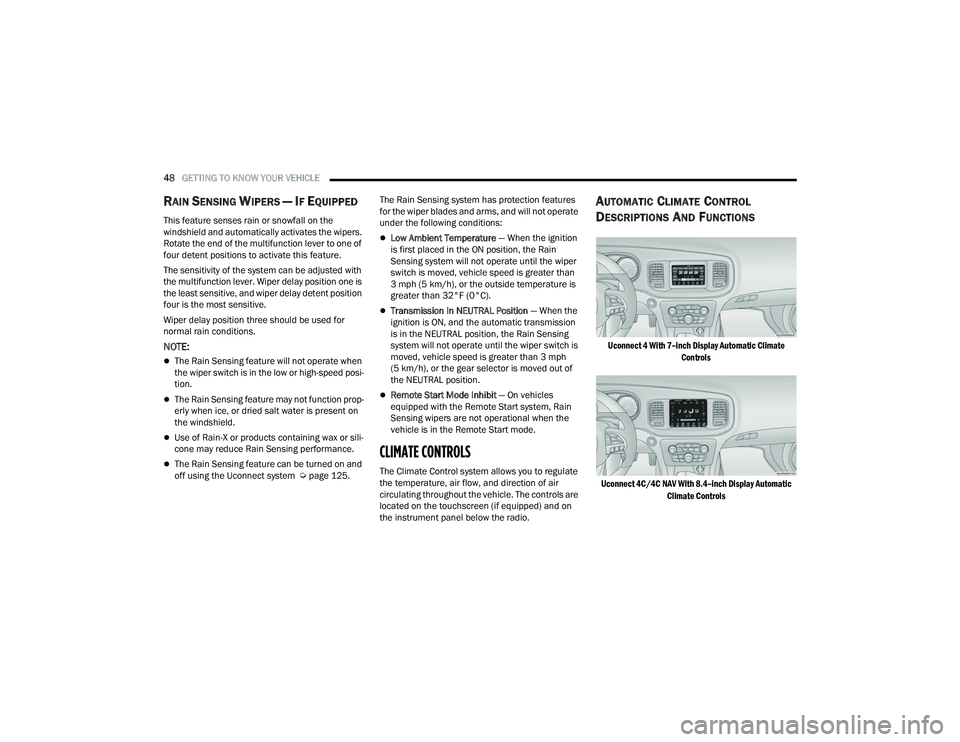
AUTOMATIC CLIMATE CONTROL
D
ESCRIPTIONS AND FUNCTIONS
Uconnect 4 With 7–inch Display Automatic Climate
Controls
Uconnect 4C/4C NAV With 8.4–inch Display Automatic Climate Controls
21_LD_OM_EN_USC_t.book Page 48
Page 114 of 320
112STARTING AND OPERATING
CHANGING LANESENSE STATUS
The LaneSense system has settings to adjust the
intensity of the torque warning and the warning zone
sensitivity (early/med/late) that you can configure
through the Uconnect system
Ú
page 125.
NOTE:
When enabled the system operates above
37 mph (60 km/h) and below 112 mph
(180 km/h).
The warnings are disabled with the use of the
turn signal.
The system will not apply torque to the steering
wheel whenever a safety system engages
(Anti-Lock Brakes, Traction Control System,
Electronic Stability Control, Forward Collision
Warning, etc.).
PARKVIEW REAR BACK UP CAMERA
The ParkView Rear Back Up Camera allows you to
see an on-screen image of the rear surroundings of
your vehicle whenever the gear selector is put into
REVERSE. The image will be displayed on the
Navigation/Multimedia radio display screen along
with a caution note to “Check Entire Surroundings”
across the top of the screen. After five seconds this
note will disappear. The ParkView Rear Back Up
Camera is located on the rear of the vehicle above
the rear license plate. Manual Activation Of The Rear View Camera
1. Press the “Controls” button located on the
bottom of the Uconnect display.
2. Press the “Backup Camera” button to turn the Rear View Camera system on.
NOTE:The ParkView Rear Back Up Camera has program -
mable modes of operation that may be selected
through the Uconnect system Ú page 125.
When the vehicle is shifted out of REVERSE (with
camera delay turned off), the rear camera mode is
exited and the previous screen appears. When the
vehicle is shifted out of REVERSE (with camera
delay turned on), the camera image will continue
to be displayed for up to 10 seconds unless the
following conditions occur: The vehicle speed
exceeds 8 mph (13 km/h), the vehicle is shifted
into PARK, the vehicle’s ignition is placed in the
OFF position, or the user presses image defeat “X”
to exit out of the camera video display.
When manually activated, a counter will be
initiated after the vehicle speed is above 8 mph
(13 km/h). The rear view camera image will turn
off when this counter reaches 10 seconds. The
counter will be reset when the vehicle speed is
8 mph (13 km/h) or below. If the vehicle speed
remains below 8 mph (13 km/h), the rear view
camera image will continue to be displayed until the transmission is shifted into PARK, the vehicle’s
ignition is placed in the OFF position, or the image
defeat “X” button is pressed.
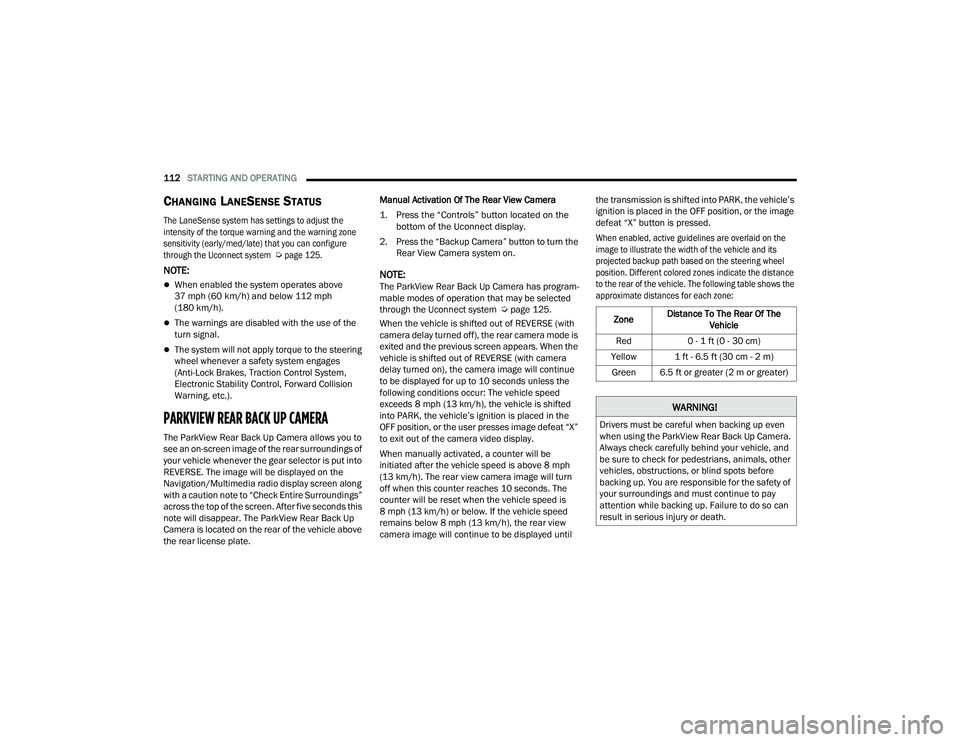
When enabled, active guidelines are overlaid on the
image to illustrate the width of the vehicle and its
projected backup path based on the steering wheel
position. Different colored zones indicate the distance
to the rear of the vehicle. The following table shows the
approximate distances for each zone:
Zone Distance To The Rear Of The
Vehicle
Red 0 - 1 ft (0 - 30 cm)
Yellow 1 ft - 6.5 ft (30 cm - 2 m) Green 6.5 ft or greater (2 m or greater)
WARNING!
Drivers must be careful when backing up even
when using the ParkView Rear Back Up Camera.
Always check carefully behind your vehicle, and
be sure to check for pedestrians, animals, other
vehicles, obstructions, or blind spots before
backing up. You are responsible for the safety of
your surroundings and must continue to pay
attention while backing up. Failure to do so can
result in serious injury or death.
21_LD_OM_EN_USC_t.book Page 112
Page 140 of 320
138MULTIMEDIA
UCONNECT INTRODUCTION
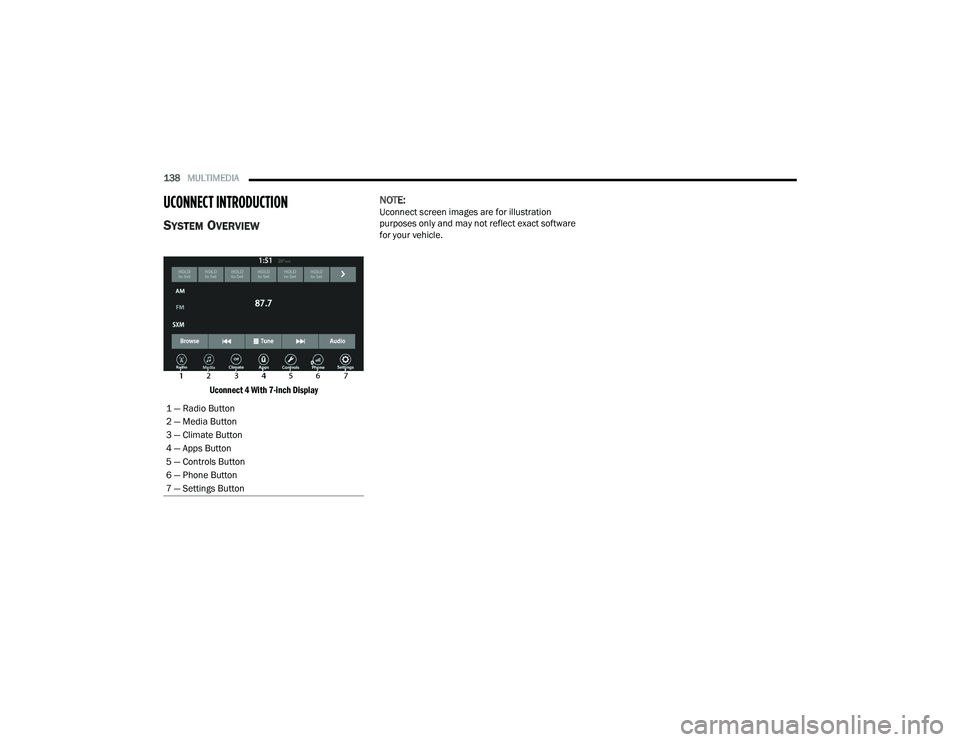
SYSTEM OVERVIEW
Uconnect 4 With 7-inch Display
NOTE:Uconnect screen images are for illustration
purposes only and may not reflect exact software
for your vehicle.
1 — Radio Button
2 — Media Button
3 — Climate Button
4 — Apps Button
5 — Controls Button
6 — Phone Button
7 — Settings Button
21_LD_OM_EN_USC_t.book Page 138
Page 141 of 320
MULTIMEDIA139
Feature Description
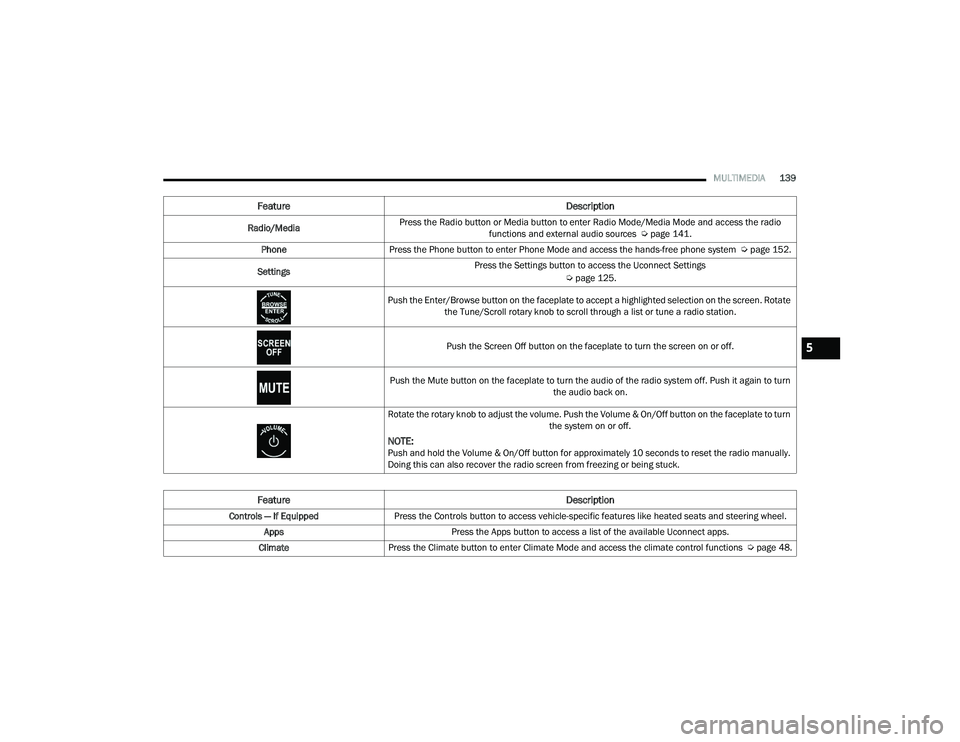
Radio/MediaPress the Radio button or Media button to enter Radio Mode/Media Mode and access the radio
functions and external audio sources Ú page 141.
Phone Press the Phone button to enter Phone Mode and access the hands-free phone system Ú page 152.
Settings Press the Settings button to access the Uconnect Settings
Úpage 125.
Push the Enter/Browse button on the faceplate to accept a highlighted selection on the screen. Rotate the Tune/Scroll rotary knob to scroll through a list or tune a radio station.
Push the Screen Off button on the faceplate to turn the screen on or off.
Push the Mute button on the faceplate to turn the audio of the radio system off. Push it again to turn the audio back on.
Rotate the rotary knob to adjust the volume. Push the Volume & On/Off button on the faceplate to turn the system on or off.
NOTE:Push and hold the Volume & On/Off button for approximately 10 seconds to reset the radio manually.
Doing this can also recover the radio screen from freezing or being stuck.
Feature Description
Controls — If EquippedPress the Controls button to access vehicle-specific features like heated seats and steering wheel.
Apps Press the Apps button to access a list of the available Uconnect apps.
Climate Press the Climate button to enter Climate Mode and access the climate control functions Ú page 48.
5
21_LD_OM_EN_USC_t.book Page 139
Page 143 of 320
MULTIMEDIA141
UCONNECT MODES
STEERING WHEEL AUDIO CONTROLS
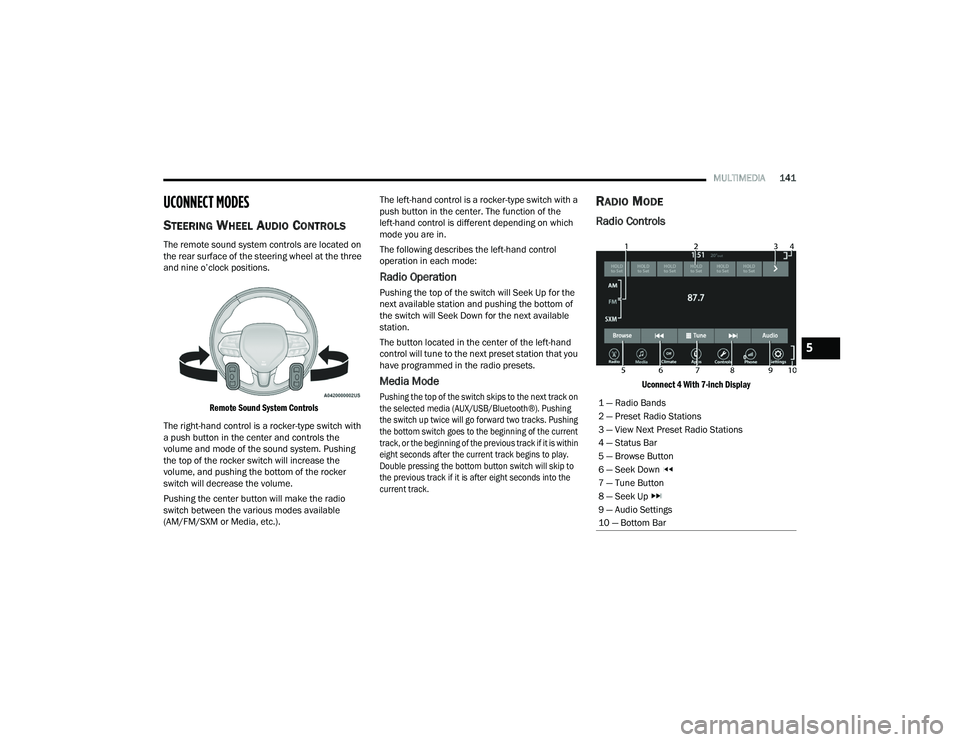
The remote sound system controls are located on
the rear surface of the steering wheel at the three
and nine o’clock positions.
Remote Sound System Controls
The right-hand control is a rocker-type switch with
a push button in the center and controls the
volume and mode of the sound system. Pushing
the top of the rocker switch will increase the
volume, and pushing the bottom of the rocker
switch will decrease the volume.
Pushing the center button will make the radio
switch between the various modes available
(AM/FM/SXM or Media, etc.). The left-hand control is a rocker-type switch with a
push button in the center. The function of the
left-hand control is different depending on which
mode you are in.
The following describes the left-hand control
operation in each mode:
Radio Operation
Pushing the top of the switch will Seek Up for the
next available station and pushing the bottom of
the switch will Seek Down for the next available
station.
The button located in the center of the left-hand
control will tune to the next preset station that you
have programmed in the radio presets.
Media Mode
Pushing the top of the switch skips to the next track on
the selected media (AUX/USB/Bluetooth®). Pushing
the switch up twice will go forward two tracks. Pushing
the bottom switch goes to the beginning of the current
track, or the beginning of the previous track if it is within
eight seconds after the current track begins to play.
Double pressing the bottom button switch will skip to
the previous track if it is after eight seconds into the
current track.
RADIO MODE
Radio Controls
Uconnect 4 With 7-inch Display
1 — Radio Bands
2 — Preset Radio Stations
3 — View Next Preset Radio Stations
4 — Status Bar
5 — Browse Button
6 — Seek Down
7 — Tune Button
8 — Seek Up
9 — Audio Settings
10 — Bottom Bar
5
21_LD_OM_EN_USC_t.book Page 141
Page 153 of 320
MULTIMEDIA151
AUX MODE
Overview
Auxiliary Mode (AUX) is entered by inserting an AUX
device using a cable with a 3.5 mm audio jack into
the AUX port or by pressing the AUX button on the
left side of the touchscreen, or under the Source
Select button (if equipped) when a device is
already connected.
To insert an Auxiliary device, gently insert the
Auxiliary device cable into the AUX port. If you
insert an Auxiliary device with the ignition and the
radio on, the unit will switch to AUX Mode and
begin to play.
Controlling The Auxiliary Device
The control of the Auxiliary device (e.g., selecting
playlists, play, fast forward, etc.) cannot be
provided by the radio; use the device controls
instead. Adjust the volume with the Volume button,
Volume/Mute rotary knob, or the On/Off rotary
knob, or with the volume of the attached device.
NOTE:The radio unit is acting as the amplifier for audio
output from the Auxiliary device. Therefore, if the
volume control on the Auxiliary device is set too
low, there will be insufficient audio signal for the
radio unit to play the music on the device. Seek Up
/Seek Down
In USB Mode, press the Seek Up button on the
touchscreen for the next selection on the USB
device. Press and release the Seek Down button
on the touchscreen to return to the beginning of
the current selection, or to return to the beginning
of the previous selection if the USB device is within
the first three seconds of the current selection.
In Bluetooth® Mode, press and release the
Seek Up button on the touchscreen for the next
selection on the Bluetooth® device. Press and
release the Seek Down button on the touchscreen
to return to the beginning of the current selection,
or return to the beginning of the previous selection
if the Bluetooth® device is within the first second
of the current selection.
Browse
In USB Mode, press the Browse button on the
touchscreen to display the browse window. In USB
Mode, the left side of the browse window displays
a list of ways you can browse through the contents
of the USB device. If supported by the device, you
can browse by Folder, Artist, Playlist, Album, Song,
etc. Press the desired button on the touchscreen
on the left side of the screen. The center of the
browse window shows items and its sub-functions,
which can be scrolled through by pressing the Up
and Down buttons to the right. The Tune/Scroll
knob can also be used to scroll. Media Mode
In USB Mode, press the Media button on the
touchscreen to select the desired audio source: USB.
In Bluetooth® Mode, press the Media button on
the touchscreen to select the desired audio
source: Bluetooth®.
In AUX Mode, press the Media button on the
touchscreen to select the desired audio source: AUX.
Repeat
In USB Mode, press the Repeat button on the
touchscreen to toggle the repeat functionality.
The Repeat button on the touchscreen is
highlighted when active. The Radio will continue to
play the current track, repeatedly, as long as the
repeat is active. Press the Repeat button again to
enter Repeat All. The radio will continue to play all
the current tracks, repeatedly, as long as the
repeat function is active. To cancel Repeat, press
the Repeat button a third time.
Shuffle
In USB Mode, press the Shuffle button on the
touchscreen to play the selections on the USB
device in random order to provide an interesting
change of pace. Press the Shuffle button on the
touchscreen a second time to turn this feature off.
5
21_LD_OM_EN_USC_t.book Page 151
Page 165 of 320
MULTIMEDIA163
ANDROID AUTO™ & APPLE CARPLAY® —
IF EQUIPPED
ANDROID AUTO™
Use this QR code to access your
digital experience.
Android Auto™ is a feature of your
Uconnect system, and your Android™
6.0 or higher powered smartphone
with a data plan, that allows you to
project your smartphone and a
number of its apps onto the touchscreen radio display.
Android Auto™ brings you useful information, and
organizes it into simple cards that appear just when
they are needed. Android Auto™ can be used with
speech technology, the steering wheel controls, the
knobs and buttons on your radio faceplate, and the
radio display’s touchscreen to control many of your
apps. To use Android Auto™, perform the following
procedure:
NOTE:Feature availability depends on your carrier and
mobile phone manufacturer. Some Android Auto™
features may or may not be available in every
region and/or language.
1. Download the Android Auto™ app from the
Google Play store on your Android™-powered
smartphone.
2. Connect your Android™-powered smartphone to one of the media USB ports in your vehicle.
If the Android Auto™ app was not downloaded,
the first time you plug your device in the app
begins to download. Your vehicle should be in
PARK the first time you use the app.
NOTE:Be sure to use the factory-provided USB cable that
came with your phone, as aftermarket cables may
not work.
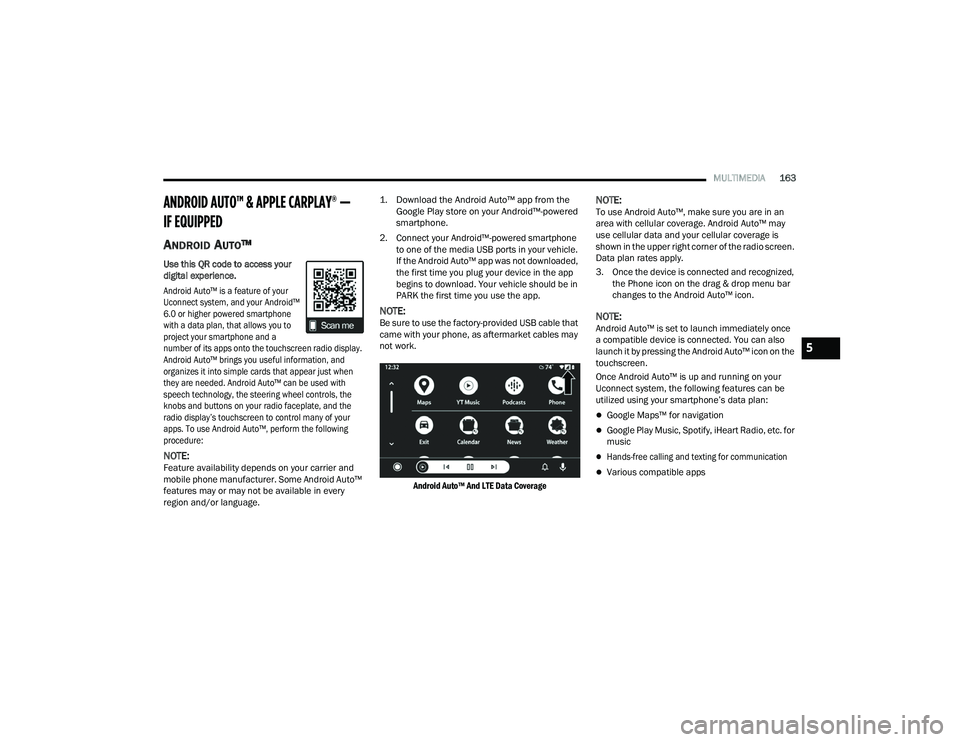
Android Auto™ And LTE Data Coverage
NOTE:To use Android Auto™, make sure you are in an
area with cellular coverage. Android Auto™ may
use cellular data and your cellular coverage is
shown in the upper right corner of the radio screen.
Data plan rates apply.
3. Once the device is connected and recognized, the Phone icon on the drag & drop menu bar
changes to the Android Auto™ icon.
NOTE:Android Auto™ is set to launch immediately once
a compatible device is connected. You can also
launch it by pressing the Android Auto™ icon on the
touchscreen.
Once Android Auto™ is up and running on your
Uconnect system, the following features can be
utilized using your smartphone’s data plan:
Google Maps™ for navigation
Google Play Music, Spotify, iHeart Radio, etc. for
music
Hands-free calling and texting for communication
Various compatible apps
5
21_LD_OM_EN_USC_t.book Page 163
Page 167 of 320
MULTIMEDIA165
NOTE:
Requires compatible smartphone running
Android™ 6.0 or higher and download app on
Google Play. Android™, Android Auto™, and
Google Play are trademarks of Google Inc.
Android Auto™ may be downloaded automati -
cally depending on the software version
installed on your mobile device.
To wirelessly use Android Auto™ on your car
display, you need a compatible Android™ smart -
phone with an active data plan. You can check
which smartphones are compatible at
g.co/
androidauto/requirements.
APPLE CARPLAY®
Use this QR code to access your
digital experience.
Uconnect works seamlessly with
Apple CarPlay®, the smarter, more
secure way to use your iPhone® in the
car, and stay focused on the road. Use
your Uconnect Touchscreen display,
the vehicle's knobs and controls, and your voice with
Siri to get access to Apple Music®, Maps, Messages,
and more.
NOTE:Feature availability depends on your carrier
and mobile phone manufacturer. Some Apple
CarPlay® features may or may not be available in
every region and/or language. To use Apple CarPlay®, make sure you are using
iPhone® 5 or later, have Siri enabled in Settings,
ensure your iPhone® is unlocked for the very first
connection only, and then use the following
procedure:
1. Connect your iPhone® to one of the media
USB ports in your vehicle.
NOTE:Be sure to use the factory-provided Lightning cable
that came with your phone, as aftermarket cables
may not work.
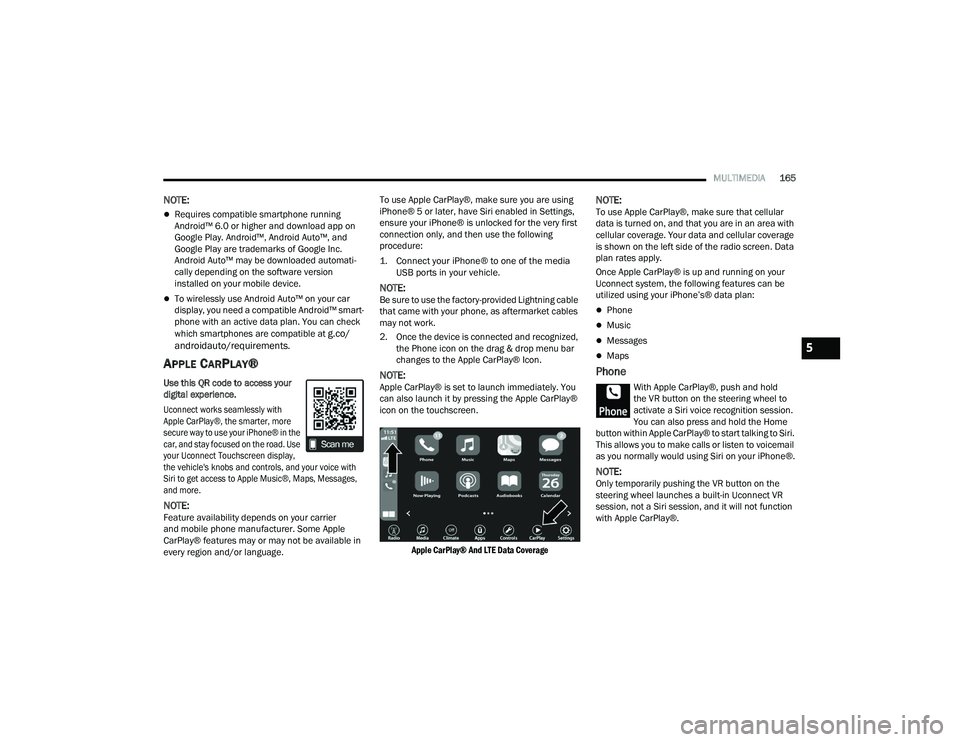
2. Once the device is connected and recognized, the Phone icon on the drag & drop menu bar
changes to the Apple CarPlay® Icon.
NOTE:Apple CarPlay® is set to launch immediately. You
can also launch it by pressing the Apple CarPlay®
icon on the touchscreen.
Apple CarPlay® And LTE Data Coverage
NOTE:To use Apple CarPlay®, make sure that cellular
data is turned on, and that you are in an area with
cellular coverage. Your data and cellular coverage
is shown on the left side of the radio screen. Data
plan rates apply.
Once Apple CarPlay® is up and running on your
Uconnect system, the following features can be
utilized using your iPhone’s® data plan:
Phone
Music
Messages
Maps
Phone
With Apple CarPlay®, push and hold
the VR button on the steering wheel to
activate a Siri voice recognition session.
You can also press and hold the Home
button within Apple CarPlay® to start talking to Siri.
This allows you to make calls or listen to voicemail
as you normally would using Siri on your iPhone®.
NOTE:Only temporarily pushing the VR button on the
steering wheel launches a built-in Uconnect VR
session, not a Siri session, and it will not function
with Apple CarPlay®.
5
21_LD_OM_EN_USC_t.book Page 165