Screen DODGE CHARGER 2022 User Guide
[x] Cancel search | Manufacturer: DODGE, Model Year: 2022, Model line: CHARGER, Model: DODGE CHARGER 2022Pages: 312, PDF Size: 18.99 MB
Page 58 of 312
56GETTING TO KNOW YOUR VEHICLE
Mix Mode
Air is directed through the floor, defrost,
and side window demister outlets. This
setting works best in cold or snowy
conditions that require extra heat to the
windshield. This setting is good for maintaining
comfort while reducing moisture on the
windshield.
Climate Control OFF Button
Press and release the OFF button on the
touchscreen, or push the OFF button on
the faceplate to turn the Climate Control
ON/OFF.
AUTOMATIC TEMPERATURE CONTROL
(ATC)
Automatic Operation
1. Push the AUTO button on the faceplate, or the
AUTO button on the touchscreen on the
Automatic Temperature Control (ATC) Panel.
2. Next, adjust the temperature that you would like the system to maintain by adjusting the
driver and passenger temperature control
buttons. Once the desired temperature is
displayed, the system will achieve and
automatically maintain that comfort level. 3. When the system is set up for your comfort
level, it is not necessary to change the
settings. You will experience the greatest
efficiency by simply allowing the system to
function automatically.
NOTE:
It is not necessary to move the temperature
settings for cold or hot vehicles. The system
automatically adjusts the temperature, mode,
and blower speed to provide comfort as quickly
as possible.
The temperature can be displayed in U.S. or
Metric units within Uconnect Settings
Úpage 123.
To provide you with maximum comfort in the
Automatic mode during cold start-ups, the blower
fan will remain on low until the engine warms up.
The blower will increase in speed and transition
into Auto mode.
Manual Operation Override
This system offers a full complement of manual
override features. The AUTO symbol in the front
ATC display will be turned off when the system is
being used in the manual mode.
CLIMATE VOICE COMMANDS
Adjust vehicle temperatures hands-free and keep
everyone comfortable while you keep moving
ahead.
Push the VR button. After the beep, say one of the
following commands:
“ Set the driver temperature to 70 degrees ”
“Set the passenger temperature to 70 degrees ”
TIP:Voice Command for Climate may only be used to
adjust the interior temperature of your vehicle.
Voice Command will not work to adjust the heated
seats or steering wheel if equipped.
OPERATING TIPS
Refer to the chart at the end of this section for
suggested control settings for various weather
conditions.
Summer Operation
The engine cooling system must be protected with
a high-quality antifreeze coolant to provide proper
corrosion protection and to protect against engine
overheating. OAT coolant (conforming to
MS.90032) is recommended.
22_LD_OM_EN_USC_t.book Page 56
Page 61 of 312
GETTING TO KNOW YOUR VEHICLE59
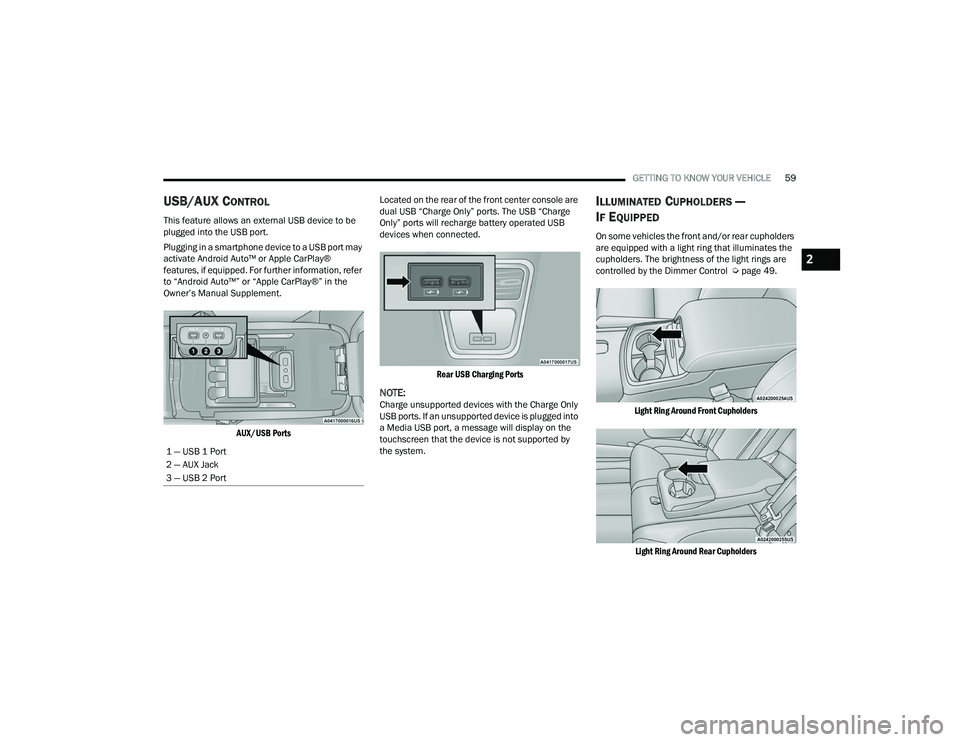
USB/AUX CONTROL
This feature allows an external USB device to be
plugged into the USB port.
Plugging in a smartphone device to a USB port may
activate Android Auto™ or Apple CarPlay®
features, if equipped. For further information, refer
to “Android Auto™” or “Apple CarPlay®” in the
Owner’s Manual Supplement.
AUX/USB Ports
Located on the rear of the front center console are
dual USB “Charge Only” ports. The USB “Charge
Only” ports will recharge battery operated USB
devices when connected.
Rear USB Charging Ports
NOTE:Charge unsupported devices with the Charge Only
USB ports. If an unsupported device is plugged into
a Media USB port, a message will display on the
touchscreen that the device is not supported by
the system.
ILLUMINATED CUPHOLDERS —
I
F EQUIPPED
On some vehicles the front and/or rear cupholders
are equipped with a light ring that illuminates the
cupholders. The brightness of the light rings are
controlled by the Dimmer Control Ú page 49.
Light Ring Around Front Cupholders
Light Ring Around Rear Cupholders
1 — USB 1 Port
2 — AUX Jack
3 — USB 2 Port
2
22_LD_OM_EN_USC_t.book Page 59
Page 72 of 312
70GETTING TO KNOW YOUR INSTRUMENT PANEL
LOCATION AND CONTROLS
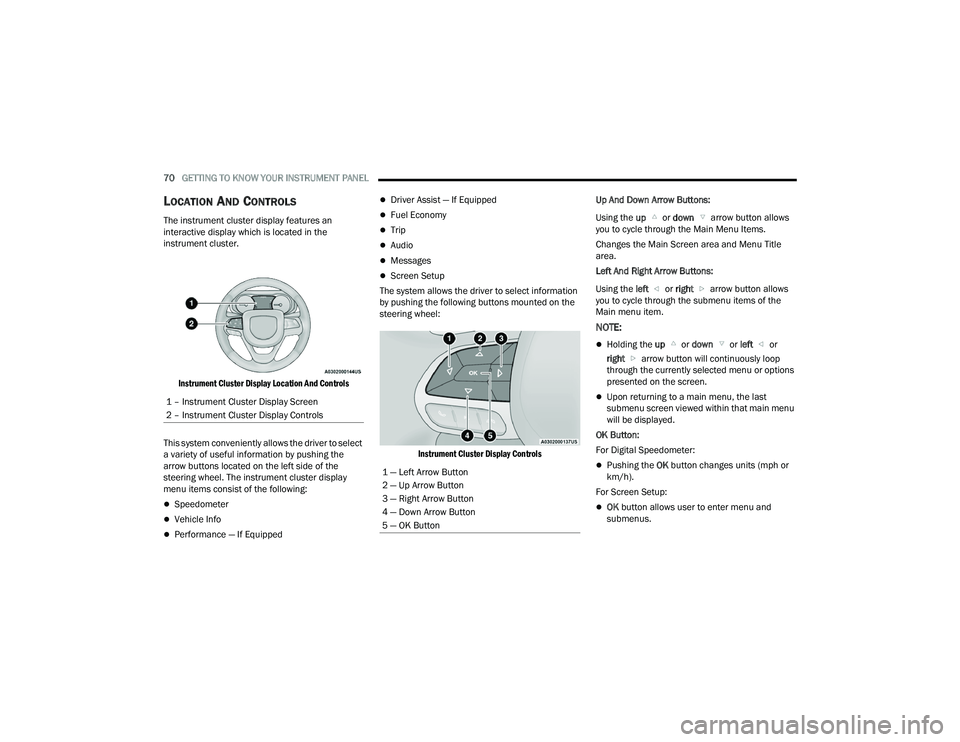
The instrument cluster display features an
interactive display which is located in the
instrument cluster.
Instrument Cluster Display Location And Controls
This system conveniently allows the driver to select
a variety of useful information by pushing the
arrow buttons located on the left side of the
steering wheel. The instrument cluster display
menu items consist of the following:
Speedometer
Vehicle Info
Performance — If Equipped
Driver Assist — If Equipped
Fuel Economy
Trip
Audio
Messages
Screen Setup
The system allows the driver to select information
by pushing the following buttons mounted on the
steering wheel:
Instrument Cluster Display Controls
Up And Down Arrow Buttons:
Using the
up or down arrow button allows
you to cycle through the Main Menu Items.
Changes the Main Screen area and Menu Title
area.
Left And Right Arrow Buttons:
Using the left or right arrow button allows
you to cycle through the submenu items of the
Main menu item.
NOTE:
Holding the up or down or left or
right arrow button will continuously loop
through the currently selected menu or options
presented on the screen.
Upon returning to a main menu, the last
submenu screen viewed within that main menu
will be displayed.
OK Button:
For Digital Speedometer:
Pushing the OK button changes units (mph or
km/h).
For Screen Setup:
OK button allows user to enter menu and
submenus.
1 – Instrument Cluster Display Screen
2 – Instrument Cluster Display Controls
1 — Left Arrow Button
2 — Up Arrow Button
3 — Right Arrow Button
4 — Down Arrow Button
5 — OK Button
22_LD_OM_EN_USC_t.book Page 70
Page 73 of 312
GETTING TO KNOW YOUR INSTRUMENT PANEL71
Within each submenu layer, the up and
down arrow buttons will allow the user to
select the item of interest.
Pushing the OK button makes the selection and
a confirmation screen will appear (returning the
user to the first page of the submenu).
Pushing the left arrow button will exit each
submenu layer and return to the main menu.
ENGINE OIL LIFE RESET
Oil Change Required
Your vehicle is equipped with an engine oil change
indicator system. The “Oil Change Required”
message will display in the instrument cluster
display for five seconds after a single chime has
sounded, to indicate the next scheduled oil change
interval. The engine oil change indicator system is
duty cycle based, which means the engine oil
change interval may fluctuate, dependent upon
your personal driving style.
Unless reset, this message will continue to display
each time you place the ignition in the ON/RUN
position. To turn off the message temporarily, push
and release the OK or arrow buttons. To reset the
oil change indicator system (after performing the
scheduled maintenance), refer to the following
procedure. Vehicles Equipped With Keyless Enter ’n Go™ —
Ignition
Use the steering wheel instrument cluster display
controls for the following procedure(s):
1. Without pressing the brake pedal, push the
ENGINE START/STOP button and place the
ignition in the ON/RUN position (do not start
the engine).
2. Push and release the down arrow button to
scroll downward through the main menu to
“Vehicle Info.”
3. Push and release the right arrow button to
access the ”Oil Life” screen.
4. Push and hold the OK button to reset oil life. If
conditions are met, the gauge and numeric
display will update to show 100%. If conditions
are not met a pop-up message of "To reset oil
life engine must be off with ignition in run” will
be displayed (for five seconds), and the user
will remain at the Oil Life screen.
5. Push and release the up or down arrow
button to exit the submenu screen.
NOTE:If the indicator message illuminates when you start
the vehicle, the oil change indicator system did not
reset. If necessary, repeat this procedure. Secondary Method Of Resetting Engine Oil Life
1. Without pressing the brake pedal, push the
ENGINE START/STOP button and place the
ignition to the ON/RUN position (do not start
the engine).
2. Fully press the accelerator pedal, slowly, three times within ten seconds.
3. Without pushing the brake pedal, push the ENGINE START/STOP button once to return the
ignition to the OFF position.
NOTE:If the indicator message illuminates when you start
the vehicle, the oil change indicator system did not
reset. If necessary, repeat this procedure.
PERFORMANCE SHIFT INDICATOR (PSI) —
I
F EQUIPPED
The PSI is enabled on vehicles with manual
transmission, or when a vehicle with automatic
transmission is in manual shift mode. The PSI
provides the driver with a visual indication within
the instrument cluster display when the driver
configured gear shift point has been reached and
the driver is still accelerating. This indication
notifies the driver to change gear corresponding to
the configured RPMs in the head unit.
3
22_LD_OM_EN_USC_t.book Page 71
Page 74 of 312
72GETTING TO KNOW YOUR INSTRUMENT PANEL
INSTRUMENT CLUSTER DISPLAY
S
ELECTABLE MENU ITEMS
Push and release the up or down arrow
button until the desired Selectable Menu item is
displayed in the instrument cluster display.
Follow the Menu or submenu prompts as desired.
Speedometer
Push and release the up or down arrow
button until the speedometer menu is displayed in
the instrument cluster display. Push and release
the OK button to toggle units (km/h or mph) of the
speedometer.
Vehicle Info
Push and release the up or down arrow
button until the “Vehicle Info” menu is displayed in
the instrument cluster display. Push and release
the right or left arrow button to scroll
through the submenus items of “Vehicle Info.”
Follow the directional prompts to access or reset
any of the following “Vehicle Info” submenu items:
Tire Pressure Monitor
Coolant Temperature
Trans Temperature
Oil Temperature
Oil Pressure
Oil Life
Battery Voltage
Intake Air Temperature — If Equipped
Engine Torque — If Equipped
Engine Power — If Equipped
Air-Fuel Ratio — If Equipped
Driver Assist — If Equipped
The Driver Assist menu displays the status of the
ACC and LaneSense systems.
Push and release the up or down arrow
button until the Driver Assist menu is displayed in
the instrument cluster display.
Adaptive Cruise Control (ACC) Feature
The instrument cluster displays the current ACC
system settings. The information displayed
depends on ACC system status.
Push the ACC on/off button (located on the
steering wheel) until one of the following displays
in the instrument cluster display:
Adaptive Cruise Control Off
When ACC is deactivated, the display will read
“Adaptive Cruise Control Off.”
Adaptive Cruise Control Ready
When ACC is activated but the vehicle speed
setting has not been selected, the display will read
“Adaptive Cruise Control Ready.” Push the SET + or the SET- button (located on the
steering wheel) and the following will display in the
instrument cluster display:
ACC SET
When ACC is set, the set speed will display in the
instrument cluster.
The ACC screen may display once again if any ACC
activity occurs, which may include any of the
following:Distance Setting Change
System Cancel
Driver Override
System Off
ACC Proximity Warning
ACC Unavailable Warning
The instrument cluster display will return to the last
display selected after five seconds of no ACC
display activity Ú page 96.
LaneSense — If Equipped
The instrument cluster displays the current
LaneSense system settings. The information
displayed depends on LaneSense system status
and the conditions that need to be met
Ú page 109.
22_LD_OM_EN_USC_t.book Page 72
Page 75 of 312
GETTING TO KNOW YOUR INSTRUMENT PANEL73
Fuel Economy
Two submenu pages; one with Current Value
(instantaneous calculation of the fuel economy)
displayed and one without the Current Value
displayed (toggle the left or right arrow
button to select one):
Current Fuel Economy (MPG, L/100 km, or km/L).
Range To Empty (miles or km).
Average Fuel Economy (MPG, L/100 km, or km/L).
The Max and Min values will correspond to the
particular engine requirements.
Lower end of gauge will be displayed in an
amber color and turn green as Fuel Economy
improves.
Hold the OK button to reset average fuel
economy information.
Trip Info
Push and release the up or down arrow
button until the Trip Menu item is displayed in the
instrument cluster display. Toggle the left or
right arrow button to select Trip A or Trip B. The
Trip information will display the following:
Distance – Shows the total distance (mi or km)
traveled for Trip A or Trip B since the last reset.
Average Fuel Economy – Shows the average
fuel economy (MPG, L/100km or km/L) of Trip A
or Trip B since the last reset.
Elapsed Time – Shows the total elapsed time of
travel since the last reset.
Hold the OK button to reset feature information.
Audio
This menu displays the Audio information of the
currently playing audio source (e.g. FM radio).
Messages
This feature shows the number of stored warning
messages, if any. Pushing the right or left
arrow button will allow you to scroll through the
stored messages.
Screen Setup
Push and release the up or down arrow
button until the Screen Setup Menu displays in the
instrument cluster display. Push and release the
OK button to enter the submenus. The Screen
Setup feature allows you to change what
information is displayed in the instrument cluster
as well as the location that information is
displayed.
Upper Left or Upper Right
None Compass Outside
Temperature
Time Range Avg L/100 km
(MPG or km/L)
Current L/
100 km (MPG
or km/L) Trip A Trip B
Trailer Trip Gain
Center
Digital
Speedometer CompassOutside
Temperature
Time Range to
EmptyAvg L/100 km
(MPG or km/L)
Current L/
100 km (MPG
or km/L) Trip A Trip B
Audio Menu Title
3
22_LD_OM_EN_USC_t.book Page 73
Page 76 of 312
74GETTING TO KNOW YOUR INSTRUMENT PANEL
Current Gear
On
Off
Gear Display
Full
Single
Defaults
Restore
Cancel
Diagnostics — If Equipped
This feature allows the driver to view engine and
emission vehicle faults.
Push OK to have the most recent fault code
sent.
There is a delay when the next diagnostic code
is requested during which the following
message is displayed:
“Checking System for Diagnostic Codes.”
Driver must push the OK button again to see the
next P code otherwise current message remains
displayed.
Driver exits when they cycle to another
submenu (up or down).
Faults are displayed from newest to the oldest.
If the menu is exited before the end of codes is
reached - when the driver re-enters the list will
be restarted from the beginning.
When no codes are present or the last code is
reached = (P0000) and this message is
displayed:
“No or End of Diagnostic Codes.”
BATTERY SAVER ON/BATTERY SAVER
M
ODE MESSAGE — ELECTRICAL LOAD
R
EDUCTION ACTIONS — IF EQUIPPED
This vehicle is equipped with an Intelligent Battery
Sensor (IBS) to perform additional monitoring of
the electrical system and status of the vehicle
battery. In cases when the IBS detects charging system
failure, or the vehicle battery conditions are
deteriorating, electrical load reduction actions will
take place to extend the driving time and distance
of the vehicle. This is done by reducing power to or
turning off non-essential electrical loads.
Load reduction is only active when the engine is
running. It will display a message if there is a risk
of battery depletion to the point where the vehicle
may stall due to lack of electrical supply, or will not
restart after the current drive cycle.
When load reduction is activated, the message
“Battery Saver On” or “Battery Saver Mode” will
appear in the instrument cluster.
These messages indicate the vehicle battery has a
low state of charge and continues to lose electrical
charge at a rate that the charging system cannot
sustain.
NOTE:
The charging system is independent from load
reduction. The charging system performs a diag
-
nostic on the charging system continuously.
If the Battery Charge Warning Light is on it may
indicate a problem with the charging system
Ú page 76.
Favorites Menu
Speedometer Vehicle Info Performance
Driver Assist Fuel Economy Trip
Audio Stored
MessagesScreen Setup
Diagnostic
Codes Speed
Warning
22_LD_OM_EN_USC_t.book Page 74
Page 96 of 312
94STARTING AND OPERATING
To disengage AutoStick mode, return the gear
selector to the DRIVE position, or press and hold
the (+) shift paddle (if equipped, and the gear
selector is already in DRIVE) until “D” is once again
indicated in the instrument cluster. You can shift in
or out of the AutoStick mode at any time without
taking your foot off the accelerator pedal.
SPORT MODE — WITHOUT PERFORMANCE
CONTROL
Your vehicle is equipped with a SPORT Mode
feature. This mode is a configuration set up for
typical enthusiast driving. The engine,
transmission, and steering systems are all set to
their SPORT settings. SPORT Mode will provide
improved throttle response and modified shifting
for an enhanced driving experience, as well the
greatest amount of steering feel. This mode may
be activated and deactivated by pushing the Sport
button on the instrument panel switch bank. For vehicles equipped with Drive Modes or a
“SUPER TRACK PAK” button, refer to “Drive Modes
Supplement” for further information.
FUEL SAVER TECHNOLOGY 5.7L ONLY—
IF EQUIPPED
This feature offers improved fuel economy by
shutting off four of the engine's eight cylinders
during light load and cruise conditions. The system
is automatic with no driver inputs or additional
driving skills required.
NOTE:This system may take some time to return to full
functionality after a battery disconnect.
ELECTRIC POWER STEERING
The Electric Power Steering system provides
increased vehicle response and ease of
maneuverability. The system adapts to different
driving conditions. If the electric steering system
experiences a fault that prevents it from providing
assist, you will still have the ability to steer the
vehicle manually.
If the Electric Power Steering Fault Warning Light is
displayed and the “SERVICE POWER STEERING” or
the “POWER STEERING ASSIST OFF – SERVICE
SYSTEM” message is displayed within the
instrument cluster display, this indicates the
vehicle needs to be taken to the dealer for service
Ú
page 75.
NOTE:
Even if the power steering assistance is no
longer operational, it is still possible to steer the
vehicle. Under these conditions there will be a
substantial increase in steering effort, espe -
cially at low speeds and during parking maneu -
vers.
If the condition persists, see an authorized
dealer for service.
If the Electric Power Steering Fault Warning Light is
displayed and the “POWER STEERING SYSTEM
OVER TEMP” message is displayed on the
instrument cluster screen, they indicate that
extreme steering maneuvers may have occurred
which caused an over temperature condition in the
power steering system. Once driving conditions are
safe, pull over and let the vehicle idle for a few
moments until the Electric Power Steering Fault
Warning Light and message turn off.
WARNING!
Do not downshift for additional engine braking
on a slippery surface. The drive wheels could
lose their grip and the vehicle could skid,
causing a collision or personal injury.
WARNING!
Continued operation with reduced assist could
pose a safety risk to yourself and others. Service
should be obtained as soon as possible.
22_LD_OM_EN_USC_t.book Page 94
Page 100 of 312
98STARTING AND OPERATING
Adaptive Cruise Control (ACC) Operation
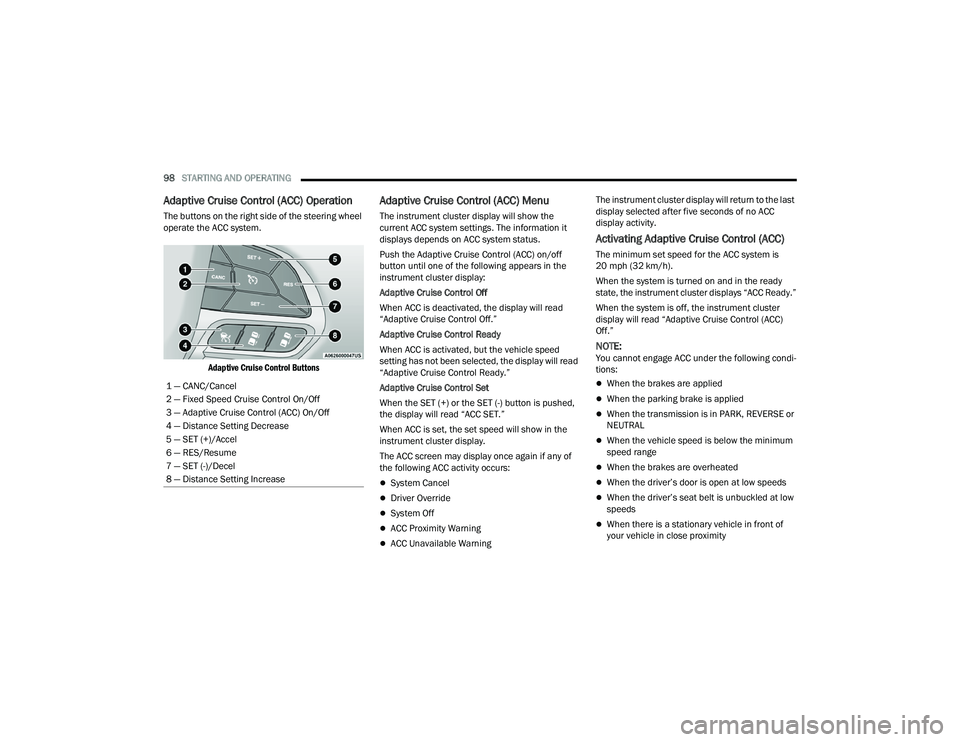
The buttons on the right side of the steering wheel
operate the ACC system.
Adaptive Cruise Control Buttons
Adaptive Cruise Control (ACC) Menu
The instrument cluster display will show the
current ACC system settings. The information it
displays depends on ACC system status.
Push the Adaptive Cruise Control (ACC) on/off
button until one of the following appears in the
instrument cluster display:
Adaptive Cruise Control Off
When ACC is deactivated, the display will read
“Adaptive Cruise Control Off.”
Adaptive Cruise Control Ready
When ACC is activated, but the vehicle speed
setting has not been selected, the display will read
“Adaptive Cruise Control Ready.”
Adaptive Cruise Control Set
When the SET (+) or the SET (-) button is pushed,
the display will read “ACC SET.”
When ACC is set, the set speed will show in the
instrument cluster display.
The ACC screen may display once again if any of
the following ACC activity occurs:
System Cancel
Driver Override
System Off
ACC Proximity Warning
ACC Unavailable Warning The instrument cluster display will return to the last
display selected after five seconds of no ACC
display activity.
Activating Adaptive Cruise Control (ACC)
The minimum set speed for the ACC system is
20 mph (32 km/h).
When the system is turned on and in the ready
state, the instrument cluster displays “ACC Ready.”
When the system is off, the instrument cluster
display will read “Adaptive Cruise Control (ACC)
Off.”
NOTE:You cannot engage ACC under the following condi
-
tions:
When the brakes are applied
When the parking brake is applied
When the transmission is in PARK, REVERSE or
NEUTRAL
When the vehicle speed is below the minimum
speed range
When the brakes are overheated
When the driver’s door is open at low speeds
When the driver’s seat belt is unbuckled at low
speeds
When there is a stationary vehicle in front of
your vehicle in close proximity
1 — CANC/Cancel
2 — Fixed Speed Cruise Control On/Off
3 — Adaptive Cruise Control (ACC) On/Off
4 — Distance Setting Decrease
5 — SET (+)/Accel
6 — RES/Resume
7 — SET (-)/Decel
8 — Distance Setting Increase
22_LD_OM_EN_USC_t.book Page 98
Page 103 of 312
STARTING AND OPERATING101
uphill or descending downhill. This is normal
operation and necessary to maintain set speed.
When driving uphill and downhill, the ACC
system will cancel if the braking temperature
exceeds normal range (overheated).
Setting The Following Distance In ACC
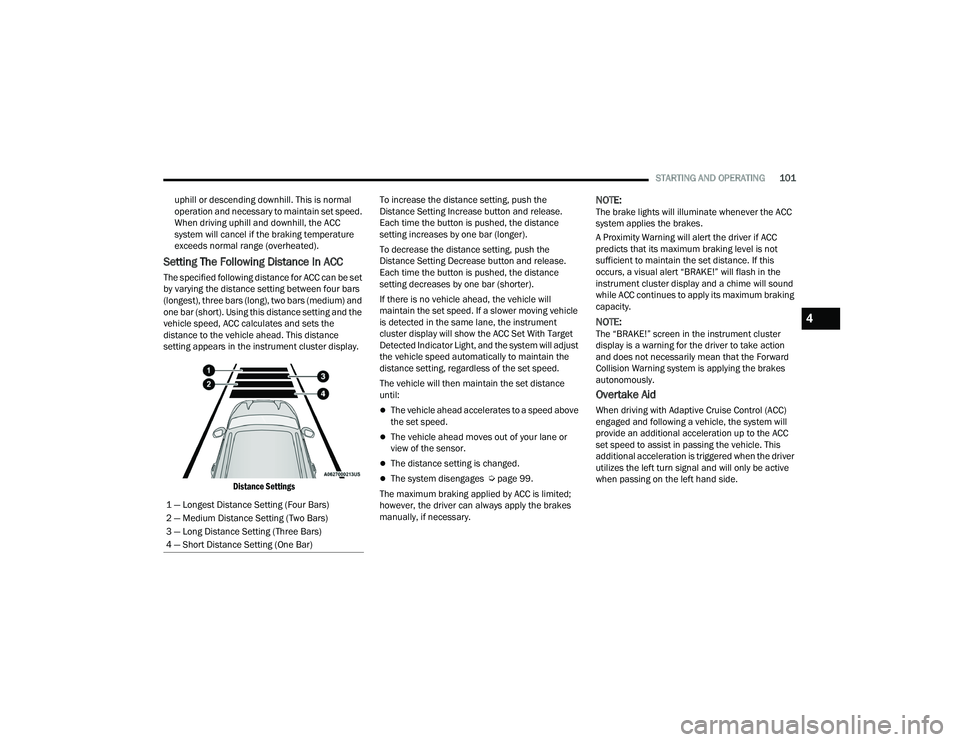
The specified following distance for ACC can be set
by varying the distance setting between four bars
(longest), three bars (long), two bars (medium) and
one bar (short). Using this distance setting and the
vehicle speed, ACC calculates and sets the
distance to the vehicle ahead. This distance
setting appears in the instrument cluster display.
Distance Settings
To increase the distance setting, push the
Distance Setting Increase button and release.
Each time the button is pushed, the distance
setting increases by one bar (longer).
To decrease the distance setting, push the
Distance Setting Decrease button and release.
Each time the button is pushed, the distance
setting decreases by one bar (shorter).
If there is no vehicle ahead, the vehicle will
maintain the set speed. If a slower moving vehicle
is detected in the same lane, the instrument
cluster display will show the ACC Set With Target
Detected Indicator Light, and the system will adjust
the vehicle speed automatically to maintain the
distance setting, regardless of the set speed.
The vehicle will then maintain the set distance
until:
The vehicle ahead accelerates to a speed above
the set speed.
The vehicle ahead moves out of your lane or
view of the sensor.
The distance setting is changed.
The system disengages Ú
page 99.
The maximum braking applied by ACC is limited;
however, the driver can always apply the brakes
manually, if necessary.
NOTE:The brake lights will illuminate whenever the ACC
system applies the brakes.
A Proximity Warning will alert the driver if ACC
predicts that its maximum braking level is not
sufficient to maintain the set distance. If this
occurs, a visual alert “BRAKE!” will flash in the
instrument cluster display and a chime will sound
while ACC continues to apply its maximum braking
capacity.
NOTE:The “BRAKE!” screen in the instrument cluster
display is a warning for the driver to take action
and does not necessarily mean that the Forward
Collision Warning system is applying the brakes
autonomously.
Overtake Aid
When driving with Adaptive Cruise Control (ACC)
engaged and following a vehicle, the system will
provide an additional acceleration up to the ACC
set speed to assist in passing the vehicle. This
additional acceleration is triggered when the driver
utilizes the left turn signal and will only be active
when passing on the left hand side.
1 — Longest Distance Setting (Four Bars)
2 — Medium Distance Setting (Two Bars)
3 — Long Distance Setting (Three Bars)
4 — Short Distance Setting (One Bar)
4
22_LD_OM_EN_USC_t.book Page 101