USB DODGE CHARGER 2022 User Guide
[x] Cancel search | Manufacturer: DODGE, Model Year: 2022, Model line: CHARGER, Model: DODGE CHARGER 2022Pages: 312, PDF Size: 18.99 MB
Page 154 of 312
152MULTIMEDIA
Audio
Audio settings can be accessed by pressing the
Audio button Ú page 142.
Info
In USB Mode, press the Info button on the
touchscreen to display the current track
information. Press the Info or X button on the
touchscreen a second time to cancel this feature.
Tracks
In USB Mode, press the Tracks button on the
touchscreen to display a pop-up with the Song List.
The song currently playing is indicated by an arrow
and lines above and below the song title. When in
the Tracks List screen you can rotate the TUNE/
SCROLL knob to highlight a track (indicated by the
line above and below the track name) and then
push the ENTER/BROWSE knob to start playing
that track.
In Bluetooth® Mode, if the Bluetooth® device
supports this feature, press the Tracks button on
the touchscreen to display a pop-up with the Song
List. The currently playing song is indicated by a red
arrow and lines above and below the song title.
Pressing the Tracks button on the touchscreen
while the pop-up is displayed will close the pop-up.
MEDIA VOICE COMMANDS
Uconnect offers connections via USB, Bluetooth®,
and auxiliary (AUX) ports. Voice operation is only
available for connected USB and AUX devices.
Push the VR button located on the steering
wheel. After the beep, say one of the following
commands and follow the prompts to switch your
media source or choose an artist:
“ Change source to Bluetooth®”
“Change source to AUX”
“Change source to USB”
“Play artist Beethoven”; “ Play album Greatest
Hits”; “ Play song Moonlight Sonata”; “ Play genre
Classical”
Did You Know: Press the Browse button on the
touchscreen to see all of the music on your USB
device. Your Voice Command must match exactly
how the artist, album, song, and genre information
is displayed.
PHONE MODE
Overview
Uconnect Phone is a voice-activated, hands-free,
in-vehicle communications system. It allows you to
dial a phone number with your mobile phone. The feature supports the following:
Voice Activated Features
Hands-Free dialing via Voice (“Call John Smith
Mobile” or “Dial 248-555-1212”).
Hands-Free text-to-speech listening of your
incoming SMS messages.
Hands-Free Text Message Replying: Forward
one of 18 predefined SMS messages to
incoming calls/text messages.
Redialing last dialed numbers (“Redial”).
Calling Back the last incoming call number
(“Call Back”).
Viewing call logs on screen (“Show Incoming
Calls,” “Show Outgoing Calls,” “Show Missed
Calls,” or “Show Recent Calls”).
Searching Contacts phone number (“Search for
John Smith Mobile”).
Screen Activated Features
Dialing via Keypad using touchscreen.
Viewing and Calling contacts from Phonebooks
displayed on the touchscreen.
Setting Favorite Contact phone numbers so they
are easily accessible on the Main Phone screen.
Viewing and Calling contacts from Recent Call
logs.
22_LD_OM_EN_USC_t.book Page 152
Page 165 of 312
MULTIMEDIA163
1. Download the Android Auto™ app from the Google Play store on your Android™-powered
smartphone.
2. Connect your Android™-powered smartphone to one of the media USB ports in your vehicle.
If the Android Auto™ app was not downloaded,
the first time you plug your device in the app
begins to download. Your vehicle should be in
PARK the first time you use the app.
NOTE:Be sure to use the factory-provided USB cable that
came with your phone, as aftermarket cables may
not work.
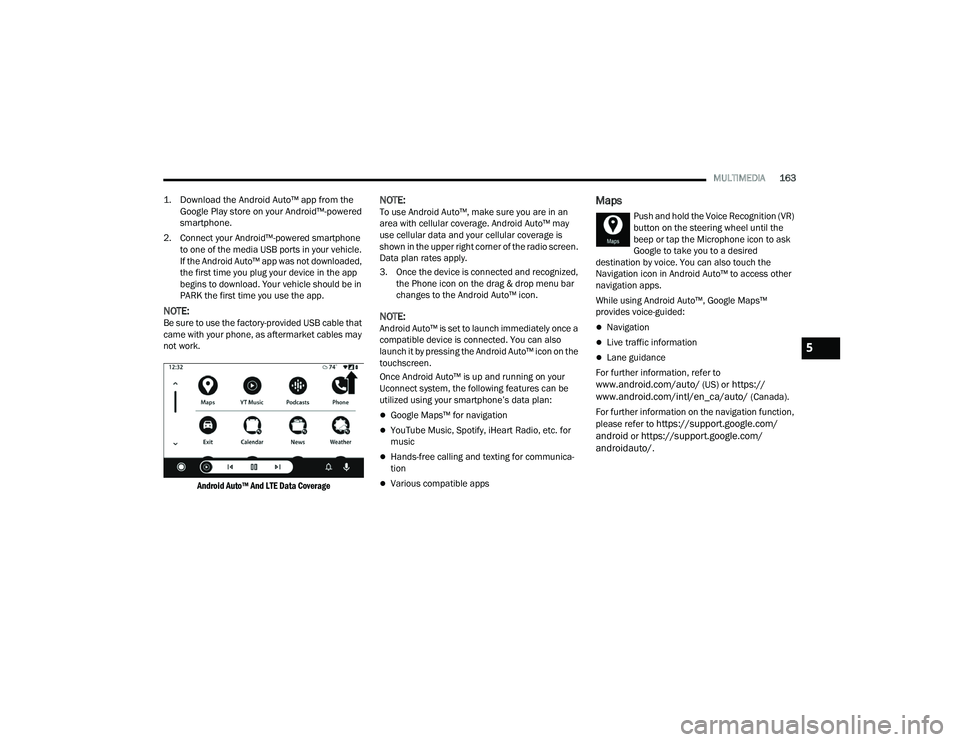
Android Auto™ And LTE Data Coverage
NOTE:To use Android Auto™, make sure you are in an
area with cellular coverage. Android Auto™ may
use cellular data and your cellular coverage is
shown in the upper right corner of the radio screen.
Data plan rates apply.
3. Once the device is connected and recognized, the Phone icon on the drag & drop menu bar
changes to the Android Auto™ icon.
NOTE:Android Auto™ is set to launch immediately once a
compatible device is connected. You can also
launch it by pressing the Android Auto™ icon on the
touchscreen.
Once Android Auto™ is up and running on your
Uconnect system, the following features can be
utilized using your smartphone’s data plan:
Google Maps™ for navigation
YouTube Music, Spotify, iHeart Radio, etc. for
music
Hands-free calling and texting for communica -
tion
Various compatible apps
Maps
Push and hold the Voice Recognition (VR)
button on the steering wheel until the
beep or tap the Microphone icon to ask
Google to take you to a desired
destination by voice. You can also touch the
Navigation icon in Android Auto™ to access other
navigation apps.
While using Android Auto™, Google Maps™
provides voice-guided:
Navigation
Live traffic information
Lane guidance
For further information, refer to
www.android.com/auto/ (US) or https://
www.android.com/intl/en_ca/auto/ (Canada).
For further information on the navigation function,
please refer to
https://support.google.com/
android or https://support.google.com/
androidauto/.
5
22_LD_OM_EN_USC_t.book Page 163
Page 166 of 312
164MULTIMEDIA
Music
Android Auto™ allows you to access and
stream your favorite music with apps like
YouTube Music, iHeartRadio, and Spotify.
Using your smartphone’s data plan, you
can stream endless music on the road.
NOTE:Music apps, playlists, and stations must be set up
on your smartphone prior to using Android Auto™
for them to work with Android Auto™.
NOTE:To see the track details for the music playing
through Android Auto™, select the Uconnect
system’s media screen.
For further information, refer to
https://
support.google.com/androidauto.
Communication
With Android Auto™ connected, push and
hold the VR button on the steering wheel
to activate voice recognition specific to
Android Auto™. This allows you to send
and reply to text messages, have incoming text
messages read out loud, and place and receive
hands-free calls.
Apps
The Android Auto™ App displays all the compatible
apps that are available to use with Android Auto™,
every time it is launched. You must have the
compatible app downloaded, and you must be
signed in to the app through your mobile device for
it to work with Android Auto™.
Refer to
https://play.google.com/store/apps/ to
see the latest list of available apps for Android
Auto™.
Android Auto™ Voice Command
NOTE:Feature availability depends on your carrier and
mobile phone manufacturer. Some Android Auto™
features may or may not be available in every
region and/or language.
Android Auto™ allows you to use your voice to
interact with its best-in-class speech technology
through your vehicle’s voice recognition system,
and use your smartphone’s data plan to project
your Android™-powered smartphone and a
number of its apps onto your Uconnect
touchscreen. Connect your Android™ 6.0 or higher
to one of the media USB ports, using the
factory-provided USB cable, and press the new
Android Auto™ icon that replaces your Phone icon
on the main menu bar to begin Android Auto™. Push and hold the VR button on the steering wheel,
or press and hold the Microphone icon within
Android Auto™, to activate its VR, which recognizes
natural voice commands, to use a list of your
smartphone’s features:
Maps
Music
Phone
Text Messages
Additional Apps
NOTE:
To use Android Auto™ on your car display, you’ll
need an Android™ phone running Android™ 6.0
or higher, an active data plan, and the Android
Auto™ app.
To wirelessly use Android Auto™ on your car
display, you need a compatible Android™ smart
-
phone with an active data plan. You can check
which smartphones are compatible at
g.co/
androidauto/requirements.
Android™ is a trademark of Google Inc.
22_LD_OM_EN_USC_t.book Page 164
Page 167 of 312
MULTIMEDIA165
APPLE CARPLAY®
Use this QR code to access your
digital experience.
Uconnect works seamlessly with
Apple CarPlay®, the smarter,
more secure way to use your
iPhone® in the car, and stay
focused on the road. Use your
Uconnect Touchscreen display, the vehicle's knobs
and controls, and your voice with Siri to get access
to Apple Music®, Maps, Messages, and more.
NOTE:Feature availability depends on your carrier and
mobile phone manufacturer. Some Apple
CarPlay® features may or may not be available in
every region and/or language.
To use Apple CarPlay®, make sure you are using
iPhone® 5 or later, have Siri enabled in Settings,
ensure your iPhone® is unlocked for the very first
connection only, and then use the following
procedure:
1. Connect your iPhone® to one of the media
USB ports in your vehicle.
NOTE:Be sure to use the factory-provided Lightning cable
that came with your phone, as aftermarket cables
may not work. 2. Once the device is connected and recognized,
the Phone icon on the drag & drop menu bar
changes to the Apple CarPlay® Icon.
NOTE:Apple CarPlay® is set to launch immediately. You
can also launch it by pressing the Apple CarPlay®
icon on the touchscreen.
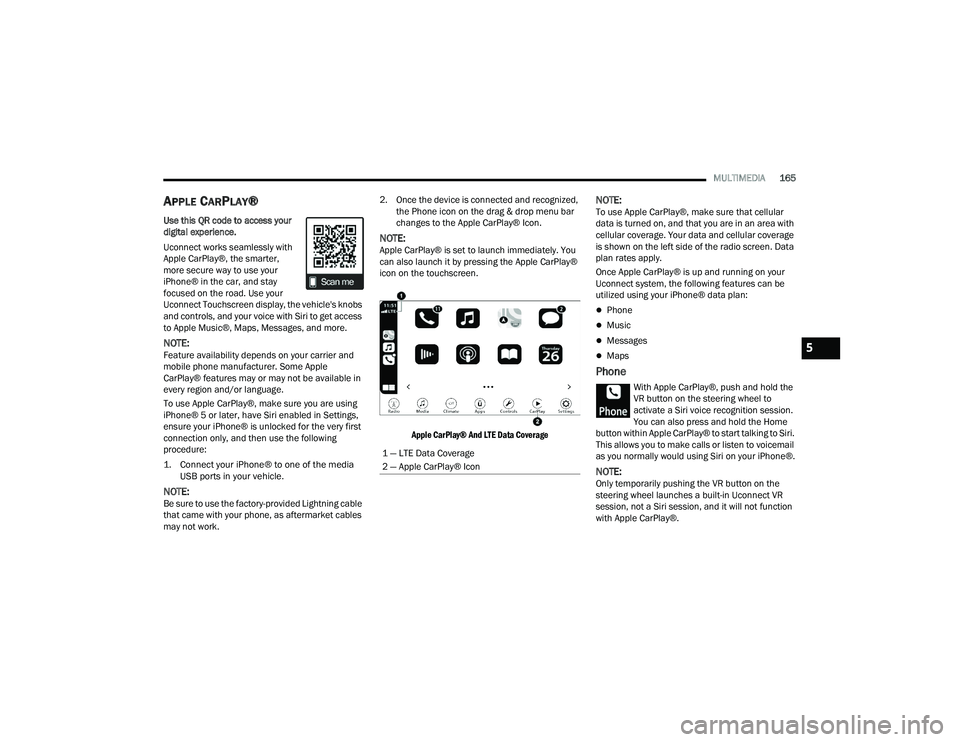
Apple CarPlay® And LTE Data Coverage
NOTE:To use Apple CarPlay®, make sure that cellular
data is turned on, and that you are in an area with
cellular coverage. Your data and cellular coverage
is shown on the left side of the radio screen. Data
plan rates apply.
Once Apple CarPlay® is up and running on your
Uconnect system, the following features can be
utilized using your iPhone® data plan:
Phone
Music
Messages
Maps
Phone
With Apple CarPlay®, push and hold the
VR button on the steering wheel to
activate a Siri voice recognition session.
You can also press and hold the Home
button within Apple CarPlay® to start talking to Siri.
This allows you to make calls or listen to voicemail
as you normally would using Siri on your iPhone®.
NOTE:Only temporarily pushing the VR button on the
steering wheel launches a built-in Uconnect VR
session, not a Siri session, and it will not function
with Apple CarPlay®.
1 — LTE Data Coverage
2 — Apple CarPlay® Icon
5
22_LD_OM_EN_USC_t.book Page 165
Page 168 of 312
166MULTIMEDIA
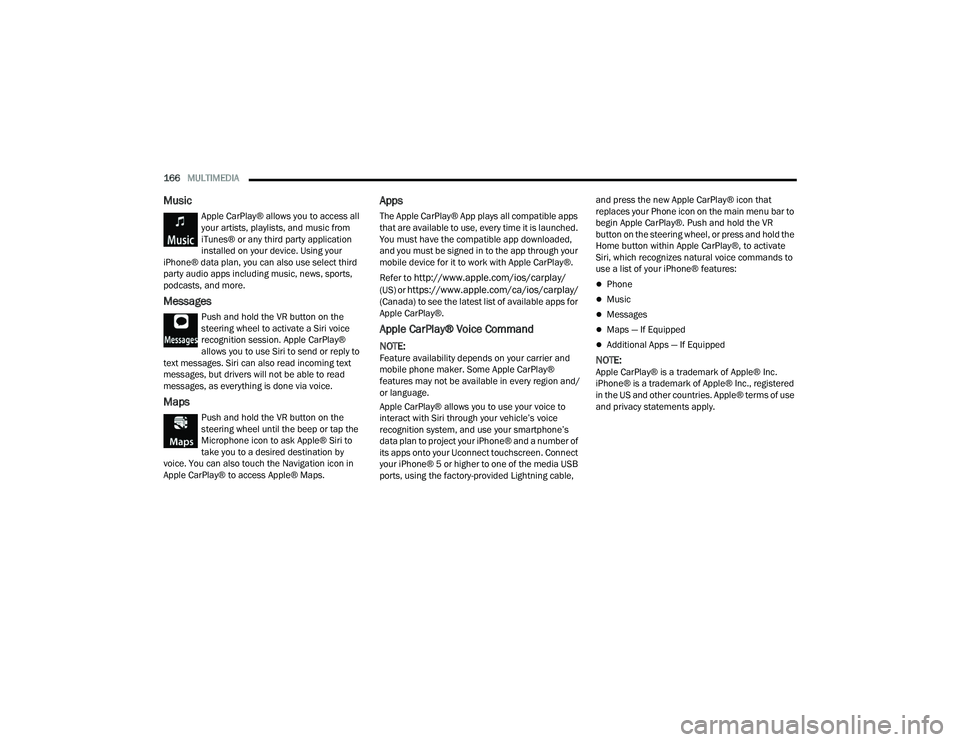
Music
Apple CarPlay® allows you to access all
your artists, playlists, and music from
iTunes® or any third party application
installed on your device. Using your
iPhone® data plan, you can also use select third
party audio apps including music, news, sports,
podcasts, and more.
Messages
Push and hold the VR button on the
steering wheel to activate a Siri voice
recognition session. Apple CarPlay®
allows you to use Siri to send or reply to
text messages. Siri can also read incoming text
messages, but drivers will not be able to read
messages, as everything is done via voice.
Maps
Push and hold the VR button on the
steering wheel until the beep or tap the
Microphone icon to ask Apple® Siri to
take you to a desired destination by
voice. You can also touch the Navigation icon in
Apple CarPlay® to access Apple® Maps.
Apps
The Apple CarPlay® App plays all compatible apps
that are available to use, every time it is launched.
You must have the compatible app downloaded,
and you must be signed in to the app through your
mobile device for it to work with Apple CarPlay®.
Refer to
http://www.apple.com/ios/carplay/
(US) or https://www.apple.com/ca/ios/carplay/
(Canada) to see the latest list of available apps for
Apple CarPlay®.
Apple CarPlay® Voice Command
NOTE:Feature availability depends on your carrier and
mobile phone maker. Some Apple CarPlay®
features may not be available in every region and/
or language.
Apple CarPlay® allows you to use your voice to
interact with Siri through your vehicle’s voice
recognition system, and use your smartphone’s
data plan to project your iPhone® and a number of
its apps onto your Uconnect touchscreen. Connect
your iPhone® 5 or higher to one of the media USB
ports, using the factory-provided Lightning cable, and press the new Apple CarPlay® icon that
replaces your Phone icon on the main menu bar to
begin Apple CarPlay®. Push and hold the VR
button on the steering wheel, or press and hold the
Home button within Apple CarPlay®, to activate
Siri, which recognizes natural voice commands to
use a list of your iPhone® features:
Phone
Music
Messages
Maps — If Equipped
Additional Apps — If Equipped
NOTE:Apple CarPlay® is a trademark of Apple® Inc.
iPhone® is a trademark of Apple® Inc., registered
in the US and other countries. Apple® terms of use
and privacy statements apply.
22_LD_OM_EN_USC_t.book Page 166
Page 169 of 312
MULTIMEDIA167
ANDROID AUTO™ AND APPLE
C
ARPLAY® TIPS AND TRICKS
Android Auto™ And Apple CarPlay® Automatic
Bluetooth® Pairing
After connecting to Android Auto™ or Apple
CarPlay® for the first time and undergoing the
setup procedure, the smartphone pairs to the
Uconnect system via Bluetooth® without any setup
required every time it is within range, if Bluetooth®
is turned on.
NOTE:Apple CarPlay® uses a USB connection while
Android Auto™ uses both USB and Bluetooth®
connections to function. The connected device is
unavailable to other devices when connected
using Android Auto™ or Apple CarPlay®.
Multiple Devices Connecting To The Uconnect
System — If Equipped
It is possible to have multiple devices connected to
the Uconnect system. For example, if using Android
Auto™/Apple CarPlay®, the connected device will
be used to place hands-free phone calls or send
hands-free text messages. However, another
device can also be paired to the Uconnect system,
via Bluetooth®, as an audio source, so the
passenger can stream music.
NOTE:Apple CarPlay® and Android Auto™ can only be
launched from the front and center console USB
ports.
RADIO OPERATION AND MOBILE PHONES
Under certain conditions, the mobile phone being
on in your vehicle can cause erratic or noisy
performance from your radio. This condition may
be lessened or eliminated by repositioning the
mobile phone within the vehicle. This condition is
not harmful to the radio. If your radio performance
does not satisfactorily improve from repositioning
the mobile phone, it is recommended that the
volume be turned down or off during mobile phone
operation when not using the Uconnect system.
REGULATORY AND SAFETY
I
NFORMATION
US/CANADA
Exposure to Radio Frequency Radiation
The radiated output power of the internal wireless
radio is far below the FCC and IC radio frequency
exposure limits. Nevertheless, the wireless radio
will be used in such a manner that the radio is 8 in
(20 cm) or further from the human body. The internal wireless radio operates within
guidelines found in radio frequency safety
standards and recommendations, which reflect
the consensus of the scientific community.
The radio manufacturer believes the internal
wireless radio is safe for use by consumers. The
level of energy emitted is far less than the
electromagnetic energy emitted by wireless
devices such as mobile phones. However, the use
of wireless radios may be restricted in some
situations or environments, such as aboard
airplanes. If you are unsure of restrictions, you are
encouraged to ask for authorization before turning
on the wireless radio Ú
page 296.
5
22_LD_OM_EN_USC_t.book Page 167
Page 260 of 312
258SERVICING AND MAINTENANCE
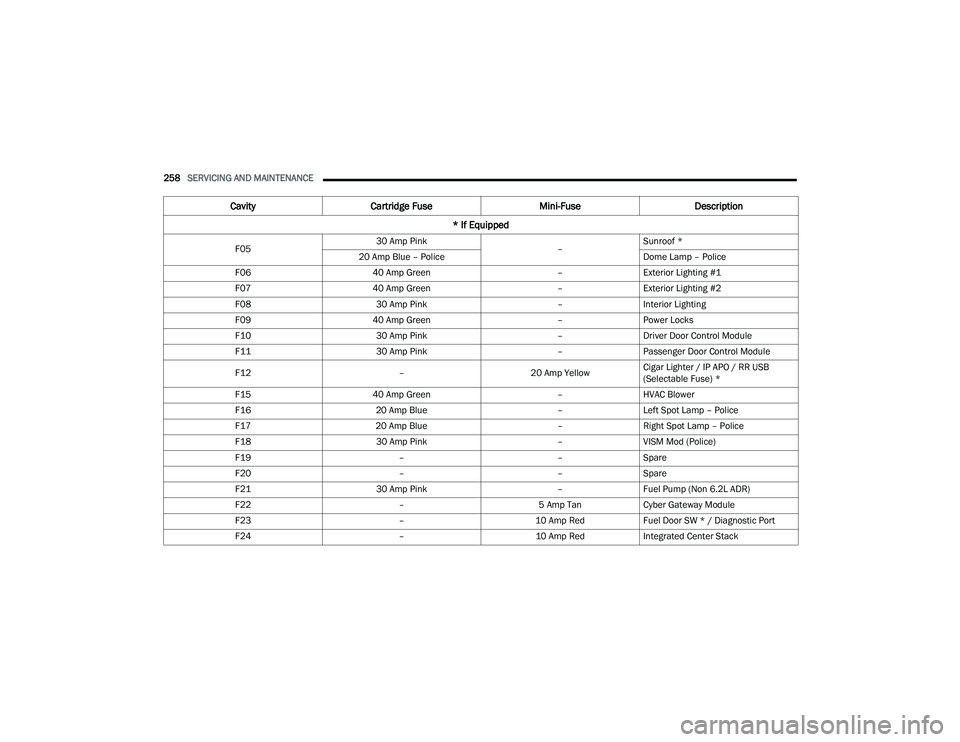
F05 30 Amp Pink
–Sunroof *
20 Amp Blue – Police Dome Lamp – Police
F06 40 Amp Green –Exterior Lighting #1
F07 40 Amp Green –Exterior Lighting #2
F08 30 Amp Pink –Interior Lighting
F09 40 Amp Green –Power Locks
F10 30 Amp Pink –Driver Door Control Module
F11 30 Amp Pink –Passenger Door Control Module
F12 –20 Amp YellowCigar Lighter / IP APO / RR USB
(Selectable Fuse) *
F15 40 Amp Green –HVAC Blower
F16 20 Amp Blue –Left Spot Lamp – Police
F17 20 Amp Blue –Right Spot Lamp – Police
F18 30 Amp Pink –VISM Mod (Police)
F19 ––Spare
F20 ––Spare
F21 30 Amp Pink –Fuel Pump (Non 6.2L ADR)
F22 –5 Amp TanCyber Gateway Module
F23 –10 Amp RedFuel Door SW * / Diagnostic Port
F24 –10 Amp RedIntegrated Center Stack
Cavity Cartridge Fuse Mini-FuseDescription
* If Equipped
22_LD_OM_EN_USC_t.book Page 258
Page 263 of 312
SERVICING AND MAINTENANCE261
BULB REPLACEMENT
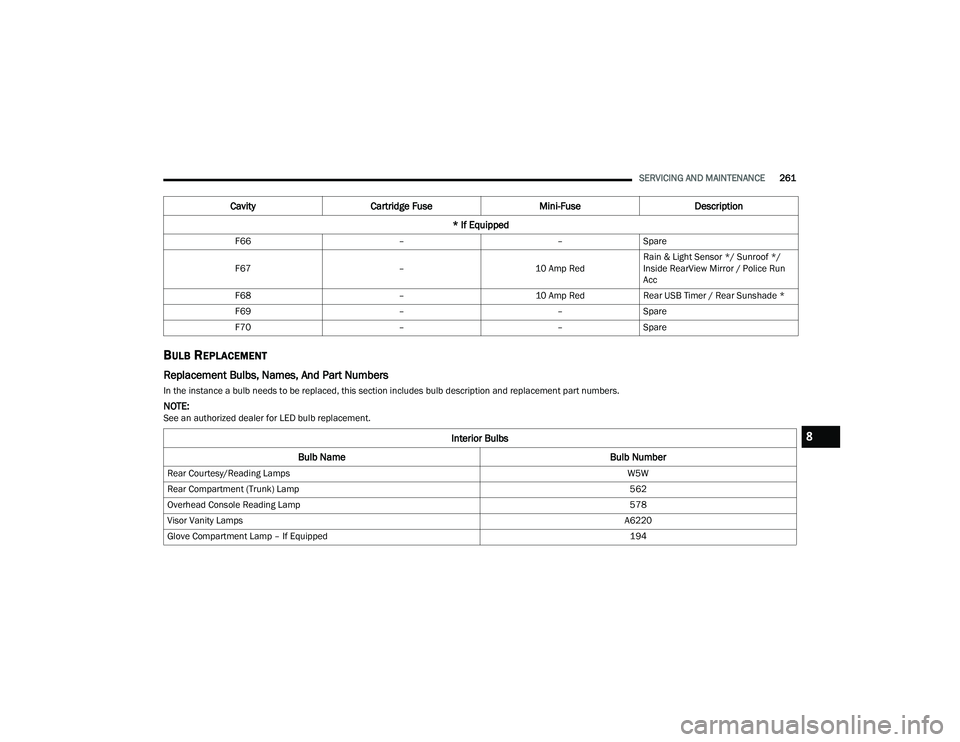
Replacement Bulbs, Names, And Part Numbers
In the instance a bulb needs to be replaced, this section includes bulb description and replacement part numbers.
NOTE:See an authorized dealer for LED bulb replacement.F66
––Spare
F67 –10 Amp RedRain & Light Sensor */ Sunroof */
Inside RearView Mirror / Police Run
Acc
F68 –10 Amp RedRear USB Timer / Rear Sunshade *
F69 ––Spare
F70 ––Spare
Cavity Cartridge Fuse Mini-FuseDescription
* If Equipped
Interior Bulbs
Bulb Name Bulb Number
Rear Courtesy/Reading Lamps W5W
Rear Compartment (Trunk) Lamp 562
Overhead Console Reading Lamp 578
Visor Vanity Lamps A6220
Glove Compartment Lamp – If Equipped 194
8
22_LD_OM_EN_USC_t.book Page 261
Page 309 of 312
307
Managing Your Favorites
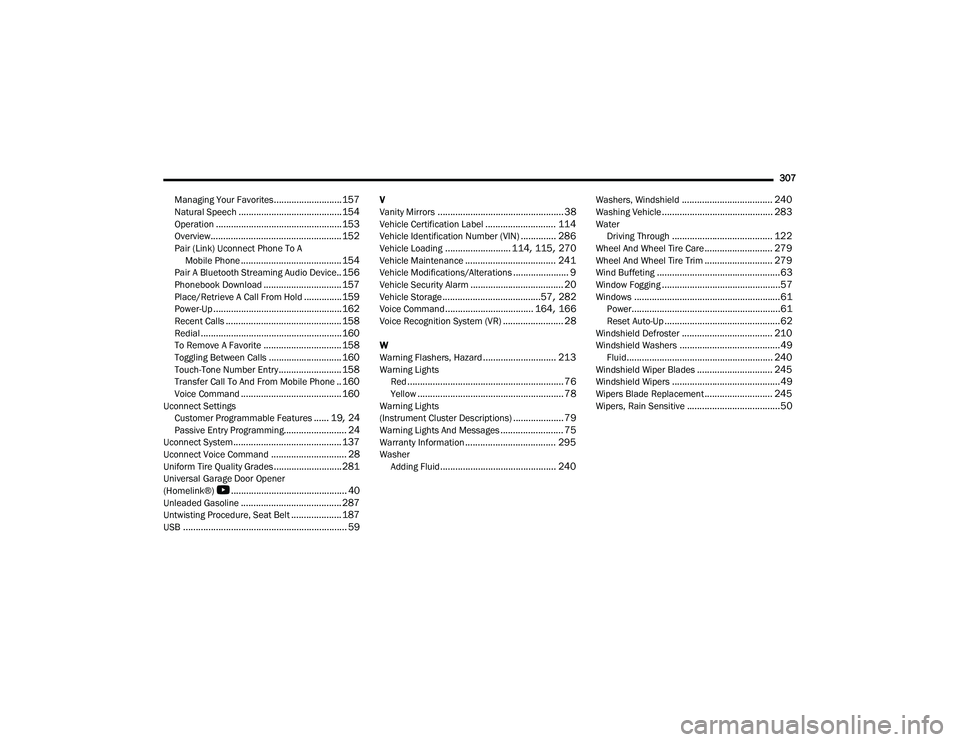
........................... 157Natural Speech......................................... 154Operation.................................................. 153Overview.................................................... 152Pair (Link) Uconnect Phone To A Mobile Phone........................................ 154Pair A Bluetooth Streaming Audio Device.. 156Phonebook Download............................... 157Place/Retrieve A Call From Hold............... 159Power-Up................................................... 162Recent Calls.............................................. 158Redial........................................................ 160To Remove A Favorite............................... 158Toggling Between Calls............................. 160Touch-Tone Number Entry......................... 158Transfer Call To And From Mobile Phone.. 160Voice Command........................................ 160Uconnect SettingsCustomer Programmable Features...... 19, 24Passive Entry Programming......................... 24Uconnect System........................................... 137Uconnect Voice Command.............................. 28Uniform Tire Quality Grades........................... 281Universal Garage Door Opener
(Homelink®)
b
.............................................. 40Unleaded Gasoline........................................ 287Untwisting Procedure, Seat Belt.................... 187USB................................................................. 59
V
Vanity Mirrors.................................................. 38Vehicle Certification Label............................ 114Vehicle Identification Number (VIN).............. 286Vehicle Loading.......................... 114, 115, 270Vehicle Maintenance.................................... 241Vehicle Modifications/Alterations...................... 9Vehicle Security Alarm..................................... 20Vehicle Storage.......................................57, 282Voice Command................................... 164, 166Voice Recognition System (VR)........................ 28
W
Warning Flashers, Hazard............................. 213Warning Lights Red.............................................................. 76Yellow.......................................................... 78Warning Lights
(Instrument Cluster Descriptions).................... 79Warning Lights And Messages......................... 75Warranty Information.................................... 295WasherAdding Fluid.............................................. 240
Washers, Windshield.................................... 240Washing Vehicle............................................ 283WaterDriving Through........................................ 122Wheel And Wheel Tire Care........................... 279Wheel And Wheel Tire Trim........................... 279Wind Buffeting.................................................63Window Fogging...............................................57Windows..........................................................61Power...........................................................61Reset Auto-Up..............................................62Windshield Defroster.................................... 210Windshield Washers........................................49Fluid.......................................................... 240Windshield Wiper Blades.............................. 245Windshield Wipers...........................................49Wipers Blade Replacement........................... 245Wipers, Rain Sensitive.....................................50
22_LD_OM_EN_USC_t.book Page 307