bluetooth DODGE CHARGER 2022 User Guide
[x] Cancel search | Manufacturer: DODGE, Model Year: 2022, Model line: CHARGER, Model: DODGE CHARGER 2022Pages: 312, PDF Size: 18.99 MB
Page 159 of 312
MULTIMEDIA157
3. Press the Settings button located to the right of the device name for a different phone or
audio device than the currently connected
device or press the preferred Connected
Phone from the list.
4. The option’s pop-up will be displayed.
5. Press the Disconnect Device or the Delete Device button on the touchscreen.
6. Press the X to exit out of the Settings screen.
MAKING A PHONE OR AUDIO DEVICE A
FAVORITE
1. On the Paired Phone/Audio Sources screen, press the Settings button located to the right
of the device name for a different phone or
audio device than the currently connected
device or press the preferred “Connected
Phone” from the list.
2. The option’s pop-up will be displayed.
3. Press the Make Favorite button on the touchscreen; you will see the chosen device
move to the top of the list.
4. Press the X to exit out of the Settings screen.
PHONEBOOK DOWNLOAD (AUTOMATIC
PHONEBOOK TRANSFER FROM MOBILE
PHONE) — IF EQUIPPED
If supported by your phone, Uconnect Phone has
the ability to download contact names and number
entries from the mobile phone’s phonebook.
Specific Bluetooth® Phones with Phonebook
Access Profile may support this feature. Your
mobile phone may receive a pop-up asking for
permission for the Uconnect system to access your
messages and contacts. Selecting “Ok” or “Allow”
will sync your contacts with the Uconnect system.
See the Uconnect website,
UconnectPhone.com,
for supported phones.
To call a name from a downloaded mobile
phonebook Ú page 161.
Automatic download and update of a phone -
book, if supported, begins as soon as the
Bluetooth® wireless phone connection is made
to the Uconnect Phone, for example, after you
start the vehicle.
A maximum of 5,000 contact names with four
numbers per contact will be downloaded and
updated every time a phone is connected to the
Uconnect Phone.
Depending on the maximum number of entries
downloaded, there may be a short delay before
the latest downloaded names can be used. Until
then, if available, the previously downloaded
phonebook is available for use.
Only the phonebook of the currently connected
mobile phone is accessible.
This downloaded phonebook cannot be edited
or deleted on the Uconnect Phone. These can
only be edited on the mobile phone. The
changes are transferred and updated to
Uconnect Phone on the next phone connection.
MANAGING YOUR FAVORITES — IF EQUIPPED
There are two ways you can add an entry to your
favorites:
1. After loading the mobile phonebook, press the Favorites button on the touchscreen, and
then press one of the +Add Favorite Contact
buttons that appears on the list.
2. After loading the mobile phonebook, select “Contacts” from the Phone main screen, and
then select the appropriate number. Press the
Down Arrow button or the Settings Gear button
next to the selected number to display the
option’s pop-up. In the pop-up, select “Add to
Favorites”.
5
22_LD_OM_EN_USC_t.book Page 157
Page 160 of 312
158MULTIMEDIA
NOTE:If the Favorites list is full, you will be asked to
remove an existing favorite.
TO REMOVE A FAVORITE — IF EQUIPPED
1. To remove a Favorite, select “Favorites” from
the Phone main screen.
2. Next, select the Down Arrow icon or the Settings Gear icon next to the contact you want
to remove from your favorites. This will bring
up the options for that Favorite contact.
3. Deselect the Star icon to delete the Favorite.
Phone Call Features
The following features can be accessed through
the Uconnect Phone if the feature(s) are available
and supported by Bluetooth® on your mobile
service plan. For example, if your mobile service
plan provides three-way calling, this feature can be
accessed through the Uconnect Phone. Check with
your mobile service provider for the features that
you have.
Here are the phone options with Uconnect:
Redial
Dial by pressing in the number
Voice Commands (Dial by Saying a Name, Call
by Saying a Phonebook Name, Redial or Call
Back)
Favorites
Mobile Phonebook
Recent Call Log
SMS Message Viewer
CALL CONTROLS
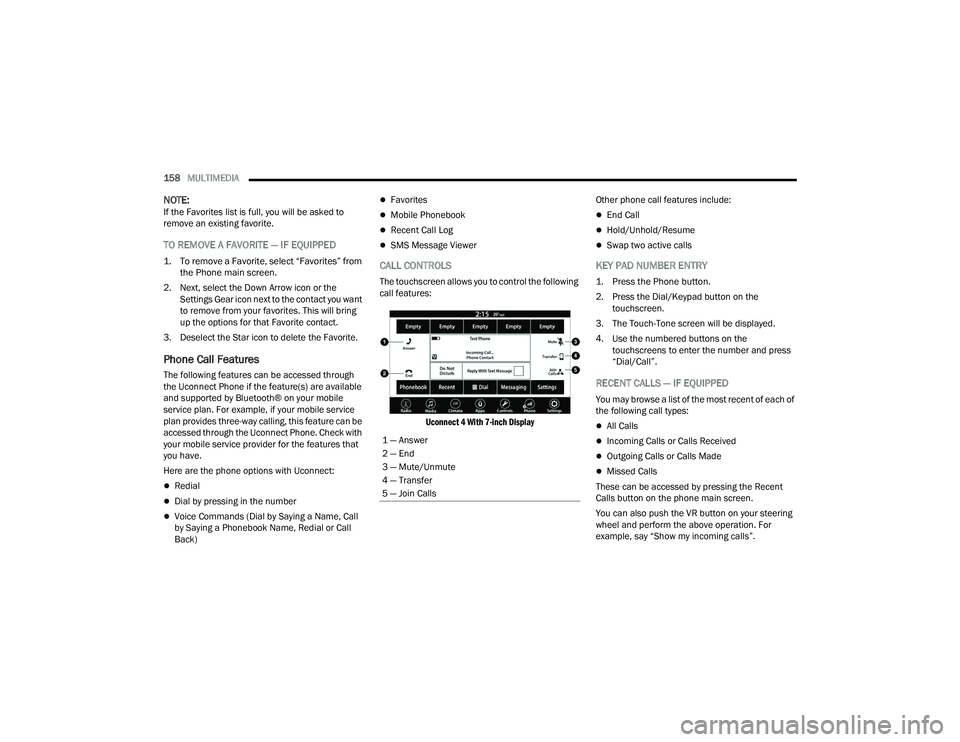
The touchscreen allows you to control the following
call features:
Uconnect 4 With 7-inch Display
Other phone call features include:
End Call
Hold/Unhold/Resume
Swap two active calls
KEY PAD NUMBER ENTRY
1. Press the Phone button.
2. Press the Dial/Keypad button on the
touchscreen.
3. The Touch-Tone screen will be displayed.
4. Use the numbered buttons on the touchscreens to enter the number and press
“Dial/Call”.
RECENT CALLS — IF EQUIPPED
You may browse a list of the most recent of each of
the following call types:
All Calls
Incoming Calls or Calls Received
Outgoing Calls or Calls Made
Missed Calls
These can be accessed by pressing the Recent
Calls button on the phone main screen.
You can also push the VR button on your steering
wheel and perform the above operation. For
example, say “Show my incoming calls”.
1 — Answer
2 — End
3 — Mute/Unmute
4 — Transfer
5 — Join Calls
22_LD_OM_EN_USC_t.book Page 158
Page 161 of 312
MULTIMEDIA159
ANSWER OR IGNORE AN INCOMING CALL —
NO CALL CURRENTLY IN PROGRESS
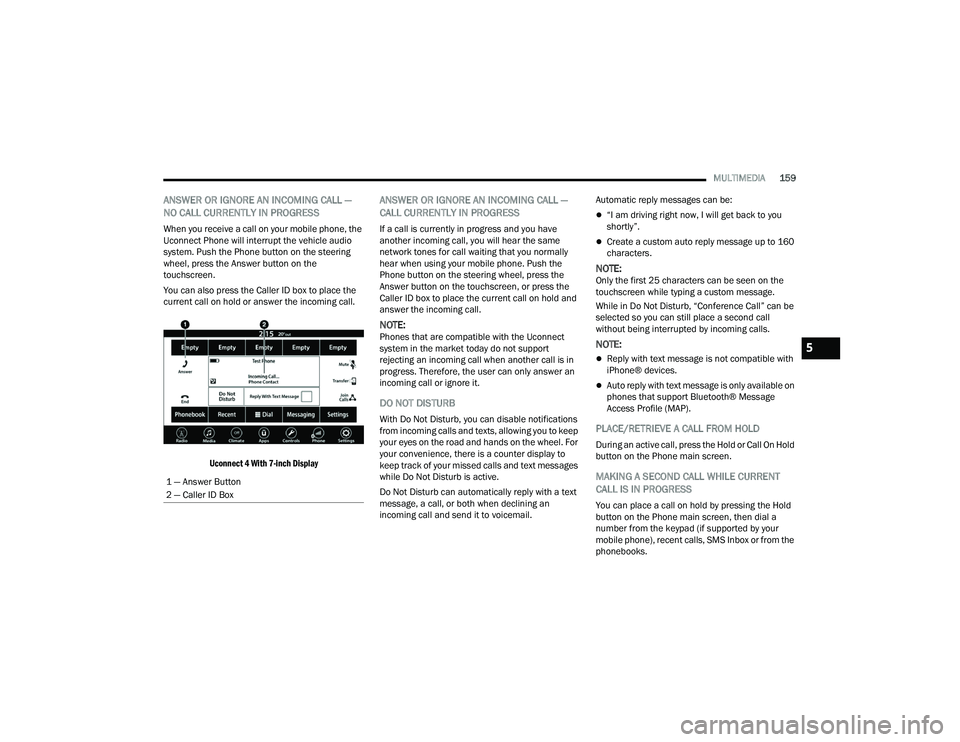
When you receive a call on your mobile phone, the
Uconnect Phone will interrupt the vehicle audio
system. Push the Phone button on the steering
wheel, press the Answer button on the
touchscreen.
You can also press the Caller ID box to place the
current call on hold or answer the incoming call.
Uconnect 4 With 7-inch Display
ANSWER OR IGNORE AN INCOMING CALL —
CALL CURRENTLY IN PROGRESS
If a call is currently in progress and you have
another incoming call, you will hear the same
network tones for call waiting that you normally
hear when using your mobile phone. Push the
Phone button on the steering wheel, press the
Answer button on the touchscreen, or press the
Caller ID box to place the current call on hold and
answer the incoming call.
NOTE:Phones that are compatible with the Uconnect
system in the market today do not support
rejecting an incoming call when another call is in
progress. Therefore, the user can only answer an
incoming call or ignore it.
DO NOT DISTURB
With Do Not Disturb, you can disable notifications
from incoming calls and texts, allowing you to keep
your eyes on the road and hands on the wheel. For
your convenience, there is a counter display to
keep track of your missed calls and text messages
while Do Not Disturb is active.
Do Not Disturb can automatically reply with a text
message, a call, or both when declining an
incoming call and send it to voicemail. Automatic reply messages can be:
“I am driving right now, I will get back to you
shortly”.
Create a custom auto reply message up to 160
characters.
NOTE:Only the first 25 characters can be seen on the
touchscreen while typing a custom message.
While in Do Not Disturb, “Conference Call” can be
selected so you can still place a second call
without being interrupted by incoming calls.
NOTE:
Reply with text message is not compatible with
iPhone® devices.
Auto reply with text message is only available on
phones that support Bluetooth® Message
Access Profile (MAP).
PLACE/RETRIEVE A CALL FROM HOLD
During an active call, press the Hold or Call On Hold
button on the Phone main screen.
MAKING A SECOND CALL WHILE CURRENT
CALL IS IN PROGRESS
You can place a call on hold by pressing the Hold
button on the Phone main screen, then dial a
number from the keypad (if supported by your
mobile phone), recent calls, SMS Inbox or from the
phonebooks.
1 — Answer Button
2 — Caller ID Box
5
22_LD_OM_EN_USC_t.book Page 159
Page 162 of 312
160MULTIMEDIA
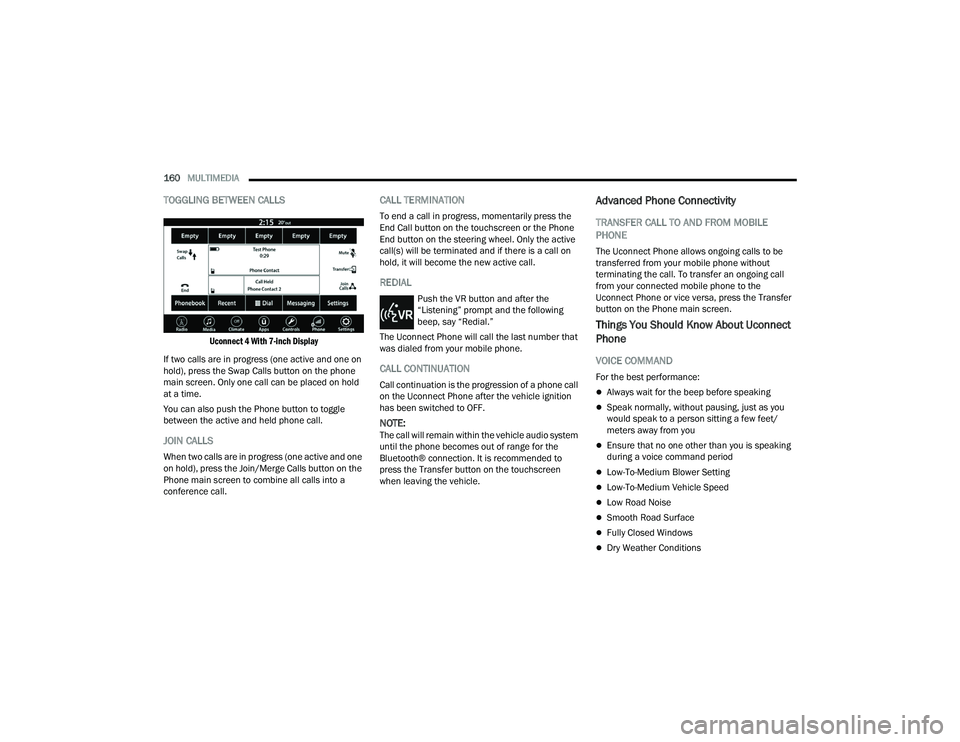
TOGGLING BETWEEN CALLS
Uconnect 4 With 7-inch Display
If two calls are in progress (one active and one on
hold), press the Swap Calls button on the phone
main screen. Only one call can be placed on hold
at a time.
You can also push the Phone button to toggle
between the active and held phone call.
JOIN CALLS
When two calls are in progress (one active and one
on hold), press the Join/Merge Calls button on the
Phone main screen to combine all calls into a
conference call.
CALL TERMINATION
To end a call in progress, momentarily press the
End Call button on the touchscreen or the Phone
End button on the steering wheel. Only the active
call(s) will be terminated and if there is a call on
hold, it will become the new active call.
REDIAL
Push the VR button and after the
“Listening” prompt and the following
beep, say “Redial.”
The Uconnect Phone will call the last number that
was dialed from your mobile phone.
CALL CONTINUATION
Call continuation is the progression of a phone call
on the Uconnect Phone after the vehicle ignition
has been switched to OFF.
NOTE:The call will remain within the vehicle audio system
until the phone becomes out of range for the
Bluetooth® connection. It is recommended to
press the Transfer button on the touchscreen
when leaving the vehicle.
Advanced Phone Connectivity
TRANSFER CALL TO AND FROM MOBILE
PHONE
The Uconnect Phone allows ongoing calls to be
transferred from your mobile phone without
terminating the call. To transfer an ongoing call
from your connected mobile phone to the
Uconnect Phone or vice versa, press the Transfer
button on the Phone main screen.
Things You Should Know About Uconnect
Phone
VOICE COMMAND
For the best performance:
Always wait for the beep before speaking
Speak normally, without pausing, just as you
would speak to a person sitting a few feet/
meters away from you
Ensure that no one other than you is speaking
during a voice command period
Low-To-Medium Blower Setting
Low-To-Medium Vehicle Speed
Low Road Noise
Smooth Road Surface
Fully Closed Windows
Dry Weather Conditions
22_LD_OM_EN_USC_t.book Page 160
Page 164 of 312
162MULTIMEDIA
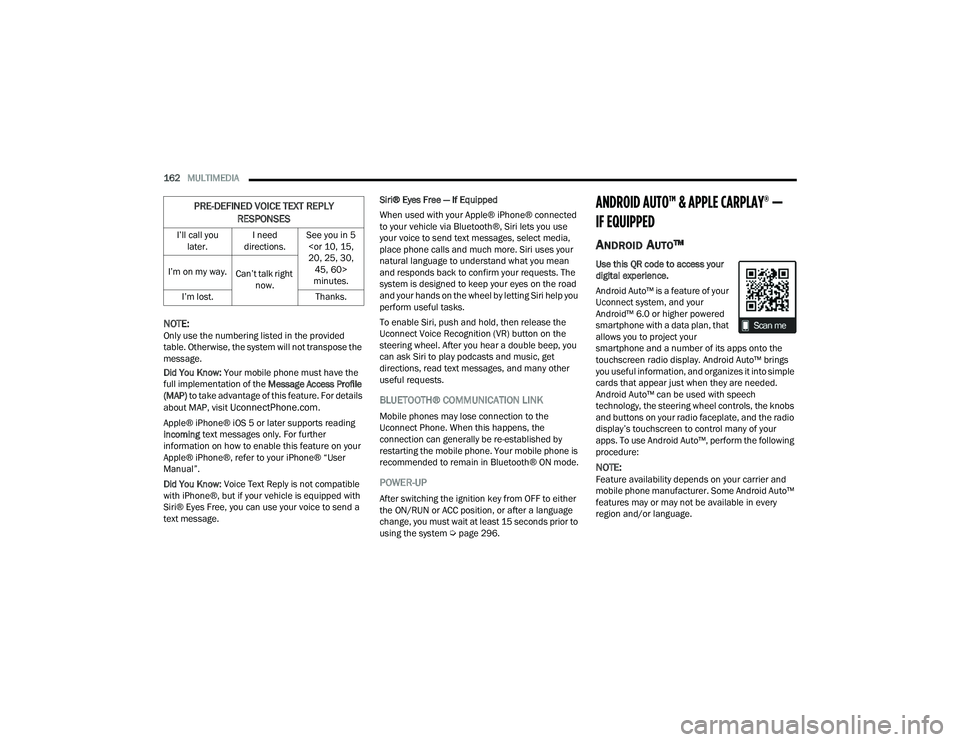
NOTE:Only use the numbering listed in the provided
table. Otherwise, the system will not transpose the
message.
Did You Know: Your mobile phone must have the
full implementation of the Message Access Profile
(MAP) to take advantage of this feature. For details
about MAP, visit
UconnectPhone.com.
Apple® iPhone® iOS 5 or later supports reading
incoming text messages only. For further
information on how to enable this feature on your
Apple® iPhone®, refer to your iPhone® “User
Manual”.
Did You Know: Voice Text Reply is not compatible
with iPhone®, but if your vehicle is equipped with
Siri® Eyes Free, you can use your voice to send a
text message. Siri® Eyes Free — If Equipped
When used with your Apple® iPhone® connected
to your vehicle via Bluetooth®, Siri lets you use
your voice to send text messages, select media,
place phone calls and much more. Siri uses your
natural language to understand what you mean
and responds back to confirm your requests. The
system is designed to keep your eyes on the road
and your hands on the wheel by letting Siri help you
perform useful tasks.
To enable Siri, push and hold, then release the
Uconnect Voice Recognition (VR) button on the
steering wheel. After you hear a double beep, you
can ask Siri to play podcasts and music, get
directions, read text messages, and many other
useful requests.BLUETOOTH® COMMUNICATION LINK
Mobile phones may lose connection to the
Uconnect Phone. When this happens, the
connection can generally be re-established by
restarting the mobile phone. Your mobile phone is
recommended to remain in Bluetooth® ON mode.
POWER-UP
After switching the ignition key from OFF to either
the ON/RUN or ACC position, or after a language
change, you must wait at least 15 seconds prior to
using the system Ú
page 296.
ANDROID AUTO™ & APPLE CARPLAY® —
IF EQUIPPED
ANDROID AUTO™
Use this QR code to access your
digital experience.
Android Auto™ is a feature of your
Uconnect system, and your
Android™ 6.0 or higher powered
smartphone with a data plan, that
allows you to project your
smartphone and a number of its apps onto the
touchscreen radio display. Android Auto™ brings
you useful information, and organizes it into simple
cards that appear just when they are needed.
Android Auto™ can be used with speech
technology, the steering wheel controls, the knobs
and buttons on your radio faceplate, and the radio
display’s touchscreen to control many of your
apps. To use Android Auto™, perform the following
procedure:
NOTE:Feature availability depends on your carrier and
mobile phone manufacturer. Some Android Auto™
features may or may not be available in every
region and/or language.
I’ll call you
later. I need
directions. See you in 5
minutes.
I’m on my way.
Can’t talk right
now.
I’m lost. Thanks.
PRE-DEFINED VOICE TEXT REPLY
RESPONSES
22_LD_OM_EN_USC_t.book Page 162
Page 169 of 312
MULTIMEDIA167
ANDROID AUTO™ AND APPLE
C
ARPLAY® TIPS AND TRICKS
Android Auto™ And Apple CarPlay® Automatic
Bluetooth® Pairing
After connecting to Android Auto™ or Apple
CarPlay® for the first time and undergoing the
setup procedure, the smartphone pairs to the
Uconnect system via Bluetooth® without any setup
required every time it is within range, if Bluetooth®
is turned on.
NOTE:Apple CarPlay® uses a USB connection while
Android Auto™ uses both USB and Bluetooth®
connections to function. The connected device is
unavailable to other devices when connected
using Android Auto™ or Apple CarPlay®.
Multiple Devices Connecting To The Uconnect
System — If Equipped
It is possible to have multiple devices connected to
the Uconnect system. For example, if using Android
Auto™/Apple CarPlay®, the connected device will
be used to place hands-free phone calls or send
hands-free text messages. However, another
device can also be paired to the Uconnect system,
via Bluetooth®, as an audio source, so the
passenger can stream music.
NOTE:Apple CarPlay® and Android Auto™ can only be
launched from the front and center console USB
ports.
RADIO OPERATION AND MOBILE PHONES
Under certain conditions, the mobile phone being
on in your vehicle can cause erratic or noisy
performance from your radio. This condition may
be lessened or eliminated by repositioning the
mobile phone within the vehicle. This condition is
not harmful to the radio. If your radio performance
does not satisfactorily improve from repositioning
the mobile phone, it is recommended that the
volume be turned down or off during mobile phone
operation when not using the Uconnect system.
REGULATORY AND SAFETY
I
NFORMATION
US/CANADA
Exposure to Radio Frequency Radiation
The radiated output power of the internal wireless
radio is far below the FCC and IC radio frequency
exposure limits. Nevertheless, the wireless radio
will be used in such a manner that the radio is 8 in
(20 cm) or further from the human body. The internal wireless radio operates within
guidelines found in radio frequency safety
standards and recommendations, which reflect
the consensus of the scientific community.
The radio manufacturer believes the internal
wireless radio is safe for use by consumers. The
level of energy emitted is far less than the
electromagnetic energy emitted by wireless
devices such as mobile phones. However, the use
of wireless radios may be restricted in some
situations or environments, such as aboard
airplanes. If you are unsure of restrictions, you are
encouraged to ask for authorization before turning
on the wireless radio Ú
page 296.
5
22_LD_OM_EN_USC_t.book Page 167
Page 300 of 312
298 AWD Towing
....................................................... 233Axle Fluid....................................................... 292Axle Lubrication............................................. 292
B
Back-Up......................................................... 112Battery.................................................... 76, 241Charging System Light................................. 76Keyless Key Fob Replacement.................... 14Location.................................................... 241Battery Saver Feature...................................... 47Belts, Seat..................................................... 210BluetoothConnecting To A Particular Mobile Phone Or Audio Device After Pairing
..................... 156Body Mechanism Lubrication........................ 245B-Pillar Location............................................. 270Brake Assist System...................................... 169Brake Control System.................................... 169Brake Fluid.......................................... 251, 292Brake System...................................... 251, 286Fluid Check..................................... 251, 292Master Cylinder......................................... 251Parking........................................................ 88Warning Light..................................... 76, 286
Brake/Transmission Interlock......................... 90Break-In Recommendations, New Vehicle....... 87Brightness, Interior Lights................................ 49Bulb Replacement........................................ 261Bulbs, Light.......................................... 211, 261
C
Camera, Rear................................................ 112Capacities, Fluid........................................... 290Caps, FillerOil (Engine)............................................... 238Radiator (Coolant Pressure)..................... 249Car Washes................................................... 283Carbon Monoxide Warning................... 211, 212CargoVehicle Loading........................................ 114CD................................................................. 150Certification Label......................................... 114Chains, Tire................................................... 280Chart, Tire Sizing........................................... 266Check Engine Light
(Malfunction Indicator Light)............................ 83Checking Your Vehicle For Safety................. 209Checks, Safety.............................................. 209Child Restraint.............................................. 198
Child RestraintsBooster Seats........................................... 200Child Seat Installation............................... 207How To Stow An unused ALR Seat Belt..... 205Infant And Child Restraints....................... 199Lower Anchors And Tethers For Children.. 202Older Children And Child Restraints.......... 200Seating Positions...................................... 201Child Safety Locks............................................26Clean Air Gasoline......................................... 288CleaningWheels...................................................... 279Climate Control................................................51Automatic....................................................51Manual........................................................53Coin Holder......................................................58Cold Weather Operation...................................87Compact Spare Tire...................................... 277ConsoleFloor............................................................58Contract, Service........................................... 294Controls........................................................ 142Cooling Pressure Cap (Radiator Cap)............ 249
22_LD_OM_EN_USC_t.book Page 298
Page 308 of 312
306 Tire And Loading Information Placard
........... 270Tire Markings................................................. 265Tire Safety Information.................................. 264Tire Service Kit.................................... 221, 223Tires................................... 211, 273, 277, 281Aging (Life Of Tires)................................... 275Air Pressure............................................... 273Chains....................................................... 280Changing................................................... 216Compact Spare......................................... 277General Information........................ 273, 277High Speed................................................ 274Inflation Pressure...................................... 273Jacking...................................................... 216Life Of Tires............................................... 275Load Capacity............................................ 270Pressure Monitoring System (TPMS).. 80, 179Quality Grading.......................................... 281Radial........................................................ 274Replacement............................................. 276Rotation.................................................... 281Safety.............................................. 264, 273Sizes.......................................................... 266Snow Tires................................................. 277Spare Tires............................. 217, 277, 278Spinning.................................................... 275Trailer Towing............................................ 119Tread Wear Indicators............................... 275Wheel Nut Torque..................................... 286
To Open Hood.................................................. 65Tongue Weight/Trailer Weight...................... 118Towing.......................................................... 115Behind A Motorhome................................ 121Disabled Vehicle....................................... 232Guide........................................................ 117Recreational............................................. 121Weight...................................................... 117Towing Behind A Motorhome........................ 121Traction......................................................... 121Traction Control............................................ 173Trailer Towing............................................... 115Hitches..................................................... 117Minimum Requirements........................... 118Tips........................................................... 120Trailer And Tongue Weight........................ 118Wiring....................................................... 119Trailer Towing Guide..................................... 117Trailer Weight................................................ 117Transfer Case Fluid......................................................... 292Transmission................................................... 90Automatic...........................................90, 251Fluid......................................................... 292Maintenance............................................ 251Shifting........................................................ 89Transporting Pets.......................................... 209Tread Wear Indicators.................................. 275
Trunk Lid (Deck Lid).........................................65Trunk Release Remote Control........................65Turn Signals..............................................47, 81
U
UconnectPhone Call Features
................................. 158Things You Should Know About Your Uconnect Phone................................... 160Uconnect Settings.......................................19Uconnect Phone................................... 154, 156Answer Or Ignore An Incoming Call — Call Currently In Progress..................... 159Answer Or Ignore An Incoming Call — No Call Currently In Progress............................ 159Bluetooth Communication Link................ 162Call Continuation...................................... 160Call Controls............................................. 158Call Termination....................................... 160Cancel Command..................................... 154Connecting To A Particular Mobile Phone Or Audio Device After Pairing.................... 156Help Command......................................... 154Join Calls.................................................. 160Making A Phone Or Audio Device A Favorite................................................ 157Making A Second Call While Current Call Is In Progress............................................... 159
22_LD_OM_EN_USC_t.book Page 306
Page 309 of 312
307
Managing Your Favorites
........................... 157Natural Speech......................................... 154Operation.................................................. 153Overview.................................................... 152Pair (Link) Uconnect Phone To A Mobile Phone........................................ 154Pair A Bluetooth Streaming Audio Device.. 156Phonebook Download............................... 157Place/Retrieve A Call From Hold............... 159Power-Up................................................... 162Recent Calls.............................................. 158Redial........................................................ 160To Remove A Favorite............................... 158Toggling Between Calls............................. 160Touch-Tone Number Entry......................... 158Transfer Call To And From Mobile Phone.. 160Voice Command........................................ 160Uconnect SettingsCustomer Programmable Features...... 19, 24Passive Entry Programming......................... 24Uconnect System........................................... 137Uconnect Voice Command.............................. 28Uniform Tire Quality Grades........................... 281Universal Garage Door Opener
(Homelink®)
b
.............................................. 40Unleaded Gasoline........................................ 287Untwisting Procedure, Seat Belt.................... 187USB................................................................. 59
V
Vanity Mirrors.................................................. 38Vehicle Certification Label............................ 114Vehicle Identification Number (VIN).............. 286Vehicle Loading.......................... 114, 115, 270Vehicle Maintenance.................................... 241Vehicle Modifications/Alterations...................... 9Vehicle Security Alarm..................................... 20Vehicle Storage.......................................57, 282Voice Command................................... 164, 166Voice Recognition System (VR)........................ 28
W
Warning Flashers, Hazard............................. 213Warning Lights Red.............................................................. 76Yellow.......................................................... 78Warning Lights
(Instrument Cluster Descriptions).................... 79Warning Lights And Messages......................... 75Warranty Information.................................... 295WasherAdding Fluid.............................................. 240
Washers, Windshield.................................... 240Washing Vehicle............................................ 283WaterDriving Through........................................ 122Wheel And Wheel Tire Care........................... 279Wheel And Wheel Tire Trim........................... 279Wind Buffeting.................................................63Window Fogging...............................................57Windows..........................................................61Power...........................................................61Reset Auto-Up..............................................62Windshield Defroster.................................... 210Windshield Washers........................................49Fluid.......................................................... 240Windshield Wiper Blades.............................. 245Windshield Wipers...........................................49Wipers Blade Replacement........................... 245Wipers, Rain Sensitive.....................................50
22_LD_OM_EN_USC_t.book Page 307