ignition DODGE CHARGER 2022 Workshop Manual
[x] Cancel search | Manufacturer: DODGE, Model Year: 2022, Model line: CHARGER, Model: DODGE CHARGER 2022Pages: 312, PDF Size: 18.99 MB
Page 107 of 312
STARTING AND OPERATING105
STATIONARY OBJECTS AND VEHICLES
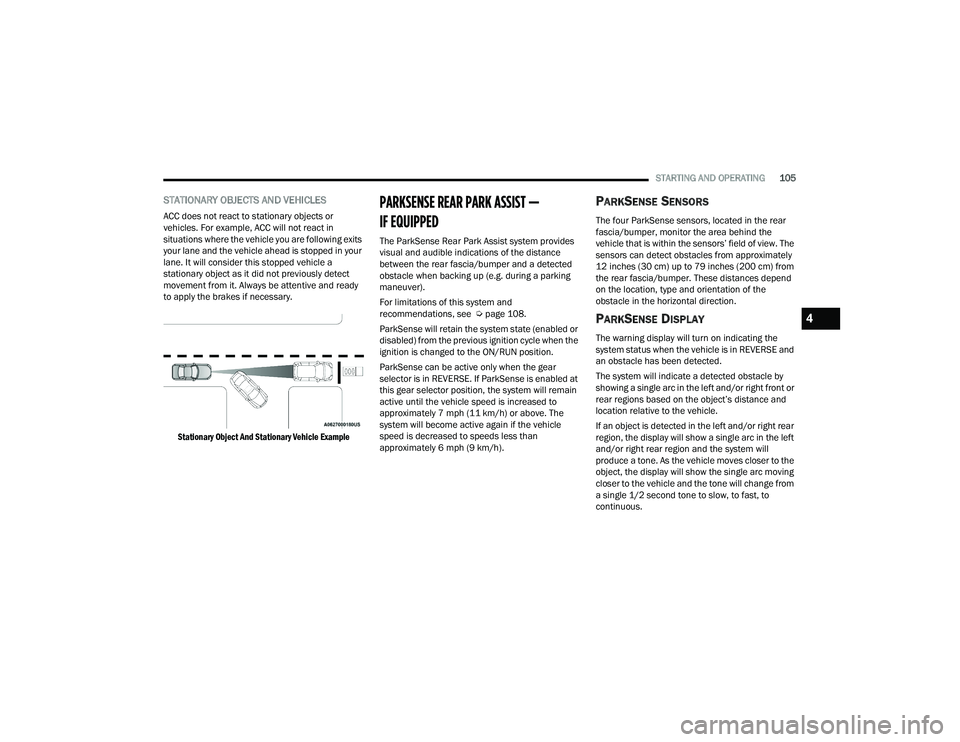
ACC does not react to stationary objects or
vehicles. For example, ACC will not react in
situations where the vehicle you are following exits
your lane and the vehicle ahead is stopped in your
lane. It will consider this stopped vehicle a
stationary object as it did not previously detect
movement from it. Always be attentive and ready
to apply the brakes if necessary.
Stationary Object And Stationary Vehicle Example
PARKSENSE REAR PARK ASSIST —
IF EQUIPPED
The ParkSense Rear Park Assist system provides
visual and audible indications of the distance
between the rear fascia/bumper and a detected
obstacle when backing up (e.g. during a parking
maneuver).
For limitations of this system and
recommendations, see Ú page 108.
ParkSense will retain the system state (enabled or
disabled) from the previous ignition cycle when the
ignition is changed to the ON/RUN position.
ParkSense can be active only when the gear
selector is in REVERSE. If ParkSense is enabled at
this gear selector position, the system will remain
active until the vehicle speed is increased to
approximately 7 mph (11 km/h) or above. The
system will become active again if the vehicle
speed is decreased to speeds less than
approximately 6 mph (9 km/h).
PARKSENSE SENSORS
The four ParkSense sensors, located in the rear
fascia/bumper, monitor the area behind the
vehicle that is within the sensors’ field of view. The
sensors can detect obstacles from approximately
12 inches (30 cm) up to 79 inches (200 cm) from
the rear fascia/bumper. These distances depend
on the location, type and orientation of the
obstacle in the horizontal direction.
PARKSENSE DISPLAY
The warning display will turn on indicating the
system status when the vehicle is in REVERSE and
an obstacle has been detected.
The system will indicate a detected obstacle by
showing a single arc in the left and/or right front or
rear regions based on the object’s distance and
location relative to the vehicle.
If an object is detected in the left and/or right rear
region, the display will show a single arc in the left
and/or right rear region and the system will
produce a tone. As the vehicle moves closer to the
object, the display will show the single arc moving
closer to the vehicle and the tone will change from
a single 1/2 second tone to slow, to fast, to
continuous.
4
22_LD_OM_EN_USC_t.book Page 105
Page 110 of 312
108STARTING AND OPERATING
Adjustable Chime Volume Settings
Rear chime volume settings can be selected from
the Uconnect system Ú page 123.
The chime volume settings include low, medium,
and high.
ParkSense will retain its last known configuration
state through ignition cycles.
PARKSENSE WARNING DISPLAY
The ParkSense Warning screen will only be
displayed if Sound and Display is selected from
within the Uconnect system Ú page 123.
The ParkSense Warning screen is located within
the instrument cluster display Ú page 69. It
provides visual warnings to indicate the distance
between the rear fascia/bumper and the detected
obstacle.
ENABLING AND DISABLING PARKSENSE
ParkSense can be enabled and disabled
with the ParkSense switch.
When the ParkSense switch is pushed to
disable the system, the instrument cluster will
display the “ParkSense Off” message for
approximately five seconds. When the gear
selector is moved to REVERSE and the system is
disabled, the instrument cluster display will display
the “ParkSense Off” message for as long as the
vehicle is in REVERSE.
The ParkSense switch LED will be on when
ParkSense is disabled or requires service. The
ParkSense switch LED will be off when the system
is enabled. If the ParkSense switch is pushed and
the system requires service, the ParkSense
switch LED will blink momentarily and then the
LED will be on.
SERVICE THE PARKSENSE PARK ASSIST
S
YSTEM
During vehicle start up, when the ParkSense Rear
Park Assist System has detected a faulted
condition, the instrument cluster display will
actuate a single chime, once per ignition cycle, and
it will display the “PARKSENSE UNAVAILABLE WIPE
REAR SENSORS” or the “PARKSENSE
UNAVAILABLE SERVICE REQUIRED” message.
When the gear selector is moved to REVERSE and
the system has detected a faulted condition, the
instrument cluster display will show the
"PARKSENSE UNAVAILABLE WIPE REAR SENSORS"
or "PARKSENSE UNAVAILABLE SERVICE
REQUIRED" message for as long as the vehicle is in
REVERSE. Under this condition, ParkSense will not
operate.
If “PARKSENSE UNAVAILABLE WIPE REAR
SENSORS” appears in the instrument cluster
display, make sure the outer surface and the
underside of the rear fascia/bumper is clean and
clear of snow, ice, mud, dirt or other obstruction and then cycle the ignition. If the message
continues to appear, see an authorized dealer.
If “PARKSENSE UNAVAILABLE SERVICE
REQUIRED” appears in the instrument cluster
display, see an authorized dealer.
CLEANING THE PARKSENSE SYSTEM
Clean the ParkSense sensors with water, car wash
soap and a soft cloth. Do not use rough or hard
cloths. Do not scratch or poke the sensors.
Otherwise, you could damage the sensors.
PARKSENSE SYSTEM USAGE
P
RECAUTIONS
NOTE:
Ensure that the rear fascia/bumper is free of
snow, ice, mud, dirt and debris to keep the
ParkSense system operating properly.
Jackhammers, large trucks, and other vibra -
tions could affect the performance of
ParkSense.
When you turn ParkSense off in DRIVE, the
instrument cluster will display "PARKSENSE
OFF" for five seconds. Furthermore, once you
turn ParkSense off, it remains off until you turn
it on again, even if you cycle the ignition.
22_LD_OM_EN_USC_t.book Page 108
Page 112 of 312
110STARTING AND OPERATING
NOTE:When operating conditions have been met, the
LaneSense system will monitor if the driver’s
hands are on the steering wheel and provide an
audible warning to the driver if removed. The
system will cancel if the driver does not return their
hands to the wheel.
TURNING LANESENSE ON OR OFF
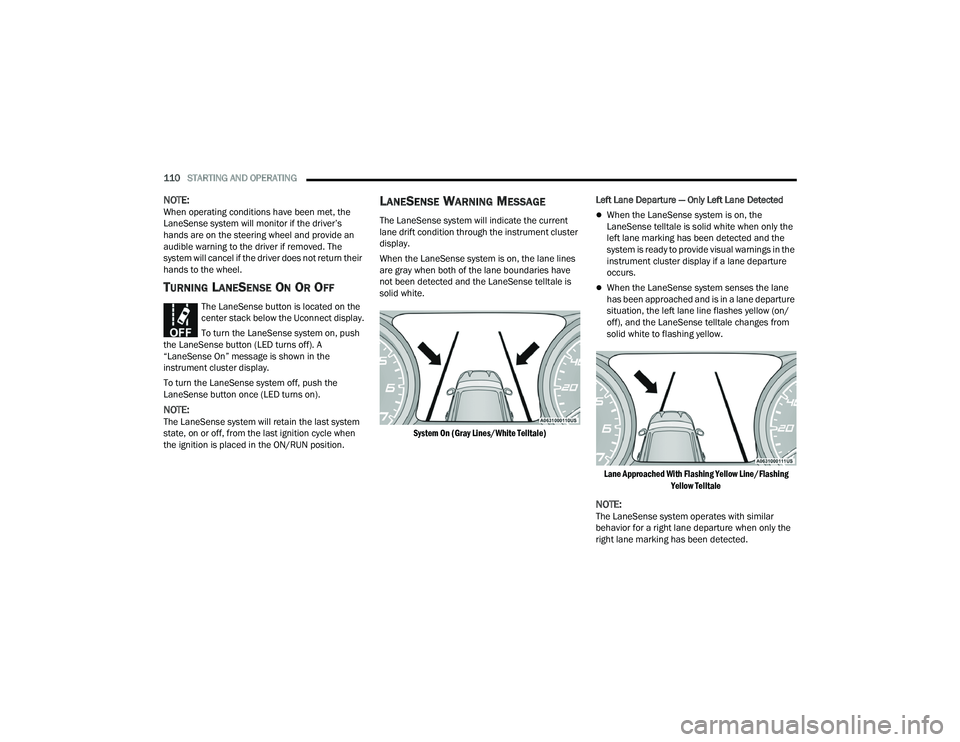
The LaneSense button is located on the
center stack below the Uconnect display.
To turn the LaneSense system on, push
the LaneSense button (LED turns off). A
“LaneSense On” message is shown in the
instrument cluster display.
To turn the LaneSense system off, push the
LaneSense button once (LED turns on).
NOTE:The LaneSense system will retain the last system
state, on or off, from the last ignition cycle when
the ignition is placed in the ON/RUN position.
LANESENSE WARNING MESSAGE
The LaneSense system will indicate the current
lane drift condition through the instrument cluster
display.
When the LaneSense system is on, the lane lines
are gray when both of the lane boundaries have
not been detected and the LaneSense telltale is
solid white.
System On (Gray Lines/White Telltale)
Left Lane Departure — Only Left Lane Detected
When the LaneSense system is on, the
LaneSense telltale is solid white when only the
left lane marking has been detected and the
system is ready to provide visual warnings in the
instrument cluster display if a lane departure
occurs.
When the LaneSense system senses the lane
has been approached and is in a lane departure
situation, the left lane line flashes yellow (on/
off), and the LaneSense telltale changes from
solid white to flashing yellow.
Lane Approached With Flashing Yellow Line/Flashing Yellow Telltale
NOTE:The LaneSense system operates with similar
behavior for a right lane departure when only the
right lane marking has been detected.
22_LD_OM_EN_USC_t.book Page 110
Page 114 of 312
112STARTING AND OPERATING
CHANGING LANESENSE STATUS
The LaneSense system has settings to adjust the
intensity of the torque warning and the warning
zone sensitivity (early/med/late) that you can
configure through the Uconnect system
Úpage 123.
NOTE:
When enabled the system operates above
37 mph (60 km/h) and below 112 mph
(180 km/h).
The warnings are disabled with the use of the
turn signal.
The system will not apply torque to the steering
wheel whenever a safety system engages
(Anti-Lock Brakes, Traction Control System,
Electronic Stability Control, Forward Collision
Warning, etc.).
PARKVIEW REAR BACK UP CAMERA
The ParkView Rear Back Up Camera allows you to
see an on-screen image of the rear surroundings of
your vehicle whenever the gear selector is put into
REVERSE. The image will be displayed on the
Navigation/Multimedia radio display screen along
with a caution note to “Check Entire Surroundings”
across the top of the screen. After five seconds this
note will disappear. The ParkView Rear Back Up Camera is located on the rear of the vehicle above
the rear license plate.
NOTE:The ParkView Rear Back Up Camera has program
-
mable modes of operation that may be selected
through the Uconnect system Ú page 123.
When the vehicle is shifted out of REVERSE with
camera delay turned off, the rear camera mode is
exited and the previous screen appears. When the
vehicle is shifted out of REVERSE with camera
delay turned on, the camera image will continue to
be displayed for up to 10 seconds unless the
following conditions occur: The vehicle speed
exceeds 8 mph (13 km/h), the vehicle is shifted
into PARK, the vehicle’s ignition is placed in the
OFF position, or the user presses image defeat X to
exit out of the camera video display.
When manually activated, a counter will be
initiated after the vehicle speed is above 8 mph
(13 km/h). The rear view camera image will turn
off when this counter reaches 10 seconds. The
counter will be reset when the vehicle speed is
8 mph (13 km/h) or below. If the vehicle speed
remains below 8 mph (13 km/h), the rear view
camera image will continue to be displayed until
the transmission is shifted into PARK, the vehicle’s
ignition is placed in the OFF position, or the image
defeat X button is pressed. When enabled, active guidelines are overlaid on
the image to illustrate the width of the vehicle and
its projected backup path based on the steering
wheel position. Different colored zones indicate
the distance to the rear of the vehicle. The
following table shows the approximate distances
for each zone:
Zone Distance To The Rear Of
The Vehicle
Red 0 - 1 ft (0 - 30 cm)
Yellow 1 ft - 6.5 ft (30 cm - 2 m)
Green 6.5 ft or greater
(2 m or greater)
WARNING!
Drivers must be careful when backing up even
when using the ParkView Rear Back Up Camera.
Always check carefully behind your vehicle, and
be sure to check for pedestrians, animals, other
vehicles, obstructions, or blind spots before
backing up. You are responsible for the safety of
your surroundings and must continue to pay
attention while backing up. Failure to do so can
result in serious injury or death.
22_LD_OM_EN_USC_t.book Page 112
Page 115 of 312
STARTING AND OPERATING113
(Continued)
NOTE:If snow, ice, mud, or any foreign substance builds
up on the camera lens, clean the lens, rinse with
water, and dry with a soft cloth. Do not cover the
lens.
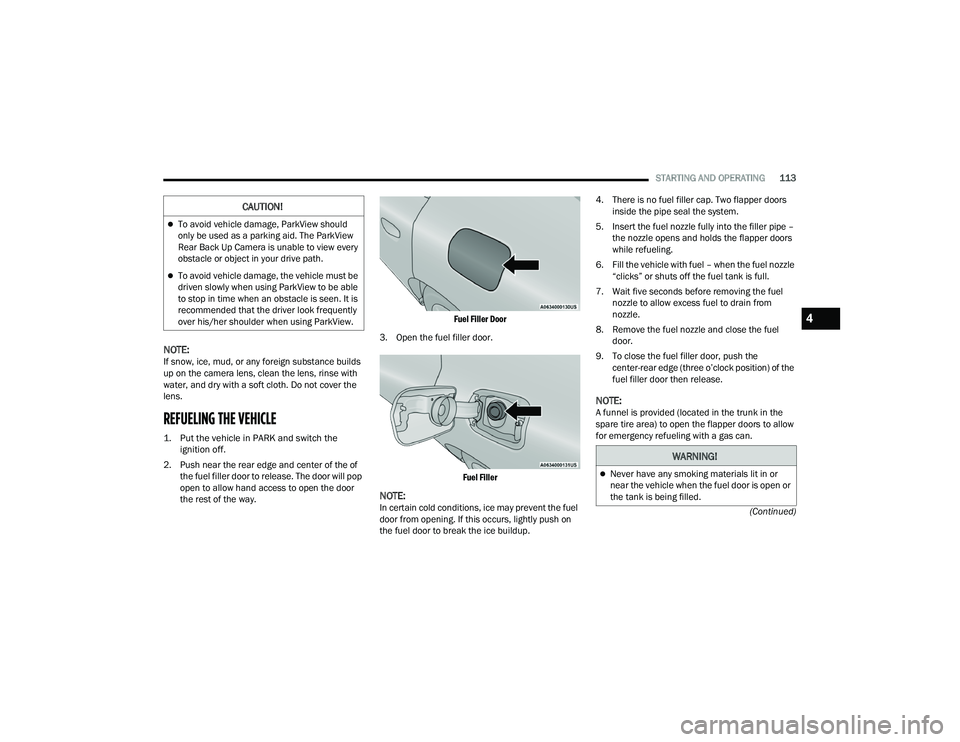
REFUELING THE VEHICLE
1. Put the vehicle in PARK and switch the ignition off.
2. Push near the rear edge and center of the of the fuel filler door to release. The door will pop
open to allow hand access to open the door
the rest of the way.
Fuel Filler Door
3. Open the fuel filler door.
Fuel Filler
NOTE:In certain cold conditions, ice may prevent the fuel
door from opening. If this occurs, lightly push on
the fuel door to break the ice buildup. 4. There is no fuel filler cap. Two flapper doors
inside the pipe seal the system.
5. Insert the fuel nozzle fully into the filler pipe – the nozzle opens and holds the flapper doors
while refueling.
6. Fill the vehicle with fuel – when the fuel nozzle “clicks” or shuts off the fuel tank is full.
7. Wait five seconds before removing the fuel nozzle to allow excess fuel to drain from
nozzle.
8. Remove the fuel nozzle and close the fuel door.
9. To close the fuel filler door, push the center-rear edge (three o’clock position) of the
fuel filler door then release.
NOTE:A funnel is provided (located in the trunk in the
spare tire area) to open the flapper doors to allow
for emergency refueling with a gas can.
CAUTION!
To avoid vehicle damage, ParkView should
only be used as a parking aid. The ParkView
Rear Back Up Camera is unable to view every
obstacle or object in your drive path.
To avoid vehicle damage, the vehicle must be
driven slowly when using ParkView to be able
to stop in time when an obstacle is seen. It is
recommended that the driver look frequently
over his/her shoulder when using ParkView.
WARNING!
Never have any smoking materials lit in or
near the vehicle when the fuel door is open or
the tank is being filled.
4
22_LD_OM_EN_USC_t.book Page 113
Page 126 of 312
124MULTIMEDIA
Your Uconnect system may also have SCREEN OFF
and MUTE buttons on the faceplate.
Push the SCREEN OFF button on the faceplate to
turn off the Uconnect screen. Push the button
again or tap the screen to turn the screen on.
Press the Back Arrow button to exit out of a Menu
or certain option on the Uconnect system.
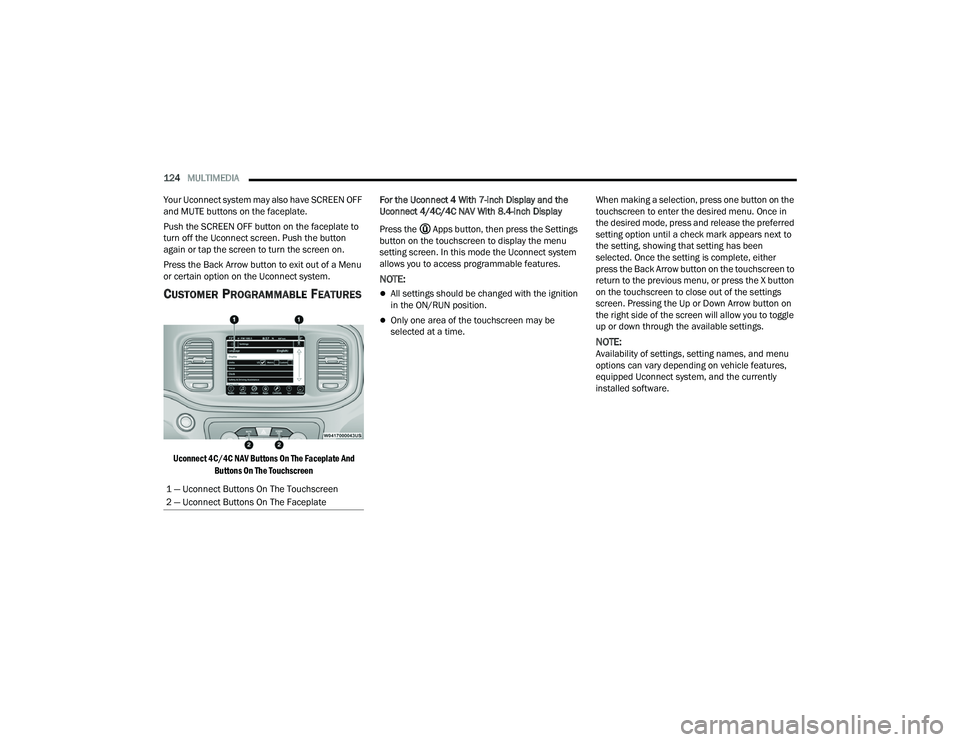
CUSTOMER PROGRAMMABLE FEATURES
Uconnect 4C/4C NAV Buttons On The Faceplate And Buttons On The Touchscreen
For the Uconnect 4 With 7-inch Display and the
Uconnect 4/4C/4C NAV With 8.4-inch Display
Press the Apps button, then press the Settings
button on the touchscreen to display the menu
setting screen. In this mode the Uconnect system
allows you to access programmable features.
NOTE:
All settings should be changed with the ignition
in the ON/RUN position.
Only one area of the touchscreen may be
selected at a time.
When making a selection, press one button on the
touchscreen to enter the desired menu. Once in
the desired mode, press and release the preferred
setting option until a check mark appears next to
the setting, showing that setting has been
selected. Once the setting is complete, either
press the Back Arrow button on the touchscreen to
return to the previous menu, or press the X button
on the touchscreen to close out of the settings
screen. Pressing the Up or Down Arrow button on
the right side of the screen will allow you to toggle
up or down through the available settings.
NOTE:Availability of settings, setting names, and menu
options can vary depending on vehicle features,
equipped Uconnect system, and the currently
installed software.
1 — Uconnect Buttons On The Touchscreen
2 — Uconnect Buttons On The Faceplate
22_LD_OM_EN_USC_t.book Page 124
Page 132 of 312
130MULTIMEDIA
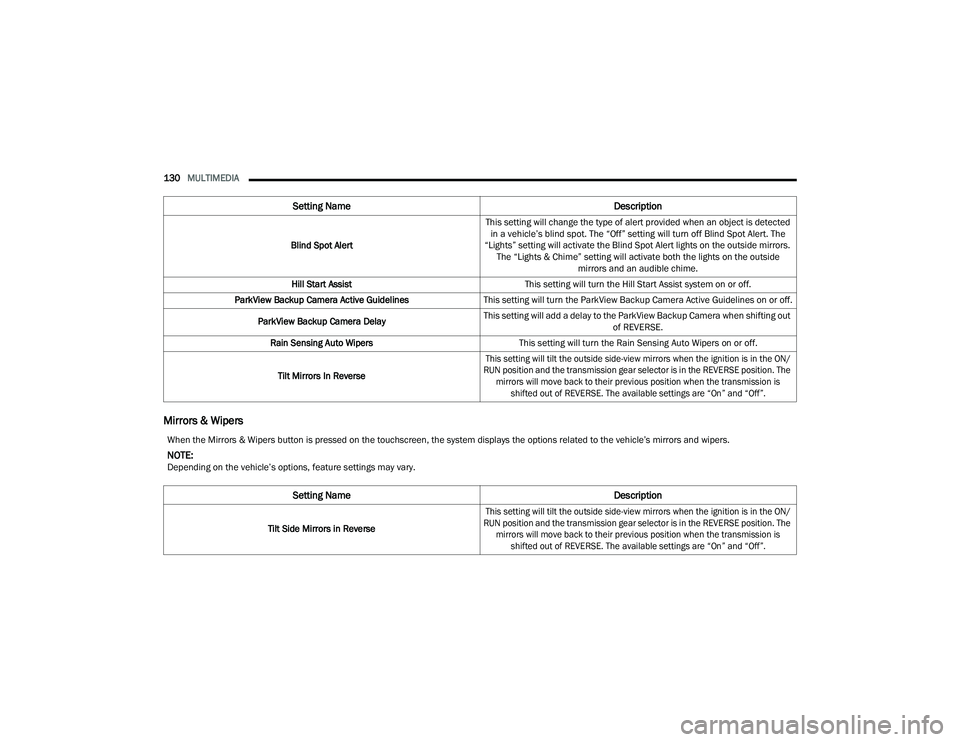
Mirrors & Wipers
Blind Spot Alert This setting will change the type of alert provided when an object is detected
in a vehicle’s blind spot. The “Off” setting will turn off Blind Spot Alert. The
“Lights” setting will activate the Blind Spot Alert lights on the outside mirrors. The “Lights & Chime” setting will activate both the lights on the outside mirrors and an audible chime.
Hill Start Assist This setting will turn the Hill Start Assist system on or off.
ParkView Backup Camera Active Guidelines This setting will turn the ParkView Backup Camera Active Guidelines on or off.
ParkView Backup Camera Delay This setting will add a delay to the ParkView Backup Camera when shifting out
of REVERSE.
Rain Sensing Auto Wipers This setting will turn the Rain Sensing Auto Wipers on or off.
Tilt Mirrors In Reverse
This setting will tilt the outside side-view mirrors when the ignition is in the ON/
RUN position and the transmission gear selector is in the REVERSE position. The mirrors will move back to their previous position when the transmission is shifted out of REVERSE. The available settings are “On” and “Off”.
Setting Name Description
When the Mirrors & Wipers button is pressed on the touchscreen, the system displays the options related to the vehicle’s mirrors and wipers.
NOTE:Depending on the vehicle’s options, feature settings may vary.
Setting NameDescription
Tilt Side Mirrors in Reverse
This setting will tilt the outside side-view mirrors when the ignition is in the ON/
RUN position and the transmission gear selector is in the REVERSE position. The mirrors will move back to their previous position when the transmission is shifted out of REVERSE. The available settings are “On” and “Off”.
22_LD_OM_EN_USC_t.book Page 130
Page 135 of 312
MULTIMEDIA133
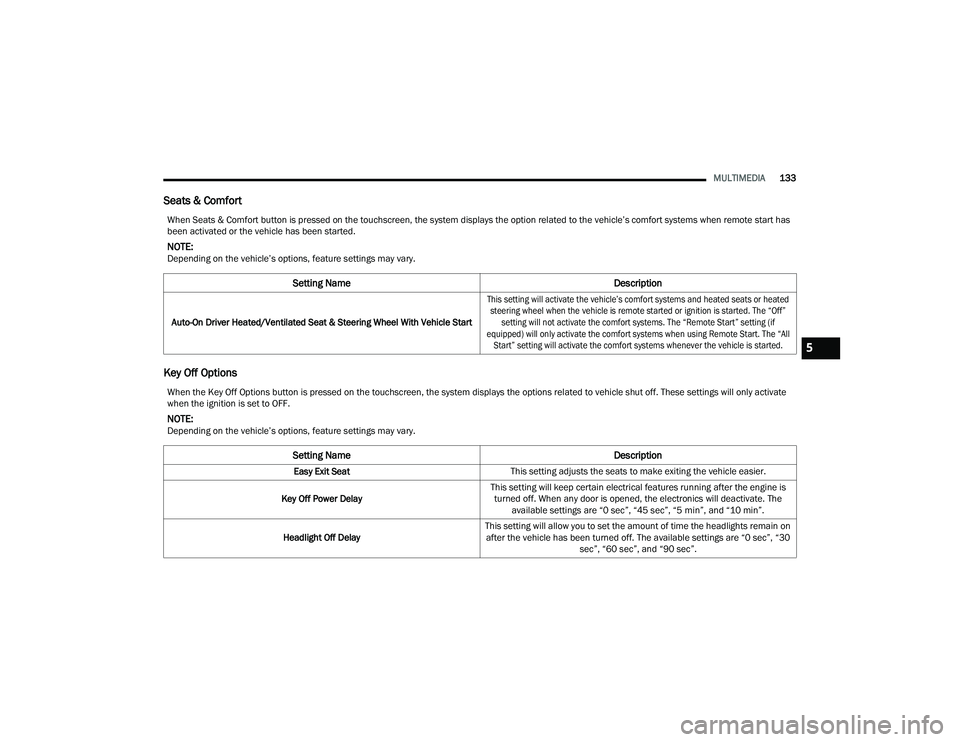
Seats & Comfort
Key Off Options
When Seats & Comfort button is pressed on the touchscreen, the system displays the option related to the vehicle’s comfort systems when remote start has
been activated or the vehicle has been started.
NOTE:Depending on the vehicle’s options, feature settings may vary.
Setting Name Description
Auto-On Driver Heated/Ventilated Seat & Steering Wheel With Vehicle Start
This setting will activate the vehicle’s comfort systems and heated seats or heated
steering wheel when the vehicle is remote started or ignition is started. The “Off” setting will not activate the comfort systems. The “Remote Start” setting (if
equipped) will only activate the comfort systems when using Remote Start. The “All Start” setting will activate the comfort systems whenever the vehicle is started.
When the Key Off Options button is pressed on the touchscreen, the system displays the options related to vehicle shut off. These settings will only activate
when the ignition is set to OFF.
NOTE:Depending on the vehicle’s options, feature settings may vary.
Setting Name Description
Easy Exit SeatThis setting adjusts the seats to make exiting the vehicle easier.
Key Off Power Delay This setting will keep certain electrical features running after the engine is
turned off. When any door is opened, the electronics will deactivate. The available settings are “0 sec”, “45 sec”, “5 min”, and “10 min”.
Headlight Off Delay This setting will allow you to set the amount of time the headlights remain on
after the vehicle has been turned off. The available settings are “0 sec”, “30 sec”, “60 sec”, and “90 sec”.
5
22_LD_OM_EN_USC_t.book Page 133
Page 153 of 312
MULTIMEDIA151
AUX MODE
Overview
Auxiliary Mode (AUX) is entered by inserting an AUX
device using a cable with a 3.5 mm audio jack into
the AUX port, or by pressing the AUX button on the
left side of the touchscreen, or under the Source
Select button (if equipped).
To insert an Auxiliary device, gently insert the
Auxiliary device cable into the AUX port. If you
insert an Auxiliary device with the ignition and the
radio on, the unit will switch to AUX Mode and
begin to play.
Controlling The Auxiliary Device
The control of the Auxiliary device (e.g., selecting
playlists, play, fast forward, etc.) cannot be
provided by the radio; use the device controls
instead. Adjust the volume with the Volume button,
Volume/Mute rotary knob, or the On/Off rotary
knob, or with the volume of the attached device.
NOTE:The radio unit is acting as the amplifier for audio
output from the Auxiliary device. Therefore, if the
volume control on the Auxiliary device is set too
low, there will be insufficient audio signal for the
radio unit to play the music on the device. Seek Up
/Seek Down
In USB Mode, press the Seek Up button on the
touchscreen for the next selection on the USB
device. Press and release the Seek Down button
on the touchscreen to return to the beginning of
the current selection, or to return to the beginning
of the previous selection if the USB device is within
the first three seconds of the current selection.
In Bluetooth® Mode, press and release the Seek
Up button on the touchscreen for the next
selection on the Bluetooth® device. Press and
release the Seek Down button on the touchscreen
to return to the beginning of the current selection,
or return to the beginning of the previous selection
if the Bluetooth® device is within the first second
of the current selection.
Browse
In USB Mode, press the Browse button on the
touchscreen to display the browse window. In USB
Mode, the left side of the browse window displays
a list of ways you can browse through the contents
of the USB device. If supported by the device, you
can browse by Folder, Artist, Playlist, Album, Song,
etc. Press the desired button on the touchscreen
on the left side of the screen. The center of the
browse window shows items and their
sub-functions, which can be scrolled through by
pressing the Up and Down buttons to the right. The
TUNE/SCROLL knob can also be used to scroll. Media Mode
In USB Mode, press the Media button on the
touchscreen to select the desired audio source:
USB.
In Bluetooth® Mode, press the Media button on
the touchscreen to select the desired audio
source: Bluetooth®.
In AUX Mode, press the Media button on the
touchscreen to select the desired audio source:
AUX.
Repeat
In USB Mode, press the Repeat button on the
touchscreen to toggle the repeat functionality. The
Repeat button on the touchscreen is highlighted
when active. The Radio will continue to play the
current track, repeatedly, as long as the repeat is
active. Press the Repeat button again to enter
Repeat All. The radio will continue to play all the
current tracks, repeatedly, as long as the repeat
function is active. To cancel Repeat, press the
Repeat button a third time.
Shuffle
In USB Mode, press the Shuffle button on the
touchscreen to play the selections on the USB
device in random order to provide an interesting
change of pace. Press the Shuffle button on the
touchscreen a second time to turn this feature off.
5
22_LD_OM_EN_USC_t.book Page 151
Page 157 of 312
MULTIMEDIA155
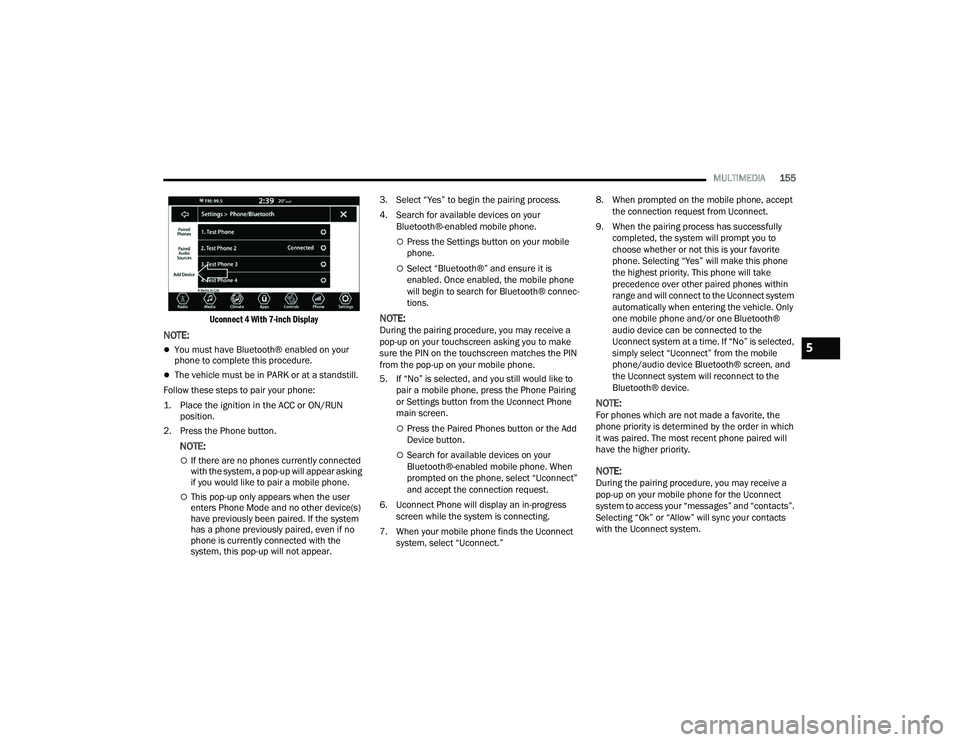
Uconnect 4 With 7-inch Display
NOTE:
You must have Bluetooth® enabled on your
phone to complete this procedure.
The vehicle must be in PARK or at a standstill.
Follow these steps to pair your phone:
1. Place the ignition in the ACC or ON/RUN position.
2. Press the Phone button.
NOTE:
If there are no phones currently connected
with the system, a pop-up will appear asking
if you would like to pair a mobile phone.
This pop-up only appears when the user
enters Phone Mode and no other device(s)
have previously been paired. If the system
has a phone previously paired, even if no
phone is currently connected with the
system, this pop-up will not appear. 3. Select “Yes” to begin the pairing process.
4. Search for available devices on your
Bluetooth®-enabled mobile phone.
Press the Settings button on your mobile
phone.
Select “Bluetooth®” and ensure it is
enabled. Once enabled, the mobile phone
will begin to search for Bluetooth® connec -
tions.
NOTE:During the pairing procedure, you may receive a
pop-up on your touchscreen asking you to make
sure the PIN on the touchscreen matches the PIN
from the pop-up on your mobile phone.
5. If “No” is selected, and you still would like to pair a mobile phone, press the Phone Pairing
or Settings button from the Uconnect Phone
main screen.
Press the Paired Phones button or the Add
Device button.
Search for available devices on your
Bluetooth®-enabled mobile phone. When
prompted on the phone, select “Uconnect”
and accept the connection request.
6. Uconnect Phone will display an in-progress screen while the system is connecting.
7. When your mobile phone finds the Uconnect system, select “Uconnect.” 8. When prompted on the mobile phone, accept
the connection request from Uconnect.
9. When the pairing process has successfully completed, the system will prompt you to
choose whether or not this is your favorite
phone. Selecting “Yes” will make this phone
the highest priority. This phone will take
precedence over other paired phones within
range and will connect to the Uconnect system
automatically when entering the vehicle. Only
one mobile phone and/or one Bluetooth®
audio device can be connected to the
Uconnect system at a time. If “No” is selected,
simply select “Uconnect” from the mobile
phone/audio device Bluetooth® screen, and
the Uconnect system will reconnect to the
Bluetooth® device.
NOTE:For phones which are not made a favorite, the
phone priority is determined by the order in which
it was paired. The most recent phone paired will
have the higher priority.
NOTE:During the pairing procedure, you may receive a
pop-up on your mobile phone for the Uconnect
system to access your “messages” and “contacts”.
Selecting “Ok” or “Allow” will sync your contacts
with the Uconnect system.
5
22_LD_OM_EN_USC_t.book Page 155