pairing phone DODGE CHARGER 2022 Owners Manual
[x] Cancel search | Manufacturer: DODGE, Model Year: 2022, Model line: CHARGER, Model: DODGE CHARGER 2022Pages: 312, PDF Size: 18.99 MB
Page 152 of 312
150MULTIMEDIA
MEDIA MODE
Operating Media Mode
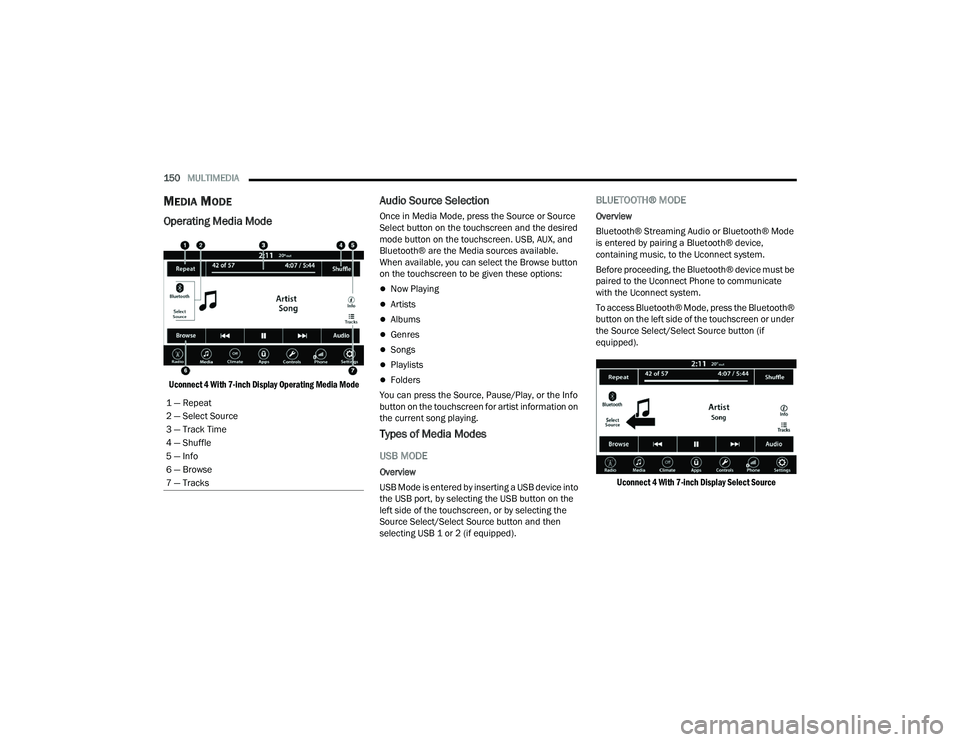
Uconnect 4 With 7-inch Display Operating Media Mode
Audio Source Selection
Once in Media Mode, press the Source or Source
Select button on the touchscreen and the desired
mode button on the touchscreen. USB, AUX, and
Bluetooth® are the Media sources available.
When available, you can select the Browse button
on the touchscreen to be given these options:
Now Playing
Artists
Albums
Genres
Songs
Playlists
Folders
You can press the Source, Pause/Play, or the Info
button on the touchscreen for artist information on
the current song playing.
Types of Media Modes
USB MODE
Overview
USB Mode is entered by inserting a USB device into
the USB port, by selecting the USB button on the
left side of the touchscreen, or by selecting the
Source Select/Select Source button and then
selecting USB 1 or 2 (if equipped).
BLUETOOTH® MODE
Overview
Bluetooth® Streaming Audio or Bluetooth® Mode
is entered by pairing a Bluetooth® device,
containing music, to the Uconnect system.
Before proceeding, the Bluetooth® device must be
paired to the Uconnect Phone to communicate
with the Uconnect system.
To access Bluetooth® Mode, press the Bluetooth®
button on the left side of the touchscreen or under
the Source Select/Select Source button (if
equipped).
Uconnect 4 With 7-inch Display Select Source
1 — Repeat
2 — Select Source
3 — Track Time
4 — Shuffle
5 — Info
6 — Browse
7 — Tracks
22_LD_OM_EN_USC_t.book Page 150
Page 155 of 312
MULTIMEDIA153
Reviewing your recent Incoming SMS
Messages.
Pairing up to 10 phones/audio devices for easy
access to connect to them quickly.
NOTE:Your phone must be capable of SMS messaging via
Bluetooth® for messaging features to work
properly.
Your mobile phone’s audio is transmitted through
your vehicle’s audio system; the system will
automatically mute your radio when using the
Uconnect Phone.
For Uconnect customer support:
US visit UconnectPhone.com or call
877-855-8400
Canada visit UconnectPhone.com or call
800-465-2001 (English) or (French) call
800-387-9983
Uconnect Phone allows you to transfer calls
between the system and your mobile phone as you
enter or exit your vehicle and enables you to mute
the system's microphone for private conversation. The Phone feature is driven through your
Bluetooth® “Hands-Free Profile” mobile phone.
Uconnect features Bluetooth® technology — the
global standard that enables different electronic
devices to connect to each other without wires or a
docking station. Ensure you phone is turned on
with Bluetooth® active and has been paired to the
Uconnect system. Up to 10 mobile phones or audio
devices are allowed to be linked to the system.
Only one linked (or paired) mobile phone and one
audio device can be used with the system at a
time.
Phone Button
The Phone button on your steering wheel
is used to get into the Phone Mode and
make calls, show recent, incoming or
outgoing calls, view phonebook, etc.
When you push the button you will hear a BEEP.
The BEEP is your signal to give a command. Voice Command Button
The Voice Command button on your
steering wheel is only used for “barge in”
and when you are already in a call or
want to make another call.
The button on your steering wheel is also used to
access the Voice Commands for the Uconnect
Voice Command features if your vehicle is
equipped.
Phone Operation
OPERATION
Voice commands can be used to operate the
Uconnect Phone and to navigate its menu
structure. Voice commands are required after
most Uconnect Phone prompts. There are two
general methods for how Voice Command works:
1. Say compound commands like “Call John Smith mobile”.
2. Say the individual commands and allow the system to guide you to complete the task.
You will be prompted for a specific command and
then guided through the available options.
Prior to giving a voice command, one must wait
for the beep, which follows the “Listen” prompt
or another prompt.
WARNING!
ALWAYS drive safely with your hands on the
steering wheel. You have full responsibility and
assume all risks related to the use of the
Uconnect features and applications in this
vehicle. Only use Uconnect when it is safe to do
so. Failure to do so may result in an accident
involving serious injury or death.
5
22_LD_OM_EN_USC_t.book Page 153
Page 156 of 312
154MULTIMEDIA
For certain operations, compound commands
can be used. For example, instead of saying
“Call” and then “John Smith” and then “mobile”,
the following compound command can be said:
“Call John Smith mobile.”
For each feature explanation in this section,
only the compound command form of the voice
command is given. You can also break the
commands into parts and say each part of the
command when you are asked for it. For
example, you can use the compound command
form voice command “Search for John Smith,”
or you can break the compound command form
into two voice commands: “Search Contacts”
and when asked, “John Smith.” Please
remember, the Uconnect Phone works best
when you talk in a normal conversational tone,
as if speaking to someone sitting a few feet/
meters away from you.
NATURAL SPEECH
Your Uconnect Phone Voice system uses a Natural
Language Voice Recognition (VR) engine.
Natural speech allows the user to speak
commands in phrases or complete sentences. The
system filters out certain non-word utterances and
sounds such as “ah” and “eh.” The system handles
fill-in words such as “I would like to”. The system handles multiple inputs in the same
phrase or sentence such as “make a phone call”
and “to Kelly Smith”. For multiple inputs in the
same phrase or sentence, the system identifies
the topic or context and provides the associated
follow-up prompt such as “Who do you want to
call?” in the case where a phone call was
requested but the specific name was not
recognized.
The system utilizes continuous dialog. When the
system requires more information from the user, it
will ask a question to which the user can respond
without pushing the Voice Command button on the
steering wheel.
HELP COMMAND
If you need assistance at any prompt, or if you want
to know your options at any prompt, say “Help”
following the beep.
To activate the Uconnect Phone from idle, simply
push the Phone button (if active) on your steering
wheel and say a command or say “Help”. All Phone
sessions begin with a push of the VR button or the
Phone button.
CANCEL COMMAND
At any prompt, after the beep, you can say “Cancel”
and you will be returned to the main menu.
You can also push the VR button or Phone button
on your steering wheel when the system is listening
for a command and be returned to the main or
previous menu.
PAIR (LINK) UCONNECT PHONE TO A MOBILE
PHONE
Use this QR code to access your
digital experience.
To begin using your Uconnect
Phone, you must pair your
compatible Bluetooth®-enabled
mobile phone. Mobile phone
pairing is the process of
establishing a wireless connection between a
cellular phone and the Uconnect system.
To complete the pairing process, you will need to
reference your mobile phone’s manual. Please
visit
UconnectPhone.com for complete mobile
phone compatibility information.
22_LD_OM_EN_USC_t.book Page 154
Page 157 of 312
MULTIMEDIA155
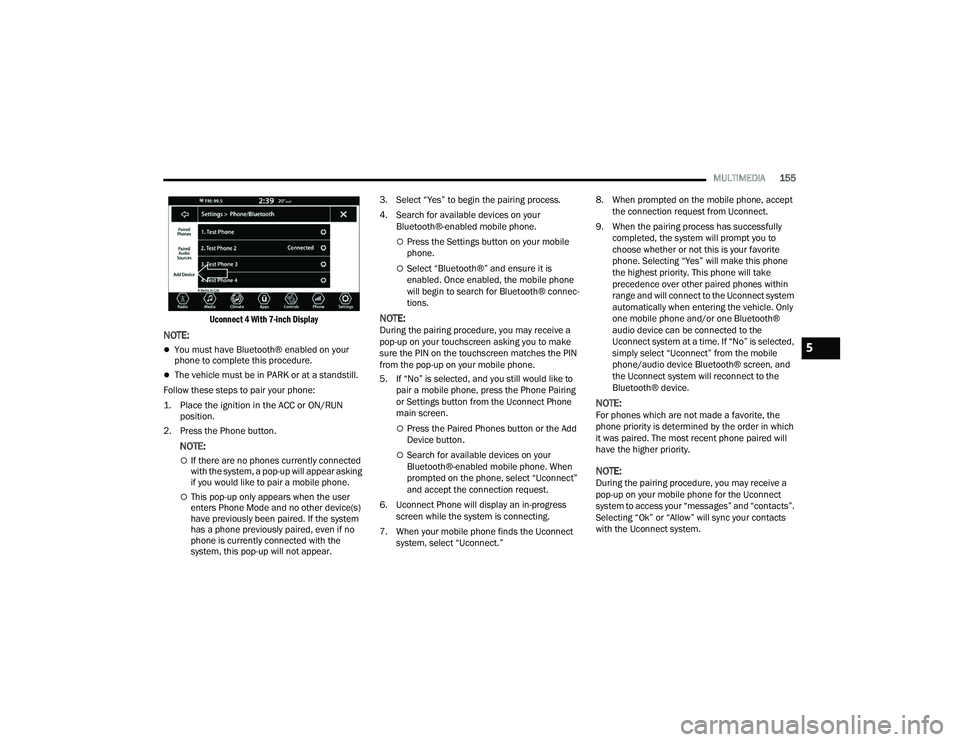
Uconnect 4 With 7-inch Display
NOTE:
You must have Bluetooth® enabled on your
phone to complete this procedure.
The vehicle must be in PARK or at a standstill.
Follow these steps to pair your phone:
1. Place the ignition in the ACC or ON/RUN position.
2. Press the Phone button.
NOTE:
If there are no phones currently connected
with the system, a pop-up will appear asking
if you would like to pair a mobile phone.
This pop-up only appears when the user
enters Phone Mode and no other device(s)
have previously been paired. If the system
has a phone previously paired, even if no
phone is currently connected with the
system, this pop-up will not appear. 3. Select “Yes” to begin the pairing process.
4. Search for available devices on your
Bluetooth®-enabled mobile phone.
Press the Settings button on your mobile
phone.
Select “Bluetooth®” and ensure it is
enabled. Once enabled, the mobile phone
will begin to search for Bluetooth® connec -
tions.
NOTE:During the pairing procedure, you may receive a
pop-up on your touchscreen asking you to make
sure the PIN on the touchscreen matches the PIN
from the pop-up on your mobile phone.
5. If “No” is selected, and you still would like to pair a mobile phone, press the Phone Pairing
or Settings button from the Uconnect Phone
main screen.
Press the Paired Phones button or the Add
Device button.
Search for available devices on your
Bluetooth®-enabled mobile phone. When
prompted on the phone, select “Uconnect”
and accept the connection request.
6. Uconnect Phone will display an in-progress screen while the system is connecting.
7. When your mobile phone finds the Uconnect system, select “Uconnect.” 8. When prompted on the mobile phone, accept
the connection request from Uconnect.
9. When the pairing process has successfully completed, the system will prompt you to
choose whether or not this is your favorite
phone. Selecting “Yes” will make this phone
the highest priority. This phone will take
precedence over other paired phones within
range and will connect to the Uconnect system
automatically when entering the vehicle. Only
one mobile phone and/or one Bluetooth®
audio device can be connected to the
Uconnect system at a time. If “No” is selected,
simply select “Uconnect” from the mobile
phone/audio device Bluetooth® screen, and
the Uconnect system will reconnect to the
Bluetooth® device.
NOTE:For phones which are not made a favorite, the
phone priority is determined by the order in which
it was paired. The most recent phone paired will
have the higher priority.
NOTE:During the pairing procedure, you may receive a
pop-up on your mobile phone for the Uconnect
system to access your “messages” and “contacts”.
Selecting “Ok” or “Allow” will sync your contacts
with the Uconnect system.
5
22_LD_OM_EN_USC_t.book Page 155
Page 158 of 312
156MULTIMEDIA
You can also use the following VR command to
bring up the Paired Phone screen from any screen
on the radio:
“Show Paired Phones”
NOTE:Software updates on your phone or the Uconnect
system may interfere with the Bluetooth®
connection. If this happens, simply repeat the
pairing process. However, first make sure to delete
the device from the list of phones on your
Uconnect system. Next, be sure to remove
Uconnect from the list of devices in your phone’s
Bluetooth® settings.
PAIR A BLUETOOTH® STREAMING AUDIO
DEVICE
1. Press the Media button on the touchscreen to begin.
2. Change the source to “Bluetooth®”.
3. Press the Bluetooth® button on the touchscreen to display the Paired Audio
Devices screen.
4. Press the Add Device button on the touchscreen.
NOTE:If there is no device currently connected with the
system, a pop-up will appear. 5. Search for available devices on your
Bluetooth®-enabled audio device. When
prompted on the device, confirm the PIN
shown on the Uconnect screen.
6. Uconnect Phone will display an in-process screen while the system is connecting.
7. When the pairing process has successfully completed, the system will prompt you to
choose whether or not this is your favorite
device. Selecting “Yes” will make this device
the highest priority. This device will take
precedence over other paired devices within
range.
NOTE:For devices which are not made a favorite, the
device priority is determined by the order in which
it was paired. The most recent device paired will
have the higher priority.
You can also use a following VR command to bring
up a list of paired audio devices:
“Show Paired Phones”
CONNECTING TO A PARTICULAR MOBILE
PHONE OR AUDIO DEVICE AFTER PAIRING
Uconnect Phone will automatically connect to the
highest priority paired phone and/or Audio Device
within range. If you need to choose a particular
phone or audio device follow these steps:
1. Press the
Settings
button on the touchscreen.
2. Press the Paired Phones or Audio Sources button.
3. Press to select the particular phone or the particular audio device. A pop-up menu will
appear; press “Connect Phone”.
4. Press the X to exit out of the Settings screen.
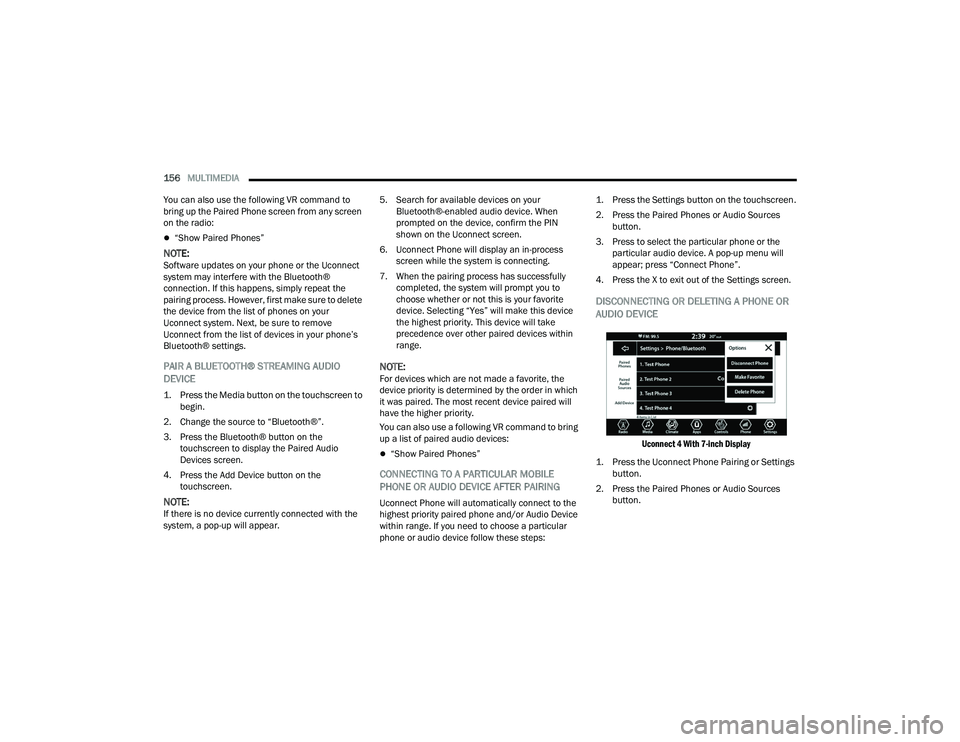
DISCONNECTING OR DELETING A PHONE OR
AUDIO DEVICE
Uconnect 4 With 7-inch Display
1. Press the Uconnect Phone Pairing or Settings button.
2. Press the Paired Phones or Audio Sources button.
22_LD_OM_EN_USC_t.book Page 156
Page 163 of 312
MULTIMEDIA161
Even though the system is designed for many
languages and accents, the system may not always
work for some.
NOTE:It is recommended that you do not store names in
your Favorites phonebook while the vehicle is in
motion.
Number and name recognition rate is optimized
when the entries are not similar. You can say “O”
(letter “O”) for “0” (zero).
Even though international dialing for most number
combinations is supported, some shortcut dialing
number combinations may not be supported.
Audio Performance
Audio quality is maximized under:
Low-To-Medium Blower Setting
Low-To-Medium Vehicle Speed
Low Road Noise
Smooth Road Surface
Fully Closed Windows
Dry Weather Conditions
Operation From The Driver's Seat
Performance such as audio clarity, echo, and
loudness to a large degree rely on the phone and
network, and not the Uconnect Phone.
Echo at the far end can sometimes be reduced by
lowering the in-vehicle audio volume.
Phone Voice Commands
Making and answering hands-free phone calls is
easy with Uconnect. When the Phonebook button
is illuminated on your touchscreen, your system is
ready. Check
UconnectPhone.com for mobile
phone compatibility and pairing instructions.
Push the Phone button and wait for the beep to
say a command. Here are some examples:
“ Call John Smith”
“Dial 123 456 7890”
“Redial ” (call previous outgoing phone number)
“Call back ” (call previously answered incoming
phone number)
Did You Know: When providing a Voice Command,
push the Phone button and say “ Call”, then
pronounce the name exactly as it appears in your
phonebook. When a contact has multiple phone
numbers, you can say “ Call John Smith work ”.Voice Text Reply — If Equipped
Uconnect can announce
incoming text messages.
Push the VR button or Phone button and
say:
1. “
Listen
” to have the system read an incoming
text message. (Must have compatible mobile
phone paired to Uconnect system.)
2. “ Reply ” after an incoming text message has
been read.
Listen to the Uconnect prompts. After the
beep, repeat one of the predefined messages
and follow the system prompts.
WARNING!
ALWAYS drive safely with your hands on the wheel.
You have full responsibility and assume all risks
related to the use of the Uconnect features and
applications in this vehicle. Only use Uconnect
when it is safe to do so. Failure to do so may result
in an accident involving serious injury or death.
PRE-DEFINED VOICE TEXT REPLY
RESPONSES
Yes. Stuck in
traffic. See you later.
No. Start without
me. I’ll be late.
Okay. Where are
you? I will be 5
25, 30, 45,
60> minutes late.
Call me.
Are you there
yet?
5
22_LD_OM_EN_USC_t.book Page 161
Page 169 of 312
MULTIMEDIA167
ANDROID AUTO™ AND APPLE
C
ARPLAY® TIPS AND TRICKS
Android Auto™ And Apple CarPlay® Automatic
Bluetooth® Pairing
After connecting to Android Auto™ or Apple
CarPlay® for the first time and undergoing the
setup procedure, the smartphone pairs to the
Uconnect system via Bluetooth® without any setup
required every time it is within range, if Bluetooth®
is turned on.
NOTE:Apple CarPlay® uses a USB connection while
Android Auto™ uses both USB and Bluetooth®
connections to function. The connected device is
unavailable to other devices when connected
using Android Auto™ or Apple CarPlay®.
Multiple Devices Connecting To The Uconnect
System — If Equipped
It is possible to have multiple devices connected to
the Uconnect system. For example, if using Android
Auto™/Apple CarPlay®, the connected device will
be used to place hands-free phone calls or send
hands-free text messages. However, another
device can also be paired to the Uconnect system,
via Bluetooth®, as an audio source, so the
passenger can stream music.
NOTE:Apple CarPlay® and Android Auto™ can only be
launched from the front and center console USB
ports.
RADIO OPERATION AND MOBILE PHONES
Under certain conditions, the mobile phone being
on in your vehicle can cause erratic or noisy
performance from your radio. This condition may
be lessened or eliminated by repositioning the
mobile phone within the vehicle. This condition is
not harmful to the radio. If your radio performance
does not satisfactorily improve from repositioning
the mobile phone, it is recommended that the
volume be turned down or off during mobile phone
operation when not using the Uconnect system.
REGULATORY AND SAFETY
I
NFORMATION
US/CANADA
Exposure to Radio Frequency Radiation
The radiated output power of the internal wireless
radio is far below the FCC and IC radio frequency
exposure limits. Nevertheless, the wireless radio
will be used in such a manner that the radio is 8 in
(20 cm) or further from the human body. The internal wireless radio operates within
guidelines found in radio frequency safety
standards and recommendations, which reflect
the consensus of the scientific community.
The radio manufacturer believes the internal
wireless radio is safe for use by consumers. The
level of energy emitted is far less than the
electromagnetic energy emitted by wireless
devices such as mobile phones. However, the use
of wireless radios may be restricted in some
situations or environments, such as aboard
airplanes. If you are unsure of restrictions, you are
encouraged to ask for authorization before turning
on the wireless radio Ú
page 296.
5
22_LD_OM_EN_USC_t.book Page 167
Page 300 of 312
298 AWD Towing
....................................................... 233Axle Fluid....................................................... 292Axle Lubrication............................................. 292
B
Back-Up......................................................... 112Battery.................................................... 76, 241Charging System Light................................. 76Keyless Key Fob Replacement.................... 14Location.................................................... 241Battery Saver Feature...................................... 47Belts, Seat..................................................... 210BluetoothConnecting To A Particular Mobile Phone Or Audio Device After Pairing
..................... 156Body Mechanism Lubrication........................ 245B-Pillar Location............................................. 270Brake Assist System...................................... 169Brake Control System.................................... 169Brake Fluid.......................................... 251, 292Brake System...................................... 251, 286Fluid Check..................................... 251, 292Master Cylinder......................................... 251Parking........................................................ 88Warning Light..................................... 76, 286
Brake/Transmission Interlock......................... 90Break-In Recommendations, New Vehicle....... 87Brightness, Interior Lights................................ 49Bulb Replacement........................................ 261Bulbs, Light.......................................... 211, 261
C
Camera, Rear................................................ 112Capacities, Fluid........................................... 290Caps, FillerOil (Engine)............................................... 238Radiator (Coolant Pressure)..................... 249Car Washes................................................... 283Carbon Monoxide Warning................... 211, 212CargoVehicle Loading........................................ 114CD................................................................. 150Certification Label......................................... 114Chains, Tire................................................... 280Chart, Tire Sizing........................................... 266Check Engine Light
(Malfunction Indicator Light)............................ 83Checking Your Vehicle For Safety................. 209Checks, Safety.............................................. 209Child Restraint.............................................. 198
Child RestraintsBooster Seats........................................... 200Child Seat Installation............................... 207How To Stow An unused ALR Seat Belt..... 205Infant And Child Restraints....................... 199Lower Anchors And Tethers For Children.. 202Older Children And Child Restraints.......... 200Seating Positions...................................... 201Child Safety Locks............................................26Clean Air Gasoline......................................... 288CleaningWheels...................................................... 279Climate Control................................................51Automatic....................................................51Manual........................................................53Coin Holder......................................................58Cold Weather Operation...................................87Compact Spare Tire...................................... 277ConsoleFloor............................................................58Contract, Service........................................... 294Controls........................................................ 142Cooling Pressure Cap (Radiator Cap)............ 249
22_LD_OM_EN_USC_t.book Page 298
Page 308 of 312
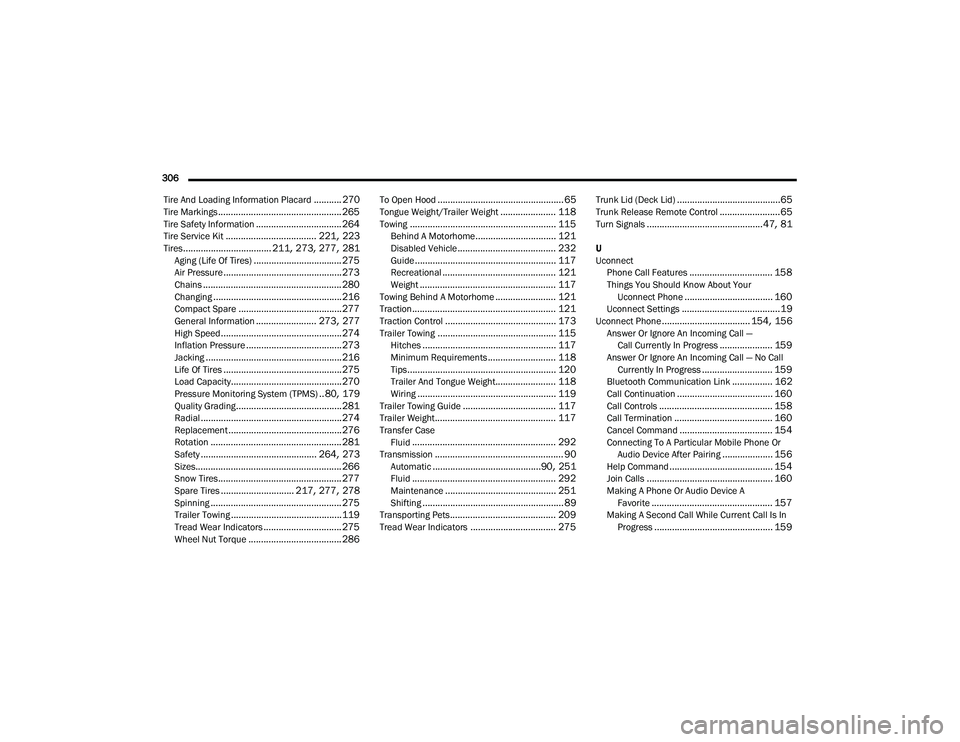
306 Tire And Loading Information Placard
........... 270Tire Markings................................................. 265Tire Safety Information.................................. 264Tire Service Kit.................................... 221, 223Tires................................... 211, 273, 277, 281Aging (Life Of Tires)................................... 275Air Pressure............................................... 273Chains....................................................... 280Changing................................................... 216Compact Spare......................................... 277General Information........................ 273, 277High Speed................................................ 274Inflation Pressure...................................... 273Jacking...................................................... 216Life Of Tires............................................... 275Load Capacity............................................ 270Pressure Monitoring System (TPMS).. 80, 179Quality Grading.......................................... 281Radial........................................................ 274Replacement............................................. 276Rotation.................................................... 281Safety.............................................. 264, 273Sizes.......................................................... 266Snow Tires................................................. 277Spare Tires............................. 217, 277, 278Spinning.................................................... 275Trailer Towing............................................ 119Tread Wear Indicators............................... 275Wheel Nut Torque..................................... 286
To Open Hood.................................................. 65Tongue Weight/Trailer Weight...................... 118Towing.......................................................... 115Behind A Motorhome................................ 121Disabled Vehicle....................................... 232Guide........................................................ 117Recreational............................................. 121Weight...................................................... 117Towing Behind A Motorhome........................ 121Traction......................................................... 121Traction Control............................................ 173Trailer Towing............................................... 115Hitches..................................................... 117Minimum Requirements........................... 118Tips........................................................... 120Trailer And Tongue Weight........................ 118Wiring....................................................... 119Trailer Towing Guide..................................... 117Trailer Weight................................................ 117Transfer Case Fluid......................................................... 292Transmission................................................... 90Automatic...........................................90, 251Fluid......................................................... 292Maintenance............................................ 251Shifting........................................................ 89Transporting Pets.......................................... 209Tread Wear Indicators.................................. 275
Trunk Lid (Deck Lid).........................................65Trunk Release Remote Control........................65Turn Signals..............................................47, 81
U
UconnectPhone Call Features
................................. 158Things You Should Know About Your Uconnect Phone................................... 160Uconnect Settings.......................................19Uconnect Phone................................... 154, 156Answer Or Ignore An Incoming Call — Call Currently In Progress..................... 159Answer Or Ignore An Incoming Call — No Call Currently In Progress............................ 159Bluetooth Communication Link................ 162Call Continuation...................................... 160Call Controls............................................. 158Call Termination....................................... 160Cancel Command..................................... 154Connecting To A Particular Mobile Phone Or Audio Device After Pairing.................... 156Help Command......................................... 154Join Calls.................................................. 160Making A Phone Or Audio Device A Favorite................................................ 157Making A Second Call While Current Call Is In Progress............................................... 159
22_LD_OM_EN_USC_t.book Page 306