change time DODGE CHARGER SRT 2007 6.G User Guide
[x] Cancel search | Manufacturer: DODGE, Model Year: 2007, Model line: CHARGER SRT, Model: DODGE CHARGER SRT 2007 6.GPages: 350, PDF Size: 5.51 MB
Page 155 of 350

Seek Button
Press the SEEK button up for the next selection on the
tape and down to return to the beginning of the current
selection.
Press the SEEK button up or down to move the track
number to skip forward or backward 1 to 6 selections.
Press the SEEK button once to move 1 selection, twice to
move 2 selections, etc.
Fast Forward (FF)
Press the FF button up momentarily to advance the tape
in the direction that it is playing. The tape will advance
until the button is pressed again or the end of the tape is
reached. At the end of the tape, the tape will play in the
opposite direction.
Rewind (RW)
Press the RW button momentarily to reverse the tape
direction. The tape will reverse until the button is pressed
again or until the end of the tape is reached. At the end of
the tape, the tape will play in the opposite direction.
Tape Eject
Press this button and the cassette will disen-
gage and eject from the radio.
Scan Button
Press this button to play 10 seconds of each selection.
Press the scan button a second time to cancel the feature.
Changing Tape Direction
If you wish to change the direction of tape travel (side
being played), press Preset 6. The lighted arrow in the
display window will show the new direction.
Metal Tape Selection
If a standard metal tape is inserted into the player, the
player will automatically select the correct equalization.
Pinch Roller Release
If ignition power or the radio ON/OFF switch is turned
off, the pinch roller will automatically retract to protect
the tape from any damage. When power is restored to the
tape player, the pinch roller will automatically reengage
and the tape will resume play.
UNDERSTANDING YOUR INSTRUMENT PANEL 155
4
Page 157 of 350
SCAN Button (CD MODE for CD Audio Play)
Press the Scan button to scan through each track on the
CD currently playing.
LOAD/EJECT Button (CD Mode for CD Audio
Play)
LOAD/EJECT - Load
Press the LOAD/EJT button and the push-
button with the corresponding number where
the CD is being loaded. The radio will display
PLEASE WAIT and prompt when to INSERT
DISC. After the radio displays9INSERT DISC,9insert the
CD into the player.
Radio display will show9LOADING DISC9when the disc
is loading and ªREADING DISCº when the radio is
reading the disc.
LOAD/EJT - Eject
Press the LOAD/EJT button and the push-
button with the corresponding number where
the CD was loaded and the disc will unload
and move to the entrance for easy removal.Radio display will show9EJECTING DISC9when the disc
is being ejected and prompt the user to remove the disc.
Press and hold the LOAD/EJT button for 5 seconds and
all CDs will be ejected from the radio.
If you have ejected a disc and have not removed it within
15 seconds, it will be reloaded. If the CD is not removed,
the radio will continue to play the non-removed CD. If
the CD is removed and there are other CD's in the radio,
the radio will play the next CD after a 2-minute timeout.
If the CD is removed and there are no other CD's in the
radio, the radio will remain in CD mode and display
9INSERT DISCº for 2 minutes. After 2 minutes, the radio
will go to the previous tuner mode.
The disc can be ejected with the radio and ignition OFF.
TIME Button (CD MODE for CD Audio Play)
Press this button to change the display from a large CD
playing time display to a small CD playing time display.
UNDERSTANDING YOUR INSTRUMENT PANEL 157
4
Page 158 of 350

RW/FF (CD MODE for CD Audio Play)
Press and hold FF (Fast Forward) and the CD player will
begin to fast forward until FF is released or RW or
another CD button is pressed. The RW (Reverse) button
works in a similar manner.
TUNE Control (CD MODE for CD Audio Play)
Pressing the TUNE control allows the setting of the Tone,
Fade, and Balance. See Radio Mode.
AM/FM Button (CD MODE for CD Audio Play)
Switches the Radio to the Radio mode.
RND/PTY Button (Random Play Button) (CD
MODE for CD Audio Play)
Press this button while the CD is playing to activate
Random Play. This feature plays the selections on the
compact disc in random order to provide an interesting
change of pace.
NOTE:MP3 and WMA Random Play are for file folders
only.
Press the SEEK button to move to the next randomly
selected track.Press and hold the FF button to fast forward through the
tracks. Release the FF button to stop the fast forward
feature. If the RW button is pressed, the current track will
reverse to the beginning of the track and begin playing.
Press the RND button a second time to stop Random
Play.
Buttons1-6(CDMODE for CD Audio Play)
Selects disc positions1-6forPlay/Load/Eject.
Notes On Playing MP3 Files
The radio can play MP3 files; however, acceptable MP3
file recording media and formats are limited. When
writing MP3 files, pay attention to the following restric-
tions.
Supported Media (Disc Types)
The MP3 file recording media supported by the radio are
CD-ROM, CD-R, and CD-RW.
Supported Medium Formats (File Systems)
The medium formats supported by the radio are ISO 9660
Level 1 and Level 2 and includes the Joliet extension.
When reading discs recorded using formats other than
ISO 9660 Level 1 and Level 2, the radio may fail to read
158 UNDERSTANDING YOUR INSTRUMENT PANEL
Page 164 of 350

5. Select DONE to exit from the clock setting mode. Press
ENTER to save your changes. If you press CANCEL or
NAV then your changes will not be saved.
User Defined Clock
If you wish to set the clock to a time different than the
system clock, you can manually adjust the time by
choosing the ªUser Defined Clockº option.
1. At theClock Setupscreen highlight ªDisplayed
Clock: User Defined Clockº.2. To increase the clock by hours, make sure ªHR +º is
highlighted and press ENTER. Press ENTER again to
increase the clock by another hour. You will see on the
ªUser Defined Timeº display the number of hours you
have increased the clock by.
3. To decrease the clock by one hour, use the Select
Encoder to highlight the ª-º sign. Press ENTER. Press
ENTER again to decrease the clock by another hour.
4. To increase the clock by minutes, make sure ªMIN +º
is highlighted and press ENTER. Press ENTER again to
increase the clock by another minute.
5. To decrease the clock by minutes, use the Select
Encoder to highlight the ª-ª sign. Press ENTER. Press
ENTER again to decrease the clock by another minute.
6. Select ªDONEº to exit from the clock setting mode.
Press ENTER to save your changes. If you press CAN-
CEL or NAV then your changes will not be saved.
164 UNDERSTANDING YOUR INSTRUMENT PANEL
Page 165 of 350
Audio Clock Display
Select this option to change the size of the clock on the
audio screens.
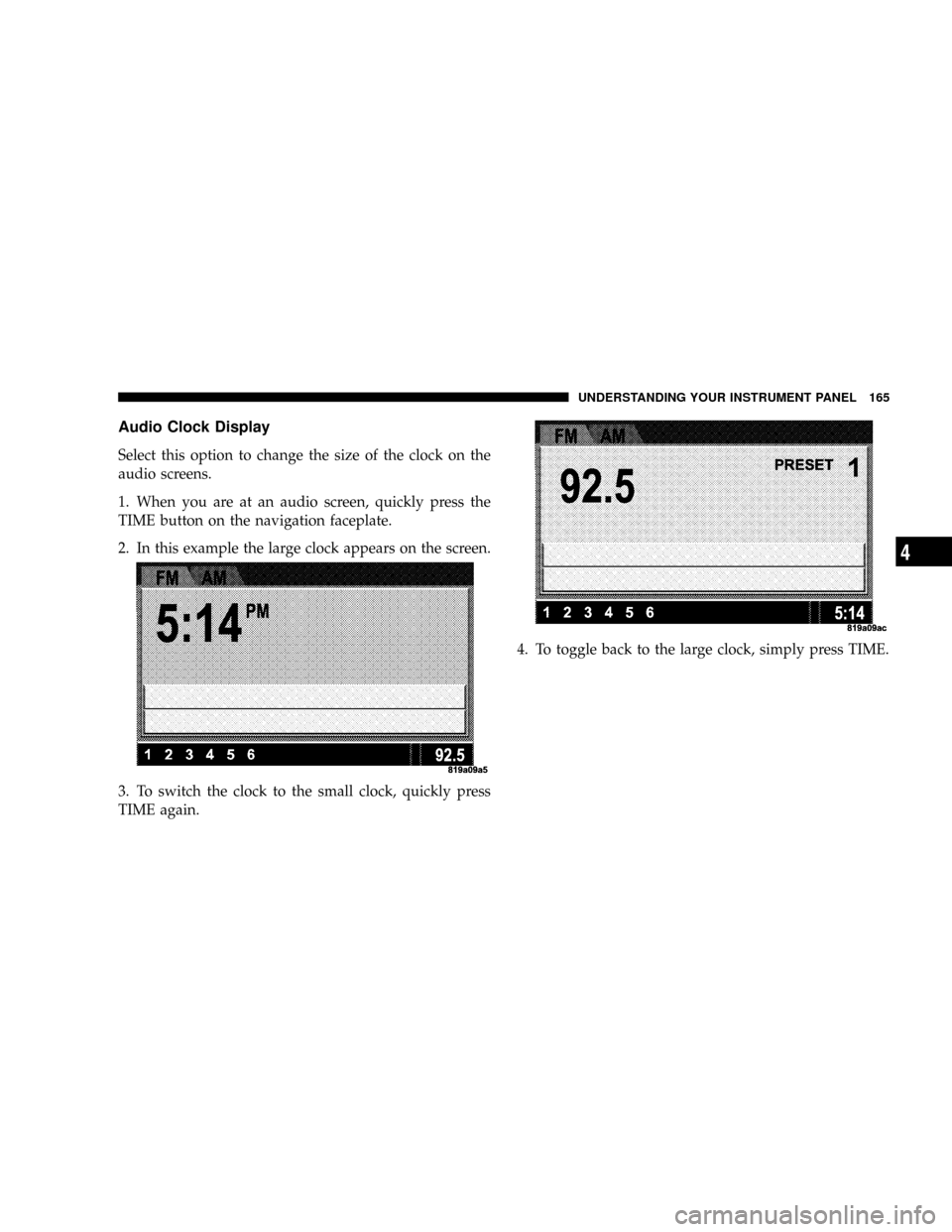
1. When you are at an audio screen, quickly press the
TIME button on the navigation faceplate.
2. In this example the large clock appears on the screen.
3. To switch the clock to the small clock, quickly press
TIME again.4. To toggle back to the large clock, simply press TIME.
UNDERSTANDING YOUR INSTRUMENT PANEL 165
4
Page 169 of 350
Selecting Satellite Mode in REF, RAQ, and RAK
Radios
Selecting Satellite Mode Ð REF Radio
Press the MODE button repeatedly until the word9SAT9
appears in the display.
A CD may remain in the radio while in the Satellite radio
mode.
Selecting Satellite Mode Ð RAQ and RAK Radio
Press the MODE button repeatedly until the word9SAT9
appears in the display.
These radios will also display the current station name
and program type. For more information, such as song
title and artist press the MSG or INFO button.
A CD or tape may remain in the radio while in the
Satellite radio mode.
Selecting a Channel
Press and release the SEEK or TUNE knob to search for
the next channel. Press the top of the button to search upand the bottom of the button to search down. Holding the
TUNE button causes the radio to bypass channels until
the button is released.
Press and release the SCAN button (if equipped) to
automatically change channels every 7 seconds. The
radio will pause on each channel for 7 seconds before
moving on to the next channel. The word9SCAN9will
appear in the display between each channel change. Press
the SCAN button a second time to stop the search.
NOTE:Channels that may contain objectionable con-
tent can be blocked. Contact Sirius Customer Care at
888-539-7474 to discuss options for channel blocking or
unblocking. Please have your ESN/SID information
available.
Storing and Selecting Pre-Set Channels
In addition to the 12 AM and 12 FM pre-set stations, you
may also commit 12 satellite stations to push button
memory. These satellite channel pre-set stations will not
erase any AM or FM pre-set memory stations. Follow the
memory pre-set procedures that apply to your radio.
UNDERSTANDING YOUR INSTRUMENT PANEL 169
4
Page 170 of 350

Using the PTY (Program Type) Button (if
equipped)
Follow the PTY button instructions that apply to your
radio.
PTY Button(SCAN(
When the desired program type is obtained, press the
9SCAN9button within five seconds. The radio will play 7
seconds of the selected channel before moving to the next
channel of the selected program type. Press the9SCAN9
button a second time to stop the search.
NOTE:Pressing the9SEEK9or9SCAN9button, while
performing a music type scan, will change the channel by
one and stop the search. Pressing a pre-set memory
button during a music type scan, will call up the memory
channel and stop the search.
PTY Button(SEEK(
When the desired program is obtained, press the9SEEK9
button within five seconds. The channel will change to
the next channel that matches the program type selected.
Satellite Antenna
To ensure optimum reception, do not place items on the
roof around the rooftop antenna location. Metal objects
placed within the line of sight of the antenna will cause
decreased performance. Larger luggage items should be
placed as far forward as possible. Do not place items
directly on or above the antenna.
Reception Quality
Satellite reception may be interrupted due to one of the
following reasons.
²The vehicle is parked in an underground parking
structure or under a physical obstacle.
²Dense tree coverage may interrupt reception in the
form of short audio mutes.
²Driving under wide bridges or along tall buildings can
cause intermittent reception.
²Placing objects over or too close to the antenna can
cause signal blockage.
170 UNDERSTANDING YOUR INSTRUMENT PANEL
Page 172 of 350

When the EVIC is in the Compass/Temp/
Audio screen, press the FUNCTION SELECT
button to advance the radio to the next preset
station, to change the side of the tape being
played (if so equipped), or to change the cur-
rent CD track being played (if so equipped).
when the EVIC is in the Compass/Temp/
Audio screen, press the SCROLL button to seek
up and down the radio stations, CD track
numbers (if so equipped), or satellite radio
channels (if so equipped).
The following describes the operation of the SCROLL
button in each mode:
Radio Operation
Press the top of the SCROLL button once to SEEK the
next listenable station up from the current setting. Press
the bottom of the SCROLL button once to SEEK the next
listenable station down from the current setting.
Tape Player Operation
Press the top of the SCROLL button once to listen to the
next track on the cassette. Press the bottom of the
SCROLL button once either to listen to the beginning of
the current track or to listen to the beginning of the
previous track if it is within 5 seconds after the current
track begins to play.
Press either the top or bottom of the SCROLL button
twice to listen to the second track on the tape, three times
to listen to the third track, and so forth.
Press the FUNCTION SELECT button to change the side
of the tape being played.
CD Player Operation
Press the top of the SCROLL button once to listen to the
next track on the CD. Press the bottom of the SCROLL
button once to either listen to the beginning of the current
track or to listen to the beginning of the previous track if
it is within one second after the current track begins to
play.
FUNC-
TION
SELECT
Button
SCROLL
Button
172 UNDERSTANDING YOUR INSTRUMENT PANEL
Page 181 of 350
The operator can override the AUTO mode setting to
change airflow distribution by rotating the Mode Control
knob (on the right) to one of the following positions.
²Defrost
Air is directed to the windshield through the
outlets at the base of the windshield. Air is
also directed to the front door windows through the
side window demister grilles.
²
Defrost/Floor
Air flows through the front and rear floor
outlets and the outlets at the base of the
windshield. Air is also directed to the front
door windows through the side window demister
grilles.
²
Floor
Air flows through the floor outlets located
under the instrument panel and into the rear
seating area through vents under the front seats.²
Bi-Level
Air flows through the outlets located in the
instrument panel and through the outlets lo-
cated on the floor. Air flows through the registers in
the back of the center console to the rear seat
passengers. These registers can be closed to block
airflow.
²
Panel
Air flows through the outlets located in the
instrument panel. Air flows through the regis-
ters in the back of the center console to the rear seat
passengers. These registers can be closed to block
airflow.
²
Air Conditioning Control
Press this button to turn on the air condition-
ing during manual operation only. When the
air conditioning is turned on, cool dehumidi-
fied air will flow through the outlets selected with
the Mode control dial. Press this button a second
time to turn off the air conditioning. An LED in the
button illuminates when manual compressor opera-
tion is selected.
UNDERSTANDING YOUR INSTRUMENT PANEL 181
4
Page 278 of 350
Exhaust System
The best protection against carbon monoxide entry into
the vehicle body is a properly maintained engine exhaust
system.
Whenever a change is noticed in the sound of the exhaust
system, when exhaust fumes can be detected inside the
vehicle, or when the underside or rear of the vehicle is
damaged, have a competent mechanic inspect the com-
plete exhaust system and adjacent body areas for broken,
damaged, deteriorated, or mispositioned parts. Open
seams or loose connections could permit exhaust fumes
to seep into the passenger compartment. In addition,
inspect the exhaust system each time the vehicle is raised
for lubrication or oil change. Replace as required.
WARNING!
Exhaust gases can injure or kill. They contain carbon
monoxide (CO) which is colorless and odorless.
Breathing it can make you unconscious and can
eventually poison you. To avoid breathing CO, refer
to ªExhaust Gasº in the ªSafety Tipsº section of this
manual.
Cooling System
WARNING!
²When working near the radiator cooling fan, dis-
connect the fan motor lead or turn the ignition
switch to the OFF position. The fan is temperature
controlled and can start at any time the ignition
switch is in the ON position.
²You or others can be badly burned by hot coolant
or steam from your radiator. If you see or hear
steam coming from under the hood, don't open
the hood until the radiator has had time to cool.
Never try to open a cooling system pressure cap
when the radiator is hot.
Coolant Checks
Check engine coolant (antifreeze) protection every 12
months (before the onset of freezing weather, where
applicable). If coolant is dirty or rusty in appearance, the
system should be drained, flushed, and refilled with
fresh coolant. Check the front of the radiator for any
278 MAINTAINING YOUR VEHICLE