ad blue DODGE CHARGER SRT 2013 7.G Owner's Guide
[x] Cancel search | Manufacturer: DODGE, Model Year: 2013, Model line: CHARGER SRT, Model: DODGE CHARGER SRT 2013 7.GPages: 599, PDF Size: 4.21 MB
Page 352 of 599
mode. To make your selection, press the Surround Sound
soft-key and select ON or OFF. Then touch the arrow
back soft-key.
Phone / Bluetooth
•Paired Devices
This feature shows which phones are paired to the
Phone/Bluetooth system. For further information, refer
to the Uconnect® Supplement.
SIRIUS Setup
• Channel Skip
SIRIUS can be programmed to designate a group of
channels that are the most desirable to listen to or to
exclude undesirable channels while scanning. To make
your selection, touch the Channel Skip soft-key, select the
channels you would like to skip. Then touch the arrow
back soft-key. •
Subscription Info
New vehicle purchasers or lessees will receive a free
limited time subscription to SIRIUS Satellite Radio with
your radio. Following the expiration of the free services,
it will be necessary to access the information on the
Subscription Information screen in order to re-subscribe.
Touch the Subscription Info soft-key to access the Sub-
scription Information screen.
Write down the SIRIUS ID numbers for your receiver. To
reactivate your service, either call the number listed on
the screen or visit the provider online.
NOTE: SIRIUS Travel Link is a separate subscription.
350 UNDERSTANDING YOUR INSTRUMENT PANEL
Page 353 of 599
Customer Programmable Features —
Uconnect® 8.4 Settings
Press the More soft-key, then press the Settings soft-key
to display the menu setting screen. In this mode the
Uconnect® system allows you to access programmable
features that may be equipped such as Display, Clock,
Safety/Assistance, Lights, Doors & Locks, Auto-On
Comfort & Remote Start, Engine Off Operation, Compass
Settings, Audio, Phone/Bluetooth and SIRIUS Setup.
NOTE:Only one touchscreen area may be selected at a
time.
When making a selection, press the soft-key to enter the
desired mode. Once in the desired mode press and
release the preferred setting until a check-mark appears
next to the setting, showing that setting has been se-
lected. Once the setting is complete press the Back Arrow
soft-key to return to the previous menu or press the X
soft-key to close out of the settings screen. Pressing the
Up or Down Arrow soft-keys on the right side of the
screen will allow you to toggle up or down through the
available settings.
Display
After pressing the Display soft-key the following settings
will be available.
•
Display Mode
When in this display you may select one of the auto
display settings. To change Mode status, touch and
release the Day, Night or Auto soft-key. Then touch the
arrow back soft-key.
4
UNDERSTANDING YOUR INSTRUMENT PANEL 351
Page 366 of 599
•Equalizer
When in this display you may adjust the Bass, Mid and
Treble settings. Adjust the settings with the + and –
setting soft-keys or by selecting any point on the scale
between the + and – soft-keys. Then touch the arrow back
soft-key.
NOTE: Bass/Mid/Treble allow you to simply slide your
finger up or down to change the setting as well as touch
directly on the desired setting.
• Speed Adjusted Volume
This feature increases or decreases volume relative to
vehicle speed. To change the Speed Adjusted Volume
touch the Off, 1, 2 or 3 soft-key. Then touch the arrow
back soft-key. •
Music Info Cleanup
This feature helps organize music files for optimized
music navigation. To make your selection, touch the
Music Info Cleanup soft-key, select On or Off followed by
pressing the arrow back soft-key.
• Surround Sound
This feature provides simulated surround sound mode.
To make your selection, touch the Surround Sound
soft-key, select On or Off followed by pressing the arrow
back soft-key.
Phone/Bluetooth
After pressing the Phone/Bluetooth soft-key the follow-
ing settings will be available.
364 UNDERSTANDING YOUR INSTRUMENT PANEL
Page 367 of 599
•Paired Devices
This feature shows which phones are paired to the
Phone/Bluetooth system. For further information, refer
to the Uconnect® Supplement.
SiriusXM Setup
After pressing the SIRIUS Setup soft-key the following
settings will be available.
• Channel Skip
SiriusXM can be programmed to designate a group of
channels that are the most desirable to listen to or to
exclude undesirable channels while scanning. To make
your selection, touch the Channel Skip soft-key, select the
channels you would like to skip followed by pressing the
arrow back soft-key. •
Subscription Information
New vehicle purchasers or lessees will receive a free
limited time subscription to SiriusXM Satellite Radio with
your radio. Following the expiration of the free services, it
will be necessary to access the information on the Subscrip-
tion Information screen in order to re-subscribe.
Touch the Subscription Info soft-key to access the Sub-
scription Information screen.
Write down the SIRIUS ID numbers for your receiver.
To reactivate your service, either call the number listed on
the screen or visit the provider online.
NOTE: SiriusXM Travel Link is a separate subscription.
4
UNDERSTANDING YOUR INSTRUMENT PANEL 365
Page 382 of 599
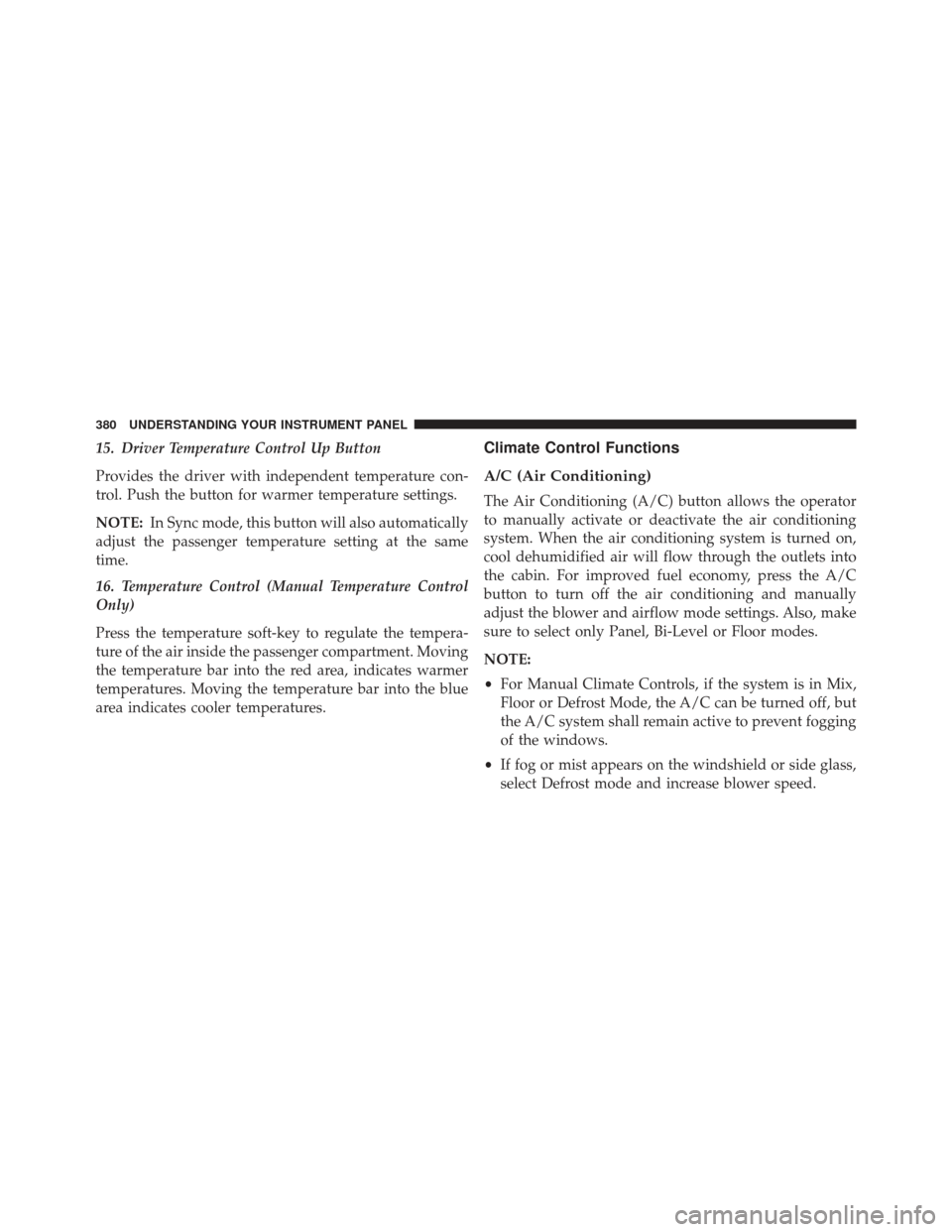
15. Driver Temperature Control Up Button
Provides the driver with independent temperature con-
trol. Push the button for warmer temperature settings.
NOTE:In Sync mode, this button will also automatically
adjust the passenger temperature setting at the same
time.
16. Temperature Control (Manual Temperature Control
Only)
Press the temperature soft-key to regulate the tempera-
ture of the air inside the passenger compartment. Moving
the temperature bar into the red area, indicates warmer
temperatures. Moving the temperature bar into the blue
area indicates cooler temperatures.Climate Control Functions
A/C (Air Conditioning)
The Air Conditioning (A/C) button allows the operator
to manually activate or deactivate the air conditioning
system. When the air conditioning system is turned on,
cool dehumidified air will flow through the outlets into
the cabin. For improved fuel economy, press the A/C
button to turn off the air conditioning and manually
adjust the blower and airflow mode settings. Also, make
sure to select only Panel, Bi-Level or Floor modes.
NOTE:
• For Manual Climate Controls, if the system is in Mix,
Floor or Defrost Mode, the A/C can be turned off, but
the A/C system shall remain active to prevent fogging
of the windows.
• If fog or mist appears on the windshield or side glass,
select Defrost mode and increase blower speed.
380 UNDERSTANDING YOUR INSTRUMENT PANEL
Page 532 of 599
Cavity Car-tridgeFuse Mini-
Fuse Description
28 — 25 Amp NaturalFuel Pump
29 — 15 Amp BlueTransmission
Shifter
30 — — Fuse – Spare
31 — 25 Amp NaturalEngine Module
32 — — Fuse – Spare
33 — — Fuse – Spare
34 — 25 Amp NaturalPowertrain #1
35 — 20 Amp YellowPowertrain #2Cavity Car-
tridgeFuse Mini-
Fuse Description
36 — 10 Amp RedAnti-Lock Brake
Module
37 — 10 Amp RedEngine Controller/
Rad Fan Relays
38 — 10 Amp RedAirbag Module
39 — 10 Amp RedPower Steering
Module/AC Clutch Relay
48 — 10 Amp RedAWD Module/
Front Axle
Disconnect
530 MAINTAINING YOUR VEHICLE
Page 535 of 599
Cavity Car-tridgeFuse Mini-
Fuse Description
9 30 Amp Pink — Power Locks
10 30 Amp Pink — Driver Door
11 30 Amp Pink — Passenger Door
12 — 20 Amp YellowCigar Lighters,
Instrument Panel &
Power Outlet
Console Rear
15 40 Amp Green — HVAC Blower
16 — — Fuse — Spare
17 — — Fuse — SpareCavity Car- tridgeFuse Mini-
Fuse Description
18 — 20 Amp YellowActive Dampening
Module
19 — — Fuse — Spare
20 — — Fuse — Spare
21 — — Fuse — Spare
22 — — Fuse — Spare
23 — 10 Amp RedFuel Door/
Diagnostic Port
24 — 15 Amp BlueRadio Screen
25 — 10 Amp RedTire Pressure Monitor
26 — — Fuse — Spare
7
MAINTAINING YOUR VEHICLE 533
Page 536 of 599
Cavity Car-tridgeFuse Mini-
Fuse Description
27 — 25 Amp NaturalAmplifier
31 — 25 Amp NaturalPower Seats
32 — 15 Amp BlueHVAC Module/
Cluster
33 — 15 Amp BlueIgnition Switch/
Wireless Module
34 — 10 Amp RedSteering Column
Module/Clock
35 — 10 Amp RedBattery Sensor
36 — — Fuse — SpareCavity Car- tridgeFuse Mini-
Fuse Description
37 — 15 Amp BlueRadio
38 — 20 Amp YellowPower Outlet Inside
Arm Rest
40 — — Fuse — Spare
41 — — Fuse — Spare
42 30 Amp Pink — Rear Defrost
43 — 25 Amp NaturalRear Heated Seats/
Steering Wheel
44 — 10 Amp RedPark Assist/Blind
Spot/Camera
45 — 15 Amp BlueCluster/Rearview
Mirror/Compass
534 MAINTAINING YOUR VEHICLE
Page 538 of 599
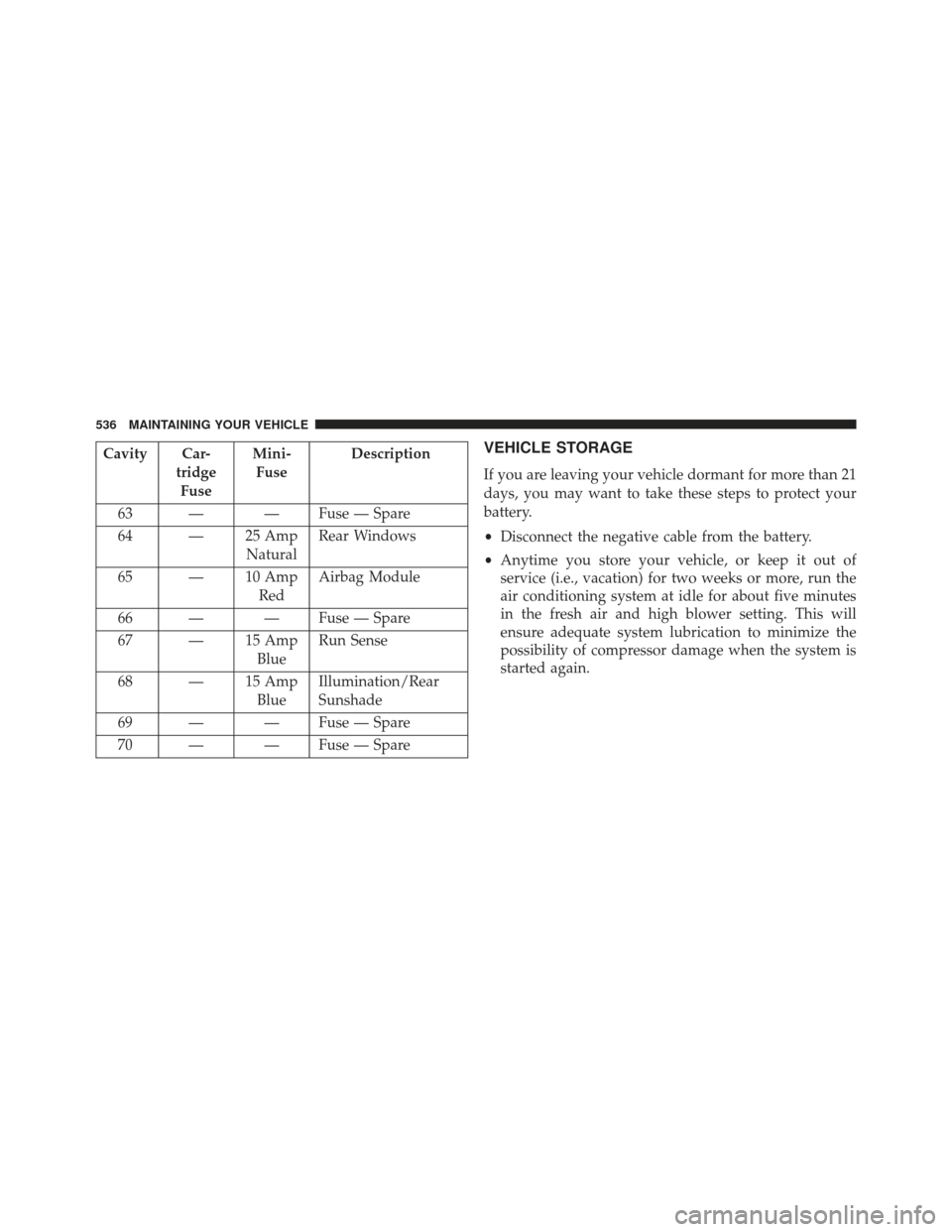
Cavity Car-tridgeFuse Mini-
Fuse Description
63 — — Fuse — Spare
64 — 25 Amp NaturalRear Windows
65 — 10 Amp RedAirbag Module
66 — — Fuse — Spare
67 — 15 Amp BlueRun Sense
68 — 15 Amp BlueIllumination/Rear
Sunshade
69 — — Fuse — Spare
70 — — Fuse — SpareVEHICLE STORAGE
If you are leaving your vehicle dormant for more than 21
days, you may want to take these steps to protect your
battery.
• Disconnect the negative cable from the battery.
• Anytime you store your vehicle, or keep it out of
service (i.e., vacation) for two weeks or more, run the
air conditioning system at idle for about five minutes
in the fresh air and high blower setting. This will
ensure adequate system lubrication to minimize the
possibility of compressor damage when the system is
started again.
536 MAINTAINING YOUR VEHICLE
Page 542 of 599
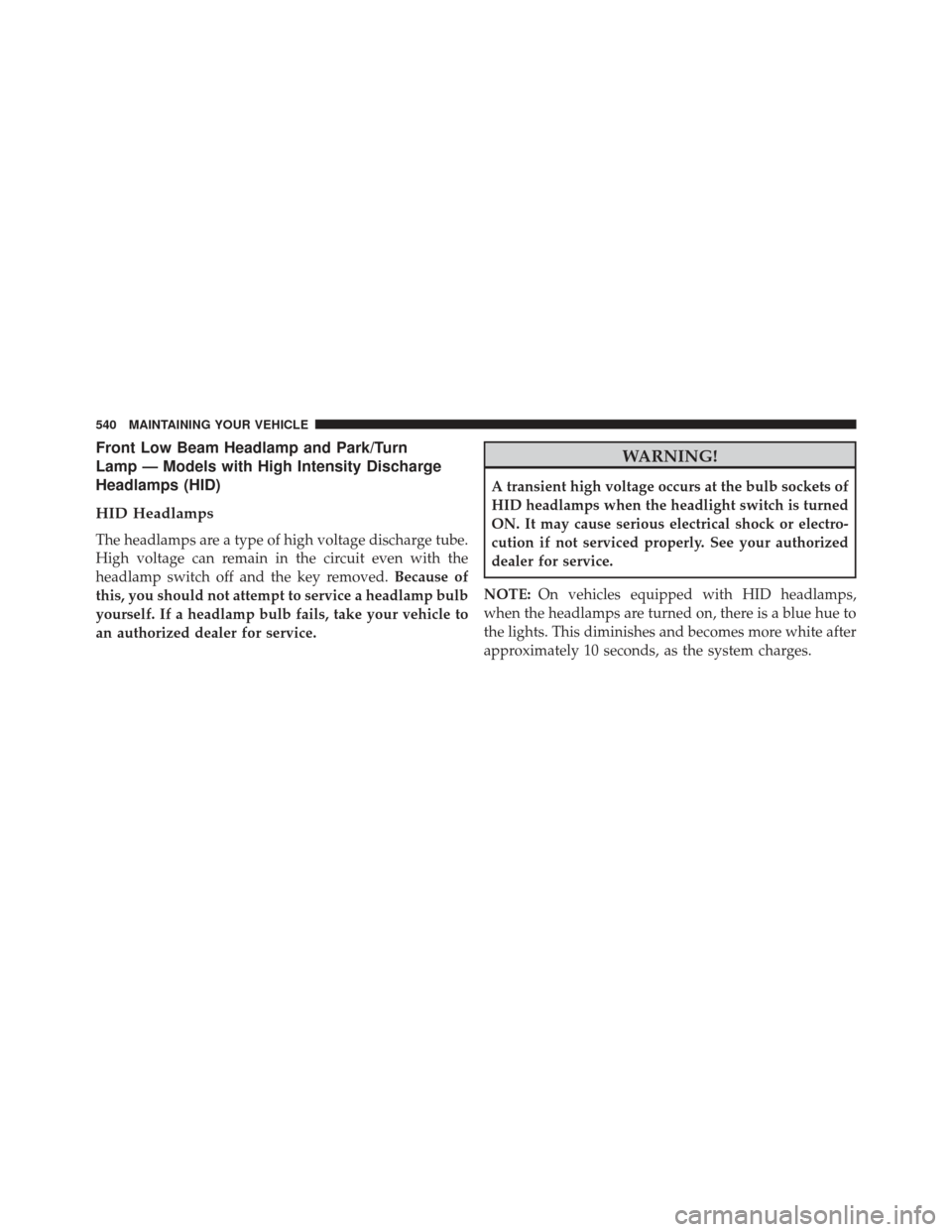
Front Low Beam Headlamp and Park/Turn
Lamp — Models with High Intensity Discharge
Headlamps (HID)
HID Headlamps
The headlamps are a type of high voltage discharge tube.
High voltage can remain in the circuit even with the
headlamp switch off and the key removed.Because of
this, you should not attempt to service a headlamp bulb
yourself. If a headlamp bulb fails, take your vehicle to
an authorized dealer for service.
WARNING!
A transient high voltage occurs at the bulb sockets of
HID headlamps when the headlight switch is turned
ON. It may cause serious electrical shock or electro-
cution if not serviced properly. See your authorized
dealer for service.
NOTE: On vehicles equipped with HID headlamps,
when the headlamps are turned on, there is a blue hue to
the lights. This diminishes and becomes more white after
approximately 10 seconds, as the system charges.
540 MAINTAINING YOUR VEHICLE