change time DODGE CHARGER SRT 2018 Service Manual
[x] Cancel search | Manufacturer: DODGE, Model Year: 2018, Model line: CHARGER SRT, Model: DODGE CHARGER SRT 2018Pages: 490, PDF Size: 5.08 MB
Page 433 of 490
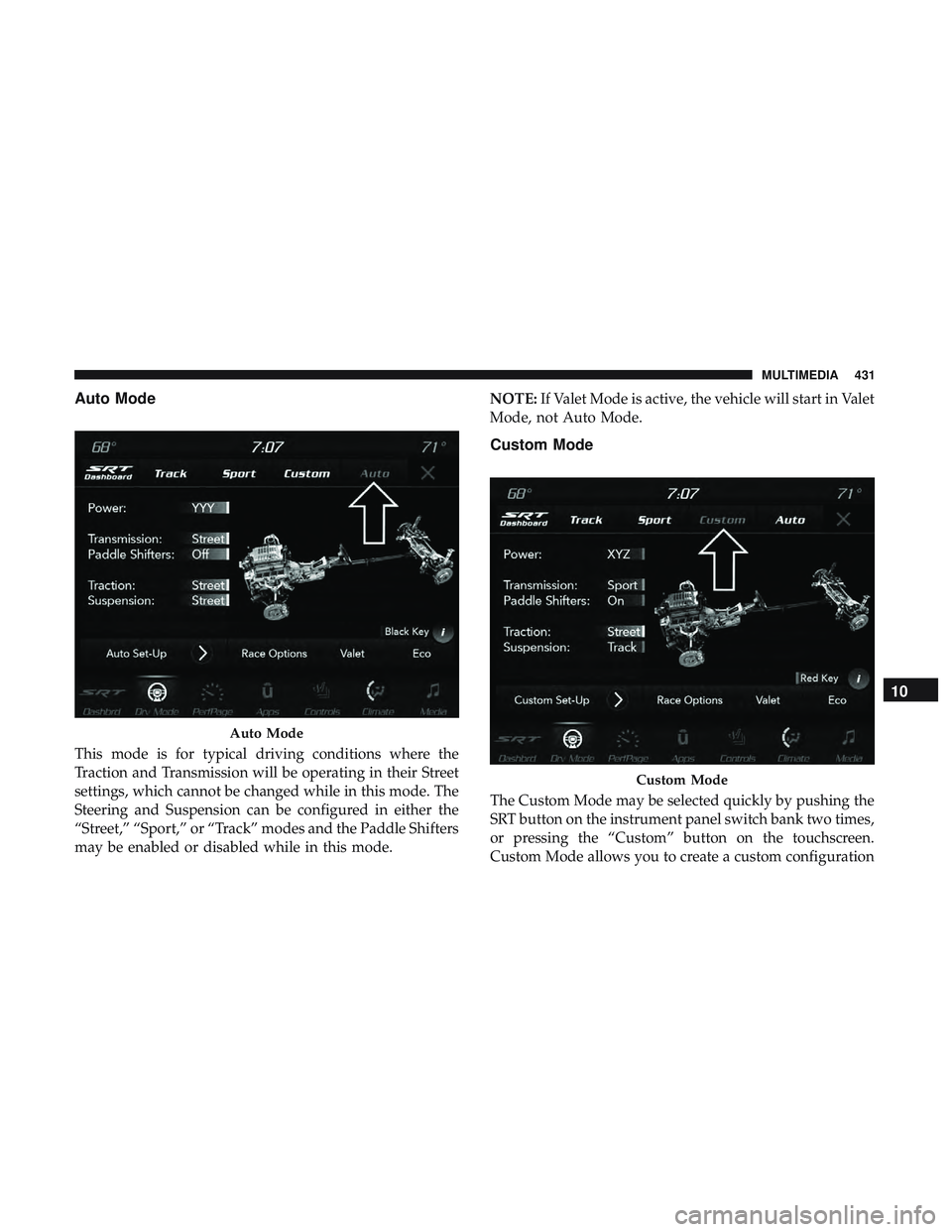
Auto Mode
This mode is for typical driving conditions where the
Traction and Transmission will be operating in their Street
settings, which cannot be changed while in this mode. The
Steering and Suspension can be configured in either the
“Street,” “Sport,” or “Track” modes and the Paddle Shifters
may be enabled or disabled while in this mode.NOTE:
If Valet Mode is active, the vehicle will start in Valet
Mode, not Auto Mode.
Custom Mode
The Custom Mode may be selected quickly by pushing the
SRT button on the instrument panel switch bank two times,
or pressing the “Custom” button on the touchscreen.
Custom Mode allows you to create a custom configuration
Auto Mode
Custom Mode
10
MULTIMEDIA 431
Page 444 of 490
change in increments of 250 RPM. Pressing and holding the
arrows will change the RPM values in increments of 500
RPM, ranging from 2000–6000 RPM (6.2L) and 2000–6250
RPM (6.4L). The Shift Light setup screen may only be
accessed if the feature is enabled. Press the “Reset to
factory default” button on the touchscreen to change back
to factory settings, or press the “Shift Light Off” button on
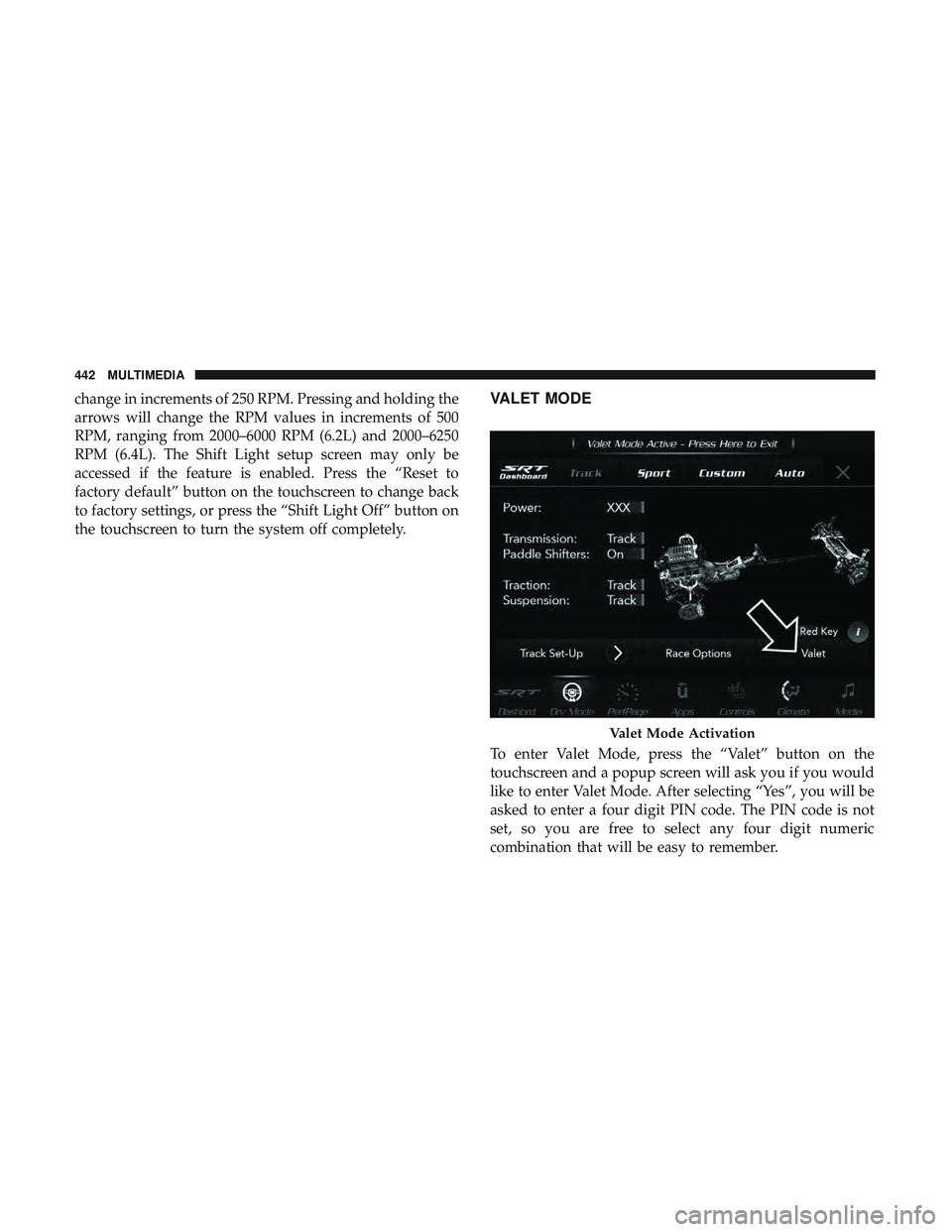
the touchscreen to turn the system off completely.VALET MODE
To enter Valet Mode, press the “Valet” button on the
touchscreen and a popup screen will ask you if you would
like to enter Valet Mode. After selecting “Yes”, you will be
asked to enter a four digit PIN code. The PIN code is not
set, so you are free to select any four digit numeric
combination that will be easy to remember.
Valet Mode Activation
442 MULTIMEDIA
Page 450 of 490
RADIO OPERATION AND MOBILE PHONES
Under certain conditions, the mobile phone being on in
your vehicle can cause erratic or noisy performance from
your radio. This condition may be lessened or eliminated
by relocating the mobile phone antenna. This condition is
not harmful to the radio. If your radio performance does
not satisfactorily “clear” by the repositioning of the an-
tenna, it is recommended that the radio volume be turned
down or off during mobile phone operation when not
using Uconnect (if equipped).
Regulatory And Safety Information
USA/CANADA
Exposure to Radio Frequency Radiation
The radiated output power of the internal wireless radio is
far below the FCC and IC radio frequency exposure limits.
Nevertheless, the wireless radio will be used in such a
manner that the radio is 20 cm or further from the human
body.
The internal wireless radio operates within guidelines
found in radio frequency safety standards and recommen-
dations, which reflect the consensus of the scientific com-
munity.The radio manufacturer believes the internal wireless radio
is safe for use by consumers. The level of energy emitted is
far less than the electromagnetic energy emitted by wire-
less devices such as mobile phones. However, the use of
wireless radios may be restricted in some situations or
environments, such as aboard airplanes. If you are unsure
of restrictions, you are encouraged to ask for authorization
before turning on the wireless radio.
The following regulatory statement applies to all Radio
Frequency (RF) devices equipped in this vehicle:
This device complies with Part 15 of the FCC Rules and
with Industry Canada license-exempt RSS standard(s).
Operation is subject to the following two conditions:
1. This device may not cause harmful interference, and
2. This device must accept any interference received, in-
cluding interference that may cause undesired opera-
tion.
NOTE: Changes or modifications not expressly approved
by the party responsible for compliance could void the
user ’s authority to operate the equipment.
448 MULTIMEDIA
Page 454 of 490
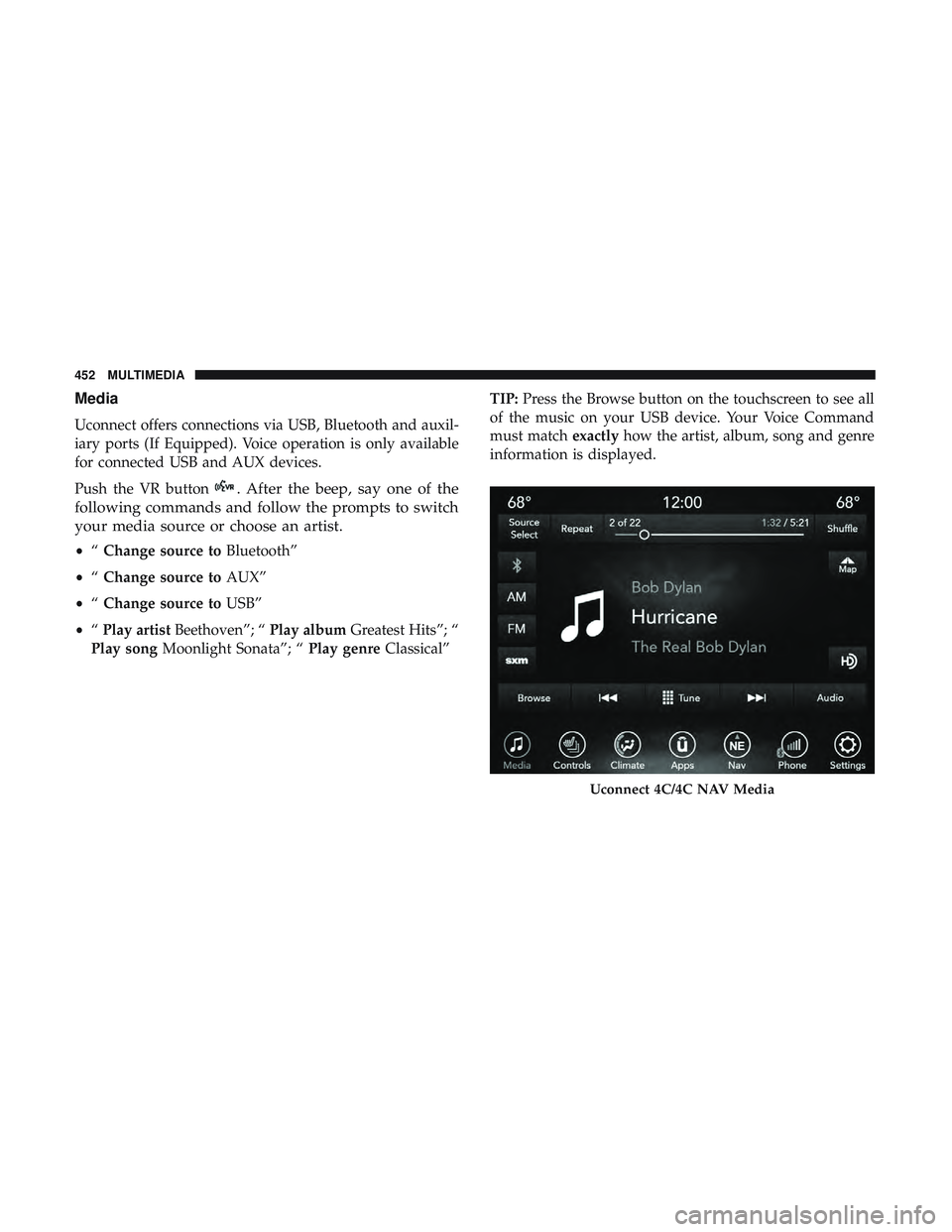
Media
Uconnect offers connections via USB, Bluetooth and auxil-
iary ports (If Equipped). Voice operation is only available
for connected USB and AUX devices.
Push the VR button
. After the beep, say one of the
following commands and follow the prompts to switch
your media source or choose an artist.
• “Change source to Bluetooth”
• “Change source to AUX”
• “Change source to USB”
• “Play artist Beethoven”; “ Play albumGreatest Hits”; “
Play song Moonlight Sonata”; “ Play genreClassical” TIP:
Press the Browse button on the touchscreen to see all
of the music on your USB device. Your Voice Command
must match exactlyhow the artist, album, song and genre
information is displayed.
Uconnect 4C/4C NAV Media
452 MULTIMEDIA
Page 465 of 490
NOTE:Requires compatible iPhone. See dealer for phone
compatibility. Data plan rates apply. Vehicle user interface
is a product of Apple®. Apple CarPlay is a trademark of
Apple Inc. iPhone is a trademark of Apple Inc., registered
in the US and other countries. Apple terms of use and
privacy statements apply.
General Information
The following regulatory statement applies to all Radio
Frequency (RF) devices equipped in this vehicle:
This device complies with Part 15 of the FCC Rules and
with Industry Canada license-exempt RSS standard(s).
Operation is subject to the following two conditions:
1. This device may not cause harmful interference, and
2. This device must accept any interference received, in- cluding interference that may cause undesired opera-
tion.
NOTE: Changes or modifications not expressly approved
by the party responsible for compliance could void the
user ’s authority to operate the equipment.
Additional Information
© 2018 FCA US LLC. All rights reserved. Mopar and
Uconnect are registered trademarks and Mopar Owner
Connect is a trademark of FCA US LLC. Android is a
trademark of Google Inc. SiriusXM and all related marks
and logos are trademarks of SiriusXM Radio Inc.
Uconnect System Support:
• U.S. residents visit DriveUconnect.com or call:
1-877-855-8400 (24 hours a day 7 days a week)
• Canadian residents visit DriveUconnect.ca or call:
1-800-465-2001 (English) or 1-800-387-9983 (French)
SiriusXM Guardian services support:
• U.S. residents visit www.siriusxm.com/guardian or call:
1-844-796-4827
• Canadian residents visit www.siriusxm.ca/guardian or
call: 1-877-324-9091
10
MULTIMEDIA 463