transmission DODGE CHARGER SRT 2019 Repair Manual
[x] Cancel search | Manufacturer: DODGE, Model Year: 2019, Model line: CHARGER SRT, Model: DODGE CHARGER SRT 2019Pages: 496, PDF Size: 5.32 MB
Page 414 of 496
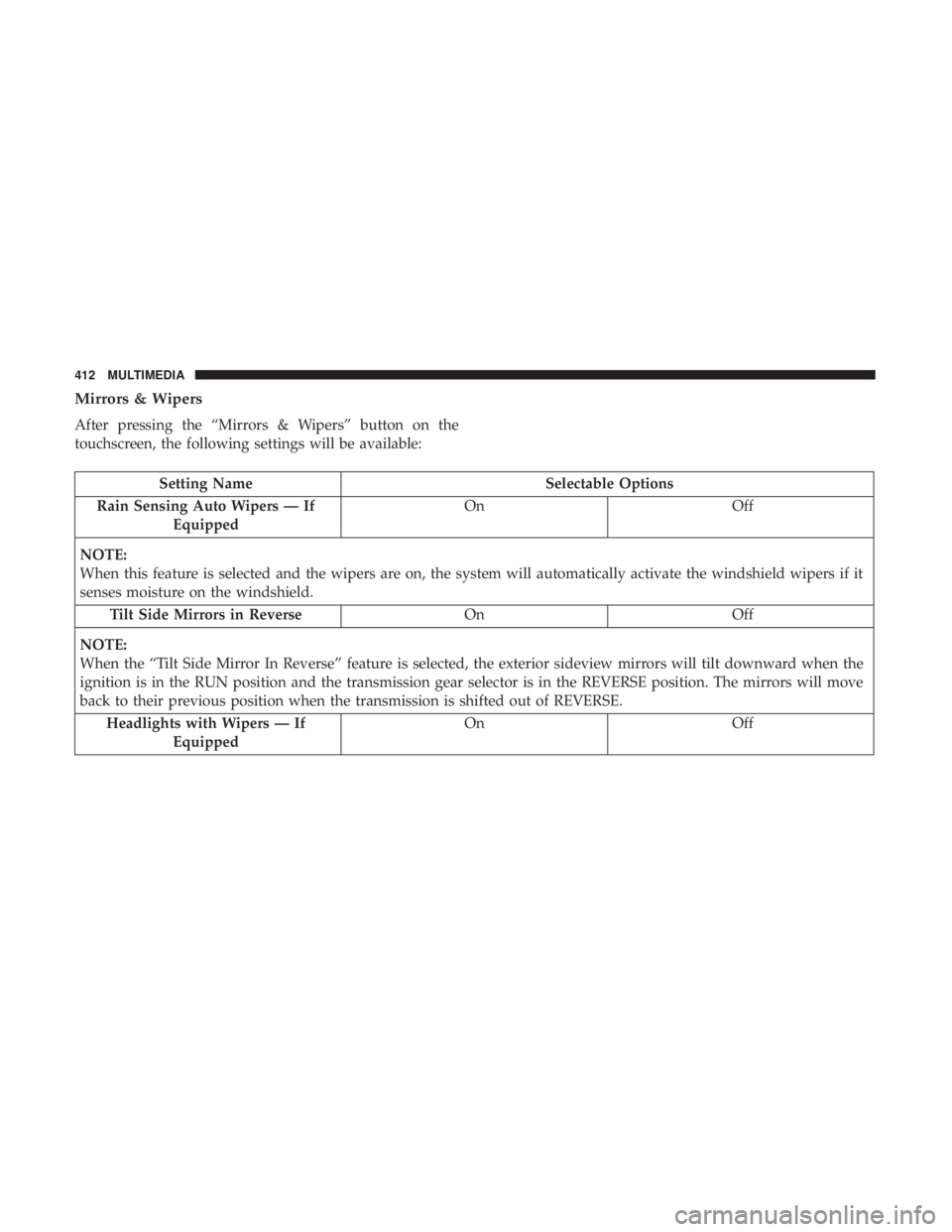
Mirrors & Wipers
After pressing the “Mirrors & Wipers” button on the
touchscreen, the following settings will be available:
Setting NameSelectable Options
Rain Sensing Auto Wipers — If Equipped On
Off
NOTE:
When this feature is selected and the wipers are on, the system will automatically activate the windshield wipers if it
senses moisture on the windshield. Tilt Side Mirrors in Reverse OnOff
NOTE:
When the “Tilt Side Mirror In Reverse” feature is selected, the exterior sideview mirrors will tilt downward when the
ignition is in the RUN position and the transmission gear selector is in the REVERSE position. The mirrors will move
back to their previous position when the transmission is shifted out of REVERSE. Headlights with Wipers — If Equipped On
Off
412 MULTIMEDIA
Page 416 of 496
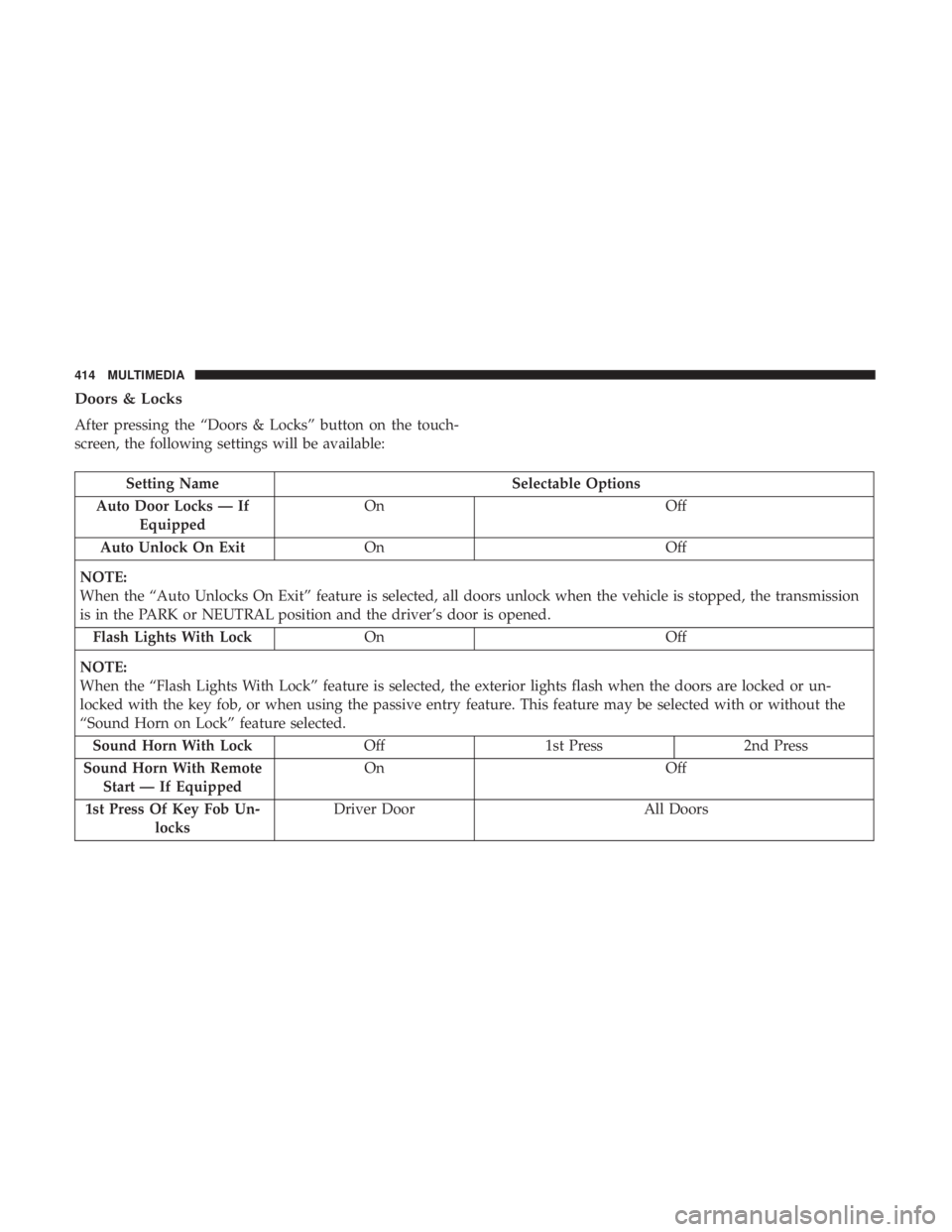
Doors & Locks
After pressing the “Doors & Locks” button on the touch-
screen, the following settings will be available:
Setting NameSelectable Options
Auto Door Locks — If Equipped On
Off
Auto Unlock On Exit On Off
NOTE:
When the “Auto Unlocks On Exit” feature is selected, all doors unlock when the vehicle is stopped, the transmission
is in the PARK or NEUTRAL position and the driver’s door is opened. Flash Lights With Lock On Off
NOTE:
When the “Flash Lights With Lock” feature is selected, the exterior lights flash when the doors are locked or un-
locked with the key fob, or when using the passive entry feature. This feature may be selected with or without the
“Sound Horn on Lock” feature selected. Sound Horn With Lock Off1st Press 2nd Press
Sound Horn With Remote Start — If Equipped On
Off
1st Press Of Key Fob Un- locks Driver Door
All Doors
414 MULTIMEDIA
Page 427 of 496
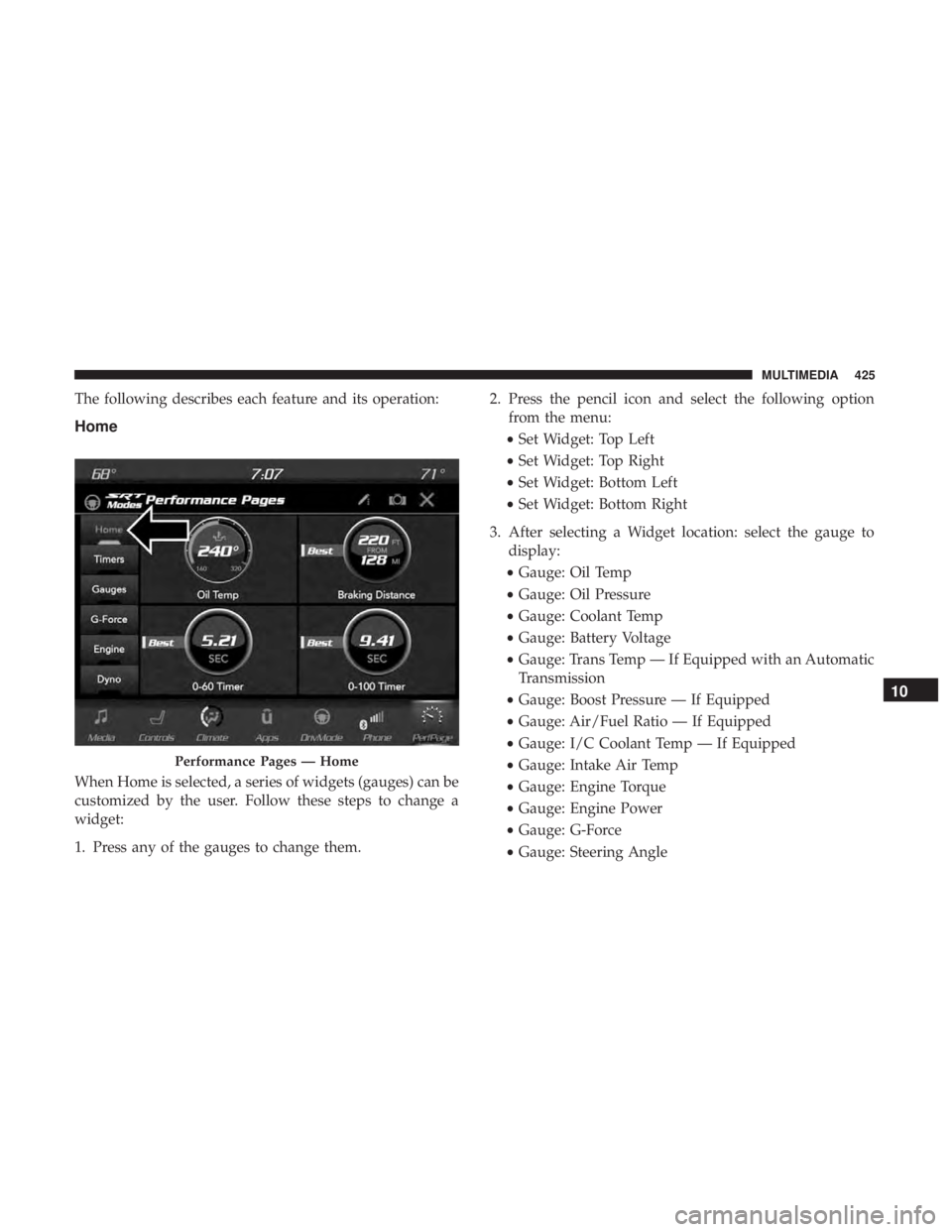
The following describes each feature and its operation:
Home
When Home is selected, a series of widgets (gauges) can be
customized by the user. Follow these steps to change a
widget:
1. Press any of the gauges to change them.2. Press the pencil icon and select the following option
from the menu:
• Set Widget: Top Left
• Set Widget: Top Right
• Set Widget: Bottom Left
• Set Widget: Bottom Right
3. After selecting a Widget location: select the gauge to display:
• Gauge: Oil Temp
• Gauge: Oil Pressure
• Gauge: Coolant Temp
• Gauge: Battery Voltage
• Gauge: Trans Temp — If Equipped with an Automatic
Transmission
• Gauge: Boost Pressure — If Equipped
• Gauge: Air/Fuel Ratio — If Equipped
• Gauge: I/C Coolant Temp — If Equipped
• Gauge: Intake Air Temp
• Gauge: Engine Torque
• Gauge: Engine Power
• Gauge: G-Force
• Gauge: Steering Angle
Performance Pages — Home
10
MULTIMEDIA 425
Page 431 of 496
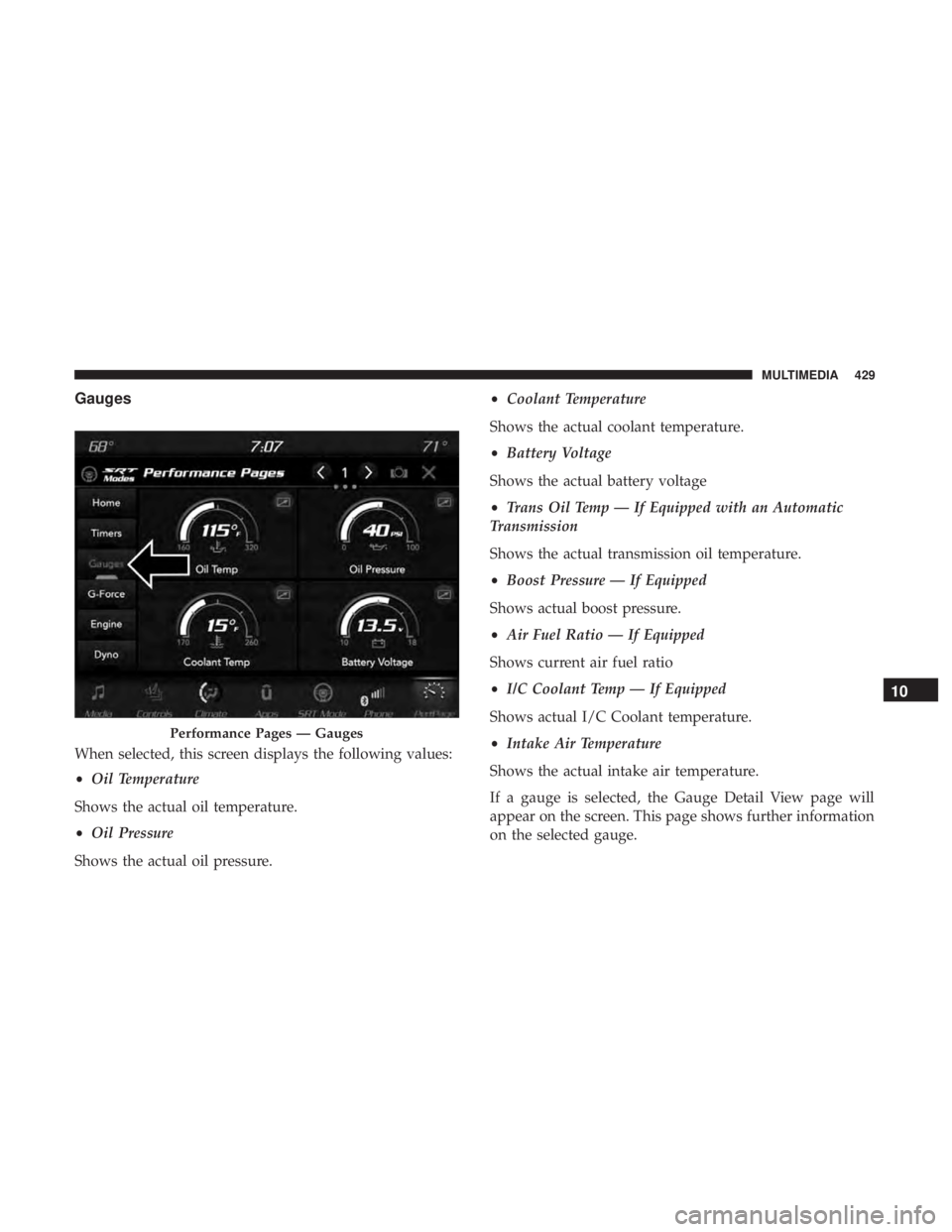
Gauges
When selected, this screen displays the following values:
•Oil Temperature
Shows the actual oil temperature.
• Oil Pressure
Shows the actual oil pressure. •
Coolant Temperature
Shows the actual coolant temperature.
• Battery Voltage
Shows the actual battery voltage
• Trans Oil Temp — If Equipped with an Automatic
Transmission
Shows the actual transmission oil temperature.
• Boost Pressure — If Equipped
Shows actual boost pressure.
• Air Fuel Ratio — If Equipped
Shows current air fuel ratio
• I/C Coolant Temp — If Equipped
Shows actual I/C Coolant temperature.
• Intake Air Temperature
Shows the actual intake air temperature.
If a gauge is selected, the Gauge Detail View page will
appear on the screen. This page shows further information
on the selected gauge.
Performance Pages — Gauges
10
MULTIMEDIA 429
Page 434 of 496
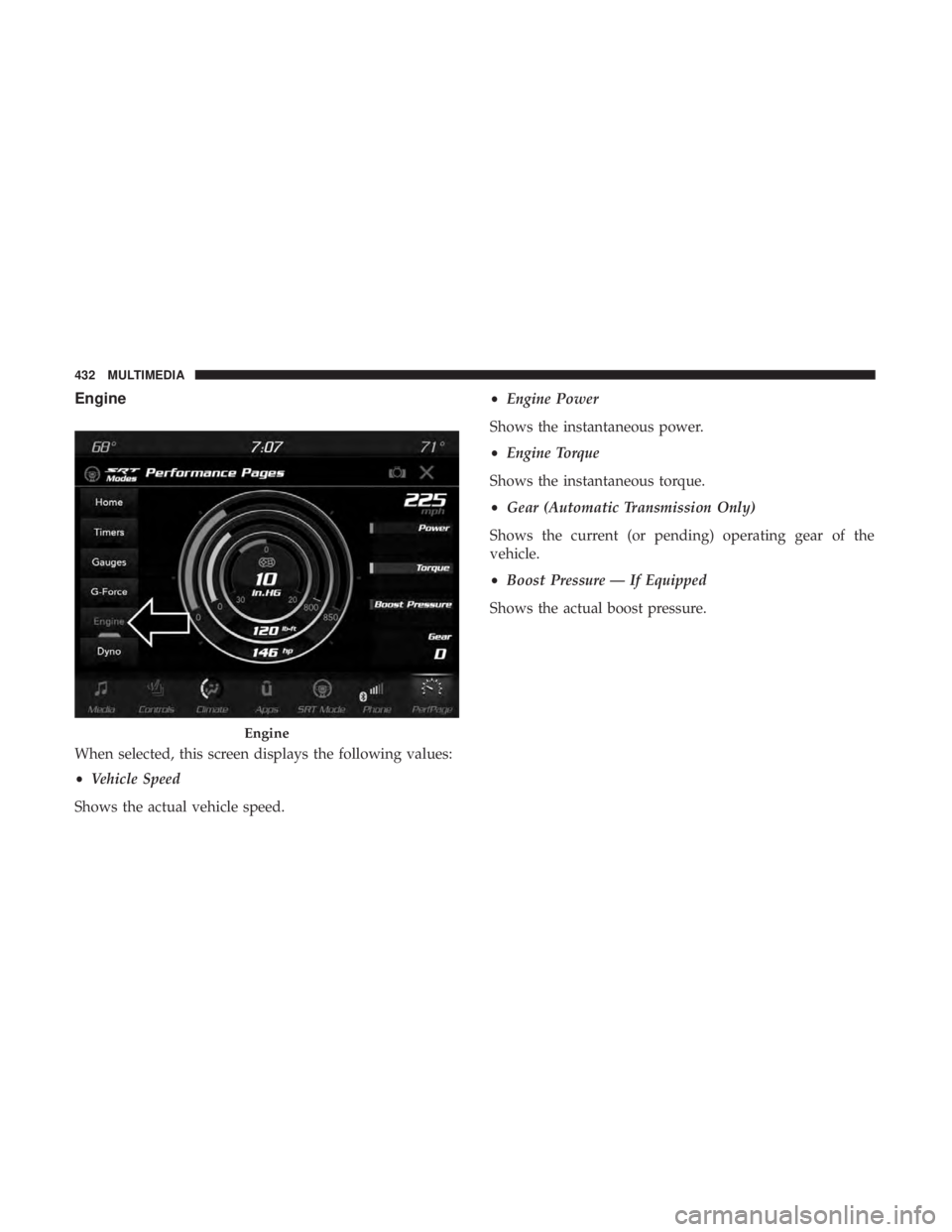
Engine
When selected, this screen displays the following values:
•Vehicle Speed
Shows the actual vehicle speed. •
Engine Power
Shows the instantaneous power.
• Engine Torque
Shows the instantaneous torque.
• Gear (Automatic Transmission Only)
Shows the current (or pending) operating gear of the
vehicle.
• Boost Pressure — If Equipped
Shows the actual boost pressure.
Engine
432 MULTIMEDIA
Page 435 of 496
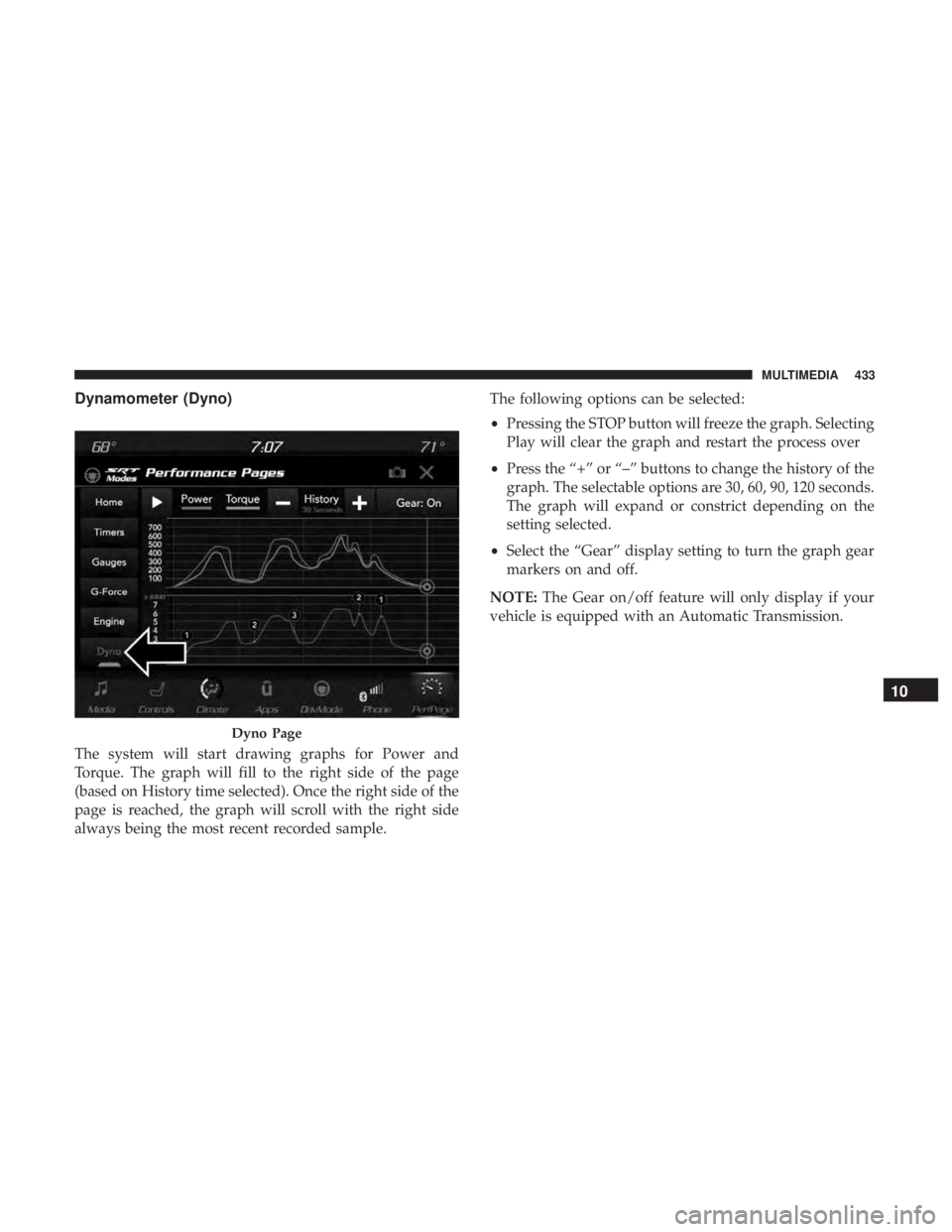
Dynamometer (Dyno)
The system will start drawing graphs for Power and
Torque. The graph will fill to the right side of the page
(based on History time selected). Once the right side of the
page is reached, the graph will scroll with the right side
always being the most recent recorded sample.The following options can be selected:
•
Pressing the STOP button will freeze the graph. Selecting
Play will clear the graph and restart the process over
• Press the “+” or “–” buttons to change the history of the
graph. The selectable options are 30, 60, 90, 120 seconds.
The graph will expand or constrict depending on the
setting selected.
• Select the “Gear” display setting to turn the graph gear
markers on and off.
NOTE: The Gear on/off feature will only display if your
vehicle is equipped with an Automatic Transmission.
Dyno Page
10
MULTIMEDIA 433
Page 439 of 496
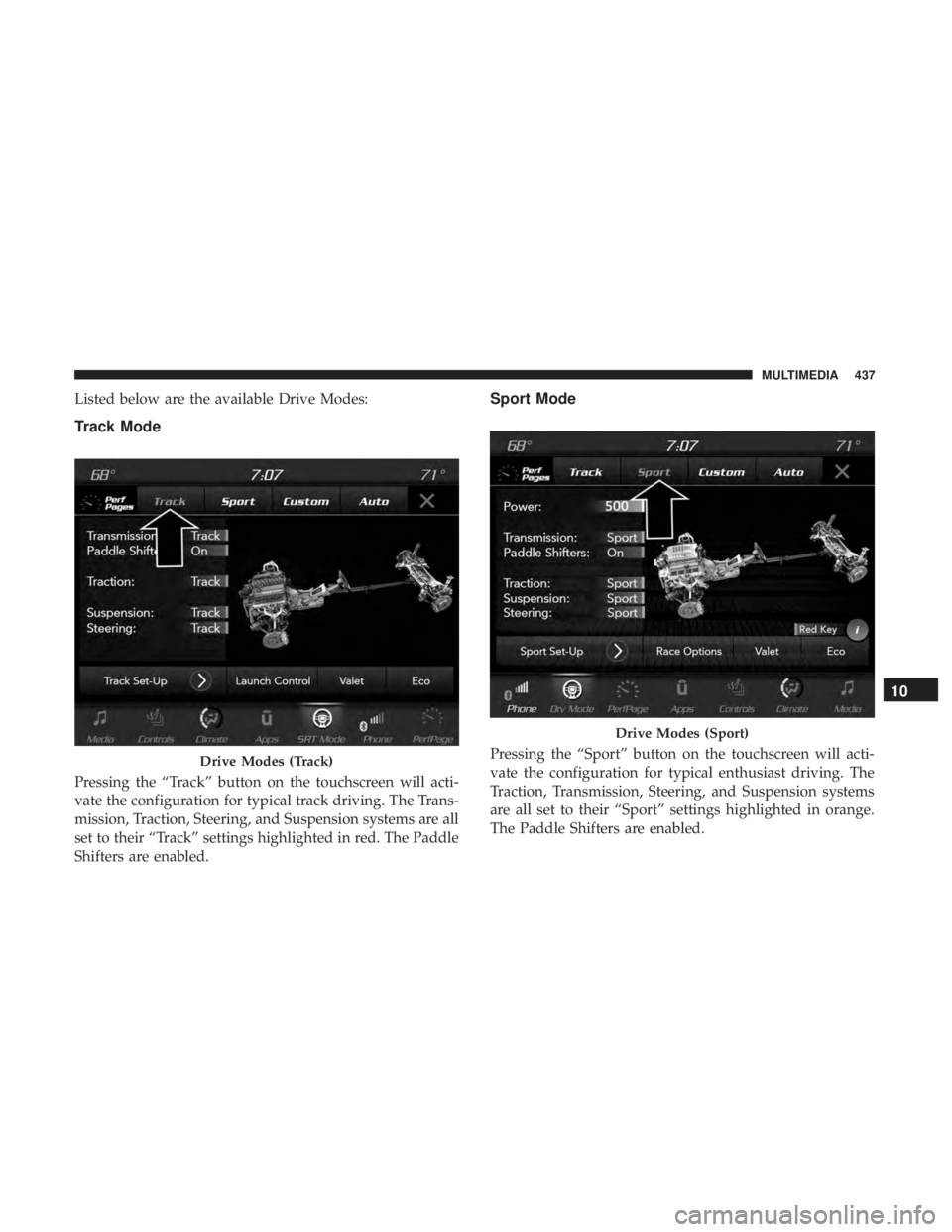
Listed below are the available Drive Modes:
Track Mode
Pressing the “Track” button on the touchscreen will acti-
vate the configuration for typical track driving. The Trans-
mission, Traction, Steering, and Suspension systems are all
set to their “Track” settings highlighted in red. The Paddle
Shifters are enabled.
Sport Mode
Pressing the “Sport” button on the touchscreen will acti-
vate the configuration for typical enthusiast driving. The
Traction, Transmission, Steering, and Suspension systems
are all set to their “Sport” settings highlighted in orange.
The Paddle Shifters are enabled.Drive Modes (Track)
Drive Modes (Sport)
10
MULTIMEDIA 437
Page 440 of 496
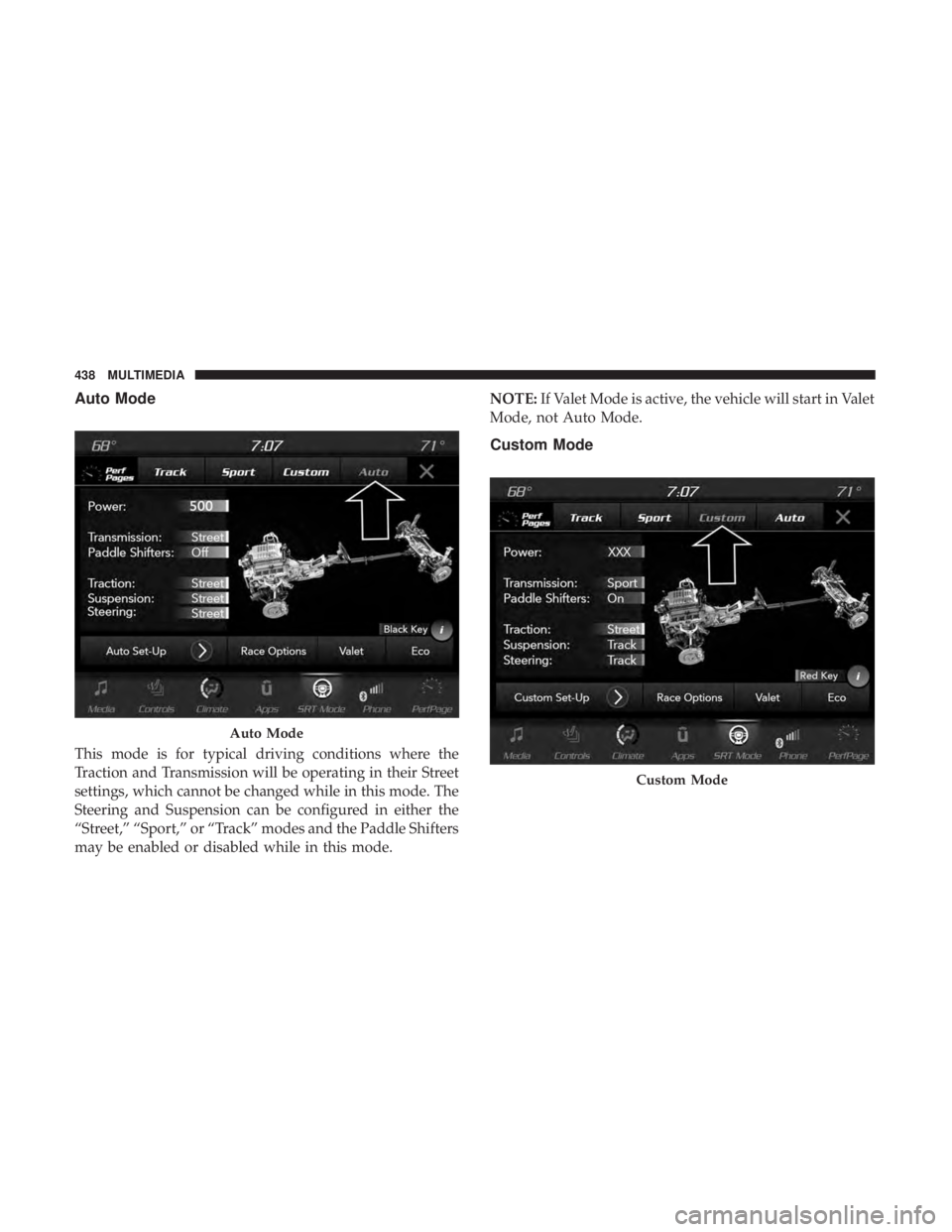
Auto Mode
This mode is for typical driving conditions where the
Traction and Transmission will be operating in their Street
settings, which cannot be changed while in this mode. The
Steering and Suspension can be configured in either the
“Street,” “Sport,” or “Track” modes and the Paddle Shifters
may be enabled or disabled while in this mode.NOTE:
If Valet Mode is active, the vehicle will start in Valet
Mode, not Auto Mode.
Custom Mode
Auto Mode
Custom Mode
438 MULTIMEDIA
Page 441 of 496
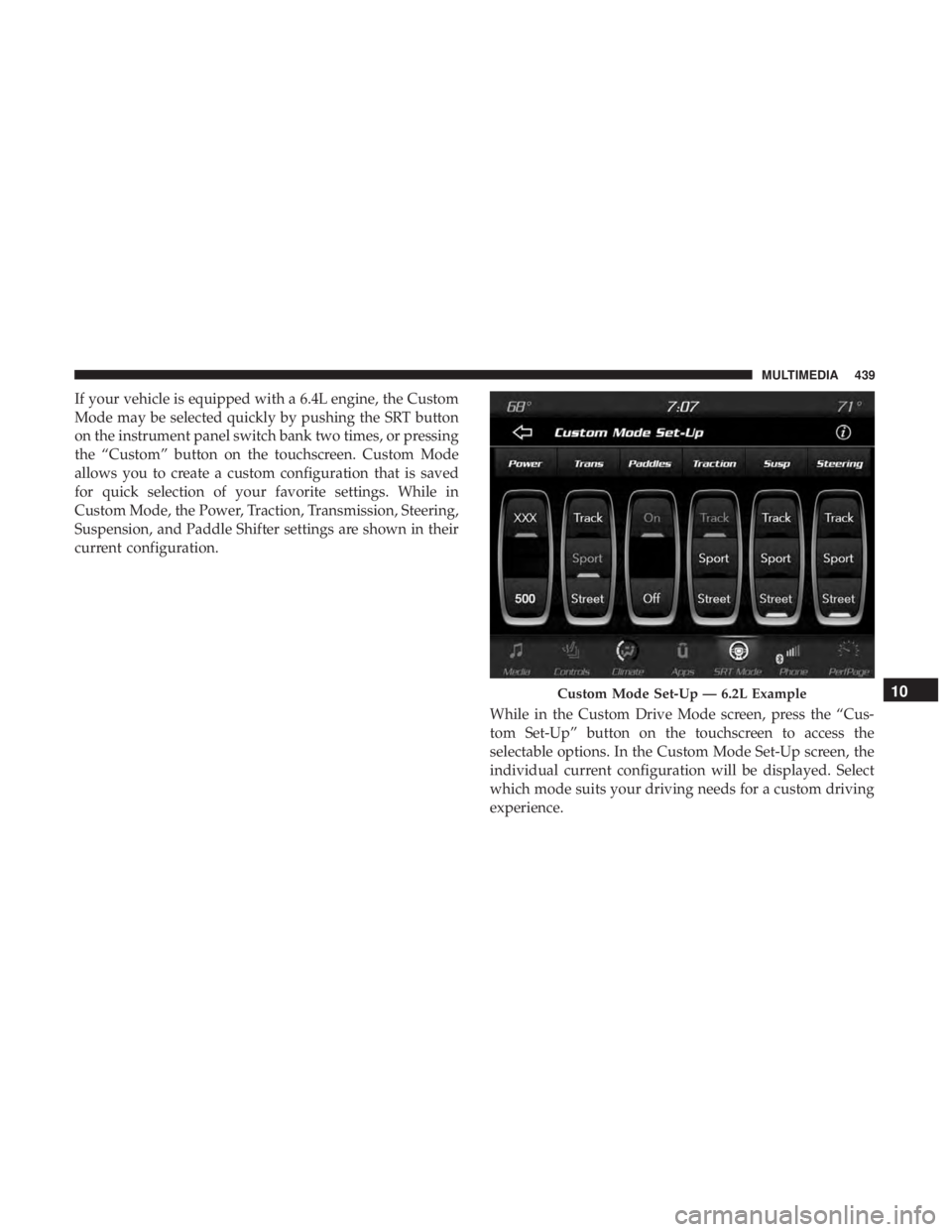
If your vehicle is equipped with a 6.4L engine, the Custom
Mode may be selected quickly by pushing the SRT button
on the instrument panel switch bank two times, or pressing
the “Custom” button on the touchscreen. Custom Mode
allows you to create a custom configuration that is saved
for quick selection of your favorite settings. While in
Custom Mode, the Power, Traction, Transmission, Steering,
Suspension, and Paddle Shifter settings are shown in their
current configuration.While in the Custom Drive Mode screen, press the “Cus-
tom Set-Up” button on the touchscreen to access the
selectable options. In the Custom Mode Set-Up screen, the
individual current configuration will be displayed. Select
which mode suits your driving needs for a custom driving
experience.
Custom Mode Set-Up — 6.2L Example10
MULTIMEDIA 439
Page 443 of 496
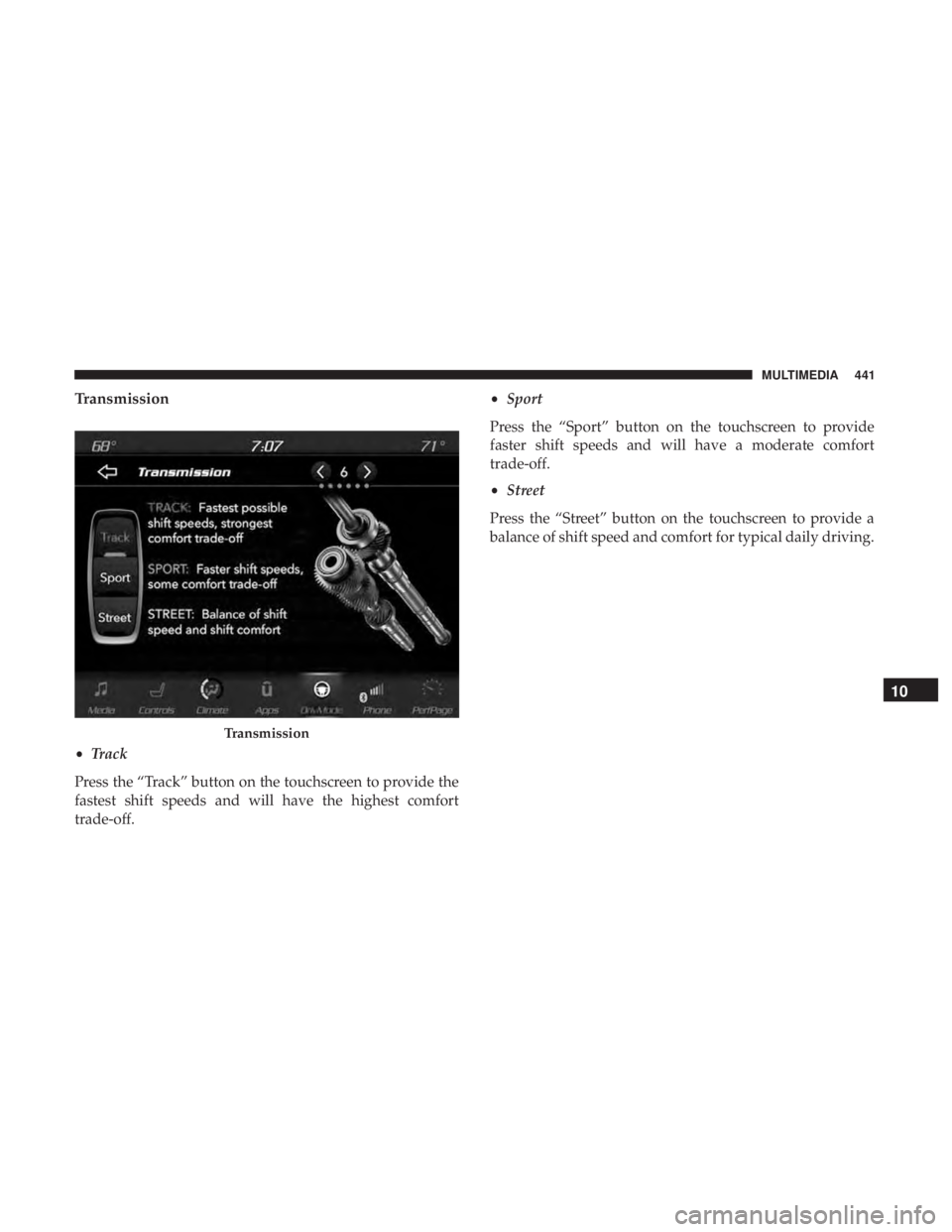
Transmission
•Track
Press the “Track” button on the touchscreen to provide the
fastest shift speeds and will have the highest comfort
trade-off. •
Sport
Press the “Sport” button on the touchscreen to provide
faster shift speeds and will have a moderate comfort
trade-off.
• Street
Press the “Street” button on the touchscreen to provide a
balance of shift speed and comfort for typical daily driving.
Transmission
10
MULTIMEDIA 441