clock DODGE DAKOTA 2008 3.G User Guide
[x] Cancel search | Manufacturer: DODGE, Model Year: 2008, Model line: DAKOTA, Model: DODGE DAKOTA 2008 3.GPages: 426, PDF Size: 6.39 MB
Page 188 of 426

NOTE:These selections can only be made while playing
a DVD.
²VES Power -Allows you to turn VES ON and OFF (If
Equipped).
²VES Lock -Locks out rear VES remote controls (If
Equipped).
²VES CH1/CH2 -Allows the user to change mode of
either the IR1 or IR2, wireless headphones, by pressing
the Audio/Select button (If Equipped).
²Set Home Clock -Pressing the SELECT button will
allow user to set the clock. Turn the TUNE control
knob to adjust the hours and then press and turn the
TUNE control knob to adjust the minutes. Press the
TUNE control knob again to save changes.
²Player Defaults -Selecting this item will allow the
user to scroll through the following items, and set
defaults according to customer preference.Menu Language Ð If Equipped
Selecting this item will allow the user to choose the
default startup DVD menu language (effective only if
language supported by disc). If customer wishes to select
a language not listed, then scroll down and select9other.9
Enter the 4-digit country code using the TUNE control
knob to scroll up and down to select the # and then push
to select.
Audio Language Ð If Equipped
Selecting this item will allow the user to choose a default
audio language (effective only if language supported by
disc). If customer wishes to select a language not listed,
then scroll down and select9other.9Enter the country
code using the TUNE control knob to scroll up and down
to select the # and then push to select.
188 INSTRUMENT PANEL AND CONTROLS
Page 199 of 426

Operating Instructions Ð Satellite Radio
Refer to your ªNavigation User's Manualº for detailed
operating instructions.
Operating Instructions Ð Hands-Free
Communication (UConnectŸ) (If Equipped)
Refer to your ªNavigation User's Manualº for detailed
operating instructions.
Clock Setting Procedure
The GPS receiver in this system is synchronized to the
time data being transmitted by the GPS satellites. The
satellites' clock is Greenwich Mean Time (GMT). This is
the worldwide standard for time. This makes the sys-
tem's clock very accurate once the appropriate time zone
and daylight savings information is set.
Changing the Time Zone
1. Turn on the system.2. Touch the screen where the time is displayed. The
clock setting menu will appear on the screen. If the words
ªTime: GPS Timeº are displayed at the top of the screen,
proceed to Step 4. Otherwise, proceed to Step 3.
3. If the words ªTime: User Clockº are displayed at the
top of the screen, touch the bottom of the screen where
the words ªUser Clockº are displayed. The GPS time
setting menu will appear on the screen.
4. Touch the screen where the words ªSet Time Zoneº are
displayed. The time zone selection menu will appear on
the screen.
5. Select a time zone by touching the screen where your
selection appears. If you do not see a time zone that you
want to select, touch the screen where the word ªPageº is
displayed to view additional time zones in the menu.
INSTRUMENT PANEL AND CONTROLS 199
4
Page 200 of 426

Changing Daylight Savings Time
When selected, this feature will display the time of day in
daylight savings time. Proceed as follows to change the
current setting:
1. Turn on the system.
2. Touch the screen where the time is displayed. The
clock setting menu will appear on the screen.
3. When this feature is on, a check mark will appear in
the box next to the words ªDaylight Savings.º Touch the
screen where the words ªDaylight Savingsº are dis-
played to change the current setting.
Setting the User Clock
If you wish to set the clock to a time different from the
system clock, you can manually adjust the time by
performing the following:
1. Turn on the system.2. Touch the screen where the time is displayed. The
clock setting menu will appear on the screen. If the words
ªTime: User Clockº are displayed at the top of the screen,
proceed to Step 4. Otherwise, proceed to Step 3.
3. If the words ªTime: GPS Timeº are displayed at the top
of the screen, touch the bottom of the screen where the
words ªGPS Timeº are displayed. The user clock time
setting menu will appear on the screen.
4. To move the hour forward, touch the screen where the
word ªHourº with the arrow pointing upward is dis-
played. To move the hour backward, touch the screen
where the word ªHourº with the arrow pointing down-
ward is displayed.
5. To move the minute forward, touch the screen where
the word ªMinº with the arrow pointing upward is
displayed. To move the minute backward, touch the
screen where the word ªMinº with the arrow pointing
downward is displayed.
200 INSTRUMENT PANEL AND CONTROLS
Page 201 of 426

6. To save the new time setting, touch the screen where
the word ªSaveº is displayed.
Show Time if Radio is Off
When selected, this feature will display the time of day
on the touch screen when the system is turned off.
Proceed as follows to change the current setting:
1. Turn on the system.
2. Touch the screen where the time is displayed. The
clock setting menu will appear on the screen.
3. When this feature is on, a check mark will appear in
the box next to the words ªShow Time if Radio is Off.º
Touch the screen where the words ªShow Time if Radio is
Offº are displayed to change the current setting.
SATELLITE RADIO (RSC) Ð IF EQUIPPED
(RER/REQ/REN RADIOS ONLY)
Satellite radio uses direct satellite to receiver broadcast-
ing technology to provide clear digital sound, coast to
coast. The subscription service provider is SiriusŸ Satel-
lite Radio. This service offers up to 100 channels of music,
sports, news, entertainment, and programming for chil-
dren, directly from its satellites and broadcasting studios.
System Activation
Sirius Satellite Radio service is pre-activated, and you
may begin listening immediately to the one year of
SIRIUS audio service that is included with the factory-
installed satellite radio system in your vehicle. Sirius will
contact you to supply a welcome kit and to confirm
subscription information, including the set up of your
on-line listening account at no additional charge. For
INSTRUMENT PANEL AND CONTROLS 201
4
Page 204 of 426

3 seconds will make the radio display the Song Title all of
the time (press and hold again to return to normal
display).
RW/FF
Pressing the RW (Rewind) or FF (Fast Forward) buttons
causes the tuner to search for the next channel in the
direction of the arrows.
TUNE Control (Rotary)
Turn the right side rotary control clockwise to increase or
counter-clockwise to decrease the channel.
MUSIC TYPE Button
Pressing this button once will turn on the Music Type
mode for 5 seconds. Pressing the MUSIC TYPE button or
turning the TUNE control knob within 5 seconds will
allow the program format type to be selected.
Toggle the MUSIC TYPE button again to select the music
type.By pressing the SEEK button when the Music Type
function is active, the radio will be tuned to the next
channel with the same selected Music Type name.
If a preset button is activated while in the Music Type
(Program Type) mode, the Music Type mode will be
exited and the radio will tune to the preset channel.
SETUP Button
Pressing the SETUP button allows you to select the
following items:
²Display Sirius ID number Ð Press the SELECT button
to display the Sirius ID number. This number is used
to activate, deactivate, or change the Sirius subscrip-
tion.
SET Button Ð To Set the Push-Button Memory
When you are receiving a channel that you wish to
commit to push-button memory, press the SET button.
The symbol SET 1 will now show in the display window.
204 INSTRUMENT PANEL AND CONTROLS
Page 211 of 426

Mix
Outside air flows in equal proportions through the
floor and defroster outlets.
Defrost
Outside air is primarily directed to the windshield
through the defroster outlets located at the base of
the windshield, and the demister outlets located at the
edge of each side of the instrument panel.
NOTE:The air conditioner compressor operates in both
Mix and Defrost or a blend of these modes, even if the
A/C button has not been pressed. This dehumidifies the
air to help dry the windshield.
Blower Control
The rotary knob on the left of
the control panel is the
blower control. Turn the knob
clockwise to one of the four
positions to obtain the blower
speed you desire. To turn the
blower off, turn the knob to
the far left position.
INSTRUMENT PANEL AND CONTROLS 211
4
Page 315 of 426
WARNING!
The jack is designed as a tool for changing tires only.
The jack should not be used to lift the vehicle for
service purposes, unless suitable supports are placed
under the vehicle as a safety measure. The vehicle
should be jacked on a firm level surface only. Avoid
ice or slippery areas.
Removing The Spare Tire
Remove the spare tire before attempting to jack the truck.
Attach the wheel wrench to the jack extension tube. Insert
the tube through the access hole in the rear bumper and
into the winch mechanism tube. Rotate the wheel wrench
handle counterclockwise until the spare tire is on the
ground with enough cable slack to allow you to pull itJack Stowage Location Crew Cab
WHAT TO DO IN EMERGENCIES 315
6
Page 316 of 426

out from under the vehicle. When the spare is clear, tilt
the retainer at the end of the cable and pull it through the
center of the wheel.
Steps for Removing the Spare Tire
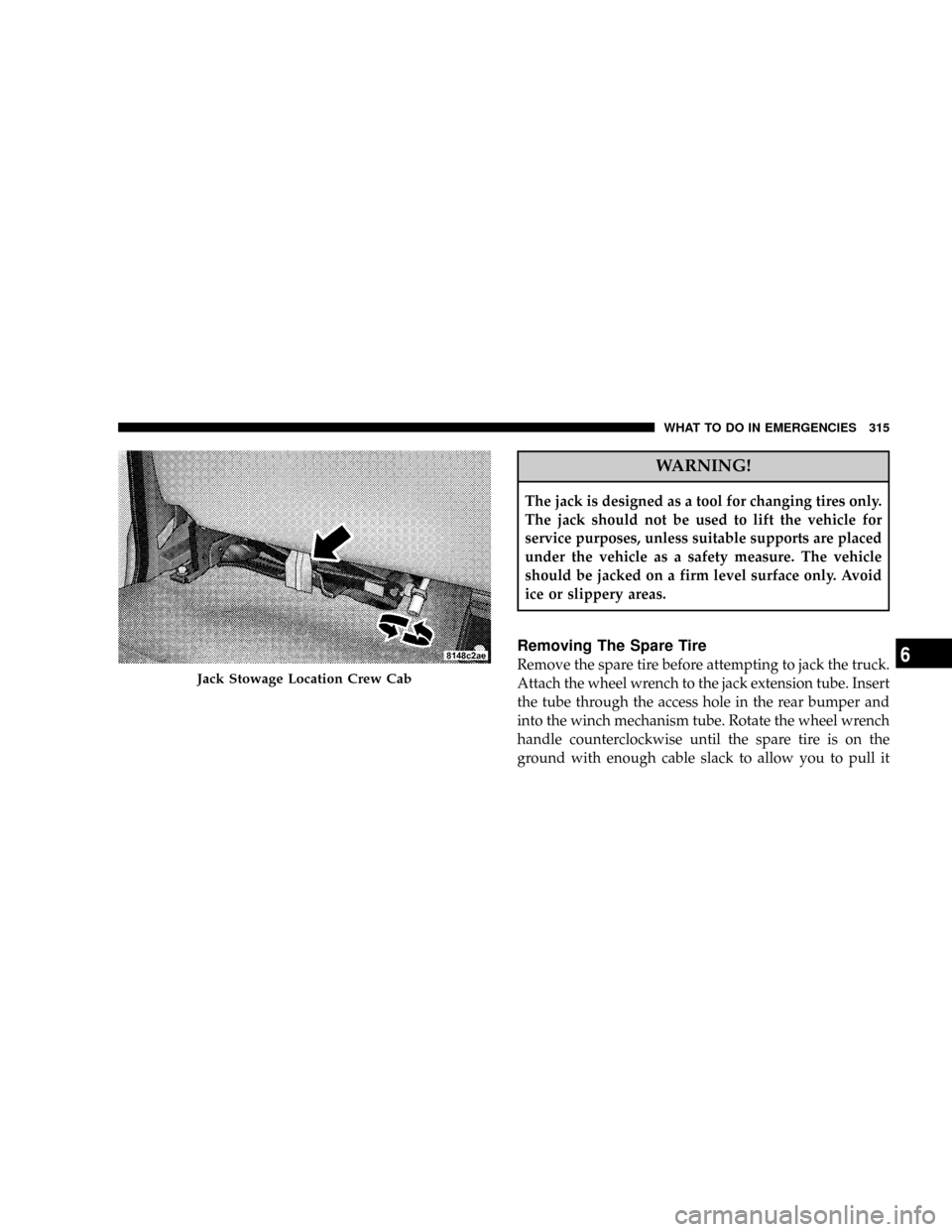
²Remove the jack from the stowage compartment using
the supplied finger assist tool.
²Remove the finger assist tool from jack and set aside
until jack is stowed.
²Assemble the jack tools.
²Locate the tire carrier access hole on the rear bumper.
²Place assembled jack tool extension rod into the access
hole in the direction of the arrow on the bumper trim.
²Rotate the tool counterclockwise to release and lower
the spare tire to the ground so that it can be pulled
from under the vehicle.
²Rotate clockwise to stow the spare tire.
Inserting Lug Wrench and Extension
316 WHAT TO DO IN EMERGENCIES
Page 319 of 426

²Block both the front and rear
of the wheel diagonally oppo-
site the jacking position. For
example, if the right front
wheel is being changed, block
the left rear wheel.
²Passengers should not remain in the vehicle when the
vehicle is being jacked.
Instructions
1. Lower and remove the spare wheel, jack, and tools
from stowage.
2. Using the wheel wrench, loosen, but do not remove,
the wheel nuts by turning them counterclockwise one
turn while the wheel is still on the ground.
3. When changing a front wheel, place the jack under the
frame rail behind the wheel. Locate the jack as far
forward as possible on the straight part of the frame priorto inboard transition, as shown. Operate the jack using
the jack drive tube and the wheel wrench - the tube
extension, may be used but is not required.
When changing a rear wheel, assemble the jack drive
tube to the jack and connect the drive tube to the
extension tube. Place the jack under the axle in the
Positioning of the Jack Front Wheels
WHAT TO DO IN EMERGENCIES 319
6
Page 320 of 426

positions shown with the drive tubes extending to the
rear. Connect the jack tube extension and wheel wrench.
NOTE: Before raising the wheel off the ground, make
sure that the jack will not damage surrounding truck
parts and adjust the jack position as required.
4. By rotating the wheel wrench clockwise, raise the
vehicle until the wheel just clears the surface.
Left Rear Jacking Location
Right Rear Jacking Location
320 WHAT TO DO IN EMERGENCIES