instrument panel DODGE DAKOTA 2008 3.G Repair Manual
[x] Cancel search | Manufacturer: DODGE, Model Year: 2008, Model line: DAKOTA, Model: DODGE DAKOTA 2008 3.GPages: 426, PDF Size: 6.39 MB
Page 194 of 426
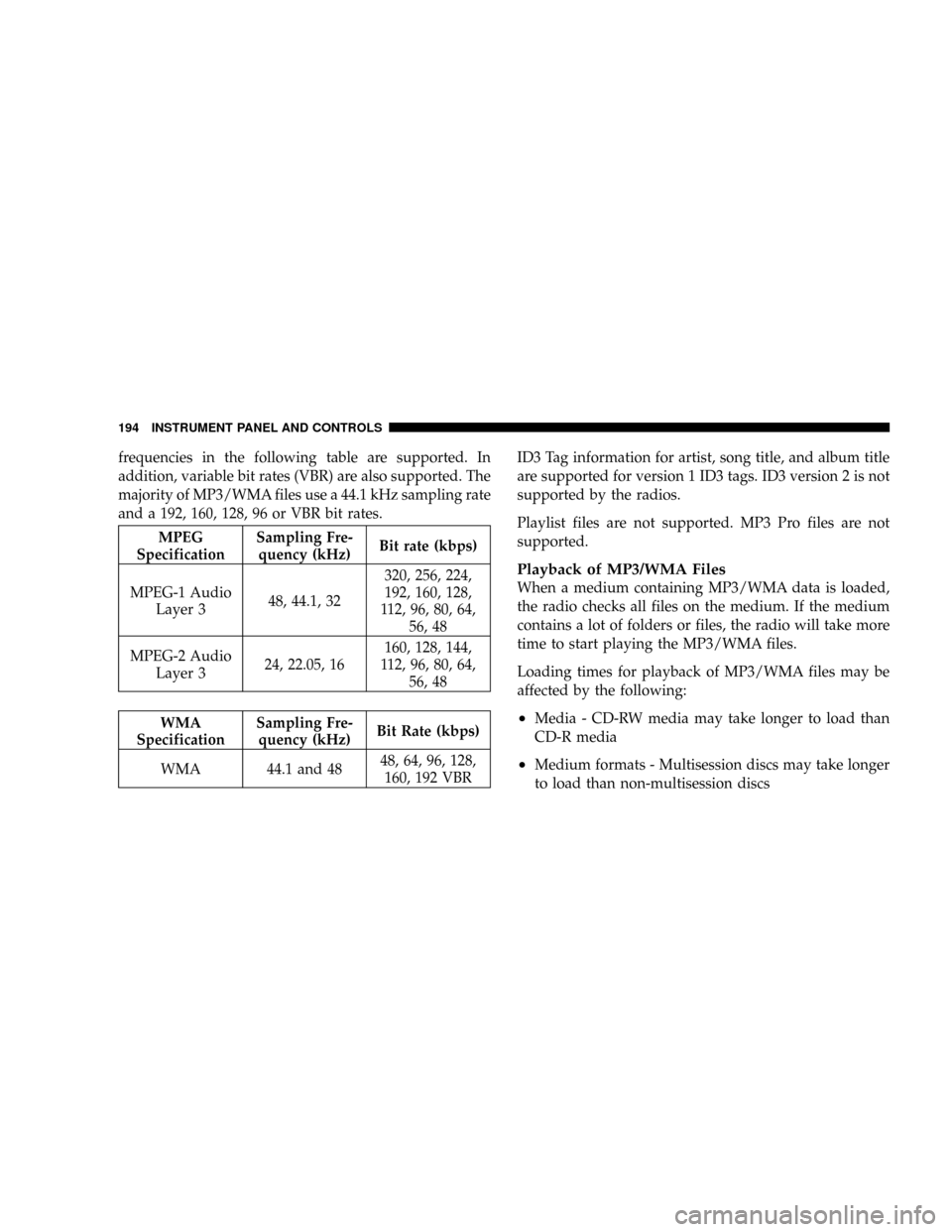
frequencies in the following table are supported. In
addition, variable bit rates (VBR) are also supported. The
majority of MP3/WMA files use a 44.1 kHz sampling rate
and a 192, 160, 128, 96 or VBR bit rates.
MPEG
SpecificationSampling Fre-
quency (kHz)Bit rate (kbps)
MPEG-1 Audio
Layer 348, 44.1, 32320, 256, 224,
192, 160, 128,
112, 96, 80, 64,
56, 48
MPEG-2 Audio
Layer 324, 22.05, 16160, 128, 144,
112, 96, 80, 64,
56, 48
WMA
SpecificationSampling Fre-
quency (kHz)Bit Rate (kbps)
WMA 44.1 and 4848, 64, 96, 128,
160, 192 VBRID3 Tag information for artist, song title, and album title
are supported for version 1 ID3 tags. ID3 version 2 is not
supported by the radios.
Playlist files are not supported. MP3 Pro files are not
supported.
Playback of MP3/WMA Files
When a medium containing MP3/WMA data is loaded,
the radio checks all files on the medium. If the medium
contains a lot of folders or files, the radio will take more
time to start playing the MP3/WMA files.
Loading times for playback of MP3/WMA files may be
affected by the following:
²Media - CD-RW media may take longer to load than
CD-R media
²Medium formats - Multisession discs may take longer
to load than non-multisession discs
194 INSTRUMENT PANEL AND CONTROLS
Page 195 of 426

²Number of files and folders - Loading times will
increase with more files and folders
To increase the speed of disc loading, it is recommended
to use CD-R media and single-session discs. To create a
single-session disc, enable the Disc at Once option before
writing to the disc.
LIST Button (DISC Mode for MP3/WMA Play)
Pressing the LIST button will bring up a list of all folders
on the disc. Scrolling up or down the list is done by
turning the TUNE control knob. Selecting a folder by
pressing the TUNE control knob will begin playing the
files contained in that folder (or the next folder in
sequence if the selection does not contain playable files).
The folder list will time out after 5 seconds.
INFO Button (DISC Mode for MP3/WMA Play)
Pressing the INFO button repeatedly will scroll through
the following TAG information: Song Title, Artist, File
Name, and Folder Name (if available).
Press the INFO button once more to return to9elapsed
time9priority mode.
Press and hold the INFO button for 3 seconds or more
and radio will display song titles for each file.
Press and hold the INFO button again for 3 seconds to
return to9elapsed time9display.
INSTRUMENT PANEL AND CONTROLS 195
4
Page 196 of 426

Operation Instructions - Auxiliary Mode
The auxiliary (AUX) jack is an audio input jack, which
allows the user to plug in a portable device such as an
MP3/WMA player, cassette player, or microphone and
utilize the vehicle's audio system to amplify the source
and play through the vehicle speakers.
Pushing the AUX button will change the mode to auxil-
iary device if the AUX jack is connected.
NOTE:The AUX device must be turned on and the
device's volume set to proper level. If the AUX audio is
not loud enough, turn the device's volume up. If the AUX
audio sounds distorted, turn the device's volume down.
SEEK Button (Auxiliary Mode)
No function.
SCAN Button (Auxiliary Mode)
No function.
EJECT Button (Auxiliary Mode)
No function.
TIME Button (Auxiliary Mode)
Press this button to change the display from elapsed
playing time to time of day. The time of day will display
for 5 seconds.
RW/FF (Auxiliary Mode)
No function.
SET Button (Auxiliary Mode)
No function.
Operating Instructions - Hands Free Phone
(UConnectŸ) (If Equipped)
Refer to ªHands-Free Communication (UConnectŸ)º in
Section 3 of this manual.
196 INSTRUMENT PANEL AND CONTROLS
Page 197 of 426

Operating Instructions - Satellite Radio Mode (If
Equipped)
Refer to ªSatellite Radioº in this section.
Operating Instructions - Video Entertainment
System (VESt) (If Equipped)
Refer to separate ªVideo Entertainment System (VESt)
Guide.º
Dolby
Manufactured under license from Dolby Laboratories.
9Dolby9and the double-D symbol are trademarks of
Dolby Laboratories.
Macrovision
This product incorporates copyright protection technol-
ogy that is protected by U.S. patents and other intellec-
tual property rights. Use of this copyright protection
technology must be authorized by Macrovision, and isintended for home and other limited viewing uses only
unless otherwise authorized by Macrovision. Reverse
engineering or disassembly is prohibited
DTS
9DTS9and9DTS 2.09are trademarks of Digital Theater
Systems, Inc.
SALES CODE RER Ð MULTIMEDIA SYSTEM Ð IF
EQUIPPED
NOTE:The sales code is located on the lower right side
of the unit's faceplate.
The RER multimedia system contains a radio, Sirius
Satellite Radio player, Navigation system, CD/DVD
player, USB port, 20 gigabyte Hard Drive (HDD), and the
UConnectthands-free Bluetooth cellular system.
INSTRUMENT PANEL AND CONTROLS 197
4
Page 198 of 426

NOTE:If your vehicle is not equipped with UConnectt,
the unit will respond with a ªFeature Not Availableº
message when selecting controls related to this feature.
A 6.5-inch touch screen allows easy menu selection, while
the Advanced Voice Dialog System recognizes more than
1,000 words for audio, navigation, entertainment, and
hands-free mobile phone use.
The satellite navigation capability combines a Global-
Positioning System-based navigation system with an
integrated color screen to provide maps, turn identifica-
tion, selection menus, and instructions for selecting a
variety of destinations and routes.
A shared Hard Drive (HDD) for the navigation system,
the database, and other radio features allows uploads of
music and photos from CDs or through the USB port.
While the Gracenote database finds the artist, track, and
title for the music.An auxiliary input jack permits passengers to listen to a
portable MP3 player through the vehicle's speakers. For
vehicles equipped with the Vehicle Entertainment System
(VES), separate audio outputs allow passengers to listen
to the car speakers while different audio tracks play
through the system's wireless headphones. This means
rear seat passengers can watch a DVD on the optional
rear-seat entertainment system while the driver and front
seat passenger listen to the radio.
Other special features include direct tune, music type
selections, Traffic Messaging (optional), easy store pre-
sets, parental lockout for VES (if equipped), backup
camera display for vehicles equipped with a backup
camera, and on some models a dual display screen
operation. Refer to your ªNavigation User's Manualº for
detailed operating instructions.
198 INSTRUMENT PANEL AND CONTROLS
Page 199 of 426

Operating Instructions Ð Satellite Radio
Refer to your ªNavigation User's Manualº for detailed
operating instructions.
Operating Instructions Ð Hands-Free
Communication (UConnectŸ) (If Equipped)
Refer to your ªNavigation User's Manualº for detailed
operating instructions.
Clock Setting Procedure
The GPS receiver in this system is synchronized to the
time data being transmitted by the GPS satellites. The
satellites' clock is Greenwich Mean Time (GMT). This is
the worldwide standard for time. This makes the sys-
tem's clock very accurate once the appropriate time zone
and daylight savings information is set.
Changing the Time Zone
1. Turn on the system.2. Touch the screen where the time is displayed. The
clock setting menu will appear on the screen. If the words
ªTime: GPS Timeº are displayed at the top of the screen,
proceed to Step 4. Otherwise, proceed to Step 3.
3. If the words ªTime: User Clockº are displayed at the
top of the screen, touch the bottom of the screen where
the words ªUser Clockº are displayed. The GPS time
setting menu will appear on the screen.
4. Touch the screen where the words ªSet Time Zoneº are
displayed. The time zone selection menu will appear on
the screen.
5. Select a time zone by touching the screen where your
selection appears. If you do not see a time zone that you
want to select, touch the screen where the word ªPageº is
displayed to view additional time zones in the menu.
INSTRUMENT PANEL AND CONTROLS 199
4
Page 200 of 426

Changing Daylight Savings Time
When selected, this feature will display the time of day in
daylight savings time. Proceed as follows to change the
current setting:
1. Turn on the system.
2. Touch the screen where the time is displayed. The
clock setting menu will appear on the screen.
3. When this feature is on, a check mark will appear in
the box next to the words ªDaylight Savings.º Touch the
screen where the words ªDaylight Savingsº are dis-
played to change the current setting.
Setting the User Clock
If you wish to set the clock to a time different from the
system clock, you can manually adjust the time by
performing the following:
1. Turn on the system.2. Touch the screen where the time is displayed. The
clock setting menu will appear on the screen. If the words
ªTime: User Clockº are displayed at the top of the screen,
proceed to Step 4. Otherwise, proceed to Step 3.
3. If the words ªTime: GPS Timeº are displayed at the top
of the screen, touch the bottom of the screen where the
words ªGPS Timeº are displayed. The user clock time
setting menu will appear on the screen.
4. To move the hour forward, touch the screen where the
word ªHourº with the arrow pointing upward is dis-
played. To move the hour backward, touch the screen
where the word ªHourº with the arrow pointing down-
ward is displayed.
5. To move the minute forward, touch the screen where
the word ªMinº with the arrow pointing upward is
displayed. To move the minute backward, touch the
screen where the word ªMinº with the arrow pointing
downward is displayed.
200 INSTRUMENT PANEL AND CONTROLS
Page 201 of 426

6. To save the new time setting, touch the screen where
the word ªSaveº is displayed.
Show Time if Radio is Off
When selected, this feature will display the time of day
on the touch screen when the system is turned off.
Proceed as follows to change the current setting:
1. Turn on the system.
2. Touch the screen where the time is displayed. The
clock setting menu will appear on the screen.
3. When this feature is on, a check mark will appear in
the box next to the words ªShow Time if Radio is Off.º
Touch the screen where the words ªShow Time if Radio is
Offº are displayed to change the current setting.
SATELLITE RADIO (RSC) Ð IF EQUIPPED
(RER/REQ/REN RADIOS ONLY)
Satellite radio uses direct satellite to receiver broadcast-
ing technology to provide clear digital sound, coast to
coast. The subscription service provider is SiriusŸ Satel-
lite Radio. This service offers up to 100 channels of music,
sports, news, entertainment, and programming for chil-
dren, directly from its satellites and broadcasting studios.
System Activation
Sirius Satellite Radio service is pre-activated, and you
may begin listening immediately to the one year of
SIRIUS audio service that is included with the factory-
installed satellite radio system in your vehicle. Sirius will
contact you to supply a welcome kit and to confirm
subscription information, including the set up of your
on-line listening account at no additional charge. For
INSTRUMENT PANEL AND CONTROLS 201
4
Page 202 of 426

further information, call the toll-free number 888-539-
7474, or visit the Sirius web site at www.sirius.com.
Please have the following information available when
calling:
1. The Electronic Serial Number/Sirius Identification
Number (ESN/SID).
2. Your Vehicle Identification Number.
Electronic Serial Number/Sirius Identification
Number (ENS/SID)
The Electronic Serial Number/Sirius Identification Num-
ber is needed to activate your Sirius Satellite Radio
system. To access the ESN/SID, refer to the following
steps:
ESN/SID Access
With the ignition switch in the ON/RUN or ACCESSORY
position and the radio ON, press the SETUP button and
scroll using the TUNE control knob until Sirius ID isselected. Press the TUNE control knob and the Sirius ID
number will display. The Sirius ID number display will
time out in 2 minutes. Press any button on the radio to
exit this screen.
Selecting Satellite Mode
Press the SAT button until9SAT9appears in the display. A
CD may remain in the radio while in the Satellite radio
mode.
Satellite Antenna
To ensure optimum reception, do not place items on the
roof around the rooftop antenna location or strap items to
the trunk lid around the trunk lid antenna (if equipped).
Metal objects placed within the line of sight of the
antenna will cause decreased performance. Larger lug-
gage items such as bikes should be placed as far rearward
as possible, within the loading design of the rack. Do not
place items directly on or above the antenna.
202 INSTRUMENT PANEL AND CONTROLS
Page 203 of 426

Reception Quality
Satellite reception may be interrupted due to one of the
following reasons:
²The vehicle is parked in an underground parking
structure or under a physical obstacle.
²Dense tree coverage may interrupt reception in the
form of short audio mutes.
²Driving under wide bridges or along tall buildings can
cause intermittent reception.
²Placing objects over or too close to the antenna can
cause signal blockage.
Operating Instructions - Satellite Mode
NOTE:The ignition switch must be in the ON or ACC
position to operate the radio.
SEEK Buttons
Press and release the SEEK buttons to search for the next
channel in Satellite mode. Press the right switch to seek
up and the left switch to seek down. The radio will
remain tuned to the new channel until you make another
selection. Holding either button will bypass channels
without stopping until you release it.
SCAN Button
Pressing the SCAN button causes the tuner to search for
the next channel, pausing for 8 seconds before continuing
to the next. To stop the search, press the SCAN button a
second time.
INFO Button
Pressing the INFO button will cycle between Artist, Song
Title, and Composer (if available) information. Also,
pressing and holding the INFO button for an additional
INSTRUMENT PANEL AND CONTROLS 203
4