key DODGE DURANGO 2014 3.G Workshop Manual
[x] Cancel search | Manufacturer: DODGE, Model Year: 2014, Model line: DURANGO, Model: DODGE DURANGO 2014 3.GPages: 664, PDF Size: 4.79 MB
Page 309 of 664
•Tire Pressure Screen With Low Tire(s) “Inflate Tire to
XX”
• Service Tire Pressure System
• Parking Brake Engaged
• Brake Fluid Low
• Service Electronic Braking System
• Engine Temperature Hot
• Battery Voltage Low
• Service Electronic Throttle Control
• Lights On
• Right Turn Signal Light Out
• Left Turn Signal Light Out
• Turn Signal On •
Vehicle Not in Park
• Key in Ignition
• Key in Ignition Lights On
• Remote Start Active Key to Run
• Remote Start Active Push Start Button
• Remote Start Aborted Fuel Low
• Remote Start Aborted Too Cold
• Remote Start Aborted Door Open
• Remote Start Aborted Hood Open
• Remote Start Aborted Tailgate Open
• Remote Start Aborted Time Expired
• Remote Start Disabled Start to Reset
• Service Airbag System
4
UNDERSTANDING YOUR INSTRUMENT PANEL 307
Page 312 of 664
•Oil Pressure Warning Light
This telltale indicates low engine oil pressure. If
the light turns on while driving, stop the vehicle and shut
off the engine as soon as possible. A chime will sound for
four minutes when this light turns on.
Do not operate the vehicle until the cause is corrected.
This light does not show how much oil is in the engine.
The engine oil level must be checked under the hood.
• Oil Temperature Warning Light
This telltale indicates engine oil temperature is
high. If the light turns on while driving, stop
the vehicle and shut off the engine as soon as
possible.
• Charging System Light
This light shows the status of the electrical charg-
ing system. If the light stays on or comes on while
driving, turn off some of the vehicle’s non-essential electrical devices or increase engine speed (if at idle). If
the charging system light remains on, it means that the
vehicle is experiencing a problem with the charging
system. Obtain SERVICE IMMEDIATELY. See an autho-
rized dealer.
If jump starting is required, refer to “Jump Starting
Procedures” in “What To Do In Emergencies”.
•
Electronic Throttle Control (ETC) Light
This light informs you of a problem with the
Electronic Throttle Control (ETC) system. The
light will come on when the ignition is first
turned ON and remain on briefly as a bulb
check. If the light does not come on during starting, have
the system checked by an authorized dealer.
If a problem is detected, the light will come on while the
engine is running. Cycle the ignition key when the
310 UNDERSTANDING YOUR INSTRUMENT PANEL
Page 320 of 664
Uconnect® SETTINGS
The Uconnect® system uses a combination of soft and
hard keys located on the center of the instrument panel
that allows you to access and change the customer
programmable features.
Uconnect® 5.0 Soft-Keys And Hard-Keys
1 — Uconnect® Soft-Keys
2 — Uconnect® Hard-Keys
318 UNDERSTANDING YOUR INSTRUMENT PANEL
Page 321 of 664
Hard-Keys
Hard-Keys are located below the Uconnect® system in
the center of the instrument panel. In addition, there is a
Scroll/Enter control knob located on the right side of the
Climate Controls in the center of the instrument panel.
Turn the control knob to scroll through menus and
change settings (i.e., 30, 60, 90), press the center of the
control knob one or more times to select or change a
setting (i.e., ON, OFF).
Your Uconnect® system may also have a Screen Off and
Back hard-keys located below the system.
Press the Screen Off hard-key to turn off the Uconnect®
screen. Press the Screen Off hard-key a second time to
turn the screen on.
Press the Back hard-key to exit out of a Menu or certain
option on the Uconnect® system.
Uconnect® 8.4 Soft-Keys And Hard-Keys1 — Uconnect® Soft-Keys
2 — Uconnect® Hard-Keys
4
UNDERSTANDING YOUR INSTRUMENT PANEL 319
Page 322 of 664
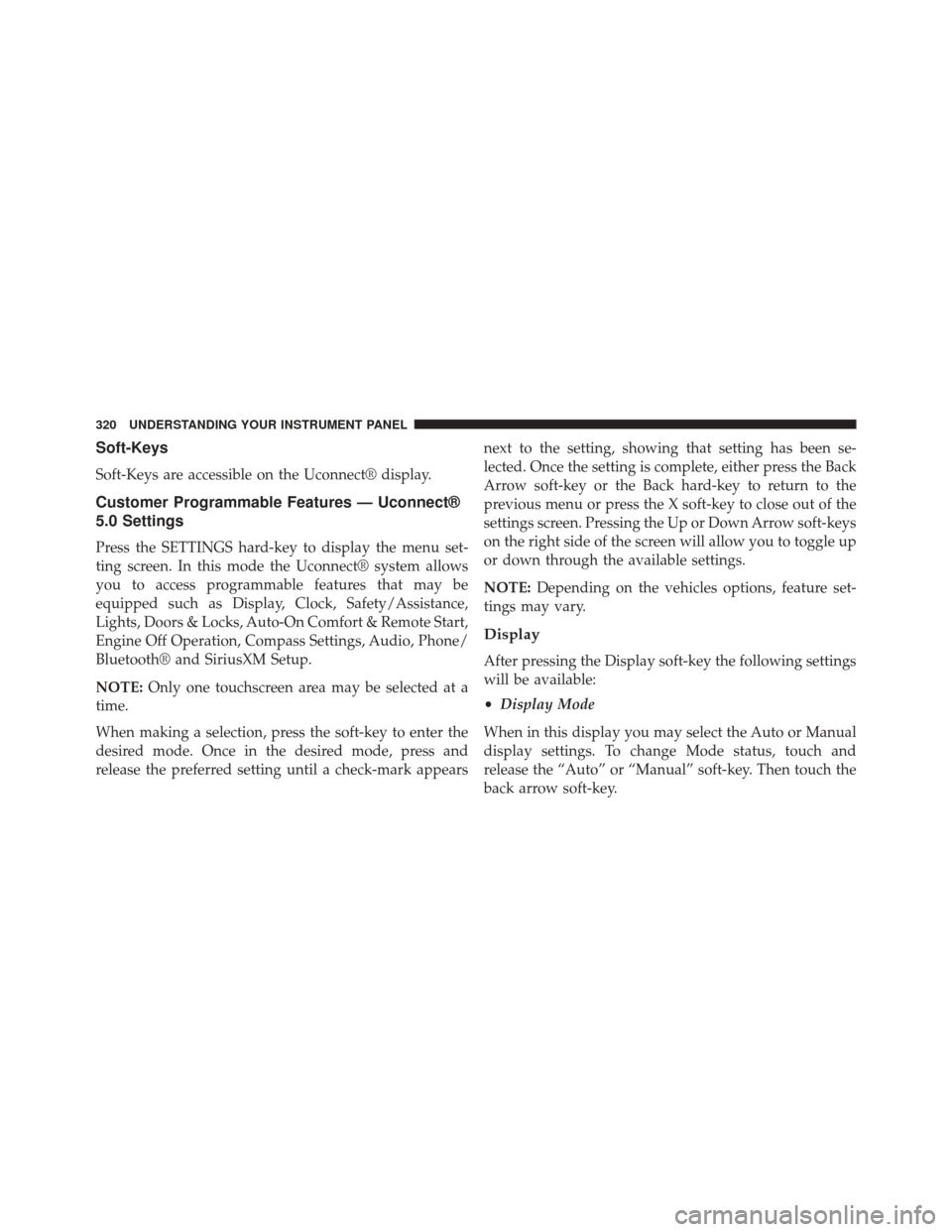
Soft-Keys
Soft-Keys are accessible on the Uconnect® display.
Customer Programmable Features — Uconnect®
5.0 Settings
Press the SETTINGS hard-key to display the menu set-
ting screen. In this mode the Uconnect® system allows
you to access programmable features that may be
equipped such as Display, Clock, Safety/Assistance,
Lights, Doors & Locks, Auto-On Comfort & Remote Start,
Engine Off Operation, Compass Settings, Audio, Phone/
Bluetooth® and SiriusXM Setup.
NOTE:Only one touchscreen area may be selected at a
time.
When making a selection, press the soft-key to enter the
desired mode. Once in the desired mode, press and
release the preferred setting until a check-mark appears next to the setting, showing that setting has been se-
lected. Once the setting is complete, either press the Back
Arrow soft-key or the Back hard-key to return to the
previous menu or press the X soft-key to close out of the
settings screen. Pressing the Up or Down Arrow soft-keys
on the right side of the screen will allow you to toggle up
or down through the available settings.
NOTE:
Depending on the vehicles options, feature set-
tings may vary.
Display
After pressing the Display soft-key the following settings
will be available:
• Display Mode
When in this display you may select the Auto or Manual
display settings. To change Mode status, touch and
release the “Auto” or “Manual” soft-key. Then touch the
back arrow soft-key.
320 UNDERSTANDING YOUR INSTRUMENT PANEL
Page 323 of 664
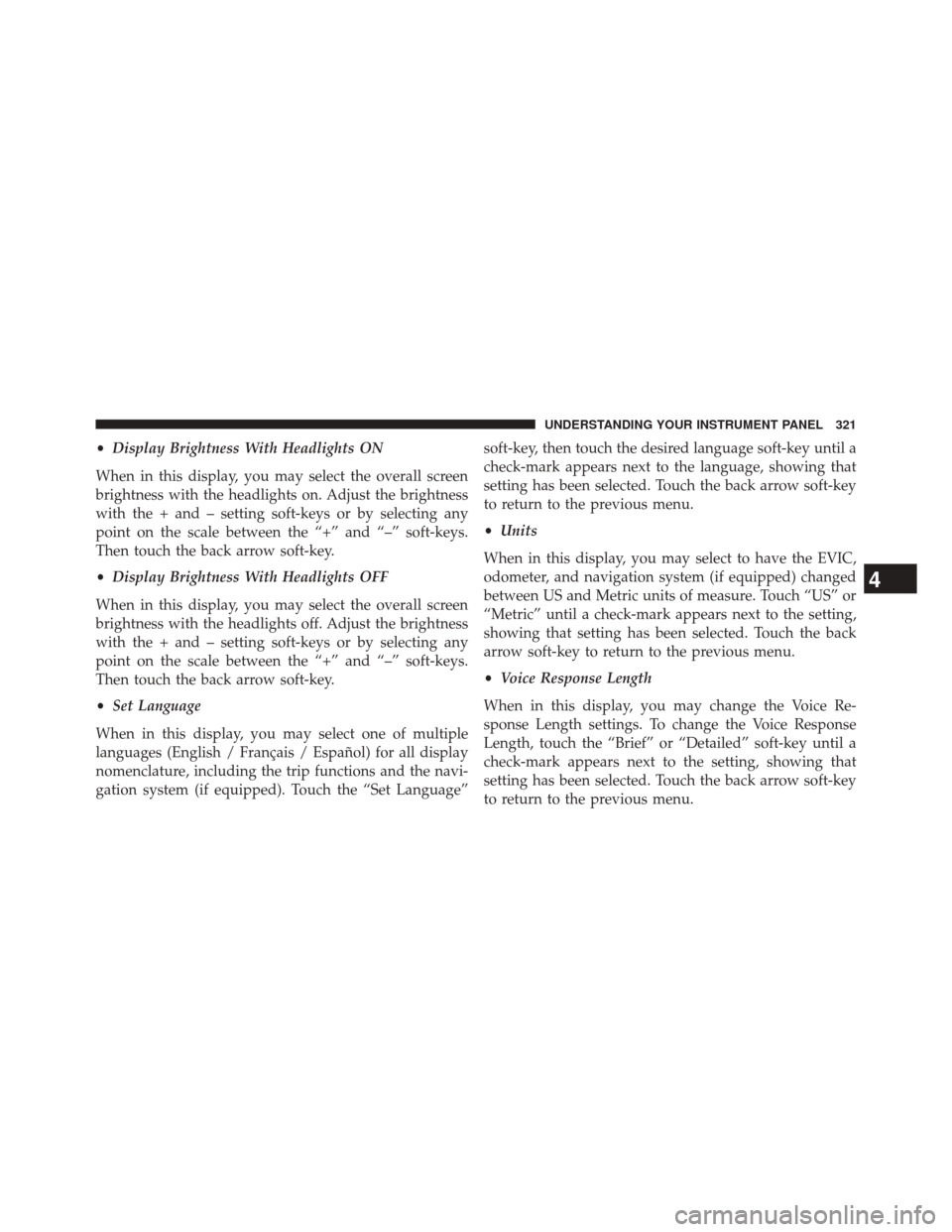
•Display Brightness With Headlights ON
When in this display, you may select the overall screen
brightness with the headlights on. Adjust the brightness
with the + and – setting soft-keys or by selecting any
point on the scale between the “+” and “–” soft-keys.
Then touch the back arrow soft-key.
• Display Brightness With Headlights OFF
When in this display, you may select the overall screen
brightness with the headlights off. Adjust the brightness
with the + and – setting soft-keys or by selecting any
point on the scale between the “+” and “–” soft-keys.
Then touch the back arrow soft-key.
• Set Language
When in this display, you may select one of multiple
languages (English / Français / Español) for all display
nomenclature, including the trip functions and the navi-
gation system (if equipped). Touch the “Set Language” soft-key, then touch the desired language soft-key until a
check-mark appears next to the language, showing that
setting has been selected. Touch the back arrow soft-key
to return to the previous menu.
•
Units
When in this display, you may select to have the EVIC,
odometer, and navigation system (if equipped) changed
between US and Metric units of measure. Touch “US” or
“Metric” until a check-mark appears next to the setting,
showing that setting has been selected. Touch the back
arrow soft-key to return to the previous menu.
• Voice Response Length
When in this display, you may change the Voice Re-
sponse Length settings. To change the Voice Response
Length, touch the “Brief” or “Detailed” soft-key until a
check-mark appears next to the setting, showing that
setting has been selected. Touch the back arrow soft-key
to return to the previous menu.
4
UNDERSTANDING YOUR INSTRUMENT PANEL 321
Page 324 of 664
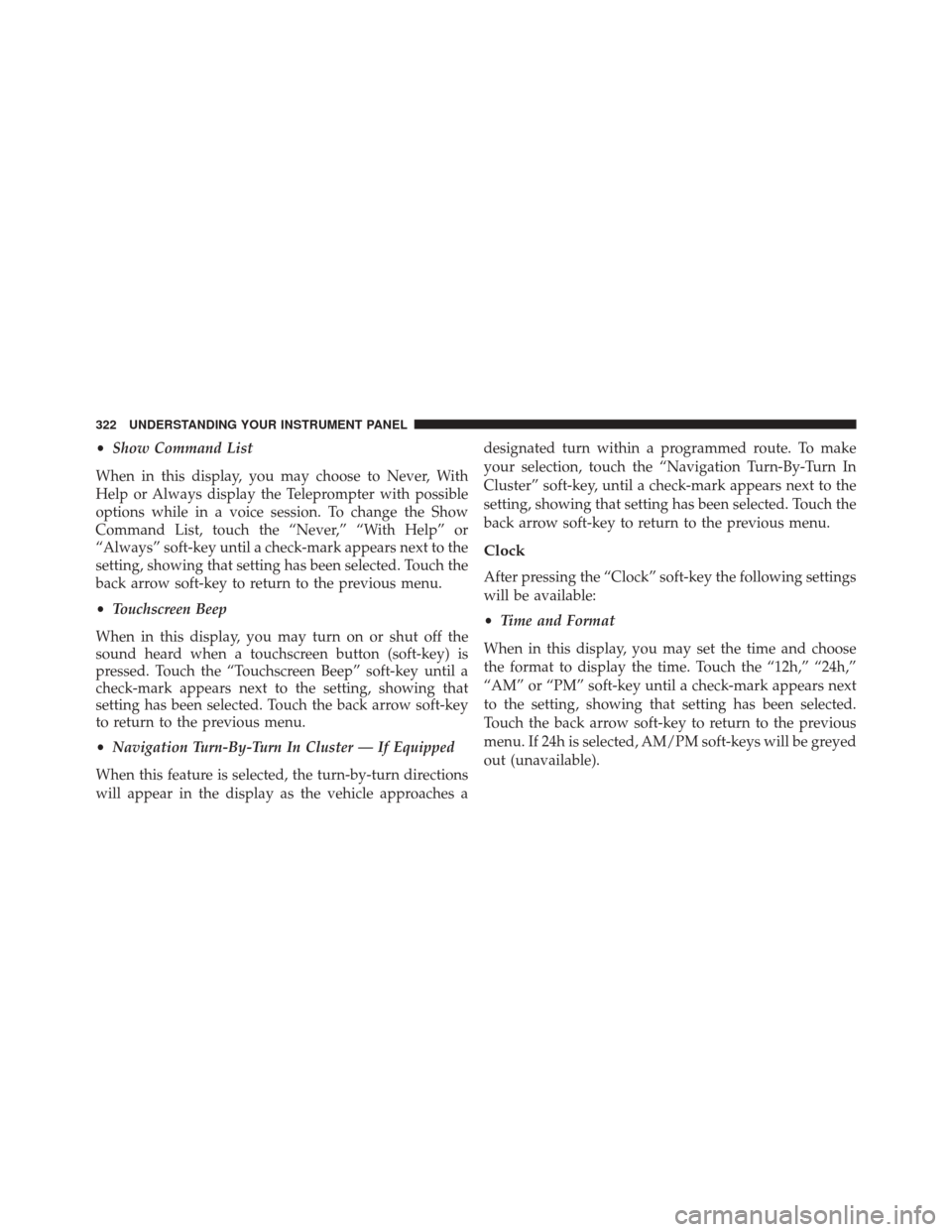
•Show Command List
When in this display, you may choose to Never, With
Help or Always display the Teleprompter with possible
options while in a voice session. To change the Show
Command List, touch the “Never,” “With Help” or
“Always” soft-key until a check-mark appears next to the
setting, showing that setting has been selected. Touch the
back arrow soft-key to return to the previous menu.
• Touchscreen Beep
When in this display, you may turn on or shut off the
sound heard when a touchscreen button (soft-key) is
pressed. Touch the “Touchscreen Beep” soft-key until a
check-mark appears next to the setting, showing that
setting has been selected. Touch the back arrow soft-key
to return to the previous menu.
• Navigation Turn-By-Turn In Cluster — If Equipped
When this feature is selected, the turn-by-turn directions
will appear in the display as the vehicle approaches a designated turn within a programmed route. To make
your selection, touch the “Navigation Turn-By-Turn In
Cluster” soft-key, until a check-mark appears next to the
setting, showing that setting has been selected. Touch the
back arrow soft-key to return to the previous menu.
Clock
After pressing the “Clock” soft-key the following settings
will be available:
•
Time and Format
When in this display, you may set the time and choose
the format to display the time. Touch the “12h,” “24h,”
“AM” or “PM” soft-key until a check-mark appears next
to the setting, showing that setting has been selected.
Touch the back arrow soft-key to return to the previous
menu. If 24h is selected, AM/PM soft-keys will be greyed
out (unavailable).
322 UNDERSTANDING YOUR INSTRUMENT PANEL
Page 325 of 664
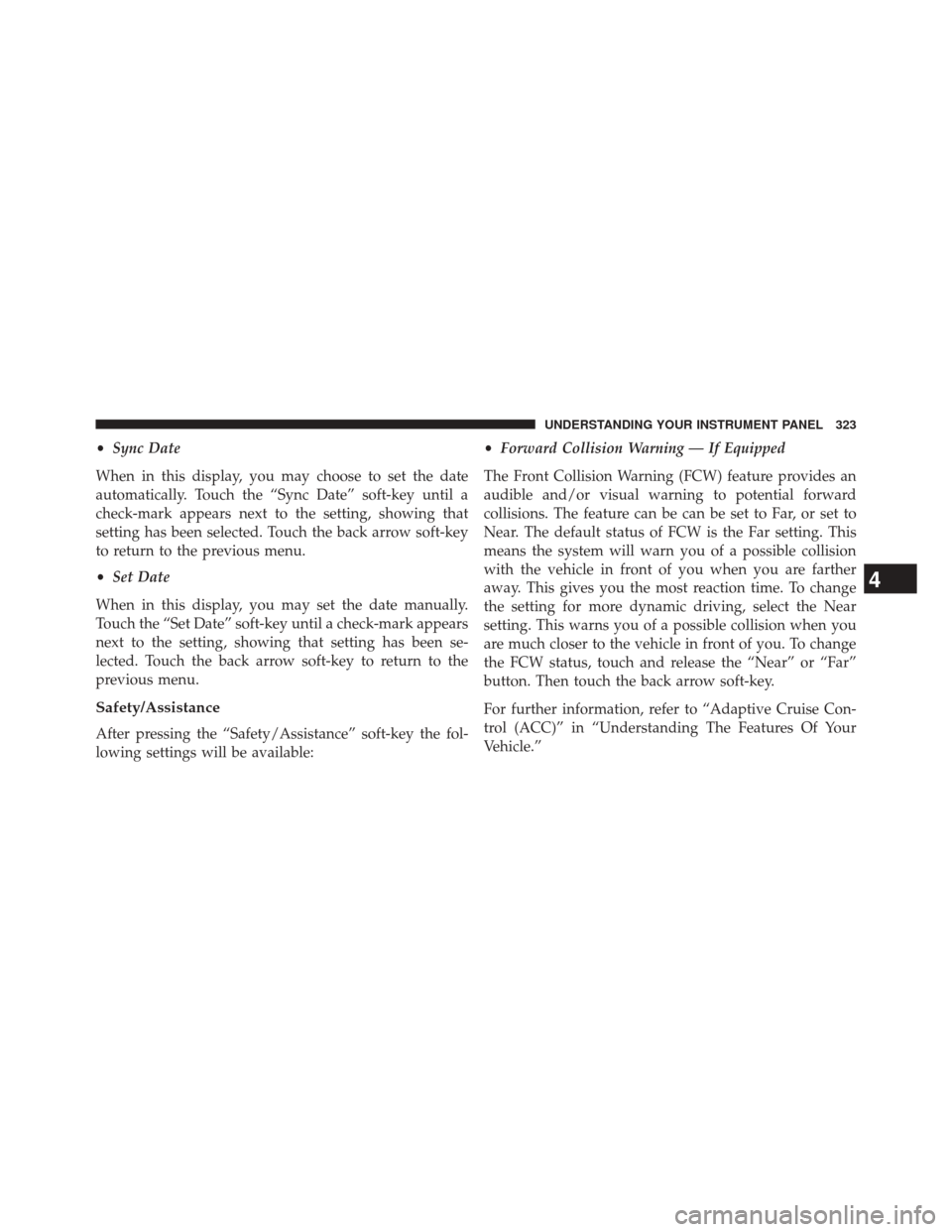
•Sync Date
When in this display, you may choose to set the date
automatically. Touch the “Sync Date” soft-key until a
check-mark appears next to the setting, showing that
setting has been selected. Touch the back arrow soft-key
to return to the previous menu.
• Set Date
When in this display, you may set the date manually.
Touch the “Set Date” soft-key until a check-mark appears
next to the setting, showing that setting has been se-
lected. Touch the back arrow soft-key to return to the
previous menu.
Safety/Assistance
After pressing the “Safety/Assistance” soft-key the fol-
lowing settings will be available: •
Forward Collision Warning — If Equipped
The Front Collision Warning (FCW) feature provides an
audible and/or visual warning to potential forward
collisions. The feature can be can be set to Far, or set to
Near. The default status of FCW is the Far setting. This
means the system will warn you of a possible collision
with the vehicle in front of you when you are farther
away. This gives you the most reaction time. To change
the setting for more dynamic driving, select the Near
setting. This warns you of a possible collision when you
are much closer to the vehicle in front of you. To change
the FCW status, touch and release the “Near” or “Far”
button. Then touch the back arrow soft-key.
For further information, refer to “Adaptive Cruise Con-
trol (ACC)” in “Understanding The Features Of Your
Vehicle.”
4
UNDERSTANDING YOUR INSTRUMENT PANEL 323
Page 326 of 664
•Forward Collision Warning (FCW) — Active Braking
The FCW system includes Advanced Brake Assist (ABA).
When this feature is selected, the ABA applies additional
brake pressure when the driver requests insufficient
brake pressure to avoid a potential frontal collision. The
ABA system becomes active at 5 mph (8 km/h). To make
your selection, touch the “Forward Collision Warning
(FCW) with Mitigation - Active Braking” soft-key, until a
check-mark appears next to setting, indicating that the
setting had been selected. Touch the back arrow soft-key
to return to the previous menu. For further information,
refer to “Forward Collision Warning (FCW) With Mitiga-
tion” in “Understanding The Features Of Your Vehicle.”
• ParkSense®
The ParkSense® system will scan for objects behind the
vehicle when the transmission shift lever/gear selector is
in REVERSE and the vehicle speed is less than 11 mph
(18 km/h). It will provide an alert (audible and/or visual) to indicate the proximity to other objects. The
system can be enabled with Sound Only, or Sound and
Display. To change the ParkSense® status, touch and
release the “Sound Only” or “Sounds and Display”
button. Then touch the back arrow soft-key. Refer to
“ParkSense®” in “Understanding The Features Of Your
Vehicle” for system function and operating information.
•
Front ParkSense® Chime Volume
The Front ParkSense® Chime Volume settings can be
selected from the EVIC or Uconnect® System — if
equipped. The chime volume settings include LOW,
MEDIUM, and HIGH. The factory default volume setting
is MEDIUM. To make your selection, touch the
“ParkSense® Front Chime Volume” soft-key, until a
check-mark appears next to setting, indicating that the
setting had been selected. Touch the back arrow soft-key
to return to the previous menu. ParkSense® will retain its
last known configuration state through ignition cycles.
324 UNDERSTANDING YOUR INSTRUMENT PANEL
Page 327 of 664
•Rear ParkSense® Chime Volume
The Rear ParkSense® Chime Volume settings can be
selected from the EVIC or Uconnect® System — if
equipped. The chime volume settings include LOW,
MEDIUM, and HIGH. The factory default volume setting
is MEDIUM. To make your selection, touch the
“ParkSense® Rear Chime Volume” soft-key, until a
check-mark appears next to setting, indicating that the
setting had been selected. Touch the back arrow soft-key
to return to the previous menu. ParkSense® will retain its
last known configuration state through ignition cycles.
• ParkSense® Park Assist Braking
When this feature is selected, the park assist system will
detect objects located behind the vehicle and utilize
autonomous braking to stop the vehicle. To make your
selection, touch the “ParkSense® Park Assist Braking”
soft-key, until a check-mark appears next to setting,
indicating that the setting had been selected. Touch the back arrow soft-key to return to the previous menu. Refer
to “ParkSense® Rear Park Assist” in “Understanding The
Features Of Your Vehicle” for system function and oper-
ating information.
•
Lane Departure Warning (LDW) — If Equipped
The Lane Departure Warning (LDW) sets the distance at
which the steering wheel will provide feedback for
potential lane departures. The LDW sensitivity can be set
to provide either an early, medium or late warning zone
start point. To make your selection, touch the “Lane
Departure Warning” soft-key, until a check-mark appears
next to setting, indicating that the setting had been
selected. Touch the back arrow soft-key to return to the
previous menu.
• Lane Departure Warning (LDW) Strength — If
Equipped
When this feature is selected, it sets the strength of the
steering wheel feedback for potential lane departures.
4
UNDERSTANDING YOUR INSTRUMENT PANEL 325