instrument cluster DODGE DURANGO 2015 3.G User Guide
[x] Cancel search | Manufacturer: DODGE, Model Year: 2015, Model line: DURANGO, Model: DODGE DURANGO 2015 3.GPages: 689, PDF Size: 20.05 MB
Page 293 of 689
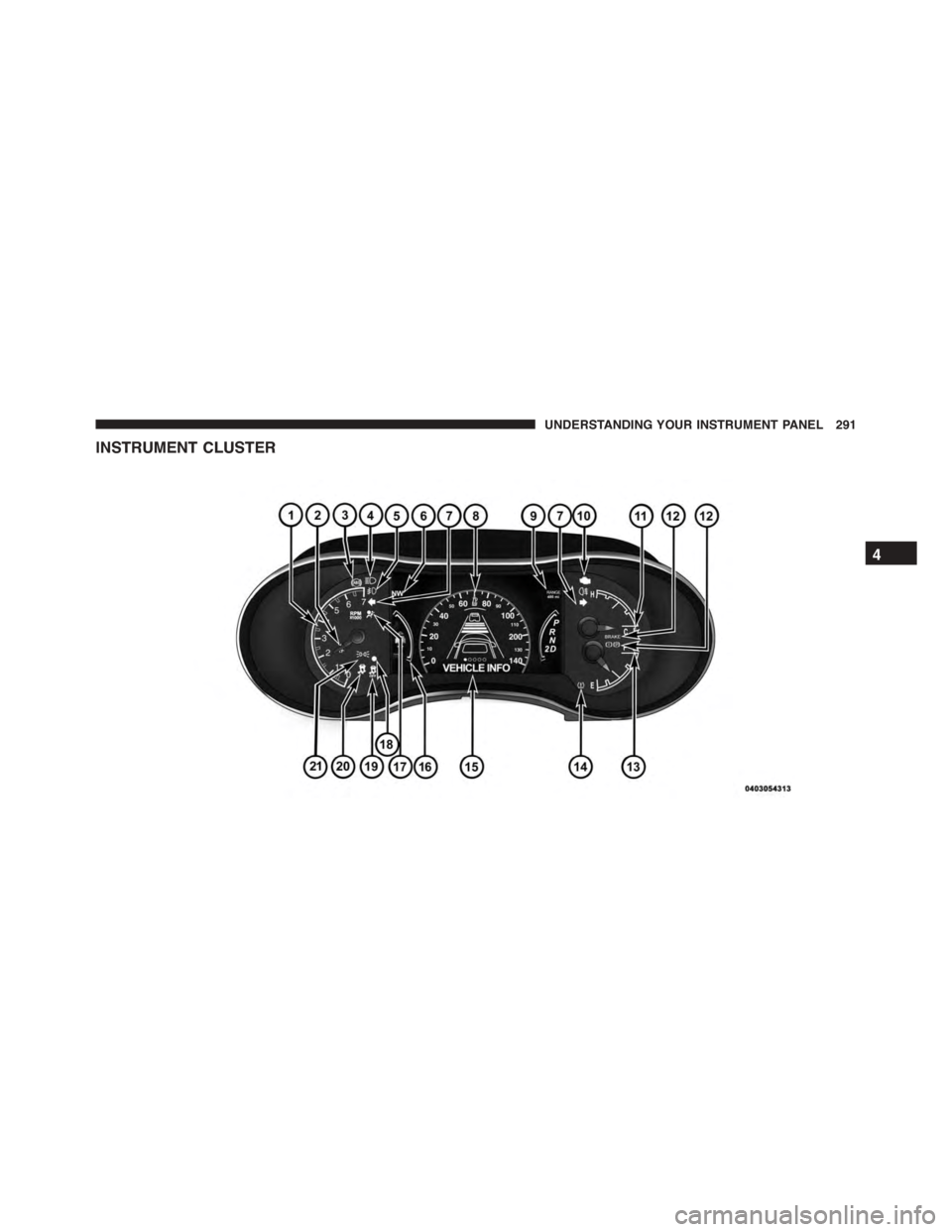
INSTRUMENT CLUSTER
4
UNDERSTANDING YOUR INSTRUMENT PANEL 291
Page 294 of 689
INSTRUMENT CLUSTER DESCRIPTIONS
1. Tachometer
Indicates the engine speed in revolutions per minute
(RPM x 1000).
2. Seat Belt Reminder Light
When the ignition switch is first turned to the
ON/RUN position, this light will turn on for four
to eight seconds as a bulb check. During the bulb
check, if the driver’s seat belt is unbuckled, a chime will
sound. After the bulb check or when driving, if the driver
or front passenger seat belt remains unbuckled, the Seat
Belt Indicator Light will flash or remain on continuously.
Refer to “Occupant Restraints” in “Things To Know
Before Starting Your Vehicle” for further information.
3. Anti-Lock Brake (ABS) Light
This light monitors the Anti-Lock Brake System
(ABS). The light will turn on when the ignition
switch is turned to the ON/RUN position and
may stay on for as long as four seconds.
If the ABS light remains on or turns on while driving, it
indicates that the Anti-Lock portion of the brake system
is not functioning and that service is required. However,
the conventional brake system will continue to operate
normally if the BRAKE warning light is not on.
If the ABS light is on, the brake system should be serviced
as soon as possible to restore the benefits of Anti-Lock
brakes. If the ABS light does not turn on when the
ignition switch is turned to the ON/RUN position, have
the light inspected by an authorized dealer.
4. High Beam Indicator
Indicates that headlights are on high beam.
292 UNDERSTANDING YOUR INSTRUMENT PANEL
Page 295 of 689
5. Front Fog Light Indicator — If Equipped
This indicator will illuminate when the front fog
lights are on.
6. Selectable DID Information
This area of the cluster will display selectable informa-
tion such as compass, outside temperature, etc. For
further information, refer to “Driver Information Display
(DID) — If Equipped” of your Owner ’s Manual for more
information.
7. Turn Signal Indicator
The arrows will flash with the exterior turn
signals when the turn signal lever is operated.
A tone will chime, and an DID message will
appear if either turn signal is left on for more
than 1 mile (1.6 km).
NOTE:If either indicator flashes at a rapid rate, check
for a defective outside light bulb.
8. Speedometer
Indicates vehicle speed.
9. Selectable DID Information
This area of the cluster will display selectable informa-
tion such as compass, outside temperature, etc. For
further information, refer to “Driver Information Display
(DID) — If Equipped” of your Owner ’s Manual for more
information.
10. Malfunction Indicator Light (MIL)
The Malfunction Indicator Light (MIL) is part of
an onboard diagnostic system called OBD II that
monitors engine and automatic transmission con-
trol systems. The light will illuminate when the key is in
the ON/RUN position before engine start. If the bulb
does not come on when turning the key from OFF to
ON/RUN, have the condition checked promptly.
4
UNDERSTANDING YOUR INSTRUMENT PANEL 293
Page 301 of 689
15. Driver Information Display (DID)/Odometer Dis-
play
The odometer display shows the total distance the ve-
hicle has been driven.
U.S. Federal regulations require that upon transfer of
vehicle ownership, the seller certify to the purchaser the
correct mileage that the vehicle has been driven. If your
odometer needs to be repaired or serviced, the repair
technician should leave the odometer reading the same
as it was before the repair or service. If s/he cannot do so,
then the odometer must be set at zero, and a sticker must
be placed in the door jamb stating what the mileage was
before the repair or service. It is a good idea for you to
make a record of the odometer reading before the repair/
service, so that you can be sure that it is properly reset, or
that the door jamb sticker is accurate if the odometer
must be reset at zero.
When the appropriate conditions exist, this display
shows the Driver Information Display (DID) messages.
Refer to “Driver Information Display (DID)” of your
Owner ’s Manual for more information.
16. Selectable DID Menu
This area of the cluster will display the DID selectable
menu. For further information, refer to “Driver Informa-
tion Display (DID)” section of your Owner ’s Manual for
more information.
17. Air Bag Warning Light
This light will turn on for four to eight seconds
as a bulb check when the ignition switch is first
turned to the ON/RUN position. If the light is
either not on during starting, stays on, or turns
on while driving, have the system inspected at an autho-
rized dealer as soon as possible. Refer to “Occupant
Restraints” in “Things To Know Before Starting Your
Vehicle” of your Owner ’s Manual for further information.
4
UNDERSTANDING YOUR INSTRUMENT PANEL 299
Page 302 of 689
18. Vehicle Security Light
This light will flash rapidly for approximately
15 seconds when the vehicle theft alarm is
arming. The light will flash at a slower speed
continuously after the alarm is set. The security
light will also come on for about three seconds when the
ignition is first turned on.
19. Electronic Stability Control (ESC) OFF Indicator
Light — If Equipped
This light indicates the Electronic Stability Con-
trol (ESC) is off.
20. Electronic Stability Control (ESC) Activation/
Malfunction Indicator Light — If Equipped
The “ESC Activation/Malfunction Indicator
Light” in the instrument cluster will come on
when the ignition switch is turned to the
ON/RUN position. It should go out with the engine
running. If the “ESC Activation/Malfunction Indicator
Light” comes on continuously with the engine running, a
malfunction has been detected in the ESC system. If this
light remains on after several ignition cycles, and the
vehicle has been driven several miles (kilometers) at
speeds greater than 30 mph (48 km/h), see your autho-
rized dealer as soon as possible to have the problem
diagnosed and corrected.
NOTE:
•The “ESC Off Indicator Light” and the “ESC
Activation/Malfunction Indicator Light” come on
momentarily each time the ignition switch is turned
to ON/RUN.
•Each time the ignition is turned to ON/RUN, the
ESC system will be ON, even if it was turned off
previously.
300 UNDERSTANDING YOUR INSTRUMENT PANEL
Page 303 of 689
•The ESC system will make buzzing or clicking
sounds when it is active. This is normal; the sounds
will stop when ESC becomes inactive following the
maneuver that caused the ESC activation.
21. Park/Headlight ON Indicator — If Equipped
This indicator will illuminate when the park
lights or headlights are turned on.
DRIVER INFORMATION DISPLAY (DID)
The Driver Information Display (DID) features a driver-
interactive display that is located in the instrument
cluster.
The DID Menu items consists of the following:
•Speedometer
•MPH or KM/H
•Vehicle Info
•Driver Assist
4
UNDERSTANDING YOUR INSTRUMENT PANEL 301
Page 305 of 689
•DOWN Arrow Button
Push and release the DOWN button to scroll
downward through the main menu.
•RIGHT Arrow Button
Push and release the RIGHT arrow button to
access the information screens or submenu
screens of a main menu item.
•LEFT Arrow Button
Push the LEFT arrow button to return to the main menu
from an info screen or submenu item.
•OK Button
Push the OK button to access/select the information
screens or submenu screens of a main menu item. Push
and hold the OK arrow button for two seconds to reset
displayed/selected features that can be reset.
DID Displays
The DID displays are located in the center portion of the
cluster and consist of multiple sections:
1. Main Screen — The inner ring of the display will
illuminate in grey under normal conditions, yellow for
non critical warnings, red for critical warnings, and
white for on demand information.
2. Audio Information and Sub-menu Information —
Whenever there are submenus available, the position
within the submenus is shown here.
3. Reconfigurable Telltales/Information
4. Telltales/Indicators
5. Gear Selector Status (PRNDL)
6. Selectable Information (Compass, Temp, Range to
Empty, Trip A, Trip B, Average Fuel Economy, Current
Fuel Economy)
4
UNDERSTANDING YOUR INSTRUMENT PANEL 303
Page 317 of 689
The Trip A and Trip B information will display the
following:
•Distance mi
•Average Fuel Economy
•Elapsed Time
Hold the OK button to reset all the information.
Audio
Push and release the UP or DOWN arrow
button until the Audio Menu icon/title is high-
lighted in the DID.
Stored Messages
Push and release the UP or DOWN arrow
button until the Messages Menu icon/title is
highlighted in the DID. This feature shows the
number of stored warning messages. Pushing
the RIGHT arrow button will allow you to see what the
stored messages are.
Screen Setup
Push and release the UP or DOWN arrow
button until the Screen Setup Menu icon/title
is highlighted in the DID. Push and release the
OK button to enter the submenus and follow
the prompts on the screen as needed. The Screen Setup
feature allows you to change what information is dis-
played in the instrument cluster as well as the location
that information is displayed.
4
UNDERSTANDING YOUR INSTRUMENT PANEL 315
Page 339 of 689
•Units
When in this display, you may select to have the DID,
odometer, and navigation system (if equipped) changed
between US and Metric units of measure. Press “US” or
“Metric” until a check-mark appears next to the setting,
showing that setting has been selected. Press the back
arrow button on the touchscreen to return to the previous
menu.
•Touchscreen Beep
When in this display, you may turn on or shut off the
sound heard when button on the touchscreen is pressed.
Press the “Touchscreen Beep” button on the touchscreen
until a check-mark appears next to the setting, showing
that setting has been selected. Press the back arrow
button on the touchscreen to return to the previous
menu.
•Controls Screen Time-Out
When in this display, you may turn on or shut off the
ability for the controls screen to time out. Press the
“Controls Screen Time-Out” button on the touchscreen
until a check-mark appears next to the setting, showing
that setting has been selected. Press the back arrow
button on the touchscreen to return to the previous
menu.
•Navigation Turn-By-Turn Displayed In Cluster — If
Equipped
When this feature is selected, To make your selection,
press the “Navigation Turn-By-Turn Displayed In Clus-
ter” button on the touchscreen, until a check-mark ap-
pears next to the setting, showing that setting has been
selected. Press the back arrow button on the touchscreen
to return to the previous menu.
4
UNDERSTANDING YOUR INSTRUMENT PANEL 337
Page 434 of 689
The electronically-controlled transmission provides a
precise shift schedule. The transmission electronics are
self-calibrating; therefore, the first few shifts on a new
vehicle may be somewhat abrupt. This is a normal
condition, and precision shifts will develop within a few
hundred miles (kilometers).
Only shift from DRIVE to PARK or REVERSE when the
accelerator pedal is released and the vehicle is stopped.
Be sure to keep your foot on the brake pedal when
shifting between these gears.
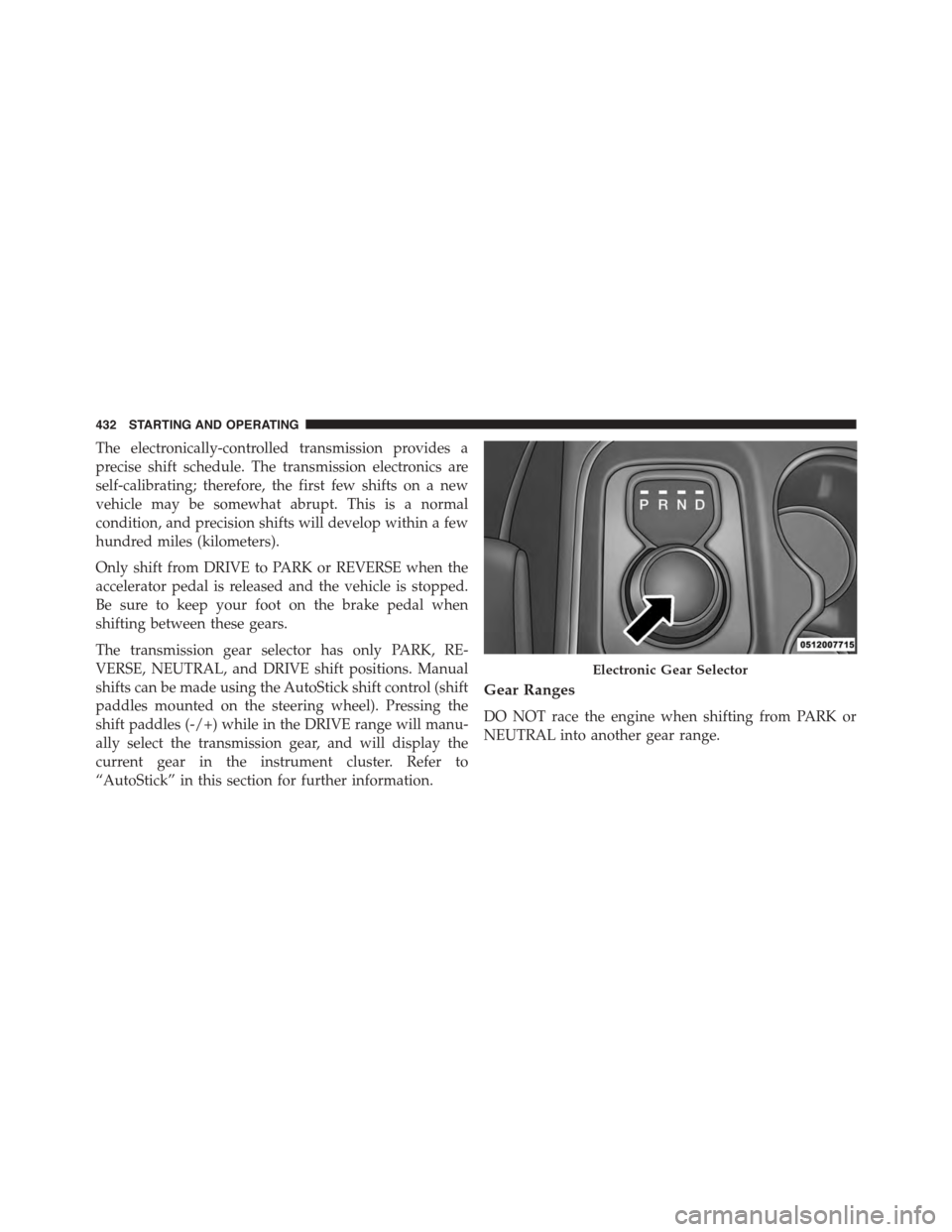
The transmission gear selector has only PARK, RE-
VERSE, NEUTRAL, and DRIVE shift positions. Manual
shifts can be made using the AutoStick shift control (shift
paddles mounted on the steering wheel). Pressing the
shift paddles (-/+) while in the DRIVE range will manu-
ally select the transmission gear, and will display the
current gear in the instrument cluster. Refer to
“AutoStick” in this section for further information.
Gear Ranges
DO NOT race the engine when shifting from PARK or
NEUTRAL into another gear range.
Electronic Gear Selector
432 STARTING AND OPERATING