audio DODGE DURANGO 2015 3.G Owner's Manual
[x] Cancel search | Manufacturer: DODGE, Model Year: 2015, Model line: DURANGO, Model: DODGE DURANGO 2015 3.GPages: 689, PDF Size: 20.05 MB
Page 354 of 689
•Paired Audio Sources
This feature shows which audio devices are paired to the
Phone/Bluetooth® system. For further information, refer
to the Uconnect® Supplement Manual.
SiriusXM Setup — If Equipped
After pressing the “SiriusXM Setup” button on the touch-
screen, the following settings will be available:
•Channel Skip
SiriusXM can be programmed to designate a group of
channels that are the most desirable to listen to or to
exclude undesirable channels while scanning. To make
your selection, press the “Channel Skip” button on the
touchscreen, select the channels you would like to skip
followed by pressing the back arrow button on the
touchscreen.
•Subscription Information
New vehicle purchasers or lessees will receive a free
limited time subscription to SiriusXM Satellite Radio
with your radio. Following the expiration of the free
services, it will be necessary to access the information on
the Subscription Information screen to re-subscribe.
Press the “Subscription Info” button on the touchscreen
to access the Subscription Information screen.
Write down the SIRIUS ID numbers for your receiver. To
reactivate your service, either call the number listed on
the screen or visit the provider online.
NOTE:SiriusXM Travel Link is a separate subscription
and is available for U.S. residents only.
352 UNDERSTANDING YOUR INSTRUMENT PANEL
Page 355 of 689
Restore Settings
After pressing the “Restore Settings” button on the
touchscreen the following settings will be available:
•Restore Settings
When this feature is selected it will reset the Display,
Clock, Audio, and Radio Settings to their default settings.
To restore the settings to their default setting, press the
“Restore Settings” button on the touchscreen and pop-up
will appear asking#Are you sure you want to reset your
settings to default?” select “OK” to restore, or “Cancel” to
exit. Once the settings are restored, a pop-up appears
stating#settings reset to default.#
Clear Personal Data
After pressing the “Clear Personal Data Settings” button on
the touchscreen the following settings will be available:
•Clear Personal Data
When this feature is selected it will remove personal data
including Bluetooth® devices and presets. To remove
personal information, press the “Clear Personal Data”
button and a pop-up will appear asking#Are you sure
you want to clear all personal data?” select “OK” to
Clear, or “Cancel” to exit. Once the data has been cleared,
a pop up appears stating#Personal data cleared.”
System Information
After pressing the “System Information” button on the
touchscreen the following information will be available:
•System Information
When System Information is selected, a System Information
screen will appear displaying the system software version.
4
UNDERSTANDING YOUR INSTRUMENT PANEL 353
Page 356 of 689

Uconnect® RADIOS — IF EQUIPPED
For detailed information about your Uconnect® radio,
refer to your Uconnect® Supplement Manual.
iPod®/USB/MP3 CONTROL — IF EQUIPPED
This feature allows an iPod® or external USB device to be
plugged into the USB port, located in the lower section of
the front integrated center stack, in front of the rotary
shifter.
iPod® control supports Mini, 4G, Photo, Nano, 5G iPod®
and iPhone® devices. Some iPod® software versions
may not fully support the iPod® control features. Please
visit Apple’s website for software updates.
For further information, refer to the Uconnect® Supple-
ment Manual.
Connecting The iPod® Or External USB Device
Use the connection cable to connect an iPod® or external
USB device to the vehicles USB/AUX connector port
which is located in the center console.
Once the audio device is connected and synchronized to
the vehicles iPod®/USB/MP3 control system (iPod® or
Integrated Center Console USB/AUX SD Card Media HUB
354 UNDERSTANDING YOUR INSTRUMENT PANEL
Page 357 of 689
external USB device may take a few minutes to connect),
the audio device starts charging and is ready for use.
NOTE:If the audio device battery is completely dis-
charged, it may not communicate with the iPod®/USB/
MP3 control system until a minimum charge is attained.
Leaving the audio device connected to the iPod®/USB/
MP3 control system may charge it to the required level.
Using This Feature
By using an iPod® cable, or an external USB device to
connect to the USB port:
•The audio device can be played on the vehicle’s sound
system, providing metadata (artist, track title, album,
etc.) information on the radio display.
•The audio device can be controlled using the radio
buttons to Play, Browse, and List the iPod® contents.
•The audio device battery charges when plugged into
the USB/AUX connector (if supported by the specific
audio device).
NOTE:For further information, refer to the Uconnect®
Supplement Manual.
4
UNDERSTANDING YOUR INSTRUMENT PANEL 355
Page 359 of 689
Uconnect® REAR SEAT ENTERTAINMENT (RSE)
SYSTEM — IF EQUIPPED
Your Rear Seat Entertainment System is designed to give
your family years of enjoyment. You can play your
favorite CDs, DVDs or Blu-ray™ Discs, listen to audio
over the wireless headphones, or plug and play a variety
of standard video games or audio devices. Please review
this Owner’s Manual to become familiar with its features
and operation.
Getting Started
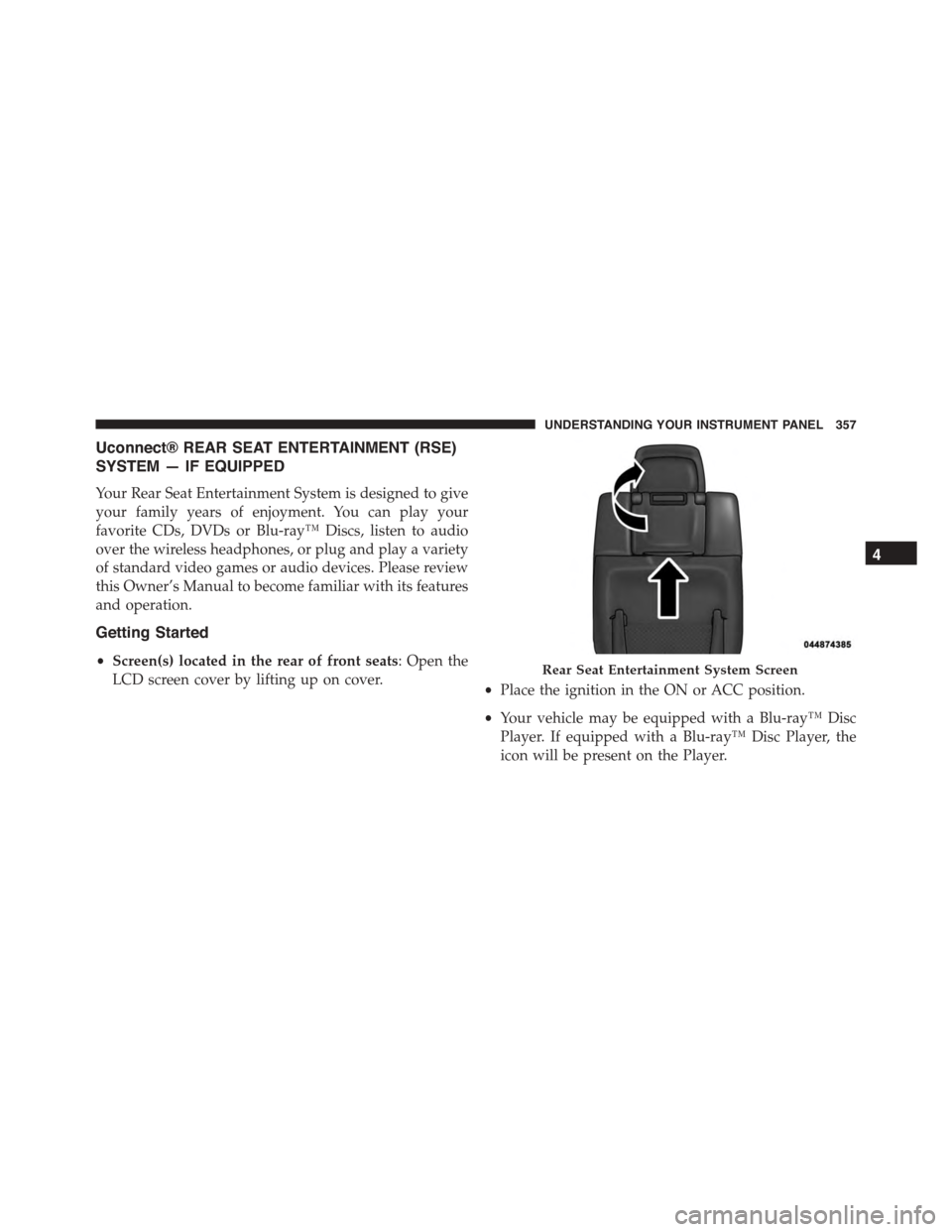
•Screen(s) located in the rear of front seats: Open the
LCD screen cover by lifting up on cover.•Place the ignition in the ON or ACC position.
•Your vehicle may be equipped with a Blu-ray™ Disc
Player. If equipped with a Blu-ray™ Disc Player, the
icon will be present on the Player.
Rear Seat Entertainment System Screen
4
UNDERSTANDING YOUR INSTRUMENT PANEL 357
Page 363 of 689
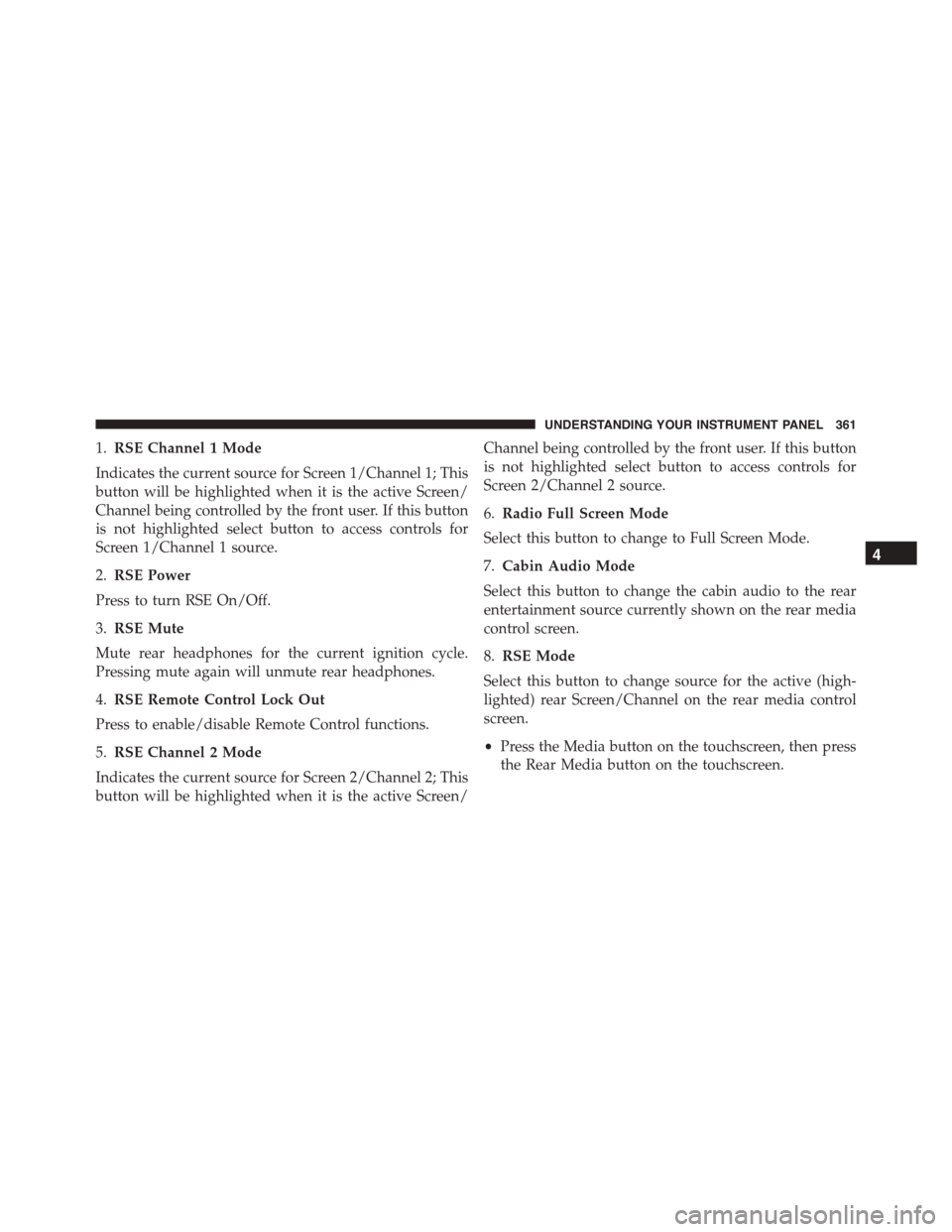
1.RSE Channel 1 Mode
Indicates the current source for Screen 1/Channel 1; This
button will be highlighted when it is the active Screen/
Channel being controlled by the front user. If this button
is not highlighted select button to access controls for
Screen 1/Channel 1 source.
2.RSE Power
Press to turn RSE On/Off.
3.RSE Mute
Mute rear headphones for the current ignition cycle.
Pressing mute again will unmute rear headphones.
4.RSE Remote Control Lock Out
Press to enable/disable Remote Control functions.
5.RSE Channel 2 Mode
Indicates the current source for Screen 2/Channel 2; This
button will be highlighted when it is the active Screen/
Channel being controlled by the front user. If this button
is not highlighted select button to access controls for
Screen 2/Channel 2 source.
6.Radio Full Screen Mode
Select this button to change to Full Screen Mode.
7.Cabin Audio Mode
Select this button to change the cabin audio to the rear
entertainment source currently shown on the rear media
control screen.
8.RSE Mode
Select this button to change source for the active (high-
lighted) rear Screen/Channel on the rear media control
screen.
•Press the Media button on the touchscreen, then press
the Rear Media button on the touchscreen.
4
UNDERSTANDING YOUR INSTRUMENT PANEL 361
Page 364 of 689
•Press the OK button on the touchscreen to begin
playing the Blu-ray™ Disc on the touchscreen radio.
Using The Remote Control
•Select an audio channel (Rear 1 for driver side rear
screen and Rear 2 for passenger side rear screen), then
press the source key and using the up and down
arrows, highlight disc from the menu and press the OK
button.
•Press the popup/menu key to navigate the disc menu
and options.
Play Video Games
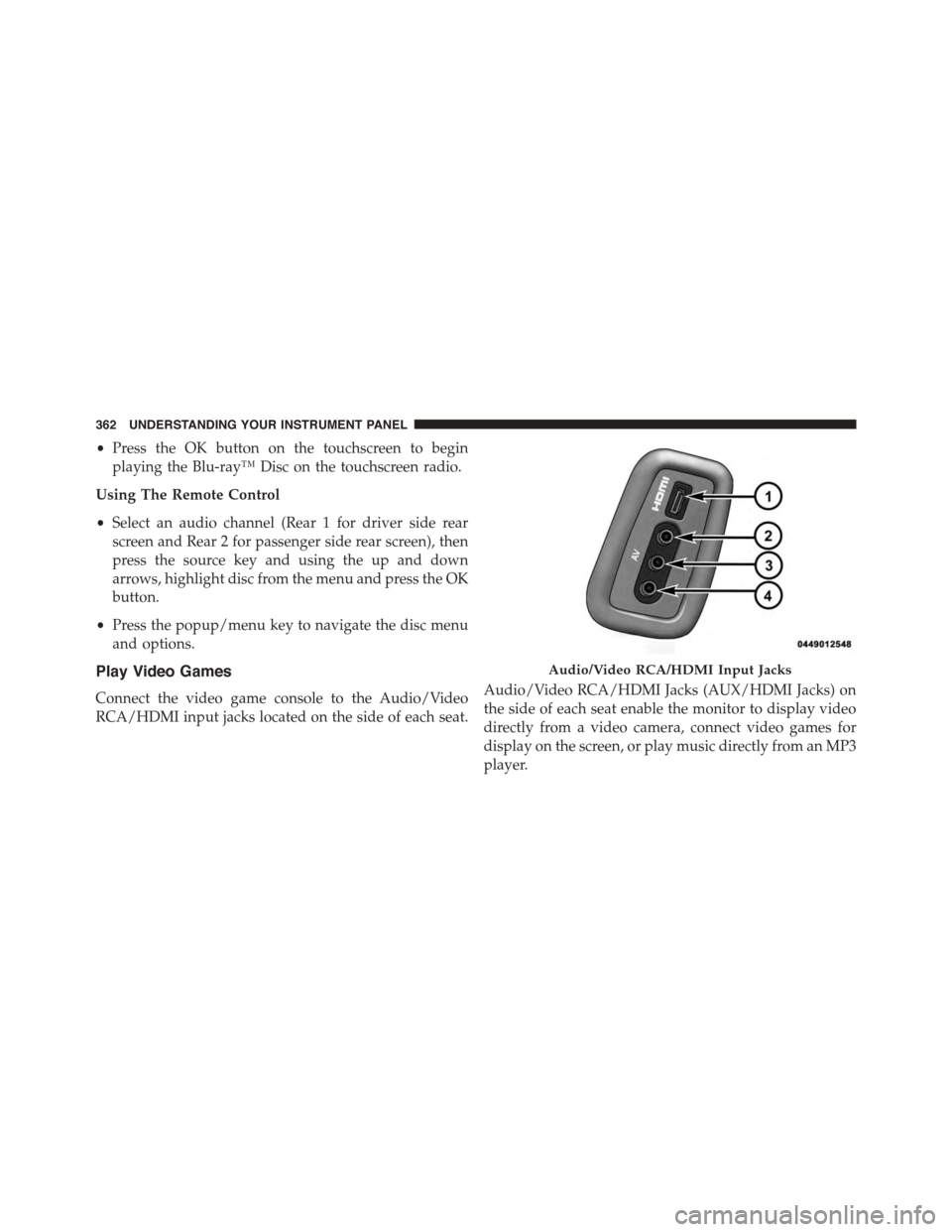
Connect the video game console to the Audio/Video
RCA/HDMI input jacks located on the side of each seat.
Audio/Video RCA/HDMI Jacks (AUX/HDMI Jacks) on
the side of each seat enable the monitor to display video
directly from a video camera, connect video games for
display on the screen, or play music directly from an MP3
player.
Audio/Video RCA/HDMI Input Jacks
362 UNDERSTANDING YOUR INSTRUMENT PANEL
Page 365 of 689
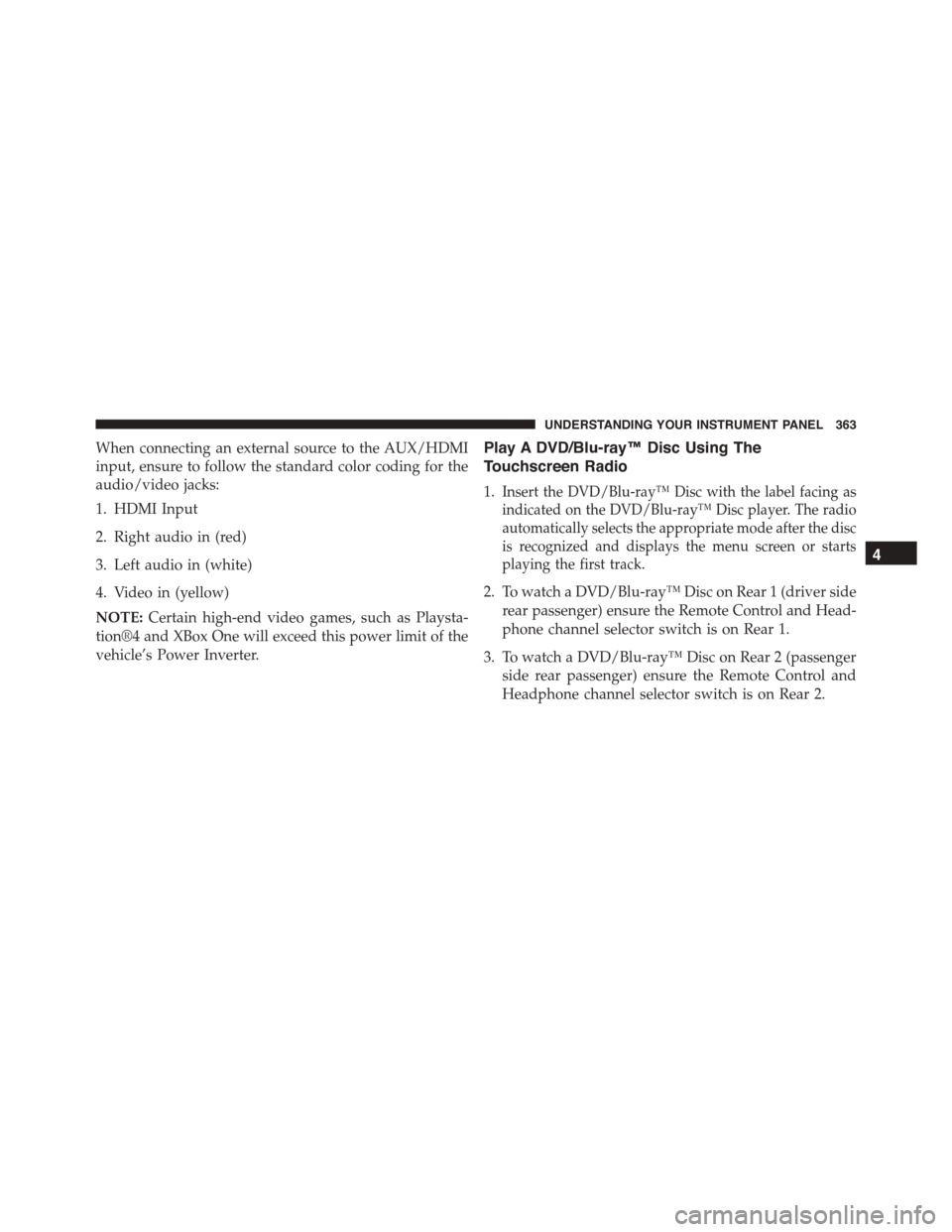
When connecting an external source to the AUX/HDMI
input, ensure to follow the standard color coding for the
audio/video jacks:
1. HDMI Input
2. Right audio in (red)
3. Left audio in (white)
4. Video in (yellow)
NOTE:Certain high-end video games, such as Playsta-
tion®4 and XBox One will exceed this power limit of the
vehicle’s Power Inverter.
Play A DVD/Blu-ray™ Disc Using The
Touchscreen Radio
1.Insert the DVD/Blu-ray™ Disc with the label facing as
indicated on the DVD/Blu-ray™ Disc player. The radio
automatically selects the appropriate mode after the disc
is recognized and displays the menu screen or starts
playing the first track.
2. To watch a DVD/Blu-ray™ Disc on Rear 1 (driver side
rear passenger) ensure the Remote Control and Head-
phone channel selector switch is on Rear 1.
3. To watch a DVD/Blu-ray™ Disc on Rear 2 (passenger
side rear passenger) ensure the Remote Control and
Headphone channel selector switch is on Rear 2.
4
UNDERSTANDING YOUR INSTRUMENT PANEL 363
Page 367 of 689
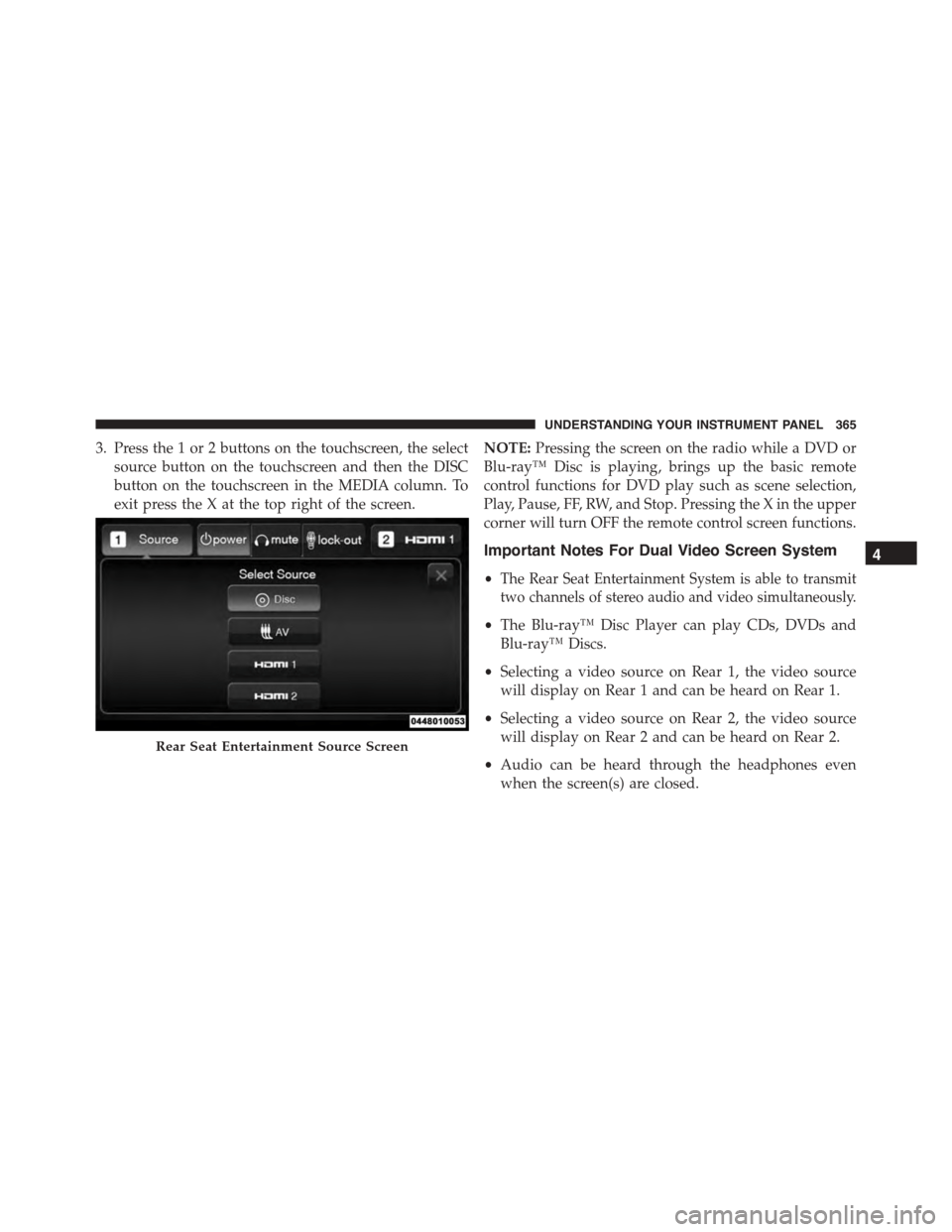
3. Press the 1 or 2 buttons on the touchscreen, the select
source button on the touchscreen and then the DISC
button on the touchscreen in the MEDIA column. To
exit press the X at the top right of the screen.
NOTE:Pressing the screen on the radio while a DVD or
Blu-ray™ Disc is playing, brings up the basic remote
control functions for DVD play such as scene selection,
Play, Pause, FF, RW, and Stop. Pressing the X in the upper
corner will turn OFF the remote control screen functions.
Important Notes For Dual Video Screen System
•The Rear Seat Entertainment System is able to transmit
two channels of stereo audio and video simultaneously.
•The Blu-ray™ Disc Player can play CDs, DVDs and
Blu-ray™ Discs.
•Selecting a video source on Rear 1, the video source
will display on Rear 1 and can be heard on Rear 1.
•Selecting a video source on Rear 2, the video source
will display on Rear 2 and can be heard on Rear 2.
•Audio can be heard through the headphones even
when the screen(s) are closed.
Rear Seat Entertainment Source Screen
4
UNDERSTANDING YOUR INSTRUMENT PANEL 365
Page 368 of 689
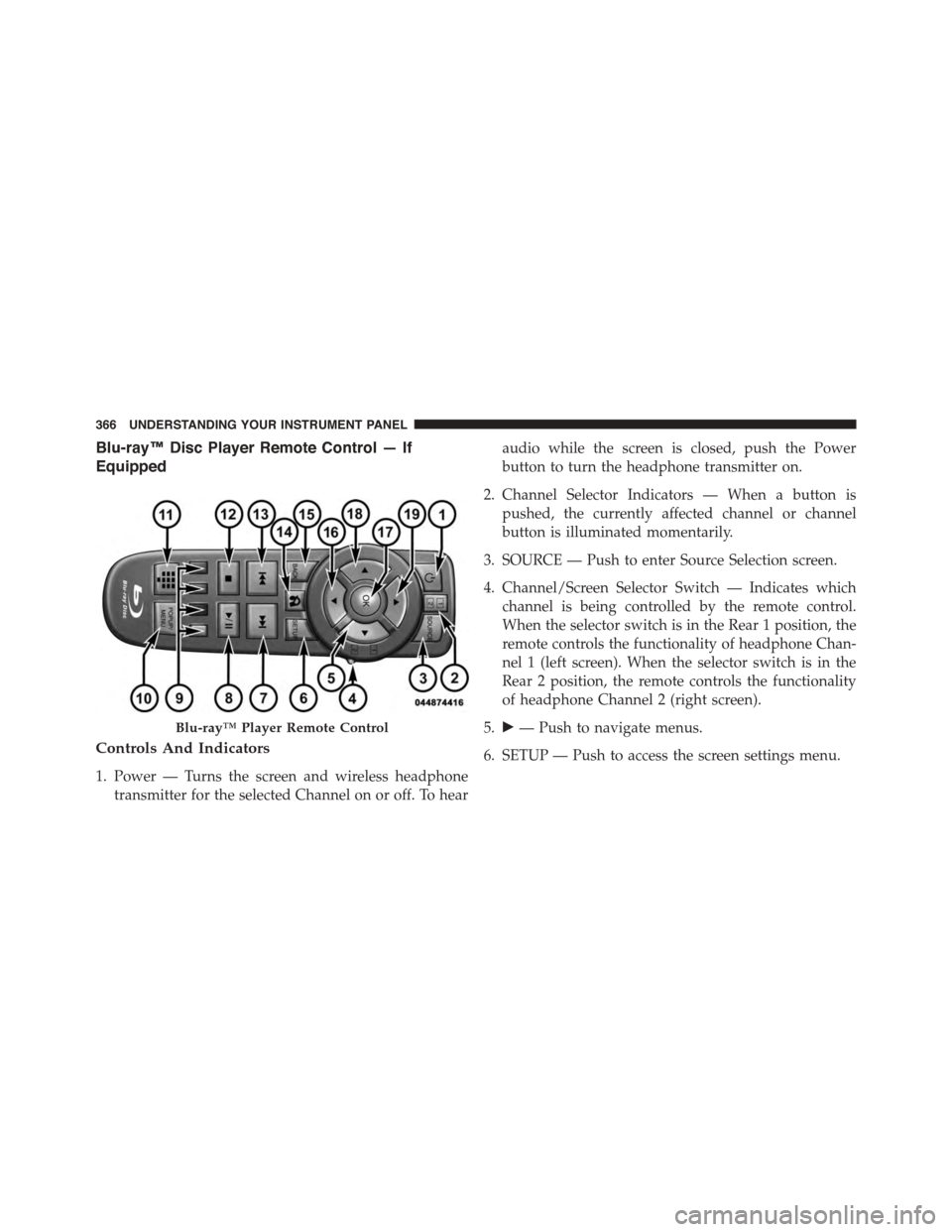
Blu-ray™ Disc Player Remote Control — If
Equipped
Controls And Indicators
1. Power — Turns the screen and wireless headphone
transmitter for the selected Channel on or off. To hear
audio while the screen is closed, push the Power
button to turn the headphone transmitter on.
2. Channel Selector Indicators — When a button is
pushed, the currently affected channel or channel
button is illuminated momentarily.
3. SOURCE — Push to enter Source Selection screen.
4. Channel/Screen Selector Switch — Indicates which
channel is being controlled by the remote control.
When the selector switch is in the Rear 1 position, the
remote controls the functionality of headphone Chan-
nel 1 (left screen). When the selector switch is in the
Rear 2 position, the remote controls the functionality
of headphone Channel 2 (right screen).
5.!— Push to navigate menus.
6. SETUP — Push to access the screen settings menu.
Blu-ray™ Player Remote Control
366 UNDERSTANDING YOUR INSTRUMENT PANEL